 MyRecover



Excel File Disappeared After Saving? Complete Guide 2026
Excel files disappearing after saving can be a frustrating experience, especially if it contains important data. In this article, we explore the most common causes of Excel file disappearance and provide a comprehensive guide on how to recover it, ensuring you have the tools to recover your Excel data effectively.

By Aria / Updated on January 4, 2026


Introduction
It’s a situation that many of us have encountered at least once: you’ve spent hours working on an important Excel file, saving it as you go along, only to find that it disappeared after saving. This can be incredibly frustrating, especially when the file contained valuable data, formulas, or insights that you can’t easily recreate.

Whether you’re using Windows 10 or Windows 11, an Excel file disappearing after saving can happen for various reasons, and it’s important to act quickly before all hope is lost. Fortunately, there are multiple methods available to recover your lost work. In this guide, we’ll explore common causes of Excel file disappearance and practical steps to recover your file.
Common Reasons Why Excel File Disappearing After Saving
Understanding why an Excel file disappears after saving is key to preventing future problems. Here are some common reasons for this frustrating issue:
🛠️Unsaved Changes Due to Power Failure or System Crash
If your system crashes or loses power unexpectedly, Excel may fail to save the file properly. In such cases, the file may seem to have vanished.
📂File Corruption
Files can become corrupted due to various reasons, such as saving over a file while it’s still open, using incompatible Excel versions, or improper shutdowns. A corrupted Excel file may not be recoverable via normal means and could disappear unexpectedly.
✂️Cloud Storage Sync Issues
If you are using cloud storage like OneDrive or Google Drive to save your files, syncing issues can cause the file to disappear. This is especially true if the file wasn’t completely uploaded before closing the application.
💾Accidental Deletion
It’s possible that the file was accidentally deleted or moved, either by you or another user on the same machine. Sometimes files can be misplaced or even inadvertently deleted without a clear indication of what happened.
🔎Hidden Files or Folders
Sometimes, files don’t disappear—they’re simply hidden. This could happen if the file was saved to a hidden folder or location.
How to Recover a Disappearing Excel File After Saving
Now that we’ve covered the potential causes, let’s dive into how to recover disappearing Excel files after saving. Below are several effective methods you can use to restore your missing Excel Files.
Check Cloud Storage Location
If the Excel file which you’re editing is saved to cloud storage like OneDrive, Dropbox, or Google Drive and the "Online-only" mode is enabled, the file will not be actually stored locally on your computer after you save it. Check your cloud storage location and see if the file is listed there.
Search in This PC
Sometimes, files get saved in unexpected locations rather than their usual folders. If you’ve saved an Excel file but it has disappeared, you can try searching for the file directly in This PC. This approach works great for locating documents saved recently like Excel, Word or PowerPoint files.
Step 1. Open File Explorer and input the filename of your missing Excel or use "*xlsx" to search for all Excel files.
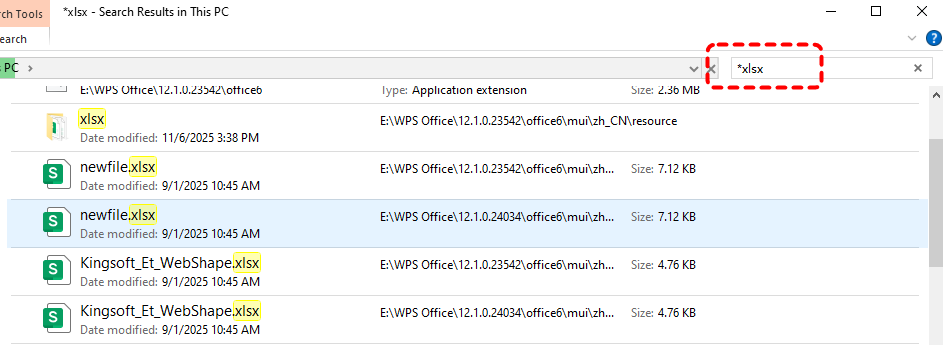
Step 2. Look through the search results to see if the file is located elsewhere on your computer.
Step 3. Once you find it, save the Excel file to a safe location.
Show Hidden Files
If you encounter no errors while editing and saving an Excel file, yet it suddenly disappears without reason, this may be because the file was saved to a default hidden folder of the system or hidden by a malicious program. Follow these steps to reveal hidden files:
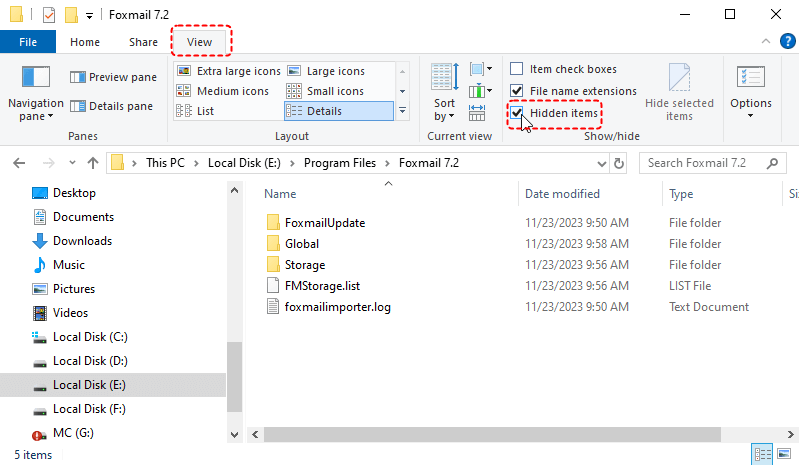
Step 1. Open File Explorer and click "View" tab, check "Hidden items" and click "Options".
Step 2. Under "View" tab, scroll down and check "Show hidden files, folders, and drives".
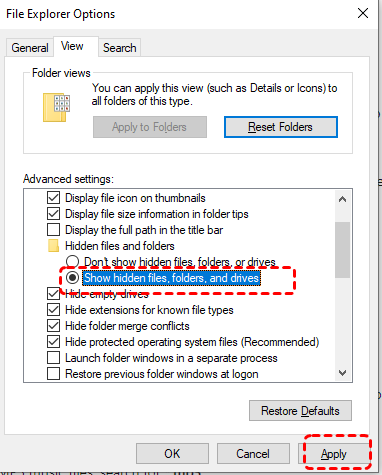
Step 3. Click "Apply" and "OK" to save the changes.
Check the "Recent" in Excel
It’s not uncommon to forget the default save location for your Excel file, particularly if you’ve modified it. Luckily, Excel maintains a log of recently opened files, allowing you to view the file’s save path there.
Step 1. Launch Excel and locate "File" > "Open" > "Recent". Under the "Recent" tab, a list of recently opened Excel files is displayed.
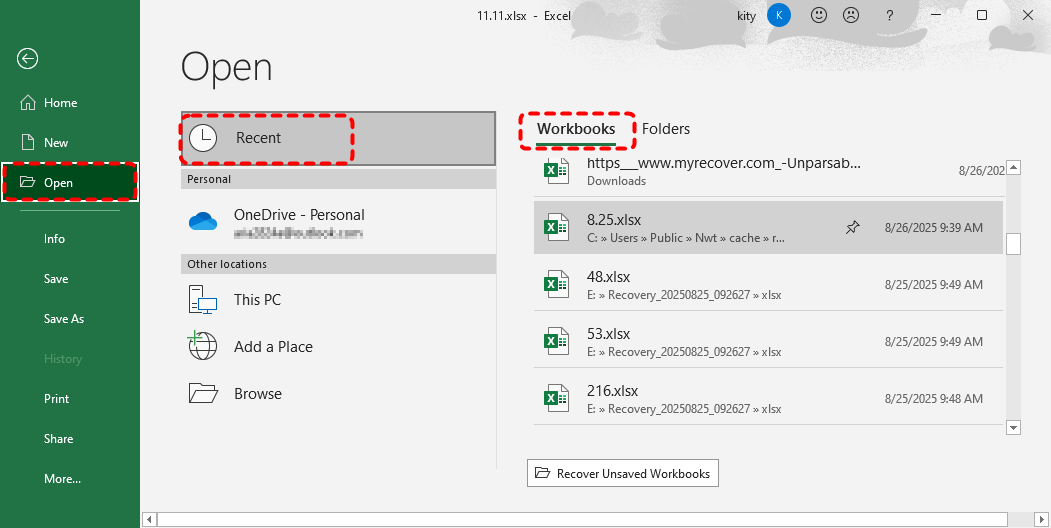
Step 2. Find the worksheet you just saved, then you can see its storage path under the filename.
Step 3. Then, you can check the folder where the file was saved in File Explorer.
Recover Unsaved Excel Files
If none of the above methods work to find the saved Excel file, it means the file may not have been saved properly. If Excel crashed before the file was saved, or if you closed Excel without saving the file, Excel allows you to recover unsaved files.
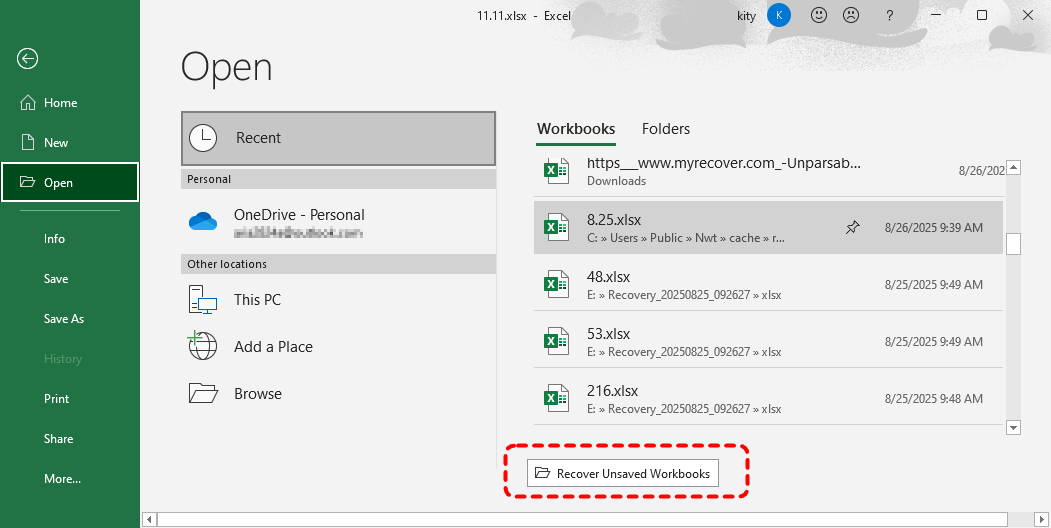
Step 1. Run Excel and click "File" > "Open" > "Recover Unsaved Workbooks".
Step 2. Search for files with extensions ".tmp" or ".asd" to locate your Excel file.
Step 3. Open it in Excel and check if it's the one you want.
Additionally, if Excel crashes unexpectedly and causes the file to be unsaved, Excel’s AutoRecover feature can also help you restore the file to its latest version.
Step 1. Re-launch Excel once the computer and Excel working normally.
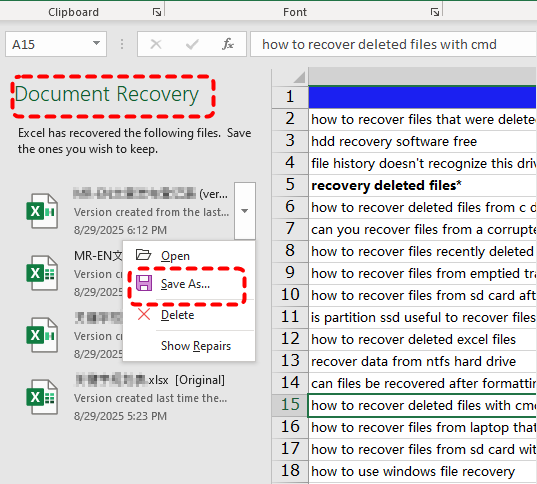
Step 2. On the left panel, you can see "Document Recovery" list the unsaved files.
Step 3. Right click on the new version and select "Save As" to save it to a safe location.
MyRecover: The Ultimate Solution for Deleted Excel Files
If the above methods fail, it means the Excel file may have been deleted. MyRecover can help you recover the disappearing Excel file after saving. It is a powerful data recovery tool that can help you recover files that are lost due to accidental deletion, formatting, system crash or other unforeseen errors. It can recover data from all types of storage devices, including internal and external hard drives, USB drives, and SD cards. Its user-friendly interface makes it easy to find and recover your lost or missing Excel files quickly.

 MyRecover
- Intuitive GUI (Graphical Interface) for effortless file recovery.
- Precision recovery of files by type, date, or size.
- Recover files from SSDs, HDDs, USB flash drives, SD cards, cameras, and more.
- Works on Windows 11/10, as well as Windows 8.1/8/7 and all Server editions.
 100% Secure
Step 1. Download and install MyRecover on your computer from Microsoft Store, avoid installing it on the drive with lost files.
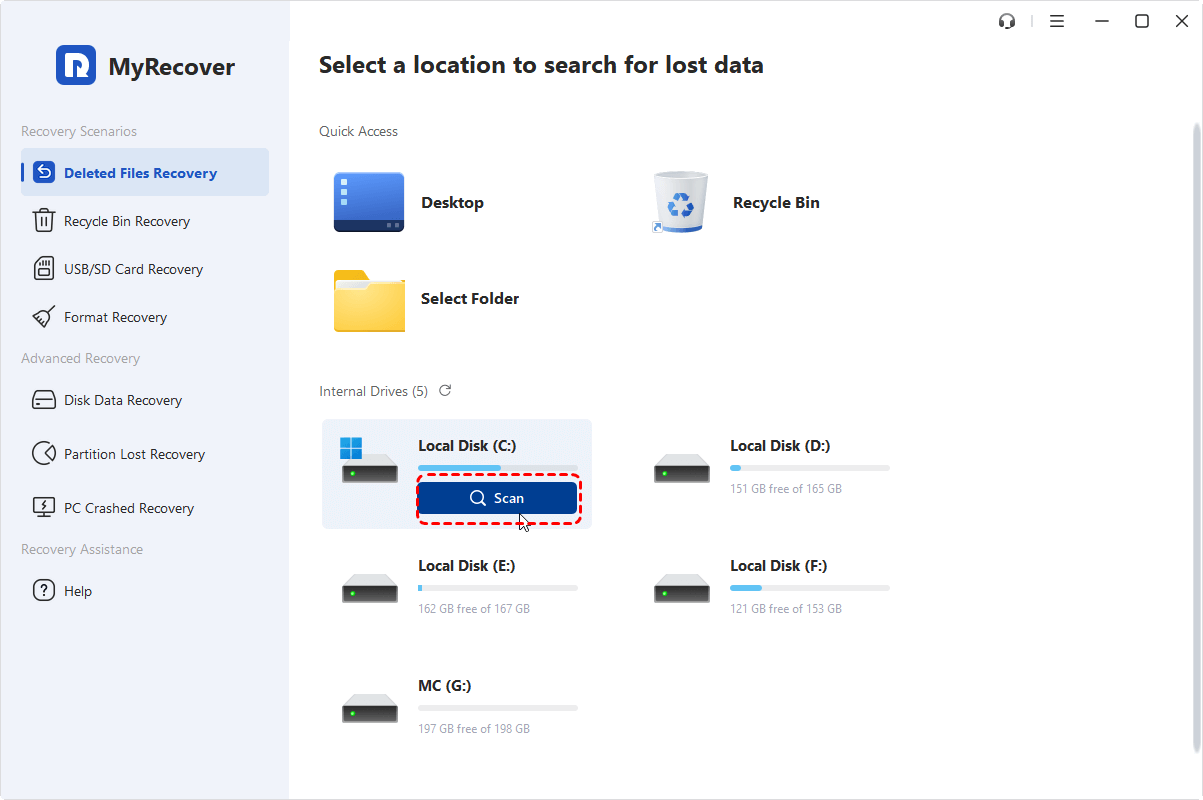
Step 2. Run the program and select the drive where deleted Excel files were stored to scan, then click "Scan".
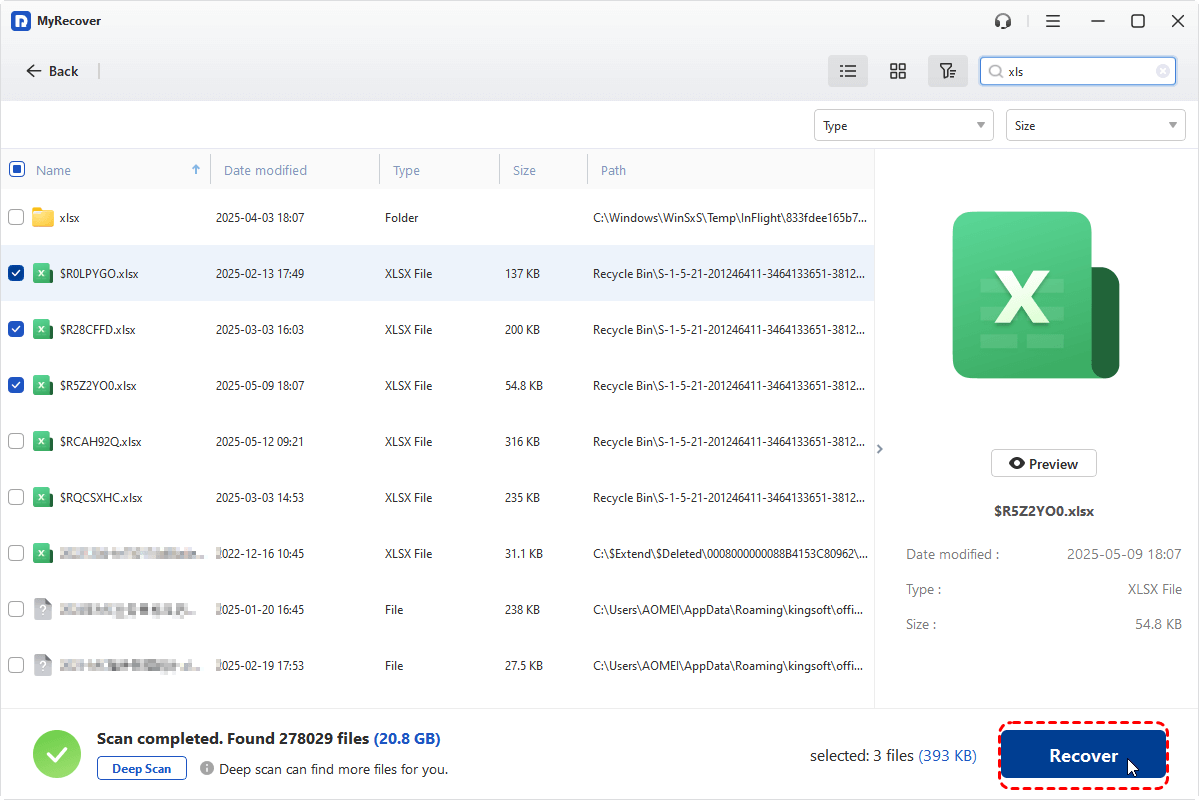
Step 3. Once the scan is completed, choose the files you would like to recover from the recoverable lists and click "Recover".
Step 4. Save the recovered files to a safe location.
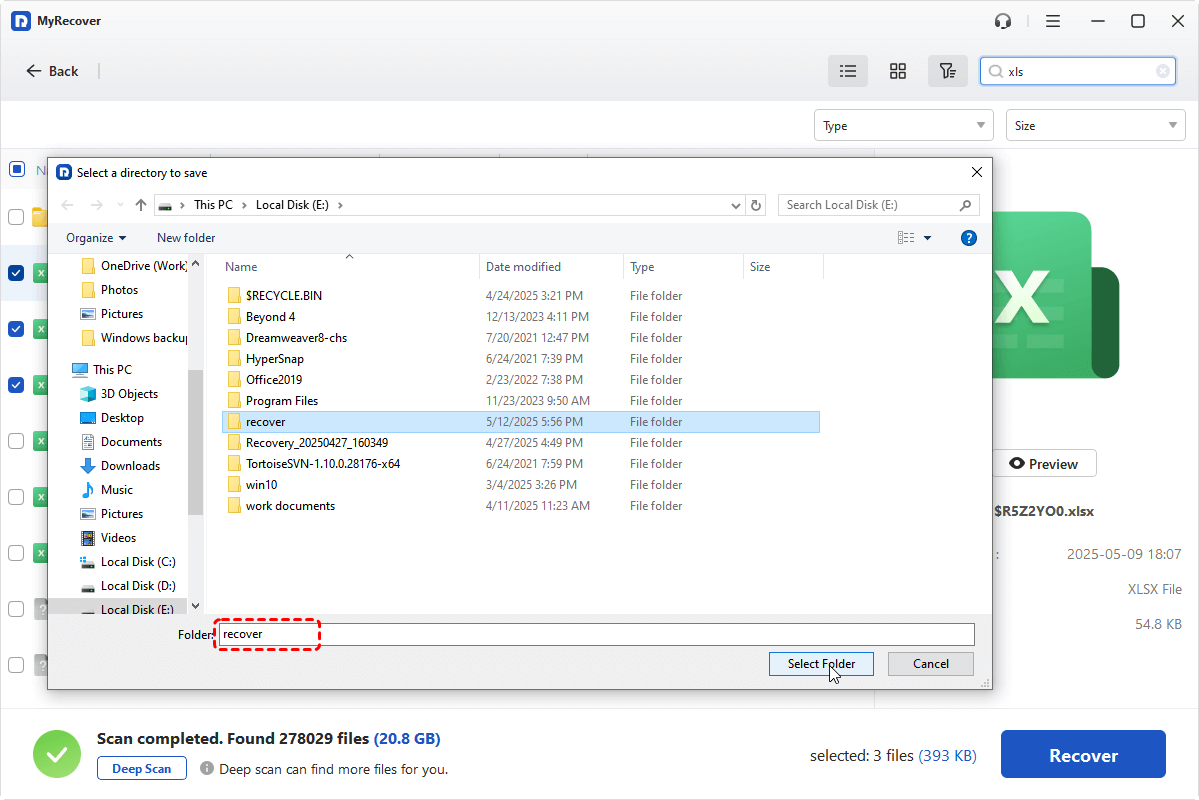
When the process is done, the message "Files have been recovered successfully" will pop up. Then you can check the recovered files by clicking on the destination folder path or "Browse" button.

To Sum Up
In summary, the issue of an Excel file disappearing after saving can occur for various reasons, including system crashes, cloud syncing errors, or accidental deletions. By following the methods outlined above, you can recover your missing file through techniques like searching, showing hidden files, checking recently opened, or using powerful data recovery tools like MyRecover.
If you're managing number of files, MyRecover's Professional version offers unlimited data recovery, including the ability to preview files before restoration. By using these tools and methods, you can minimize the risk of losing important Excel files in the future.

Stay Updated With Our
Latest Tips
Add us as a preferred source on Google to never miss helpful guides.
 Add as preferred source >>