 MyRecover



External Hard Drive Making Beeping Noise: What’s Wrong & How to Fix
When an external hard drive starts beeping, it often indicates an underlying hardware problem. In this article, we’ll discuss the reasons behind the beeping noise and provide practical solutions to resolve the issue. Whether it’s a minor issue or a serious failure, this guide will help you get your data back safely.

By Aria / Updated on December 3, 2025


My External Hard Drive is Beeping!
Does anybody know how I can fix this? My hard drive just started beeping when I plugged it in. It was working before no less than 2 hours ago but now it won't stop beeping and I can't access my games on it. If anyone can help, I would appreciate it.
- Question from Reddit
If your hard drive is making a beeping noise, it’s a clear sign that something might be wrong. This strange sound, often described as a repetitive click or beep, can be unsettling, especially if you are concerned about losing important data. While some noise from a hard drive is normal during operation, a constant or loud beeping noise typically indicates an underlying issue that requires immediate attention.
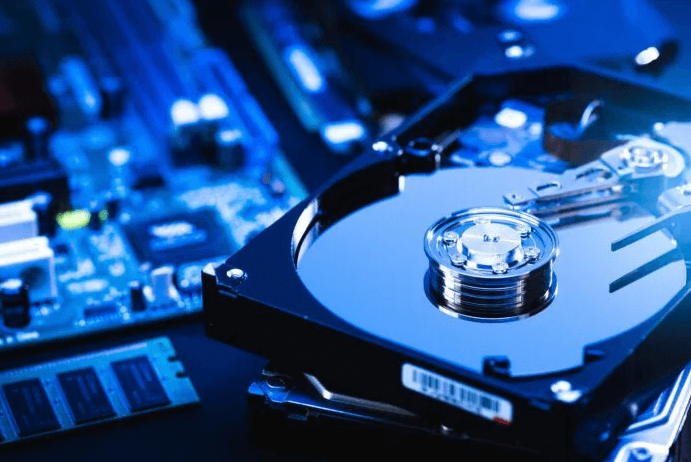
If you are facing this problem, it’s essential to act quickly to avoid permanent data loss. Let’s explore the most common reasons for this issue and what you can do to fix it.
Why My External Hard Drive Making Beeping Noise?
Several factors could cause a hard drive to make a beeping noise. Understanding the root cause is crucial for determining the appropriate solution. Here are the most common reasons:
🔥Power Supply Issues
Insufficient or fluctuating power can cause the hard drive’s motor to malfunction, leading to strange beeping noises. This is particularly common with external hard drives connected via USB ports.
🔥Loose or Faulty Connections
A loose or damaged data cable, or a malfunctioning USB port, can lead to intermittent connectivity, which results in the hard drive struggling to communicate with the computer, causing it to beep.
🔥Mechanical Failure
If the internal components of the hard drive, such as the read/write head or motor are damaged, the drive may emit a beeping sound as it fails to operate correctly.
🔥File System Corruption
Corrupt file systems may cause the hard drive to repeatedly attempt to read data, resulting in beeping noises.
🔥Bad Sectors
If there are bad sectors on the hard drive, the drive may be unable to read or write to certain parts of the disk, triggering the beeping sound.
🔥Overheating
Overheating can also cause the hard drive to fail or behave erratically, sometimes resulting in a beeping noise as the drive tries to cool down.
How to Fix Hard Drive Beeping Noise
From the reasons mentioned above, you may also find some solutions. Once you identify that your hard drive is making a beeping noise, to avoid further data loss and more serious damage, please take action as soon as possible. There are several troubleshooting steps you can take to resolve the issue.
Check the Power Source
The first thing you should do is ensure that the external hard drive’s power supply is functioning correctly. If the drive is powered by a wall adapter, check that it is properly plugged in and supplying the necessary voltage. If you are using a USB-powered external hard drive, try connecting it to a different USB port or using a powered USB hub.
Check the Connection
A faulty or loose connection can often cause a beeping external hard drive. Inspect the data cable for any visible signs of damage. Try using a different USB cable or connecting the drive to a different USB port on your computer. If you are using a desktop, try connecting the drive directly to the motherboard, as the front USB ports may provide insufficient power.
Run CHKDSK Command
A beeping hard drive could be a result of file system errors or bad sectors. The CHKDSK command is a built-in tool in Windows that can fix issues related to file systems and bad sectors. You can run the CHKDSK command in Windows to check and repair these issues:
Step 1. Locate Command Prompt in the Start menu and right click on it, then choose "Run as administrator".

Step 2. Type the following command "chkdsk G: /f /r" and hit "Enter" key. Replace the drive letter "G" with your actual drive letter.

Then, the command will automatically scan you drive and fix and detected errors.
Try to Recover Data from the Hard Drive with Beeping Noise
If your hard drive is still making beeping noises, it may be struggling to read data due to damage. At this point, it's crucial to recover data from the hard drive with the beeping noise before attempting any other repairs. Prior to sending the hard drive to data recovery service, you may attempt to retrieve data with professional data recovery software like MyRecover.
As one of the most effective data recovery solutions, MyRecover supports data recovery from HDD, SSD, USB, SD card, cameras as you need. The AI-embedded file recognition and recovery algorithm guarantees that no files are omitted during the recovery process. It is designed to operate locally on your computer and the recovered data is directly saved to the location you choose, which ensures that the recovered data remains under your control and is not accessible to any third party.

 MyRecover
- Intuitive GUI (Graphical Interface) for effortless file recovery.
- Precision recovery of files by type, date, or size.
- Recover files from SSDs, HDDs, USB flash drives, SD cards, cameras, and more.
- Works on Windows 11/10, as well as Windows 8.1/8/7 and all Server editions.
 100% Secure
Step 1. Download and install MyRecover on your computer from Microsoft Store. Connect the external hard drive to your computer with a correct cable or port.
Step 2. Run the app and select the external hard drive to scan, then click "Scan".

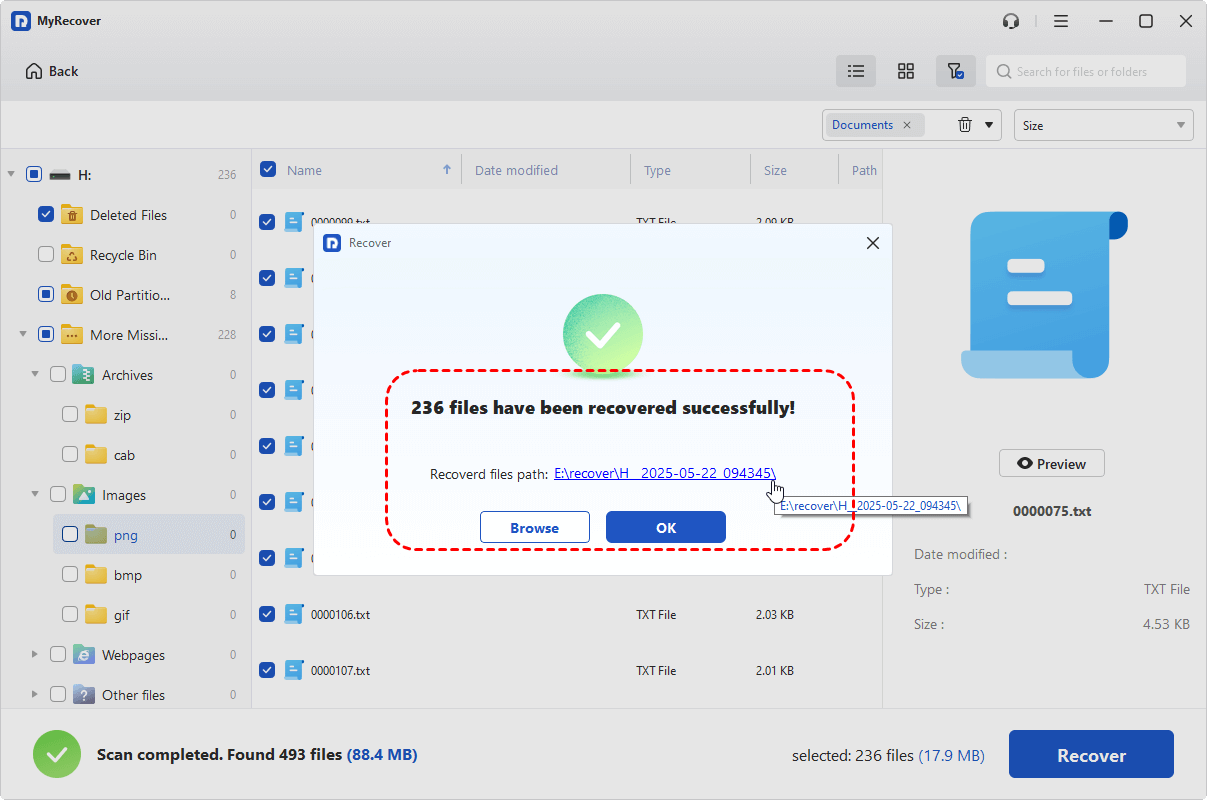
Step 3. After the scan is complete, choose the files you wish to recover from the recoverable lists and click "Recover".

Step 4. Save the recovered files to a safe location (preferably a different drive).

Once the process is done, the message "Files have been recovered successfully" will pop up. You can view the recovered files in the destination folder by clicking on "Browse" button.
Seek Professional Data Recovery Service
If the above methods don’t work and the hard drive continues to make a beeping noise, the issue may be caused by a more severe hardware failure, such as a broken motor or damaged read/write head. In this case, it’s best to contact professional data recovery services such as Seagate rescue data recovery services. These experts have the tools and experience necessary to repair or recover data from physically damaged hard drives.
Summary
A hard drive with beeping noise can indicate several issues, ranging from power problems to physical damage. The first step is always to try simple basic fixes like checking connections and power supplies, running CHKDSK utility, and then attempt to recover data using MyRecover. If the drive is still beeping and the issue persists, consider seeking professional data recovery services.
MyRecover’s Professional version is available for unlimited data recovery and file content preview, offering a comprehensive solution for complex data recovery scenarios, even supports recovery from unbootable systems. Don’t let a beeping external hard drive cause unnecessary stress, by taking the proper steps to troubleshoot and recover your data, you can safeguard your important files.

Stay Updated With Our
Latest Tips
Add us as a preferred source on Google to never miss helpful guides.
 Add as preferred source >>