 MyRecover



Master GoPro SD Card Error Recovery Without Losing Data: A Step-by-Step Fix
Stuck with a corrupted card? Achieve GoPro SD card error recovery without losing data. We cover essential fixes, recovery software, and tips to prevent future errors and get back to filming.

By Delores / Updated on February 2, 2026


GoPro SD Card Error Recovery Without Losing Data!
Hero 9 - SD card Error. ALL FILES LOST
Yesterday, my camera, GoPro Hero 9 with media mod and max lens mode, became unresponsive while it was ON.
I removed the battery as there was no other way to turn it off.
When I went home and connected it to the power and turned it on so it would upload the files to SUBSCRIBE i received an SD Card error.
Today I came home and inserted the card into my PC only to find that the folder that usually contains the files is empty.
PLEASE HELP
Three days' worth of footage is gone.
- Question from community.gopro.com
If you meet the error message: SD Card error, in your GoPro camera, don't worry. It's a problem you can solve.
Successfully solving the GoPro SD card error and recovering files without losing data is not only possible but also easy. Your videos and photos are likely still on the card, just trapped or obscured by a glitch.
This guide will walk you through the entire recovery process and help you fix the SD card error fast. Check the following content now.
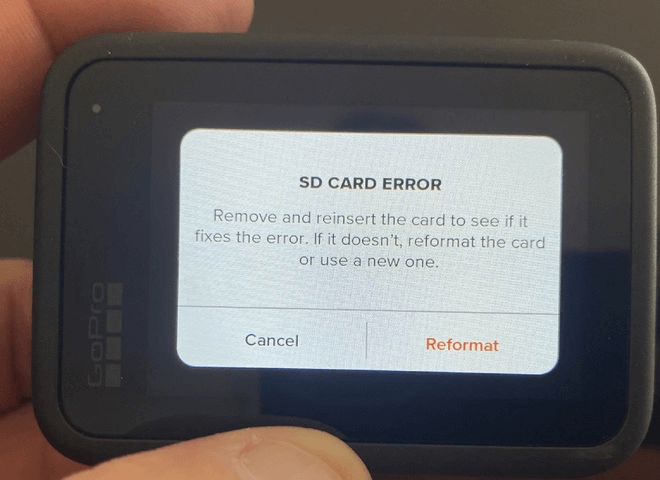
How to Ensure GoPro SD Card Error Recovery Without Losing Data?
When you encounter this SD card error in your GoPro camera, knowing the correct procedure is essential. The fundamental principle is to prioritize recovering your files before attempting to fix the card. Immediately formatting the card is a critical error that often results in permanent data loss.
There are two parts (we will explain the details later) for the GoPro SD card error recovery without losing data: first, recover files from the SD card; then, repair the SD card. If you do the wrong steps, your footage will be lost.
The first part, you need a card reader and a powerful data recovery software. Then connect the SD card to a computer with that card reader and the dedicated recovery software to scan for and copy your files to a secure location on your computer's internal drive.
In the second part, you need to troubleshoot the card's file system or format it within the GoPro camera.
It is the golden rule for any GoPro SD card error recovery process and is the only way to genuinely guarantee you won't suffer data loss.
Immediate Actions When Meeting the GoPro SD Card Error
The moment that error pops up, try the following immediate actions:
- Do not reformat your SD card in your GoPro camera.
- Stop using the card immediately. When the GoPro shows this error, it often means the file system is corrupted or unstable. Any further action—recording new footage, attempting to view files, or repeatedly powering the camera on and off—can cause new data to be written, which causes the original files get overwritten. Power down the GoPro completely. Leave it off.
- The safest environment for your wounded card is a stable computer. Eject the microSD card from the camera and use a high-quality, reputable USB card reader to connect with a computer, not through a hub. Your goal is to access it in read-only mode for recovery, which we'll cover next.
Easily Recover GoPro Video from SD Card
Now comes the crucial part. You have the card secured and connected, and it's time to extract your data. This requires specialized recovery software. A standard copy-paste operation cannot retrieve files from a corrupted card; you need a tool specifically engineered to read raw storage data and rebuild lost files. Fortunately, you have the powerful Windows data recovery software, MyRecover.
Key Features of MyRecover:
- Deep Sector-by-Sector Scan: MyRecover performs a thorough deep scan that reads the raw data on your SD card sector by sector. This is critical for GoPro recovery, as it can locate video files and photoseven if thefile system is corrupted or the card is unreadable.
- GoPro Format Specialization: It is optimized to recognize and reconstruct GoPro-specific video formats (like MP4, HEVC/H.265) and photo files. This ensures a higher success rate.
- Preview Before Recovery: The software allows you to preview recoverable videos and photos before recovery. You can verify file integrity and ensure you only recover what you need.
- Original Filename & Structure Recovery: MyRecover recovers files with their original filenames and folder structure from your SD card.
- User-Friendly Interface: Designed for simplicity, the process is straightforward.
- Broad Compatibility & Support: It works with all major brands of SD cards (SanDisk, Lexar, Samsung, etc.) and supports the exFAT file system used by modern GoPros for large-capacity cards.
Here is your step-by-step guide to getting your footage backfrom GoPro SD card with MyRecover.
1. Connect your GoPro SD card to your computer. Download and install MyRecover on your computer.
 100% Secure
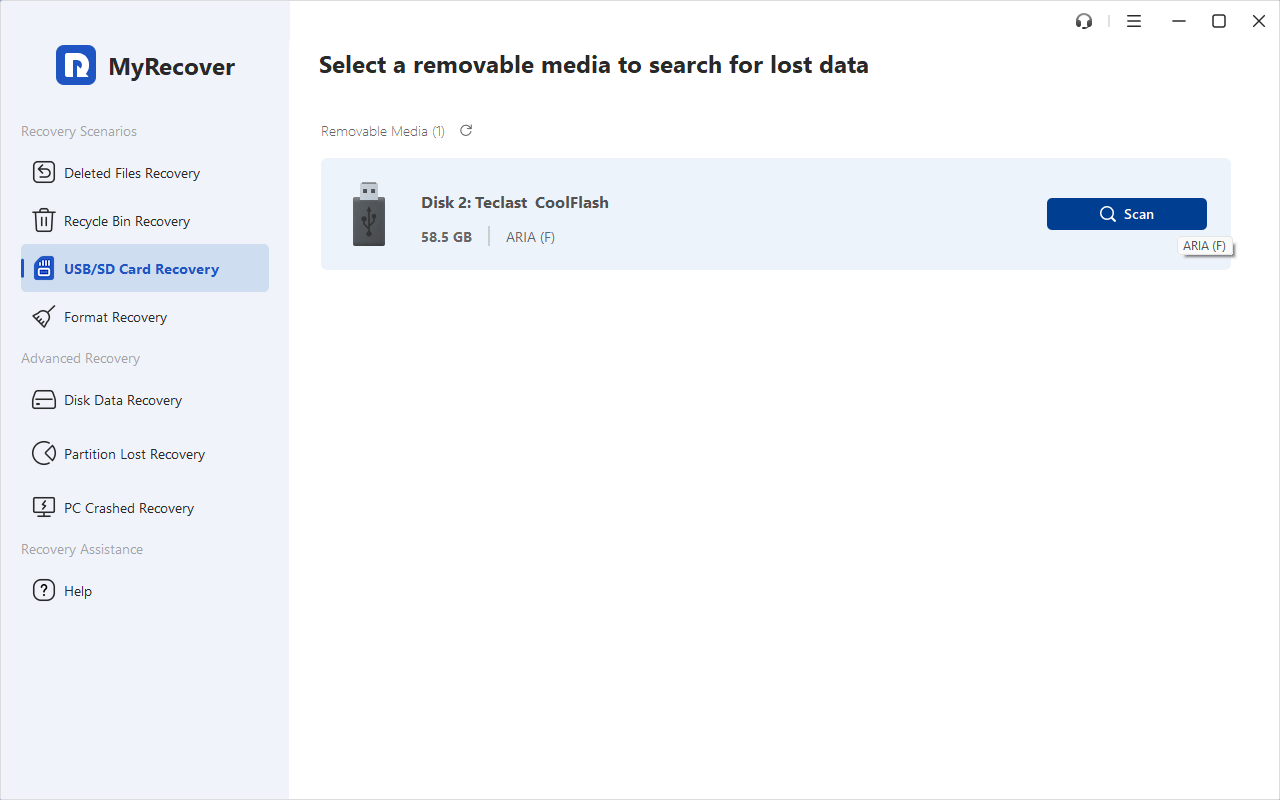
2. Tap USB/SD Card Recovery, choose your GoPro SD Card, and tap Scan. Wait for the process to complete and hit OK.
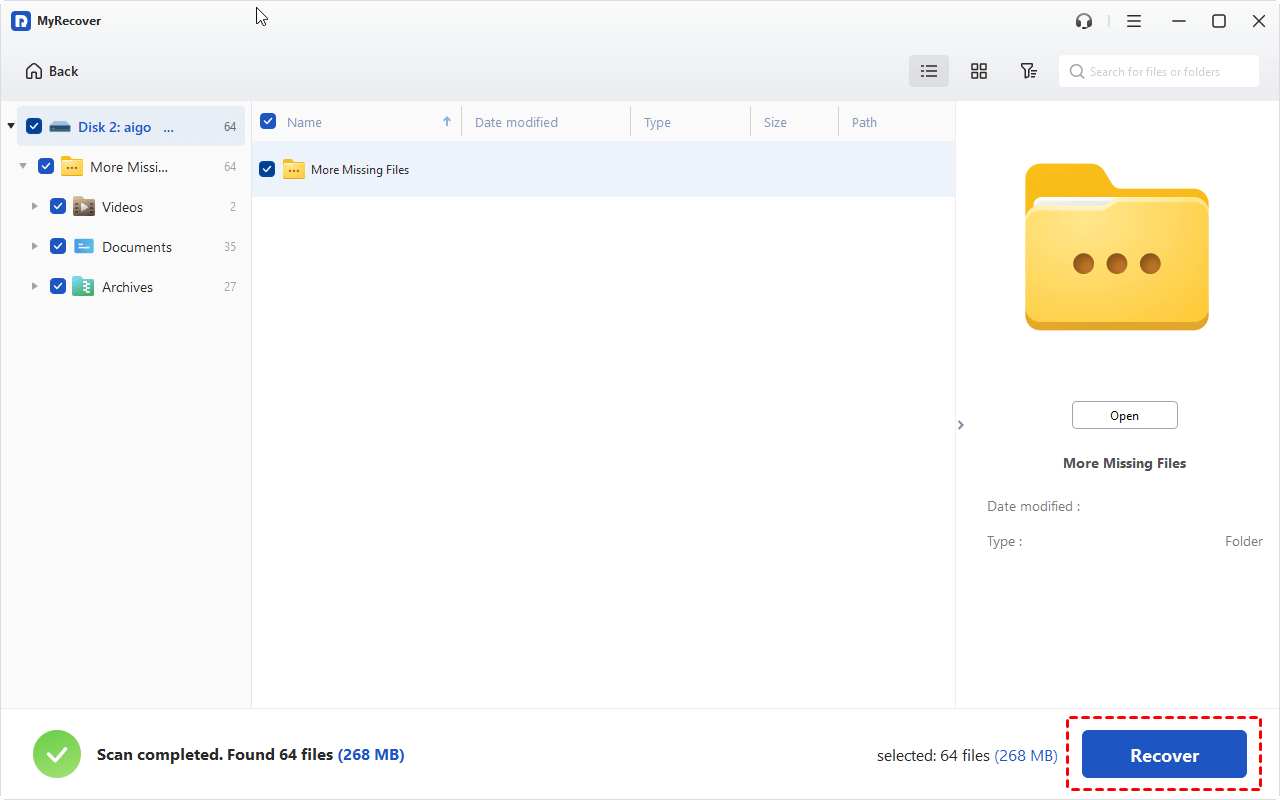
3. Preview and select the files you need, and press Recover.
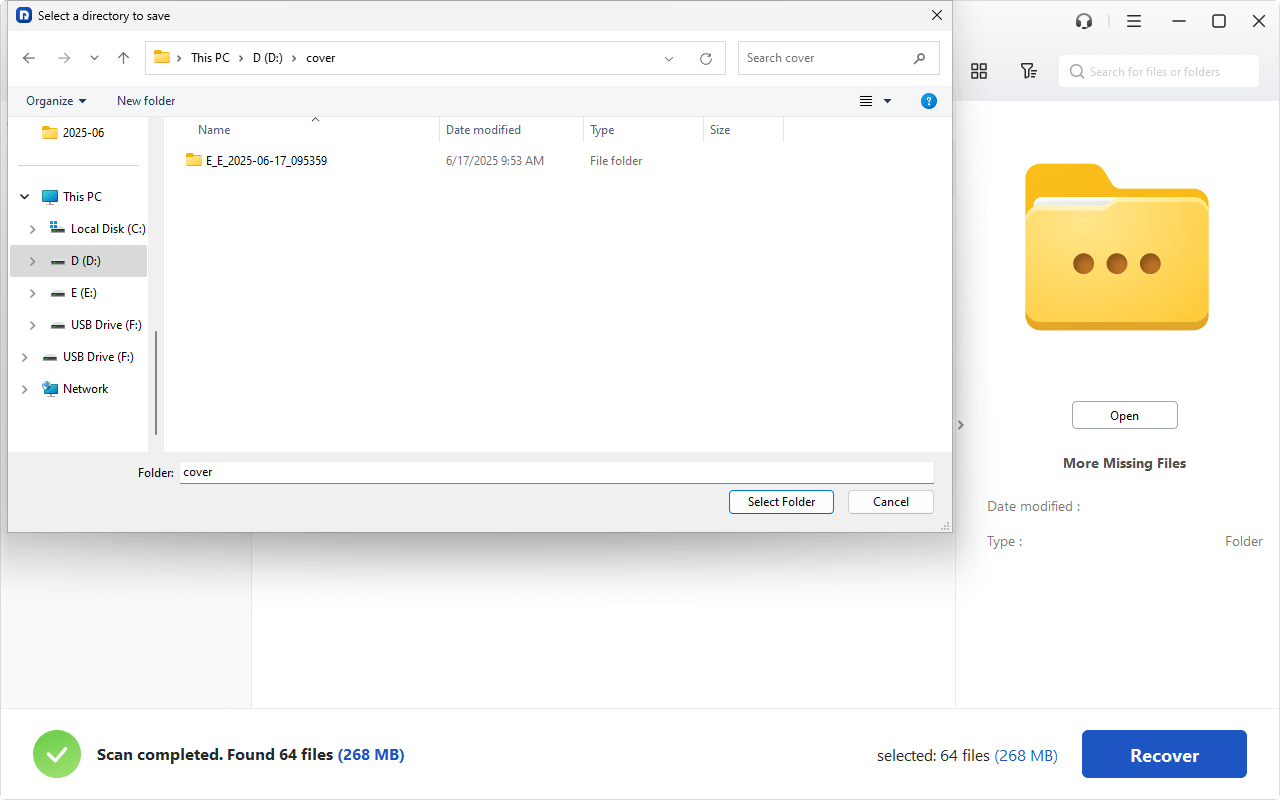
4. Opt for a safe location and hit Select Folder to start the recovery process.
- Tips:✎
- Once the scan is complete, you can browse the results. Use the filters on the left to show only "Videos".You can also navigate by the original folder pathand search the specific files by file name, file size, and modified date.
- You can double-click the files or hit Preview to check their integrity before recovery.
- Once complete, you can navigate to that folder and verify your precious footage is back.
After the data recovery, you can fix your GoPro SD card error now.

 MyRecover
- Recover Deleted Files Easily with Simple Clicks
- 1000+ File Formats Supported
- Support HDD, SSD, External Hard Drive, USB Drive, SD Card, etc.
- Quickly Find Files Using File Types, Name, Size, etc.
- Preview Files Before Recovering
- Recover Unlimited Data
 100% Secure
How to Fix the GoPro SD Card Error
After successfully recovering your data, you can now address the card's malfunction. A card displaying an error is often logically corrupted but not permanently damaged, and corrective steps can usually restore its function.
Way 1. Check and Fix the File System
You can use the Windows built-in command utility, CHKDSK, or try First Aid in Disk Utility on Mac.
On Windows:
1. Open Command Prompt as Administrator.
2. Type chkdsk G: /f /r, replacing "X" with your SD card's drive letter.

This scans for and attempts to fix file system errors.
On a Mac, use the First Aid function in Disk Utility.
1. Insert the SD card into your Mac's card reader slot or an external USB card reader.
2. Navigate to your Applications > Utilities folder, and launch the Disk Utility application.
3. In Disk Utility, click the View option in the menu bar and select Show All Devices from the dropdown menu.
4. From the sidebar list, select your SD card (identified as the top-level device) or its specific volume.
5. Click the First Aid button located in the toolbar, then click Run in the confirmation window that appears.
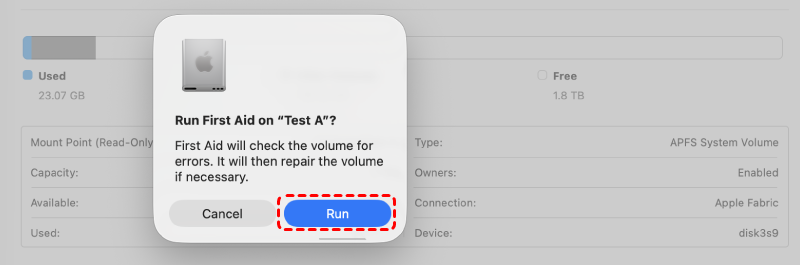
These utilities repair the organizational structure of the card but do not recover lost files. If successful, the card may become usable again. If the command fails, the card could have physical damage.
Way 2. Format the Card Within the GoPro
If the problems persist after file system checking, or you want to format the SD card entirely. You must always format the card inside the GoPro camera you intend to use it with.
1. Navigate to Preferences > Reset > Format SD Card.
2. This ensures the card is formatted with the correct file system and block structure for your specific camera model.
Formatting the card in a computer or another device can lead to performance issues or trigger the GoPro SD card too slow error. This process resets the card to an optimal, clean state for future use.
Address the "SD Card Too Slow" Error
If you found the GoPro SD card too slow while using it and it shows "Your SD card may be too slow for some settings. Use a faster card (v30 or higher) to maximize performance", it indicates a performance issue, not a hardware failure. Your camera is signaling that the card's write speed is insufficient for the data rate required by your current recording settings.
The fix is preventative:
First, check that you're using a card from GoPro's recommended list. You need a card with a V30 or, better yet, a V60 or V90 rating, which guarantees a minimum sustained write speed of 30, 60, or 90 megabytes per second.
Also, ensure the card is formatted in the camera. Sometimes, a full format (not a quick format) in the GoPro can clear minor performance bottlenecks.
If you're using a recommended V30+ card and still get the error at high-resolution settings, try lowering the frame rate or resolution as a temporary test.
FAQs About GoPro SD Card Recovery
Can I recover videos from a GoPro SD card that says it needs to be formatted?
A: Yes, you can—never format the card when prompted. The message means your computer doesn’t recognize the card’s file system, but the video data is likely intact. Use recovery software like MyRecover first. It scans raw data for video file signatures and reconstructs files so you can save them to another drive. Only format the card after you’re certain your data is recovered.
What does the "SD Card Error" on my GoPro actually mean?
A: It’s a general alert that the camera can’t read from or write to the card. Causes include file system corruption, an incompatible or fake card, physical damage, or the card reaching the end of its life. Regardless of the cause, stop using the card immediately and focus on recovering your data before attempting any repairs.
How can I tell if my SD card is fake or counterfeit?
A: Fake cards often report more storage than they actually have. To verify, use free tools like H2testw (Windows) or F3 (Mac) to test the card’s true capacity. Warning signs include unrealistically low prices, poor-quality packaging, and sellers who aren’t authorized retailers. Always buy from trusted sources.
Why does my GoPro keep saying "SD Card Too Slow" even with a new card?
A: First, make sure the card was formatted inside your GoPro. Next, your video settings (like 5.3K or high frame rates) may exceed the card’s write speed—try lowering resolution as a test. Also, use a high-speed card reader for transfers. In rare cases, the camera’s card slot could be dirty or damaged.
Is it possible to fix a physically damaged SD card?
A: For most users, no. If the card is cracked, bent, or water-damaged, the internal components are likely compromised. Do not insert it into any device. Professional recovery services exist but are very expensive, usually reserved for invaluable data. Physical damage typically means the card is unrecoverable, highlighting the need for backups.
How often should I format my GoPro SD card?
A: Format the card in your camera after you’ve backed up your footage. Many users format at the start of each new project or filming day. Regular formatting in-camera clears old data, prevents file system errors, and maintains performance, helping you avoid errors that require data recovery.

Stay Updated With Our
Latest Tips
Add us as a preferred source on Google to never miss helpful guides.
 Add as preferred source >>