 MyRecover



How to Recover Files Deleted by Avast Antivirus on Windows [2026 Full Guide]
When Avast deletes your files, it rarely feels like 'protection'. A single aggressive scan or false positive can make important documents vanish without warning. This article explains Avast’s internal deletion logic and outlines how to recover files lost to antivirus actions.

By Aria / Updated on February 9, 2026


Avast Deleted Hundreds of My Files! HELP!
I ran a smart scan on my Avast One program and when it asks at the end to clean out downloads and the Recycle Bin, I meant to uncheck that box but forgot and once it started cleaning it and I realized my mistake I couldn’t stop it. I lost hundreds of Medibang (a drawing program) files, I lost my emulation files, game mods, etc. I’ve been trying everything I can think of and I’m freaking out. I’m just so stressed about this I will appreciate ANY and ALL help.
- Question from Round
Avast Antivirus is a widely used security solution designed to protect Windows systems from malware, ransomware, phishing attacks, and other online threats. When it detects files which considers suspicious, unsafe, or potentially malicious, it may automatically quarantine or delete them without detailed confirmation. This behavior is normal from a security perspective, but it can be frustrating when legitimate files are mistakenly flagged.

If you suddenly discover that Avast Antivirus has deleted hundreds of your files, panic is a completely natural reaction. Documents disappear, folders seem wiped out, and you may even worry that permanent data loss has occurred. The good news is that this situation, while alarming, is not uncommon; and in many cases, the deleted files are recoverable.
Are Files Deleted by Avast Permanently Lost?
Files deleted by Avast Antivirus are not always permanently lost. If the file was quarantined or deleted without being overwritten, recovery is often still possible. However, once the storage space has been overwritten, recovery is no longer feasible.
⭕Quarantined Files:
Most files flagged by Avast are moved to a secure quarantine area called the Quarantine (or Virus Chest). These files still exist on your system and can often be restored with just a few clicks.
⭕Permanently Deleted Files:
If you delete the quarantined suspicious files in the Quarantine, these deleted files will not be sent to the Recycle Bin and will instead be permanently removed. Even then, recovery is sometimes still possible using professional data recovery software before the data is overwritten.
⭕Shredded Files:
If your files were deleted by the "Data Shredder" feature in Avast Cleanup, the situation becomes far more complex. This feature overwrites the disk sectors originally occupied by the files repeatedly, resulting in an extremely low chance of file recovery.
Where Do Files Deleted by Avast Go?
In most situations, Avast does not immediately erase files from your hard drive. Instead, it moves them to a protected area known as the Virus Chest or Quarantine. It's isolated from the rest of the system and prevents quarantined files from running. It also allows users to review, restore, or permanently delete the threaten files. This design is intentional, giving users a second chance to restore them if Avast mistakenly flags safe files.
How to Recover Files Deleted by Avast Antivirus on Windows
Once you understand that Avast often quarantines files instead of destroying them, recovery becomes much more manageable. There are two effective approaches to recover files deleted by Avast Antivirus on Windows 10 and 11. Let's explore the detailed steps.
Restore Avast-Deleted Files from Quarantine (or Virus Chest)
The Quarantine (or Virus Chest) should always be your first attempt when figuring out how to recover a file deleted by Avast Antivirus. As mentioned above, Avast antivirus typically quarantines detected suspicious files in the Quarantine (or Virus Chest), and you can restore these quarantined files with just a few clicks. Here's the steps:
Step 1. Launch Avast antivirus and select "Protection" section, then click "Quarantine (or Virus Chest)".
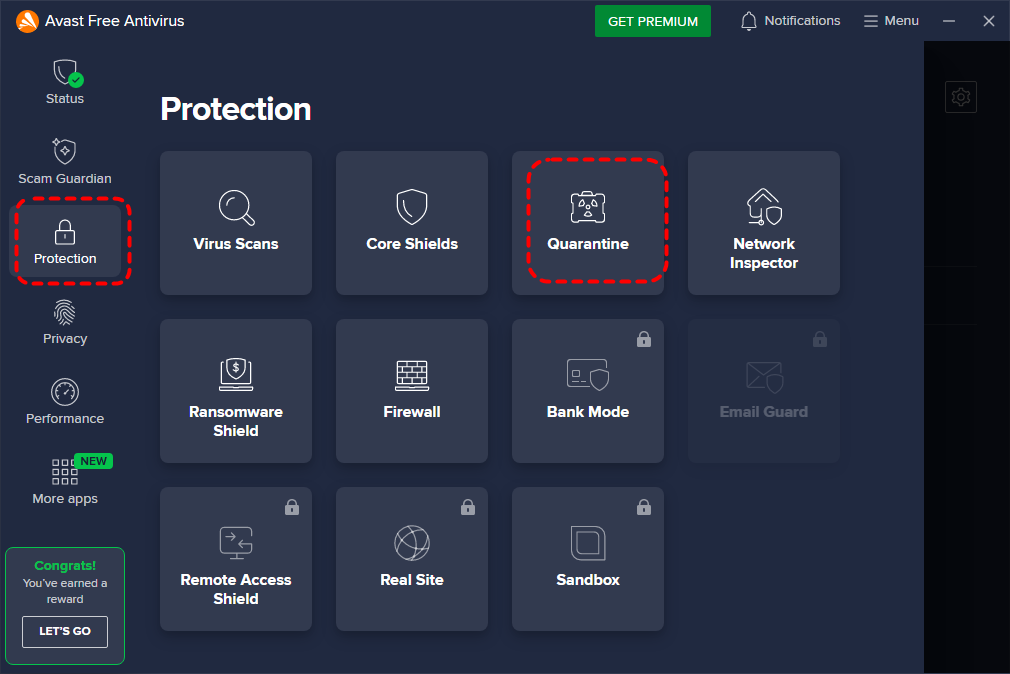
Step 2. Browse the lists of quarantined files and choose the files you want to recover.
Step 3. Click "Restore" or "Restore and add exception" to recover it.
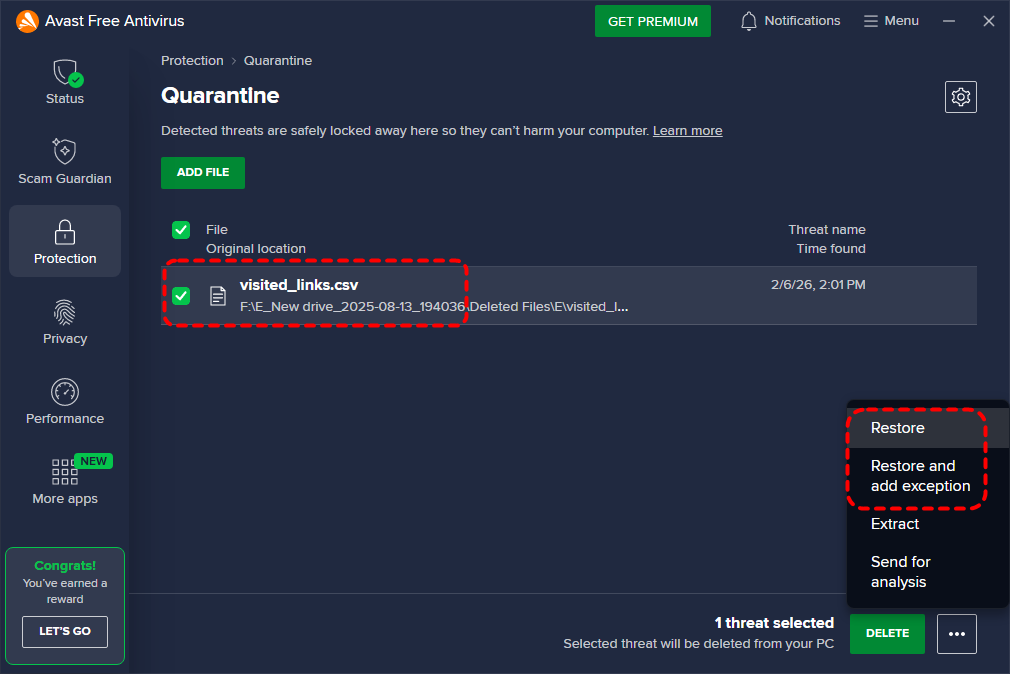
The "Add exception" option lets you add the file to Avast’s exclusion list, marking it as a trusted file. After doing so, Avast will no longer scan or block this specific file. If your files are not in the Virus Chest, recovery becomes more complex, but still possible.
Recover Files Deleted by Avast Antivirus Using MyRecover
If Avast permanently deleted files or the Quarantine (or Virus Chest) has already been cleared, locations like the Recycle Bin and Quarantine will be of no use, unless you have a backup available. This is where MyRecover becomes essential. MyRecover is designed to recover files deleted by failed Windows update, corrupted hard drive, emptied Recycle Bin, crashed system and over 500+ data loss scenarios.
Here's what makes MyRecover truly exceptional:
✅No Command Line Needed: Simple GUI (graphical interface) for easy file recovery.
✅Higher Success Rate: Advanced deep scan for NTFS/FAT32/exFAT drives.
✅500+ Devices Support: Recover files from all types of devices like SSD, HDD, USB flash drive, SD card, cameras, game console drives and more.
✅Supports over 1,000 file types: Including documents, photos, videos, audio, archives, and Outlook data files.
✅Smart scan modes: Choose from Quick Scan for recent deletions or Deep Scan for formatted/corrupted drives.
✅OS Compatibility: Work not only on Windows 11 /10, but also on Windows 8.1/ 8/ 7 and all Servers.
Step 1. Download and install MyRecover on your computer from Microsoft Store, avoid installing it on the drive with lost files.
Step 2. Launch the program and select the drive to scan, then click "Scan" to search for recoverable files.

Step 3. After the scan is completed, choose the files you wish to recover from the recoverable lists and click "Recover".

Step 4. Select a safe location to save the recovered files.

Once the process is done, the message "Files have been recovered successfully" will pop up. Then, you can view the recovered files in the destination folder by clicking on the "Browse" button.
How to Prevent Avast from Deleting Files Again
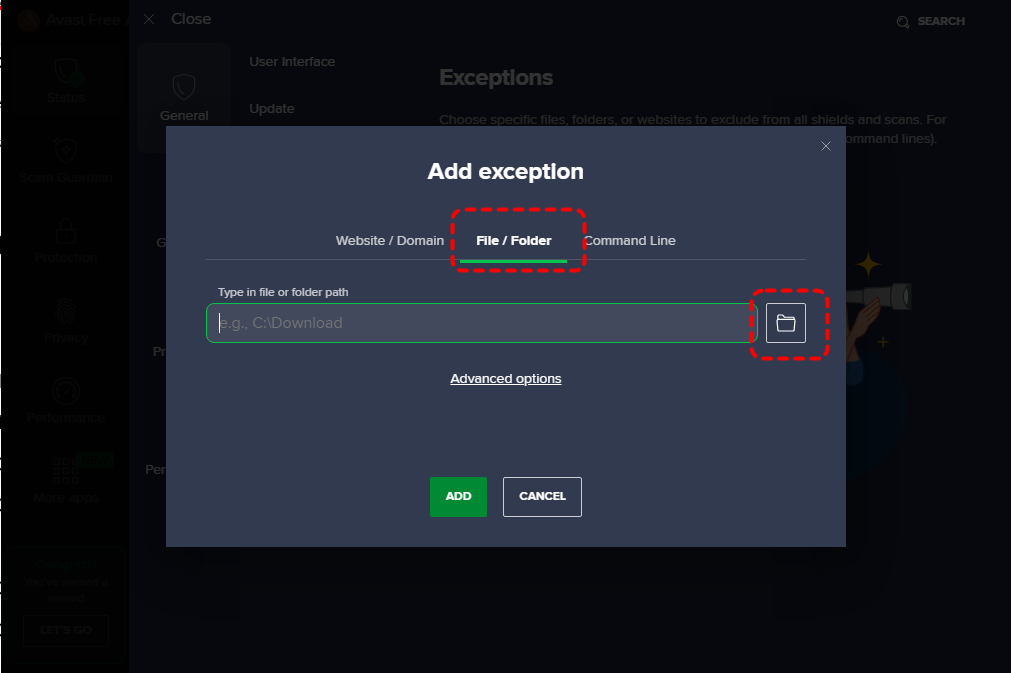
After recovery, prevention is just as important. Otherwise, the same issue may happen again during the next scan. You can add safe files to Avast’s exclusion list as exceptions, and Avast will no longer scan or quarantine these files repeatedly. Here's how:
Step 1. Launch Avast antivirus and click "Menu" > "Settings".
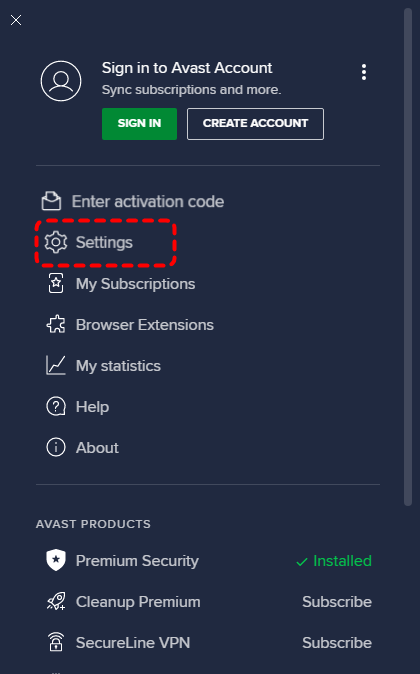
Step 2. Under the "General" tab, click "Exceptions" and "ADD EXCEPTION". You can add website/domain/file or folder/command line to the exception list.
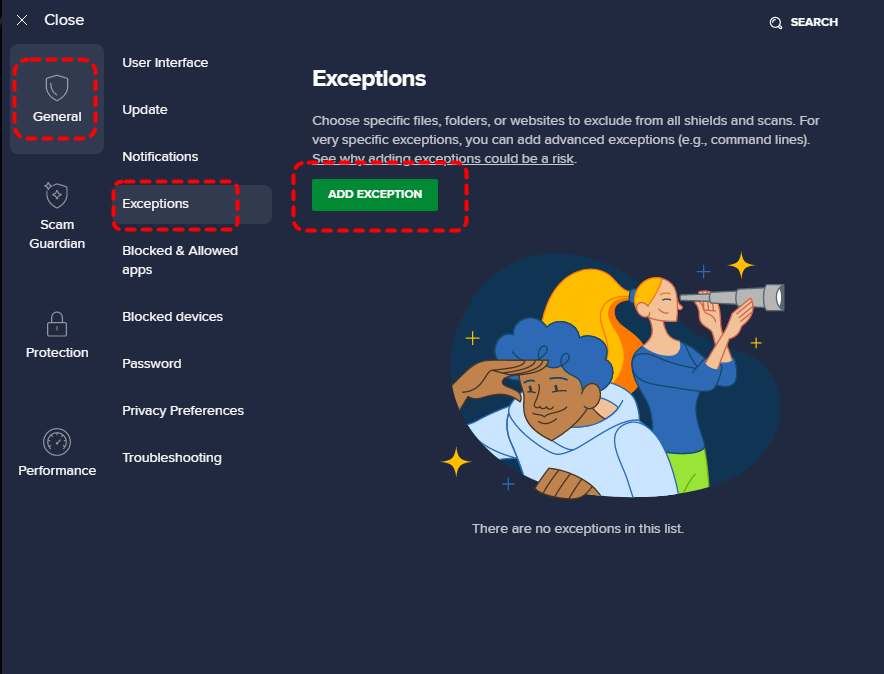
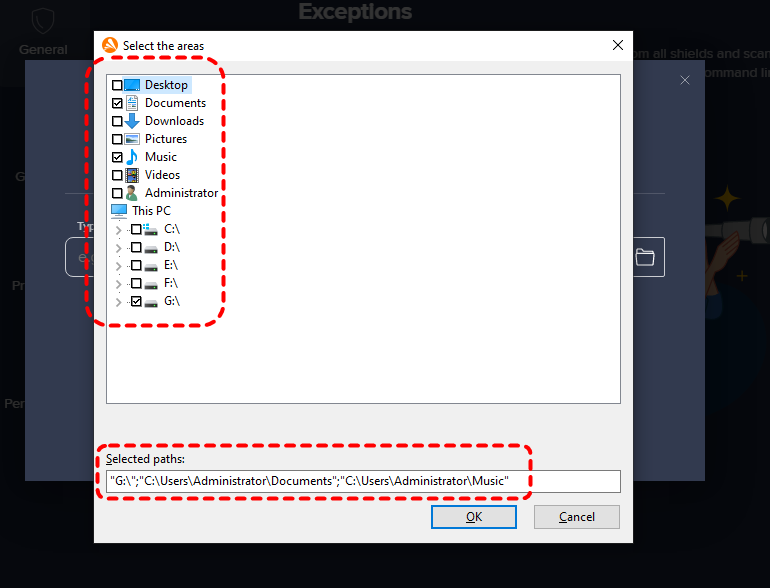
Step 3. Select "File/Folder" and click the "Folder" button or type the file or folder path in the box.
Step 4. Check the box of the trusted drive, folder or file and click "OK".
Conclusion
When Avast deletes hundreds of files, it feels catastrophic. But in reality, it’s often a recoverable situation. In many cases, files are safely stored in the Quarantine (or Virus Chest) and can be restored quickly. Even when files are permanently deleted, recovery is still possible with the right tools like MyRecover.
If you're looking for unlimited recovery, real-time file previews, and the capability to create a USB bootable media to extract files from a system that won’t boot, MyRecover Professional edition gives you everything you need to ensure your data is safe.

Stay Updated With Our
Latest Tips
Add us as a preferred source on Google to never miss helpful guides.
 Add as preferred source >>