 MyRecover



OneNote Notebook Disappeared? 6 Quick Ways to Recover It
Losing a OneNote notebook can be frustrating, especially when it contains important notes and information. In this article, we’ll explore the top reasons why your OneNote notebook disappeared and provide step-by-step methods to recover it. This guide will help you get your OneNote data back safely in no time.

By Aria / Updated on December 9, 2025


OneNote Notebook Disappeared!
One of the notebooks in my OneNote has basically disappeared, no evidence of it being there. I feel like I've gone crazy but I cannot find it anywhere. I was wondering if it could be a sync error as I have gone between two laptops recently, and some of the other notebooks had minor issues. Is there any way to recover it? I have searched backup copies, I have looked in deleted notes, and looked for any offline copies with no luck.
- Question from ImogenDG
It’s an irritating experience when your OneNote notebook disappears unexpectedly. Whether you're working on important notes for a project, meeting, or personal reminders, losing access to your notebook can feel like a nightmare. If you've opened OneNote to find that your notebooks disappeared in OneNote, you're not alone.
There are several reasons why this can happen, ranging from synchronization issues to accidental deletions. Fortunately, there are several methods you can try to recover your missing OneNote notebook.
Why Did My OneNote Notebooks Disappeared?
Let’s break down the possible causes and solutions for recovering your OneNote notebook. Several issues can cause your OneNote notebooks to disappear, including:
🛠️Syncing Errors: OneNote stores notebooks in the cloud or on OneDrive, and sometimes syncing issues can lead to notebooks not appearing or being temporarily unavailable.
📌Accidental Deletion: It’s easy to accidentally delete a notebook or section, especially if there’s a lot of content.
⚙️OneNote Settings: Sometimes, the app might not display all notebooks due to specific settings or software glitches.
⚔️Corrupt Notebook File: A corrupt file can make the notebook invisible or unreadable.
🖥️Software Update Issues: After an update, OneNote may fail to sync correctly, causing notebooks to go missing or not appear in the interface.
How to Recover Disappeared OneNote Notebook
If your OneNote notebooks disappeared, don’t panic. There are a number of recovery methods you can try to restore your notebook. Let’s look at the most effective ones.
Check the OneNote Recycle Bin
When notebooks are found to be missing, the initial step is to check the OneNote Recycle Bin to see if they were accidentally erased. As a general rule, the OneNote Recycle Bin preserves deleted items for 60 days, ensuring users have adequate time to restore unintended deletions of pages or sections.
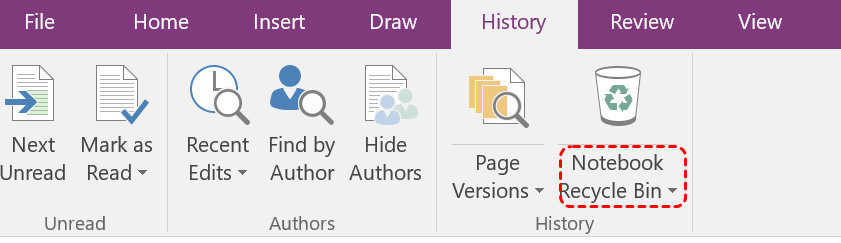
Step 1. Launch OneNote and locate "History" section, click on "Notebook Recycle Bin".
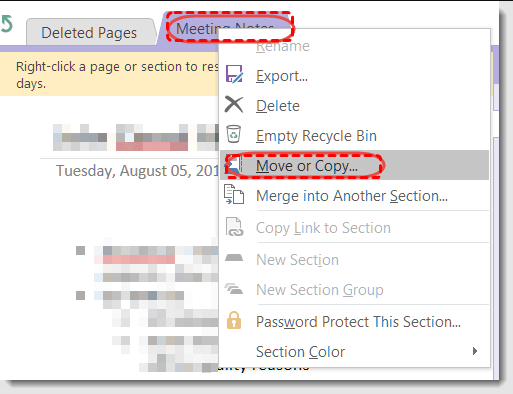
Step 2. Browse through the deleted pages or sections, locate the one you want to recover, then right click on the page or section and click "Move or Copy".
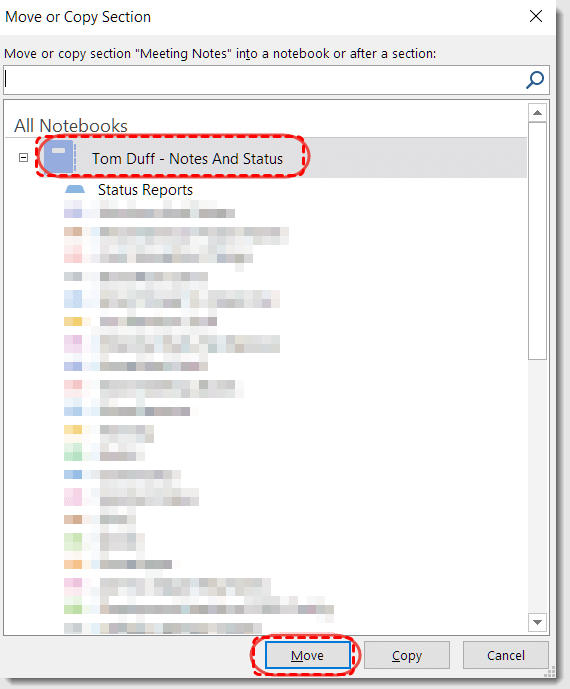
Step 3. Under the "Move or Copy" section, select the section where you want to restore the note and click "Move".
Check the Deleted Notes
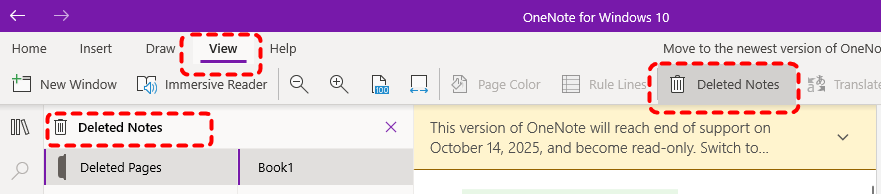
In OneNote for Windows 10 and OneNote for Web, owing to their streamlined interface design, deleted notes are placed in the "Deleted Notes" folder accessible via the "View" tab. While their names are not the same as OneNote Recycle Bin, they all support managing deleted notebooks.
Step 1. Open OneNote and click on "View" tab, and click "Deleted Notes".
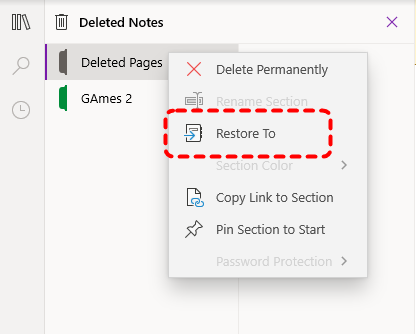
Step 2. Select the notebook you attempt to recover and right click on it, then choose "Restore to" to recover it to a safe location.
Access the OneNote Cache Folder
There is a backup file in OneNote’s cache folder, and OneNote automatically backs up your notebook at regular time intervals. But for OneNote for Windows 10 users, it focuses more on using OneDrive cloud service, so you can check there.
Step 1. Navigate to the cache folder on your computer:
C:\Users\YourUserName\AppData\Local\Microsoft\OneNote\16.0\Backup
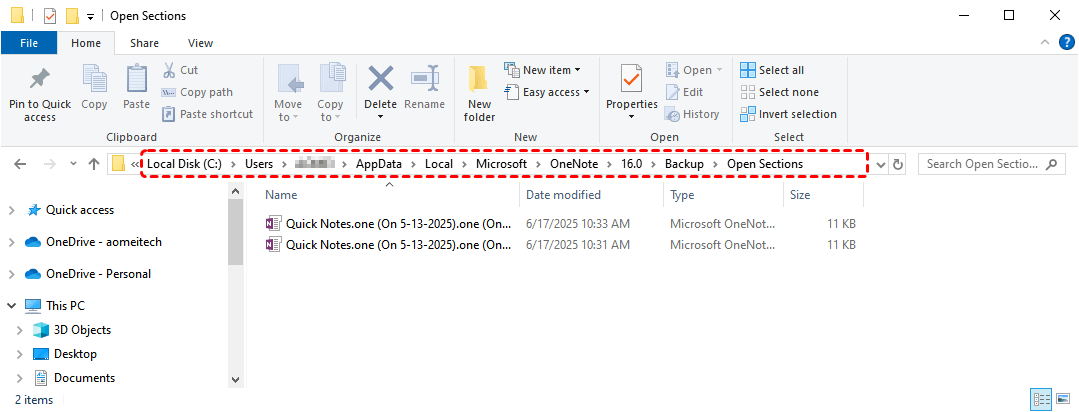
Step 2. Look for the file with ".one" extension and named after your notebook or the OneNote version you're using.
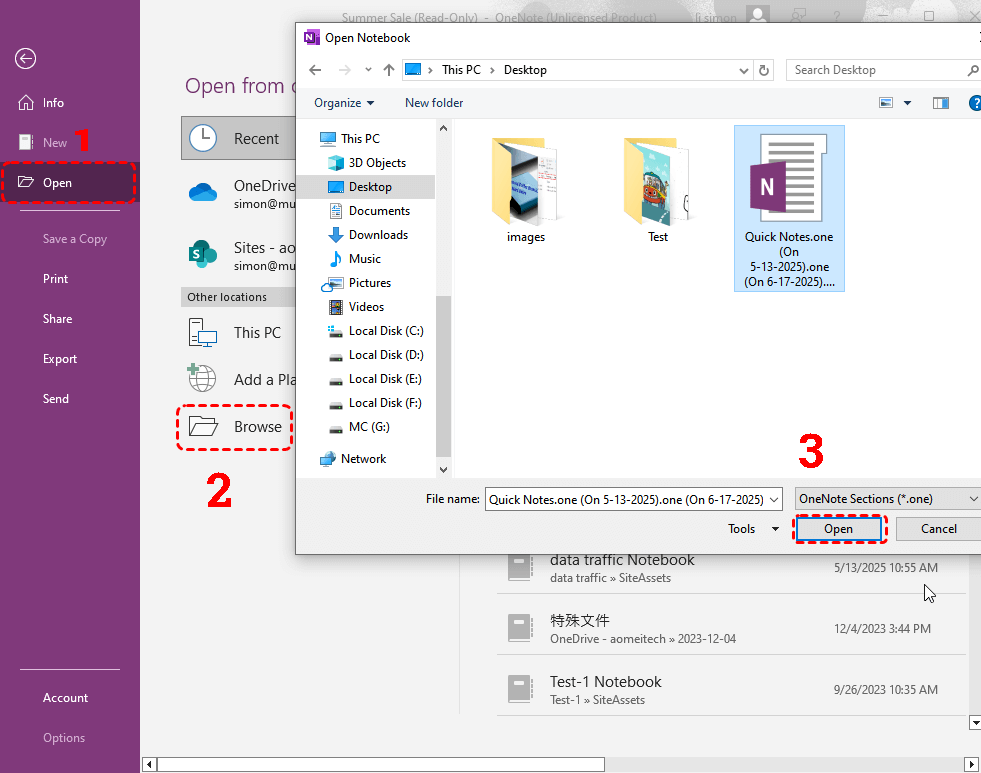
Step 3. Move the notebook to a safe location and open it with OneNote.
Restore from OneDrive
OneNote automatically syncs your notebooks to OneDrive by default. This means all notebooks created in OneNote will be synced to OneDrive automatically, allowing you to access and edit them seamlessly anytime, anywhere. If your notebook has disappeared from OneNote, you can try finding it in OneDrive.
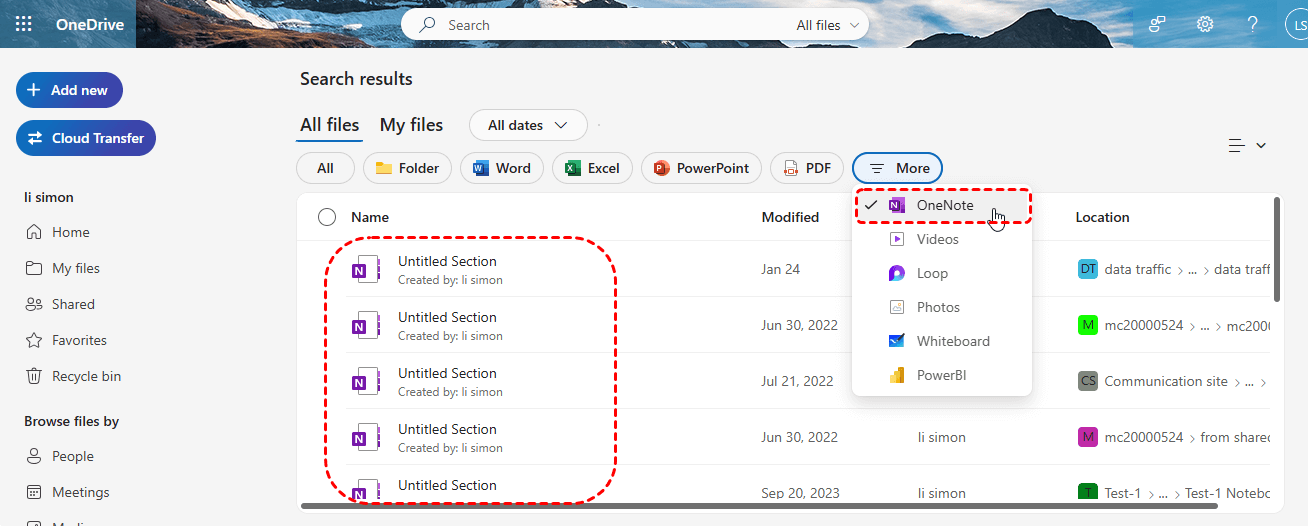
Step 1. Sign in OneDrive with your account which linked to your OneNote.

Step 2. Filter the OneNote files to find the notebook you want. If you locate it, you can open it with OneNote to confirm it’s the one you need.
Resolve Sync Error
Sometimes, network or account issues can cause sync errors, which may result in your notebook disappearing. You can try resolving the sync issue to recover your missing OneNote notebook.
Step 1. Launch OneNote and navigate to "File" > "Info" > "View Sync Status".
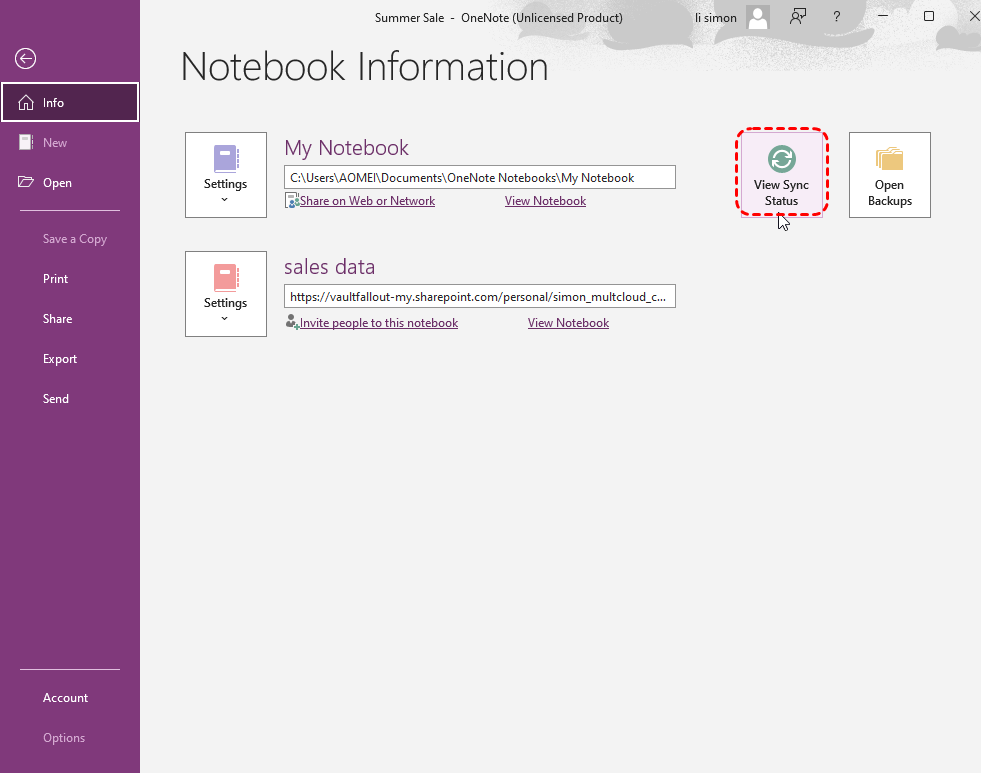
Step 2. Check if there are any sync issues and make sure internet connection.
Step 3. If there are any sync errors, click "Manual Sync" to ensure the notebook content is fully synced to OneDrive.
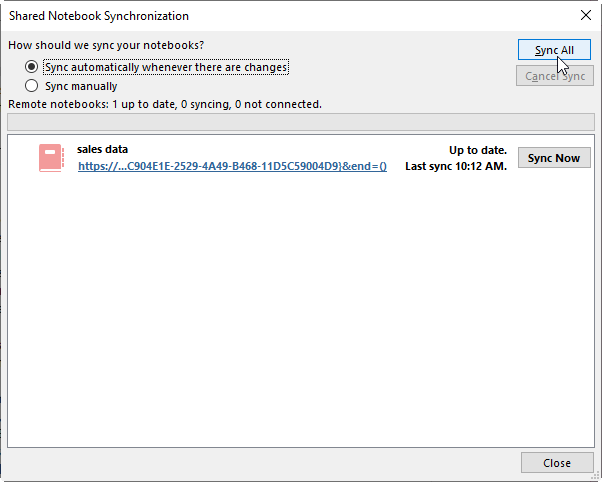
Next, open OneDrive to verify whether the sync was completed successfully.
Recover Disappeared OneNote Notebook with MyRecover
If all the above methods fail or your files has been permanently deleted, this is where MyRecover can be of great help. As a professional data recovery software, MyRecover supports over 1,000 file types, including documents (doc, docx, ppt, xlsx, etc.), videos (mp4, mov, wmv, etc.), photos (png, jpg, raw, etc.), compressed files (rar, zip, car, etc.), emails, and more. It adopts AI-embedded file recognition and recovery technology, ensuring no files are missed during the recovery process.

 MyRecover
- Intuitive GUI (Graphical Interface) for effortless file recovery.
- Precision recovery of files by type, date, or size.
- Recover files from SSDs, HDDs, USB flash drives, SD cards, cameras, and more.
- Works on Windows 11/10, as well as Windows 8.1/8/7 and all Server editions.
 100% Secure
Step 1. Download and install MyRecover on your computer from Microsoft Store, avoid installing it on the drive with lost files.
Step 2. Run the program and select the drive to scan for lost notebooks, then click "Scan".
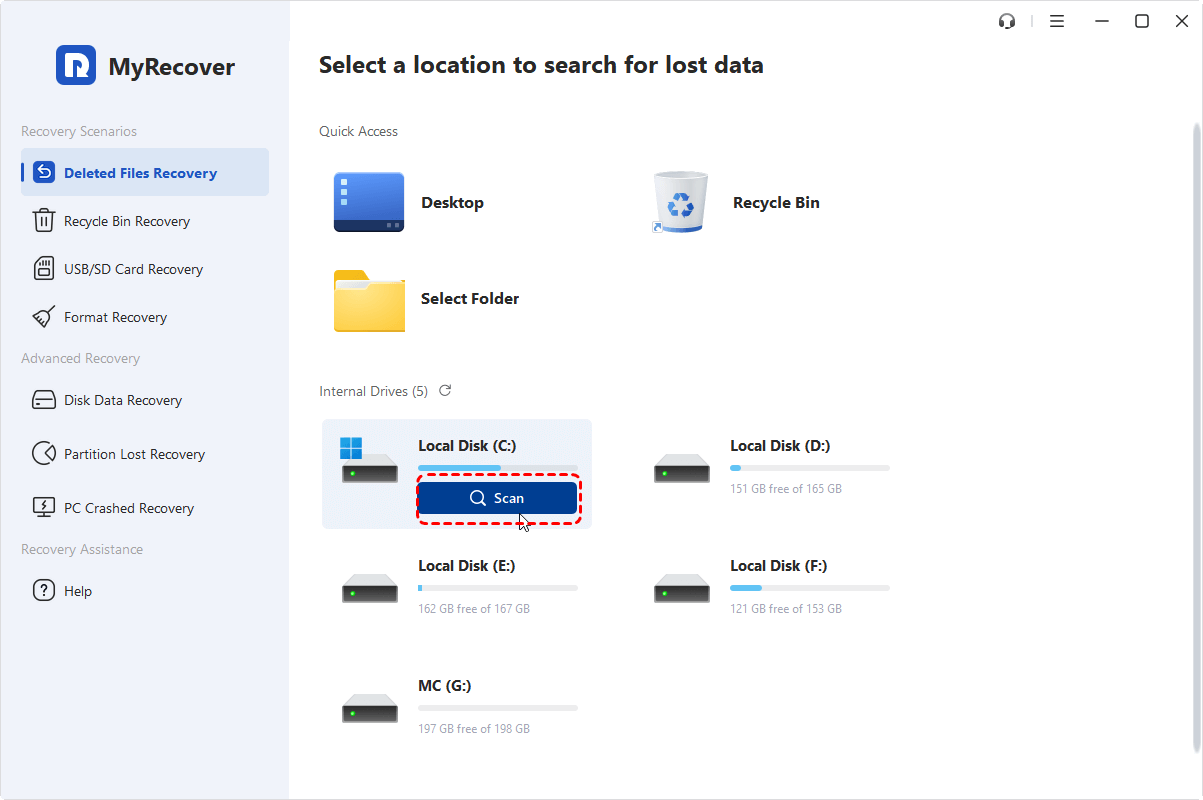
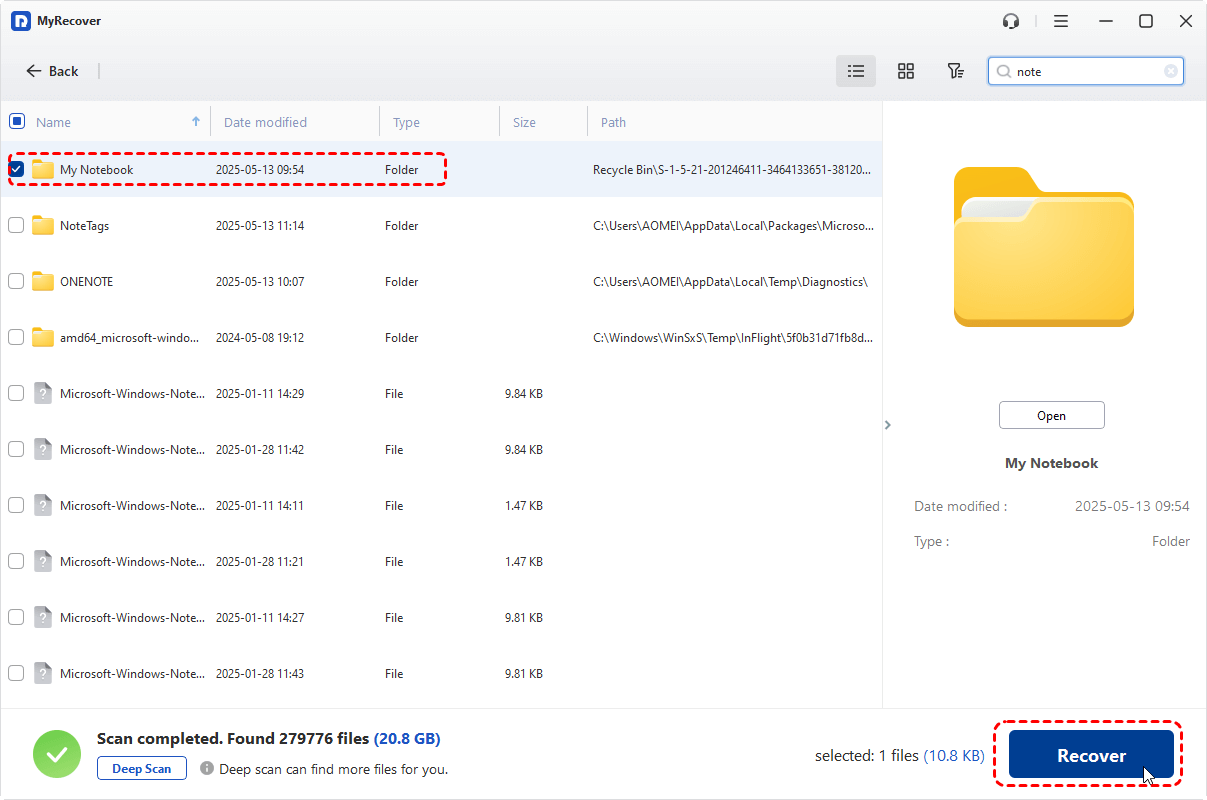
Step 3. After the scan is complete, choose the files you would like to recover from the recoverable lists and click "Recover".
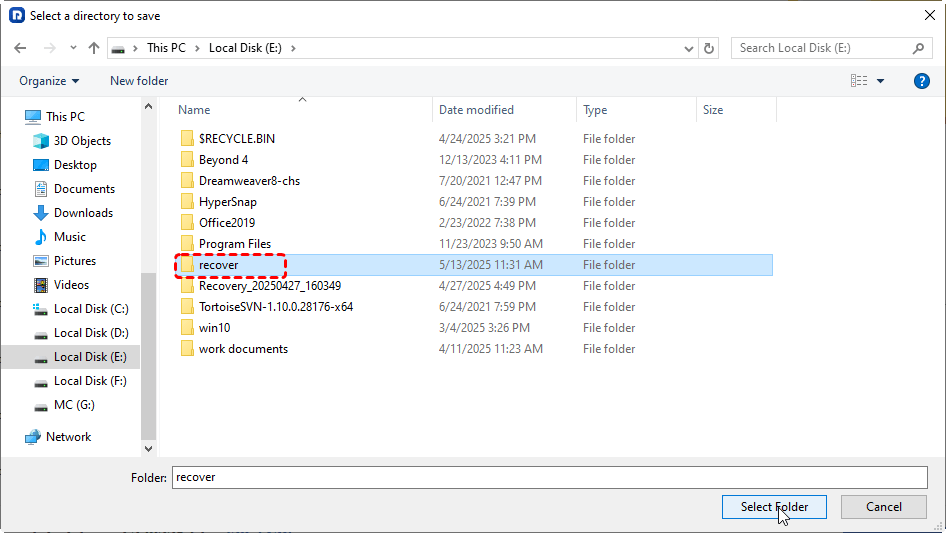
Step 4. Select a safe location to save the recovered files.
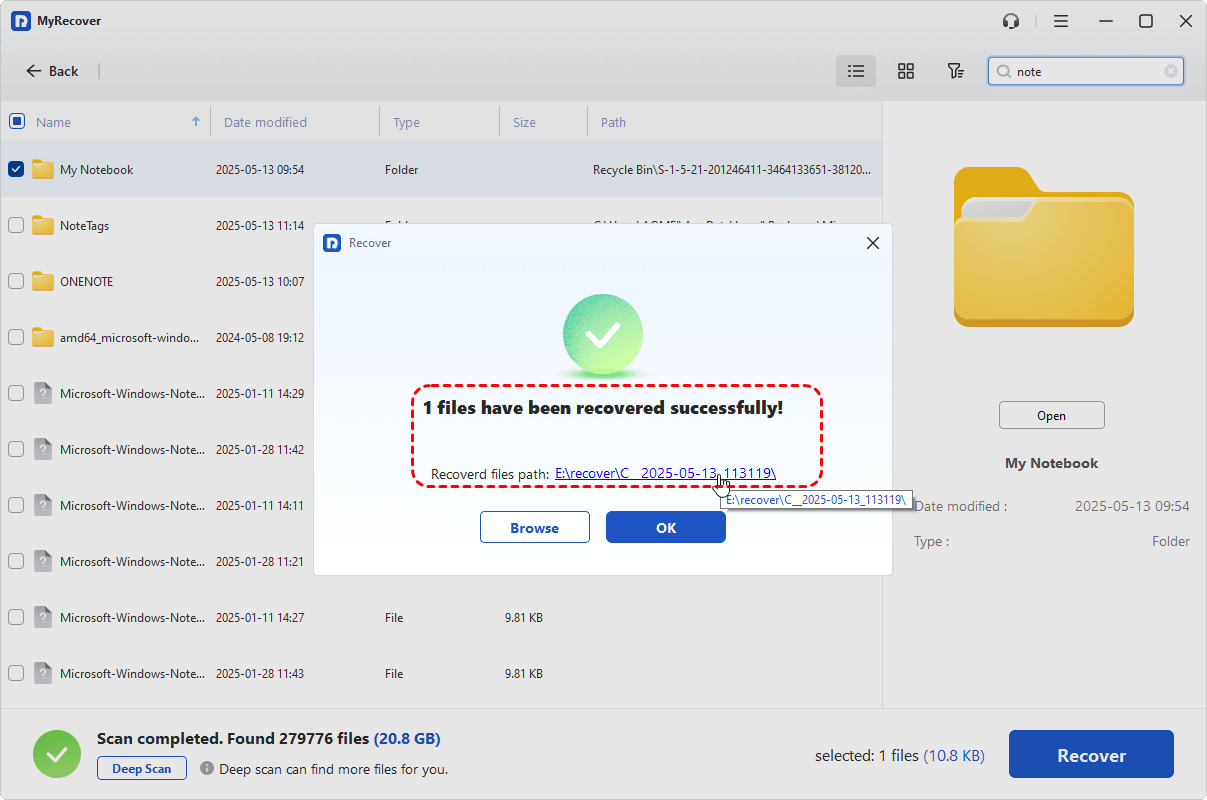
Once the process is done, the message "Files have been recovered successfully" will pop up. Then you can verify the recovered files by clicking on the destination folder path or "Browse" button.
Conclusion
It can be stressful to find that your OneNote notebooks disappeared, but with the methods listed above, you have a good chance of recovering your data. From checking the OneNote Recycle Bin to using professional data recovery tool like MyRecover, there are several ways to get your notebook back.
If the notebooks are permanently deleted, consider using MyRecover for more advanced file recovery. Its Professional version allows for unlimited data recovery and previewing files before full recovery. It even allows to restore data from unbootable systems.

Stay Updated With Our
Latest Tips
Add us as a preferred source on Google to never miss helpful guides.
 Add as preferred source >>