 MyRecover



How to Recover a Deleted Partition Using a Bootable USB
A deleted partition can leave you without access to your files or even a working Windows desktop. This guide explains how to create a recovery USB on another PC, use it on the affected computer, and check the recovered partition. It also shows where Windows startup repair fits after recovery.

By Aria / Updated on October 29, 2026


Can You Recover a Deleted Partition with a Bootable USB?
Yes, you can recover a deleted partition with a bootable USB containing partition recovery software, provided the drive is readable and enough of the original partition information remains. A bootable USB is especially useful when you need to recover files from an unbootable Windows PC and cannot install or open recovery software there. The USB starts its own recovery environment, allowing you to scan the affected disk even when Windows will not boot.
Deleting a partition usually removes the record that tells Windows where it is, without immediately erasing all the files inside it. Recovery software can search for the remaining information and use it to restore the partition together with its recoverable files and folders.
The chances of recovery depend on what has happened to the disk since deletion. New files, formatting, or reinstalling Windows can overwrite information needed for recovery. Using a bootable USB lets you attempt recovery without installing software on the affected disk, helping you avoid additional writes during preparation.
What You Need Before Creating the Bootable USB
To prepare the recovery USB and use it on the affected computer, have the following items ready:
- A working Windows computer: You will use this computer to download MyRecover and create the bootable USB.
- A spare USB flash drive: Creating the recovery media will erase the selected USB, so copy any files you want to keep to another location first.
- The affected computer with its original disk connected: Once the USB is ready, you will use it to start this computer and scan the disk that contained the deleted partition.
- A separate physical drive for your recovered files: Prepare enough free space to back up important files once the recovered partition becomes accessible. Use a different drive from the recovery USB.
The working computer is only needed to create the USB. You will then connect the finished USB to the affected computer and perform recovery there, without removing its internal disk.
How to Recover a Deleted Partition Using a Bootable USB
If Windows will not start after you accidentally deleted a partition, MyRecover's bootable USB can get your partition back as before. MyRecover allows you to create a bootable USB on a working computer, then you can use it to start the affected PC and scan its original disk. MyRecover's Partition Recovery feature can help restore the deleted partition together with its recoverable files and folders. This gives you a way to attempt recovery before addressing any Windows startup problems that remain.
Keep the affected computer shut down while you prepare the USB. Do not reinstall Windows, initialize the original disk, or create or format a replacement partition in the missing partition's space; these actions can overwrite the information and files needed for recovery.
Part 1. Create a Bootable USB with MyRecover
You will need a second, working Windows computer and a spare USB flash drive with at least 16 GB of capacity. Everything on the drive will be erased during this process, so use one that contains no files you need. Follow these three steps to turn it into your recovery drive.

 MyRecover
- Restore recoverable partitions and the data they contain.
- Recover available partition details, including partition table information and drive letter.
- Keep recoverable filenames and folder hierarchy organized.
- Search for lost partitions and recoverable files using available dual scan modes.
 100% Secure
Step 1: Install MyRecover on the working computer. Download MyRecover from Microsoft Store or its official website and install it, connect the spare USB flash drive to the working computer.
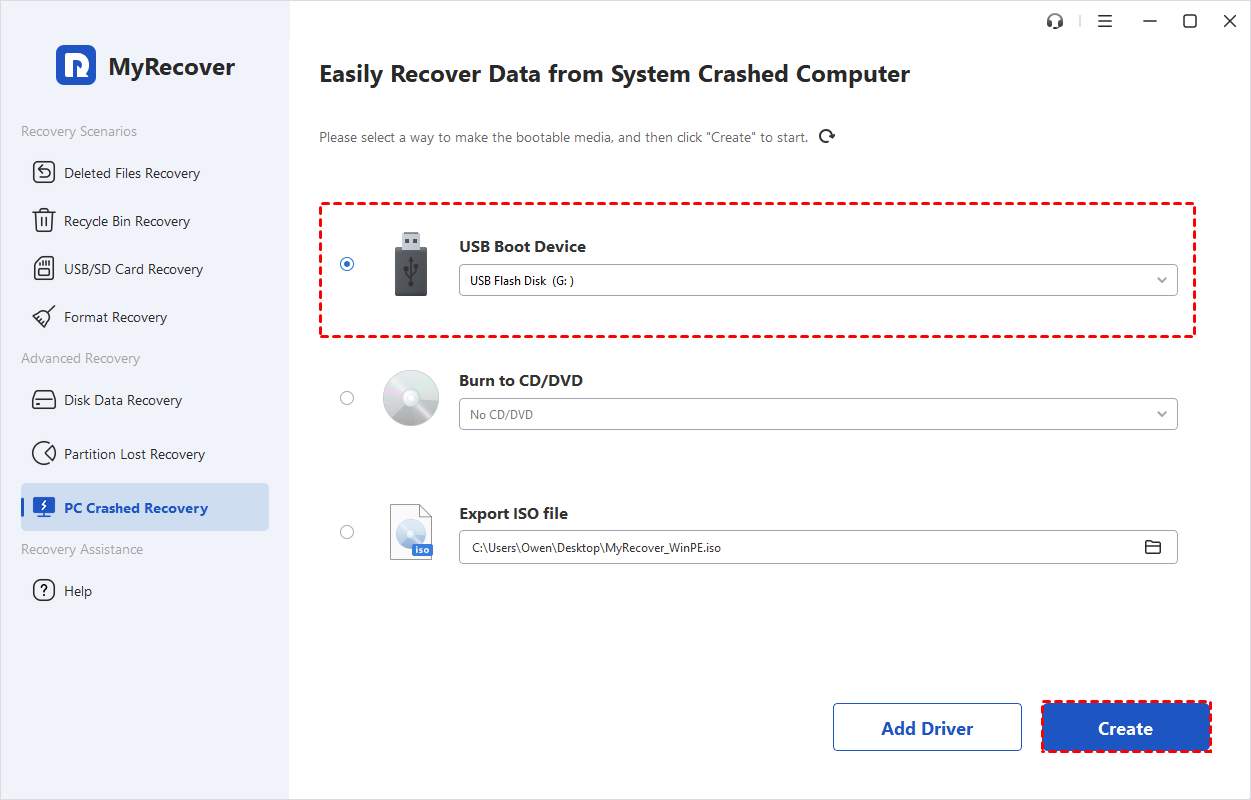
Step 2: Choose the USB creation option. Open MyRecover, select "PC Crashed Recovery", and choose "USB Boot Device" with your spare flash drive selected.
- ★Tips:
- MyRecover also offers Burn to CD/DVD and Export ISO File. Its CD/DVD option supports 32-bit PCs only; for a 64-bit PC, choose USB or ISO instead. If you export an ISO, write it to suitable media before using it to start the affected computer.
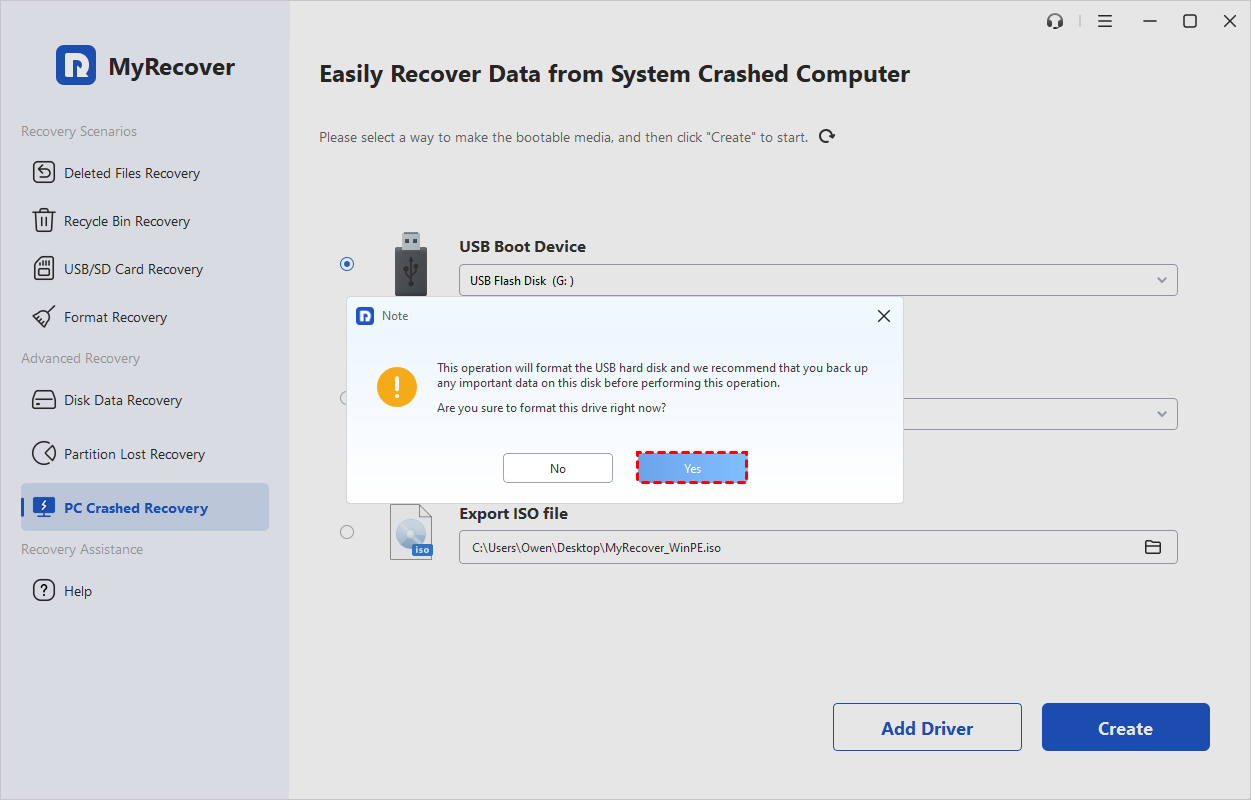
Step 3: Create the recovery media. Click "Create", check the selected USB again, and confirm the formatting warning only after saving anything you need from it elsewhere. Wait until MyRecover reports that creation is complete, then safely remove the USB.
Part 2. Boot the Affected PC from Recovery USB
With the bootable drive ready, move to the computer that will not start. The next steps tell it to start from the USB instead of its own broken Windows installation; your files and disks are not changed at this point.
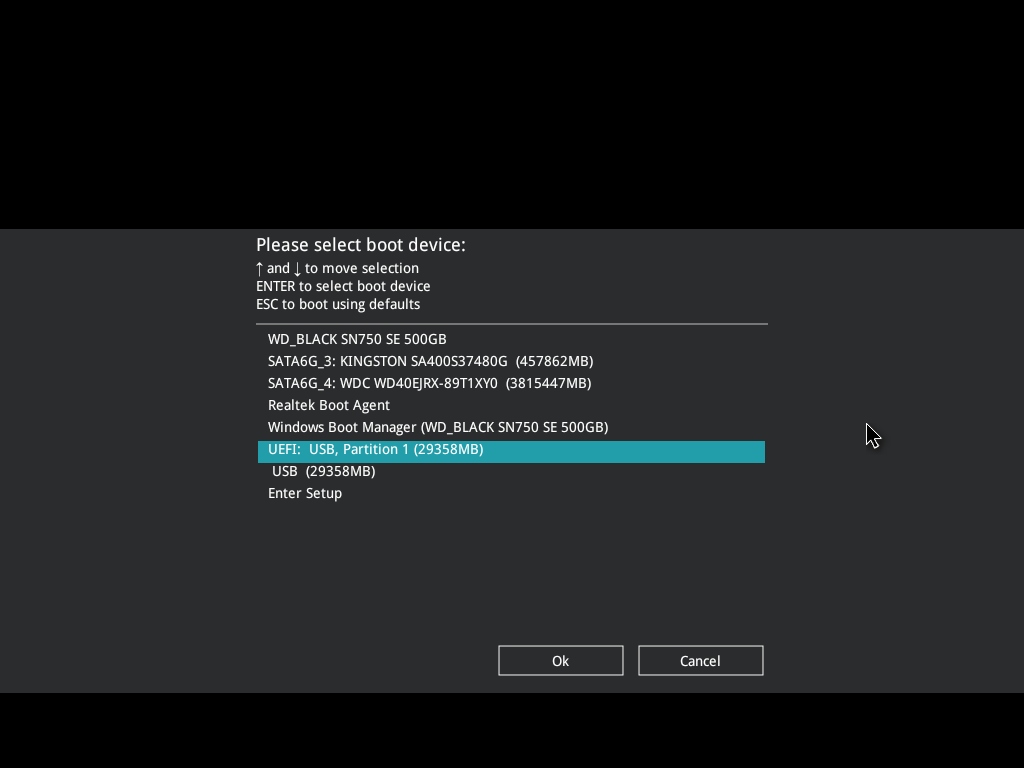
Step 4: Open the boot menu. Connect the finished USB to the affected computer, turn it on, and press the manufacturer’s boot-menu key (usually F12, Esc, or F9). The key varies by model; check the manufacturer’s instructions if you are unsure.
Step 5: Choose the recovery USB to boot. Select the USB entry that matches the computer’s normal boot mode, usually UEFI on newer PCs. If a one-time boot menu is unavailable, follow the manufacturer’s instructions to place the USB first in the BIOS/UEFI boot order.
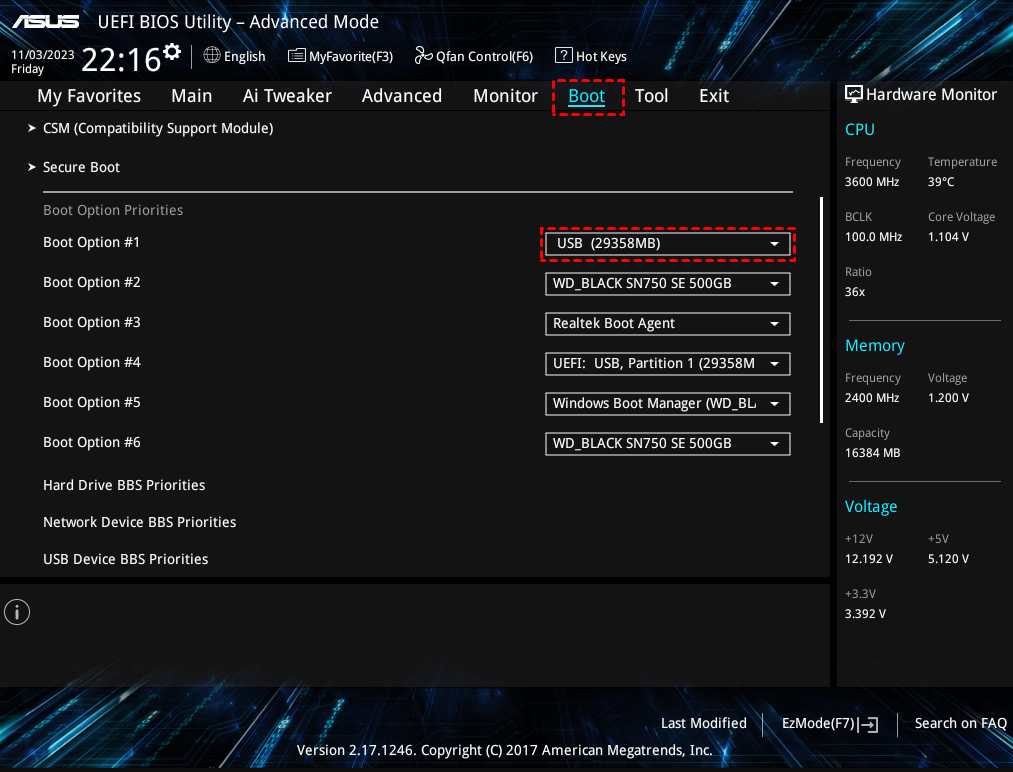
Step 6: Wait for MyRecover to load. Save the boot-order changes and restart the computer with the MyRecover USB connected. The computer will boot from the USB and open the MyRecover interface automatically.
Part 3. Find and Recover the Deleted Partition
When the MyRecover interface appears, it works the same way it does on a normal Windows desktop—only this time it is running from the USB. The steps below locate the lost partition on the disk and write its partition information back, without moving or copying your files. Have the separate backup drive ready before you begin.
Step 7: Select the disk to scan. In MyRecover, open "Partition Recovery", choose the physical disk that contained the deleted partition, and click "Next". Match the disk by its model and capacity, because drive letters can differ in the USB recovery environment.
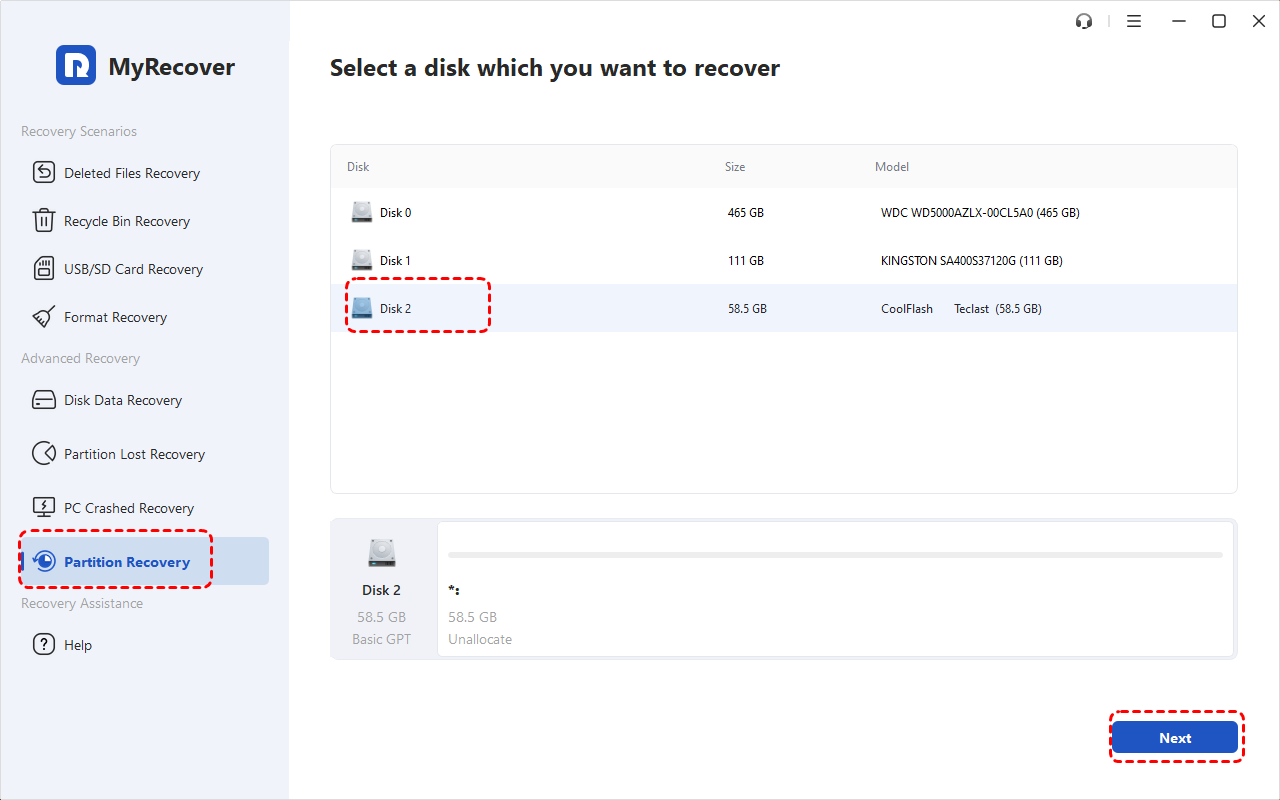
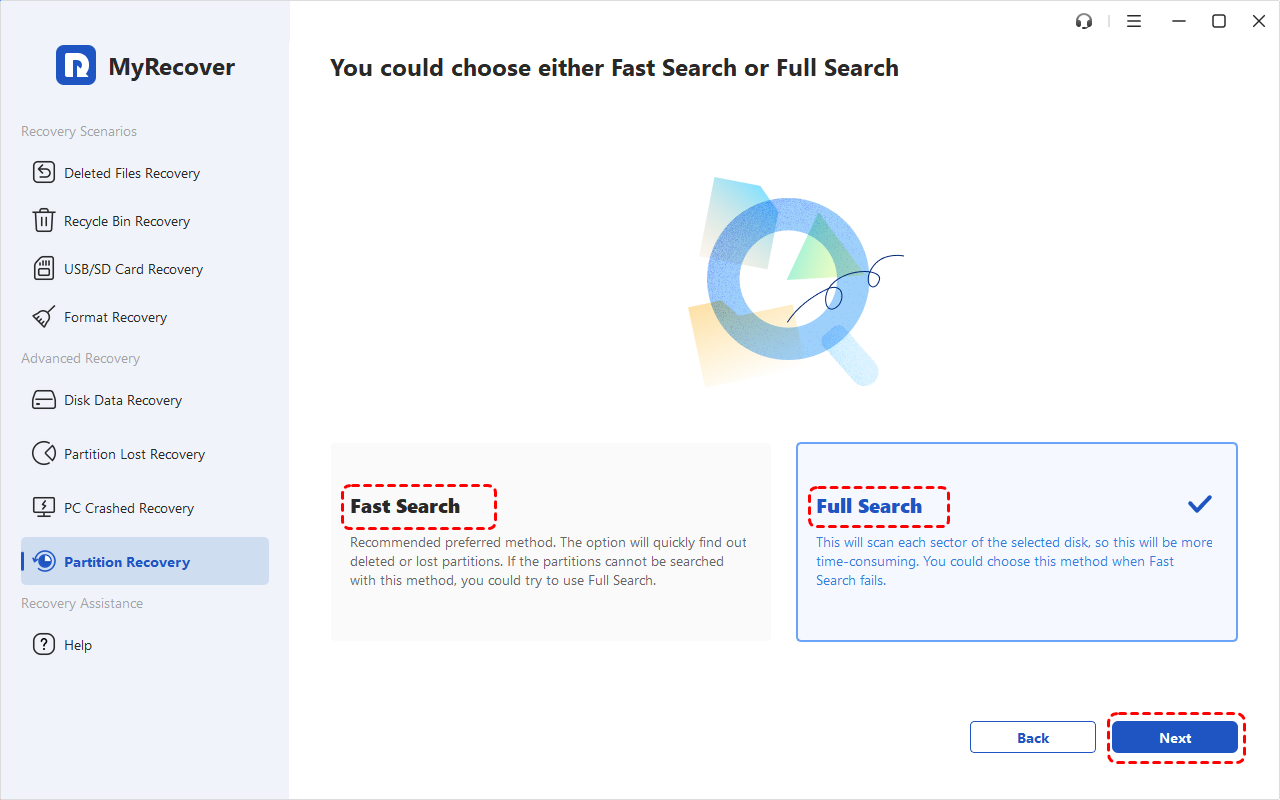
Step 8: Search for the missing partition. Choose "Fast Search" and click "Next"; if it does not locate the partition you need, use "Full Search" for a more thorough search.
Step 9: Check the search results. Compare each candidate's size, file system, and location on the disk with the partition you lost, then select the matching result.
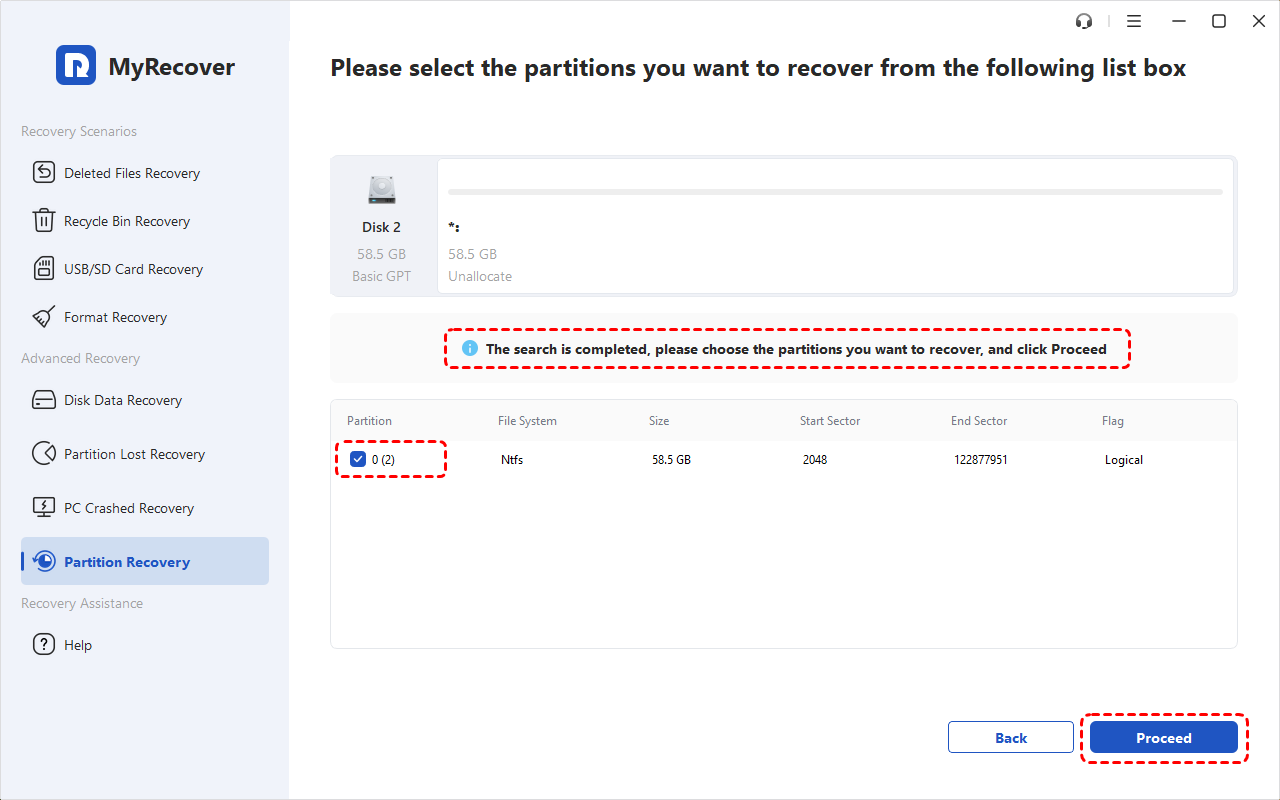
Step 10: Recover the selected partition. Click "Proceed", allow the recovery to finish, and click "Finish" when the completion screen appears.
After recovery, check that the partition is accessible and back up your important files to a separate drive. If Windows still will not start, use a Windows installation USB to access Startup Repair. MyRecover’s bootable USB helps recover partitions and data; Windows startup problems require separate repair.
How to Repair Windows Startup Issue with a Windows Installation USB
If the recovered partition is accessible but Windows still will not start, damaged startup files or boot settings may need repair. A Windows installation USB lets you open the Windows Recovery Environment without loading the installed system. From there, you can run Startup Repair, a built-in tool that checks for common startup problems and attempts to fix them automatically. You do not need to reinstall Windows to use it, making this a practical next step after recovering the partition and protecting your files.
Step 1: Create a Windows installation USB. On a working computer, follow Microsoft’s installation media instructions to download the Media Creation Tool for the affected computer’s Windows version. Connect a blank USB with at least 8 GB of capacity and follow the tool’s prompts to create the media.
- ★Tips:
- Use a separate USB if you want to keep your MyRecover recovery drive. Creating Windows installation media will erase the selected USB and replace anything already on it.
Step 2: Start the affected computer from the installation USB. Connect the finished USB, restart the computer, and select it from the boot menu. If you previously changed the boot order, make sure the computer now starts from the Windows installation USB.
Step 3: Open the repair options. Choose your language and keyboard settings, then select "Repair my PC" or "Repair your computer", depending on the setup version. Continue into the recovery options without selecting the option to install Windows.
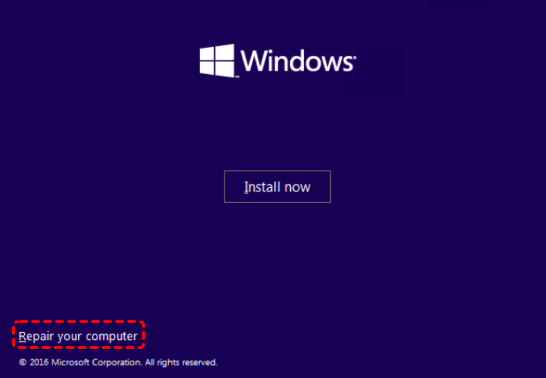
Step 4: Run Startup Repair. Select Troubleshoot > Advanced options > Startup Repair and follow the prompts, including Restart if shown. Select the Windows installation or account if requested, and provide the BitLocker recovery key if the drive is encrypted and Windows asks for it.
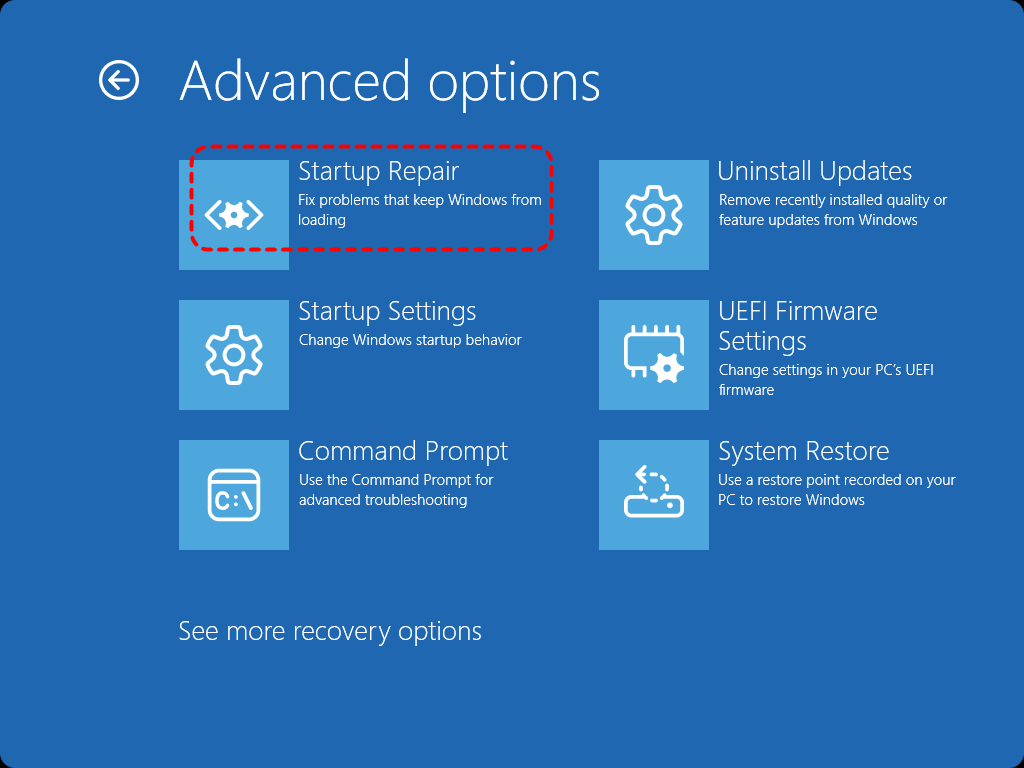
Step 5: Check whether Windows starts. Allow the repair to finish, then remove the installation USB when restarting from the internal drive. If repair fails, note the message shown and seek help for professional repair services.
Startup Repair can address certain startup faults, but it cannot resolve every reason a computer fails to boot. Keep your recovered files backed up before trying more extensive Windows repairs or a reinstall.
Conclusion
To recover a deleted partition with a bootable USB, create the MyRecover media on a working PC, boot the affected computer from it, and scan the original disk with Partition Recovery. Check the recovered files and back them up before doing further work on Windows. If startup problems remain, use a Windows installation USB to access Startup Repair.
For an IT team handling recovery across company computers, MyRecover Technician offers unlimited deployment and use across devices within one organization.
Frequently Asked Questions
Can I recover a deleted partition if Windows will not boot?
Yes, a deleted partition may be recoverable without starting Windows, provided the disk is readable and enough original information remains. Create the recovery USB on a working computer, then use it to boot the affected PC and scan the disk that contained the partition.
Can I use a Windows installation USB to recover a deleted partition?
No, a standard Windows installation USB does not include a tool for searching for and restoring deleted partitions. It provides Windows setup and recovery options such as Startup Repair. To find a deleted partition, use bootable media containing suitable partition recovery software instead.
Will creating the recovery USB erase its existing files?
Yes, creating MyRecover's bootable USB formats the selected flash drive and erases its existing files. Copy anything you want to keep to another drive first. Check the selected device carefully before confirming, especially when several USB drives are connected to the working computer.
Can I create the recovery USB on another computer?
Yes, you can create the MyRecover recovery USB on another working Windows computer. After creation, connect it to the affected PC and boot that PC from it. The second computer prepares the media; the recovery scan runs where the affected disk is physically connected.
Why does the internal drive not appear in the recovery environment?
A missing storage driver can prevent Windows PE from showing an internal drive, even when the computer's firmware detects it. Obtain the appropriate storage driver from the PC manufacturer and use MyRecover's Add Drivers option when recreating the USB. A disconnected or failed drive is another possibility.
Can a bootable USB bypass BitLocker encryption?
No, booting from a USB does not bypass BitLocker encryption. You still need a valid password or recovery key to unlock protected data using a supported method. Keep the key available before beginning; starting a separate recovery environment does not make encrypted files readable.
Will recovering the deleted partition make Windows boot again?
Not necessarily; recovering a deleted partition does not guarantee that Windows will start again. Startup files or boot settings may still be damaged, or another problem may be responsible. Check and back up the recovered files first, then use Windows recovery tools to investigate the startup failure.

Stay Updated With Our
Latest Tips
Add us as a preferred source on Google to never miss helpful guides.
 Add as preferred source >>