 MyRecover



What to Do If Startup Repair Cannot Repair This Computer Automatically Windows 7/10/11
Seeing the error 'startup repair cannot repair this computer automatically' can be frustrating, especially when Windows keeps restarting without loading properly. Whether you’re facing Windows 7 startup repair cannot repair this computer automatically or the same issue on Windows 10, In this guide, you’ll learn how to diagnose the problem.

By Emma / Updated on December 24, 2025


Preface: What is Startup Repair in Windows Computer
Startup Repair is a built-in Windows recovery tool designed to automatically diagnose and fix common startup problems. It is triggered when Windows detects that the system cannot boot normally—such as after an unexpected shutdown, power failure, system crash, or failed update.
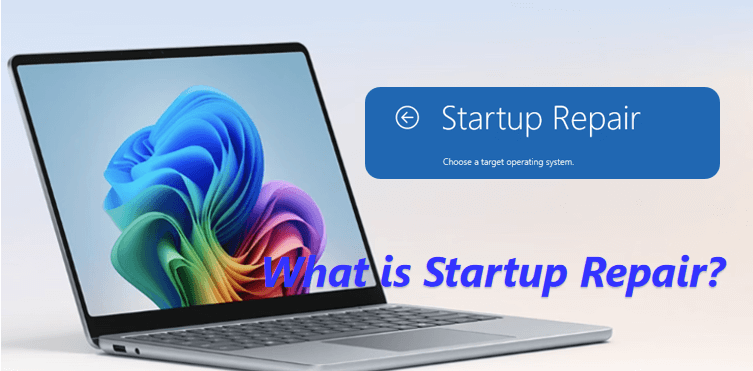
In these situations, Windows attempts to load Startup Repair to scan for issues related to boot configuration, system files, and disk integrity, with the goal of restoring the system to a bootable state without user intervention.
About the Error: Startup Repair Cannot Repair This Computer Automatically
Although Startup Repair is designed to fix common boot problems, it is not always able to resolve every issue. When it fails, Windows displays a related error message, indicating that a startup problem has been detected but cannot be repaired using the tool’s built-in mechanisms.

This error commonly occurs on Windows 7 ("Startup Repair cannot repair this computer automatically") and Windows 10 ("Startup Repair couldn’t repair your PC"). In most cases, it points to deeper underlying issues, such as severely corrupted system files, damaged boot records, incorrect BCD settings, or disk-related errors.
Why Does "Startup Repair Cannot Repair This Computer Automatically" Error Appear?
At this point, Windows may enter a repair loop or fail to boot entirely, leaving users unsure how to proceed. Without understanding the underlying cause, many users may attempt random fixes or even consider reinstalling Windows, which can lead to unnecessary data loss.
🔥🔥Check also: does reinstalling Windows 10 delete everything?
To avoid this, it’s important to first identify why Startup Repair cannot repair this computer automatically. The most common causes behind this error include:
- Corrupted System Files – Essential Windows files are damaged or missing.
- Damaged Boot Records (MBR or Boot Sector) – Boot information on the disk is corrupted.
- Corrupted or Misconfigured BCD – Windows boot configuration data is incorrect or missing.
- Hard Drive or File System Errors– Disk problems prevent proper file access.
- Failed Windows Updates or System Changes – Recent updates or changes disrupt startup.
- Hardware Changes or Compatibility Issues – New or replaced hardware causes boot conflicts.
How to Fix "Startup Repair Cannot Repair This Computer Automatically" Error?
When Startup Repair fails, the following most working solutions are worth your trying.
1. Repair Corrupted System Files
Damaged or missing system files can prevent Windows from booting. Using the "System File Checker (SFC)" and "Deployment Image Servicing and Management (DISM)" tools can repair these critical files without reinstalling Windows.
Step 1. Boot your computer using a Windows installation media or recovery drive.
Step 2. Click on "Repair your computer" in the Windows setup window.

Step 3. Click on "Troubleshoot > Advanced options".

Step 4. In the "Advanced options" screen, choose "Command Prompt"

(For Windows 7, boot from the installation DVD or repair disc, select your language, click Repair your computer, choose your Windows installation, and click "Command Prompt" in the "System Recovery Options" menu.)

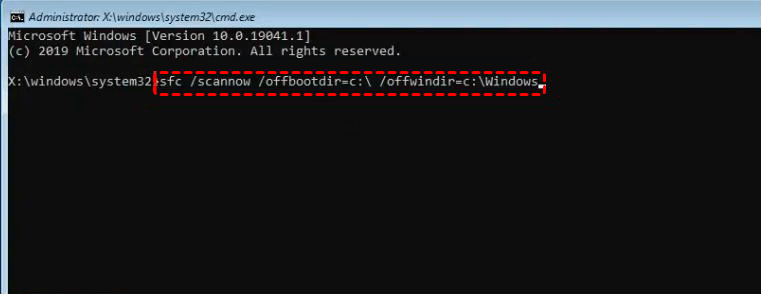
Step 5. Run the command to scan and repair system files: sfc /scannow /offbootdir=C:\ /offwindir=C:\Windows
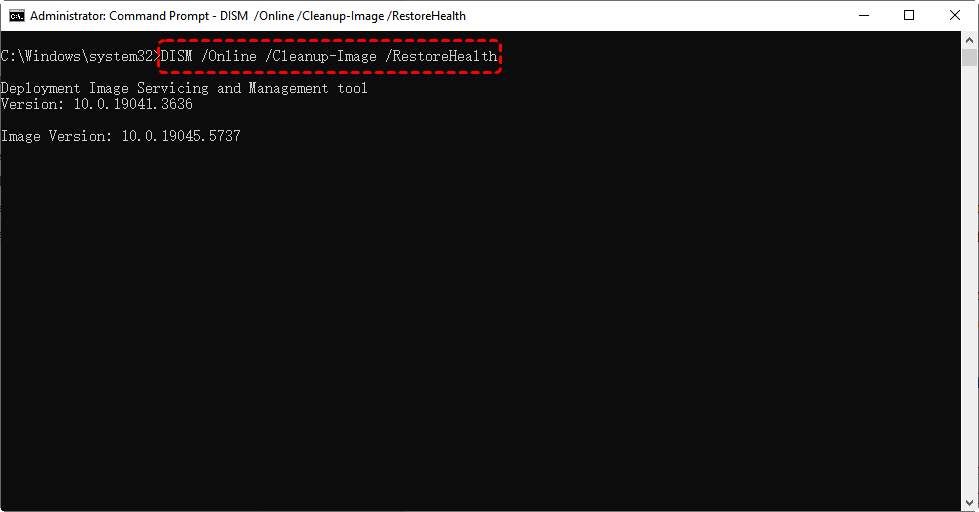
Step 6. Optionally, run DISM to repair the Windows image: DISM /Image:C:\ /Cleanup-Image /RestoreHealth
Step 7. Restart the computer to check if the issue is resolved.
2. Repair Damaged Boot Records (MBR or Boot Sector)
The Master Boot Record (MBR) or boot sector may be corrupted, preventing Windows from locating startup files. "Bootrec" commands can rebuild or repair these records.
Step 1. Open Command Prompt from the Windows recovery environment.
Step 2. Run these commands one by one:
- bootrec /fixmbr
- bootrec /fixboot
- bootrec /rebuildbcd
- bootrec /Scanos
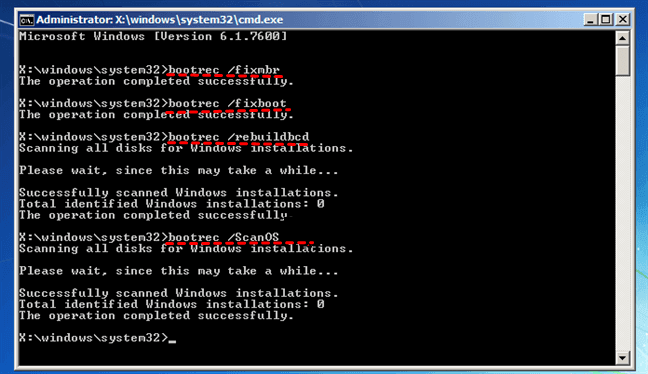
Step 3. After execution, restart your computer to test if it boots normally.
3. Rebuild or Repair Boot Configuration Data (BCD)
BCD stores essential boot information for Windows. If it is corrupted or missing, Windows cannot start, either. If so, take the steps to rebuild the BCD and restore correct startup parameters.
In Command Prompt, first back up the existing BCD: bcdedit /export C:\BCD_Backup

Then reset it:
attrib C:\boot\bcd -h -r -s
ren C:\boot\bcd bcd.old
bootrec /rebuildbcd
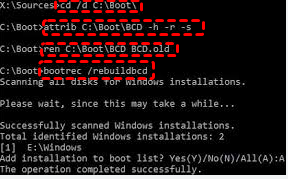
When prompted to add detected Windows installations to the boot list, type "Y" and press Enter.Restart your computer to see if Windows starts properly.
4. Check and Repair Hard Drive or File System Errors
Bad sectors or file system corruption can also block access to startup filesand result in "Startup repair cannot repair this computer automatically" error. Running "CHKDSK" scans and repairs disk errorscan helprestore system stability.
Step 1. Open Command Prompt from the recovery environment.
Step 2. Run the command (replace `C:` with your Windows drive letter if different): chkdsk C: /f /r
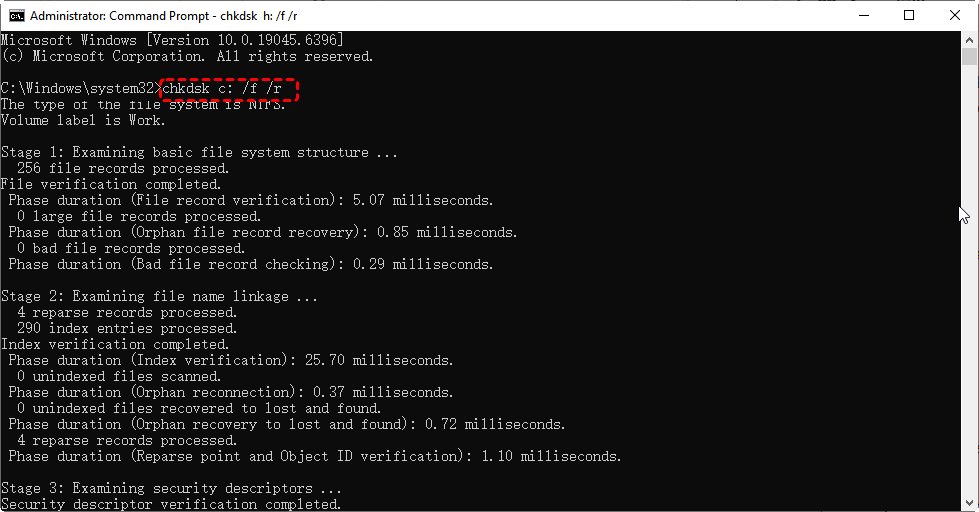
Step 3. Wait for the scan and repair process to finish.
Step 4. Restart the computer and check if the boot problem is resolved.
5. Undo Recent Updates or System Changes
Failed updates, driver installations, or system changes can prevent startup. Rolling back these changes can resolve boot issues without affecting personal files.
Step 1. Boot into "Advanced options > System Restore".
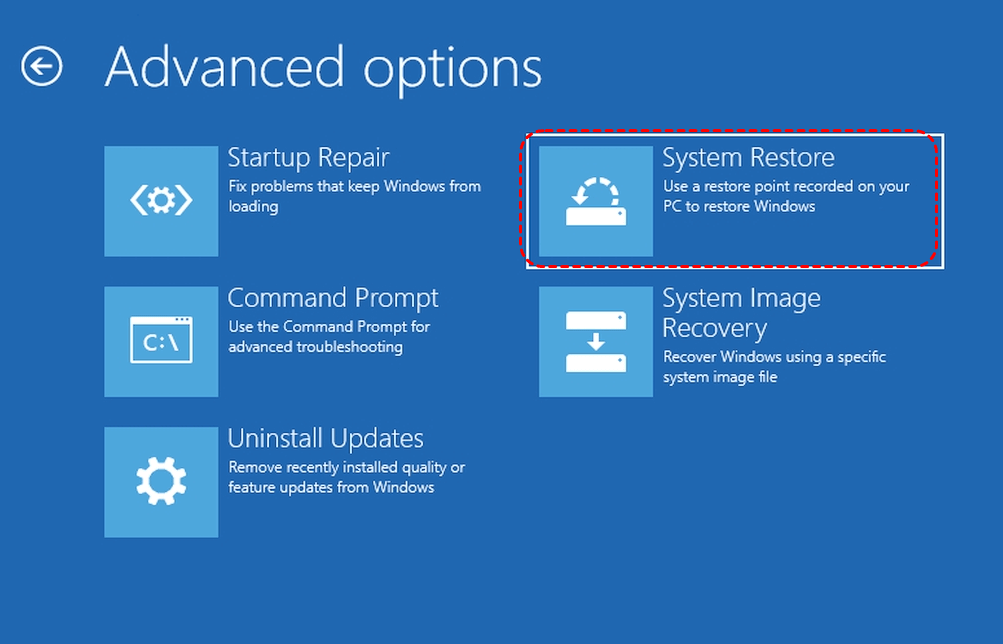
Step 2. Choose a restore point prior to the recent updates or changes.
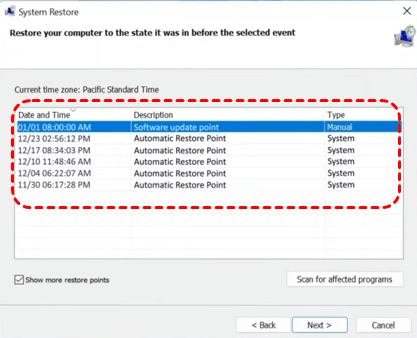
Step 3. Follow the prompts to restore your system.
Step 4. Restart and verify Windows boots correctly.
6. Use Safe Mode to Uninstall Problematic Drivers or Software
Sometimes third-party software or drivers prevent Windows from starting normally. Booting into Safe Mode allows you to remove problematic programs safely.
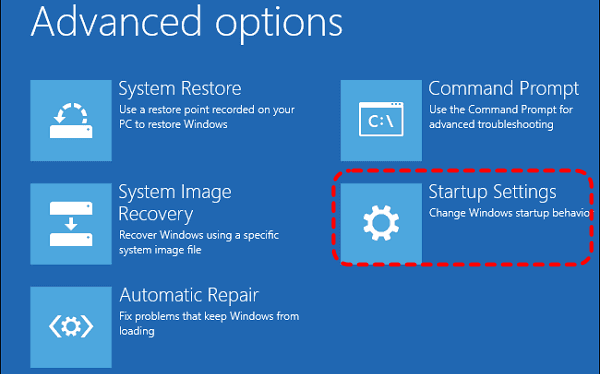
Step 1. Choose "Startup setting" from Advanced Startup options.
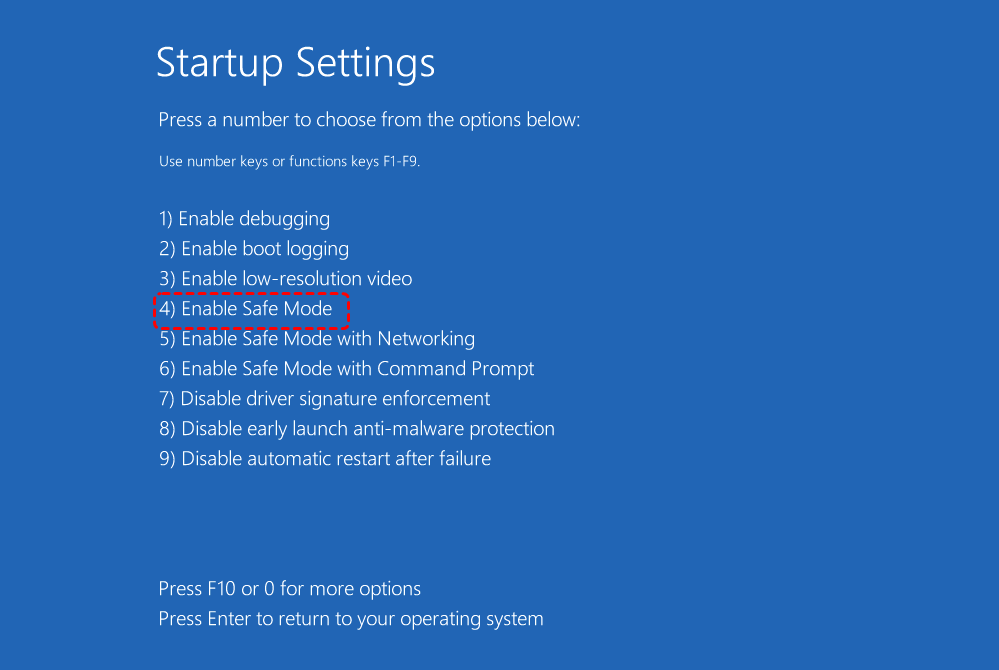
Step 2. Select "Enable Safe Mode".
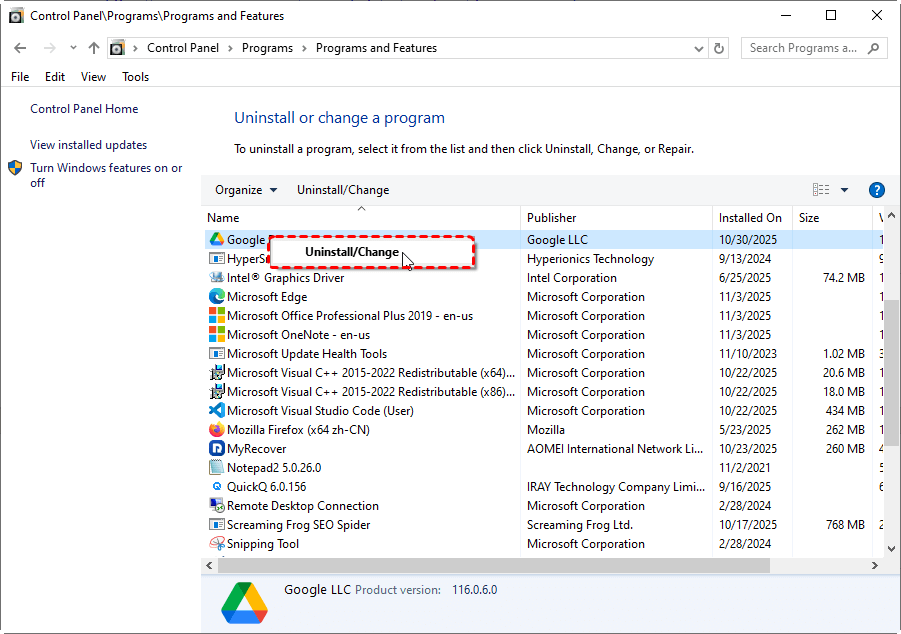
Step 3. Once Windows boots into Safe Mode, open "Control Panel > Programs and Features" to uninstall recently installed software that may cause conflicts.
Step 4. Open Device Manager to identify and uninstall problematic drivers. Right-click the driver and choose "Uninstall device".

After removing suspected programs or drivers, restart your computer normally to see if Windows starts correctly.
Last Resort: Reinstall Windows
If all other methods fail to help fix Windows "startup cannot repair this computer automatically" error, reinstalling Windows might be the last choice to restore system files, boot records, and configuration to default, resolving startup issues at the cost of existing system settings.
1. Rescue Your Files Before a System Clean Install
Before reinstalling Windows, it’s important to ensure your personal files are safe. Reinstalling will erase data on the system drive. If your files are inaccessible due to startup issues, you can use MyRecover, a reliable data recovery tool, to scan the drive and recover important documents, photos, videos, and other files without accessing operating system. Once recovered, store them on an external drive or another partition to prevent data loss.

- ✨500+ Devices Supported | SSD, HDD, USB Flash Drive, SD Sard, etc.
- ✨1000+ File Formats Supported | PNG, MP4, MP3, TXT, ZIP, MSG, etc.
- ✨500+ Data Loss Scenarios | Deletion, Format, System Crash, Virus Attack, etc.
 100% Secure
This software comes with "PC Crashed Recovery"feature, allowing users to create a bootable media on a working computer, boot the PC suffering from boot failure and perform data recovery then. Detailed steps are:
Step 1. Install on your another computer that can boot up successfully. Inset an empty USB drive (or backup and then delete all data on the USB drive since the next steps will erase them).
Step 2. Launch MyRecover, and click "PC Crashed Recovery".

Step 3. Select your USB drive under "USB Boot Device". Follow the prompts to create a bootable data recovery USB.
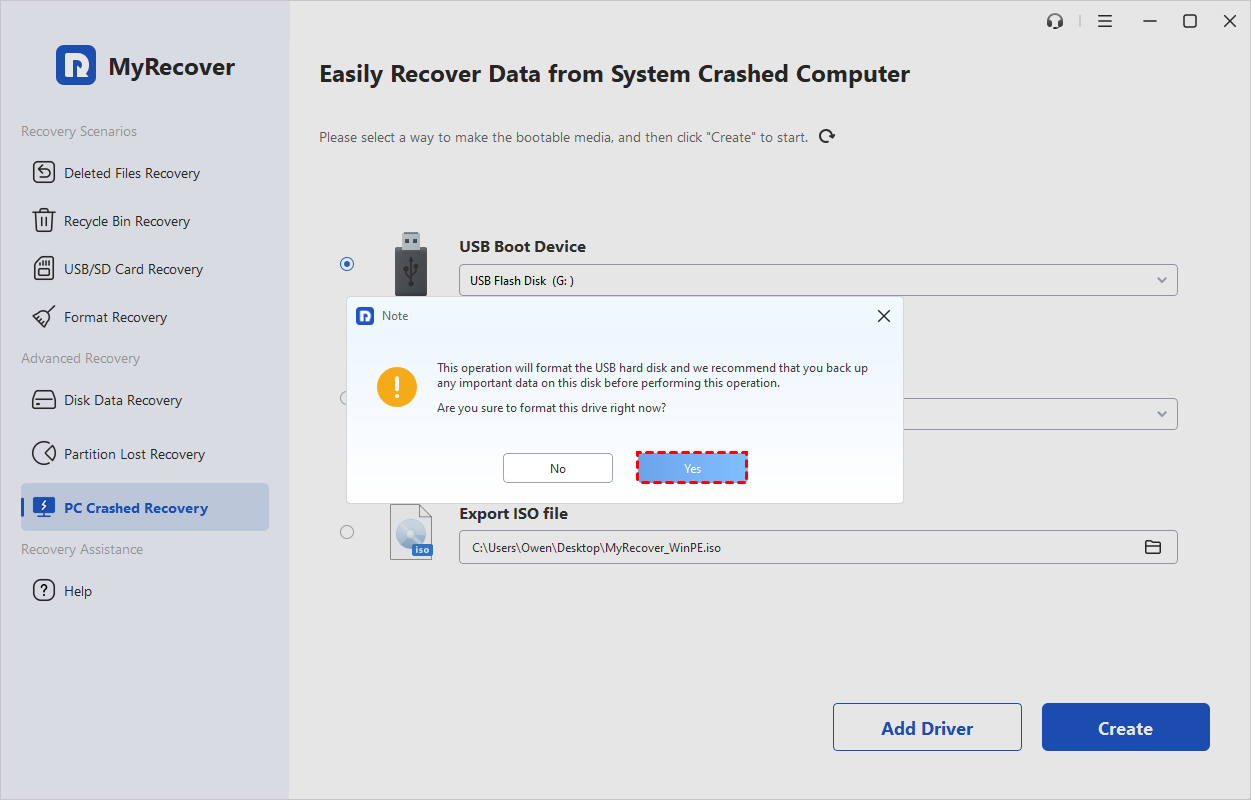
Step 4. Then boot the computer which are stuck in "Startup Repair cannot repair this computer automatically" error from the USB drive by changing boot order.
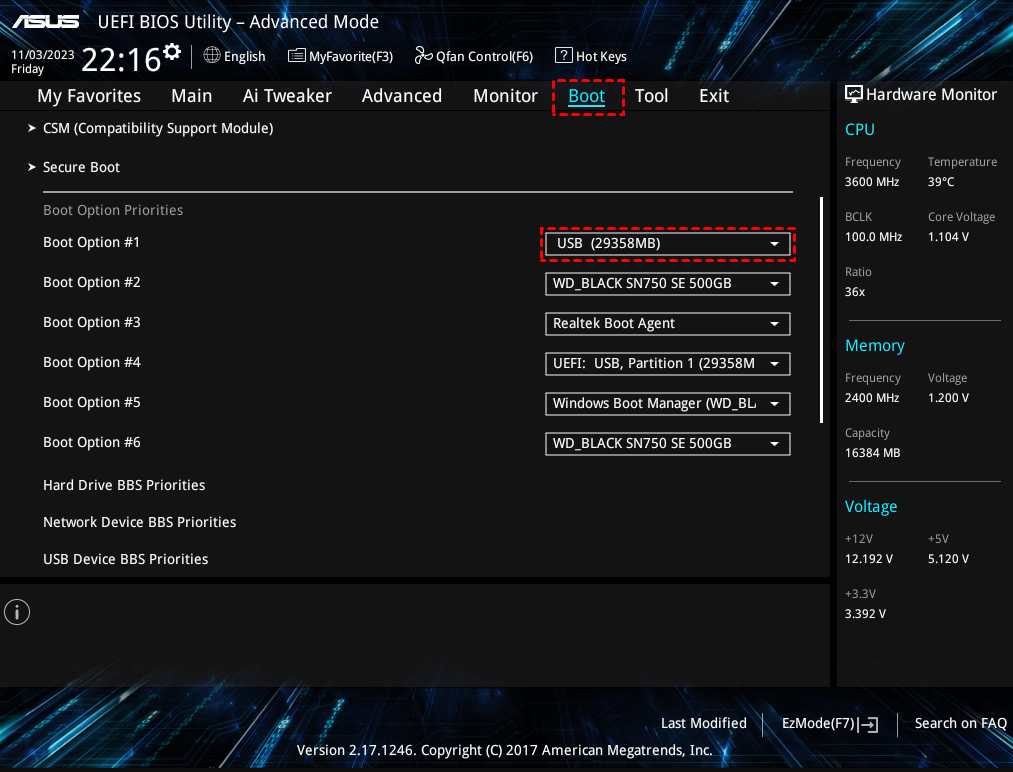
Step 5. When it boots up, you’ll be taken directly to its main interface.. Select "C drive" and click on "Scan" button.

Step 6. After the scan, you can filter, search and preview files. Choose what you need and click "Recover" button.

Step 7. Then save them to another different partition.

2. Reinstall Windows
Once your data is recovered and backed upto a safe location, you can proceed with reinstalling Windows:
Step 1. Boot your computer from a Windows installation DVD or USB drive.
Step 2. Select your language preferences and click "Install Now".
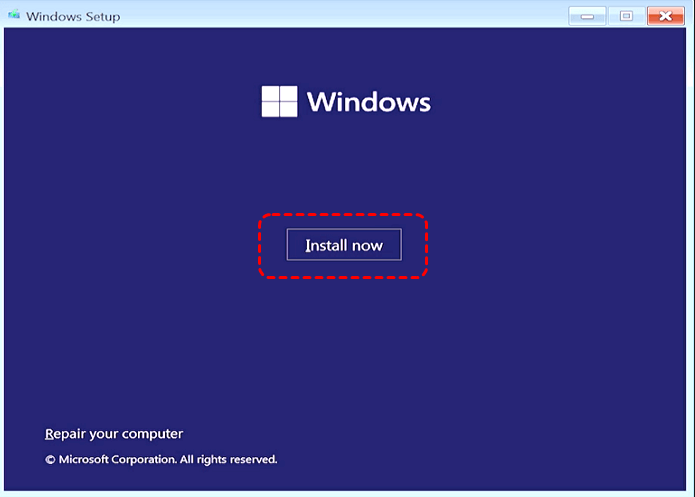
Step 3. Follow the prompts to perform a clean installation or in-place upgrade.
After installation, restore your personal files from the backup and reinstall essential programs.
Wrapping Up
Whenthe "Startup repair cannot repair this computer automatically" error prevents your PC frombootingas usual, try the above troubleshooting steps, such as repairing system files, fixing boot records, or addressing disk errors. If a clean installation of Windows becomes necessary to break the Startup Repair loop, make sure to recover your important personal files first using MyRecover to prevent data loss.
FAQs
Q1: What Happens If Startup Repair Doesn't Work?
A: If Startup Repair fails, Windows may remain stuck in a boot loop or fail to start altogether. This usually indicates deeper issues such as corrupted system files, damaged boot records, or disk errors, which require advanced troubleshooting .
Q2: How To Bypass Startup Repair?
A: You can bypass Startup Repair by booting into "Safe Mode" or using a Windows installation or recovery media to access "Command Prompt". From there, you can repair system files, rebuild boot records, or perform other recovery stepslike restoring from a system restore point manually.
Q3: How Do I Get My Computer Out Of A Loop?
A: To break a Startup Repair loop, try methods such as repairing corrupted files with "SFC/DISM", rebuilding the BCD, running "CHKDSK", or uninstalling recently added drivers or software in Safe Mode. If all else fails, recovering your data and performing a clean Windows installation may be necessary.
Q4: How To Force Windows Startup Repair?
A: To force Startup Repair, restart your PC and repeatedly press "F8" (or Shift + F8 on some systems) before Windows loads, then select "Repair Your Computer" from the boot menu. Then"Troubleshoot > Advanced options > Startup Repair > Restart".

Stay Updated With Our
Latest Tips
Add us as a preferred source on Google to never miss helpful guides.
 Add as preferred source >>