 MyRecover



[Fixed]: Windows Can't Communicate with the Device or Resource (Primary DNS Server)
When Windows reports 'Can’t communicate with the device or resource (Primary DNS Server)' error, the problem isn’t just a broken internet connection. It’s a failure in how your system translates requests into reachable destinations. Focused on root causes, this guide equips users to resolve the issue and maintain consistent network performance going forward.

By Aria / Updated on February 6, 2026


Windows Can't Communicate with the Device or Resource (Primary DNS Server)
Hey, I have a desktop computer whose internet connection via ethernet cable stopped working. If I run Windows Troubleshooter for Network Adapter, I get the following messages:
"Windows can't communicate with the device or resource (primary DNS server)". If I run Windows Network Diagnostics from my browser, I get the following message: "Your computer appears to be correctly configured, but the device or resource is not responding". I'm desperate. Thanks so much for help in advance.
- Question from Matthias Luthi
The error "Windows can't communicate with the device or resource (primary DNS server)" usually appears when your computer is connected to a network but cannot properly access the internet. At first glance, everything may look normal: Wi-Fi is connected, the Ethernet cable is plugged in, but websites fail to load, apps can’t go online, and Windows reports a DNS-related problem.
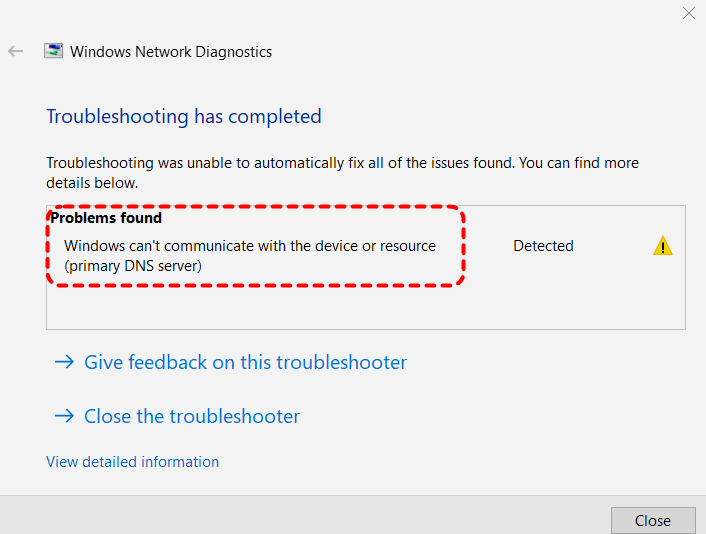
Behind the scenes, Windows relies on DNS servers to translate domain names (like google.com) into IP addresses. When this communication breaks down, Windows simply doesn’t know where to send your requests. As a result, users on both Windows 10 and 11 may suddenly lose internet access without any obvious hardware failure dur to this error.
Possible Reasons Behind the "Windows Can't Communicate with the Device or Resource" Error
The "Windows can't communicate with the device or resource" error usually appears when something interrupts the normal DNS resolution process. Because several system components work together to maintain network connectivity, a small misconfiguration can result in a complete connection failure. Common causes include:
- Incorrect DNS server configuration (manual or automatic),
- Outdated or corrupted network adapter drivers,
- Broken TCP/IP or Winsock settings,
- Antivirus, firewall, or VPN interference,
- Malware modifying DNS or Hosts file entries,
- Disabled DNS Client or DHCP Client services.
How to Fix the "Windows Can't Communicate with the Device or Resource" Error
If you’re experiencing the same issue, there are several methods you can try to restore normal network access. Each method below targets a specific potential cause. Let's dive into the detailed steps.
Ensure DNS and DHCP Clients Services Are Running
The DNS and DHCP Client services are core components of Windows network functionality. If they are not running, your computer will be unable to automatically obtain an IP address or resolve domain names to IP addresses, resulting in a complete loss of Internet access.
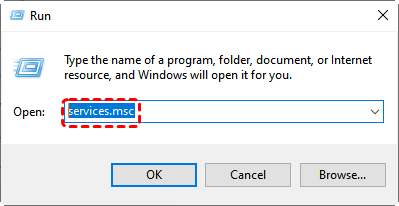
Step 1. Press "Win" + "R" and enter "serives.msc" in the Run dialog, then click "OK" to open the Services window.
Step 2. Locate "DNS Client" and "DHCP Client" from the lists, and ensure both are set to "Automatic" and "Running".
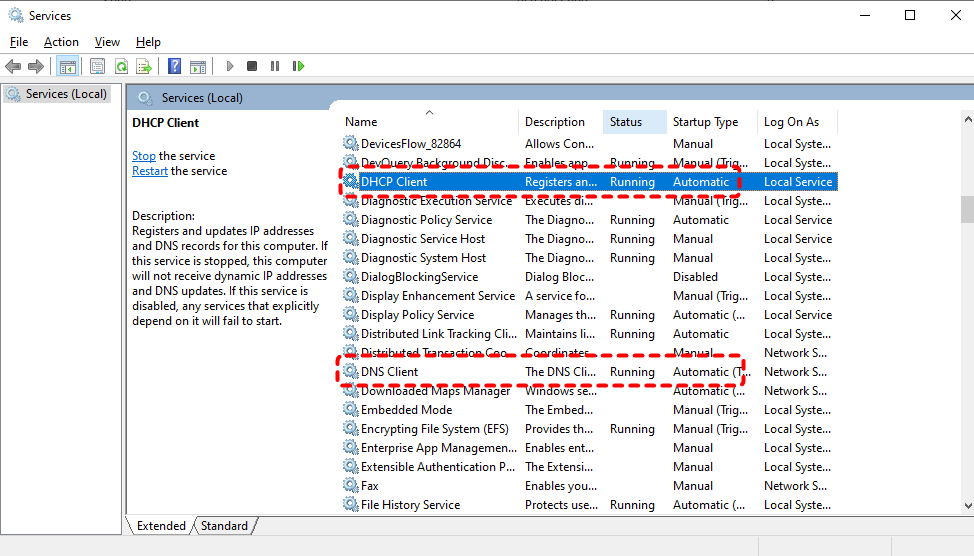
Step 3. If the status is "Stopped", right-click it and click the "Start" button.
Update the Network Adapter Driver
An outdated or incompatible network adapter driver can prevent Windows from properly communicating with DNS servers. To fix the "Windows can't communicate with the device or resource" error, you can try to update the drivers manually.
Step 1. Press "Win" + "X" and choose "Device Manager" to open it.

Step 2. Expand "Network adapters" and right-click your active network adapter like Intel(R) Ethernet Connection, then choose "Update driver".
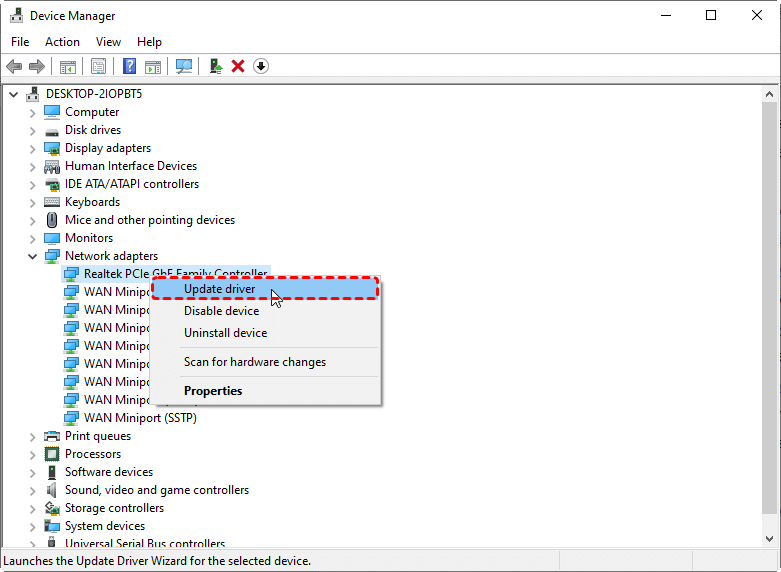
Step 3. Select "Search automatically for drivers" to install the latest version.
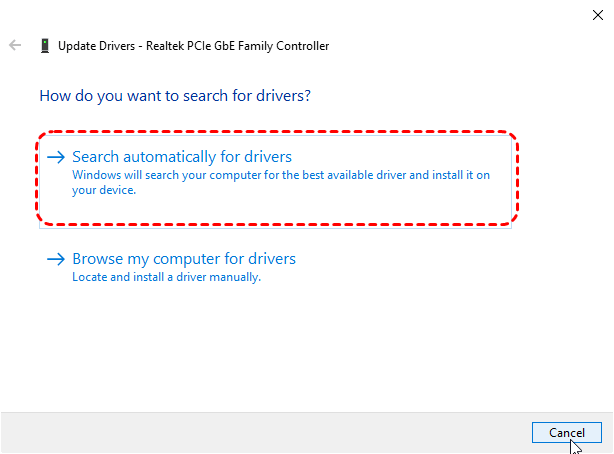
Restart your PC after the update completes to check if the error persists.
Switch to a Different DNS
Sometimes, an unstable or inaccessible DNS server assigned by your ISP can also prevent your computer from establishing a valid connection to the DNS server. You can try to switch your system to Google's public DNS. Here's how:
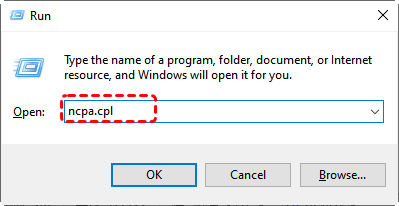
Step 1. Press "Win" + "R" and type "ncpa.cpl" in the Run dialog, then click "OK" to open the Network Connections window.
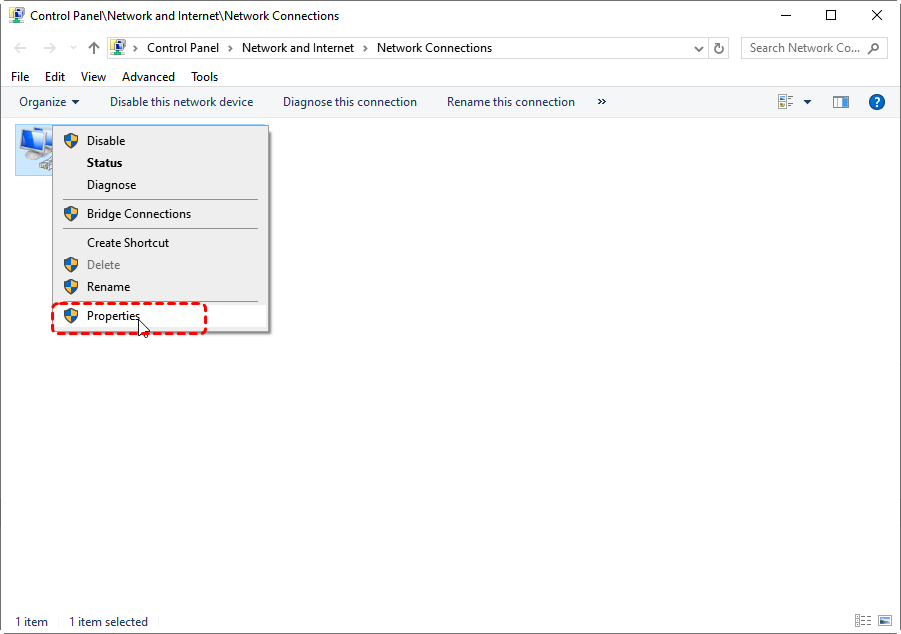
Step 2. Right-click your active connection and choose "Properties". Then, double click " Internet Protocol Version 4 (TCP/IPv4)".
Step 3. Select "Use the following DNS server addresses" and enter "Preferred DNS": 8.8.8.8, "Alternate DNS": 8.8.4.4.
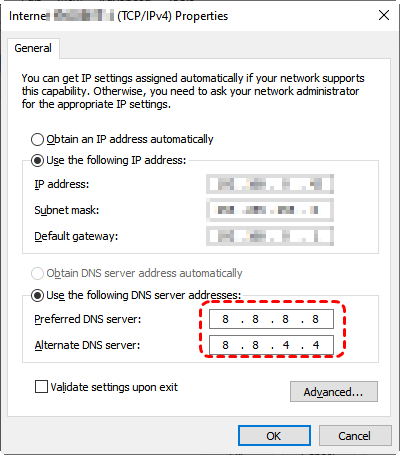
Step 4. Click "OK" to save and connect to Google's DNS server. If needed, do the same for IPv6.
Clear the DNS Cache
A corrupted DNS cache can cause Windows to repeatedly use invalid address records and prevent the secure connection to the server. Clearing the corrupted DNS cache might solve the "Windows can't communicate with the device or resource" error.
Step 1. Locate Command Prompt in the Start menu and right click on it, then choose "Run as administrator".

Step 2. Enter the following command "ipconfig /flushdns" and hit the "Enter" key.
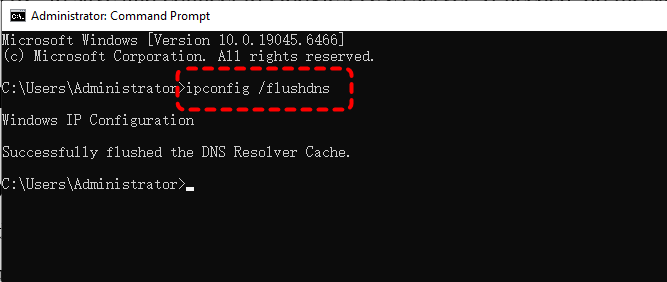
This forces Windows to rebuild DNS records from scratch. Restart your computer and check if the error is still here.
Reset Network Connection Settings
If network settings were altered incorrectly, resetting them with Command Prompt can restore default configurations. Before you begin, ensure that the VPN or Proxy server is disabled. Follow these steps:
Step 1. Run Command Prompt as administrator.
Step 2. Enter the following commands one by one and press "Enter" after each one:
- netsh winsock reset
- netsh int ip reset
- ipconfig /release
- ipconfig /renew
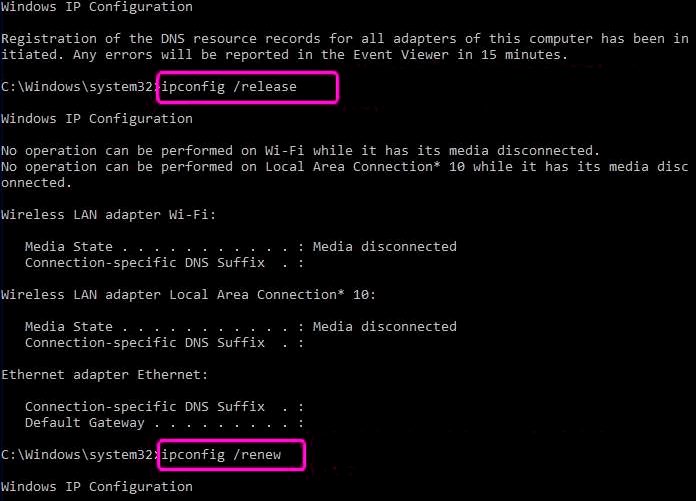
After the command completes, reboot the computer to see if the error is resolved.
Turn off the Windows Firewall Temporarily
Sometimes, third-party antivirus software or firewalls may mistakenly block DNS queries, leading to the "Windows cannot communicate with the device or resource" error. You can temporarily disable the Windows firewall to check if the error is removed.
Step 1. Go to "Control Panel" > "System Security" > "Windows Defender Firewall".
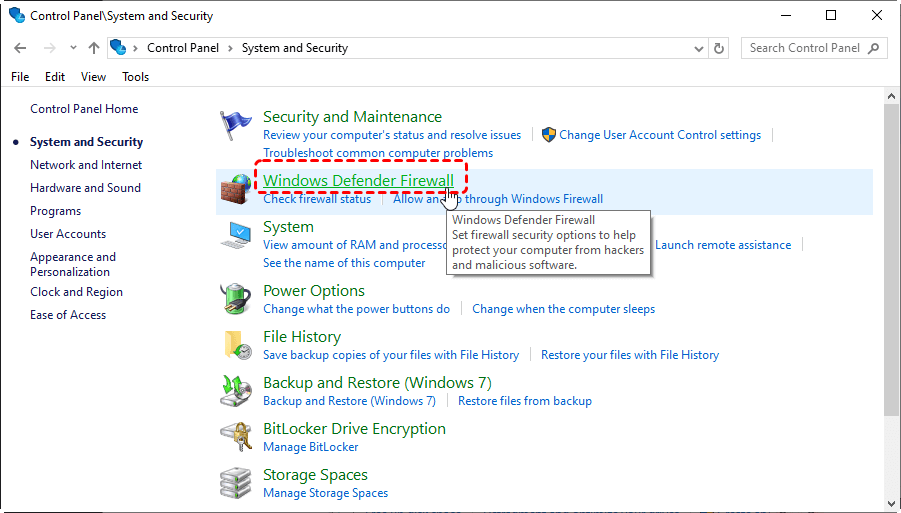
Step 2. Click "Turn Windows Defender Firewall on or off" in the left panel.
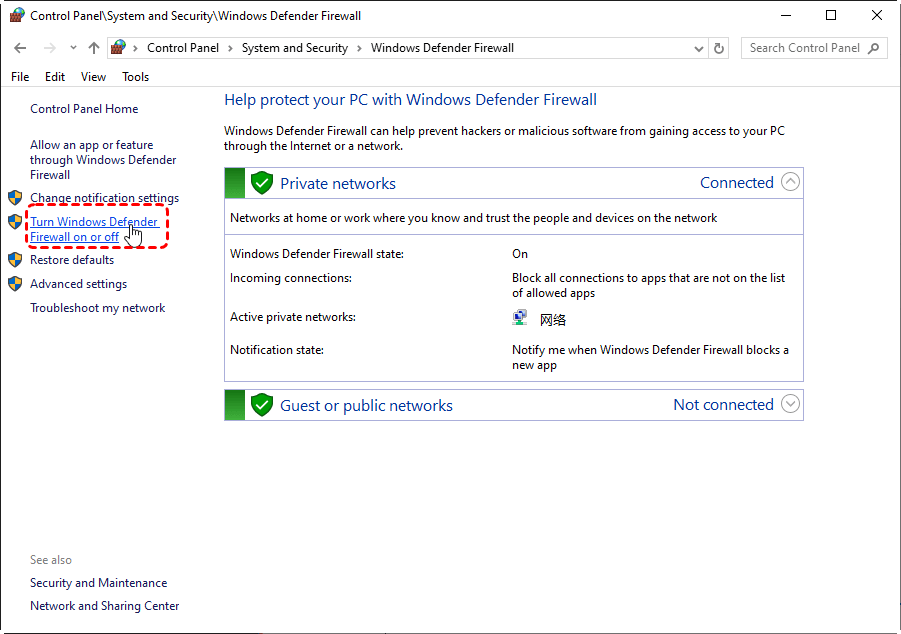
Step 3. Select "Turn off Windows Defender Firewall" under Private/Public network settings.
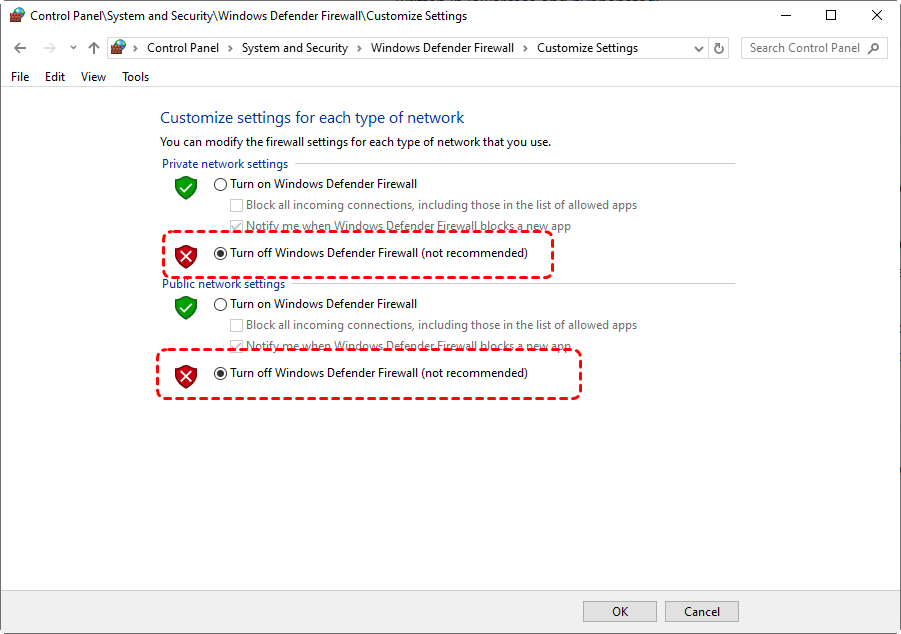
If the error has been resolved, remember to enable the firewall again.
Edit the Hosts File
The hosts file allows Windows to manually map domain names to specific IP addresses, bypassing DNS servers entirely. If this file contains incorrect, outdated, or malicious entries, Windows may be redirected to invalid addresses, resulting in failed connections and the "Primary DNS Server" error.
Step 1. Locate C:\Windows\System32\drivers\etc\hosts in File Explorer.
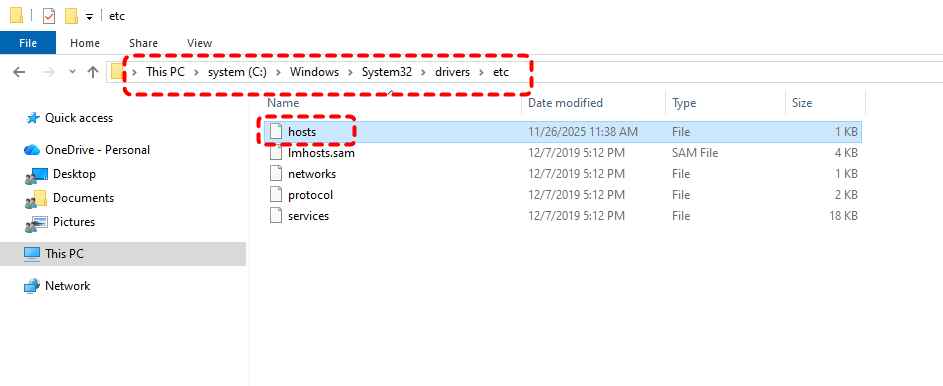
Step 2. Open the Hosts file with notepad and deleted suspicious entries (leave only default lines).
Step 3. Click "File" and "Save".
Scan for Virus or Malware
Malware can hijack DNS settings or redirect traffic. You can try to remove the virus or malware from your computer using Microsoft Defender.
Step 1. Go to "Settings" > "Update & Security" > "Windows Security" > "Virus & threat protection".
Step 2. Select "Full scan" to perform a comprehensive scan for your system.
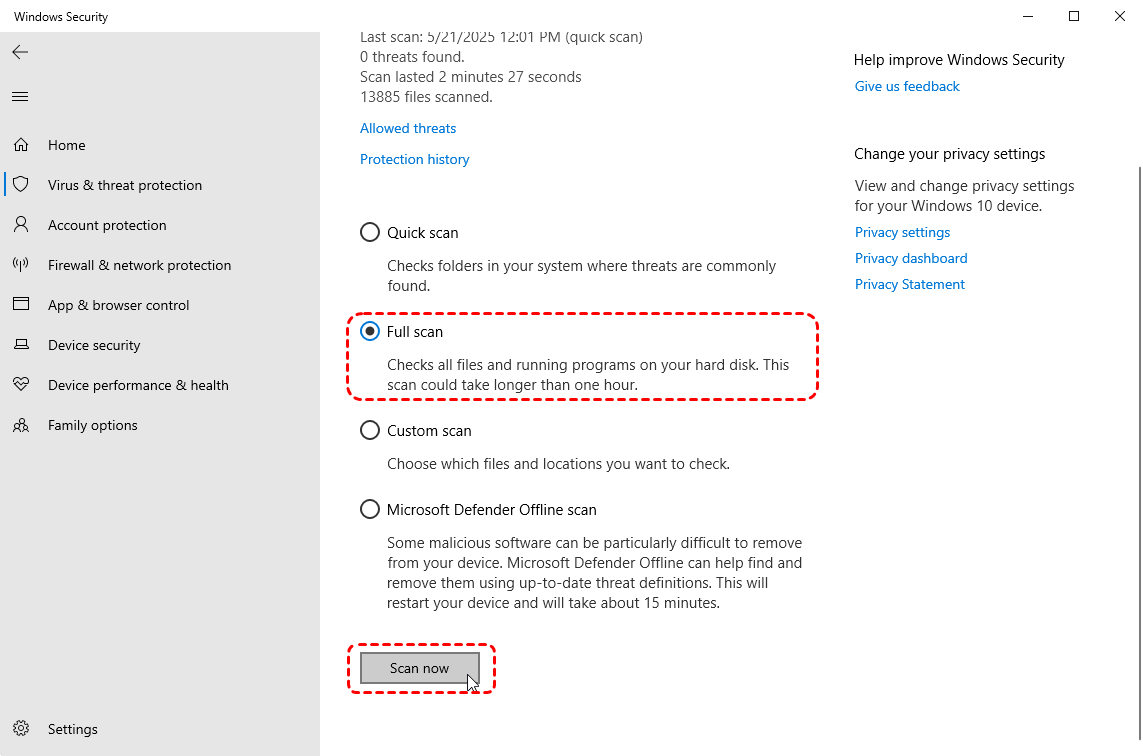
Step 3. If any threats are detected, remove or quarantine it.
How to Recover Lost Files After Network Repairs
If the error has been resolved using the methods above, check if all your personal files are intact. When Windows loses network connectivity, it may result in the loss of files that are being transferred. Sometimes, a few fixes may also lead to accidental data loss, especially from Downloads, Desktop, or user folders. If important files go missing, using a professional data recovery tool is often the fastest and safest option.
MyRecover stands out for its high data recovery success rate and fast scanning technology. It supports recovery from formatted drives, inaccessible partition, corrupted USB drives and more. Its intuitive user interface enables even novice users to perform data recovery without spending time learning professional skills.

 MyRecover
- No complex steps—just scan, preview, and recover.
- Easily recover documents, photos, videos, audio files, emails, compressed files, and morebeyond.
- Quickly filter file types during scanning for faster and more accurate recovery.
 100% Secure
Step 1. Download and install MyRecover on your computer from Microsoft Store, avoid installing it on the drive with lost files.
Step 2. Run the app and select the drive to scan, then click "Scan" to search for recoverable files.

Step 3. After the scan is finished, choose the files you would like to recover from the recoverable lists and click "Recover".

Step 4. Select a safe location to save the recovered files.

Once the process is done, you can view the recovered files in the destination folder by clicking on the "Browse" button.
The Bottom Line
The "Windows can't communicate with the device or resource" error may look intimidating, but in most cases, it’s caused by fixable DNS or network configuration issues. By working through the solutions in this guide, you can usually restore internet access without reinstalling Windows.
And if troubleshooting ever leads to unexpected file loss, having a reliable recovery solution like MyRecover ensures your data doesn’t become collateral damage while fixing network problems. Its Professional edition even allow you to create a USB bootable recovery media to extract files from dead PC.

Stay Updated With Our
Latest Tips
Add us as a preferred source on Google to never miss helpful guides.
 Add as preferred source >>