 MyRecover



Hotmail Deleted Email Recovery: How to Restore Lost Mails Easily
Accidentally deleting important emails can disrupt your workflow and cause significant stress. With this guide, you can master Hotmail deleted email recovery and regain access to your lost messages efficiently, ensuring your mailbox stays complete and accessible.

By Aria / Updated on June 11, 2026


Can You Restore Deleted Emails on Hotmail?
Hi, all. I deleted an important email from my Hotmail last year and I need it back. Has it been permanently deleted? Is there any way to get it back? Thanks
- Question from Peter
Hotmail (Outlook.com), one of Microsoft’s most widely used email services, serves millions of users worldwide for personal and professional communication. Losing important emails from your Hotmail account can be frustrating and disruptive, as Hotmail is a cloud-based email service. Whether the emails deleted due to accidental deletion, moving emails to the wrong folder, server syncing issues, or even malware attacks, this may prevent you from accessing critical messages, attachments, or contact information when you need them most.

In this article, we provide practical guidance on Hotmail deleted email recovery. You will learn step-by-step methods to quickly and safely restore recently deleted Hotmail emails, ensuring that your important communications remain accessible and intact.
How to Perform Hotmail Deleted Email Recovery on Windows
Recovering deleted emails in Hotmail can often be achieved through several built-in features and reliable tools. Below, we outline the most practical approaches for restoring Hotmail emails on Windows.
1. Check the Deleted Items Folder
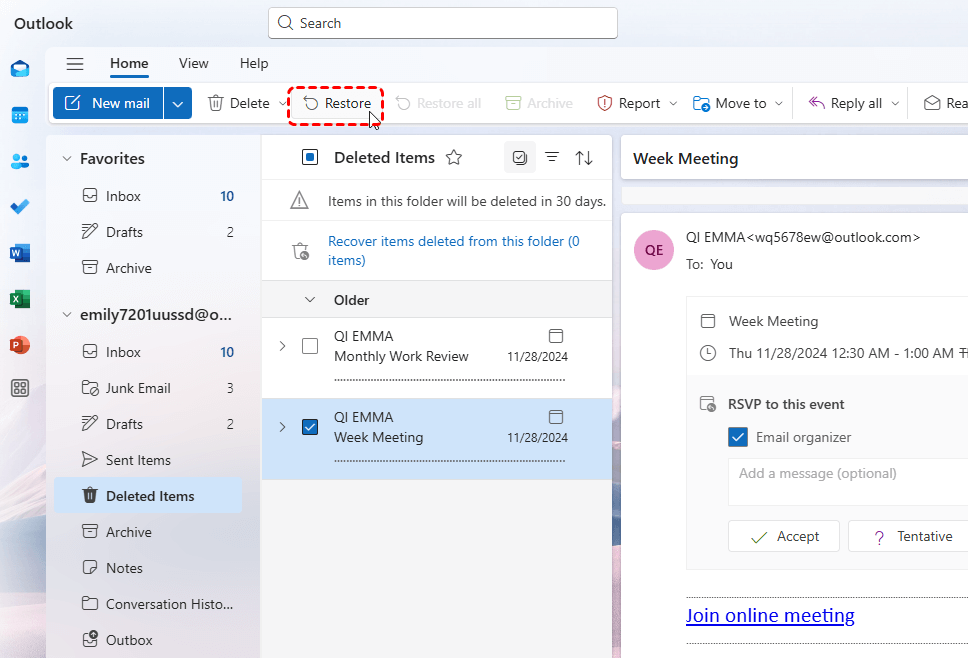
The first and simplest step in Hotmail email recovery is to check the Deleted Items folder. Hotmail automatically keeps deleted emails here for a limited time, making recovery straightforward if the deletion was recent.
- Notes:✎...
- Deleted emails typically remain in this folder for 30 days before permanent removal. Checking this folder first is the fastest way to recover recently deleted emails.
Step 1. Log in to your Hotmail/Outlook.com account on your Windows browser or Outlook app.
Step 2. Navigate to the "Deleted Items" folder in the left-hand folder list.
Step 3. Browse for the email(s) you want to restore.
Step 4. Select the email(s) and click "Restore" on the top of the menu to move it to its original folder.
2. Recover Permanently Deleted Hotmail Emails
Even after emails are cleared from the Deleted Items folder, Hotmail offers a built-in tool to restore deleted messages. Recently purged emails can still be retrieved within the retention window. This method is ideal for emails deleted beyond the 30-day Deleted Items period but not yet permanently purged from Microsoft’s servers.
- ★Tips:
- Similarly, emails deleted from the Deleted Items folder will also be kept here for 30 days, allowing you to restore them.
Step 1. Go to the "Deleted Items" folder in Hotmail.
Step 2. Click on "Recover items deleted from this folder" at the top of the page. (For Classic Outlook, click on "Recover Deleted Items from Server".)
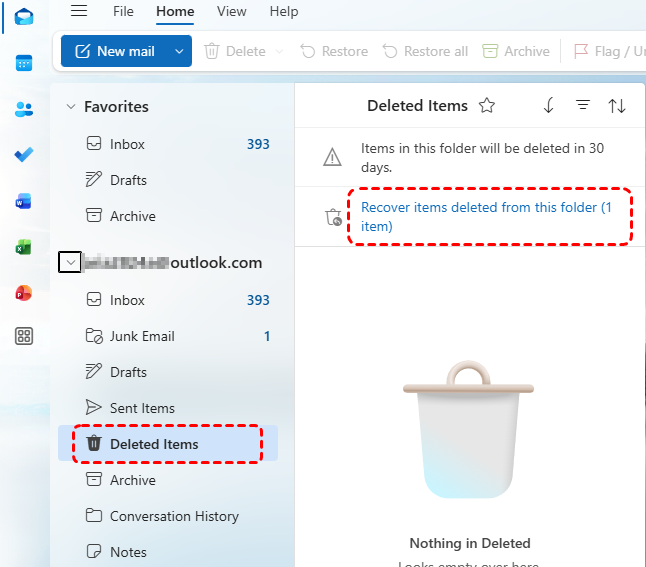
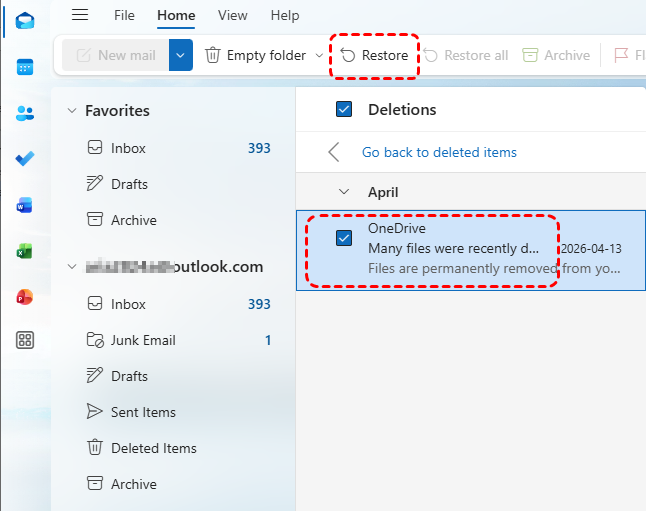
Step 3. Browse the list of recoverable emails, select the ones you want, and click "Restore". The recovered emails will return to your inbox.
3. Check the Archive Folder
Hotmail users sometimes archive emails to keep their inbox organized. Archived emails are removed from the inbox but remain accessible. This makes the email seem missing, while it still accessible in the Archive folder.
Step 1. Log in to your Hotmail account and open the left-hand folder pane.
Step 2. Click on "Archive" to view archived emails.
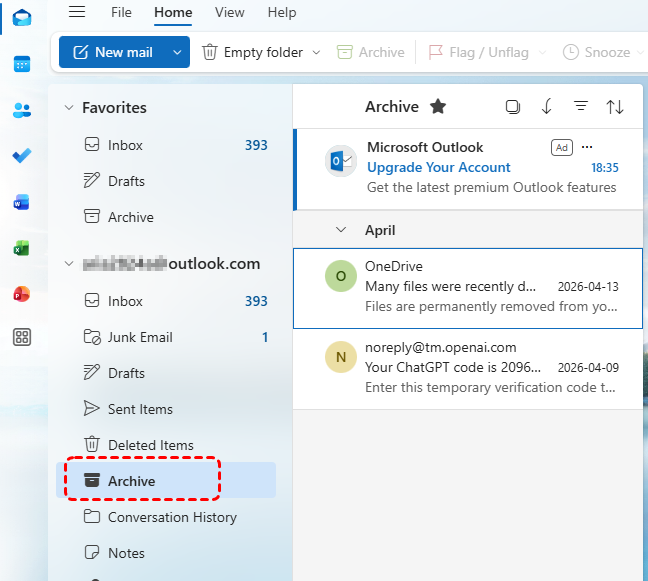
Step 3. Search for the missing email using the search bar or browse manually.
Step 4. Select the email and move it back to the inbox if needed.
4. Recover Emails from PST/OST File
If your Hotmail emails are no longer available on the server or have been permanently deleted from Outlook, all is not lost, especially if you have exported or downloaded the Hotmail PST/OST file on your computer before the email deletion. You may restore your lost emails using this solution. How about the PST/OST file is deleted from your computer?
In such a case, you can try professional data recovery tool like MyRecover to retrieve the lost PST/OST file. It can scan your hard drives and locate over 1000 types of lost files. In addition, it supports over 500 data loss scenarios, including deleted partitions, formatted drives, system crashes and inaccessible storage devices.

 MyRecover
- Recover deleted & lost files from HDD, SSD, USB, SD card, camera as you need.
- Support 1000+ formats of photos, videos, docs, archives, emails, compressed files, etc.
- Reliable rescue for deletion, formatted disk, emptied Recycle Bin, system crashes and more.
 100% Secure
Step 1. Download and install MyRecover on your computer from Microsoft Store or its official website.
Step 2. Launch the application and select the drive where the lost PST/OST files were stored, then click "Scan" to search for recoverable files.

Step 3. After the scanning process is done, browse the results and locate the target files using "Filter" function. Then, choose the files you attempt to recover, click "Recover" to get them back.
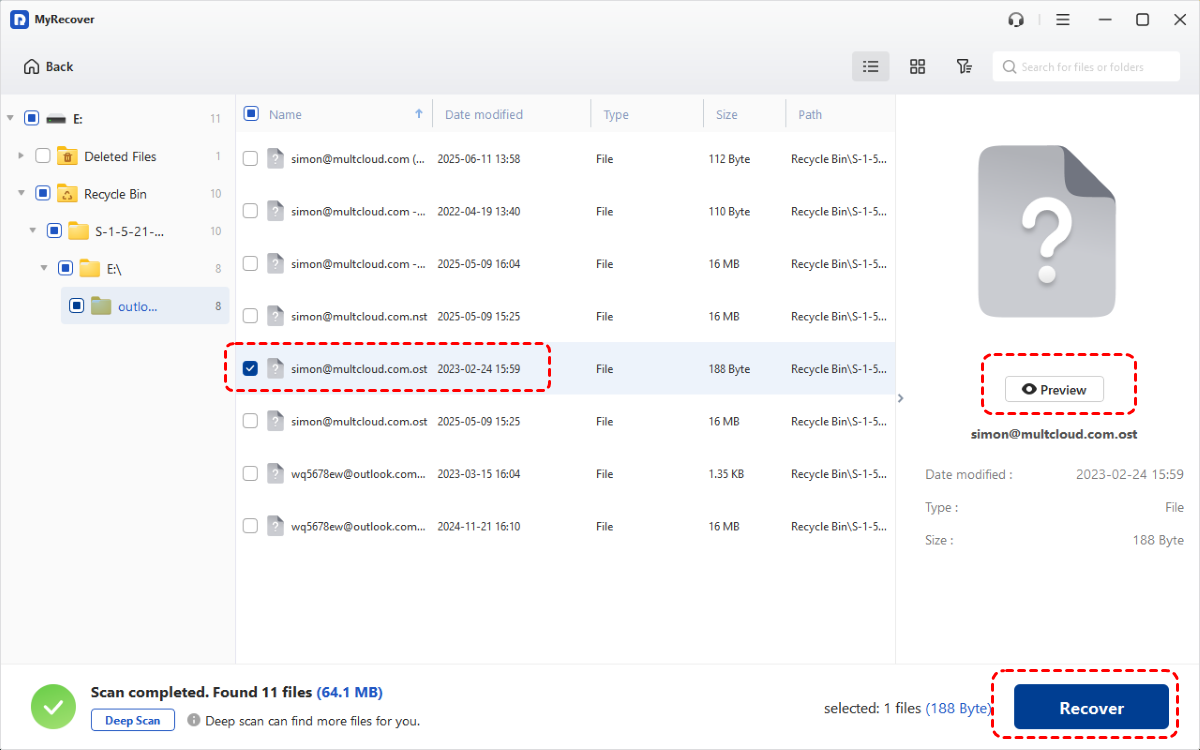
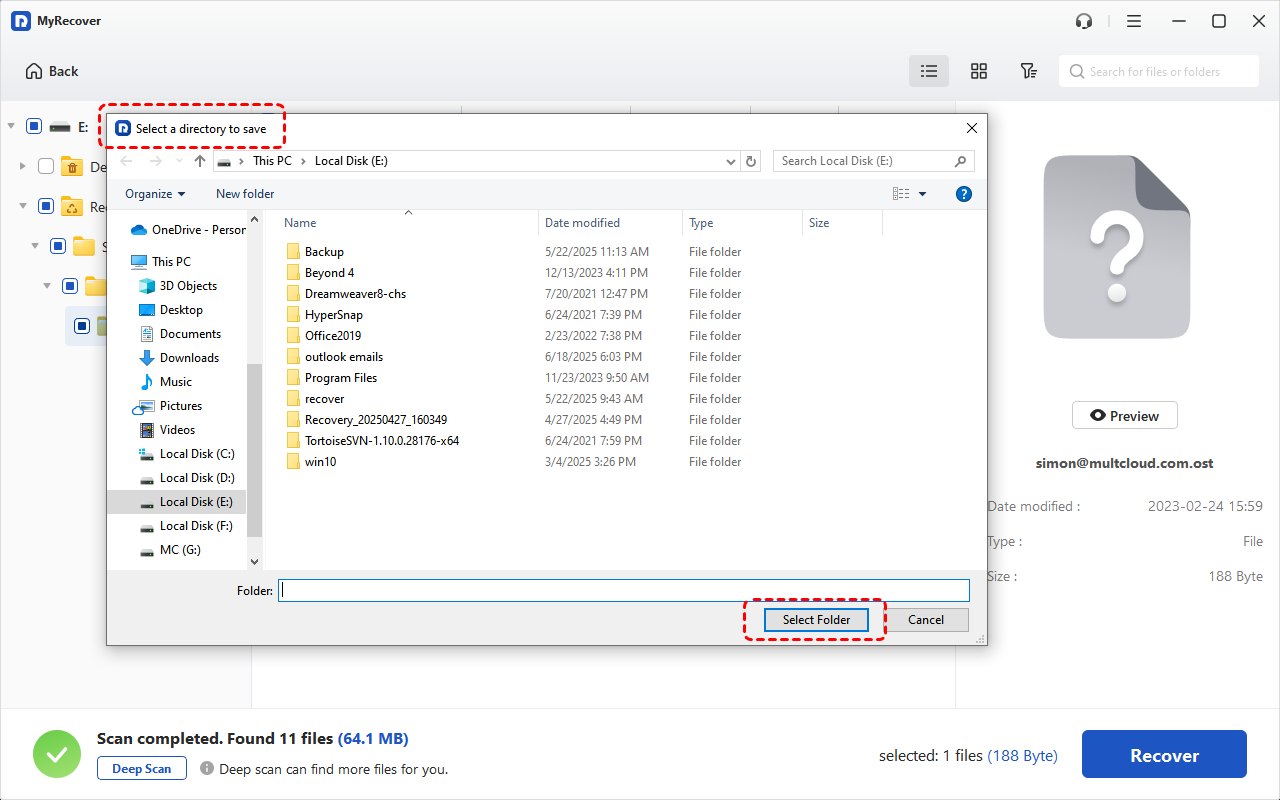
Step 4. Select a different drive to save the recovered files to prevent from overwriting original files.
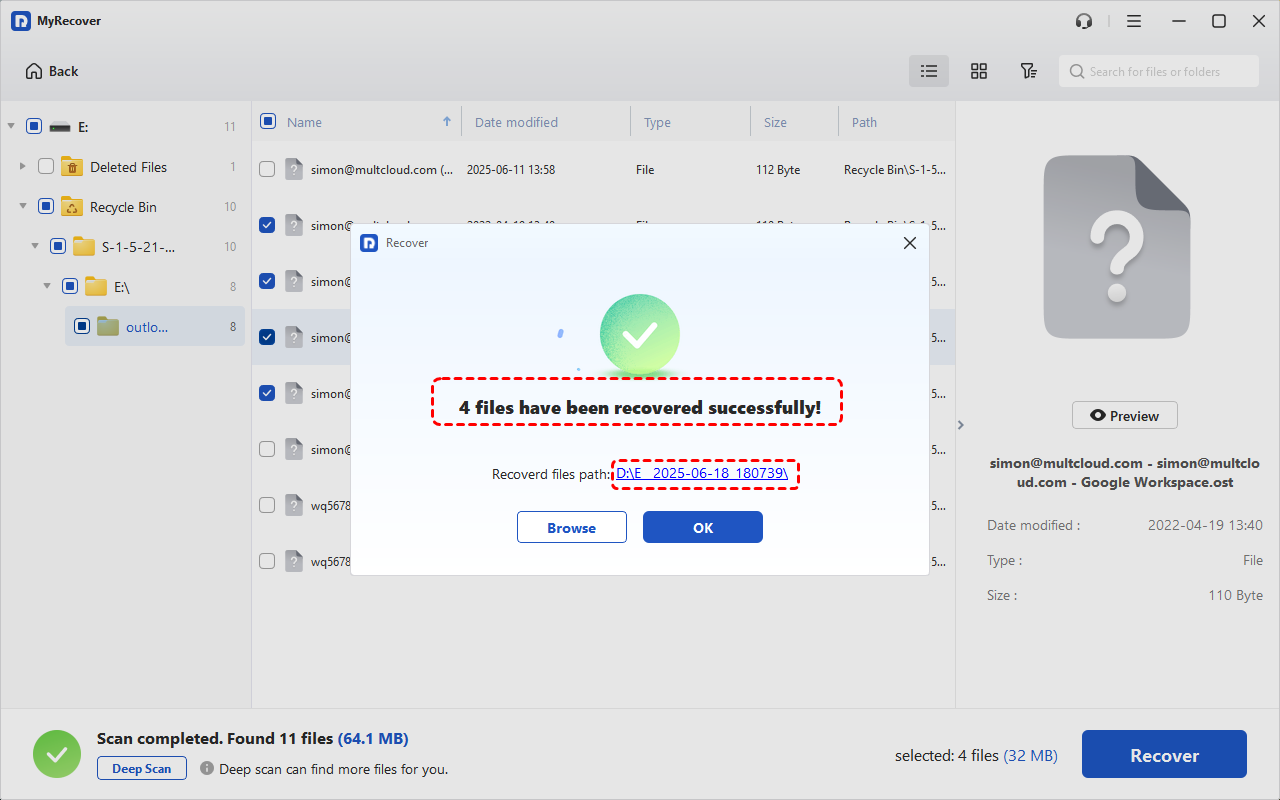
Once the process is completed, the message "Files have been recovered successfully" will pop up. Then, you can check and verify the recovered files in the destination folder.
Now you can directly import the recovered PST file into Outlook to check if deleted emails are restored. If it is an OST file, convert it to PST first, as Outlook cannot open OST files directly.
How to Recover Deleted Emails from Hotmail on Phone
Many Hotmail users rely on their mobile devices for quick email access. Recovering deleted emails on a phone is possible through the Outlook mobile app for Android and iOS. This method works best for recently deleted emails or those that are still on Microsoft’s servers.
1. Check the Deleted Items Folder on Mobile (For Android & iOS)
Similar to the PC version, the simplest approach is to check the Deleted Items folder in the mobile app. Emails deleted within the last 30 days usually remain accessible here.
Step 1. Open the Outlook app on your Android or iOS device and sign in to your Hotmail account.
Step 2. Tap your account to open the folder list.
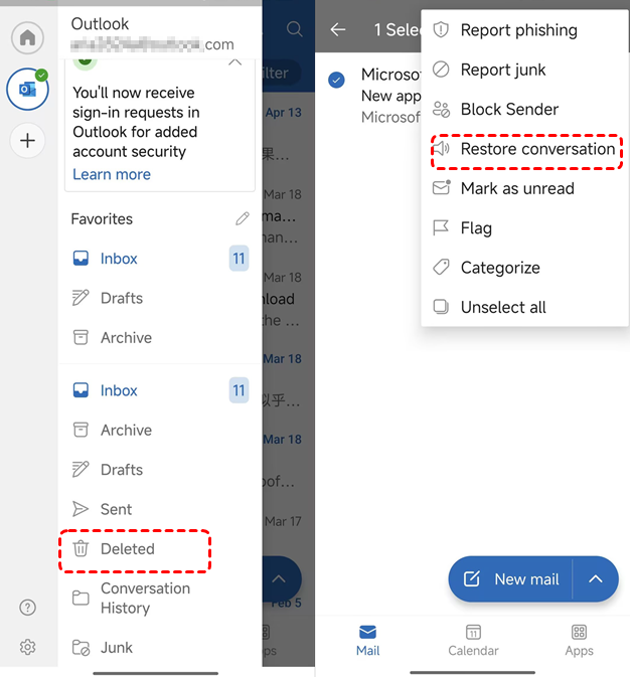
Step 3. Select "Deleted" to browse recently deleted emails.
Step 4. Select the emails you want to restore, then tap the three vertical dots button and click "Restore conversation" to restore you emails to its original folder.
Unlike the PC version, emails permanently deleted from the "Deleted" folder in Outlook mobile have no secondary Recycle Bin. You can only restore them in "Recover items deleted from this folder" on your computer within the retention period.
2. Use MyRecover for iOS (iOS Only)
For emails that cannot be found in the mobile app, MyRecover for iOS offers a professional solution for restoring permanently deleted Hotmail emails. It works by scanning previously exported or downloaded mailbox files on your device, allowing you to recover lost messages, attachments, and contacts efficiently.
Step 1. Download MyRecover for iOS from the official website and install it.
Step 2. Connect your device to the computer with a correct cable and trust the computer on your iPhone.
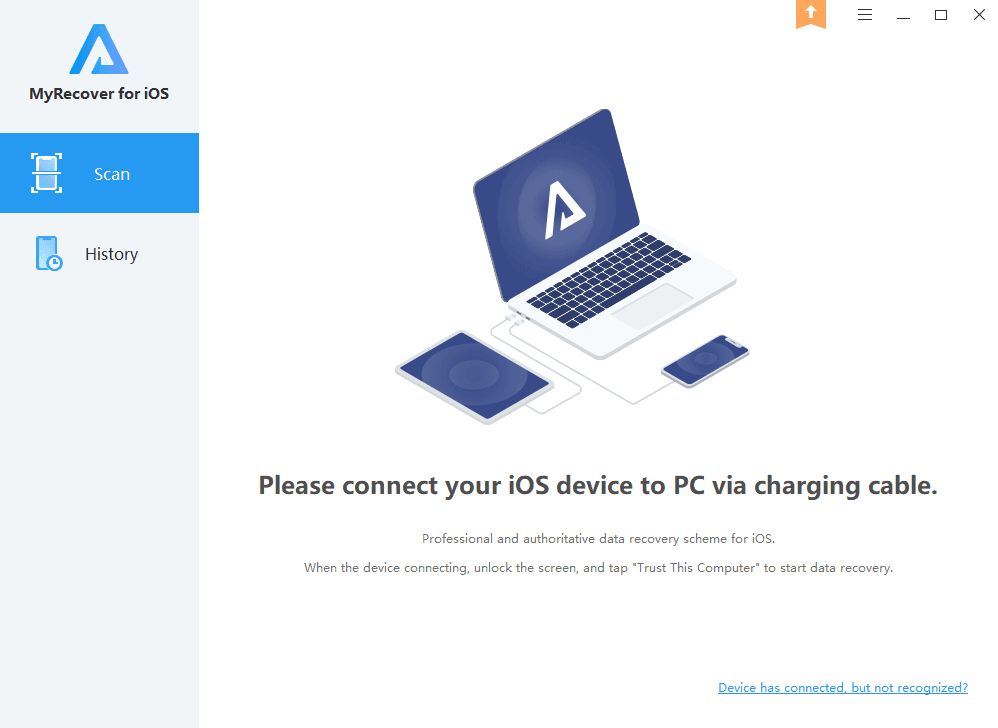
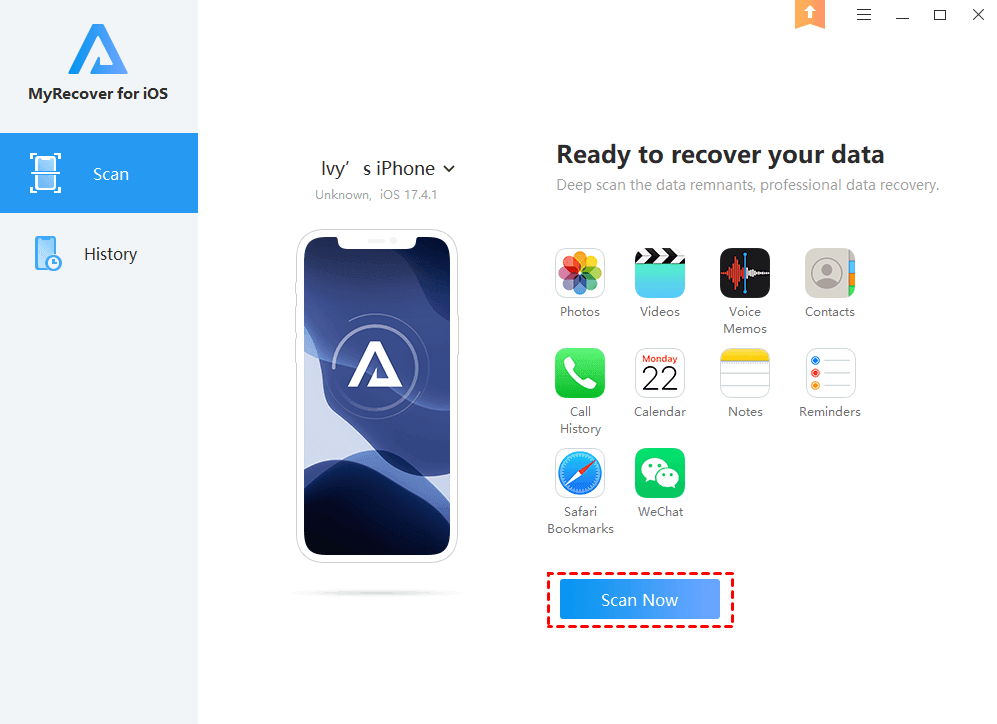
Step 3. Launch the app and click "Scan Now" to locate lost emails and associated files.
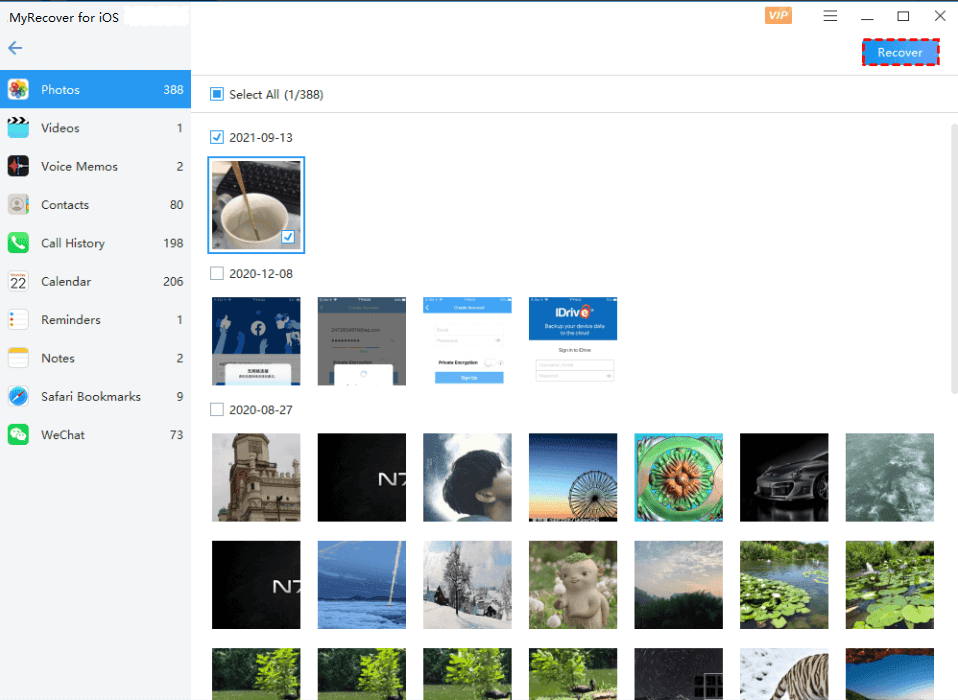
Step 4. Choose the files you wish to recover from the recoverable lists and click "Recover" in the right-upper corner.
How to Prevent Hotmail Email Loss
Preventing future data loss is just as important as recovering deleted emails. By adjusting Hotmail’s message handling settings, managing folders properly, and enabling backup solutions, you can reduce the risk of accidental deletions, sync errors, and corruption.
1. Change Message Handling Settings
Proper configuration of email retention, deletion, and archiving settings ensures that messages are not lost accidentally and remain available for recovery. Adjusting these settings helps you control how emails are deleted, archived, or synced across devices.
Step 1. Log in to your Hotmail/Outlook.com account on a browser.
Step 2. Click the Settings gear icon in the top-right corner to open the Settings window.
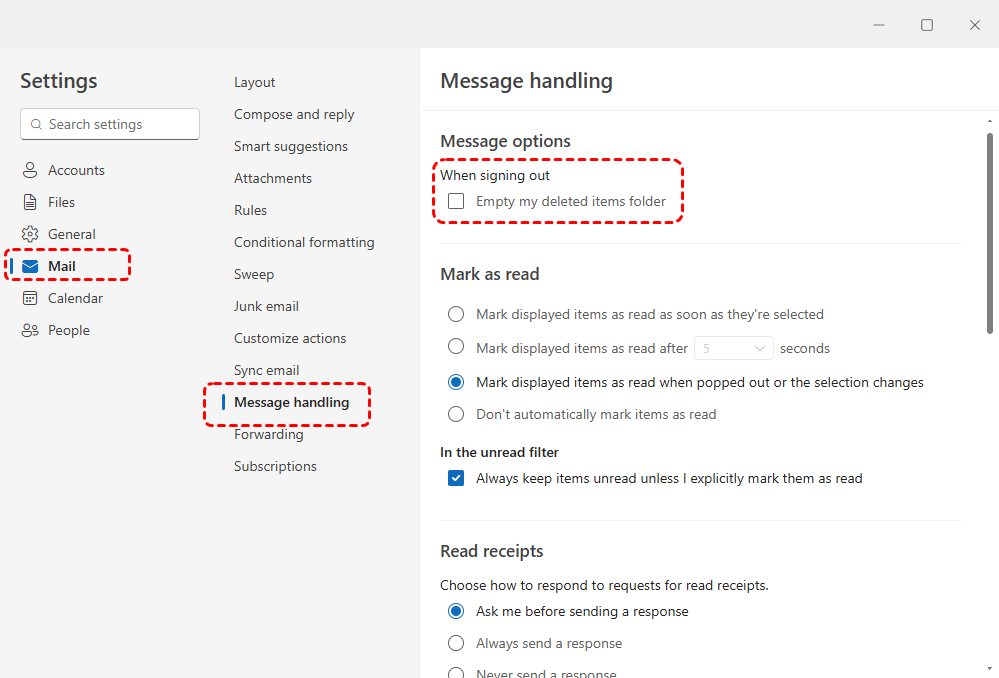
Step 3. Navigate to "Mail" > "Message handling".
Step 4. Under the "Message options" tab, uncheck the "Empty my deleted items folder", then click "Save" to confirm the changes.
2. Organize Folders and Use Archive Properly
Keeping your inbox and folders organized prevents accidental deletion and makes it easier to locate emails. Archiving important emails moves them to a safe location without removing them permanently.
Step 1. Create folders for different categories of emails (e.g., Work, Personal, Receipts).
Step 2. Move old but important emails to the Archive folder instead of deleting them.
Step 3. Regularly check your Archive and folder structure to ensure messages are in the right place.
Step 4. Use Outlook’s search function to confirm all important emails are safely stored.
3. Enable Email Backup and Export
Backing up emails ensures you have an offline copy of your Hotmail account, which can be restored if emails are accidentally deleted or permanently lost from the server. Exporting to PST files also allows recovery with tools like MyRecover. Follow these steps to export a copy of your mailbox.
Step 1. Open Outlook on your Windows PC and go to "Settings" > "File" > "Export".
Step 2. Click "Get Started" to begin the process.
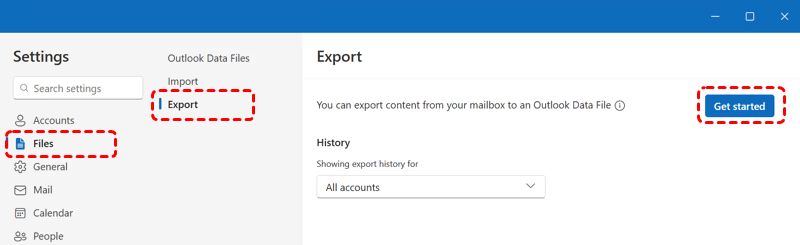
Step 3. Follow the steps in the wizard to select the mailbox or specific folders you want to export.
Step 4. Choose a safe location on your PC or external drive to save the file.
The End
Recovering deleted emails from Hotmail on PC or mobile is often possible if you act promptly and use the right tools. Checking the Deleted Items and Archive folders or restoring lost PST/OST files with professional tools like MyRecover can help you regain access to important messages, attachments, and contacts. Maintaining your email files strong security with correct methods is just as important as recovering lost emails.
For users who need to more advanced features like recover unlimited data and file content preview, the MyRecover Professional edition is a worth investment. It also offers a powerful feature that allows you to recover data from an unbootable PC, ensuring your files remain accessible even when the system fails to start.
FAQs
Q1: Can I recover deleted emails from my Hotmail account?
Yes. You can recover recently deleted Hotmail emails by checking the "Deleted Items" folder. Emails usually remain here for up to 30 days, allowing you to restore them to your inbox quickly.
Q2: Can I recover permanently deleted emails?
It may be possible. Emails permanently deleted from the "Deleted Items" folder can sometimes be recovered using the "Recover items deleted from this folder" feature in Hotmail. It is quite difficult to restore emails permanently deleted from servers. You can try professional tools like MyRecover if exported or stored locally.
Q3: How do I recover permanently deleted emails from my inbox in Outlook?
Open the "Deleted Items" folder in Outlook and check if it shows here. If not, select "Recover items deleted from this folder" and restore it. If emails were removed from the server, you can restore them using PST/OST files or a data recovery tool like MyRecover.
Q4: How long does Hotmail keep deleted emails?
Hotmail keeps deleted emails in the "Deleted Items" folder for 30 days by default. After this period, emails may be permanently removed from the server unless restored from backups.
Q5: Where do deleted emails go in Hotmail?
When you delete an email in Hotmail, it moves to the "Deleted Items" folder. If you delete it from there, it may go into the server’s recoverable items section for a limited retention period.
Q6: Is it possible to recover permanently deleted emails from Outlook?
Yes, if you have previously exported your mailbox to PST/OST files, you can use a professional recovery tool like MyRecover. Otherwise, permanently deleted emails cannot be retrieved from the server after retention expires.

Stay Updated With Our
Latest Tips
Add us as a preferred source on Google to never miss helpful guides.
 Add as preferred source >>