 MyRecover



Outlook Subfolders Missing? 8 Quick Ways Here!
Outlook subfolders missing? Learn how to recover missing Outlook subfolders after syncing, moving items, or updates, plus fixes for the Outlook app and webmail.

By Delores / Updated on May 6, 2026


My Outlook Subfolders Are Missing, Please Help!
You’ve just opened Microsoft Outlook, ready to pull up a specific client email tucked neatly into a subfolder, but you find that your Outlook subfolders are missing! Then you lose access to archived conversations, project tracking, and critical documentation.

Don't worry, it’s rarely a sign of permanent data loss. Usually, it’s a glitch, a sync hiccup, or a simple view setting gone rogue.
Let’s walk through exactly why this happens and, more importantly, how to recover those subfolders from Outlook 365.
Why Are Subfolders Not Showing in Outlook 365?
You can’t fix a problem until you know what broke it. Let’s find out the usual factors behind disappearing folder.
Outlook subfolders go missing primarily due to syncing errors between the app and server, corrupted data files (.ost/.pst), accidental deletion or movement, and incorrect view settings. They may also disappear if a user exceeds folder limits or if Cached Exchange Mode is malfunctioning.
Common Reasons for Missing Subfolders
- Synchronization Issues: Errors in connecting to the mail server can cause folders to disappear or not appear, especially with IMAP accounts.
- Corrupted Data Files (.ost/.pst): Abruptly closing Outlook or power issues can corrupt data files, causing folder mapping to fail.
- Accidental Deletion or Movement: Folders may have been moved into another folder or deleted into the "Deleted Items" folder.
- View/Filter Settings: Folders might be hidden, collapsed, or hidden via custom view filters that make them appear gone.
- IMAP Folder Subscriptions: In Gmail or IMAP accounts, folders might be set to not "show in IMAP", making them invisible in desktop applications.
- Too Many Folders/Items: Exceeding the maximum limit for folders or items per folder can prevent some from displaying.
How to Recover Missing Outlook Subfolders? 8 Ways
There are multiple ways for you to recover missing Outlook subfolders.
Way 1. Check Outlook View Settings for Hidden Subfolders
Here’s a trick that solves half of the subfolders missing in Outlook 365 cases: the view filter.
Outlook has a feature called “Compact View” or “Hide When Minimized”.
If you’ve accidentally collapsed a parent folder, its children won’t show.
Here is how to recover Outlook missing subfolders:
1. Click on the parent folder (like your Inbox).
2. Look for a small triangle or arrow next to it.
3. If it’s pointing right, click it to point down.
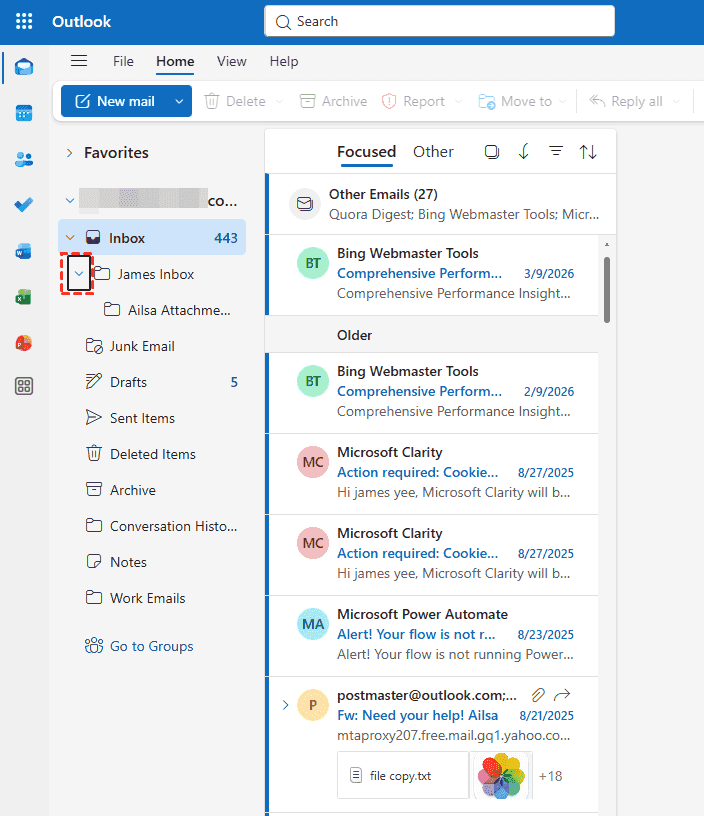
Now your Outlook subfolders should appear.
Also, check the “View” tab. Click “View Settings” > “Filter”. If any filter is active that limits what folders display, clear it.
Way 2. Use Search Tools to Locate Outlook Missing Subfolders
Can’t see the folder, but know an email inside it exists? Use Outlook’s advanced search.
1. Press Ctrl + Shift + F to open the Advanced Find dialog.
2. In the “In” field, browse to your mailbox root (not just Inbox).
3. Type a keyword from an email you know is in the missing folder.
4. When the email appears, right-click it and select “Open in Folder”.
5. Outlook will jump straight to the folder’s location, even if it’s been accidentally nested three levels deep in a place you’d never think to look.
Way 3. Recover Moved Items from Deleted Items or Recoverable Items
So, Outlook subfolders disappeared after moving a batch of emails or dragging a folder.
First, check your Deleted Items folder. Click Deleted Items, Trash, or Junk Emails.
If the subfolders are not there, then:
1. Go to “Folder” > “Recover Deleted Items” (for Exchange accounts). This opens the hidden dumpster. Items live here for 14 to 30 days, depending on your admin’s settings.
2. Scroll through. If you see your missing folder, select it and click “Recover”. It will return to its original parent.
Way 4. Fix Folder Hierarchy
Your folder is still there, but it’s become a hidden sub-subfolder of another.
1. Right-click on your mailbox root (often your email address) and choose “Search Folders” > “New Search Folder”.
2. Pick “Old mail” or customize it.
3. Once created, double-click to see all messages.
4. Find one from your missing folder, right-click, and “Open in Folder Location”.
5. Now you see exactly where it went. Drag it back to its correct parent.
Way 5. Adjust IMAP Subscription Settings
When subfolders are missing in Outlook 365, it’s often because Outlook unsubscribed from them without asking.
1. Go to File > Account Settings > Account Settings.
2. Double-click your IMAP account.
3. Click “More Settings” > “Advanced” tab.
4. Look for “Root folder path”. If anything is typed there, delete it (leave blank).
5. Then go back to the “Folders” tab and click “Subscribe”. A list of all server-side folders appears.
6. Check every box next to folders you want to see. Click OK.
Outlook will resync, and the missing ones should pop back into your navigation pane.
Way 6. Force a Manual Sync to Redisplay Subfolders
When subfolders are not showing in the Outlook app on your iPhone or Android, never assume they’re gone forever.
1. Open the app, pull down on the mailbox screen to refresh.
2. On desktop, press F9 or go to Send/Receive > Update Folder. This forces a fresh server call. Give it a minute.
Often, the folders just needed a nudge to redraw themselves on screen.
Way 7. Run the Outlook Inbox Repair Tool (Scanpst.exe)
You’ve tried everything, and the Outlook subfolders missing remains true. This usually points to a corrupted Personal Folders (.pst) file. Outlook includes a built-in repairman called Scanpst.exe.
Here’s where to find it (varies by Outlook version):
- Outlook 2019/365: C:\Program Files (x86)\Microsoft Office\root\Office16\
- Older versions: C:\Program Files\Microsoft Office\Office15\ or Office14\
1. Close Outlook. Run Scanpst.exe, browse to your .pst file (often in C:\Users\[YourName]\Documents\Outlook Files\).

2. Click Start.
3. The scan may take 10–20 minutes for large files. When it finds errors, click Repair.
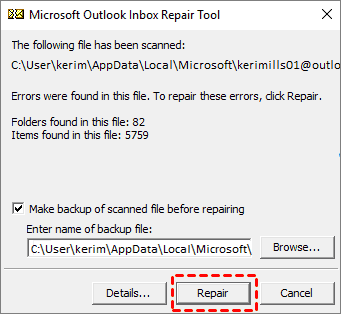
4. After it finishes, reopen Outlook.
Your folders should reappear.
Way 8. Create a New Outlook Profile
Sometimes the profile itself gets corrupted. Here is how to repair it:
1. Go to Control Panel > Mail (32-bit) > Show Profiles.
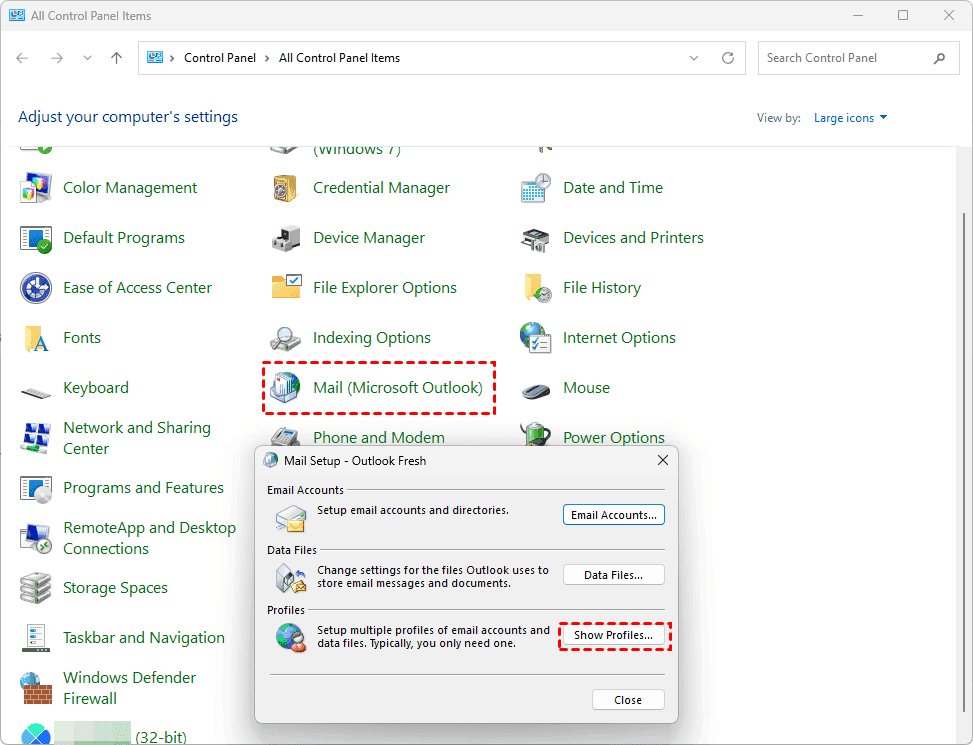
2. Click Add, give it a name like “Outlook Fresh”, and set up your email account again.
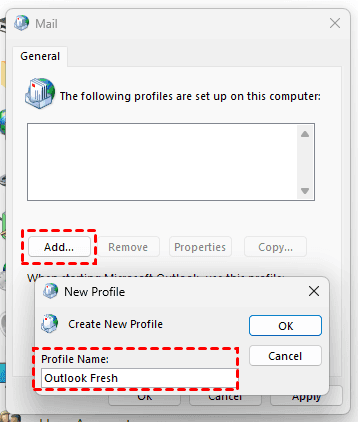
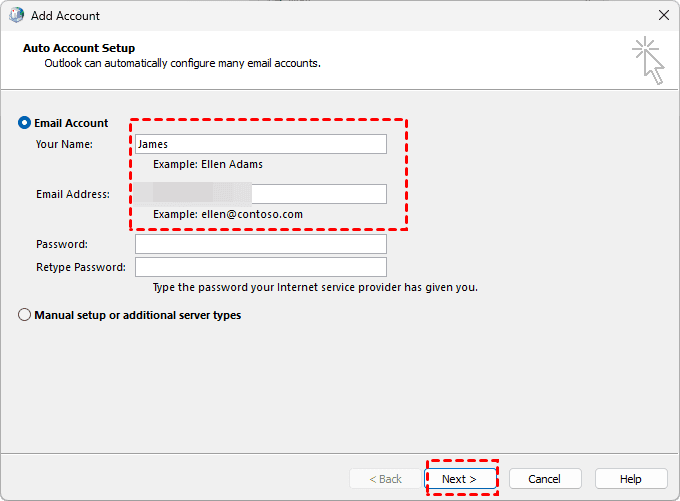
3. After creating it, set this new profile as “Always use this profile”.
4. Restart Outlook.
The program builds a fresh hierarchy from the server. Your old emails and folders will download again. You can then import your old signature and rules without bringing over the corruption.
Fast Recover Lost Outlook Files with MyRecover
Sometimes, your Outlook files might be missing. If you did not back them up. What should you do to recover them? Fortunately, here comes a dedicated file recovery tool like MyRecover.
It’s a professional data recovery software designed to dig deep into your hard drive and restore files that Windows can no longer see.
- If your Outlook data file (.pst or .ost) was accidentally deleted, formatted over, or corrupted after a crash, MyRecover can scan raw sectors to pull back the pieces.
- It supports over 1000 file types, including Outlook storage files, documents, photos, and videos.
- Supports 500+ devices, including SSD, HDD, SD Card, Xbox One, Music players, video players, PS4/5, etc.
Here is the step-by-step guide to recovering your missing Outlook files using MyRecover:
1. Please download and install MyRecover on your computer instead of the drive you're recovering files from.
 100% Secure
2. Tap Disk Data Recovery, hover over the drive, and hit Scan. Hit OK when it's done.

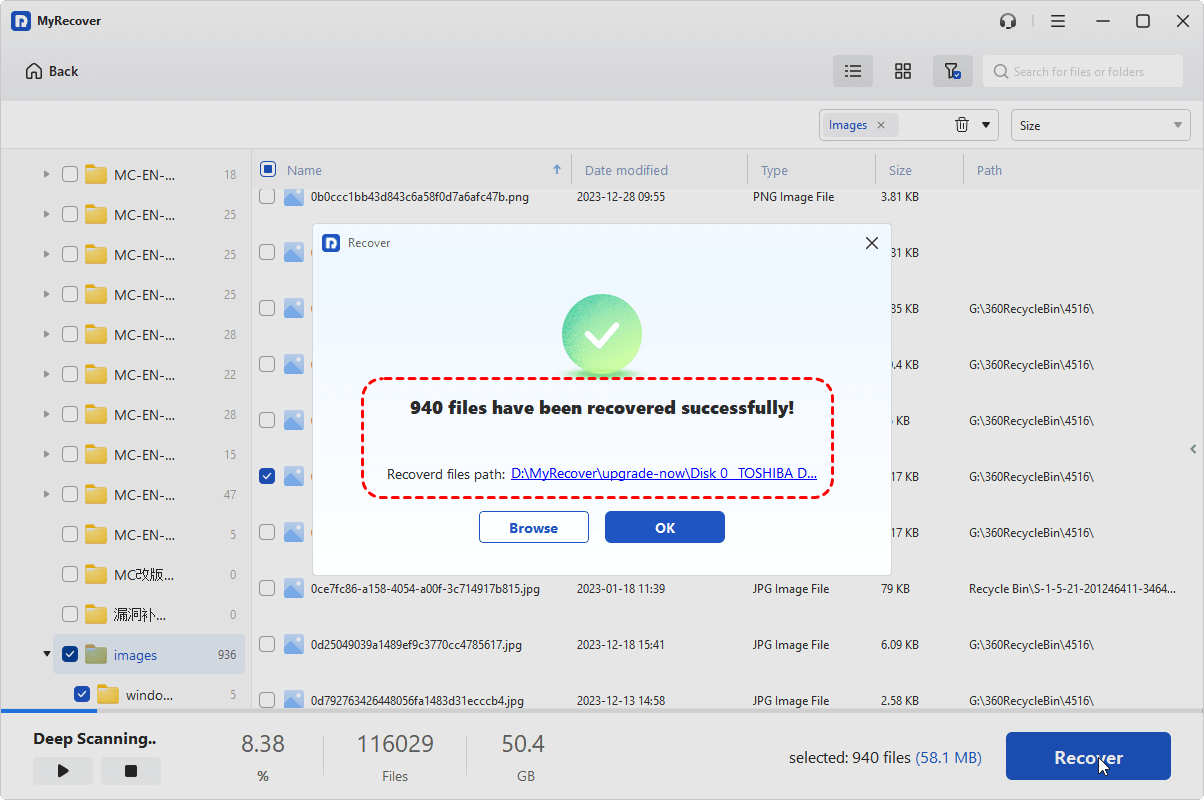
3. Preview and select the Outlook PST files or other files you need, and hit Recover.

4. Choose a safe location to keep them, and hit Select Folder.

- Notes:✎...
- The scanning time depends on drive size. You can perform a quick and deep scan according to your needs. It searches every corner for deleted or lost files if you run a deep scan, and it costs much more time.
- After scanning, use the search bar in MyRecover and type ".pst" or the exact file name (e.g., "archive.pst" or "outlook.pst") to see all candidates.
- Double-click a found .pst file. MyRecover allows previewing the file structure.
- If you need to recover unlimited files or try other advanced features, please try upgrading to MyRecover Technician to enjoy.
That's it.

 MyRecover
- Recover Deleted Files Easily with Simple Clicks
- 1000+ File Formats Supported
- Support HDD, SSD, External Hard Drive, USB Drive, SD Card, etc.
- Quickly Find Files Using File Types, Name, Size, etc.
- Preview Files Before Recovering
- Recover Unlimited Data
 100% Secure
FAQs about Outlook Subfolders Missing
Q: Can I recover permanently deleted subfolders in Outlook without a backup?
A: Yes, within a limited window. For Exchange/365 accounts, go to Folder > Recover Deleted Items (14–30 day window). Select the folder and recover. For POP3, you need recovery software like MyRecover before the data is overwritten.
Q: Why do my subfolders show on Webmail but not in the Outlook app?
A: Subscription issue. On desktop, right-click account > IMAP Folders > Query, uncheck "Only show subscribed folders", then Subscribe. On mobile, go to Settings > Sync folders and toggle them on. Then manual sync.
Q: Will creating a new Outlook profile delete my old missing subfolders?
A: No. A new profile doesn't erase data. It rebuilds the folder tree from the server. If the folder exists on Webmail, the new profile will show it. Your old profile stays available.
Q: How do I know if my missing subfolders are hidden versus deleted?
A: Use Folder Size. Right-click Inbox > Folder Size. If you see the folder listed, it's hidden. Right-click it and choose "Open" to launch it, then reset your view.
Q: Does Outlook have a limit on subfolders?
A: Yes. 500,000 folders max, but performance lags around 10,000. The real issue is the 256-character path limit. Shorten folder names or reduce nesting.
Q: Can antivirus software cause subfolders to disappear?
A: Yes. Antivirus tools can corrupt folder hierarchy or quarantine .pst files. Disable the Outlook add-in under File > Options > Add-ins > COM Add-ins, then run Scanpst.exe. Also, exclude .pst files from real-time scanning.

Stay Updated With Our
Latest Tips
Add us as a preferred source on Google to never miss helpful guides.
 Add as preferred source >>