 MyRecover



How to Fix "BOOTMGR is Missing" in Windows 10 with a USB Drive
The 'BOOTMGR is missing' error can prevent Windows from starting, leaving your system stuck on a black screen with a prompt to restart. This tutorial provides practical solutions to repair the 'BOOTMGR is missing' error and recover your PC using a bootable USB drive. By the USB drive, you can regain access to your Windows 10 PC quickly and safely.

By Aria / Updated on March 13, 2026


"BOOTMGR is Missing" Error on Windows 10
When trying to download Windows 11 from a USB drive, it says "bootmgr is missing". I've trying to use two different programs to restore it and it keeps saying "bootmgr is missing" the device was originally a Windows 10 PC.
- Question from Tristan
The "BOOTMGR is Missing" error is a common startup problem that prevents Windows from loading properly. When this issue occurs in Windows 10, users typically see a black screen displaying the message "BOOTMGR is missing. Press Ctrl + Alt + Del to restart". This error indicates that the system cannot locate or access the Windows Boot Manager, which is responsible for initiating the operating system during startup.
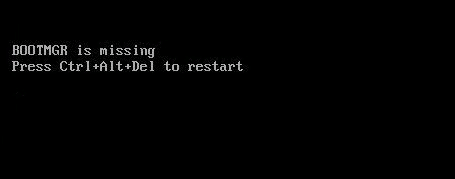
As a result, the computer becomes unable to boot into Windows, leaving users locked out of their system. Fortunately, this does not mean your Windows has crashed completely. You can fix this issue using a Windows 10 bootable USB drive. A Windows installation or recovery USB allows you to access advanced repair tools that can rebuild boot records, repair startup files, and restore the system’s boot configuration.
Common Causes of "BOOTMGR Is Missing"
Before attempting to repair the problem, it helps to understand what might cause the "BOOTMGR is missing" error. In most situations, the error occurs when the system cannot access the boot loader or when the boot configuration becomes damaged. Several common issues can lead to this situation.
🔔Incorrect BIOS Boot Order
If the BIOS is set to boot from a device that does not contain Windows startup files, such as an empty USB drive or external disk, the system may fail to locate the Windows Boot Manager and display the BOOTMGR error.
✂️Corrupted Boot Configuration Data (BCD)
The Boot Configuration Data contains information required to start Windows. If this data becomes corrupted due to system crashes, failed updates, or improper shutdowns, the system may not be able to locate the boot loader.
💻Damaged or Missing Boot Files
Essential boot files such as BOOTMGR or related system components may become damaged because of disk errors, malware infections, or interrupted system operations.
📂Hard Drive or File System Errors
Problems with the system drive, including bad sectors or file system corruption, can prevent Windows from accessing critical boot files during startup.
💽Improper Disk Partition Configuration
If the system partition is not marked as active or if partitions are modified incorrectly, the computer may fail to identify the correct location of the Windows boot loader.
How to Fix BOOTMGR is Missing on Windows 10 with USB Drive
Once you understand the possible causes of the "BOOTMGR is missing" error, the next step is to repair the boot environment so that Windows can start normally again. The following methods start with preparing the USB recovery media and then proceed to more targeted boot repair techniques. It is recommended to follow them in order until the system boots successfully.
Create a Windows 10 Bootable USB Drive
To repair the system startup environment, you first need a Windows 10 installation or recovery USB drive. This bootable media allows you to access the Windows Recovery Environment (WinRE), where several repair tools are available for fixing boot-related problems. If you already create a bootable drive, you can skip this part.
Step 1. Download and install the Windows Media Creation Tool from Microsoft's official website on a working computer.
Step 2. Insert a USB drive with at least 8 GB of storage into the computer.
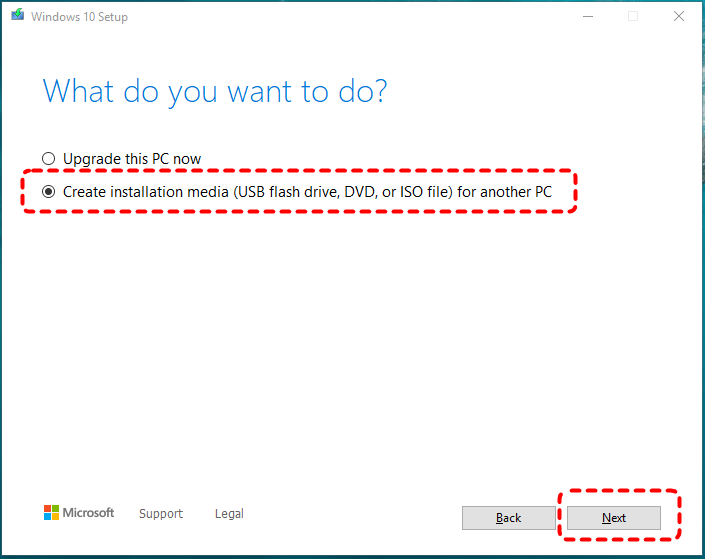
Step 3. Run the Media Creation Tool and select "Create installation media (USB flash drive, DVD, or ISO file) for another PC".
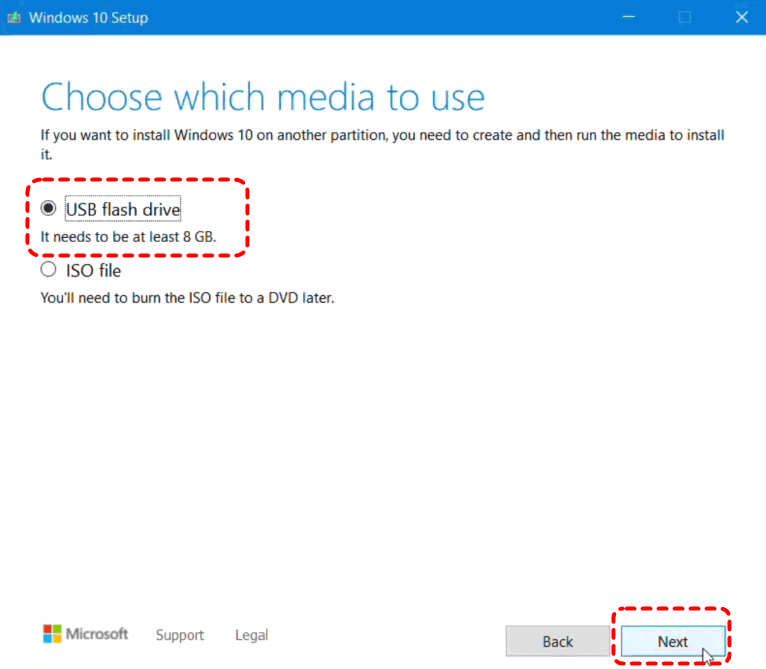
Step 4. Choose the appropriate language, edition, and architecture, then select "USB flash drive" to create the bootable device.
Boot the Computer from the USB Drive
After creating the bootable USB, you need to start the affected computer from it. This allows the system to load the Windows recovery tools instead of attempting to start from the damaged boot files on the internal drive.
Step 1. Insert the Windows 10 bootable USB drive into the affected computer.
Step 2. Restart the computer and enter the BIOS/UEFI (commonly by pressing F2, F12, Esc, or Del during startup).
Step 3. Set the USB drive as the first boot device.
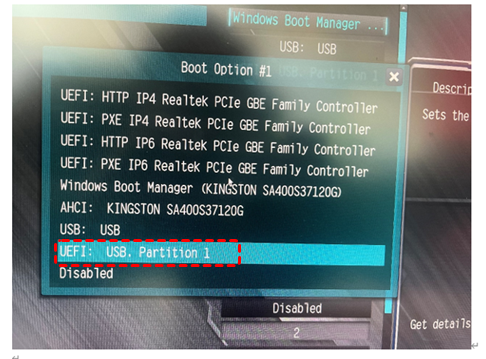
Step 4. Save the changes and restart the computer to boot from the USB drive. You can then successfully boot your computer from this USB and access various tools for repairing the boot loader in WinRE to fix the "BOOTMGR is missing" error.
Method 1. Run Startup Repair
Startup Repair is a built-in recovery tool designed to automatically detect and fix problems that prevent Windows from starting. It scans important boot components and attempts to repair damaged or missing files without requiring manual commands.
Step 1. Boot from the Windows USB drive and click "Next" on the Windows Setup screen.
Step 2. Select "Repair your computer" instead of installing Windows.
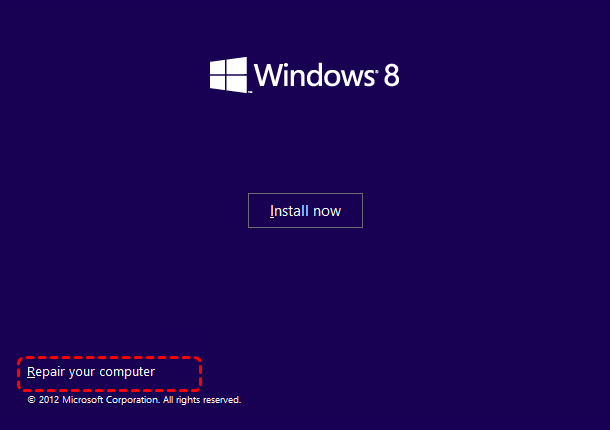
Step 3. Navigate to "Troubleshoot" > "Advanced options" > "Startup Repair".
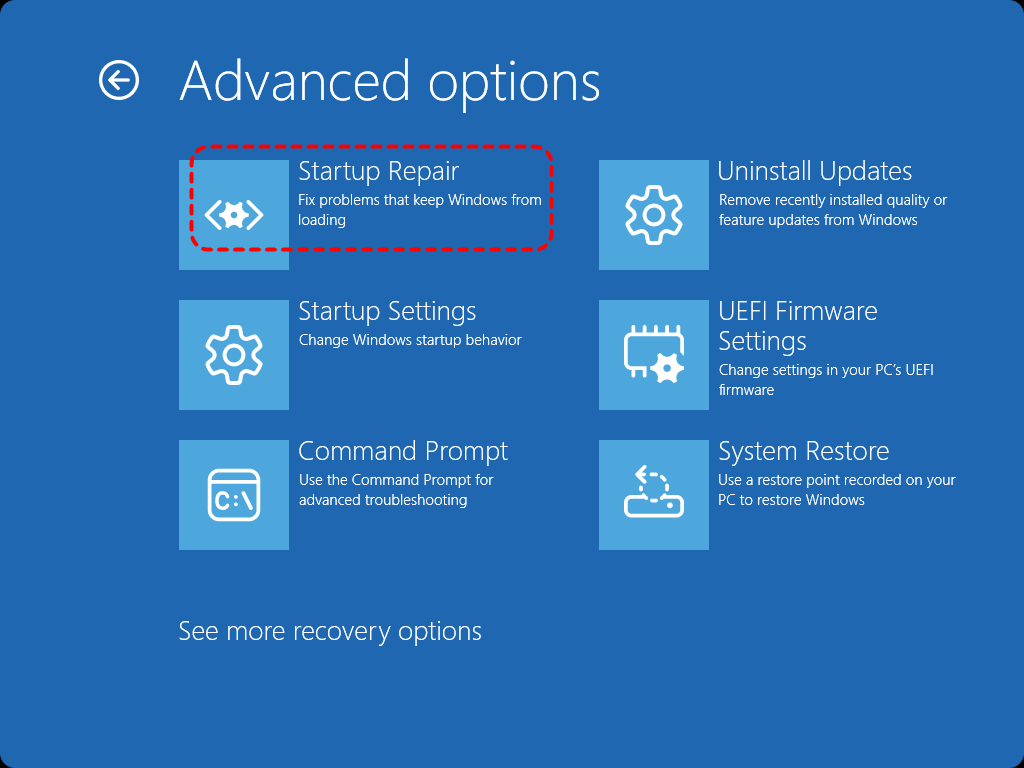
Step 4. Select your Windows installation and allow Windows to scan and repair startup issues automatically.
Method 2. Rebuild Boot Files Using Command Prompt
If Startup Repair cannot resolve the issue, rebuilding the boot configuration manually can restore the missing or corrupted boot records. Using the bootrec commands allows Windows to recreate the Master Boot Record (MBR) and rebuild the Boot Configuration Data.
Step 1. Go to "Troubleshoot" > "Advanced options" > "Command Prompt".

Step 2. Type the following commands one by one and press "Enter" after each command:
- bootrec /fixmbr
- bootrec /fixboot
- bootrec /scanos
- bootrec /rebuildbcd
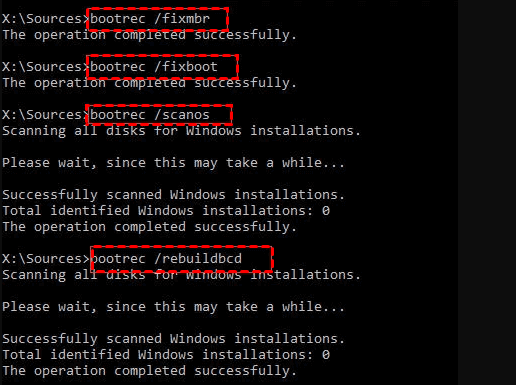
Step 3. After the commands finish executing, close Command Prompt and restart the computer.
Method 3. Mark the System Partition as Active
If the wrong partition is marked as active, the system may not be able to locate the Windows boot loader. Setting the correct system partition as active ensures that the BIOS loads the appropriate boot files during startup.
Step 1. Open Command Prompt from Advanced options.
Step 2. Type "diskpart" and press "Enter" to launch the DiskPart utility.
Step 3. Enter the following commands:
- list disk
- select disk 0
- list partition
- select partition X (Replace the number with your actual partition number)
- active
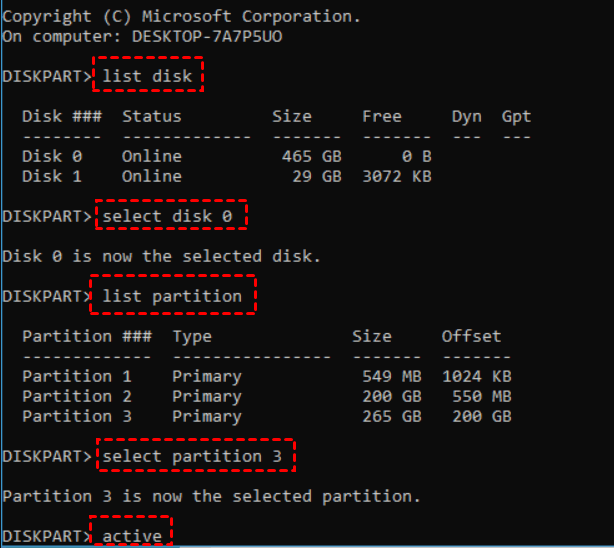
Step 4. Type "exit", close the window, and restart the computer.
Method 4. Check the Disk for Errors
Disk errors or bad sectors on the system drive can prevent Windows from accessing boot files correctly. Running the CHKDSK utility scans the disk for errors and attempts to repair damaged sectors that may be causing the "BOOTMGR is missing" problem.
Step 1. Open Command Prompt from the recovery options menu.
Step 2. Type the following command and press "Enter":
chkdsk C: /f /r

Step 3. Wait for the scan to complete, then restart the computer to see if the "bootmgr is missing" error is resolved.
Other Methods You Can Try to Fix the "BOOTMGR is Missing" Error
If these main USB repair methods do not completely resolve the problem, several additional checks may help address underlying hardware or configuration issues.
Restart Your PC
This is the first method you should try when encountering this "bootmgr is missing" error. Follow the error message and press "Ctrl" + "Alt" + "Del" to restart your computer and see if it can boot normally. If the error is only caused by a temporary system glitch, it should be resolved after restarting.
Disconnect External Devices
External storage devices may interfere with the boot process if the system attempts to boot from them instead of the internal drive.
Step 1. Turn off the computer completely.
Step 2. Disconnect all external drives, USB devices, and memory cards.
Step 3. Restart the computer and check whether Windows loads normally.
Check Boot Order in BIOS
An incorrect boot sequence may cause the system to search for boot files on the wrong device. Adjusting the boot order ensures that the computer starts from the correct system drive.
Step 1. Restart the computer and enter BIOS/UEFI settings.
Step 2. Locate the "Boot Order" or "Boot Priority" settings.
Step 3. Set the system drive containing Windows as the first boot device.
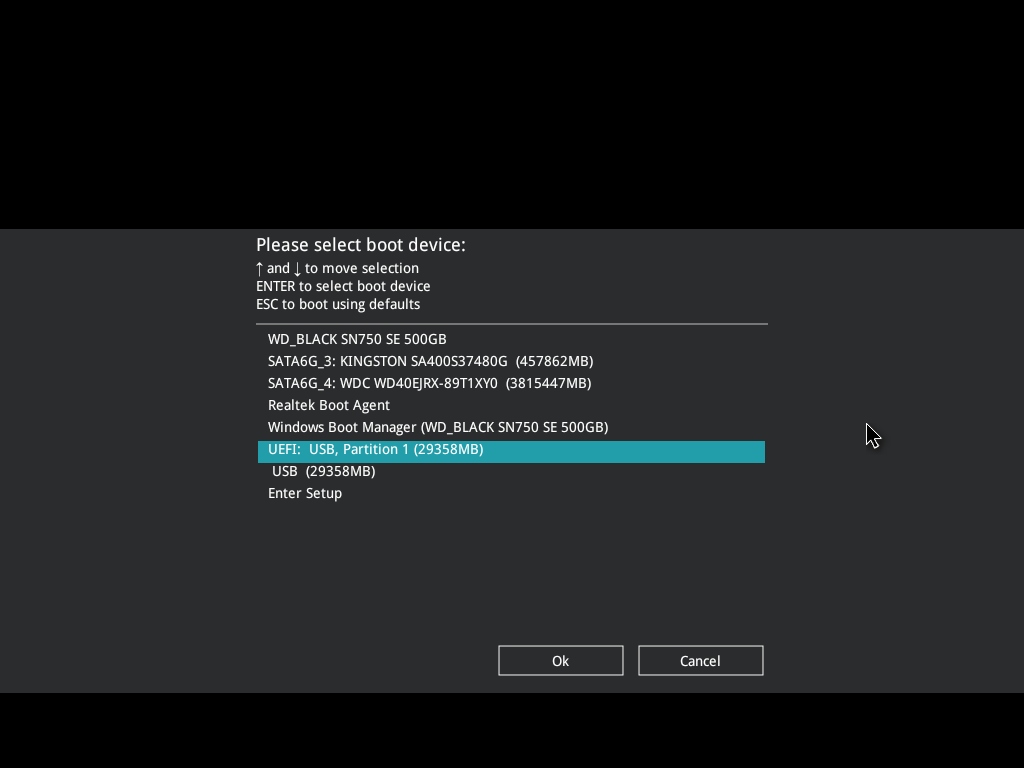
Step 4. Save the settings and restart the computer.
Update BIOS
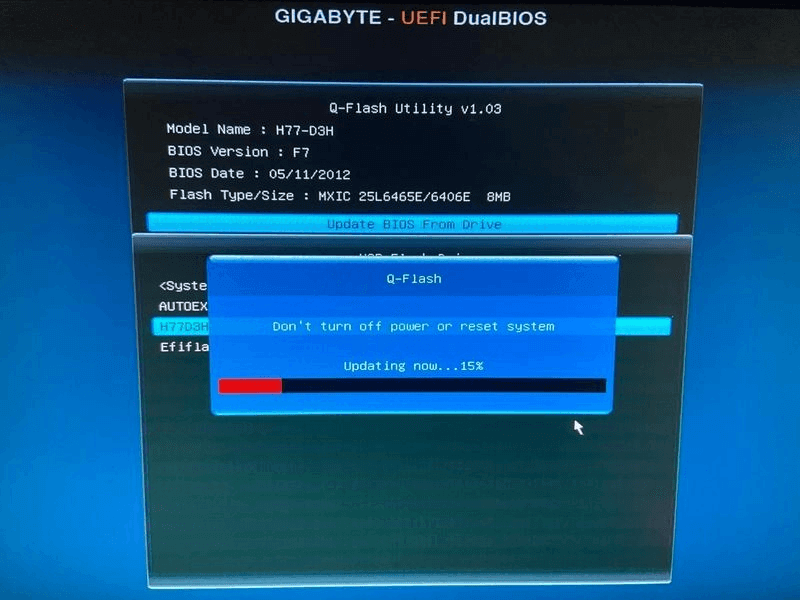
Outdated BIOS firmware can sometimes cause compatibility issues with newer hardware or operating systems. Updating the BIOS may resolve boot detection problems in certain situations.
Step 1. Identify your motherboard or laptop model.
Step 2. Visit the manufacturer’s official website and download the latest BIOS update.
Step 3. Follow the provided instructions carefully to update the BIOS firmware.
How to Recover Files from an Unbootable Computer
When the "BOOTMGR is missing" error appears, the system cannot boot into Windows, which means you may also lose access to important files stored on the computer. If the error still persists after trying the above methods, recovering your data from the drive before making further system changes with a professional data recovery tool should be your top priority.
A practical option is MyRecover, a Windows data recovery tool designed to retrieve lost or inaccessible files from internal drives, external disks, USB drives, and even computers that fail to boot properly. It can perform a deep scan of the affected drive to locate documents, photos, videos, and other important files that are still recoverable. You can use it to recover data with the following steps:

 MyRecover
- Recover deleted & lost files from HDD, SSD, USB, SD card, camera as you need.
- Support 1000+ formats of photos, videos, docs, archives, emails, compressed files, etc.
- Reliable rescue for deletion, formatted disk, emptied Recycle Bin, system crashes and more.
 100% Secure
Step 1. Download and install MyRecover on a working computer from Microsoft Store or its official website. Prepare a blank USB drive and connect to the PC.
Step 2. Launch the app and select "Crashed PC Recovery", click "USB Boot Device" and "Create".

- ★Tips:
- This process will format your USB drive. If there is any important data on it, you’d better back it up first.
Step 3. Wait a few minutes until the USB bootable media is successfully created.
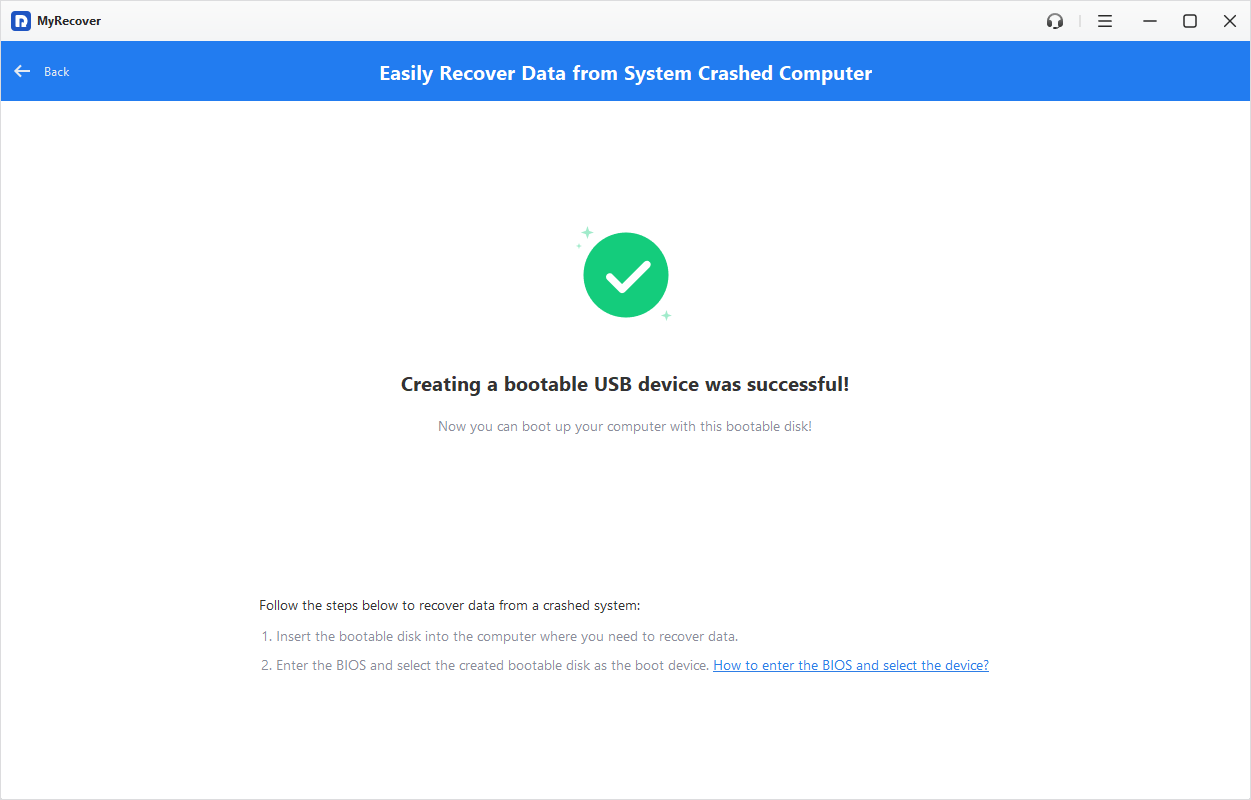
Step 4. Insert the USB into the affected computer and boot it to enter BIOS/UEFI by pressing F2, F12 or Del.
Step 5. Change the boot menu to boot the computer from the USB media, then save the changes and restart your computer.
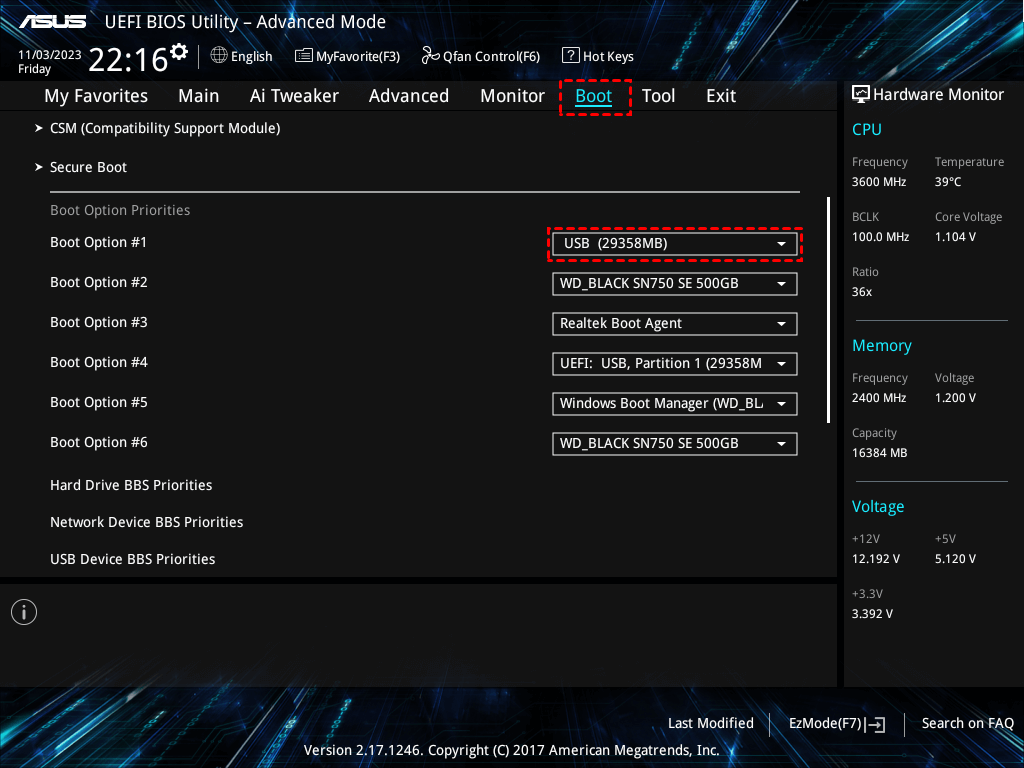
Step 6. You will enter the interface of MyRecover automatically after restarting. Select the disk or partition where your files were originally stored, then click "Scan" to search for recoverable files.

Step 7. After the scanning is completed, preview the scan results and select the files you need, then click "Recover".
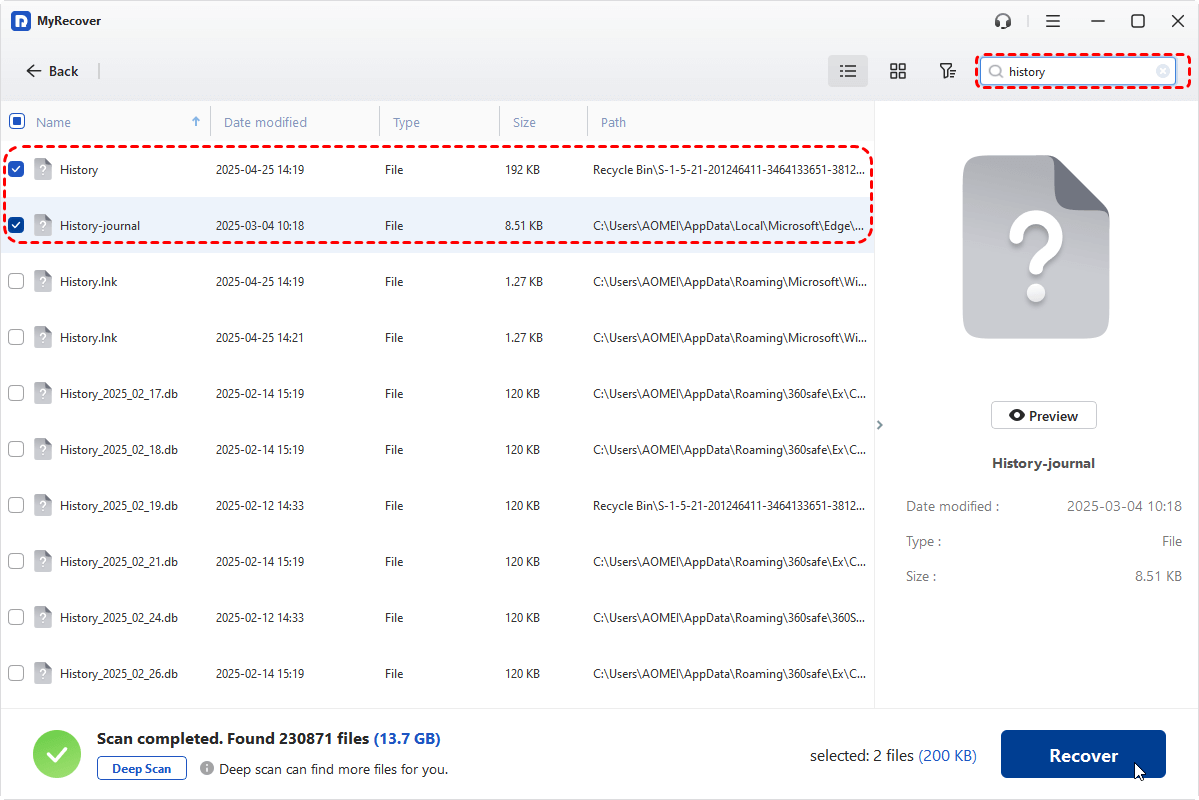
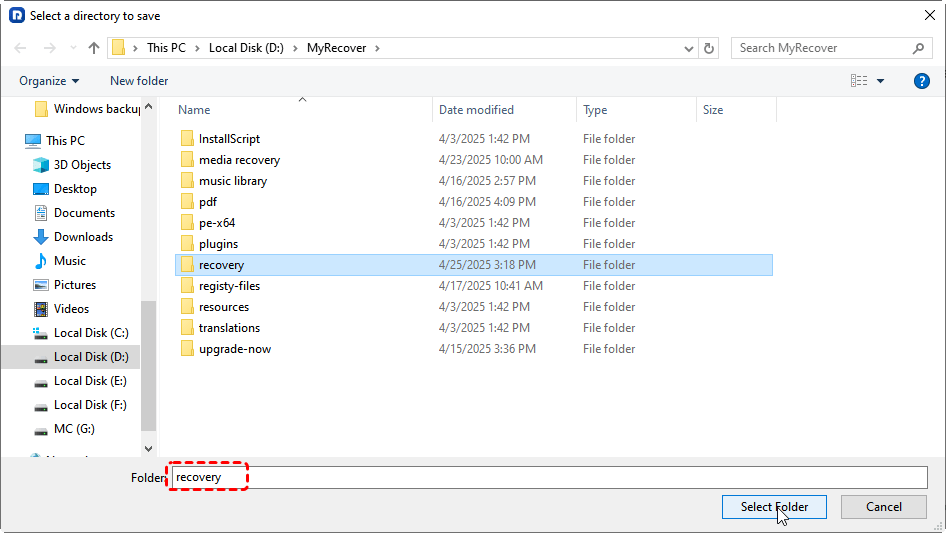
Step 8. Select a safe location to save the recovered files (preferably an external hard drive).
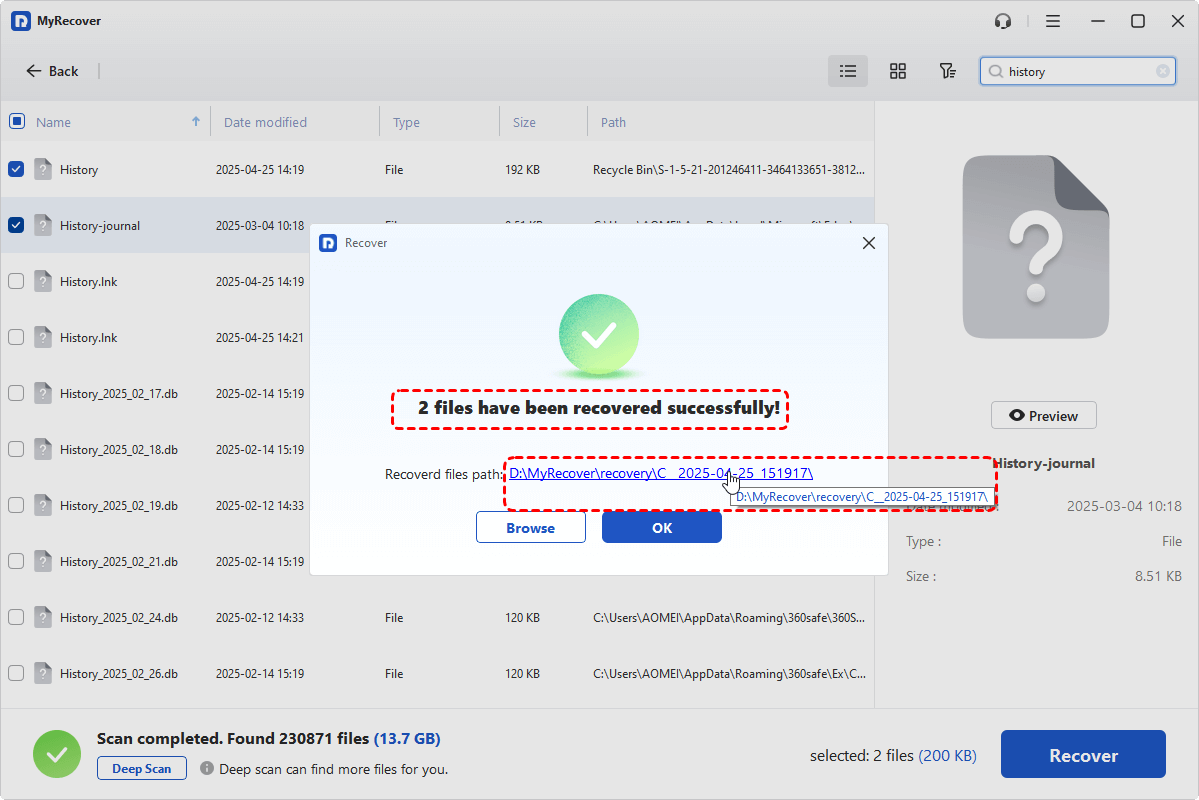
Once the recovery process is done, you can access the recovered files by clicking on the destination folder path or "Browse" button.
Final Thoughts
Although the "BOOTMGR is missing" error may seem serious at first, it often can be repaired using a Windows 10 bootable USB drive, ensuring the system can load the necessary boot files required to start Windows.
If the system still cannot boot or you are concerned about potential data loss during the repair process, recovering important files beforehand is a practical precaution. Tools like MyRecover can help retrieve data from an unbootable computer so that critical files remain safe while you continue troubleshooting.

Stay Updated With Our
Latest Tips
Add us as a preferred source on Google to never miss helpful guides.
 Add as preferred source >>