 MyRecover



Why Windows 10 Takes Forever to Boot | 7 Fixes
When Windows 10 takes forever to boot, it disrupts your entire workflow. We explore the frequent culprits behind a computer startup slow in Windows 10, such as disk errors and failing hardware, and offer actionable fixes to restore fast, reliable system startup times.

By Delores / Updated on March 12, 2026


Windows 10 Takes Forever to Boot!
What if your Windows 10 computer takes forever to boot up? A slow boot signal can indicate underlying problems, ranging from simple clutter to serious hardware issues, that can affect its overall health and your daily workflow. Let’s explore why this happens and, more importantly, how to address it to prevent further issues.
About a Slow Windows 10 Startup
The boot process is a complex, coordinated sequence where hardware initializes, system software loads, drivers activate, and startup programs queue for launch. When any component in this sequence encounters a delay or conflict, the entire startup process stalls.
How Long Should Windows 10 Take to Boot Up?
For a Windows 10 PC using an SSD, a normal boot takes 10–30 seconds; with a traditional hard drive (HDD), expect 30 seconds to over a minute. The single biggest factor is your storage type—upgrading to an SSD is the best speed boost. Slowdowns usually come from too many startup apps, background services, or system issues. If boot time suddenly increases significantly, it’s worth checking Task Manager’s Startup tab and ensuring your system is updated and malware-free.
Why Your Computer Startup is Slow in Windows 10
Identifying a single cause is often difficult because a slow boot usually results from multiple issues accumulating over time.
⭕ Outdated Drivers. Drivers act as essential communication links between Windows and your hardware components. When these drivers are outdated, communication becomes inefficient.
⭕ Outdated BIOS/UEFI firmware.
⭕ Missing Windows updates.
⭕ Insufficient RAM. Insufficient RAM, such as 4GB, limits the available memory for startup processes.
⭕ Using a traditional Hard Disk Drive (HDD) instead of a solid-state Drive (SSD) reduces read and write speeds dramatically, slowing every operation, including booting.
⭕ A failing hard drive will have extreme difficulty performing the intensive data reads required during startup, clearly indicating your computer takes forever to boot Windows 10.
7 Fixes for Windows 10 Takes Forever to Boot
Let’s get started to try the following proven solutions to fix it.
Way 1. Use Task Manager to Analyze Startup Impact
Windows provides built-in tools to shine a light on the problem. Here’s how to play detective.
1. Right-click your Taskbar and select “Task Manager”.
2. Click the “Startup” tab. Here, you’ll see every program configured to launch at boot.
3. The key column is “Startup impact”.
4. Right-click on any non-essential program (especially those with a “High” impact) and select “Disable”.
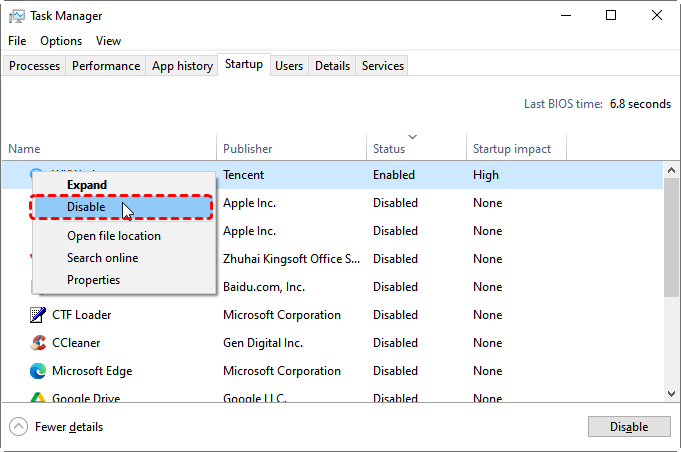
This doesn’t uninstall the software; it just stops it from auto-starting. You’d be amazed at how this one step can solve the issue of Windows 10 taking forever to boot.
Way 2. Check Disk Health And Repair
Windows has a useful utility called “Check Disk”, or CHKDSK.
1. Press the Windows Key + X and select “Windows PowerShell (Admin)” or “Command Prompt (Admin)”.
2. Type chkdsk C: /f /r and press Enter.
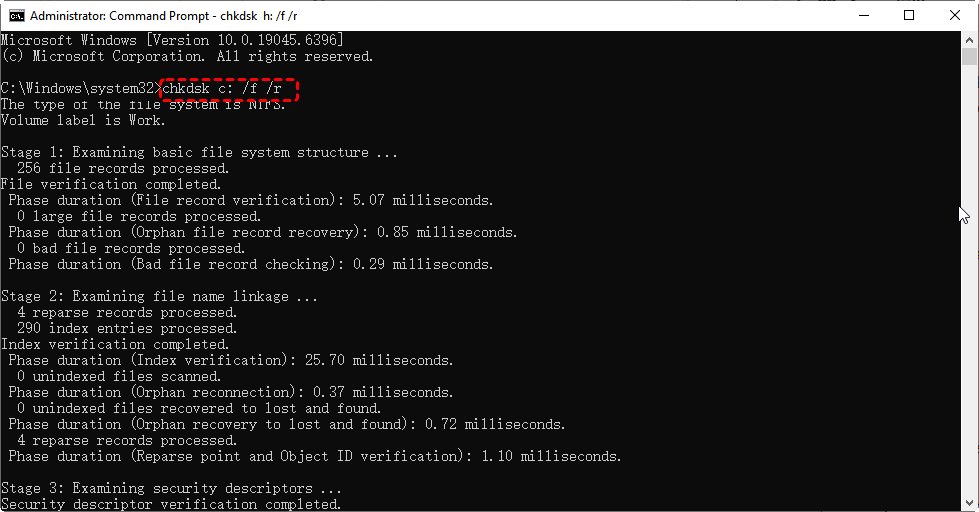
3. It will schedule a disk check for your next restart.
This scan looks for file system errors and bad sectors on your drive that could be causing major delays.
Way 3. Perform a Clean Boot to Isolate Software Conflicts
A clean boot starts Windows with a minimal set of drivers and startup programs. This is fantastic for ruling out background software conflicts.
1. Type “System Configuration” in the Start menu and open it.
2. Go to the “Services” tab, check “Hide all Microsoft services”, and then click “Disable all”.
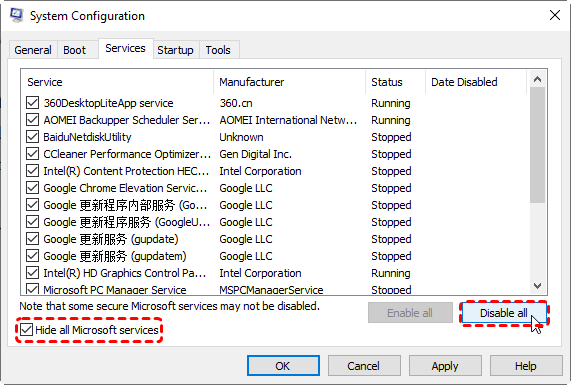
3. Next, go to the “Startup” tab and click “Open Task Manager”, disabling everything there as well.
4. Restart. If the boot is suddenly speedy, you know a third-party service or app is the villain.
5. Re-enable them in batches to find the culprit.
Way 4. Update BIOS/UEFI Firmware for Hardware Compatibility
Your motherboard’s BIOS/UEFI is the first software that runs. Manufacturers often release updates that improve hardware compatibility and stability, which can directly impact boot performance.
Warning: This is a sensitive process. Visit your PC or motherboard manufacturer’s website, find your exact model, and follow their instructions to the letter. An interrupted BIOS update can brick your motherboard.
Way 5. Try SSD instead of HDD as Your Boot Drive
Listen to your Windows 10 computer. A loud clicking from a hard drive, extreme heat, or boot times that get progressively worse might be a hardware issue.
This is the single most impactful upgrade for any PC still using a hard drive. An SSD has no moving parts and reads data exponentially faster.
Replacing your primary HDD with an SSD can transform a 2-minute boot into a 20-second one.
Way 6. Extend Your RAM to Ease System Bottlenecks
While RAM affects post-boot performance more, insufficient RAM (less than 8GB for modern Windows 10) can force the system to use the slower page file on your drive during startup, creating a bottleneck. Upgrading to 8GB or 16GB is a relatively inexpensive way to improve overall responsiveness.
Way 7. Reinstall Windows 10 or Repair Hardware
If, after all this, your Windows 10 takes forever to boot, the issue could be a deeply corrupted Windows installation or serious hardware failure (like a failing motherboard or power supply).
At this point, consider a professional repair service or preparing for a clean Windows installation from a USB drive.
Recover Important Files with MyRecover After a Boot Failure
Sometimes, troubleshooting a boot issue can lead to unintended consequences, or you’re worried about your important data. Before performing major system repairs or resets, it’s wise to rescue your files. This is where a robust tool like MyRecover comes in. It’s designed to recover data from unbootable systems or corrupted drives, giving you peace of mind before you attempt deeper fixes for a computer startup slow to start up in Windows 10.
A Step-by-Step Guide to Recover Your Crucial Files Using MyRecover
If your PC is stuck in a boot loop or you simply want to back up your data from a slow drive before a clean install, or something else, follow this guide.
1. Create a Bootable Media. On a working computer, download and install MyRecover. Launch the software and click the “PC Crashed Recovery”, choose a blank USB drive (32GB or larger), and hit Create. The wizard will format the drive and copy the necessary recovery environment onto it.
 100% Secure
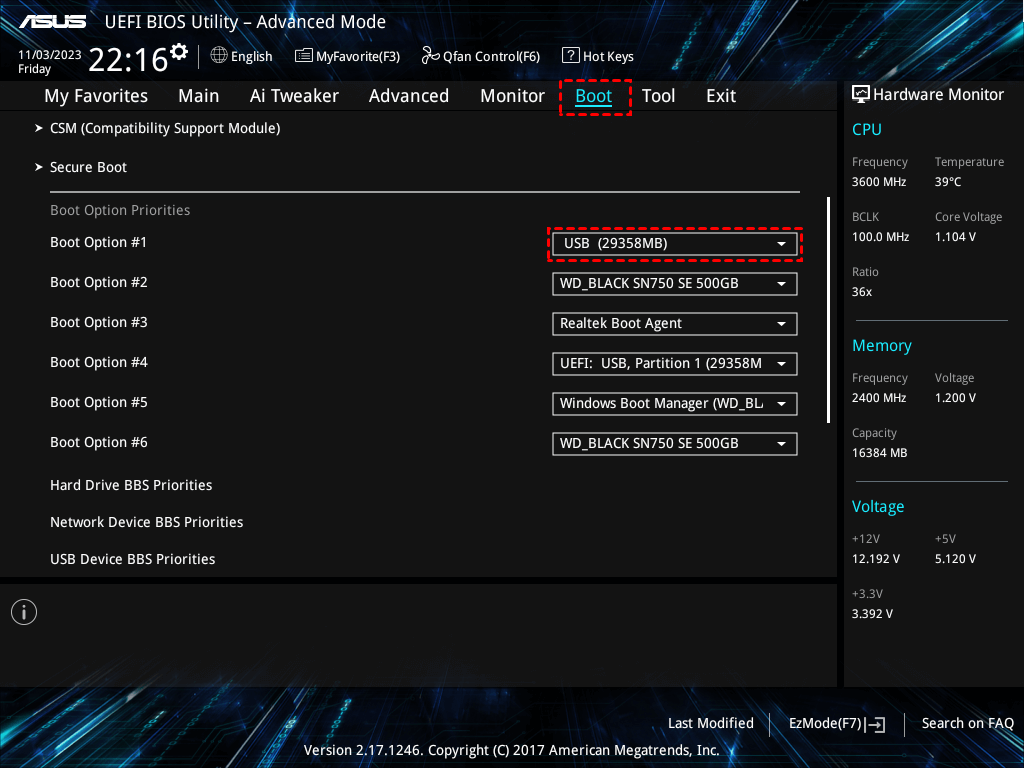
2. Restart your computer and press a certain key to enter the Boot Menu, and choose to boot your Windows 10 unbootable computer from the bootable USB drive you just created. Then MyRecover will automatically run.
3. Within the MyRecover interface, please tap Disk Data Recovery, choose the drive you need, and hit Scan. Wait for the process to complete and hit OK.

4. Preview these files to ensure they are intact, and tick all the boxes before them, and hit Recover.

5. Pick a directory to keep them safe, and hit Select Folder to save.

- Tips:✎...
- After the scan, you can browse the found files by category or path. MyRecover often preserves the original folder structure and filenames.
- Also, you can recover files from a crashed computer, a formatted SSD, a damaged partition, etc.
- Meanwhile, you can also upgrade to MyRecover Technician to recover files from unlimited computers, etc.

 MyRecover
- Recover Deleted Files Easily with Simple Clicks
- 1000+ File Formats Supported
- Support HDD, SSD, External Hard Drive, USB Drive, SD Card, etc.
- Quickly Find Files Using File Types, Name, Size, etc.
- Preview Files Before Recovering
- Recover Unlimited Data
 100% Secure
FAQs About Slow Windows 10 Boot
Q: Why did my Windows 10 suddenly start taking forever to boot when it was fine before?
A: This often points to a recent change: a conflicting software/driver update, a new high-impact startup program, or early drive failure. Check Task Manager's Startup tab for new entries.
Q: Is a slow boot time a sign of a virus?
A: Yes. Malware can hijack the startup or consume resources. If you also see pop-ups, high idle CPU, or browser redirects, run a full scan with Windows Defender Offline or a dedicated tool.
Q: How can I tell if my hard drive is failing?
A: Listen for clicking/grinding. Run chkdsk /r C: in Admin Command Prompt. For a definitive check, use your drive manufacturer's free diagnostic tool (e.g., SeaTools) to run a SMART test.
Q: Will a system restore fix a slow boot?
A: It can, if you have a restore point from before the slowdown began. It reverts system files and programs but won't touch your personal documents.
Q: What’s the difference between Fast Startup, Hibernate, and Sleep?
A: Sleep is instant (saves to RAM). Hibernate is slower (saves to the drive, powers off). Fast Startup is a hybrid for the fastest boot from shutdown. Enable Fast Startup for quick starts; use Sleep for daily convenience.
Q: Should I reset my PC if nothing else works?
A: A Windows Reset (keeping files) is a last resort for software issues. Back up data first with a tool like MyRecover. If a reset still doesn't help, the problem is almost certainly hardware.

Stay Updated With Our
Latest Tips
Add us as a preferred source on Google to never miss helpful guides.
 Add as preferred source >>