 MyRecover



Can SSD Have Bad Sectors & How to Fix Them
This guide definitively answers the question, can SSD have bad sectors? We explain the technical reality behind SSD flaws, detail what causes bad sectors on SSD, and provide actionable solutions using built-in Windows tools and dedicated repair software to safeguard your data.

By Delores / Updated on March 12, 2026


Preface
Can SSDs have bad sectors? You've likely heard that SSDs are more reliable, faster, and less prone to physical failure than their mechanical cousins. Yet, you might also encounter strange errors, a missing file, or a warning from your system that makes you scratch your head and wonder about the integrity of your sleek little drive.
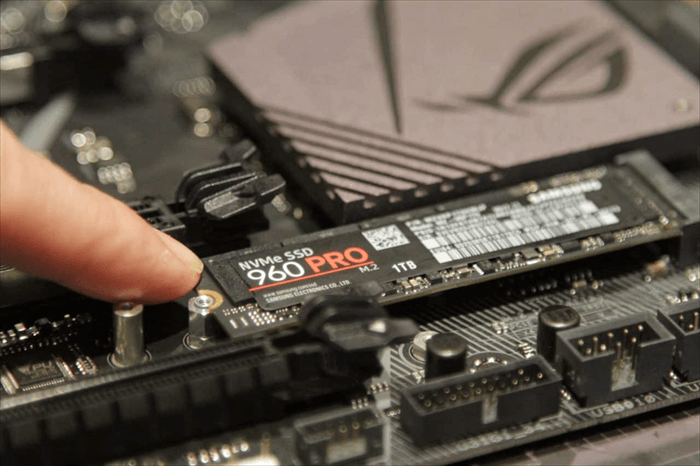
Let's pull back the curtain and separate the myths from the realities of SSD flaws, their causes, and—crucially—what you can do about them.
How SSDs Differ from Traditional Hard Drives (HDDs)
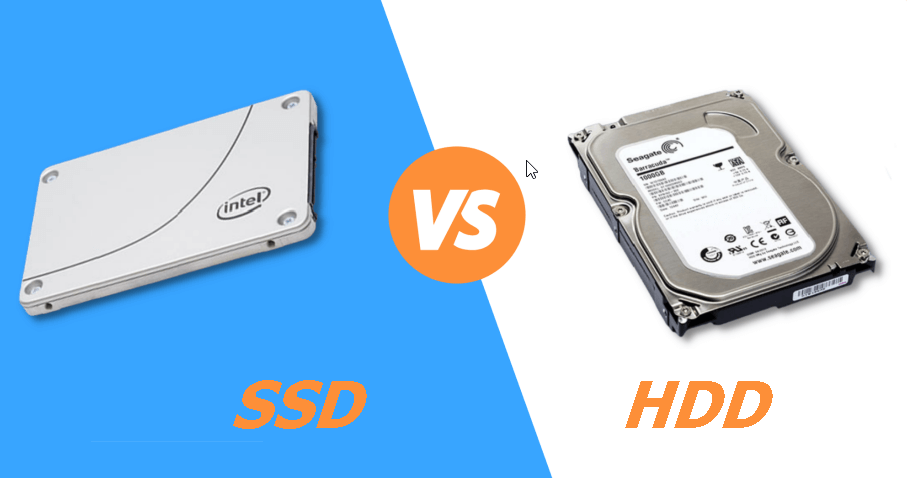
HDD vs. SSD
How do SSDs differ from HDDs? A traditional Hard Disk Drive (HDD) is a precise mechanical marvel. It has spinning platters and a physical read/write head that skims over them. A "bad sector" on an HDD is literally a tiny, physically scratched or magnetically weakened spot on that platter that can no longer reliably hold data. The head tries to read it, fails, and your computer throws an error. It's a physical problem on a physical surface.
SSDs, on the other hand, are like high-tech, dense grids of microscopic flash memory cells—no moving parts whatsoever. They don't have "sectors" in the traditional, geometric sense. They have "blocks" and "pages" of NAND flash memory. So, when we ask "Does SSD have bad sectors?", we're actually using an old term for a new kind of problem. The equivalent in an SSD is a "bad block"—a cluster of memory cells that has become unreliable or unusable.
How Does SSD Deal with Bad Blocks?
Each NAND flash memory cell stores data as an electrical charge, representing either a 0 or a 1. Writing data involves placing or removing that charge. Crucially, these cells degrade with use. Every write operation wears down the cell's internal oxide layer. After many thousands of writes, a cell can become unreliable and fail to retain data accurately. This wear is a normal, predictable characteristic of SSD technology—unlike the random physical damage a hard drive might incur.
This is where SSD makers show their genius. They know cells will wear out, and they even know that a small percentage of cells are defective right from the factory. So, every SSD comes with a secret stash of extra memory cells called "over-provisioning".When the drive's controller—its onboard brain—detects a block going bad (whether from wear or a factory defect), it quietly and instantly maps it out of use and replaces it with a fresh one from the over-provisioning pool.
To your operating system, nothing happened; the drive just keeps working. This process is completely transparent and is the primary reason why the question "can SSDs have bad sectors?" has a layered answer: yes, they develop flawed areas, but the drive is designed to handle it seamlessly in the background.
What Causes Bad Sectors on an SSD?
When investigating what causes bad sectors on SSDs, we have to look beyond simple aging.
- NAND Flash Cell Wear and Tear from Write Cycles. This is the big one, the unavoidable aging process. It's directly tied to how much data you write to the drive. Heavy tasks like constant video editing, running a database server, or using the drive for swap space (virtual memory) will accelerate this wear.
- Physical Damage and Manufacturing Defects. While SSDs have no moving parts, they are not indestructible. A severe physical shock can crack the circuit board or damage solder joints. More commonly, power-related issues are the culprit. A sudden power loss or a nasty voltage spike (like from a faulty power supply) during a write operation can corrupt data and damage the delicate electrical pathways in the NAND cells or the controller itself, instantly creating bad blocks.
- Power Surges and Firmware Corruption. The SSD's firmware is the low-level software on its controller that manages everything—including the bad block mapping. A corrupt firmware update or a crash during a firmware operation can throw this management system into chaos.
Symptoms That Your SSD Might Have Bad Sectors
Unlike an HDD that might start screeching, an SSD fails silently—until it doesn't. If you're asking, can SSDs have bad sectors? You're probably already seeing some red flags.
- It's garbled or won't open when you open a document.
- You get cryptic system errors like "cyclic redundancy error" or "could not read from source file" when copying data.
- Your operating system might even flag filesystem errors on boot.
- If yours suddenly feels like an old HDD, with long pauses when saving files or launching programs, it could be a sign.
- In advanced cases, the drive might disappear from your system's BIOS/UEFI momentarily.
- Your computer might fail to boot, getting stuck with a black screen or a message saying "No bootable device found." This suggests critical blocks containing drive firmware or system files have become inaccessible.
When you spot these symptoms, it's time to move from wondering to diagnosing. Windows 10 and 11 provide the first line of defense.
How to Repair SSD Bad Sectors in Windows 10/11
The process to repair SSD bad sectors in Windows 10 is more about checking the file system and letting the SSD's own systems work than it is about physical repair.
Backup Immediately: If you suspect issues, copy your critical data to another drive now.
Run CHKDSK And Optimize Drive
The old standby, CHKDSK (Check Disk), is still useful, but with a caveat for SSDs.
Run Command Prompt as Administrator and type chkdsk G: /f /r (replace G: with your drive letter C:).

The /f fixes file system errors, and /r locates bad sectors (blocks) and recovers readable info.
For an SSD, the "recovery" part is key—it tries to pull data from a failing block before it's gone. More importantly, use the "Optimize Drives" tool (defrag for HDDs, TRIM for SSDs).
Running TRIM helps the SSD's garbage collection, which can improve performance and longevity by properly clearing unused blocks. A healthy, well-managed SSD is less likely to exhibit problems.
Be very wary of any software claiming to physically "repair" or "remap" bad blocks on an SSD. The drive's controller handles this autonomously at a hardware level.
If the drive is failing but you want to attempt a last-ditch "refresh," a secure erase via the manufacturer's tool resets all cells (and erases all data). This can sometimes temporarily improve performance, but won't fix physical wear.
Recover SSD Data If There Are Bad Blocks
When an SSD starts logging reallocated blocks and throwing read errors, it's a failing component. Your priority must shift from "repair" to "rescue." You cannot fix the worn-out NAND cells, but you can often still retrieve the data stored on them—if you act quickly and use the right tool.
If you can still copy files from the SSD to another location, just do it. Or you have to use professional data recovery software to recover files easily. This is where a specialized data recovery application like MyRecover becomes essential.
It's designed to work at a low level, reading data directly from the flash memory while bypassing some of the higher-level filesystem errors that are freezing up Windows Explorer. It's your best shot at pulling files from a drive that's becoming unreliable.
Here is a detailed, step-by-step guide to using MyRecover for this critical task.
1. Do not install MyRecover on the failing SSD. Download and install MyRecover to a different, healthy drive or a USB stick.
 100% Secure
2. Run MyRecover. Tap Disk Data Recovery, choose the SSD, and hit Scan.

3. Wait for the scanning to complete and hit OK.
4. Preview and select the files you need, and hit Recover.

5. Select a safe location to save them all.

- Tips:✎...
- Once the scan finishes, MyRecover will present the results in a clear, folder-tree view on the left and a detailed file list on the right. You can browse through this virtual reconstruction of your drive.
- A key feature is the preview function. Before recovering anything, you can double-click on many common file types (images, documents, videos) to see if they are intact. This lets you verify the quality of the recovery before committing.
- Besides, you can also recover files from a crashed computer, an emptied recycle bin, etc.
After it completes, navigate to that location and carefully check a sample of the recovered files. Open them to ensure they are usable and uncorrupted.
Following this guide with MyRecover gives you the highest probability of rescuing your data from an SSD that is developing bad blocks. It's a focused, professional approach to a serious problem.

 MyRecover
- Recover Deleted Files Easily with Simple Clicks
- 1000+ File Formats Supported
- Support HDD, SSD, External Hard Drive, USB Drive, SD Card, etc.
- Quickly Find Files Using File Types, Name, Size, etc.
- Preview Files Before Recovering
- Recover Unlimited Data
 100% Secure
Measures to Protect Your SSD from Bad Sectors
An ounce of prevention is worth a terabyte of cure. With SSDs, smart habits can maximize their lifespan and reliability.
- Don't wait for a failure. Use a free tool like CrystalDiskInfo every few months to check your SSD's S.M.A.R.T. attributes.
- Keep Some Free Space (at least 10-15% free).
- Enable TRIM: Ensure TRIM is active in Windows (it usually is by default). This helps the SSD manage its blocks efficiently.
- Avoid Extreme Heat: Ensure good case ventilation. Excessive heat accelerates NAND cell degradation.
- Use a Quality Power Supply: A clean, stable power supply is one of the best protections against sudden SSD failure.
FAQs
Can software repair bad SSD sectors?
No. Worn-out NAND cells can’t be physically repaired. Tools labeled as “repair” tools actually perform a full erase, prompting the SSD controller to remap bad blocks to healthy spare cells—this erases all data and does not fix the hardware.
Do new SSDs already have bad sectors?
Yes. Factory testing identifies and maps out defective blocks before sale. Spare cells (over-provisioning) replace them, so this doesn’t affect usable capacity or performance.
What causes bad sectors on an SSD?
Mainly program/erase cycle wear on NAND cells. Other causes include power surges, physical damage, or firmware issues.
How does Windows 10 handle SSD bad sectors vs. HDD?
Unlike HDDs, Windows doesn’t “repair” SSD sectors physically. CHKDSK on an SSD focuses on data recovery, while TRIM helps the SSD manage blocks internally. The SSD controller handles remapping.
Do SSDs develop more bad sectors over time?
Yes. Wear is cumulative, and heavy writing accelerates it. Monitoring S.M.A.R.T. attributes like “Percentage Used” shows wear level.
Can data be recovered from an SSD with bad sectors?
Often yes, but act quickly. Stop using the drive immediately to avoid further damage. Use specialized recovery software or clone the drive to a healthy one to attempt data extraction before blocks become unreadable.

Stay Updated With Our
Latest Tips
Add us as a preferred source on Google to never miss helpful guides.
 Add as preferred source >>