 MyRecover



Driver IRQL NOT LESS OR EQUAL Windows 10: Complete Guide to Fixing the BSOD
Get a clear breakdown of IRQL NOT LESS OR EQUAL Windows 10 blue screen causes, from outdated drivers to hardware conflicts, plus practical solutions to diagnose issues, apply safe fixes, and prevent repeat crashes on Windows systems with proven troubleshooting steps.

By Vera / Updated on January 28, 2026


Introduction: Understanding "Driver IRQL Not Less or Equal Windows 10"
Have you ever been working on your Windows 10 PC when suddenly the screen goes blue and displays the message "Driver IRQL Not Less or Equal"? 😱 It’s one of the most common Blue Screen of Death (BSOD) errors in Windows 10, and it usually signals driver or hardware issues.
Don’t panic! This error is a protective mechanism Windows uses to prevent serious damage. In this guide, we’ll explain what the error means, why it happens, and, most importantly, how to fix it step by step. Plus, we’ll show you how to recover any important files that might have been lost during a crash using MyRecover, a reliable data recovery tool.
What Does "Driver IRQL Not Less or Equal" Mean?
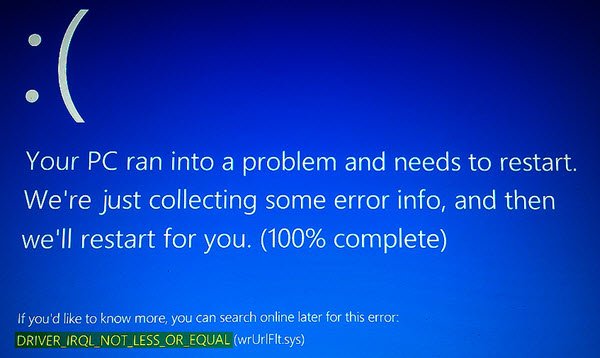
"IRQL" stands for Interrupt Request Level. Think of it as Windows’ way of prioritizing tasks for the CPU. When a driver tries to access memory it shouldn’t, Windows stops it immediately and throws this error.
The typical message looks like this:
DRIVER_IRQL_NOT_LESS_OR_EQUAL – [DriverFileName.sys]
The [DriverFileName.sys] points to the driver causing the problem. This clue helps you identify the culprit and apply the correct fix.
Why This Error Happens in Windows 10
Windows 10 is complex, and sometimes drivers, hardware, or software try to perform tasks out of order. Common triggers include:
1. Faulty or Outdated Drivers
Most of the time, outdated or incompatible drivers are the main culprit. For example, a graphics, network, or printer driver that doesn’t fully support Windows 10 can trigger this error immediately.
2. Hardware Conflicts and RAM Issues
Sometimes, hardware isn’t playing nice. Faulty RAM, a problematic motherboard, or conflicting peripherals (like a USB device) can make the system unstable, causing this BSOD.
3. Software Conflicts and Corrupted System Files
Software can also be to blame. Corrupted system files or conflicting programs—especially antivirus or system utilities—can interfere with memory allocation and trigger the error.
Basically, it’s your PC’s way of saying, "Hold on, something’s not right here!"
How to Check Your System for Issues
Before jumping into fixes, it’s smart to diagnose your PC to identify the real problem. Here’s how:
👉 1. Using Windows Memory Diagnostic Tool
1. Press Win + S and type Windows Memory Diagnostic.
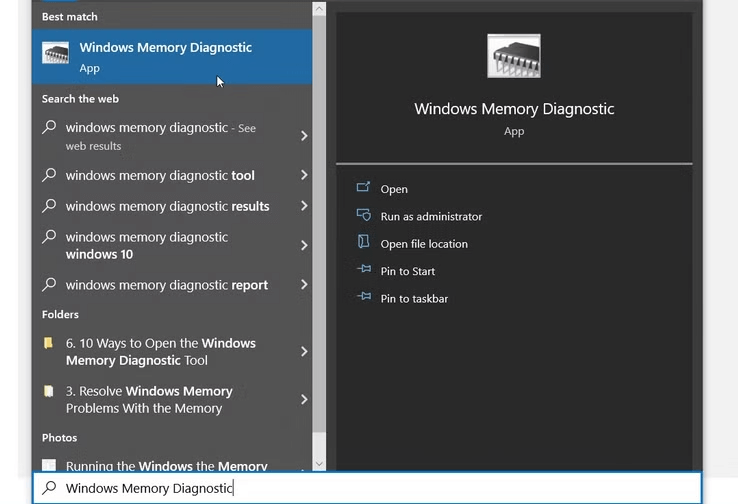
2. Select Restart now and check for problems.
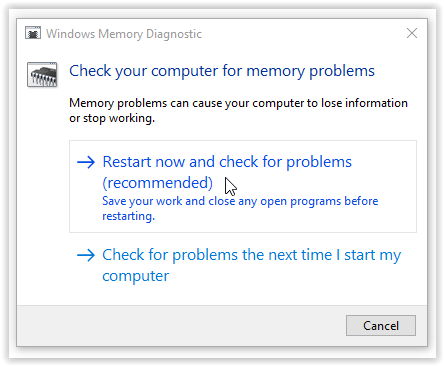
3. Your PC will restart and run tests on your RAM.
4. Check the results after Windows boots back up. If errors appear, you may need to replace your RAM.
👉 2. Checking Device Manager for Driver Problems
1. Press Win + X and select Device Manager.
2. Look for any device with a yellow warning icon.
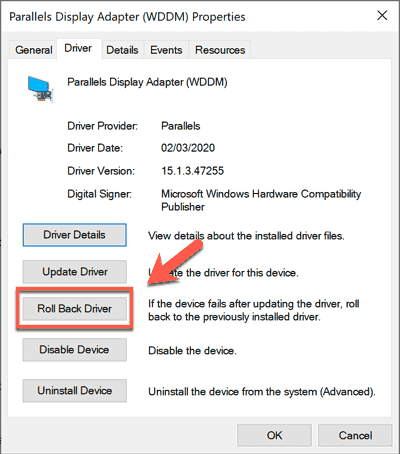
3. Right-click the device → Properties → Driver tab.
4. Update or rollback the driver depending on whether the error appeared after an update.
👉 3. Using Event Viewer to Find Clues
1. Press Win + R → type eventvwr.msc, press Enter.
2. Go to Windows Logs → System.
3. Look for critical errors around the time the BSOD appeared.
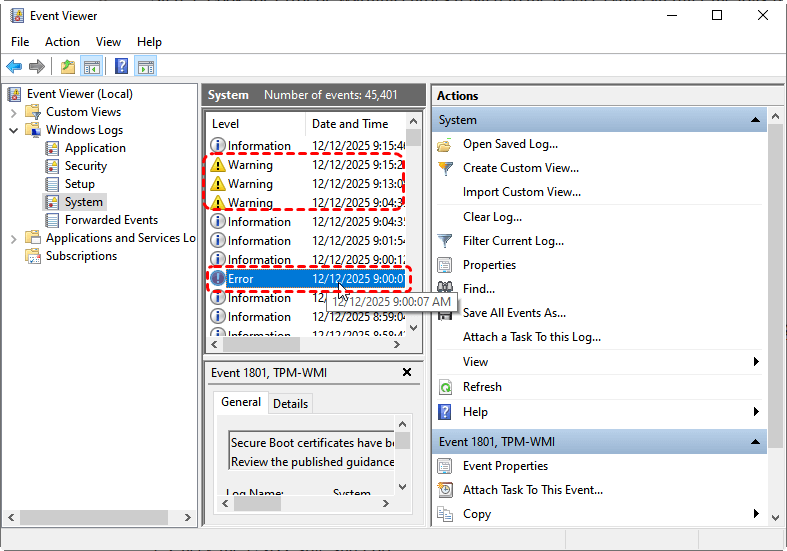
4. Note the driver or hardware mentioned in the log—it can guide your troubleshooting.
Step-by-Step Fixes for "Driver IRQL Not Less or Equal Windows 10"
Here are the most effective ways to fix this BSOD, step by step.
1. Update or Rollback Drivers
Drivers are often the culprit. Here’s how to fix them:
To update a driver:
1. Open Device Manager (Win + X → Device Manager).
2. Find the device with the error, right-click → Update driver.
3. Choose Search automatically for updated driver software.
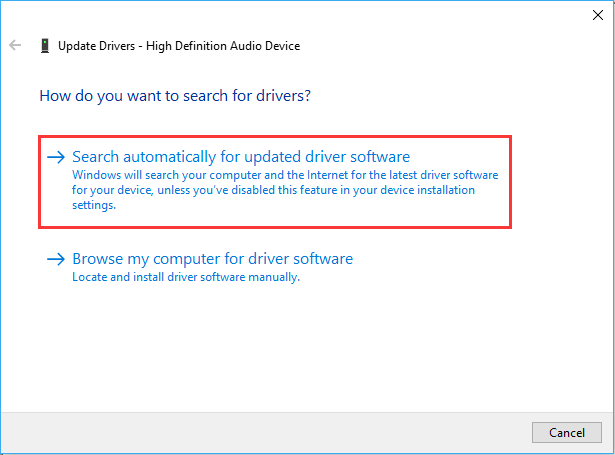
4. Follow the prompts, restart your PC, and check if the error persists.
To rollback a driver:
1. In Device Manager, right-click the problematic driver → Properties → Driver tab → Roll Back Driver.
2. Restart your PC. This is useful if the error started after a recent update.
2. Run System File Checker (SFC) and DISM
Corrupted system files can cause this error. Repair them as follows:
1. Press Win + X → Command Prompt (Admin).
2. Type: sfc /scannow. Press Enter and let it complete.

3. After completion, run DISM to repair Windows image: DISM /Online /Cleanup-Image /RestoreHealth.
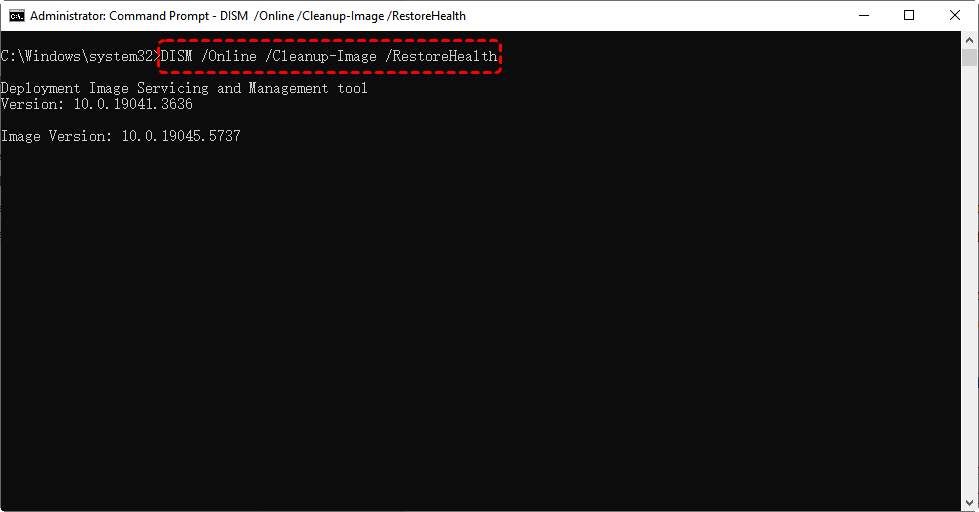
4. Restart your PC and test if the BSOD returns.
3. Uninstall Problematic Software
If the error started after installing a program:
1. Press Win + R, type appwiz.cpl, press Enter.
2. Look for recently installed programs, especially antivirus or system utilities.
3. Select the software → Uninstall.
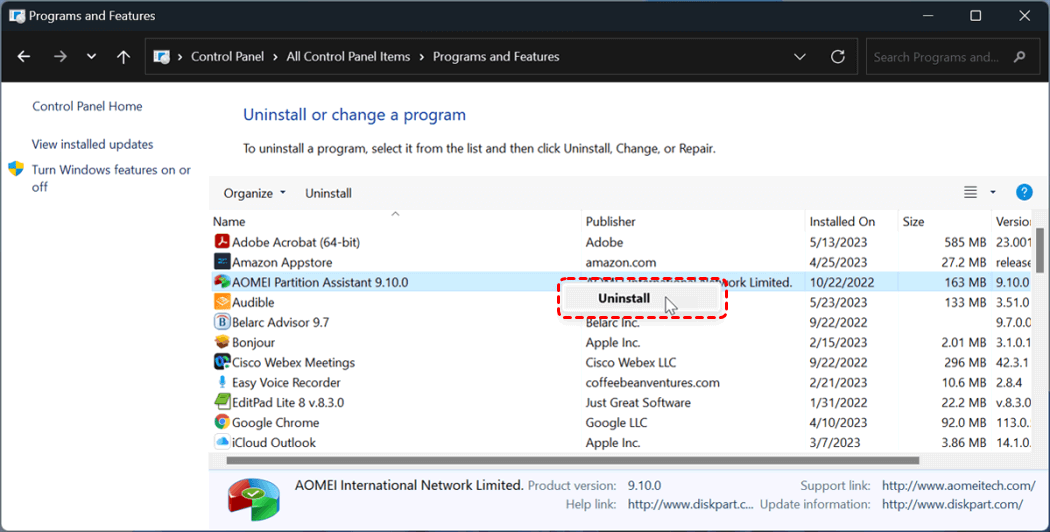
4. Restart your PC and see if the problem is resolved.
4. Test and Replace RAM if Needed
Faulty RAM is a common culprit. Steps:
1. Use Windows Memory Diagnostic or third-party tools like MemTest86.
2. Run the full test to check all RAM sticks.
3. If errors are detected, replace the faulty RAM.
4. Test the system again.
5. Perform a Clean Boot to Identify Conflicts
A clean boot helps detect software conflicts:
1. Press Win + R, type msconfig, press Enter.
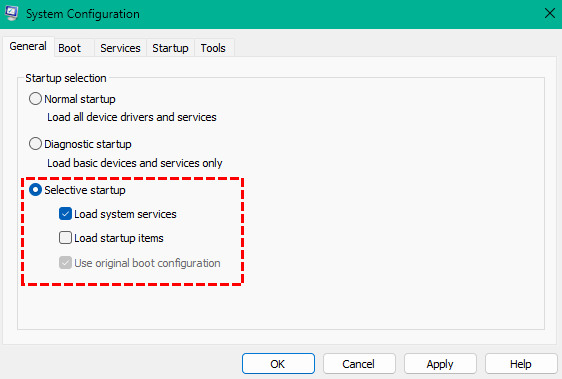
2. In System Configuration, select Selective startup.
3. Uncheck Load startup items, leave Load system services checked.
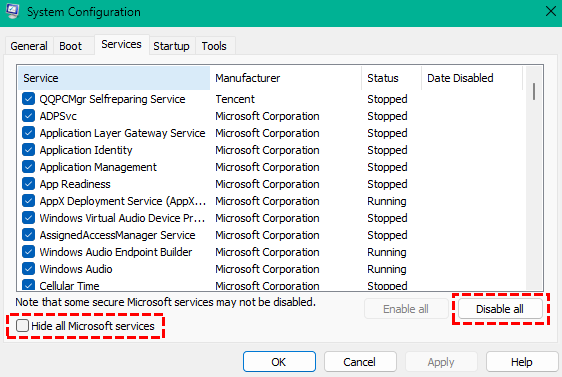
4. Go to Services tab, check Hide all Microsoft services, then click Disable all.
5. Restart your PC.
6. If the error disappears, enable startup programs one by one to find the culprit.
If the error persists despite trying all fixes, it may indicate deeper hardware problems like a failing GPU, motherboard, or power supply. In such cases, professional diagnostics or repair is recommended.
Recover Lost Files After a Crash Using MyRecover
Sometimes, a BSOD can cause file loss. MyRecover is a user-friendly tool designed to recover lost or accidentally deleted files, including documents, photos, videos, and more.
 100% Secure
Steps to recover files using MyRecover:
1. Download and install MyRecover on your PC.
2. Launch the software and select the drive affected by the crash.
3. Click Scan to perform a full scan of the drive.

4. Preview and select the files you want to recover.
5. Click Recover to restore them safely to another drive.

This ensures that even if the Driver NOT LESS OR EQUAL Windows 10 error causes data loss, you can retrieve your important files quickly and safely.
Preventing Future Errors
1. Keep Drivers and Windows Updated
- Regularly update drivers through Device Manager or manufacturer websites.
- Always install Windows updates to ensure compatibility and stability.
2. Regular Hardware Checks
- Inspect RAM, motherboard, and connected peripherals periodically.
- Ensure cables are secure and components are free of dust.
- Faulty or loose hardware can trigger unexpected BSODs.
Conclusion
The Driver NOT LESS OR EQUAL Windows 10 error can be alarming, but most of the time, it’s fixable. From updating drivers and running system checks to testing RAM and performing a clean boot, these step-by-step fixes can help you regain a stable system.
And if the BSOD causes file loss, tools like MyRecover ensure that your important documents, photos, and videos can be safely restored. Regular maintenance, careful driver updates, and reliable data recovery tools are your best defense against future crashes.
Remember: the blue screen is just Windows protecting itself—don’t panic, act smart!

Stay Updated With Our
Latest Tips
Add us as a preferred source on Google to never miss helpful guides.
 Add as preferred source >>