 MyRecover



Accidentally Deleted Boot Partition Windows 11? Fix It with 5 Ways
Trying to recover deleted partition Windows 11? This comprehensive tutorial helps you retrieve lost partitions, repair boot sectors, and safely reboot your system. Whether caused by user error or software glitch, Windows 11 recovery is possible with the right tools.

By Vera / Updated on September 30, 2026


Introduction
If you accidentally deleted the boot partition in Windows 11, your PC may suddenly stop starting and display messages such as “No bootable device”, “Operating system not found”, or “Boot device not found”. Don't immediately format the drive or reinstall Windows. Depending on what was deleted, you may be able to repair the Windows boot environment, recreate the boot files, restore a backup, or recover important data before reinstalling Windows.
On most modern Windows 11 PCs using UEFI and GPT, the system drive normally contains an EFI System Partition (ESP), Microsoft Reserved (MSR) partition, Windows partition, and Recovery partition. The EFI System Partition contains the files required for firmware to start Windows.
The correct recovery method therefore depends on what happened. You may be able to repair the boot environment with Startup Repair or BCDBoot, recreate a missing EFI partition, restore a system image, or recover important files before reinstalling Windows.
Can You Recover a Deleted Boot Partition in Windows 11?
Yes, in many cases, but the procedure depends on whether the partition itself was deleted or only its boot files were damaged.
If you deleted the EFI System Partition but the Windows partition and its files are still intact, you may be able to recreate an EFI partition and rebuild the Windows boot environment.
If you accidentally deleted a partition containing personal files, avoid formatting or reinstalling Windows first. Partition recovery or file recovery should be attempted before writing new data to the affected disk.
If only the boot configuration is damaged, Windows Recovery Environment (WinRE), Startup Repair, or BCDBoot may be enough to restore startup.
What Is the Boot Partition in Windows 11?
Before we jump into fixing things, let’s take a quick look at what the boot partition actually is.
On a modern Windows 11 PC (a GPT disk), the "boot partition" is usually the EFI System Partition (ESP)—a small (about 100–300 MB) FAT32 volume that stores the boot loader (bootmgfw.efi) and the BCD (Boot Configuration Data). Windows 11 also has a separate system partition (where Windows itself is installed) and often a Recovery partition.
Microsoft's standard UEFI/GPT layout places the EFI System Partition before the Windows partition and the Recovery partition after it. The ESP is normally FAT32 and is not assigned a normal drive letter in File Explorer.
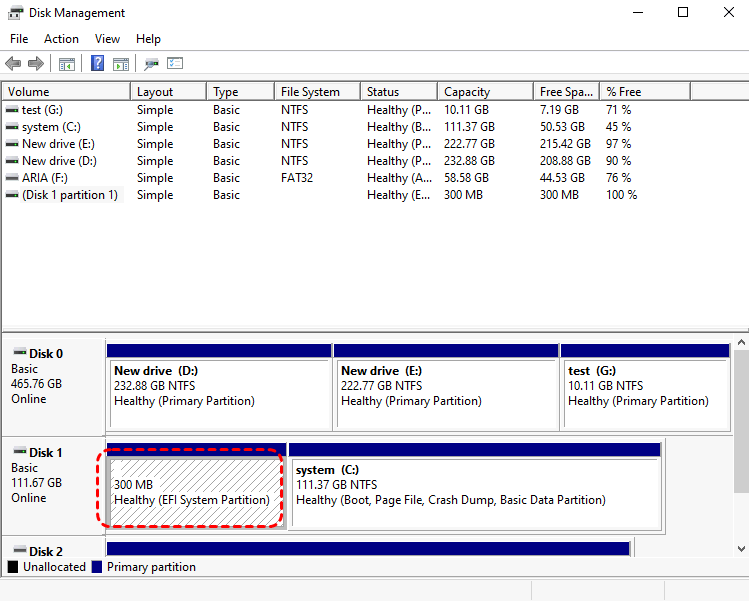
What Happens If You Accidentally Delete the Boot Partition in Windows 11?
The effect depends on which partition was deleted.
A typical Windows 11 UEFI/GPT disk contains several partitions, including:
- EFI System Partition (ESP): Contains files required to start Windows.
- Microsoft Reserved Partition (MSR): Reserved for Windows partition management.
- Windows partition: Usually contains the Windows operating system and user files.
- Recovery partition: Contains Windows recovery tools.
Microsoft's recommended UEFI/GPT layout includes these partitions because they perform different functions.
If you delete only the EFI System Partition while leaving the Windows partition intact, your personal files may still be present. However, the firmware may no longer find the Windows Boot Manager, so the computer cannot start Windows normally.
If you delete the Windows partition itself, the situation is more serious because the operating system and potentially your personal files may have been removed.
| Deleted partition | Typical result | Main recovery approach |
|---|---|---|
| EFI System Partition | Windows may not boot | Recreate/repair boot files |
| Windows partition | OS and possibly files are lost | Partition/data recovery or backup |
| Recovery partition | Windows may still boot | Recreate recovery environment later |
| Data partition | Personal files may disappear | Partition or file recovery |
Important: Do not assume that every “boot partition” problem requires reinstalling Windows.
How Boot Partition Gets Deleted
Common Causes of Boot Partition Deletion
So, how does something so important get deleted? Here are the usual suspects:
- Accidental formatting during a disk partitioning session
- Using third-party partitioning tools incorrectly
- Failed OS installations or upgrades
- Malware or corrupted disk utilities
- Clicking the wrong drive letter during clean installs (we've all been there!)
Symptoms of a Missing Boot Partition
Here’s how to know if you’ve hit that boot partition blunder:
- Windows shows “Operating System Not Found”
- Stuck in a boot loop
- Black screen with blinking cursor
- “Bootmgr is missing” or “No bootable device” errors
- Your PC/Device needs to be repaired. An unexpected error has occurred.
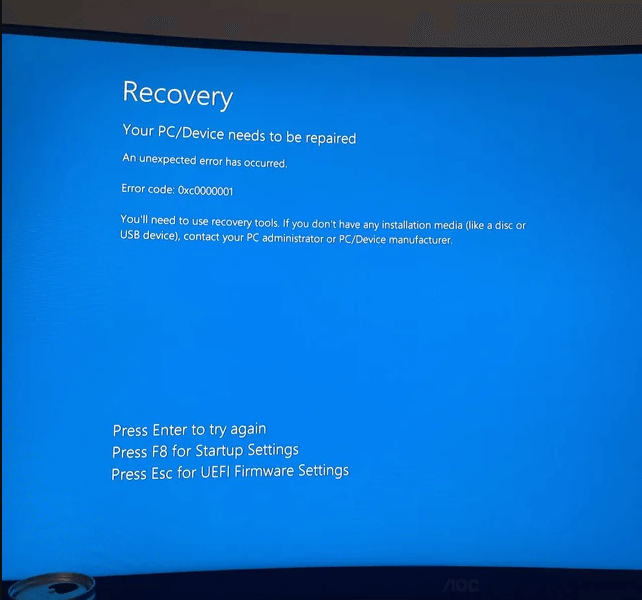
Immediate Steps After Deleting the Boot Partition
1. Stop Using the Affected Drive
First things first—STOP writing anything to the drive. Every new file could overwrite your lost boot data and make recovery harder.
2. Don’t Try a Fresh Install Yet
You might be tempted to reinstall Windows 11. Hold off! That can overwrite important sectors needed for recovery.
5 Methods to Recover Deleted Boot Partition in Windows 11
Now, let’s get into the meat of it—how to recover deleted boot partition Windows 11 without losing your mind or your files.
Method 1: Use Windows Installation Media
If the partition exists but the boot files are corrupted, you can rebuild the BCD using Command Prompt.
Step 1: Create Windows 11 Installation Media
Go to Microsoft’s official site, download the Media Creation Tool, and create a bootable USB drive.
Step 2: Boot from Installation USB
Insert the USB into your PC, restart it, and enter BIOS/UEFI to boot from the USB.
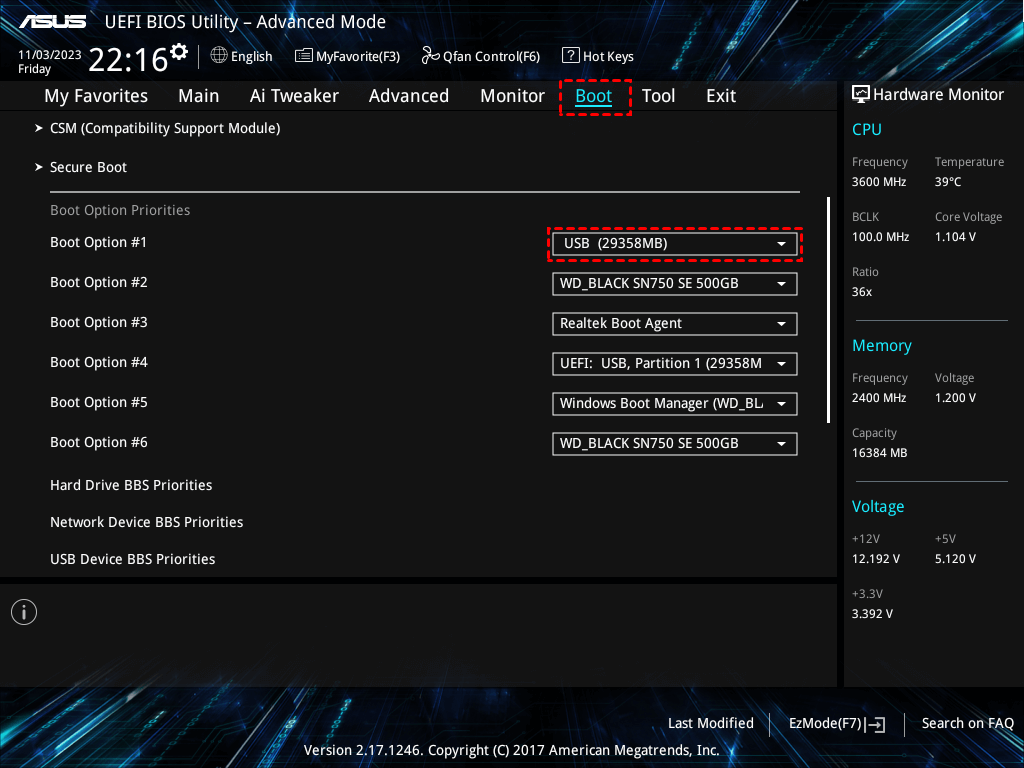
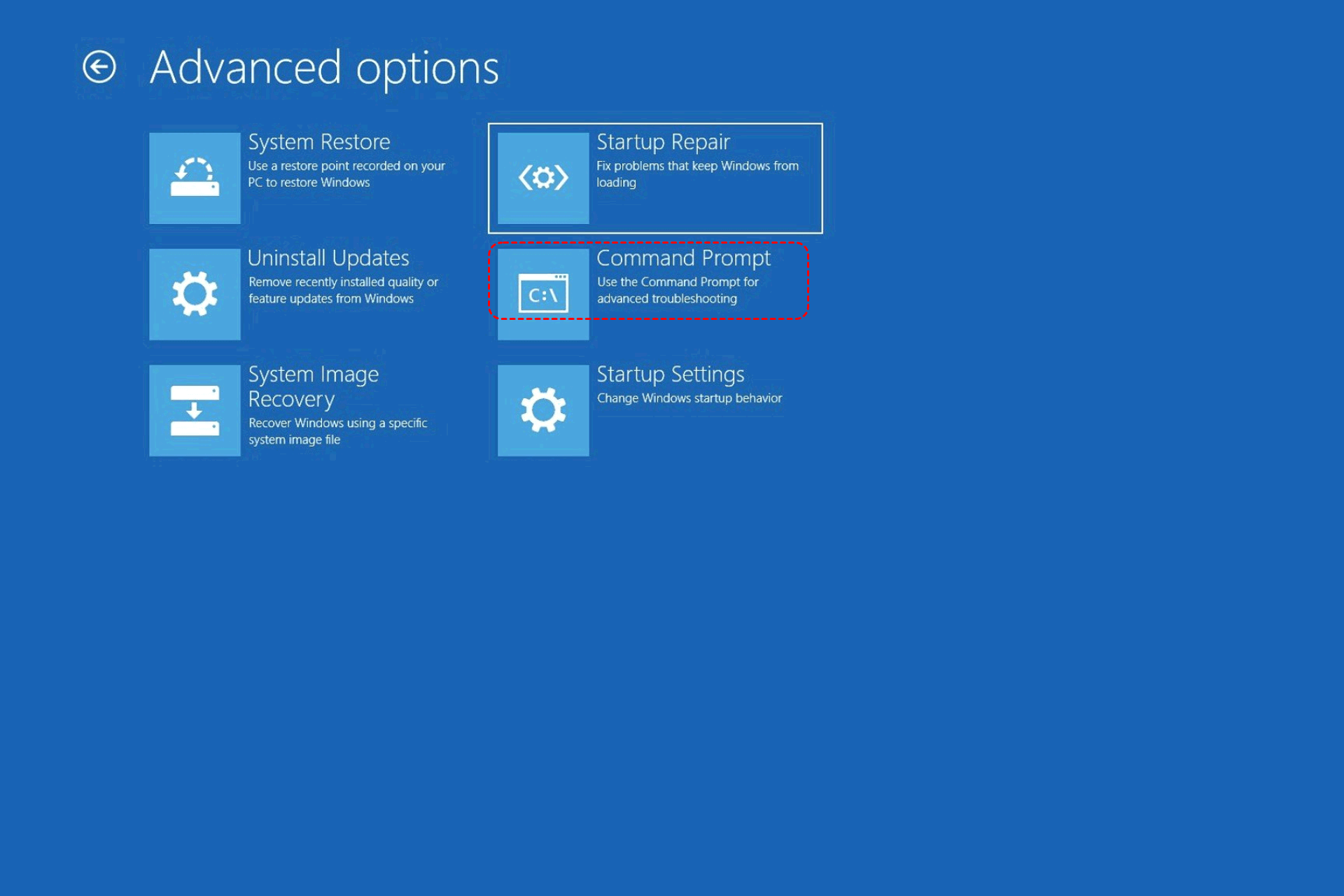
Step 3: Open Command Prompt
Once the installer launches, press Shift + F10 to open Command Prompt.
Step 4: Run Bootrec Commands
Now type the following commands, hitting Enter after each:
bootrec /fixmbr
bootrec /fixboot
bootrec /scanos
bootrec /rebuildbcd
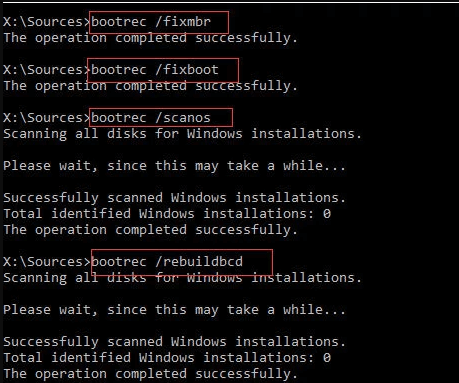
This should rebuild your boot configuration. Restart your PC and check if it boots.
Method 2: Recreate EFI System Partition
If you confirmed that the EFI System Partition itself was deleted, rebuilding BCD alone is not enough. You may need to create a new EFI partition and then copy the Windows boot files to it. This method is intended for UEFI/GPT systems.
1. Boot to Windows Recovery Environment
Start from Windows 11 installation media and open Repair your computer → Troubleshoot → Advanced options → Command Prompt
2. Inspect the disk
Run the following commands to find the GPT disk containing your Windows installation:
diskpart
list disk
Then run the commands to show all partitions on this disk:
select disk X (Replace X with the correct disk number)
list partition
Be extremely careful here. Selecting the wrong disk can cause data loss.
3. Confirm that the EFI partition is actually missing
Do not create another EFI partition merely because Windows will not boot. Check whether a small FAT32 EFI System Partition already exists. If it exists, repairing its boot files may be preferable to creating a new one.
4. Recreate the EFI system partition
If the ESP is genuinely missing and suitable unallocated space is available, DiskPart can create an EFI partition on a GPT disk. Microsoft documents the create partition efi command for this purpose.
For example:
create partition efi size=260 (change 260 to your actual size)
format fs=fat32 quick label=System (or format fs=fat32)
assign letter=S
exit
The exact size and disk layout should be determined from the existing installation rather than copied blindly from another computer.
5. Recreate the Windows boot files
Once the new EFI partition has been created and assigned S:, identify the Windows volume in WinRE.
For example:
bcdboot C:\Windows /s S: /f UEFI
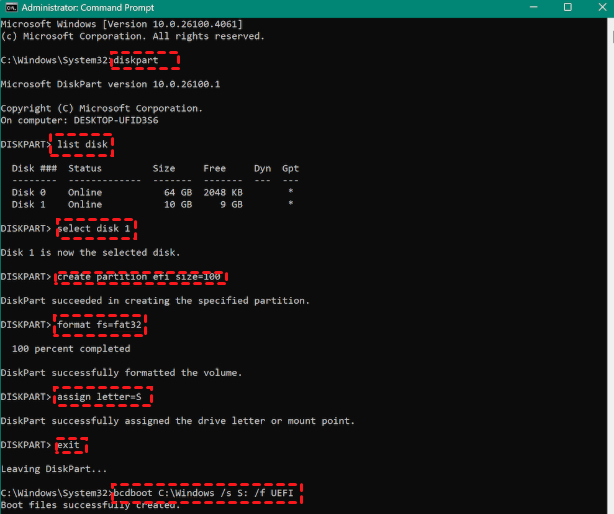
BCDBoot will copy the necessary boot files to the EFI System Partition and create the BCD boot environment.
Important warning:
- Do not use DiskPart commands such as delete partition override unless you are certain that the selected partition is the one you intend to modify. Microsoft warns that partition operations can have destructive consequences.
- If you are unsure which partition is the EFI partition, stop before changing anything and consider recovering the data first or obtaining professional assistance.
Method 3: Restore from a System Image Backup (If Available)
If you’ve been backing up your system (good on you!), restoring a previous system image is the fastest and safest route.
Step 1. Boot into the Windows Recovery Environment.
Step 2. Go to "System Image Recovery".
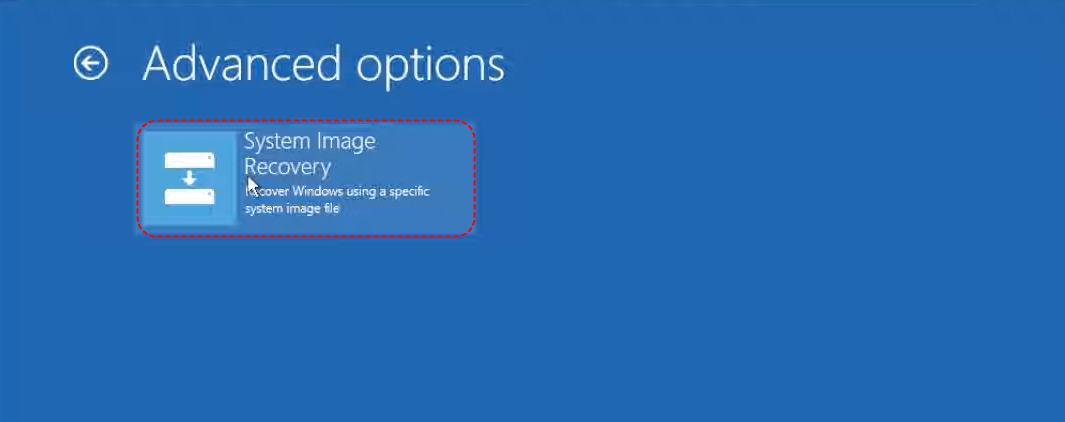
Step 3. Follow the wizard to restore your full system, including the boot partition.
If your image is recent, you’ll be up and running in no time.
Method 4: Recover Accidentally Deleted Boot Partition with MyRecover
If you cannot rebuild the BCD and have no backup, rescue your files first. Fortunately, you can try the Windows file recovery software, MyRecover, to recover the boot partition and its files at the same time. It provides the exclusive feature, Partition Recovery, that helps you to recover the lost boot partition and its files. It’s user-friendly and beginner-safe.
With MyRecover, enjoy the benefits:
- Supports 1000 + file types, such as Word, Excel, PPT, etc.
- Supports quick and deep scan modes for easy recovery.
- Recovers Windows, external hard drive or SD data without data loss.
- Compatible with Windows 11/10/8.1/8/7/Server.
Here is how to recover an accidentally deleted boot partition in Windows 11 with MyRecover:
1. Please download and install MyRecover on another computer, and prepare a USB drive that is at least 32GB. Open MyRecover, click PC Crashed Recovery, tick the USB Boot Device, then click Create to create the bootable USB drive.
 100% Secure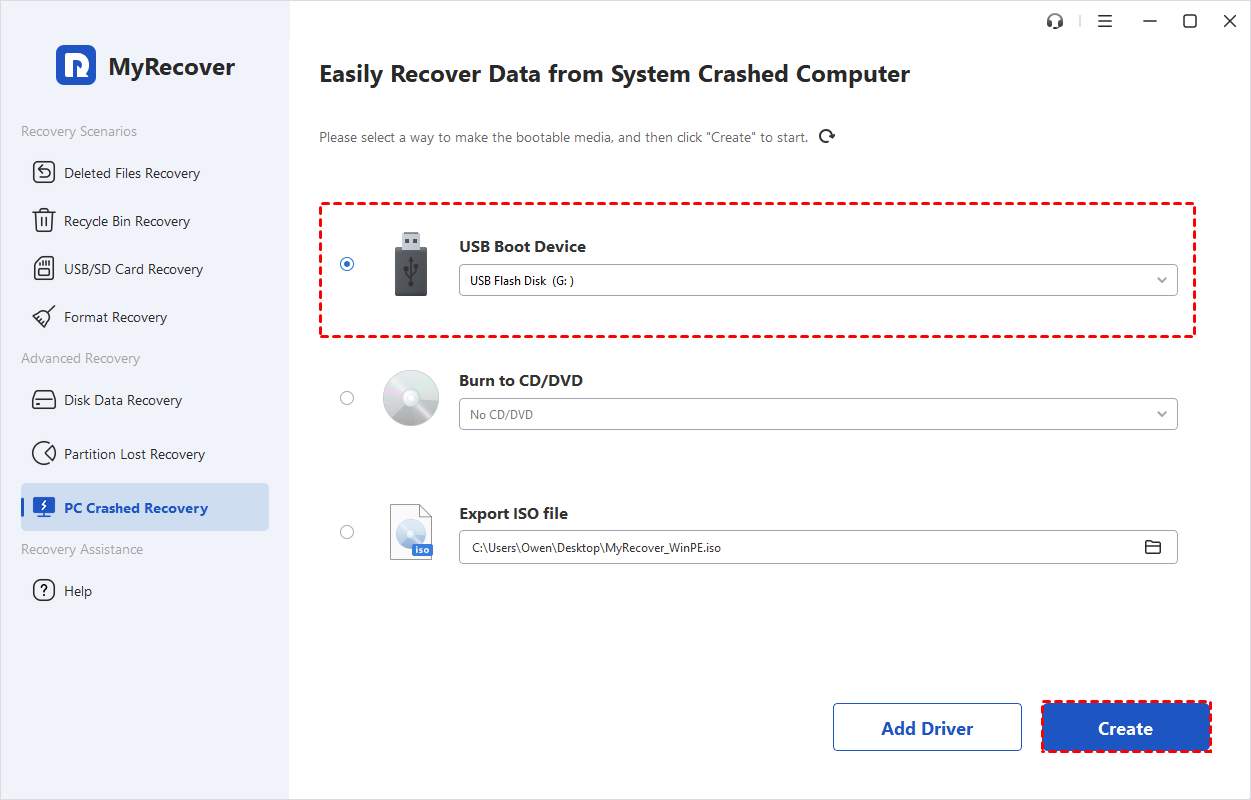
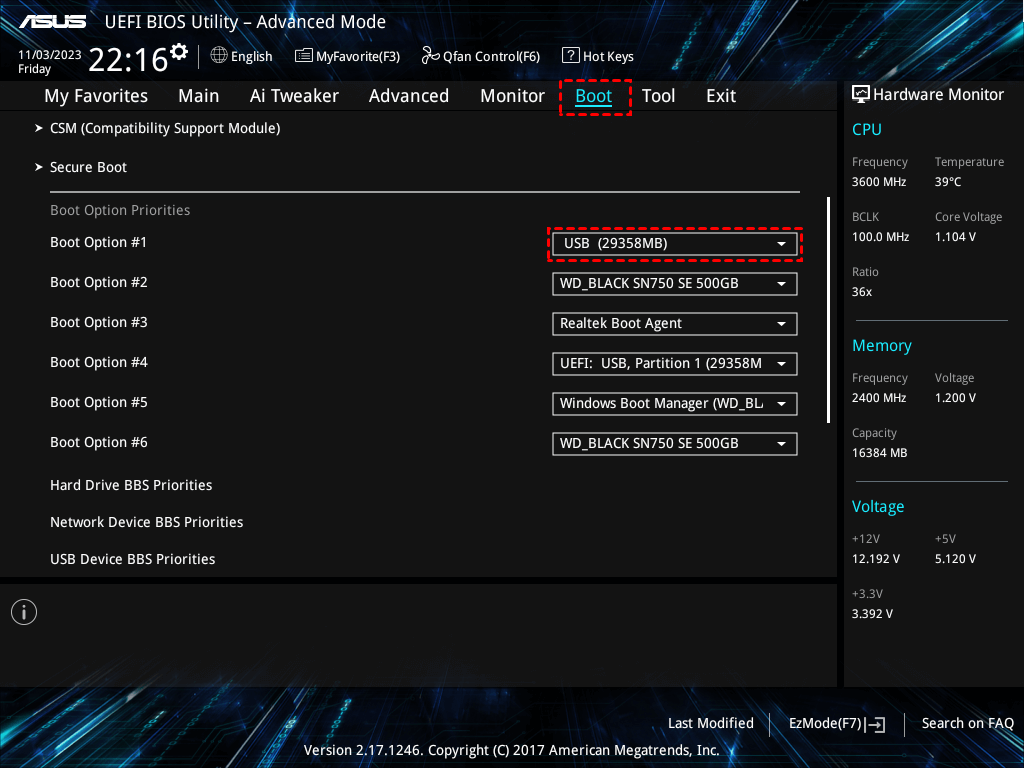
2. Use the bootable USB drive to boot up your computer that has deleted the boot partition (Change the boot order in BIOS); then MyRecover will automatically run.
3. Click Partition Recovery, choose the disk you want to perform recovery on, and click Next.

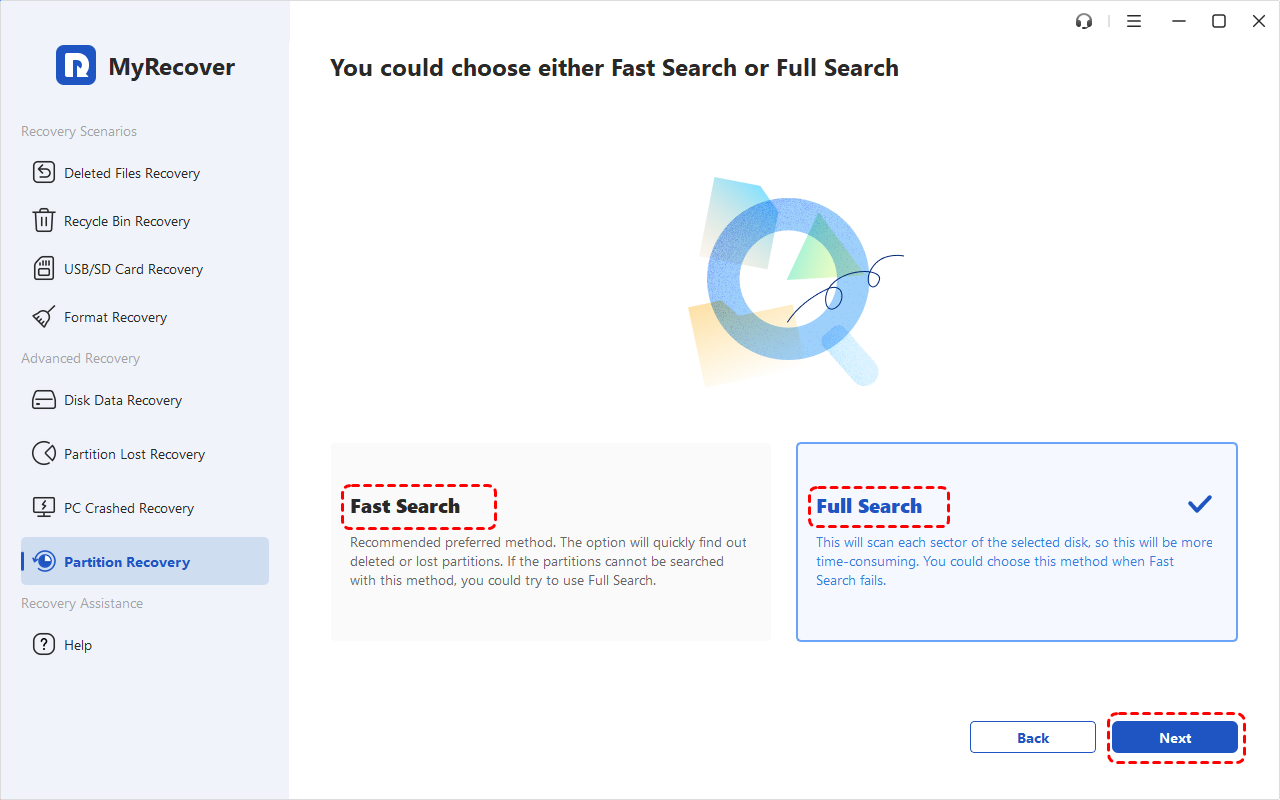
4. Select Fast Search or Full Search, and click Next.
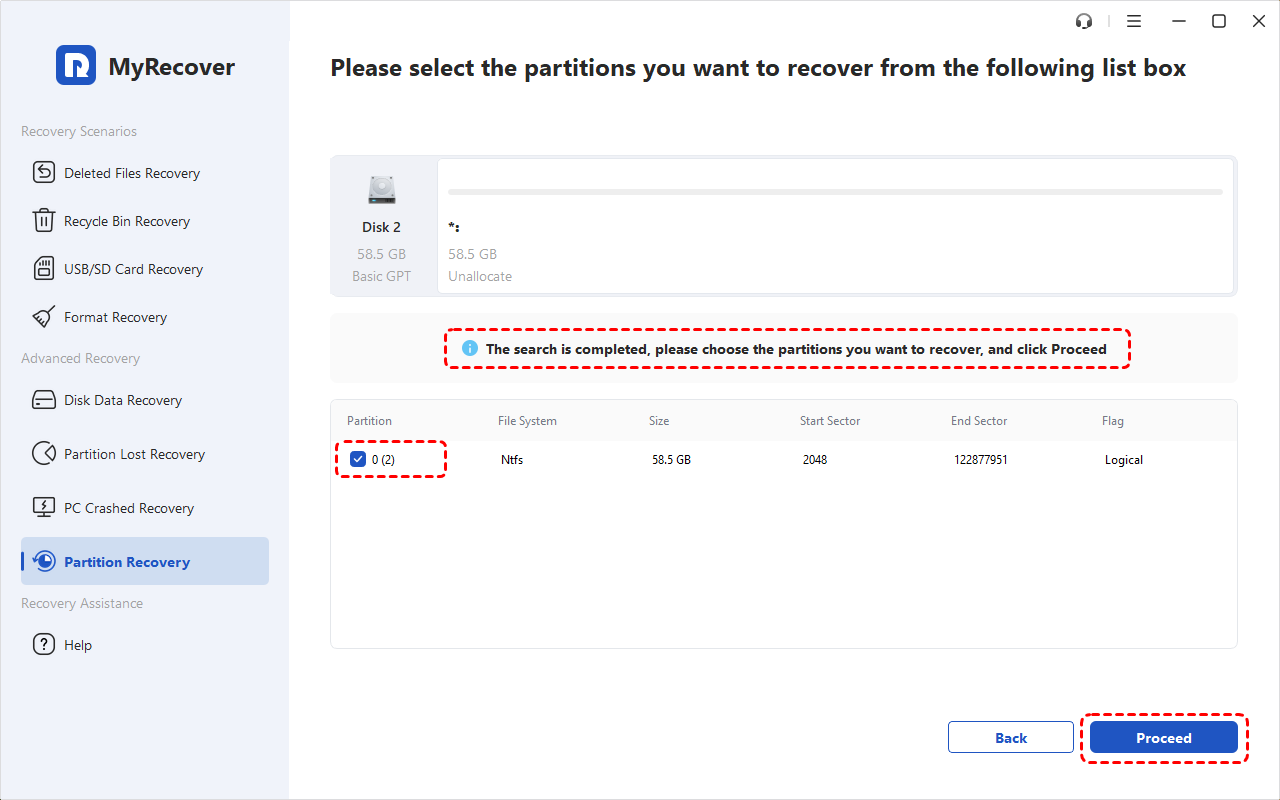
5. It will show all the lost partitions; tick the boot partition that you have deleted accidentally, hit Proceed.
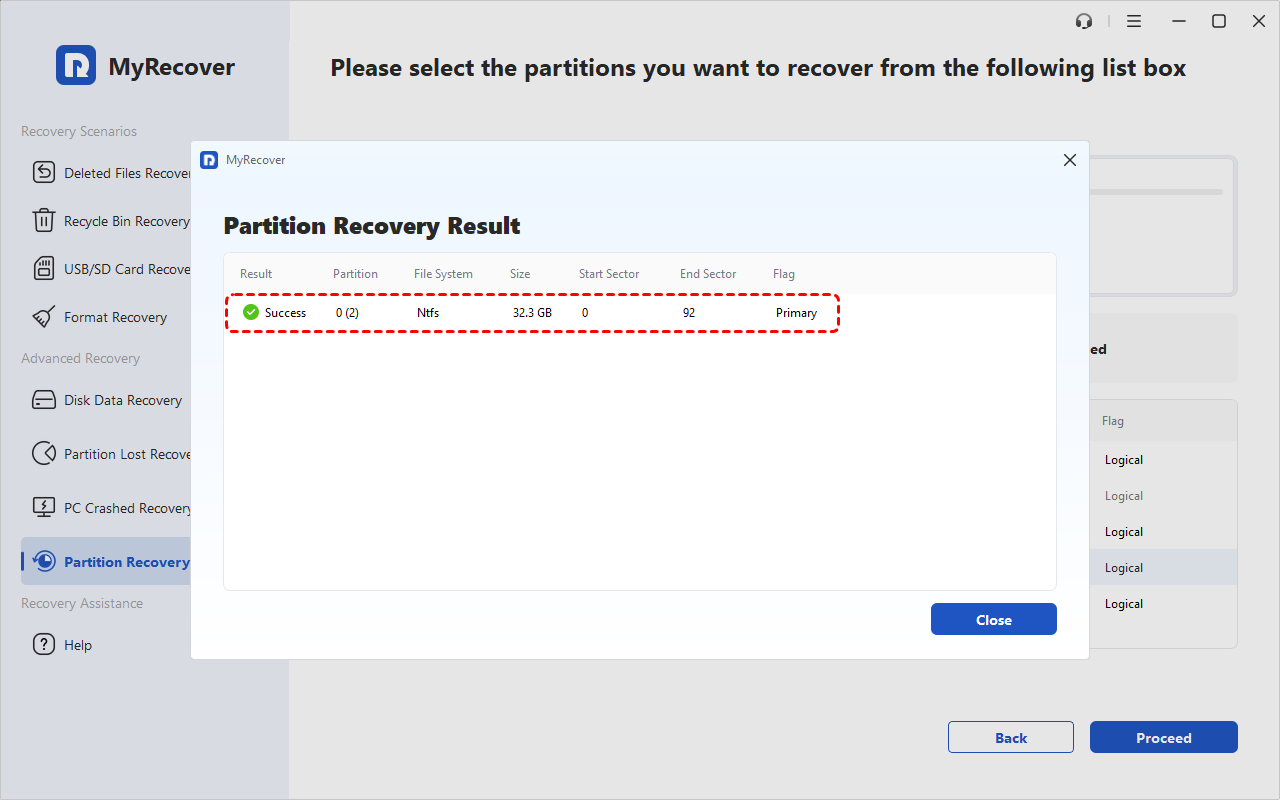
6. Wait for a while; the boot partition and all the files on it will be recovered. Go ahead and check.
Method 5: Clean Install Windows 11 (Losing Personal Data or Not)
If you can’t recover the partition or didn’t have a backup, you’ll need to reinstall Windows 11.
Step 1. Boot from installation media.
Step 2. Choose Custom Install.
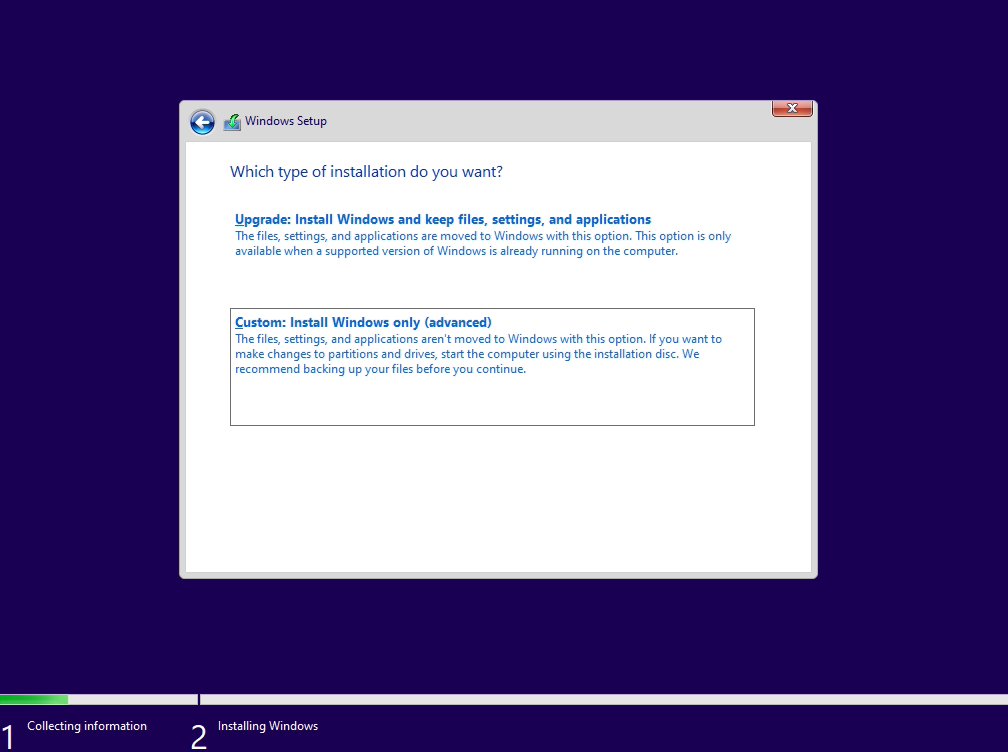
Step 3. Format the drive and install Windows on the primary partition.
Step 4. You’ll lose data—so only do this as a last resort.
Bonus Tip: Recover Personal Files from the Deleted Boot Partition If Required
If there is some important personal data on your boot partitions, you can also use MyRecover to recover it if required. You can try Partition Lost Recovery to recover files instead of the entire partition.
Here is how to recover files from the accidentally deleted boot partition in Windows 11 with MyRecover:
Step 1. Install MyRecover on a working PC.
Step 2. Create a bootable media.
Step 3. Boot the affected PC using the USB.
Step 4. Click "Partition Lost Recovery", let MyRecover scan your deleted boot partition.
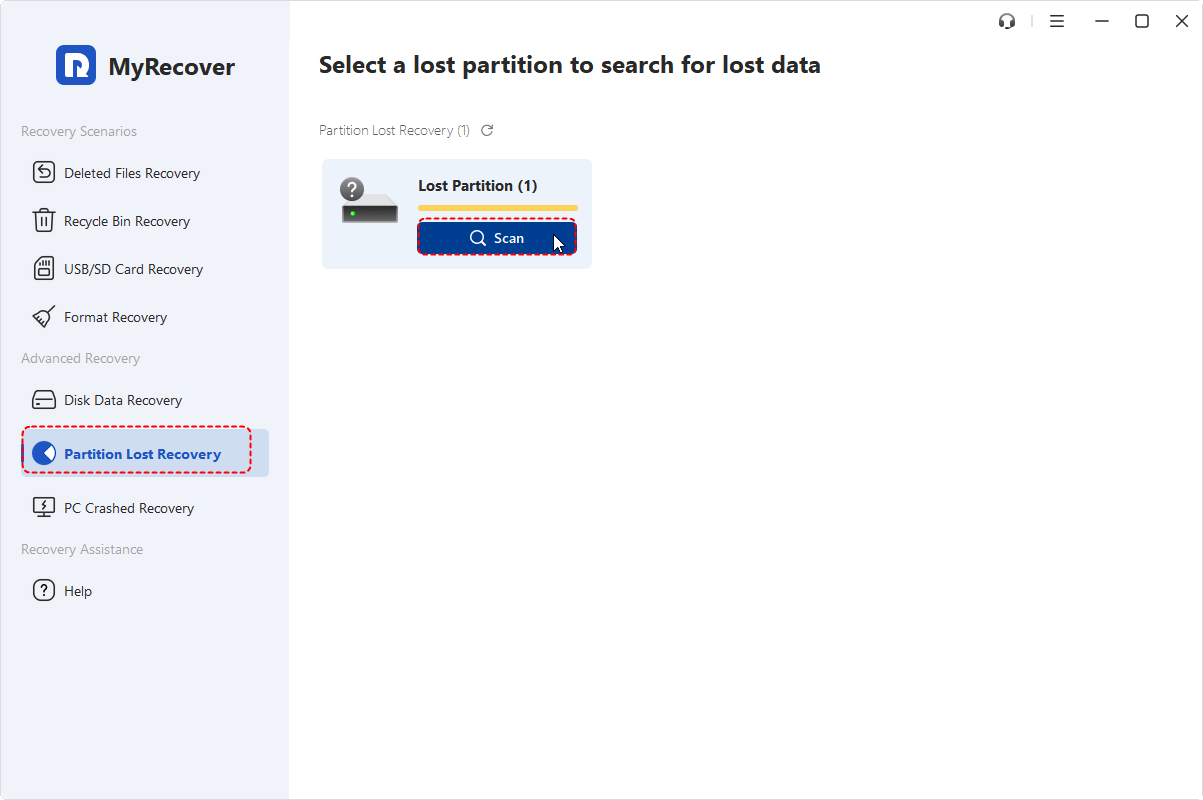
You can also use this feature to recover data from other inaccessible partitions if Windows is not corrupted.
Step 5. Once the scanning process is complete, choose the data you want to recover and click "Recover".
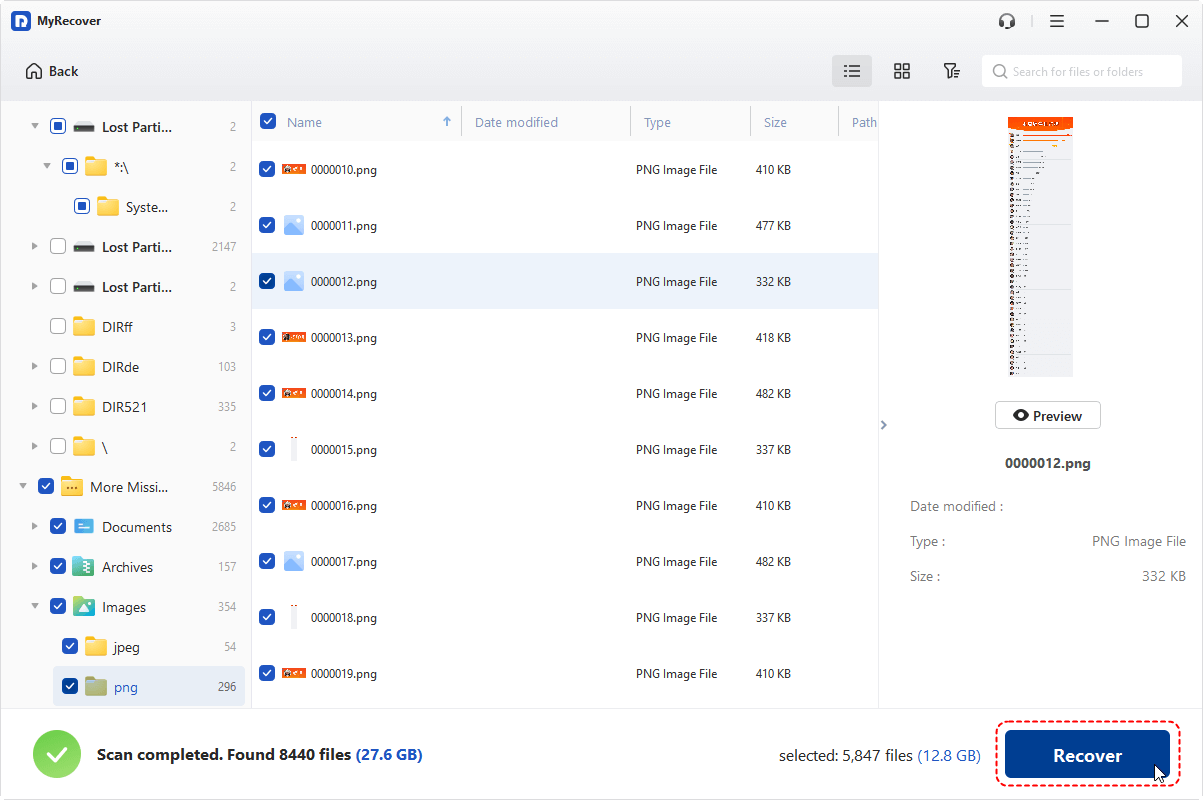
Step 6. Select another external storage device to save the recovered data. Finally, copy the recovered data to the computer after the system is reinstalled.
If all else fails, it might be time to call in the pros. Data recovery services can often pull off miracles—but they’re not cheap. Only go this route if the data is truly critical.
Preventive Measures to Avoid Future Issues
1. Regular Backups
Let’s not sugarcoat it—backups save lives (okay, maybe just sanity). Use built-in tools like File History, or third-party options like AOMEI Backupper.
2. Use Partitioning Tools with Caution
Tinkering with partitions is like brain surgery—don’t poke around unless you know what you're doing. Always read guides or tutorials first.
3. Create a System Restore Point
Before making any changes to your disk, create a restore point. It’s fast, free, and might just be your get-out-of-jail-free card.
FAQs
Can I recover an accidentally deleted boot partition in Windows 11?
Sometimes. If the Windows partition remains intact, you may be able to restore boot functionality by repairing or recreating the EFI System Partition and rebuilding the Windows boot files. If the Windows or data partition itself was deleted, partition or file recovery may be necessary.
Will deleting the EFI partition delete my personal files?
Not necessarily. The EFI System Partition primarily contains boot files. Your personal files are normally stored on the Windows or other data partitions. However, the exact disk layout varies, so verify the partition structure before making changes.
Can Startup Repair recover a deleted EFI partition?
Startup Repair can fix certain startup problems, including some boot configuration and system-file issues, but it is not a general-purpose deleted-partition recovery tool. If the EFI partition itself no longer exists, additional recovery steps may be required.
Is BCDBoot better than Bootrec for Windows 11?
They serve different purposes. BCDBoot is specifically designed to configure or repair boot files on a system partition, while Bootrec provides several boot-repair functions. For modern UEFI/GPT installations, the correct tool depends on what was damaged. Microsoft specifically documents BCDBoot for repairing the system partition and boot environment.
Can I reinstall Windows without losing personal files?
Some Windows reinstallation options can preserve personal files, but a clean installation removes personal files. Microsoft documents installation media options for keeping personal files and apps, keeping personal files only, or keeping nothing, depending on how the reinstall is performed.
What should I do if I deleted the wrong partition?
Stop making changes to the affected disk. Do not format it or create a new partition over the deleted space. If the lost data is important, consider partition/data recovery before reinstalling Windows or continuing to use the disk.
Wrapping Up
Accidentally deleting the boot partition in Windows 11 might feel like game over—but it’s not. With the right tools and a calm approach, you can recover lost partitions, rebuild boot data, and get your PC back on track.
Whether you use software like command-line tools, system backups, or MyRecover, the solution is within reach. Just remember: prevention is better than cure—so back up, and be careful with your partitions!

Stay Updated With Our
Latest Tips
Add us as a preferred source on Google to never miss helpful guides.
 Add as preferred source >>