 MyRecover



Recover Lost Work Fast: Your Expert Excel File Recovery Tool Guide
This guide explores top techniques and software for rescuing lost or damaged spreadsheets. Discover how a dedicated Excel file recovery tool works to perform comprehensive Excel data recovery, ensuring your critical work is never permanently lost.

By Delores / Updated on December 8, 2025


About Excel File Recovery
Whether it’s a corrupted quarterly report, a vanished inventory list, or a budget sheet that won’t open, data loss in Excel is a gut-punch moment for anyone. But here’s the good news: in the vast majority of cases, your data isn’t lost forever. Having a reliable Excel file recovery tool becomes an absolute lifesaver.

This guide isn't just about explaining what these tools are; it's your comprehensive, step-by-step companion to understanding why files get corrupted or lost, how to get them back, and how to prevent this headache from happening again. Let's roll up our sleeves and recover files.
Why Do Excel Files Get Corrupted or Lost?
So, what throws a wrench into this finely-tuned machine? The culprits are more common than you think.
⭕ Then there are bad sectors on your hard drive or a failing SSD; when your computer tries to save part of the file to a physically damaged area, corruption is almost guaranteed.
⭕ Malware or virus infections can deliberately scramble data.
⭕ Even seemingly harmless things, like force-closing Excel through the Task Manager one too many times, or transferring a file over a shaky network connection.
⭕ Trying to open a modern .XLSX file in a decades-old version of the software can lead to a corrupted mess.
How Excel File Recovery Works
Now, how does an Excel recovery tool perform its magic? It’s not literal sorcery, but clever software engineering. These tools work in two primary ways.
- First, for deleted files, they scan the storage drive's "table of contents" (the file system) for traces of the file that new data hasn’t yet overwritten.
- Second, for corrupted files, the software performs a deep scan, analyzing the raw binary data of the file. It looks for recognizable patterns, headers, and structures that define an Excel file, then attempts to reconstruct a healthy version around the damaged parts.
A top-tier Excel file recovery software doesn’t just retrieve bits and bytes; it aims to rebuild the workbook's logic—its sheets, formulas, charts, and formatting—so you get back a working spreadsheet, not just a text dump.
Choose the Right Excel File Recovery Tool
Alright, so you're convinced you need a tool. But with a quick search revealing dozens of options, how do you pick the right one? You don't want to waste time on software that’s all flash and no function when your data is on the line.
So, you have to consider the following factors while choosing the right Excel recovery tool:
- A competent tool should support the full gamut of Excel formats—from the old .XLS to the modern .XLSX and .XLSM macro-enabled files.
- It must offer a deep scan mode for severe corruption cases, not just a quick, surface-level search.
- Preview functionality is non-negotiable; you should be able to see the recovered data before you pay for the license, ensuring the Excel data recovery was actually successful.
- Also, consider where the file was lost from—does the tool handle recoveries from internal hard drives, external SSDs, USB flash drives, and even SD cards?
- Check for a user-friendly interface.
- They are built specifically for the job, offering a higher success rate, especially for tough cases where the file is severely damaged or partially overwritten.
Fortunately, the Windows data recovery software MyRecover meets all the above requirements.
A Step-by-Step Guide to Excel Data Recovery
You’ve selected your tool. How to recover Excel files easily with MyRecover? Check the following content:
Preparation
- First, stop using the drive immediately.
- If possible, install the Excel file recovery tool - MyRecover on a different drive to avoid any conflicts.
- Second, locate any backups. Check File History on Windows, Time Machine on Mac, cloud backups like OneDrive or Google Drive, or even old email attachments. A backup is always the fastest and cleanest solution.
Here’s how to recover your files with MyRecover:
1. Download and install MyRecover on your computer, not the drive you’re recovering from.
 100% Secure
2. Launch MyRecover, then tap Disk Data Recovery or another feature that suits you, choose the drive, and hit Scan.

3. Hit OK when it’s done. Then preview and select the Excel files you need, and hit Recover.

4. Opt for a safe location to save these recovered Excel files.

5. Once recovered, check these files in the destination folder.

- Notes:✎...
- Once the scan finishes, you’ll see a vast list of recoverable files. Use the filter option at the top to specify ".xls" or ".xlsx" to find your Excel files quickly. You can also use the search bar to type the filename.
- Besides, you can preview the Excel files before recovery to ensure they are intact.
- You can recover files for unlimited computers within the company after upgrading to MyRecover Technician.

 MyRecover
- Recover Deleted Files Easily with Simple Clicks
- 1000+ File Formats Supported
- Support HDD, SSD, External Hard Drive, USB Drive, SD Card, etc.
- Quickly Find Files Using File Types, Name, Size, etc.
- Preview Files Before Recovering
- Recover Unlimited Data
 100% Secure
How to Repair Corrupted Excel Files?
If your Excel files are get corrupted and show the error message “The file is corrupt and cannot be opened”, what should you do? Don’t worry, Excel itself has some built-in first-aid kits.
1. Try opening Excel first (a blank workbook), then go to File > Open > Browse.
2. Navigate to your corrupted file, but instead of clicking "Open", click the little arrow next to the Open button.
3. Select "Open and Repair..." from the dropdown menu.
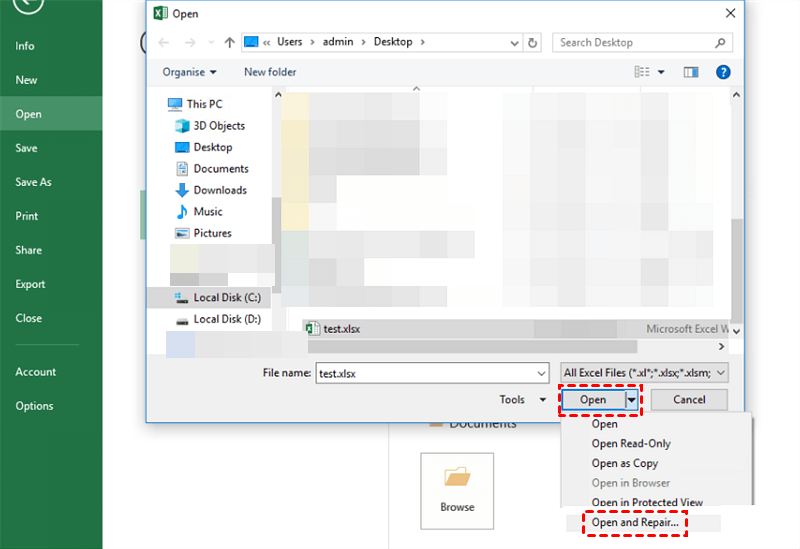
4. Excel will attempt to repair the file structure. It even offers an "Extract Data" option if the repair fails, which can at least salvage your formulas and values, if not the formatting.
For files corrupted during transfer or download, simply re-downloading a fresh copy can sometimes work.
FAQs About Excel File Recovery
Can I recover a permanently deleted Excel file?
A: Yes, you often can. "Permanent" deletion just marks the space as available; the data remains until overwritten. Using a dedicated Excel recovery tool quickly after deletion offers a high success rate.
What is the difference between free and paid Excel file recovery software?
A: Free software has strict limits (data caps, no file preview) and basic scans. Paid tools offer deep scans, unlimited recovery, previews, and support for complex corruption and formatted drives, making them reliable for critical work.
How can I repair a corrupted Excel file without specialized software?
A: First, try Excel's built-in "Open and Repair" feature. You can also try opening the file in Google Sheets or, for advanced users, manually repairing its internal ZIP structure. For full recovery of everything, a specialized Excel file recovery tool is usually needed.
Why did my Excel file become corrupted in the first place?
A: Common causes include sudden system shutdowns during a save, storage drive failures (bad sectors), disconnecting a USB unsafely, software conflicts from add-ins or antivirus software, and human error, like force-closing Excel.
Is it possible to recover an Excel file I forgot to save?
A: Yes, check Excel's AutoRecover. Go to File > Info > Manage Workbook and look for "Recover Unsaved Workbooks." If that fails, a dedicated Excel recovery tool might find temporary cache files or data fragments.
How do I choose the best Excel file recovery tool for my specific situation?
A: Diagnose your scenario. Was the file deleted or corrupted? How critical is the data? Ensure the tool supports your storage device (like a memory card). Always choose one with a free scan and preview function to verify it can find your files before you buy.
The End
Until now, you have mastered the simple Excel file recovery tool and learn the simple steps to recover corrupted or lost Excel files. Besides, you can also recover ASF files, recover files from a crashed computer, recover files from an unformatted partition, etc. So, why not give it a try now?

Stay Updated With Our
Latest Tips
Add us as a preferred source on Google to never miss helpful guides.
 Add as preferred source >>