 MyRecover



File History Drive is Full: How to Fix in Windows 11/10
If your File History drive is full, Windows backups can fail silently. This guide explains why your file history drive is full, how to clear space safely, change retention, or switch drives, so File History runs reliably and your data stays protected.

By Vera / Updated on July 22, 2026


What Is File History in Windows?

File History is a built-in Windows backup feature that automatically saves copies of your files on an external drive or network location. Think of it as a safety net—if something happens to your computer, you can easily restore your documents, photos, and other important files. Unlike a standard image backup, File History focuses on personal files, allowing you to "travel back in time" to retrieve a specific version of a document from hours or days ago.
How File History Works
File History continuously monitors files in your libraries, desktop, contacts, and favorites. Whenever a file changes, File History makes a copy on your backup drive. This way, even if you accidentally delete or overwrite something, you can restore it later.
Why File History Is Important
Imagine losing years of work in an instant—sounds terrifying, right? That’s where File History saves the day. It ensures you can recover previous versions of files, giving you peace of mind and extra security.
Signs That Your File History Drive Is Full
When your designated backup drive reaches its capacity, the automated protection process grinds to a halt. Recognizing the early warning signs can prevent a situation where you think your data is being backed up, but it actually isn't.
💡Error Messages You Might See
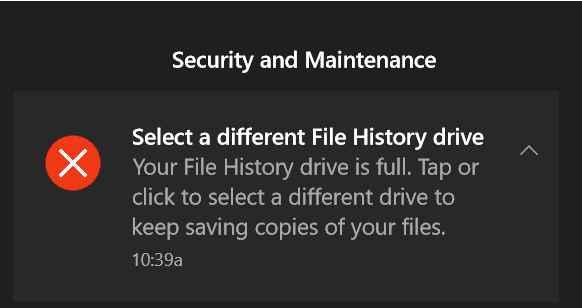
Windows usually alerts you with messages like "File History drive is full" or "Older versions of files were deleted to make space". Don’t ignore these warnings—they’re your cue to take action.
💡Slow Backup Performance
A full drive can slow down backup speeds. If File History takes forever to complete, check your drive’s capacity. This happens because the system spends excessive CPU cycles trying to calculate which old files to overwrite to make room for new ones.
💡Missing or Incomplete Backups
If backups are incomplete or some files are missing, a full drive could be the culprit. File History automatically deletes older backups, but sometimes that’s not enough.
Common Causes of a Full File History Drive
Understanding why your backup drive fills up helps you prevent it from happening repeatedly. Often, it is a combination of hardware limitations and software configuration.
-
👉Limited Drive Space: If your backup drive is small or almost full, File History quickly runs out of space.
-
👉Frequent File Changes: Constantly updating files or adding new ones increases storage demands. Each change creates a new backup copy.
-
👉Large Files and Media: Heavy media files, like videos or high-resolution photos, eat up space fast. They can fill your drive in no time.
-
👉Long Retention Settings: By default, Windows may be set to keep versions "Forever," which means it will never delete an old copy unless forced to, eventually clogging the drive.
How to Check File History Drive Usage
Before attempting a cleanup, you must verify the current status of your storage to determine how aggressive your cleanup strategy needs to be.
1. Using File Explorer
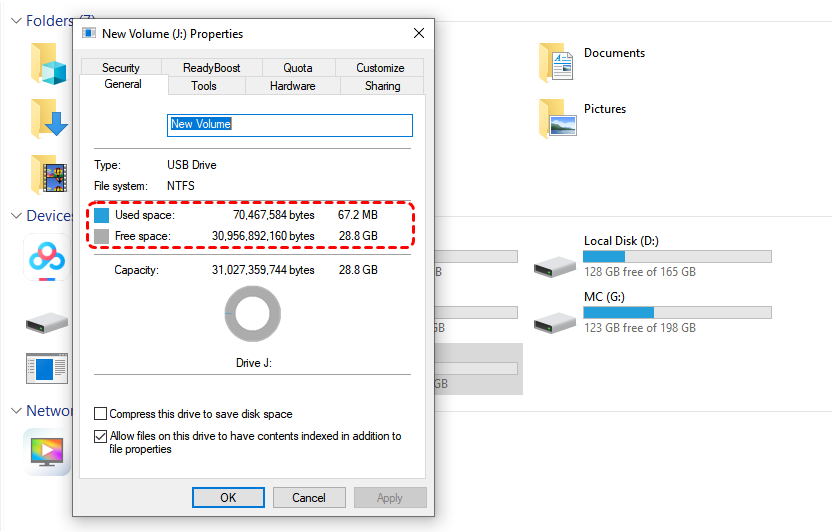
Open File Explorer, right-click the backup drive, and select "Properties". You’ll see total used space and free space—super simple!
2. Using Settings App
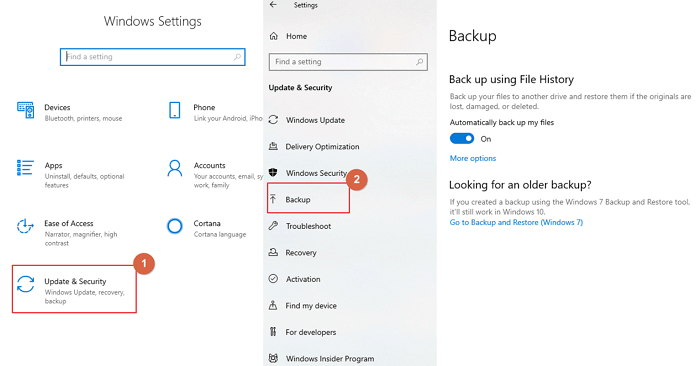
Go to Settings > Update & Security > Backup > More options. Scroll down to see "See backup size", which tells you exactly how much space File History is consuming. This is more accurate for backup planning than File Explorer, as it specifically isolates the data used by the File History system from other files on the drive.
File History Drive Almost Full: How to Clear
Once you’ve confirmed the drive is full, you have three primary paths: purging old data, upgrading your hardware, or optimizing how the software behaves. Here is how to execute each method effectively.
1. Delete Old Backups (The Cleanup Method)
This is the best solution if you have years of backups and only need the most recent versions. It avoids the need to buy new hardware by reclaiming space from outdated file versions. Windows includes a "Cleanup" utility that targets specific timeframes, allowing you to delete everything except the most recent backup.
Step 1: Go to Control Panel > System and Security > File History.
Step 2: Click on Advanced settings in the left sidebar.
Step 3: Click Clean up versions.
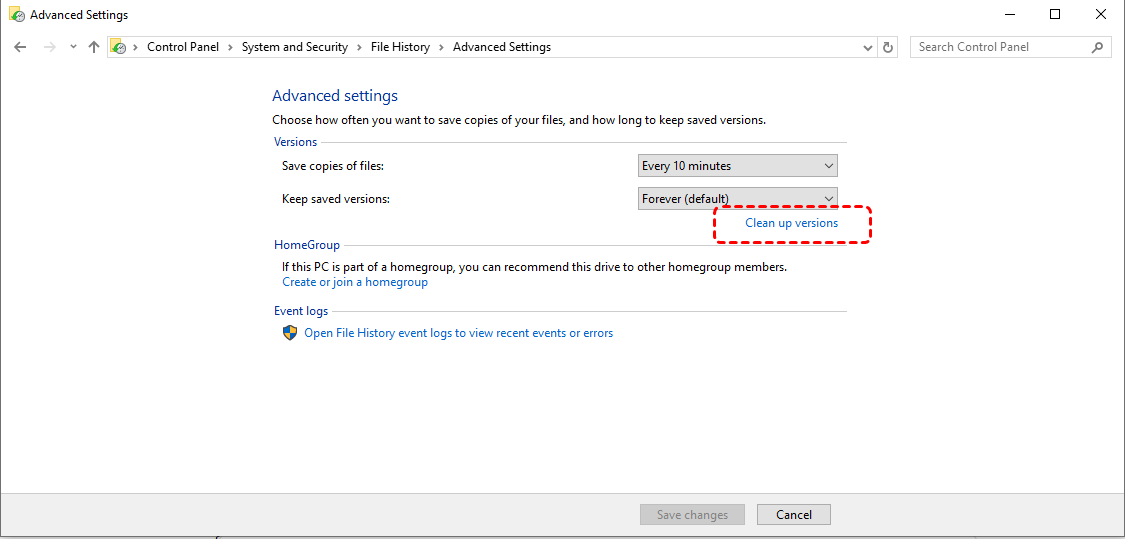
Step 4: In the drop-down menu, choose a timeframe (e.g., "All but the latest one") and click Clean up.
2. Move Backups to Another Drive (The Expansion Method)
Use this when your current drive is physically too small to handle your data volume. It allows you to keep your entire history without deleting anything. You stop the service on the current drive and point it to a larger one. Windows will ask if you want to move the existing files to the new location.
Step 1: Connect a new, larger external drive.
Step 2: Go to File History in the Control Panel.
Step 3: Select Select drive and choose the new drive.
Step 4: When prompted, click Yes to move existing files to the new location.
3. Adjust File History Settings (The Prevention Method)
This is a proactive step to ensure the drive doesn't fill up again next month. It balances protection with storage efficiency. By reducing the frequency of backups and the duration they are kept, you significantly lower the "data footprint."
- Reduce Backup Frequency: Instead of "Every hour," change it to "Daily."
- Keep Saved Versions: Change "Forever" to "3 months" or "Until space is needed."
- Exclude Large Folders: Click "Exclude folders" in File History settings to remove bulky, non-essential folders like "Downloads" or "Temporary Files."
What to Do If You Lose Files When File History Drive Is Full
A full File History drive is more than an annoyance—it's a risk. When the drive is full, File History often stops backing up silently. If your original file gets corrupted or deleted during this "blackout period," Windows won't have a backup to restore.
This is where MyRecover becomes essential. Unlike File History, which relies on a pre-existing backup, MyRecover can scan your local disks directly to find and reconstruct files that were lost due to storage errors.
Why MyRecover is the Perfect Companion to File History:

 MyRecover
- 💙Bridge the Gap: It recovers files that were missed by File History because the backup drive was full.
- 💙Deep Scan Technology: It can find deleted files on both your internal C: drive and your external File History drive if it was accidentally formatted.
- 💙Versatile Recovery: Supports 1000+ file formats including .doc, .jpg, .png, .mp4, and .zip.
- 💙High Success Rate: Whether the loss was due to a full disk error, accidental deletion, or a system crash, MyRecover's algorithms can piece the data back together.
 100% Secure
Recover Lost Files Using MyRecover: Easy Steps
If your File History drive is full and some files are missing, you can use MyRecover to get them back:
1. Install MyRecover – Download and install it on your PC.
2. Select the Drive – Choose the drive where your files were lost.
3. Scan the Drive – Click Scan to find deleted or missing files.

4. Preview Files – Check which files can be recovered.
5. Recover Files – Select the files and click Recover, then save them to a safe location.

While MyRecover doesn’t prevent your drive from filling up, it’s a lifesaver if important files disappear due to storage issues or accidental deletion.
Alternative Backup Solutions
If you find File History too restrictive or prone to filling up, integrating other solutions can create a more robust backup strategy.
- Cloud Storage Options: Services like OneDrive, Google Drive, or Dropbox can automatically sync files and act as an off-site backup. Perfect for peace of mind!
- External Hard Drives: Larger external drives provide more space and flexibility than smaller drives. Rotating drives can also keep backups organized.
- Disk Imaging (Third-Party): Tools like Acronis or Macrium Reflect create a "snapshot" of your entire system. This is better for recovering from a total hard drive failure rather than just a single deleted file.
Conclusion
A full File History drive doesn’t have to be stressful. By understanding how the versioning logic works, monitoring your usage, and adjusting your retention settings, you can maintain a seamless backup system. Remember that File History is a "versioning" tool, not a "set and forget" archive. Regular maintenance—combined with a backup plan like MyRecover for emergencies—will ensure your digital life remains secure and recoverable.
Frequently Asked Questions (FAQ)
1. Why does File History keep filling up even though I haven't added new files?
File History creates a new copy every time a file is changed, not just when it is added. If you have an application that frequently updates a log file or a database in a backed-up folder, Windows will save hundreds of versions of that single file, consuming massive space.
2. Can I manually delete files from the File History folder in File Explorer?
No, you should avoid this. Manually deleting files via File Explorer can corrupt the File History database, leading to errors where Windows can't recognize your backup. Always use the "Clean up versions" tool in the Control Panel or MyRecover if you need to salvage data from a corrupted backup drive.
3. Does File History back up my programs and Windows settings?
No. File History only backs up personal files in your Libraries (Documents, Music, Pictures, Videos), Desktop, and Favorites. To back up your entire system, you should create a "System Image."
4. What happens to the old backups when the drive is finally full?
By default, File History will try to delete the oldest versions to make room for new ones. However, if a single new file is larger than the total free space even after purging old versions, the backup will fail and display an error.
5. How can I recover a file if File History was turned off because the drive was full?
If File History wasn't running, the version you need doesn't exist in your backup. You will need to use a data recovery tool like MyRecover to scan your computer's internal drive for the deleted or previous version of the file.
6. How often should I run File History?
For most users, "Every 6 hours" or "Daily" is sufficient. "Every hour" is only necessary for those working on rapidly changing, critical documents. Reducing this frequency is the easiest way to save drive space.

Stay Updated With Our
Latest Tips
Add us as a preferred source on Google to never miss helpful guides.
 Add as preferred source >>