 MyRecover



Format Did Not Complete Successfully on SD Card, HDD, SSD? 4 Fixes
If "format did not complete successfully" stops you from accessing files, don't panic. Discover command-line tools, third-party software, and disk management tricks to recover your drive quickly.

By Delores / Updated on June 18, 2026


Format Did Not Complete Successfully!
Unable to Format RAW HDD "The format did not complete successfully"
Hello, I have a 2TB HDD that I'm trying to format to NTFS on Windows 10. After researching and trying several approaches, I still cannot get things to work.
Whenever I try to format, either through Disk Management or going through My Computer > Manage > Disk Management, I encounter the error "the format did not complete successfully."
When trying to delete the volume from either of these approaches so I can create a new simple volume, I encounter the error "the request could not be performed because of an I/O device error."
When trying to do things through command prompt, even when running as administrator, I am unable to type "list disk" after typing "diskpart." I've seen some solutions that involve this process but am unable to proceed with any of them.
Getting frustrated since I've formatted plenty of disks before with no problem and this seems like it should be pretty simple...any advice / help would be greatly appreciated. Thank you!
- Question from reddit.com
Stuck in the error: The format did not complete successfully? Don't worry, whether you're dealing with a drive that suddenly shows as RAW, an SD card that refuses to cooperate, or an external HDD that's gone rogue, this guide walks you through every fix and recovery option available.
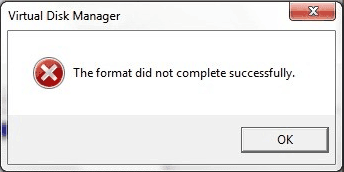
Why Does the Error "Format Did Not Complete Successfully" Occur?
This error doesn't mean your drive is dead. It simply means Windows couldn't complete the formatting process the way it normally would. The drive is still there, but something is blocking the formatting operation.
- Bad sectors on the drive.
- A corrupted file system.
- A "RAW" Drive is caused by being removed improperly or experiencing a sudden power loss during use.
- Malware.
- The physical write-protection switch.
- Physical damage.
Let's be clear about one thing: the longer you wait, the harder it gets. Every attempt to force a format without addressing the root cause can push your data further into the abyss.
Recover Important Files Before Any Attempts
If you have important files on the drive that show “The format did not complete successfully" without a backup, it’s highly recommended to recover files from the hard drive with the powerful Windows data recovery software, MyRecover. Because you can’t access the files on the drive right now.
With MyRecover, enjoy the following benefits:
- Recover data from any complex situation. It is built to handle data loss from corrupted drives, "RAW" drives, formatted drives, and lost partitions, which are all related to the error you're seeing.
- Powerful Dual-Layer Scanning. It uses a Quick Scan to find recently lost files or a Deep Scan to search for files that are more difficult to locate, maximizing your chances of recovery.
- Wide compatibility. Supports NTFS, FAT32, exFAT, and 1,000+ file types.
- Up to 99% recovery rate. You can recover files easily with AI algorithms search.
- Preview files before recovery. No matter videos, images, documents, and more, you can preview them before recovery in case of wasting time.
Here is how to recover files from the drive that shows The format did not complete successfully with MyRecover:
1. Please download and install MyRecover on your computer. Connect your hard drive if it’s external. Do not install it on the drive you’re recovering from.
 100% Secure
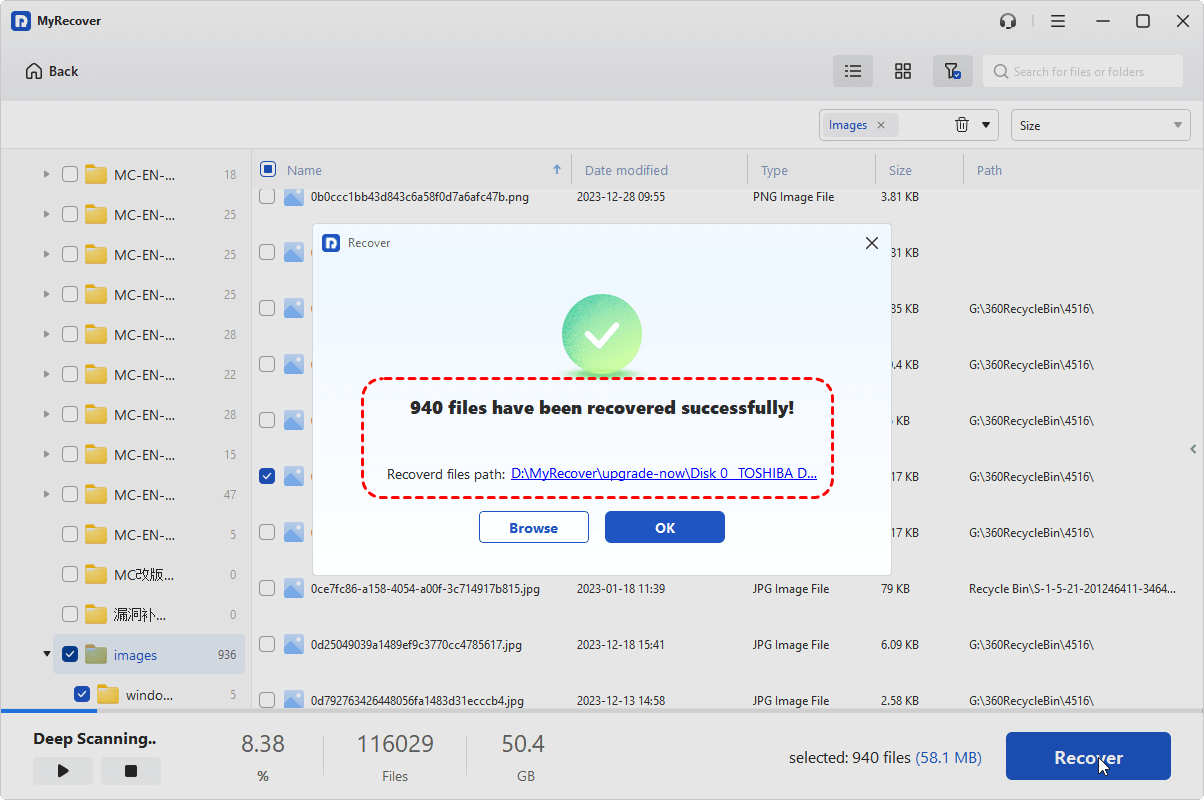
2. Tap Disk Data Recovery, choose the drive that shows format did not complete successfully, and hit Scan.

3. Once done, hit OK. Preview and select the files you need, and hit Recover.

4. Select a destination to keep them safe.

- Notes:✎...
- Once scanned, your files will be sorted by file type. You can also sort them by file path, file name, file size, and modified date, etc.
- For unlimited file recovery, please upgrade to MyRecover Technician to enjoy. Then, you can also enjoy all premium features.

 MyRecover
- Recover Deleted Files Easily with Simple Clicks
- 1000+ File Formats Supported
- Support HDD, SSD, External Hard Drive, USB Drive, SD Card, etc.
- Quickly Find Files Using File Types, Name, Size, etc.
- Preview Files Before Recovering
- Recover Unlimited Data
 100% Secure
After recovering files from the hard drive, you can troubleshoot the error now.
4 Fixes for The Format Did Not Complete Successfully
Now, it’s time to take the hard drive back to normal. You can try the following solutions to fix it easily.
Way 1. Reformat the Drive in Disk Management
Try formatting multiple times in Disk Management might be working. Here is how:
1. Right-click the Start button and select "Disk Management".
2. Find your drive, right-click it, and choose "Format".
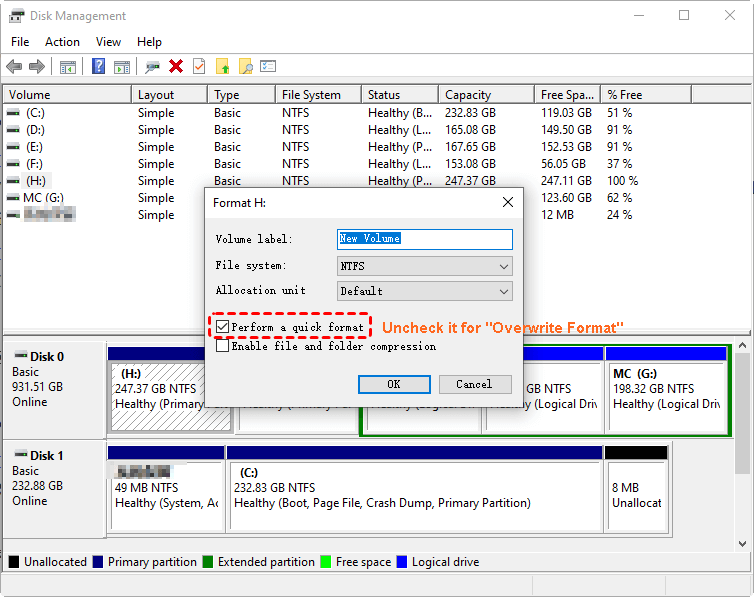
3. Choose FAT32 or NTFS (not exFAT if possible).
4. Uncheck "Perform a quick format" (this does a full format).
Then check if it’s working.
Way 2. Run DiskPart to Format
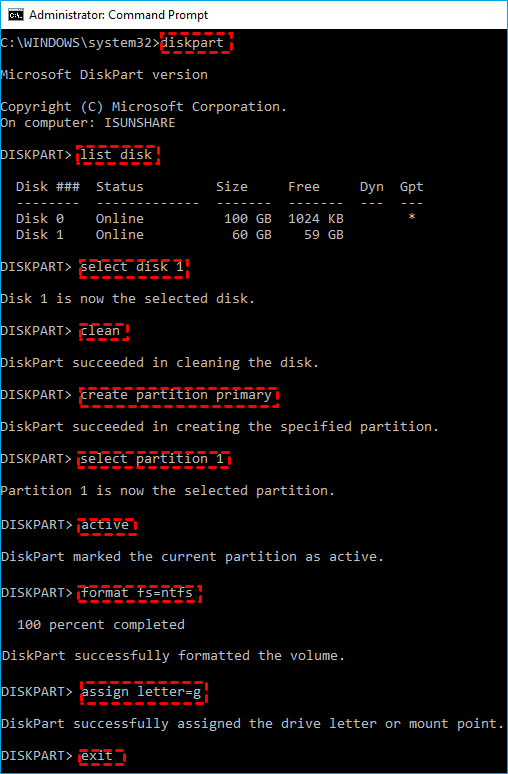
1. Input cmd in the Windows search box, then choose Command Prompt, and choose Run as administrator.
2. Type the following commands:
diskpart
list disk
select disk X (replace X with your drive number)
clean
create partition primary
select partition 1
active
format fs=ntfs quick
assign letter=g
exit
Way 3. Run CHKDSK
If your hard drive shows RAW, it means Windows lost the map that tells it where your files are. So Windows simply can't read the file system. You have to use CHKDSK to repair file system errors like this:
1. Open Command Prompt as an administrator.
2. Type chkdsk X: /f /r (replace X with your drive letter).

This command attempts to repair file system errors.
If CHKDSK fails with an I/O device error—as one user experienced with a 500GB SSD—it often indicates a hardware failure.
Way 4. Disable Write Protection on SD Cards
First, check the physical lock switch on the side of the SD card. If it's in the locked position, slide it to unlock and try again. Still stuck? You can also use DiskPart to clear the read-only attribute.
1. Open Command Prompt as admin.
2. Type the following commands to clear read-only:
diskpart
list disk
select disk m
attributes disk clear readonly
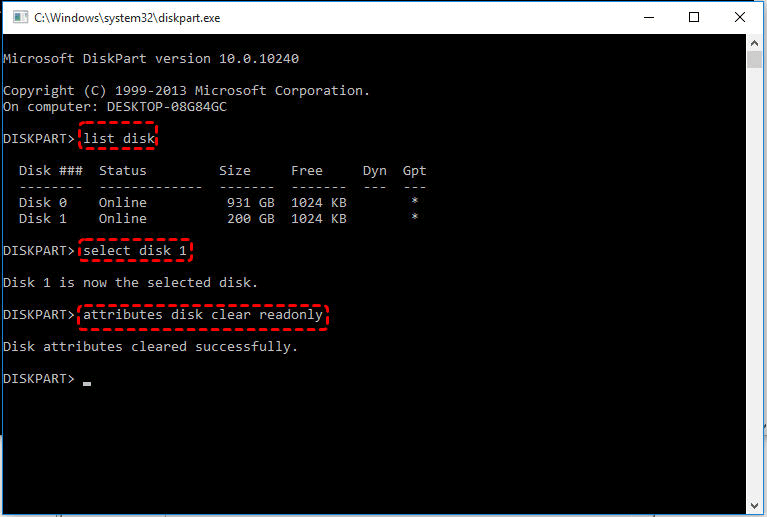
This removes software-based write protection that might be preventing the format.
FAQs About Formatting Did Not Complete Successfully
What does "the format did not complete successfully" mean?
A: Windows couldn't finish formatting due to a corrupted file system, bad sectors, or physical damage. The drive may appear as RAW, or a virus or an interrupted format could be the culprit.
Why does my SD card say "format did not complete successfully"?
A: Common causes: the physical lock switch is on, your card reader is outdated, or the file system is corrupted. Heavy use can also cause bad sectors. Try DiskPart to remove write protection or use another reader.
How do I fix "the format did not complete successfully" on a RAW HDD?
A: Recover your data first with software like MyRecover. Then use DiskPart's clean command to wipe and recreate the partition. If you get an I/O error, the drive is likely physically damaged and needs replacement.
Can I use CHKDSK to fix "format did not complete successfully"?
A: Yes, run chkdsk X: /f to repair minor corruption. If CHKDSK returns I/O errors, it points to hardware failure—switch to recovery software instead.
What should I do if Windows shows "The format did not complete successfully" with external drives?
A: Check cables and ports, then try Disk Management. If that fails, use DiskPart to clean and repartition. Always recover data first with MyRecover. Persistent issues may mean physical damage requiring professional help.
Is there a free way to fix "format did not complete successfully"?
A: Yes, Disk Management, DiskPart, and CHKDSK are all free Windows tools. However, they may not recover data from severely corrupted drives—paid tools like MyRecover offer trial versions to check recoverability first.

Stay Updated With Our
Latest Tips
Add us as a preferred source on Google to never miss helpful guides.
 Add as preferred source >>