 MyRecover



Answered: Is It Safe to Delete AppData?
Many users ask is it safe to delete AppData folder on Windows. This guide explains what AppData contains, the risks of deleting it, and safe ways to free up disk space without harming apps or settings.

By Vera / Updated on December 30, 2025


Introduce
Is it safe to delete files in
I get that it's not right to delete files in appdata\Roaming of applications because they're usually settings or config files.
But there are a lot of files of apps/softwares I've uninstalled and some of them are occupying a lot of space. Is it okay to delete such files if I know they're of uninstalled applications.
For ex. there is a 1.5gb of nltk_data which was related to python and I don't even use python anymore and Uninstalled it way back.
- Question from Reddit
The AppData folder on Windows is like the backstage area of your computer—it stores essential files, app settings, and temporary data. Many users wonder, "is it safe to delete appdata?" Before you go diving in, it’s important to understand what this folder actually does, what’s stored there, and the safest way to clean it without breaking anything. Let’s take a deep dive.
What is the AppData Folder?
AppData is a hidden folder in Windows where programs store configuration files, logs, cache data, and temporary information. Think of it as your apps’ personal storage locker. Without it, most apps wouldn’t remember your preferences, login details, or progress.
Location of AppData on Windows
You can usually find AppData in the path:
C:\Users\YourUsername\AppData
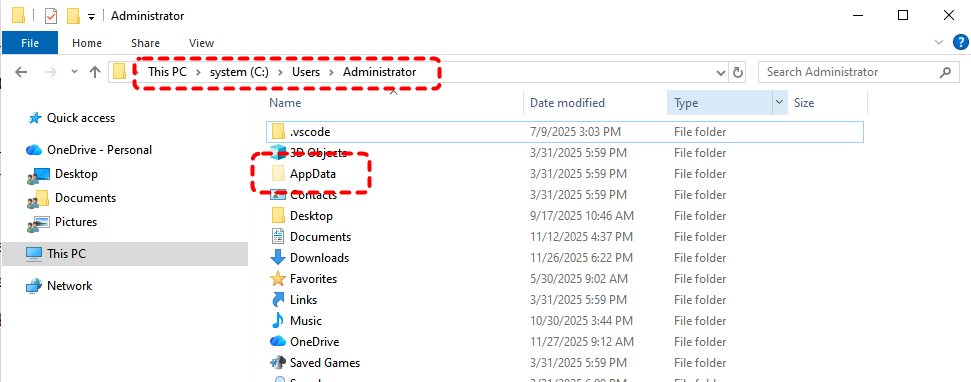
Inside, there are three main folders:
- Local: Stores app data specific to your computer, like cache or temporary files.
- LocalLow: A more restricted version of Local for apps that require limited access.
- Roaming: Contains data that can sync across devices when you log in with the same account.
Knowing the difference is important because not all folders are safe to delete.
Types of Data Stored in AppData
AppData contains:
- Configuration files for your apps
- Logs and temporary files
- Browser profiles and extensions
- Game saves and progress
- Cached data for faster app performance
Some of this is critical, while other parts are just junk you can safely clear.
Why Do People Consider Deleting AppData?
There are a few reasons why users think about deleting AppData:
Freeing Up Disk Space
Over time, cache files and temporary data can pile up, sometimes taking gigabytes of storage. Deleting unnecessary files from AppData can help reclaim space, especially on smaller SSDs.
Fixing Corrupt App Settings
Sometimes apps stop working because their configuration files got corrupted. Deleting AppData for that app can reset it and fix issues, but it also removes all your custom settings. It’s like hitting the "refresh" button for your app.
- >> You may want to know "Is it ok to delete all temp files?"
Risks of Deleting AppData
Before you delete anything, understand the risks. AppData isn’t just junk; it’s often essential for apps to work properly.
Losing App Configurations
Many apps store personal settings in AppData. Delete these, and you may lose your customizations, saved preferences, or account information.
Potential App Malfunctions
Some apps may refuse to start if their configuration files are missing. Imagine trying to bake a cake without the recipe—it’s a disaster waiting to happen.
Impact on Game Saves and Progress
Gamers should be especially cautious. Many game saves are stored in AppData. Deleting them without a backup can erase hours—or even weeks—of progress.
Safe Ways to Manage and Delete AppData
You don’t need to avoid AppData entirely. There are safe ways to clean it without risking your data.
1. Backing Up Before Deleting
Always create a backup first. Copy the AppData folder to another drive or cloud storage. This way, if something goes wrong, you can restore it.
2. Cleaning Temporary Files Only
Focus on temporary files and caches, usually found in:
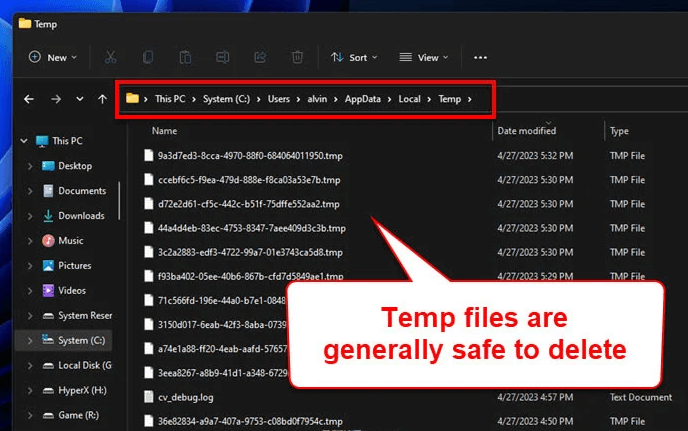
C:\Users\YourUsername\AppData\Local\Temp
These files are safe to delete and won’t affect your apps. There are top 3 safe ways to delete AppData data.
Method 1: Manual AppData Cleanup
1. Open File Explorer and enable "Show hidden files".
2. Navigate to C:\Users\YourUsername\AppData\Local\Temp.
3. Select all files and delete them.
4. Empty the Recycle Bin.
This method removes temporary files safely without affecting your apps.
Method 2: Using Windows Disk Cleanup
1. Press Win + S and search for "Disk Cleanup".
2. Select your system drive.
3. Click "Clean up system files".
4. Check "Temporary files" and click OK.
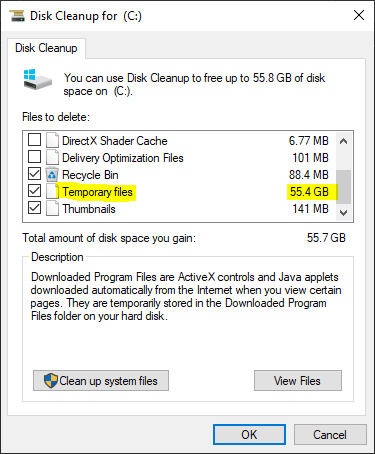
Windows automatically identifies safe files to delete, reducing the risk of accidental loss.
Method 3: Using Third-Party Tools
Tools like CCleaner or BleachBit can help clean AppData by analyzing cache and log files. They often provide a safe list of deletable files. Always double-check before deleting anything to avoid losing crucial data.
- Clear temp files regularly to prevent buildup.
- Backup critical app data before major deletions.
- Avoid deleting folders from apps you don’t fully understand.
- Keep your Windows system updated to prevent file corruption.
- Use disk cleanup tools for safe and automated maintenance.
How to Recover Data If Something Goes Wrong
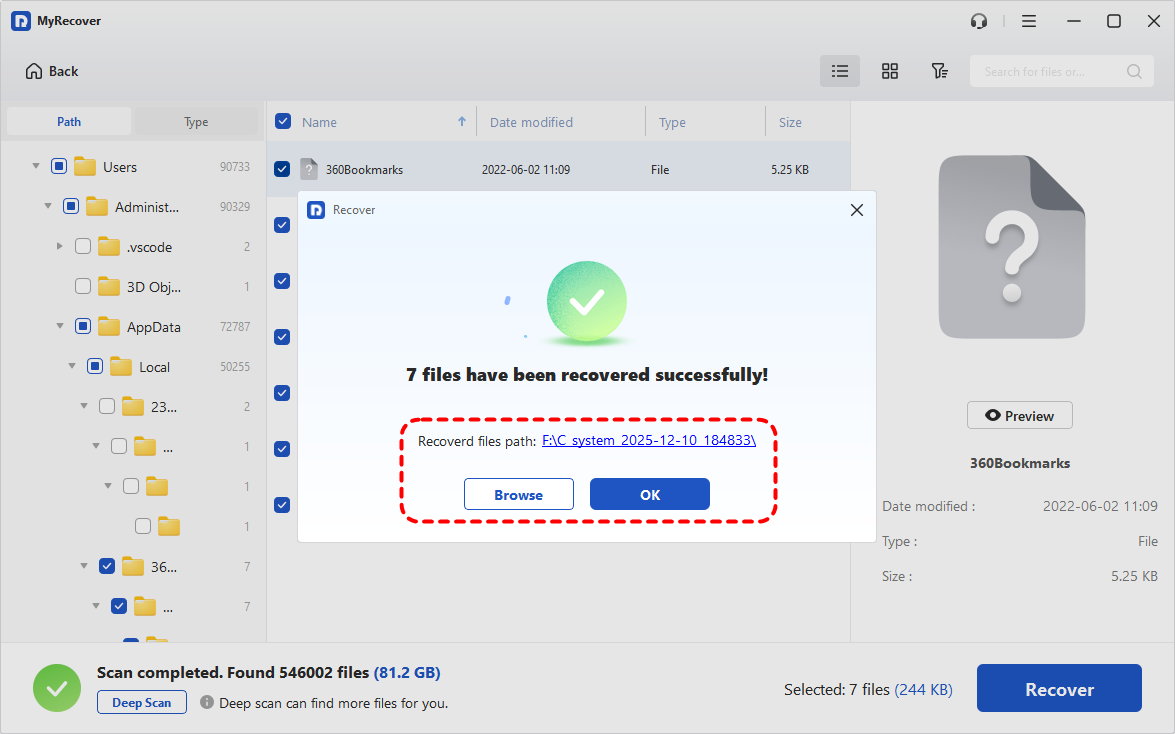
If you accidentally delete important AppData files, recovery tools like MyRecover can help. These tools scan your disk for deleted files and allow you to restore them quickly, minimizing data loss.
 100% Secure
Steps to Recover AppData with MyRecover
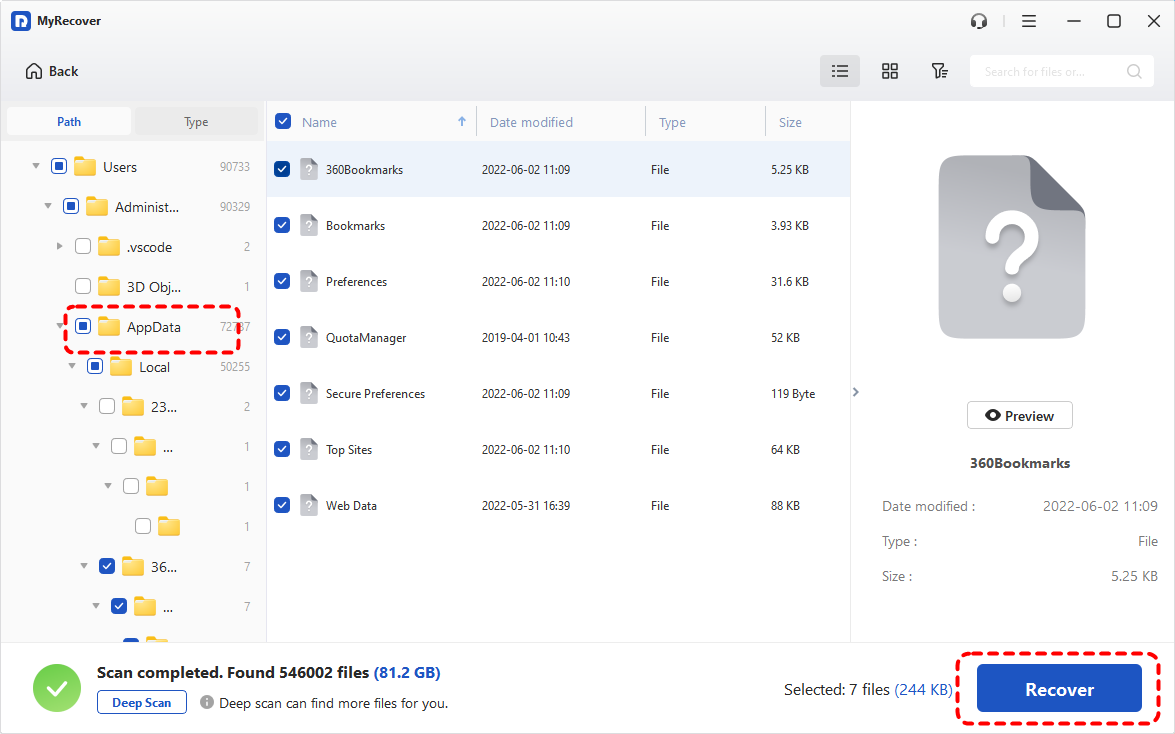
1. Download and install MyRecover on a different drive (not the one you want to recover from).
2. Launch the tool and select the drive containing the deleted AppData files.
3. Click Scan. The tool will display recoverable files in real-time.

4. Use the search bar to find specific folders or files from AppData.
5. Select the files you need and click Recover. Save them to a different location to avoid overwriting other deleted files.
Conclusion
So, is it safe to delete appdata? The answer is yes—but only if you know what you’re doing. Temporary files are generally safe to remove, but configuration and save data should always be backed up. Think of AppData like a delicate tool chest: handle it with care, and you can keep your apps running smoothly while freeing up space.

Stay Updated With Our
Latest Tips
Add us as a preferred source on Google to never miss helpful guides.
 Add as preferred source >>