 MyRecover



Netio.sys Blue Screen Windows 10 – Complete Troubleshooting Guide
This guide explains the blue screen Netio.sys Windows 10 errors in detail, covering what causes the crash, how network drivers and antivirus conflicts trigger it, and proven troubleshooting steps to fix BSOD issues and keep your Windows 10 system stable.

By Vera / Updated on January 16, 2026


What Is Netio.sys in Windows 10?
Before jumping into fixes, it helps to know what netio.sys actually does.
Netio.sys is a core Windows networking system file responsible for managing how data travels between your computer, network drivers, and the internet. It works quietly in the background—until something goes wrong.
You can think of netio.sys as a traffic controller. As long as drivers and security software follow the rules, traffic flows smoothly. But once a driver misbehaves, Windows pulls the emergency stop, resulting in a blue screen.
Common Error Messages Linked to Netio.sys
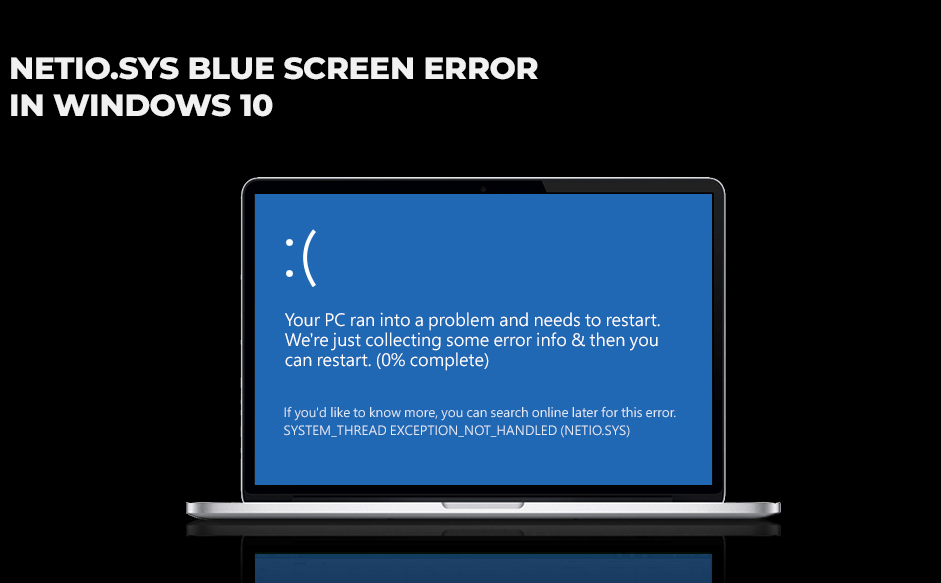
You may not always see "netio.sys" directly. Instead, you might encounter:
IRQL_NOT_LESS_OR_EQUAL
Indicates a driver accessed memory incorrectly—often tied to network drivers.
SYSTEM_SERVICE_EXCEPTION
Usually caused by driver conflicts or corrupted system files.
Why Netio.sys Blue Screen Windows 10 Happens
Understanding the cause is key, because netio.sys itself is rarely the real problem.
In most cases, the crash happens because another component interferes with networking operations, forcing Windows to shut down to protect itself. With that in mind, here are the most common triggers.
Outdated or Corrupted Network Drivers
First and foremost, network drivers are the leading cause. Even a single incompatible driver can destabilize the entire networking stack. When netio.sys tries to interact with it, the system crashes instead of risking data corruption.
Third-Party Antivirus or Firewall Conflicts
Moving beyond drivers, security software is another major factor. Many third-party antivirus tools install deep network filters. When these filters clash with Windows networking, netio.sys ends up caught in the middle.
Corrupted System Files
Of course, drivers aren’t the only thing that can go wrong. Sudden shutdowns, power failures, or malware infections can damage system files that netio.sys relies on.
>> Want to fix the file system errors?
Problematic Windows Updates
Finally, while Windows updates are meant to improve stability, they can occasionally introduce compatibility issues—especially if older drivers are still installed.
When Does Netio.sys Blue Screen Windows 10 Usually Occur?
Interestingly, this error often appears during specific activities.
- During Online Gaming or Streaming: High network usage puts extra strain on drivers and filters. If something is unstable, it tends to break under pressure.
- While Browsing the Internet: Even simple tasks like opening a browser can trigger a crash if a firewall or network filter is faulty.
At this point, one critical question remains—what about your data?
❗Important: Data Loss Risk After Netio.sys BSOD
Repeated blue screen crashes don’t just interrupt your work—they can also put your files at risk.
After forced restarts, users often notice missing documents, corrupted folders, or even inaccessible partitions. If that happens, the most important thing is not to panic and not to keep using the affected drive.
This is where MyRecover becomes relevant. MyRecover is designed to recover lost or inaccessible files after BSOD crashes, unexpected shutdowns, or system instability. It scans the drive safely without overwriting existing data, making it ideal if netio.sys errors caused sudden restarts or file system damage.
 100% Secure
Once your data is safe—or if no data loss occurred—you can move on to fixing the root cause.
How to Fix Netio.sys Blue Screen Windows 10 (Standardized Steps)
To keep things simple and effective, follow the steps below in order. Many users fix the problem within the first few steps.
Step 1: Boot Windows 10 into Safe Mode
To begin troubleshooting, Safe Mode is your best starting point. Safe Mode loads only essential drivers, which helps identify whether a third-party app or driver is responsible.
Steps:
1. Restart your PC.
2. Hold Shift and click Restart.
3. Navigate to Troubleshoot → Advanced Options → Startup Settings.
4. Select Safe Mode with Networking.
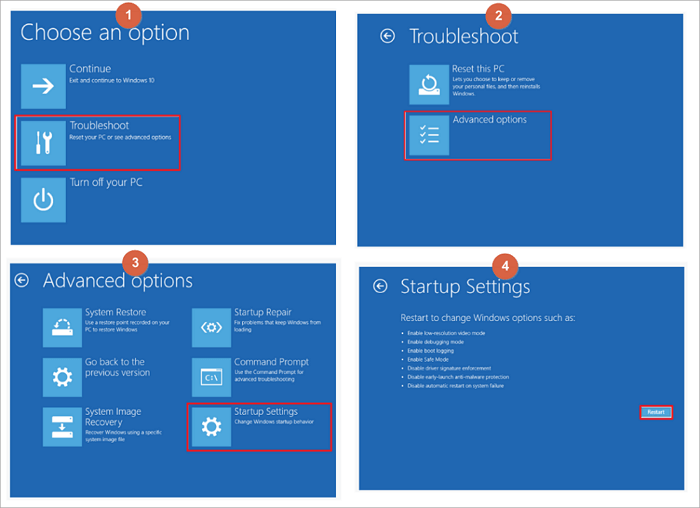
If the blue screen disappears here, you’ve confirmed a software or driver conflict.
Step 2: Update or Roll Back Network Drivers
Once Safe Mode confirms a conflict, it’s time to focus on network drivers.
Steps:
1. Press Windows + X.
2. Open Device Manager.
3. Expand Network adapters.
4. Right-click your active adapter.
5. Select Update driver.
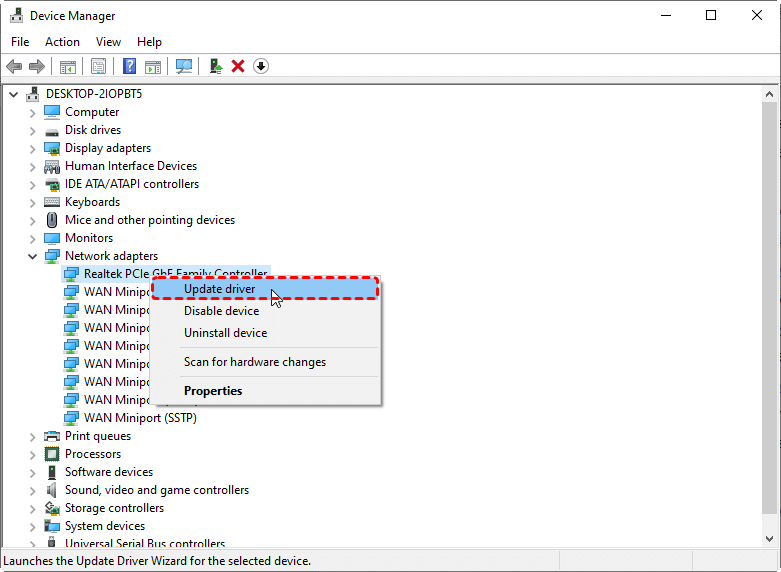
If the issue began after a recent update:
1. Open Properties.
2. Go to Driver.
3. Click Roll Back Driver.
This alone resolves the issue for many users.
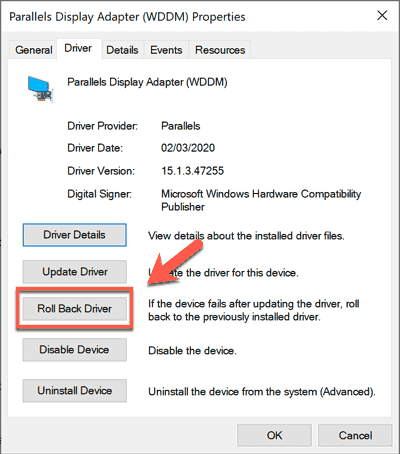
Step 3: Fully Remove Third-Party Antivirus Software
If updating drivers doesn’t help, the next logical step is removing security conflicts.
Steps:
1. Open Settings → Apps.
2. Uninstall all third-party antivirus or firewall tools.
3. Restart your PC.
Windows Defender will automatically take over, ensuring you’re still protected.
Step 4: Run System File Checker (SFC Scan)
After addressing software conflicts, it’s time to repair Windows itself.
Steps:
1. Open Command Prompt as administrator.
2. Run: sfc /scannow.

3. Restart after completion.
This fixes many hidden file issues that contribute to netio.sys crashes.
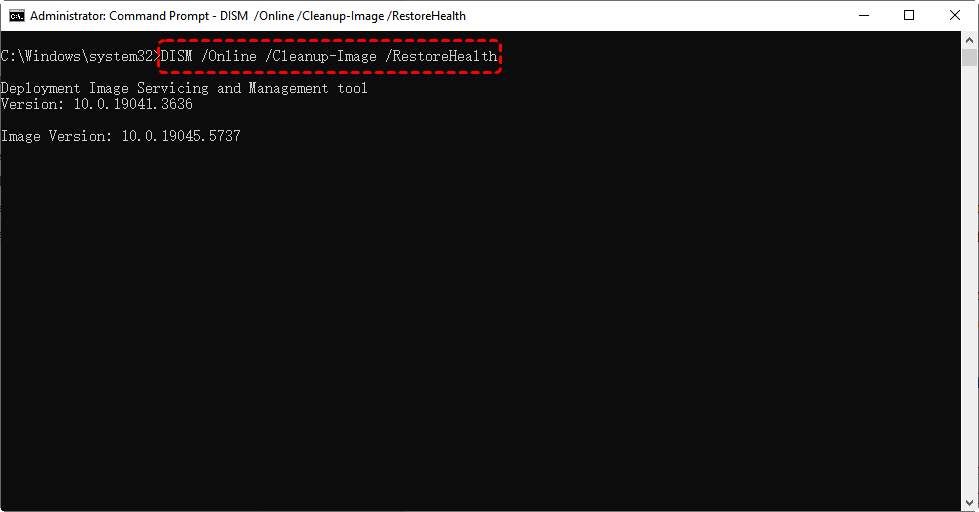
Step 5: Run DISM to Repair Windows Image
If SFC isn’t enough, DISM goes one level deeper.
Steps:
1. Open Command Prompt as administrator.
2. Run: DISM /Online /Cleanup-Image /RestoreHealth.
3. Restart your system.
Now that Windows files are repaired, let’s ensure everything is up to date.
Step 6: Check for Windows Updates
Microsoft regularly releases fixes for BSOD-related bugs.
Steps:
1. Open Settings.
2. Go to Windows Update.
3. Click Check for updates.
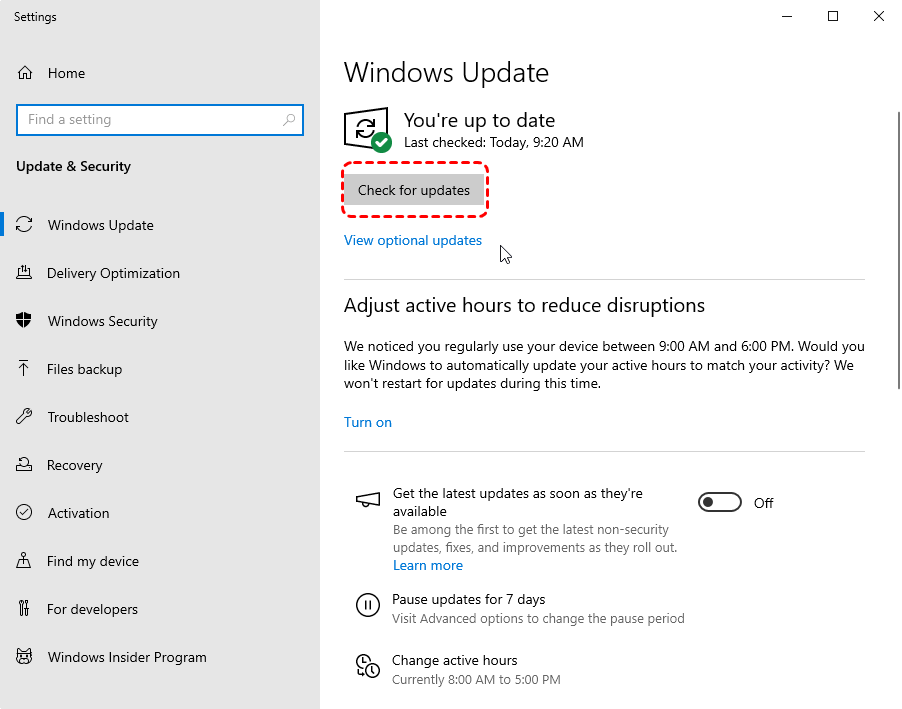
4. Install all available updates.
If the issue was update-related, this often resolves it completely.
Step 7: Reset Network Settings
If crashes persist, resetting network configurations is the next step.
Steps:
1. Open Settings.
2. Go to Network & Internet > Advanced networking settings.
3. Select Network reset.
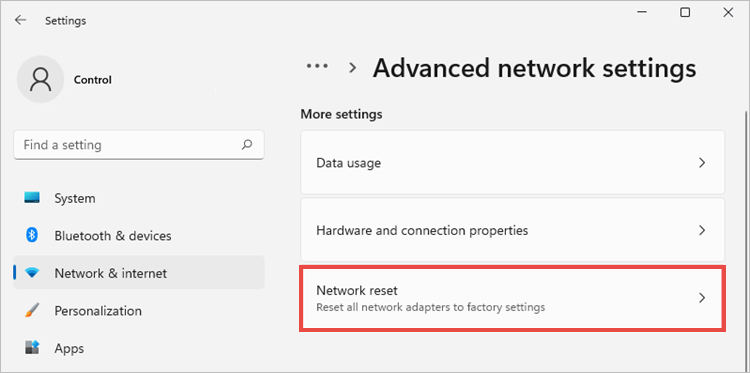
4. Restart your PC.
This clears corrupted network settings that drivers alone can’t fix.
Advanced Fixes for Persistent Netio.sys Errors
If you’ve reached this point, the issue may be hardware-related.
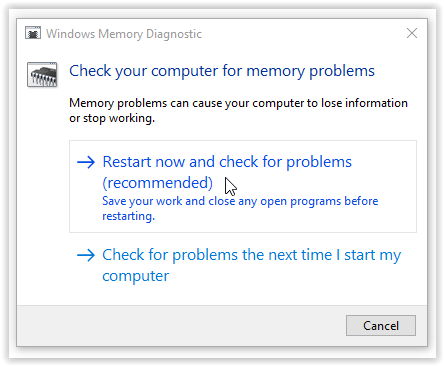
Step 8: Test System Memory
Faulty RAM can corrupt networking operations without warning.
Steps:
1. Press Windows.
2. Type Windows Memory Diagnostic.
3. Choose Restart now and check for problems.
Step 9: Check Disk Health
Finally, make sure your storage isn’t the hidden culprit.
Steps:
1. Open Command Prompt as administrator.
2. Run: chkdsk /f /r.

3. Restart when prompted.
Once hardware is ruled out, prevention becomes the focus.
How to Prevent Netio.sys Blue Screen Windows 10 in the Future
Keep Network Drivers Updated
Outdated drivers are the root of most netio.sys errors.
Avoid Running Multiple Security Tools
More protection doesn’t mean more stability—often it means the opposite.
Back Up Important Files Regularly
Whether through backups (Windows File History) or recovery tools like MyRecover, protecting your data saves stress later.
Conclusion
While the Netio.sys blue screen Windows 10 error looks intimidating, it’s usually caused by fixable issues like network drivers, antivirus conflicts, or corrupted system files. By following these step-by-step solutions—and recovering lost files early with tools like MyRecover—you can eliminate crashes and restore stability without drastic measures.

Stay Updated With Our
Latest Tips
Add us as a preferred source on Google to never miss helpful guides.
 Add as preferred source >>