 MyRecover



No Option to Eject External Hard Drive? Check Now
The "No option to eject external hard drive" issue can occur when there are processes or apps still using the drive, preventing it from being safely removed. In this article, we explore the possible reasons behind the problem and offer step-by-step solutions to safely eject the external hard drive.

By Aria / Updated on December 18, 2025


Overview
No eject or stop option for USB hard drives in Windows 11
Short story, there seems to be no option to eject or stop a USB hard drive in Windows 11. I have such options for USB flash drives and for optical drives, though that's a different sort of eject, but I don't have these same options for USB hard drives. I've found a lot of online references for how to restore missing eject icons from the task bar and for how to load the stop/eject window from the run command but none of these seem to help.
I was always told that you should always eject a drive before disconnecting it. Is this no longer the case? If this still holds true, any idea how I might go about it?
- Question from BfolloWell
When you attempt to safely eject a hard drive from your PC but find that there's no option to eject the external hard drive in File Explorer. This is a common issue faced by many Windows users. When this occurs, the usual method of safely ejecting the drive by right-clicking the USB icon in the system tray or through File Explorer might be unavailable. Instead, the option to eject the external hard drive is missing, leading users to worry about potential data corruption or loss when disconnecting the device.
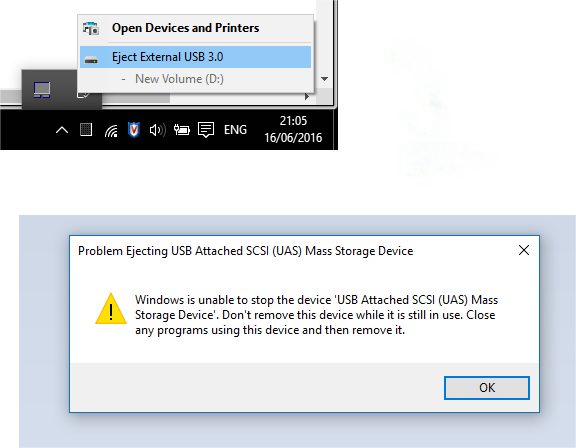
This can be frustrating, especially when you want to ensure that all files are properly saved and no data corruption occurs. Fortunately, there are various methods to address this problem, ranging from simple restarts to more advanced troubleshooting steps.
Possible Causes of the No Option to Eject External Hard Drive
Before we dive into the solutions, it’s essential to understand the possible causes of the no option to eject external hard drive problem:
🔔Opened Files or Applications: One of the most common reasons is that files or applications are still running from the external hard drive.
📌Background Processes: Some background processes or applications might be using the external drive, preventing it from being safely ejected.
💾Corrupted Drives: Issues with the USB drives or external drive drivers can cause the eject option to disappear.
⚙️Windows Settings: Some settings or features in Windows may interfere with the eject function, such as the Quick Removal setting.
📁Malware or Virus: In some cases, malware can block the eject functionality to keep the external drive connected.
Step-by-Step Solutions to Resolve the "No Eject Option" Issue
Now, let’s move on to the practical steps you can take to fix the "no option to eject external hard drive" issue on Windows 10/11. This section will offer several troubleshooting methods you can follow to restore the eject option for your external hard drive.
-
If there are open files or applications running from your external hard drive, the eject option will be unavailable. Before attempting to eject the drive, make sure you’ve closed all files and programs that might be using the drive. If the drive is in use, you won’t be able to eject it safely. Even a forced manual removal could risk data loss.
Fix 1. Restart Your Computer
A simple restart can resolve many minor glitches, including the issue where the eject option is missing. Restarting your computer will close any processes that might be using the external hard drive and refresh the system, often restoring the eject option. If the eject option is still missing, move on to the following troubleshooting methods.
Fix 2. Eject from Disk Manager or File Explorer
If the eject option is missing from the system tray, you can still eject the external hard drive from Disk Management or File Explorer. Follow these steps:
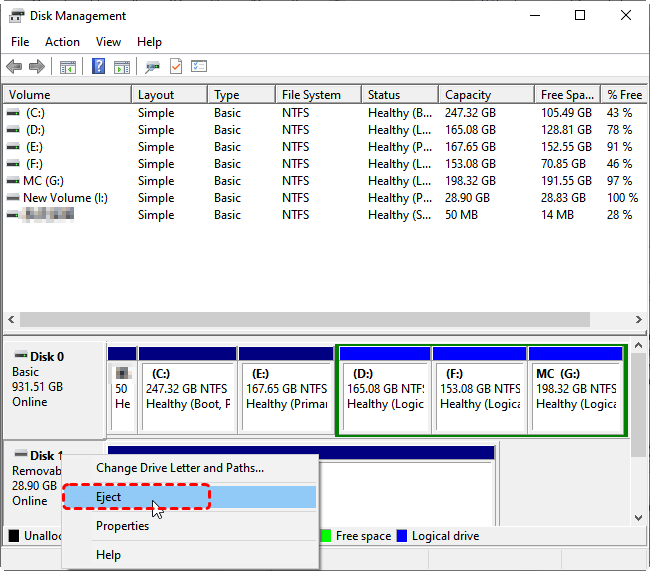
👉In Disk Management:
Step 1. Press "Win" + "X" and choose "Disk Management" to open it.

Step 2. Locate your external hard drive and right click on it, then choose "Eject". When it appears as "Offline", it indicates that the drive has been logically disconnected from your PC.
- Notes:✎...
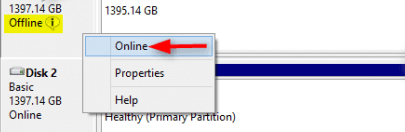
- Before reusing the drive on your PC next time, remember to switch the drive status to "Online" in Disk Management to restore normal access.
-

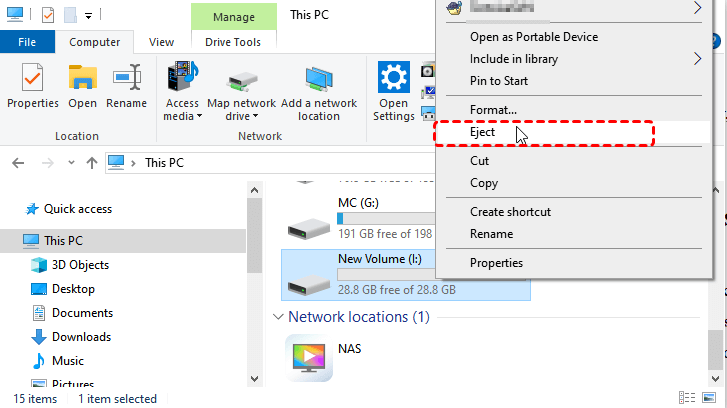
👉In File Explorer:
Step 1. Open File Explorer and select your external hard drive.
Step 2. Right click on it and choose "Eject" from the context menu.
Fix 3. Run the Hardware and Devices Troubleshooter
If the external hard drive still has no eject option, a hardware failure could also be one of the causes of this problem. Windows includes a built-in troubleshooter that can help identify and fix issues with hardware devices, including external hard drives.
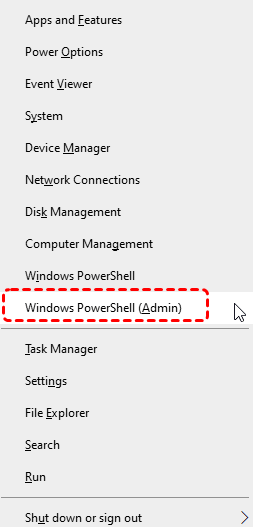
Step 1. Press "Win" + "X" and choose "Windows PowerShell (Admin)" to open it.
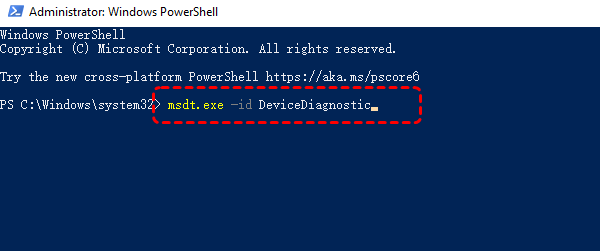
Step 2. Type the following command "msdt.exe -id DeviceDiagnostic" and press "Enter".
Step 3. It will automatically open the "Hardware and Devices" troubleshooter window. Click "Advanced" and tick the "Apply repairs automatically" option, then click "Next" to detect hardware problems. This will check for any underlying issues with the external drive or USB ports.

Fix 4. Uninstall USB Drivers
You can also uninstall the USB drive driver through Device Manager. This method safely disconnects the drive from Windows, enabling risk-free removal with no data corruption concerns.
Step 1. Press "Win" + "X" and choose "Device Manager" to open it.

Step 2. Expand "Disk drivers" and locate the external hard drive from the list.
Step 3. Right click on it and choose "Uninstall device".

Once the device is uninstalled, safely unplug your USB drive, no data corruption risks at all. Windows will automatically reinstall the driver on your next connection; if you still encounter the "no option to eject external hard drive" issues, proceed with the following troubleshooting steps.
Fix 5. End Task in Task Manager
If any processes are running from the external drive, it will prevent the hard drive from being ejected, you can manually end the background process in Task Manager.
Step 1. Press "Ctrl"+ "Shift" + "Esc" to open "Task Manager.
Step 2. Look for processes that are running from your external drive, select it and click "End Task" to close it.
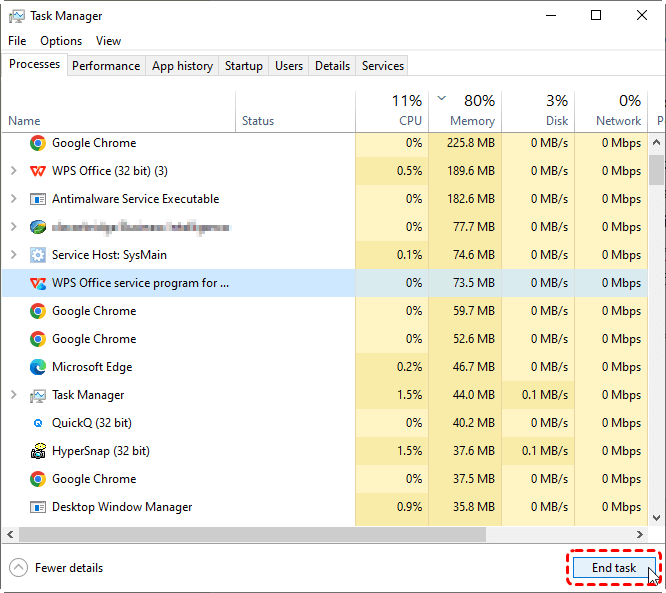
Afterward, try ejecting the external drive again.
Fix 6. Scan Virus and Malware
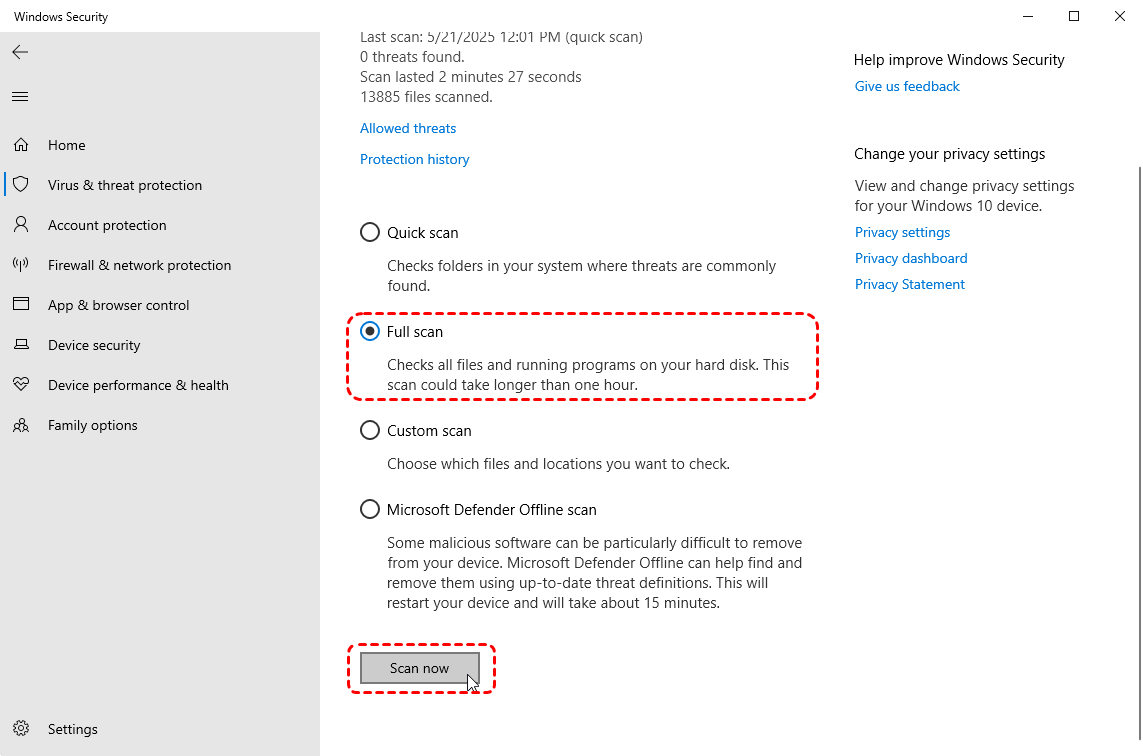
Malware or viruses can sometimes interfere with the normal operation of external drives, including preventing them from being ejected. Run a full system scan or quick scan using Windows Defender or a trusted antivirus program to check for and remove any malicious software.
Step 1. Locate the external hard drive without eject option in File Explorer.
Step 2. Right click on it and choose "Scan with Windows Defender". This will automatically perform a quick scan for the drive.
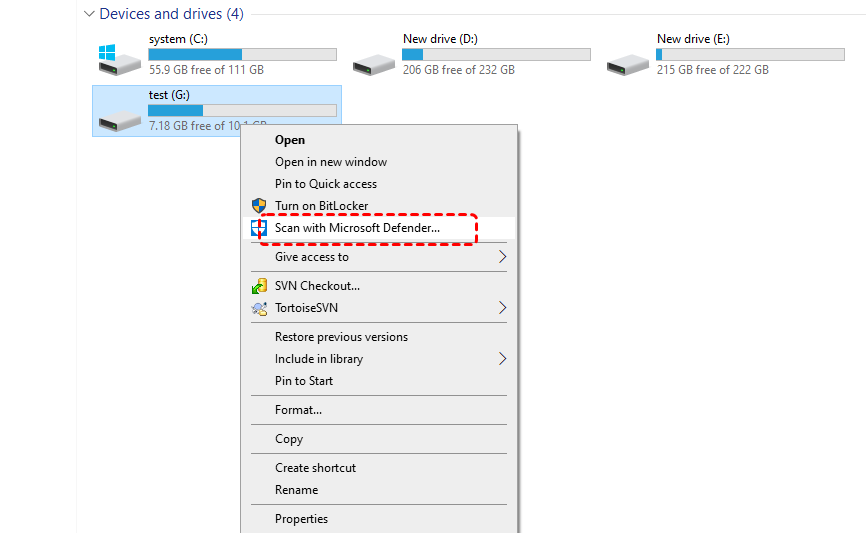
Step 3. If you want to perform a through scan, you can click "Full Scan". If any suspicious programs or files are detected, remove or quarantine them immediately.
Fix 7. Use Command Prompt to Remove the Drive
If you still can’t eject the external hard drive, you can try using the Command Prompt to force safely remove the device. This solution directly unmounts the hard drive, making you can remove it easily from your computer.
Step 1. Locate Command Prompt and in the Start menu run it as administrator.

Step 2. Enter the following command:
- mountvol (list all mounted volumes)
- mountvol H:\ /p (replace the drive letter "H" with your actual external drive letter)
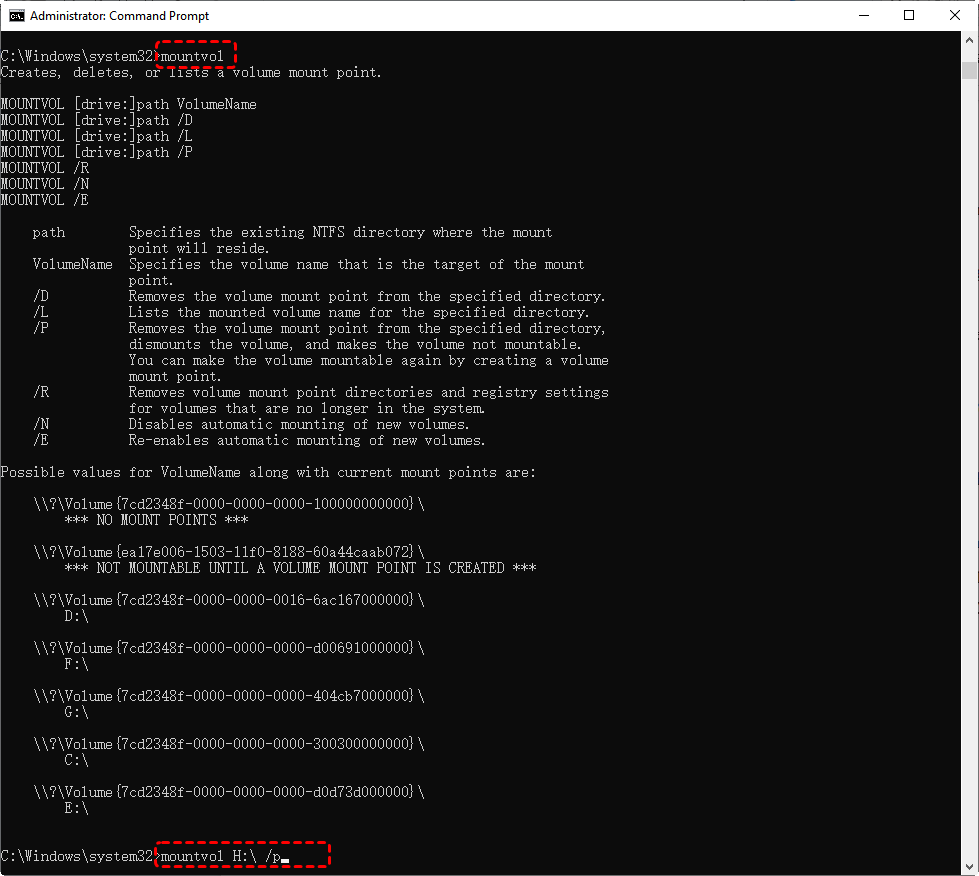
Once the drive is dismount, you can unplug it safely.
Fix 8. Manually Eject the Drive After Shut Down
If none of the above fixes work, the only remaining option is manual removal after a full system shutdown. Note that this method comes with risks of data loss or drive corruption. Unplugging the external hard drive isn’t the end of the process. You should recheck if the drive is accessible normally and verify that no data loss or drive corruption has occurred.
How to Recover Files If Your External Hard Drive Becomes Inaccessible
In cases where your external hard drive is not accessible or data loss occurs while removing it, you might need a reliable data recovery tool to retrieve your files. MyRecover is an excellent choice for recovering data from external hard drives, even if they are not being recognized or inaccessible, ensuring your data is always safe.

 AOMEI Backupper
- 500+ Devices Supported | SSD, HDD, USB Flash Drive, SD Sard, etc.
- 1000+ File Formats Supported | PNG, MP4, MP3, TXT, ZIP, MSG, etc.
- 500+ Data Loss Scenarios | Deletion, Format, System Crash, Virus Attack, etc.
 100% Secure
Step 1. Download and install MyRecover on your computer from Microsoft Store.
Step 2. Run the program and select the drive to scan for lost files, then click "Scan".

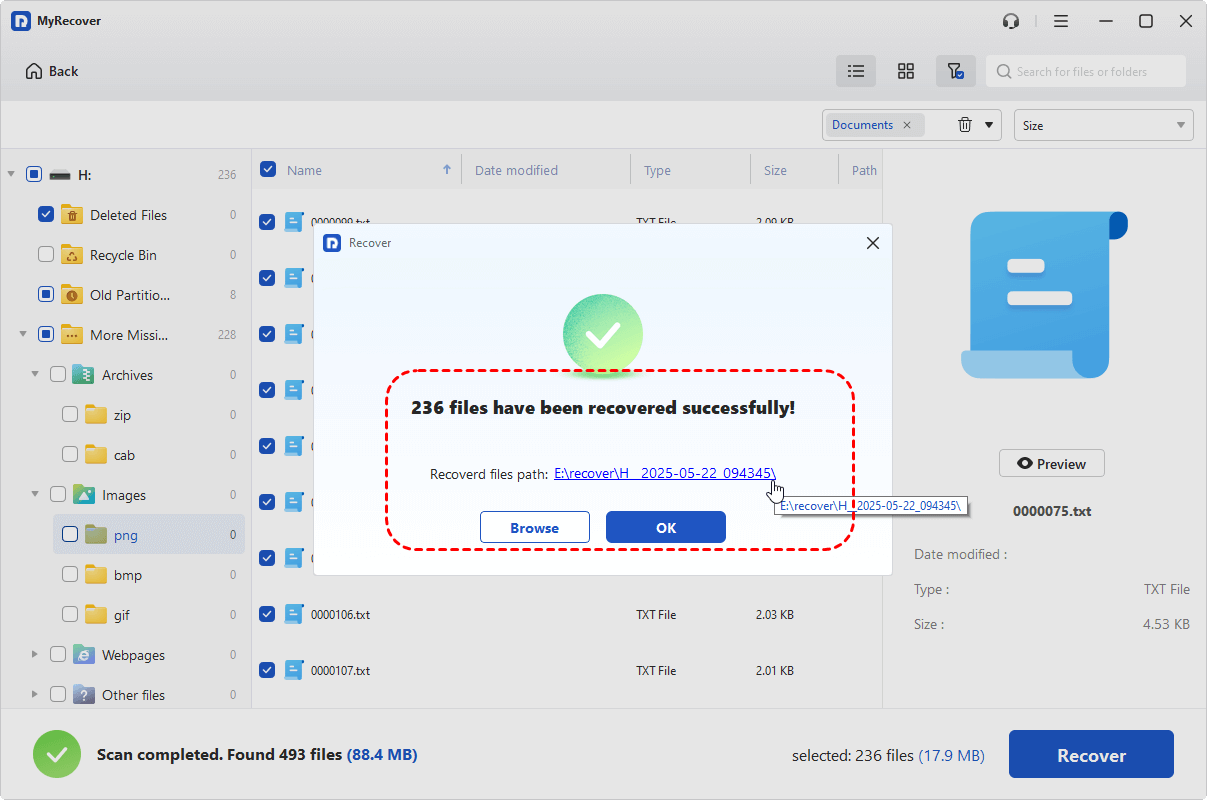
Step 3. Choose the files you wish to recover from the recoverable lists and click "Recover".

Step 4. Save the recovered files to different drive to avoid data overwriting.

When the process is done, the message "Files have been recovered successfully" will pop up. You can check the recovered files by clicking on the destination older path.
Summary
If you're experiencing the no option to eject external hard drive issue, it could be caused by various factors. By following the solutions outlined above, you can resolve the issue and safely eject your external hard drive.
In cases where the external drive becomes inaccessible or data is lost, MyRecover provides a powerful and easy-to-use solution for retrieving your files. If you're handle with a large amount of files, the MyRecover Professional edition is a worthwhile investment, allowing you to recover unlimited data and preview file content.

Stay Updated With Our
Latest Tips
Add us as a preferred source on Google to never miss helpful guides.
 Add as preferred source >>