 MyRecover



Overwrite Format VS. Quick Format: What’s the Difference?
This article explores the difference between quick format and overwrite format, including their effects on data recovery, speed, and security. Understand when to use quick format for faster results and when overwrite format is necessary to securely erase data on hard drives, USB drives, or SD cards.

By Emma / Updated on December 23, 2025


What is an "Overwrite Format" in Windows?
"Overwrite Format" is a special formatting process where the data on a storage device (like a hard drive, SSD, USB drive, or SD card) is completely overwritten with new data, typically zeros, random patterns, or a specific sequence, making the previous data extremely difficult or nearly impossible. It is similar to a "Full Format" in that it prepares the drive for use by overwriting the data and removes previous file system structures.
However, the key difference is control and security. Some third-party software allows users to choose how many times to overwrite the drive, with options ranging from a single pass of zeros to multiple passes using random patterns. Each additional pass further reduces the possibility of data recovery, making the process far more secure than a standard Full Format.
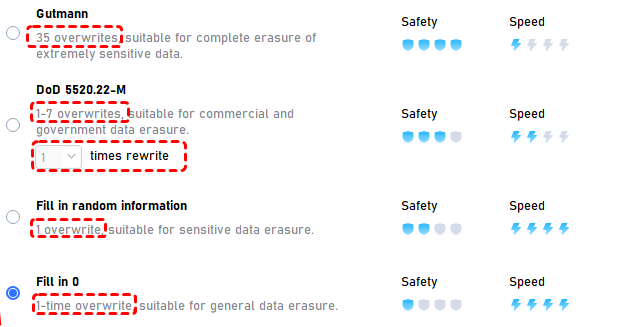
Overwrite Format VS. Quick Format: Main Difference
The main difference between Overwrite Format and Quick Format lies in how they handle existing data.
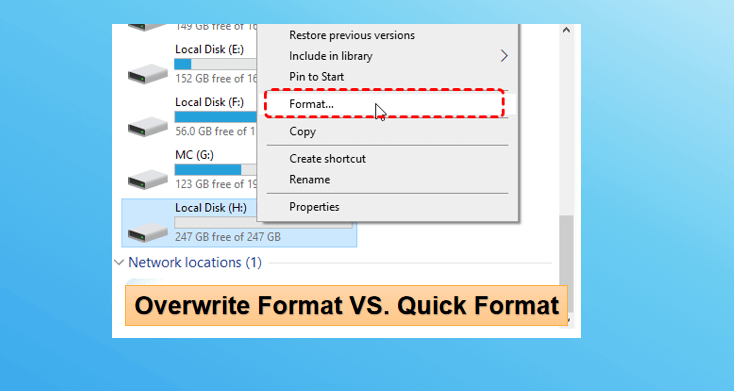
"Overwrite Format" actively writes new data—such as zeros, random patterns, or multiple overwrite passes—onto every sector of the drive. This process permanently erases the original data, making recovery nearly impossible. In contrast.
"Quick Format" only deletes the file system metadata (like indexes and pointers) and marks the storage space as available. It does not overwrite the actual data, meaning the original content still physically exists on the drive and can often be recovered using data recovery tools.
|
Feature |
Overwrite Format |
Quick Format |
|
How it works |
Actively writes new data (zeros, random patterns, multi-pass overwrite) onto every sector |
Only deletes file system metadata such as indexes and pointers |
|
Data removal |
Permanently erases original data by overwriting it |
Does notoverwrite data; original content still physically exists |
|
Recovery possibility |
Nearly impossible to recover data |
Data can often be recovered with recovery tools |
|
Security level |
High — suitable for sensitive data |
Low — suitable only for basic formatting |
|
Speed |
Slow — rewrites the entire drive |
Very fast — no data overwrite required |
|
When to Choose |
Before selling, disposing, or securely wiping a drive |
Reformatting for reuse, reinstalling OS, or quick cleanup |
How to Perform "Overwrite Format" And "Quick Format" in Windows?
To overwrite or quick format SD card, USB drive or other types of storage device, you can make use of the Windows inbuilt disk management options: File Explorer, Disk Management, and Command Prompt.
All of the them are built into the Windows operating system, so the "overwrite format" they perform is essentially a "full format" with zero-fill pass. If you need multi-pass overwrite formatting for higher security, you will need to switch to professional disk management or data-wiping software.
1: File Explorer
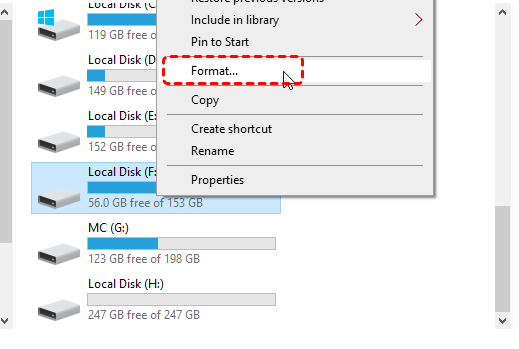
Step 1. Press "Win + E" to open File Explorer. Right-click the target drive and choose "Format".
Step 2. For a quick format, just check the option "Quick Format". Or uncheck it for an overwrite format.Select the desired file system.
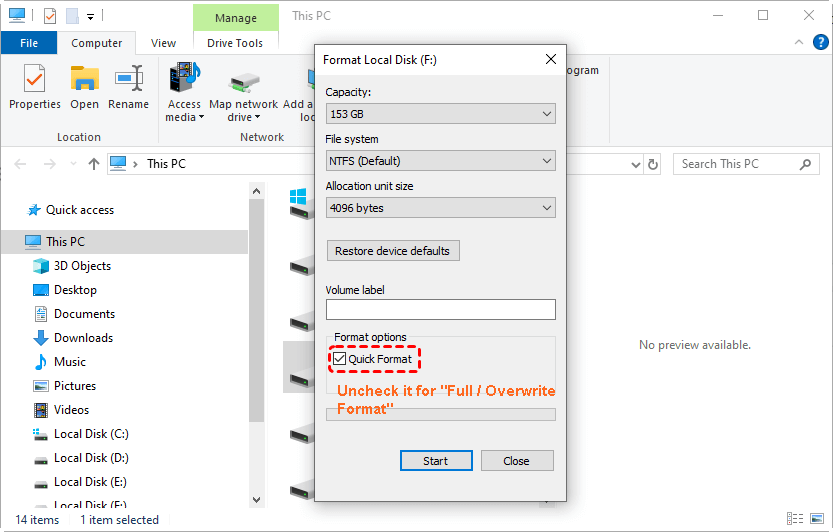
Step 3. Click "Start".
2: Disk Management
Step 1. Press Win+X and choose Disk Management.
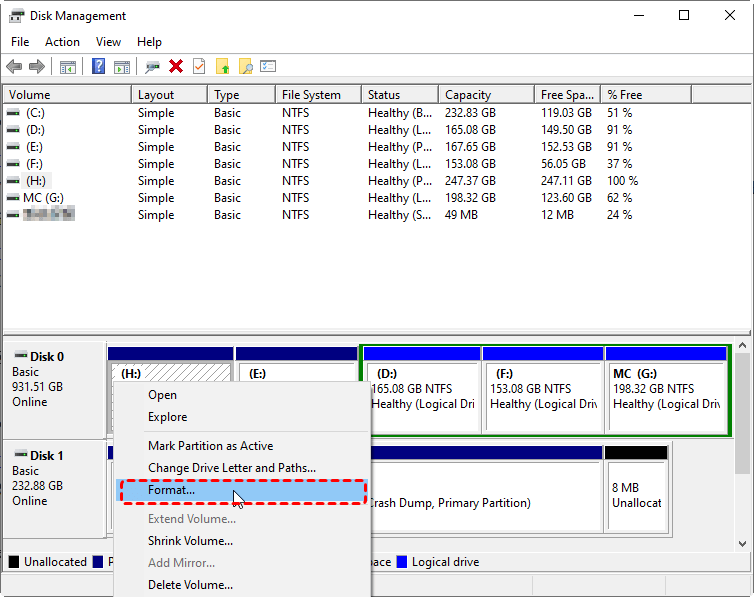
Step 2. Right-click the partition you want to format and select "Format".
Step 3. Check "Perform a quick format" or leave it unchecked for an overwrite format.
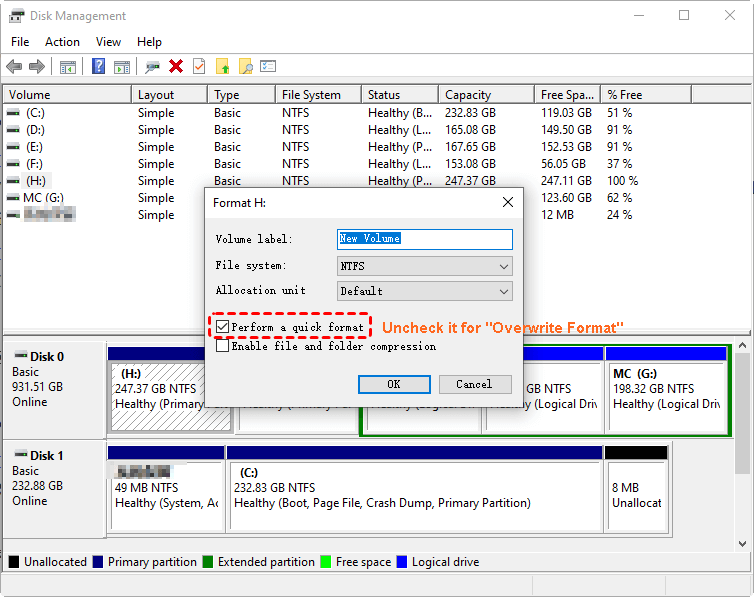
Step 4. Choose the file system and allocation unit size. Click "OK" to start.
3: Command Prompt
Step 1. Press Win + X, choose "Command Prompt (admin)".
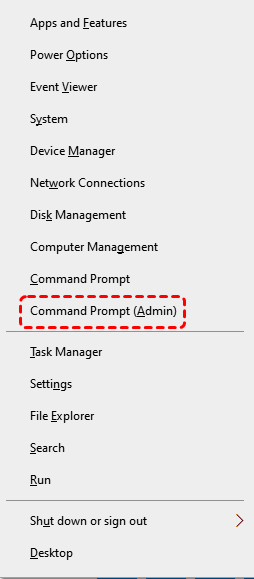
Step 2. In Command Prompt, enter the command below:
- diskpart
- list volume
- select volume x (Replace X with the volume number you want to format.)
- format fs=ntfs quick
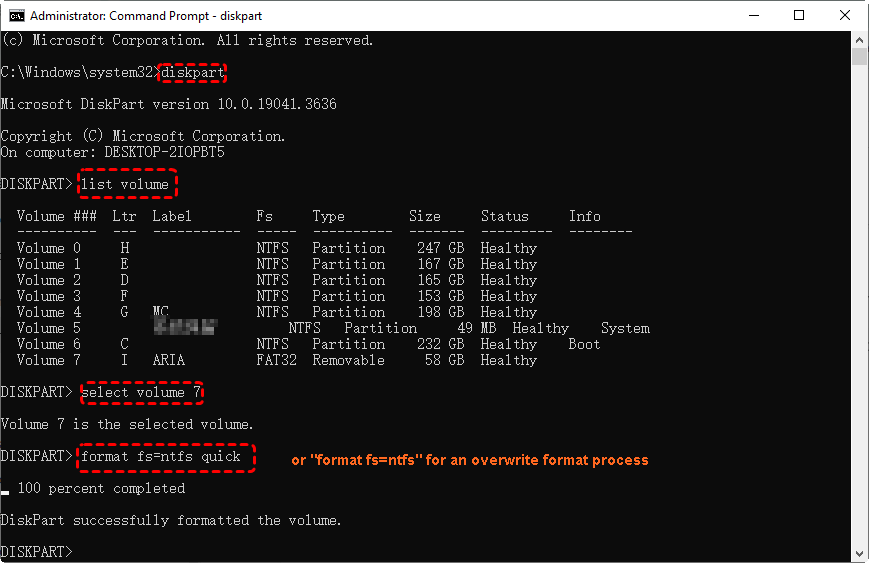
The above command performs a quick format.To overwrite or full format the target drive, just delete the "quick" word at the end: format fs=ntfs. This will trigger a full format where Windows overwrites the entire volume with zeros.
Bonus Tip: Overwrite VS. Quick Format Recovery
The chances of recovering data depend heavily on whether the drive was quick formatted or overwritten.
Overwrite (Full) Format Recovery
An overwrite format writes zeros or patterns to every sector, erasing the original data. When the drive is fully overwritten:
- Most or all data is permanently destroyed
- Recovery tools may find file names or fragments, but actual file content is typically unrecoverable
- Multiple-pass overwriting virtually eliminates all recovery possibilities
In short: Overwrite Format = Very Hard or Impossible to Recover.
Possible and easy when you have a backup using Windows inbuilt backup tools before like File History, Backup and Restore Windows 7. Next, we will show you how to restore overwritten files from File History, which automatically saves copies or versions of your personal data.
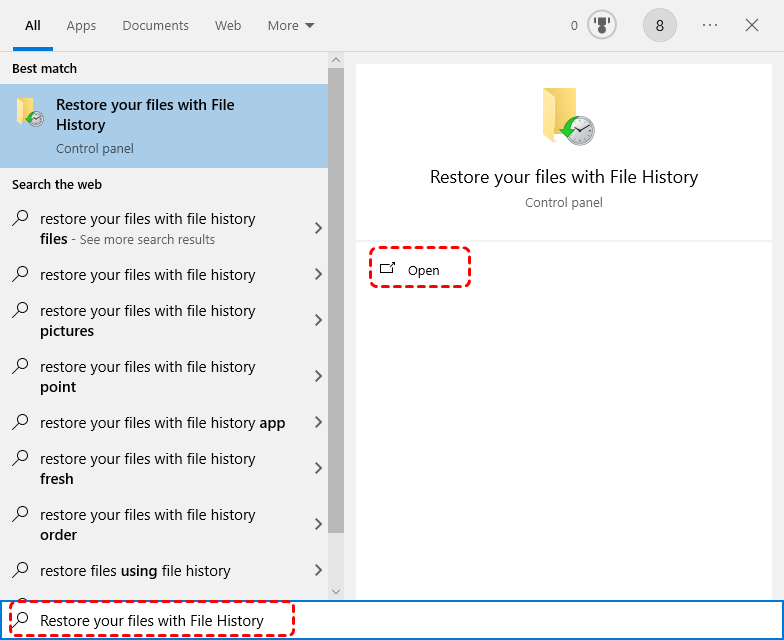
Step 1. Press Win+S, input "Restore your files with File History" and hit on "Enter".
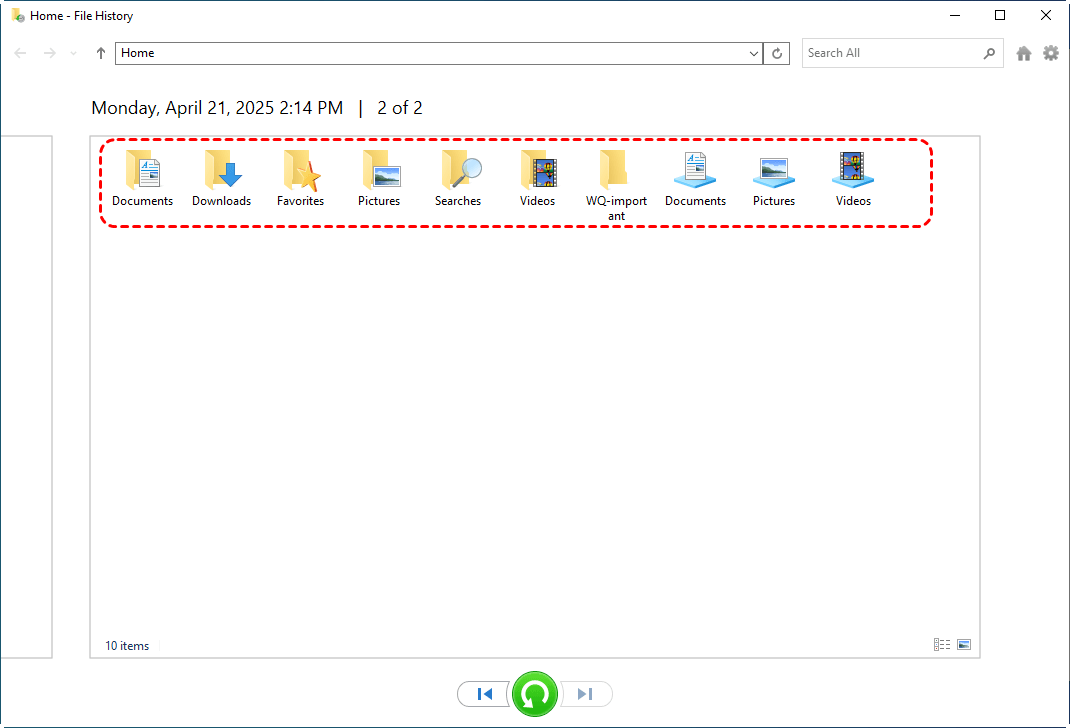
Step 2. In the File History window, select the target folder or files and click on "Restore" button.
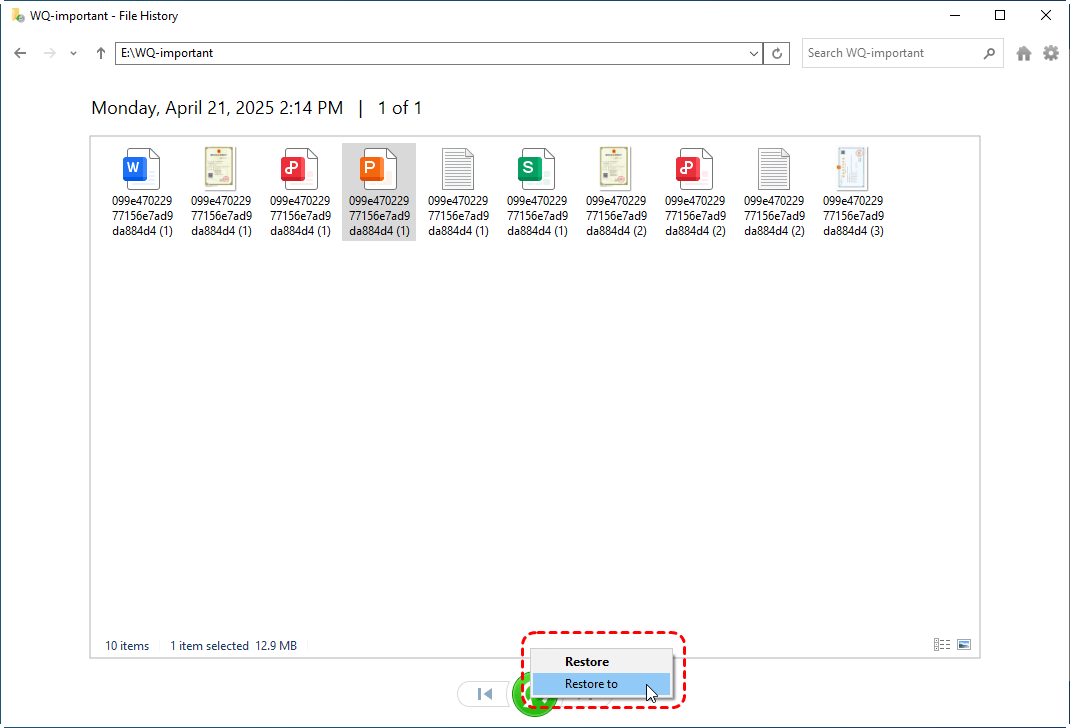
To recover them to another location different from the original one, right click the green button and choose "Restore to".
Quick Format Recovery
Quite different from overwritten format, a quick format only removes the file system metadata without overwriting the actual data sectors. This means:
- The original data still physically exists on the drive
- High recovery success rate
- Professional recovery tools can usually restore most files unless new data has been written over them
In short: Quick Format = Easy to Recover.
For quick format recovery, you have more than 1 option. Most popular are Windows File Recovery Command Line tool (provided by Microsoft) and MyRecover, a third-party powerful Windows data recovery tool.
Windows File Recovery
Works through command line and helps recover lost files that have been deleted from your local storage device and that can’t be restored from the Recycle Bin. But it is only available for Windows 10 and Windows 11.
Step 1. Download it from Microsoft App store and install it on your computer.
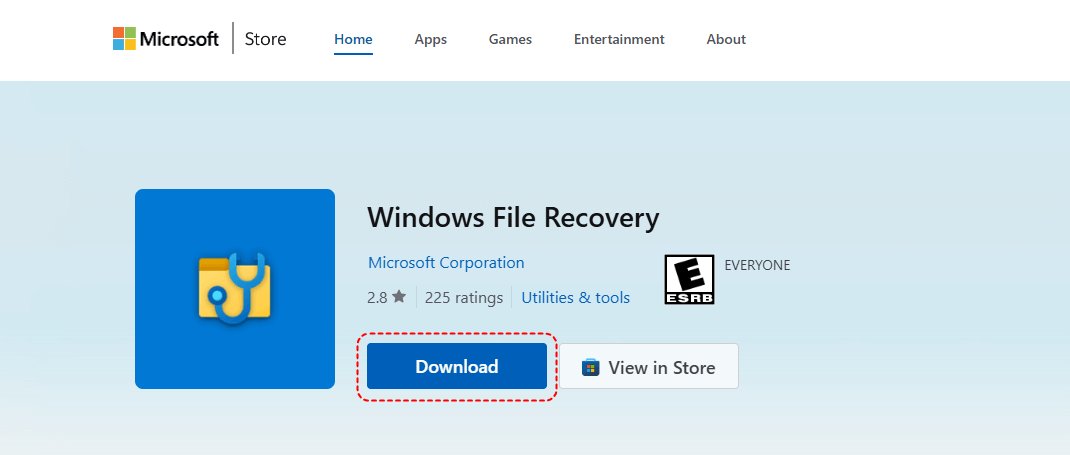
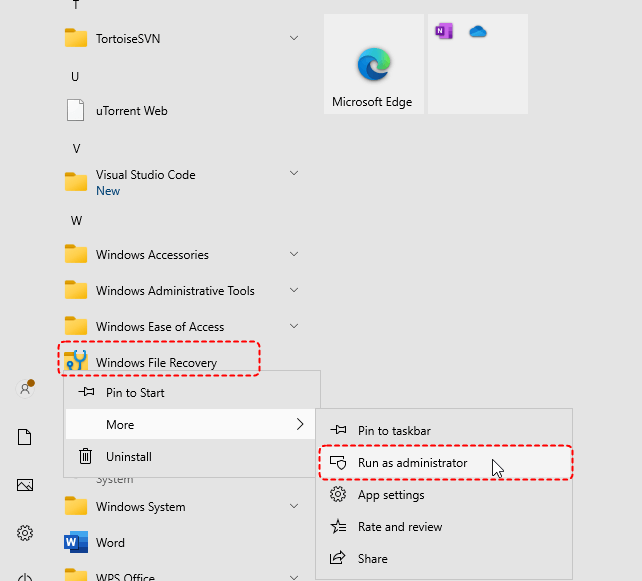
Step 2. Search it in your start menu. Right-click it and choose "Run as administrator" to launch it with full permissions.
Step 3. Run the command to recover data from formatted drive:
For example: winfr D: E: /extensive
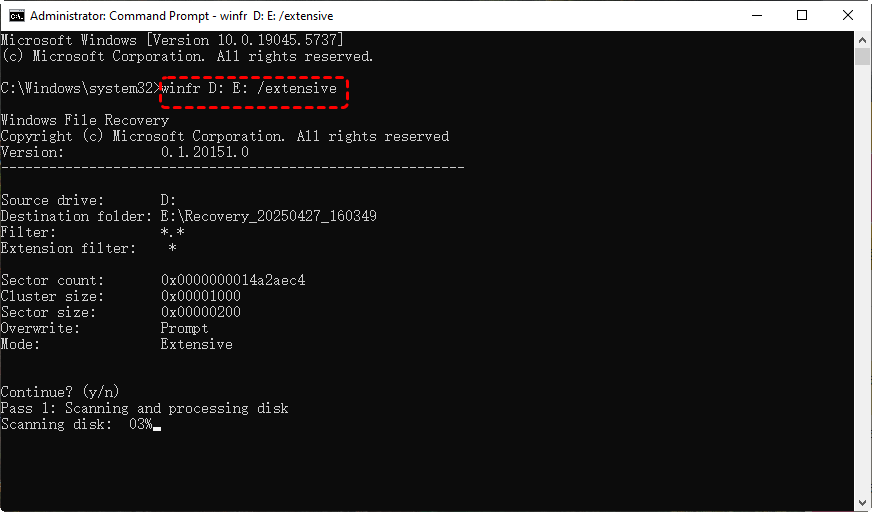
This command tells Windows File Recovery to deep scan drive D: and save all recoverable files to drive E:.
MyRecover
Easier to use than Windows File Recovery, MyRecover comes with a very user-friendly interface. With just a few simple clicks, you can quickly recover lost files of various types from a wide range of data loss scenarios, including partition deletion, formatting, file system errors, system crashes, power failures, and more.
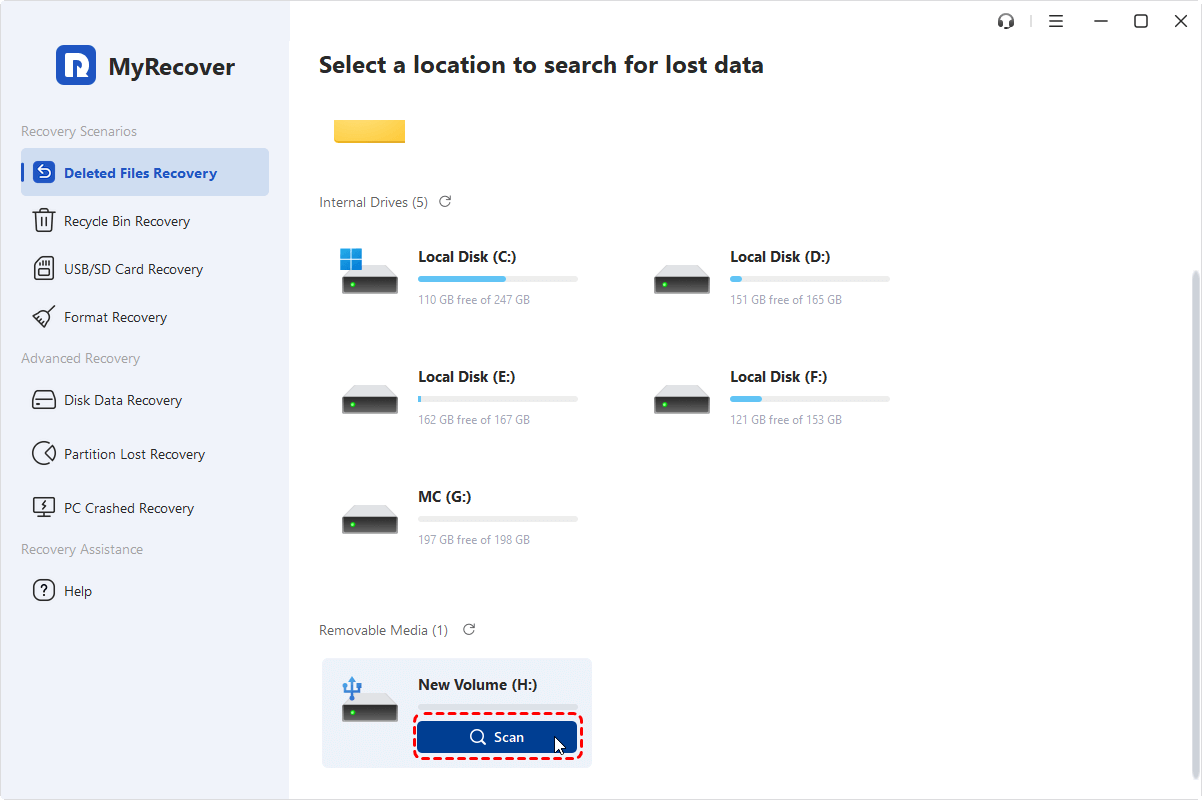
Step 1. Launch the software, select the target formatted drive and click on "Scan" button.
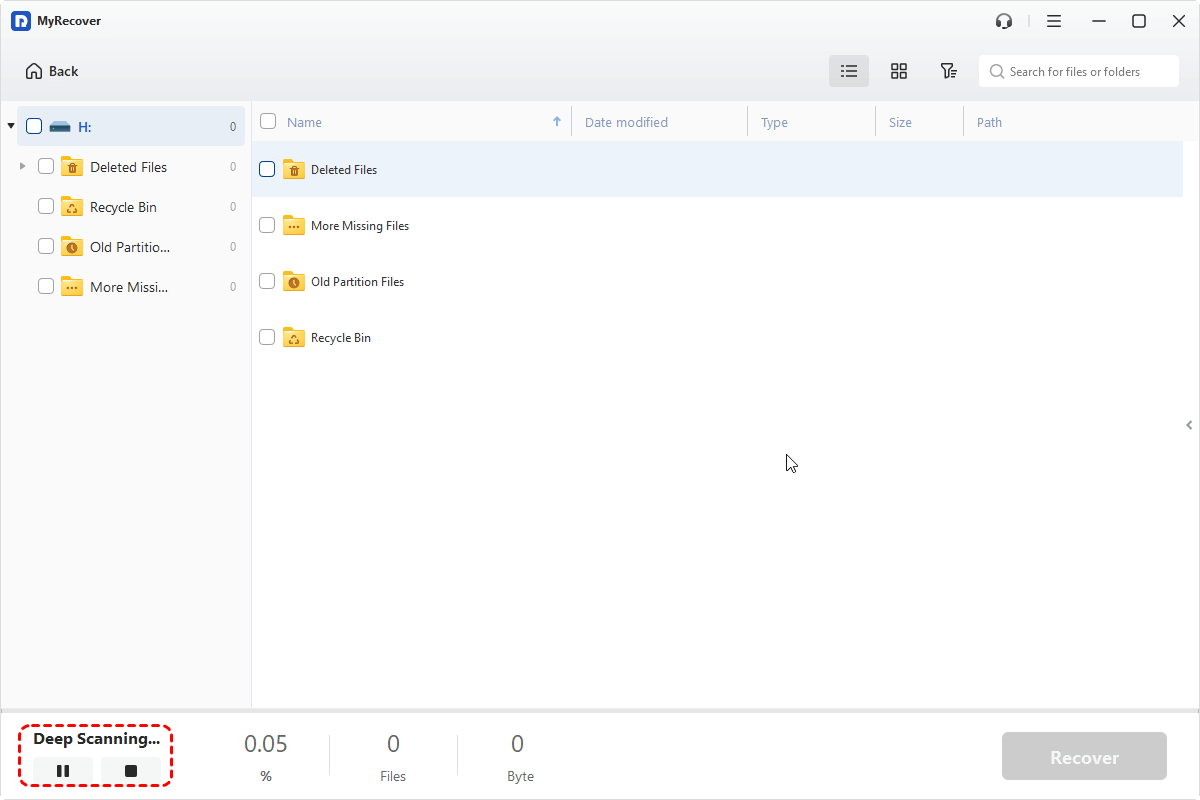
Step 2. The software will initiate a deep scan for finding out all lost files from the formatted partition.
Step 3. Once completion, you can check what you need and click on "Recover". For word document, excel, PowerPoint recovery, or pictures recovery, you can preview them to make sure they are correct before recovery.
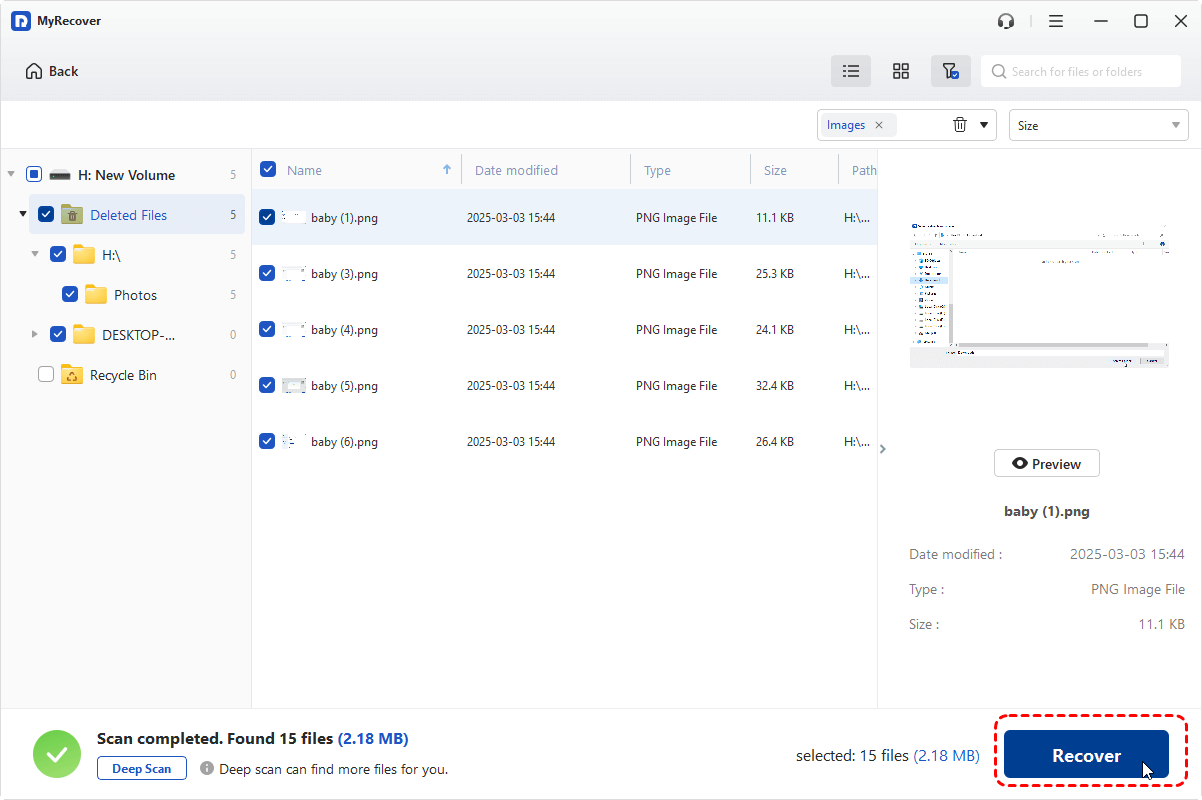
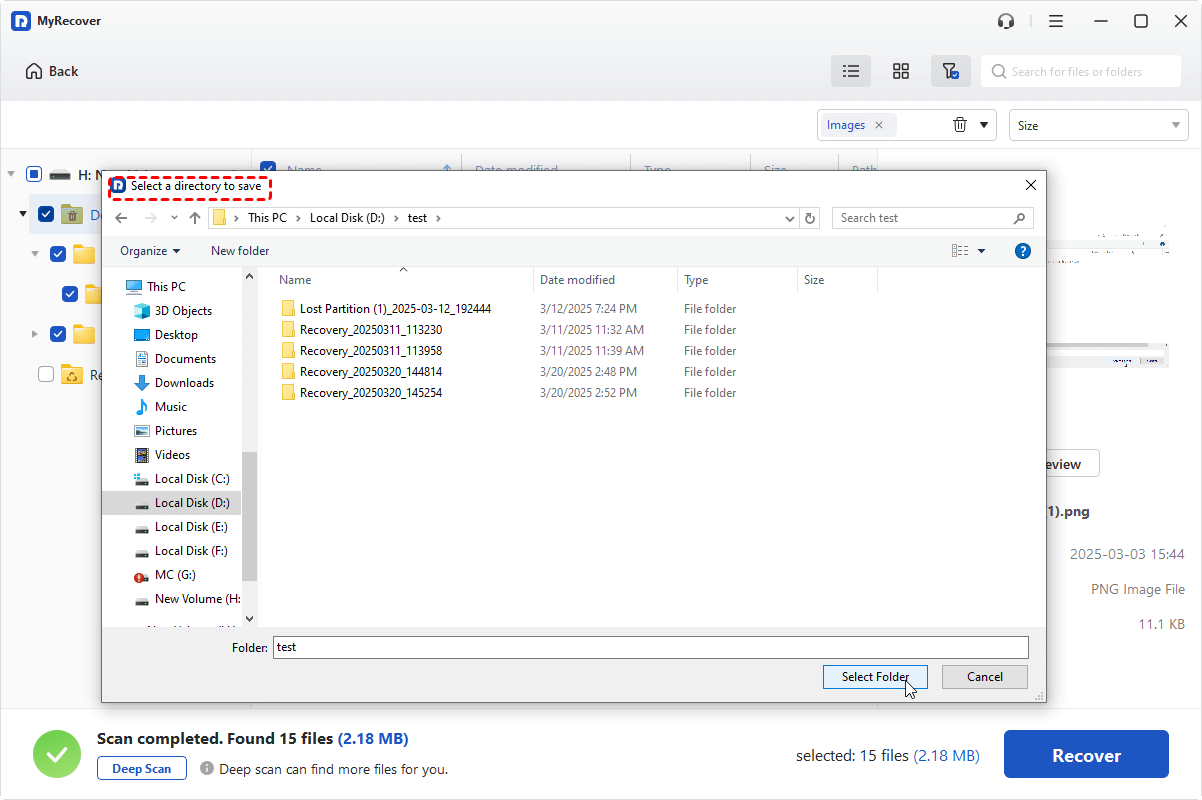
Step 4. Then choose another safe location to save the recovered files.
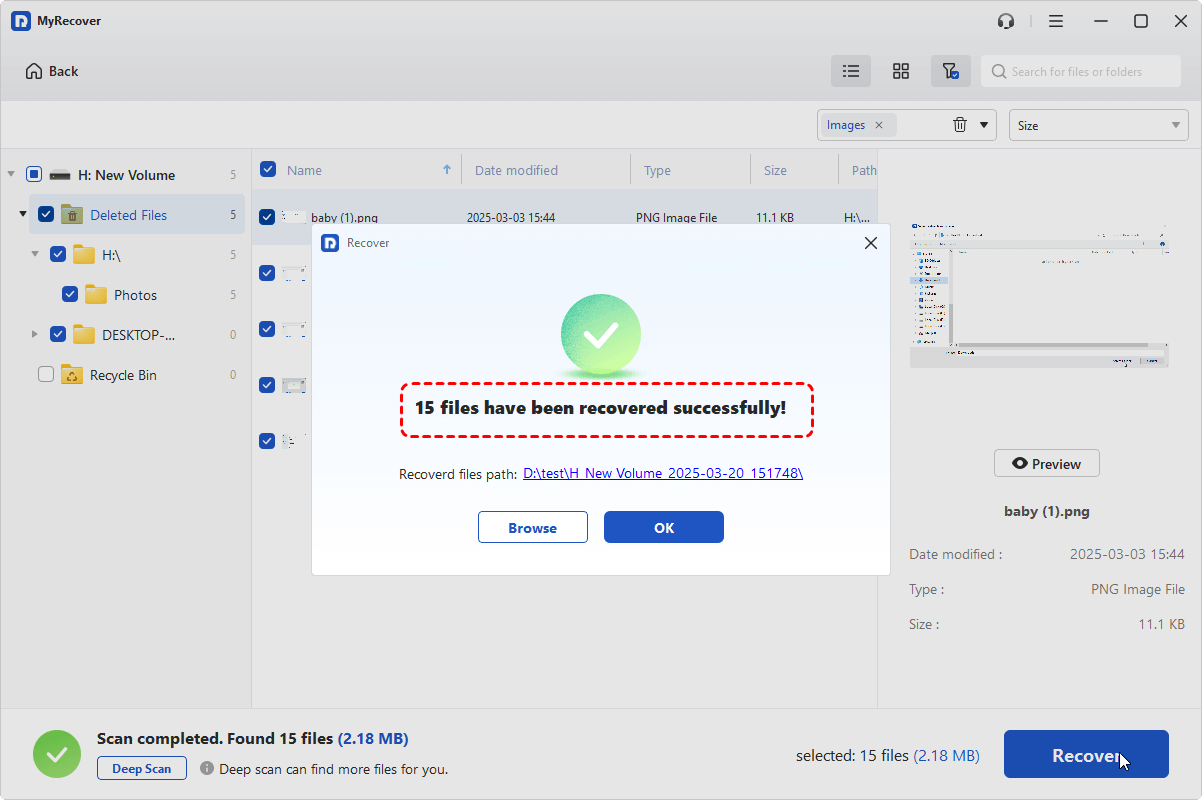
Then wait for it to complete. When the process is accomplished, you will see a small summary window, on which you can know how many files have been restore successfully and where you can access them now.
Wrapping Up
When it comes to formatting drives in Windows, understanding the differences in overwrite format vs quick format is crucial. A quick format is fast and convenient, removing only the file system metadata, which means the original data is often still recoverable. In contrast, an overwrite format actively writes zeros or patterns to every sector, permanently erasing data and making recovery extremely difficult, making it a proper choice if you want to resell or donate your device.
If you ever need to recover files after a quick format, tools like Windows File Recovery or the more user-friendly MyRecover make the process straightforward and efficient. However, once a drive has been overwritten, recovery becomes extremely difficult. In this case, recovering files from backup is a reliable and practical solution.

Stay Updated With Our
Latest Tips
Add us as a preferred source on Google to never miss helpful guides.
 Add as preferred source >>