 MyRecover



PowerPoint Recovery Software: Recover Unsaved / Deleted/ Corrupted PowerPoint Files
Losing a PowerPoint file can be upsetting, whether it was accidentally deleted, corrupted, or never saved. This comprehensive guide introduces top PowerPoint recovery methods and software tools to recover unsaved, deleted, or corrupted presentations.

By Emma / Updated on December 2, 2025


Common Situations That Require PowerPoint Recovery
PowerPoint presentation files are often lost in situations like forgetting to save your work. A sudden crash, power outage, or closing the window too quickly can erase recent changes, making unsaved PowerPoint recovery necessary.

Accidental deletion is another common reason. If a PPT or PPTX file is mistakenly deleted, removed from the Recycle Bin, or disappears from a USB drive, recovery tools are usually needed to bring it back.
File corruption also triggers the need for recovery. Errors such as "The file cannot be opened" or missing slides often mean the presentation was damaged during saving or transfer and requires repair or recovery software.
Other situations include overwritten versions, cloud sync issues, disk errors, or USB failures—all of which can cause PowerPoint files to go missing and require recovery.
- ★Check also: word document recovery tool
PowerPoint File Recovery Methods for Different Situations
Recovering PowerPoint files requires different approaches depending on how the data was lost. By choosing the right method for each scenario, you can greatly improve the chances of restoring your presentation successfully.
Part 1. Unsaved PowerPoint Recovery
When a PowerPoint file wasn’t saved before a crash or shutdown, the fastest solution is to use built-in AutoRecover features. It is designed to automatically save temporary versions of your presentation. You can open PowerPoint and locate AutoRecover files in the system folder or search for temporary .tmp or .pptx files created during editing for PowerPoint presentation recovery.
(Windows Users)
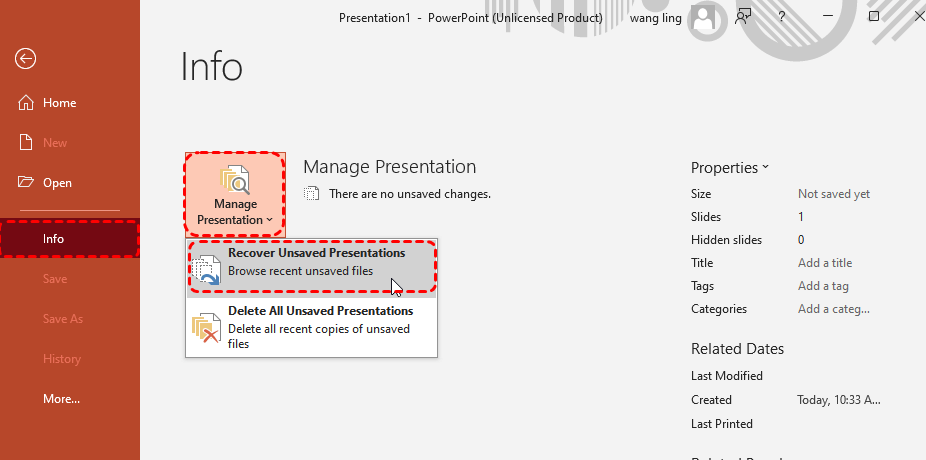
Open PowerPoint and go to "File > Info > Manage Presentation". Click "Recover Unsaved Presentations" to open the folder containing temporary files.
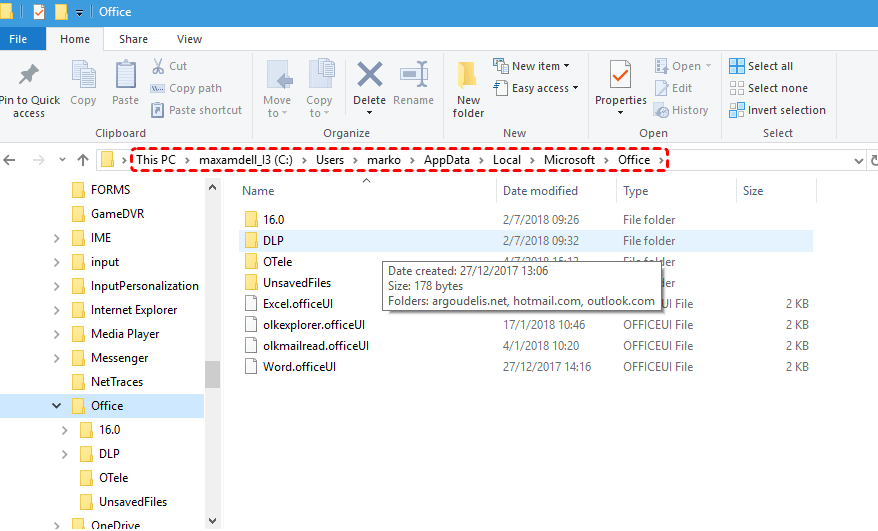
If that doesn’t work, navigate manually:
C:\Users\\AppData\Local\Microsoft\Office\UnsavedFiles
Or C:\Users\\AppData\Roaming\Microsoft\PowerPoint
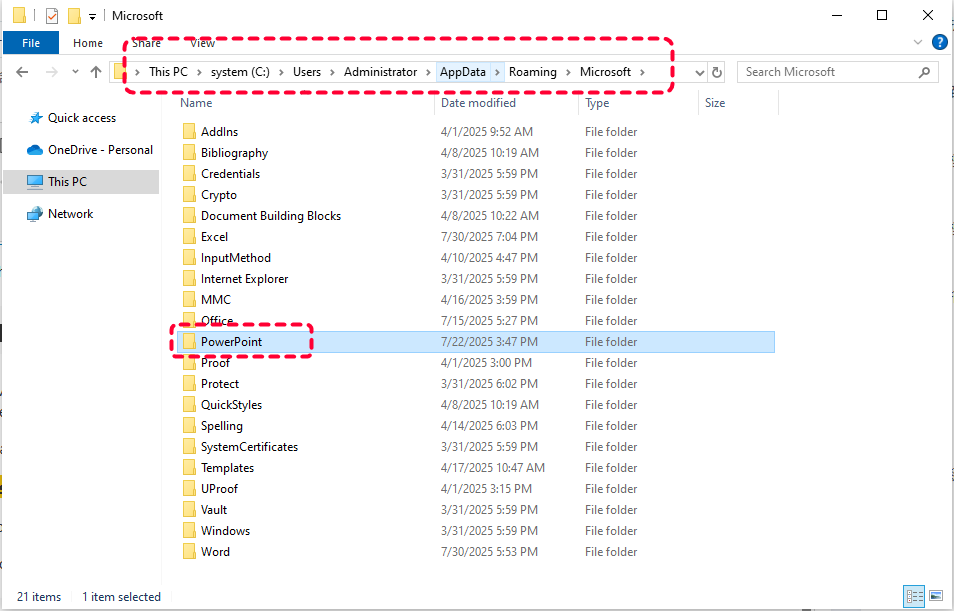
Look for .pptx or .tmp files. Copy them to the desktop before opening.

(macOS)
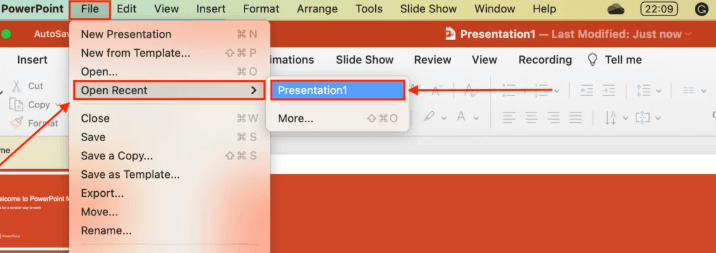
Open PowerPoint and check "File > Open Recent" for automatically saved versions.
In Finder, press "Shift+Cmd+G" and enter:
~/Library/Containers/com.microsoft.Powerpoint/Data/Library/Preferences/AutoRecovery/
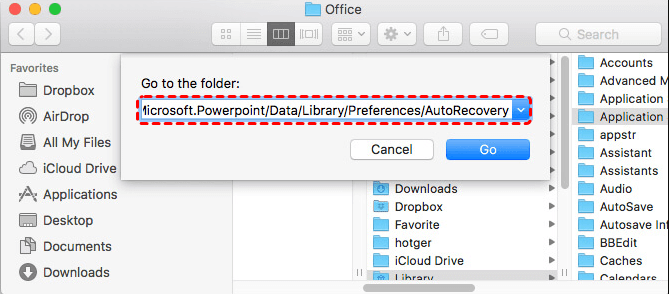
Or ~/Library/Application Support/Microsoft/Office/OfficeVersion/AutoRecovery/
Copy recent files from the AutoRecovery folder and open them in PowerPoint.
You can also check "~/Library/Autosave Information/" for unsaved presentations.
Part 2. Deleted PowerPoint Recovery
If a file was accidentally deleted, several recovery options can help you retrieve it.
Recycle Bin
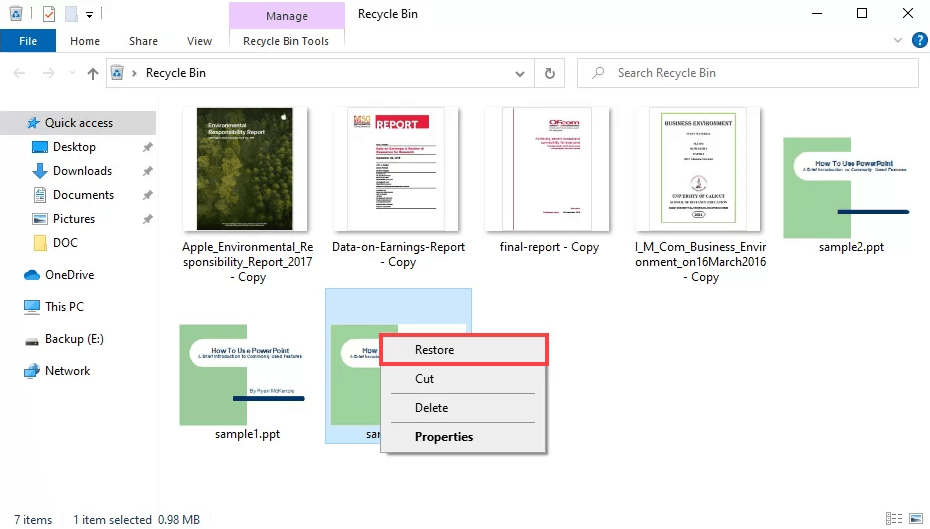
First, check the Recycle Bin for recently deleted presentations. If the deleted PowerPoint is right there, choose it and click "Restore".
MyRecover
If the file is no longer there, and no backups such as Windows 7 Backup and Restore, or cloud backup are available as well, professional data recovery software (MyRecover) can scan your storage device and restore permanently deleted PPT or PPTX files.

 MyRecover
- 🌟Recover Without Backup: Restore lost files even if no Windows backup exists.
- 🌟High Success Rate: AI-powered file recognition and recovery algorithms ensure easy use and zero file omission.
- 🌟Wide File Support (1000+): Recover photos, documents, videos, audio, archives, and more.
- 🌟Supports Multiple Devices (500+): Works on HDDs, SSDs, USB drives, SD cards, cameras, and other storage devices.
- 🌟Covers 500+ Data Loss Scenarios: Handles accidental deletion, formatting, system crashes, virus attacks, emptied Recycle Bin, partition loss, and more.
 100% Secure
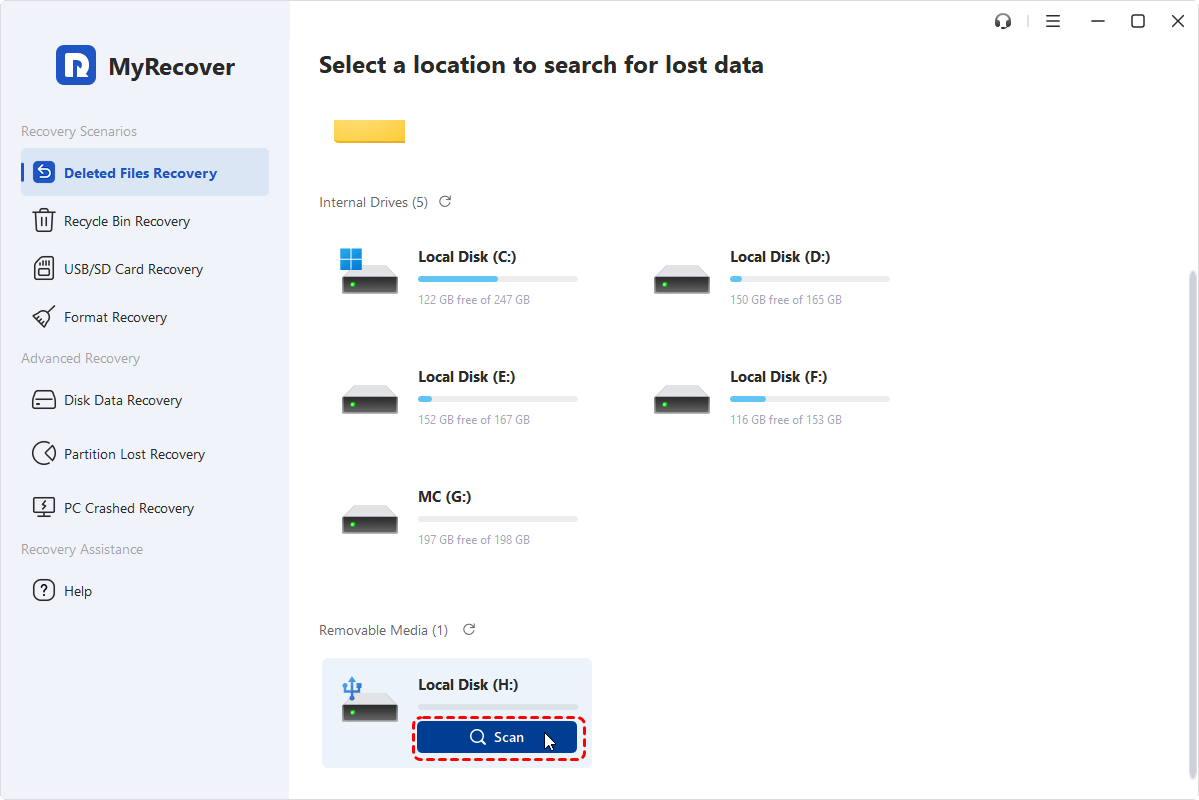
Step 1: Download and install MyRecover on your computer. Open MyRecover and select the storage device where your PowerPoint files were deleted. Click "Scan".
Step 2: MyRecover will perform a scan to find all recoverable PPT or PPTX files. Once the scan is complete, browse the list of recoverable files.
Step 3: You can filter PPT files and preview the contents of PowerPoint files to verify which ones you need.

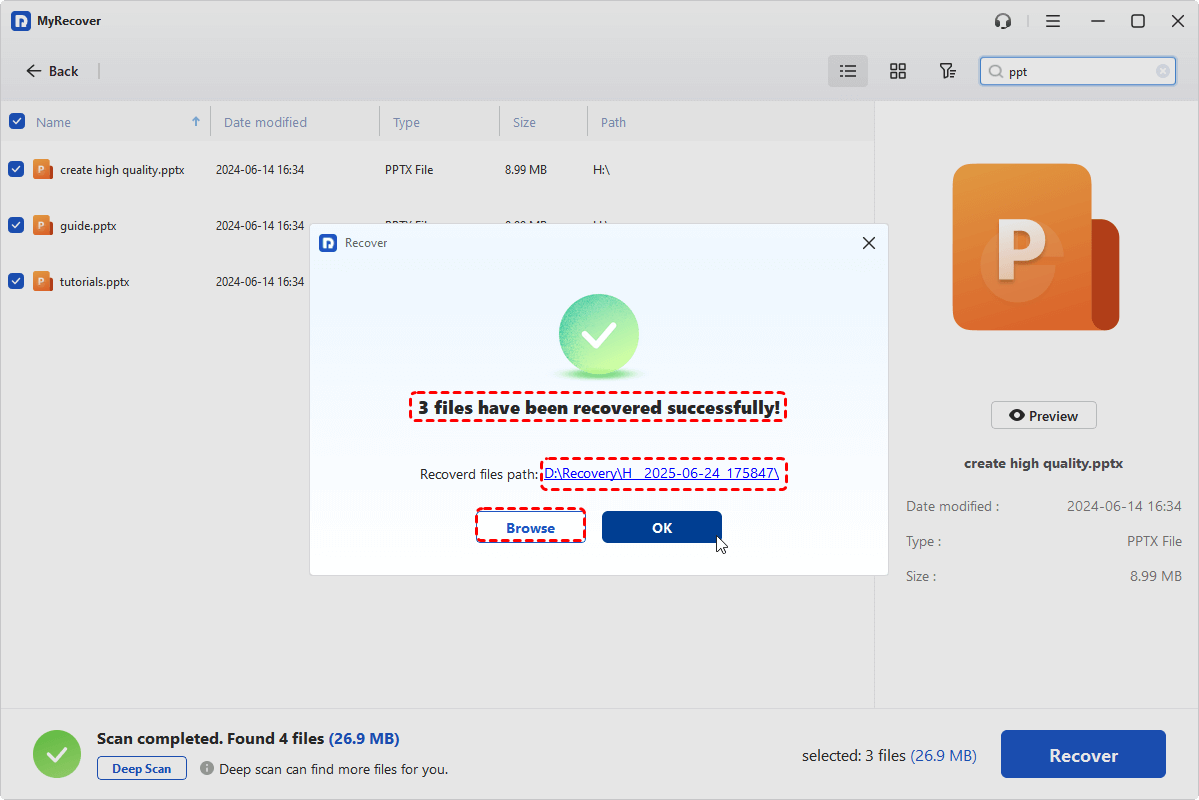
Step 4: Select the files you want to restore and click "Recover" . Choose a safe location on a different drive to save the recovered presentations.


Step 5: When the recovery process is completed, you can open the destination folder and check recovered PPT or PPTX files in PowerPoint to ensure they are intact and complete.
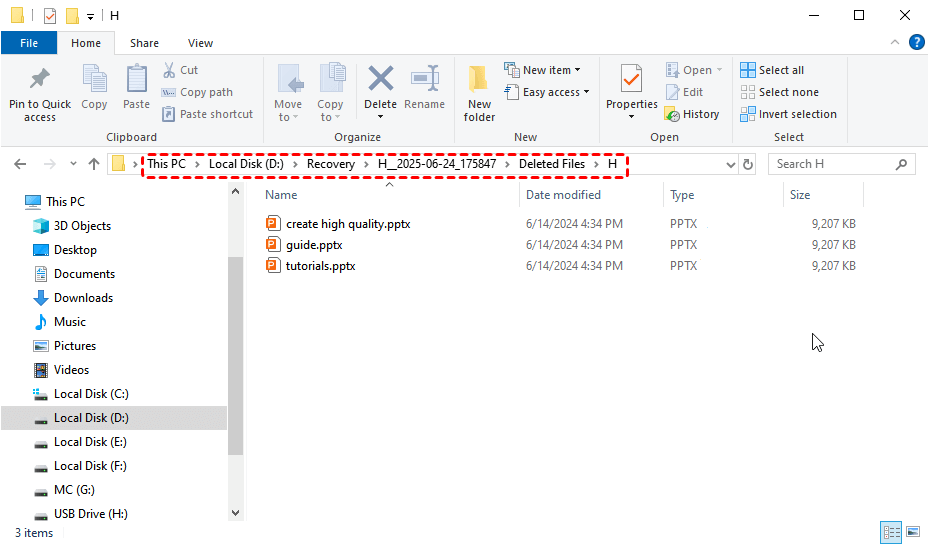
Winfr Command
In addition to 3rd party PowerPoint file data recovery software, Microsoft Windows File Recovery Command is another great option, which can help recover deleted files, including PPT and PPTX files, from local drives, USBs, and external storage devices. Unlike typical software with a graphical interface, this tool works through commands, making it lightweight but requiring careful input.
Step 1: Open Microsoft Store, search for Windows File Recovery, download and install the tool.

Step 2: Press "Windows + S", type "cmd", right-click "Command Prompt", and select "Run as administrator".

Step 3: Select "Regular" mode for recently deleted files on NTFS drives, "Extensive" mode for damaged or FAT/exFAT drives.
Step 4: Use the command structure: winfr [source-drive]: [destination-folder] /mode /switches. For example, to recover PowerPoint files from the H: drive to D:drive, type "winfr H: D: /regular /n*.pptx".
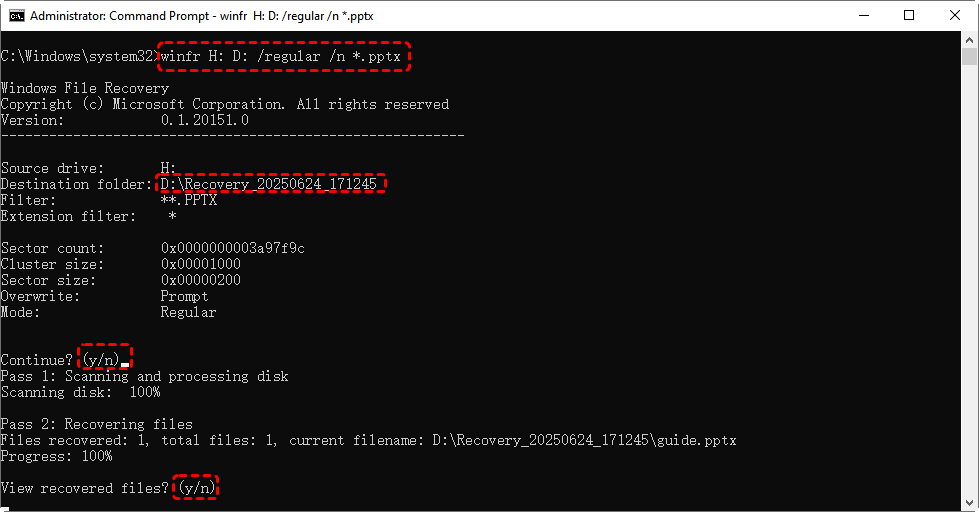
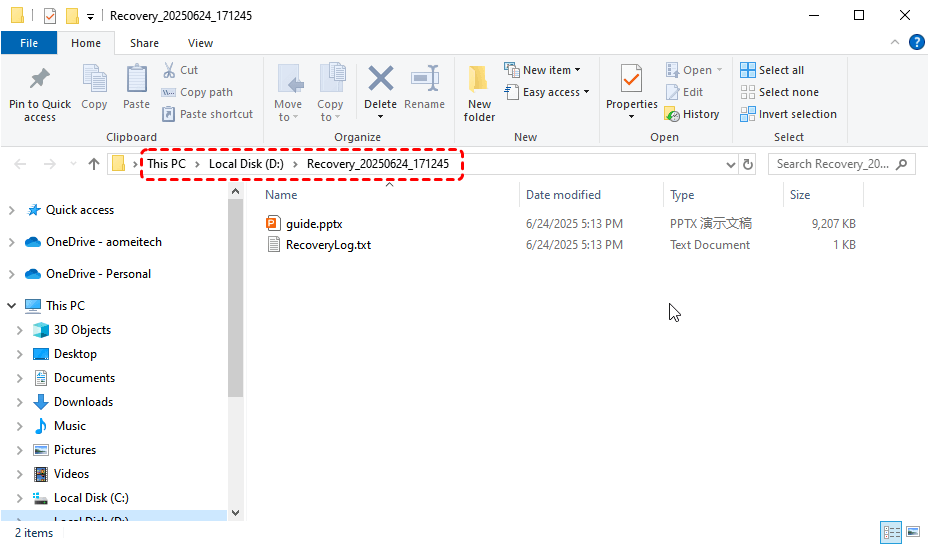
Step 5: Follow the prompts. Windows File Recovery will scan the drive and restore recoverable files to the destination folder.Hit on "Y" key to directly open the destination folder and check the recovered PPT or PPTX files in PowerPoint to confirm they are intact.
Part 3. Corrupted PowerPoint File Recovery
Corrupted files often become unreadable or display errors. When that occurs, you can try the following methods.
1: PowerPoint’s Built-in "Open and Repair"
PowerPoint has a built-in tool to attempt automatic repair of corrupted files.
Step 1: Open PowerPoint.Click "File > Open". Click "Browse".

Step 2: Navigate to the folder containing the corrupted file. Select the file, but do not double-click to open.
Step 3: Click the arrow next to "Open" and choose "Open and Repair".
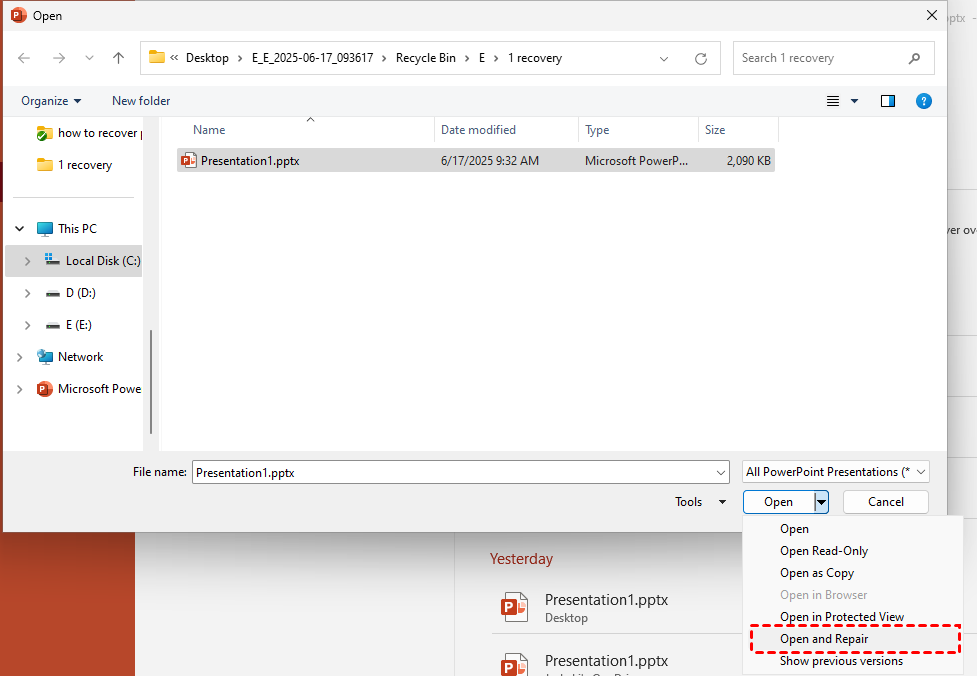
PowerPoint will attempt to fix the file and open it. This method works best for minor corruptions, such as temporary glitches or partial data loss. If the repair succeeds, save the recovered file immediately under a new name to prevent further corruption.
2: Extract Slides into a Blank Presentation
If the file partially opens or Open and Repair fails, you can try extracting slides.
Step 1: Open PowerPoint and create a new blank presentation.
Step 2: Go to "Home > New Slide > Reuse Slides".

Step 3: Click "Browse", then select the corrupted file.

Step 4: Choose "Insert All Slides" or select individual slides to import.
This method can recover most slide content, including text and images, but complex animations or embedded media may be lost.
Overall, corrupted PowerPoint recovery focuses on repairing the file structure or extracting usable content.
Part 4. Overwritten or Replaced Presentations Recovery
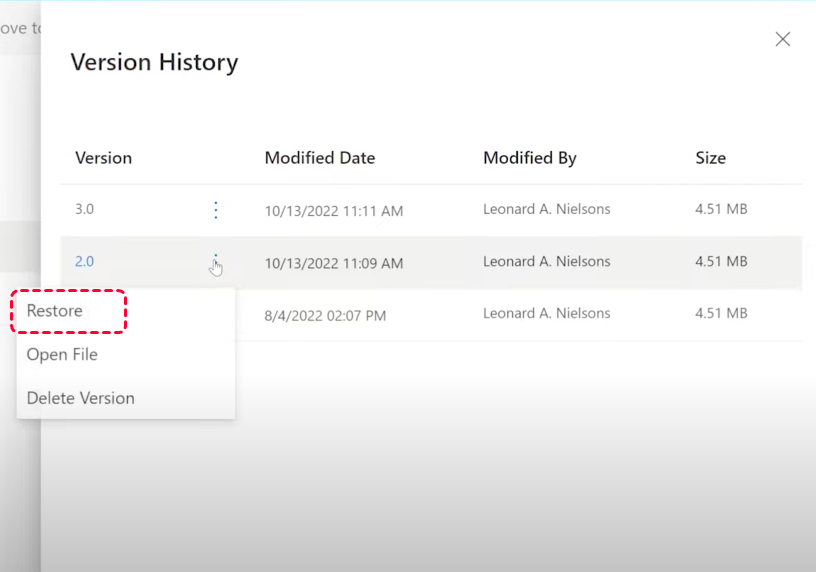
When a PowerPoint file is overwritten, restoring older content depends on version management. First of all, check the "Version History" feature in PowerPoint.
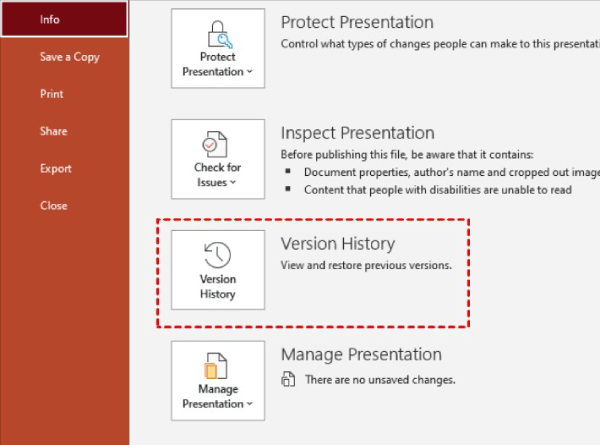
Besides, cloud services like OneDrive and SharePoint offer Version History, allowing you to roll back the presentation to a previous stateas well.
Part 5. Recover PowerPoint Files Lost Due to Device or Storage Errors
Hardware issues or disk errors can cause files to disappear, but several methods can help restore them. If it is the file system issues that trigger PowerPoint missing, you can run drive repair tools such as CHKDSK, which may fix file system issues and make missing files accessible again.
Open Command Prompt as admin, and run the command: chkdsk x: /f /r

For USB or external drive problems, reconnecting the device or using another port may solve temporary errors. When physical damage or severe corruption is suspected, professional data recovery software becomes essential for scanning and rebuilding lost files.
Summary
So, losing a PowerPoint presentation can happen in many ways—from accidental deletion and unsaved work to file corruption, overwriting, or storage device errors. The PowerPoint recovery approach depends on the specific situation. With proper methods and prompt action, you can maximize the chances of restoring your presentations quickly and safely, ensuring your important work is never permanently lost.
MyRecover supports numerous PowerPoint recovery scenarios, including restoring files due to permanent deletion, formatting, file system corruption, disk errors, USB issues, malware attacks, and system crashes. Its advanced scanning and file reconstruction capabilities make it a reliable solution for recovering PowerPoint presentations in almost any data-loss situation.

Stay Updated With Our
Latest Tips
Add us as a preferred source on Google to never miss helpful guides.
 Add as preferred source >>