 MyRecover



PhotoRec Data Recovery: The Complete Guide to Getting Your Files Back
Regain access to lost files using Photorec data recovery software, a robust tool built to restore photos, videos, and documents from damaged, erased, or unreadable storage devices. With advanced scanning and broad format support, it delivers dependable recovery for all users.

By Vera / Updated on December 5, 2025


What is PhotoRec?

PhotoRec is a free, open-source data recovery tool known for restoring lost files like photos, videos, archives, and documents from damaged or formatted storage devices. It works on Windows, macOS, Linux, and even runs from a command line interface.
You may be wondering: “Why is it called PhotoRec?”
Because in the early days, it specialized in recovering photo files. Today, it can recover more than 480 file formats, making it far more powerful than its name suggests.
How PhotoRec Works Behind the Scenes
PhotoRec doesn’t rely on the file system alone. Instead, it goes deeper. PhotoRec uses a method called file carving, which scans the raw data on a drive and looks for identifiable file signatures (like headers and footers).
Think of it like digging through a messy warehouse and identifying items based on shape rather than where they were supposed to be stored.
Because of file carving, PhotoRec can recover files even if:
- The file system is corrupted
- The partition is deleted
- The device is formatted
Pretty impressive for a free tool.
Key Features of PhotoRec
1. Supported Devices
PhotoRec can recover files from almost any storage device:
- Hard drives
- Memory cards
- SSDs
- USB flash drives
- Digital cameras
If your computer can read the device, PhotoRec likely can too.
2. Supported File Types
PhotoRec supports hundreds of file types, including:
- Photos (JPG, PNG, RAW formats)
- Videos (MP4, AVI, MOV)
- Documents (PDF, DOC, XLS)
- Compressed files (ZIP, RAR, ISO)
3. Cross-Platform Compatibility
You can use PhotoRec on:
- Windows
- macOS
- Linux
- Raspberry Pi OS
This makes it one of the most widely accessible recovery tools available.
When You Should Use PhotoRec
Ideal Scenarios
PhotoRec works best when:
- Your SD card shows "needs formatting"
- Photos disappeared after a camera crash
- A USB drive became RAW
- A hard drive’s file system is corrupt
- You accidentally formatted your device
When It Won’t Help
PhotoRec won’t perform well when:
- You need original file names and folder structure
- You want a clean, user-friendly interface
- Your drive has physical damage
- You need fast, organized recovery results
If ease of use matters to you, skip ahead to MyRecover, which solves all these issues.
Pros and Cons of Using PhotoRec
Advantages
- Completely free and open source
- Powerful file-carving engine
- Works even on severely corrupted storage
- Supports hundreds of file types
- Multi-platform support
Limitations
- Command-line interface can be intimidating
- File names are not recovered (you’ll get generic names like file123.jpg)
- Folder structure is not restored
- Recovery can be slow
- Results may be messy and require sorting
PhotoRec is powerful, but not always convenient.
How to Use PhotoRec (Step-by-Step Tutorial)
Below is a simple walkthrough, even if you’ve never used PhotoRec before.
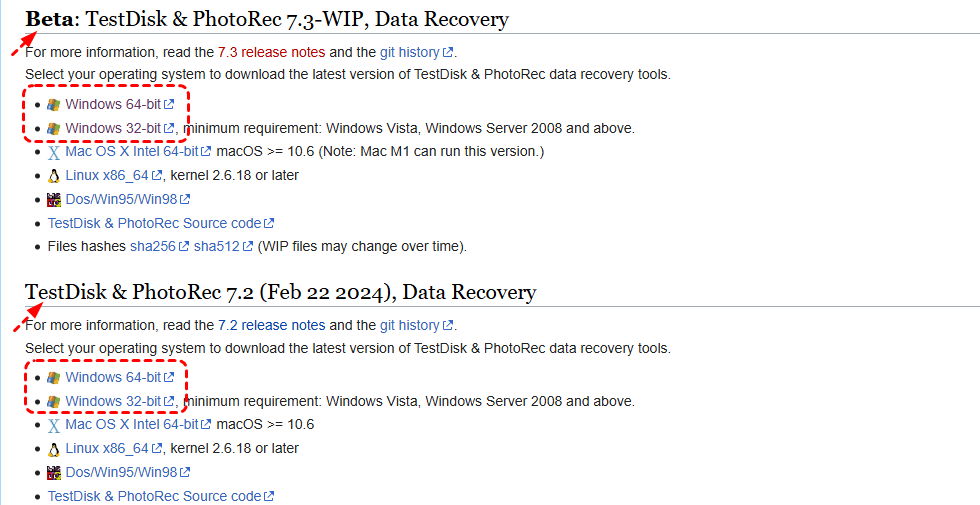
Step 1: Download and Install PhotoRec
PhotoRec comes packaged with TestDisk. Download the bundle and extract it—no installation needed.
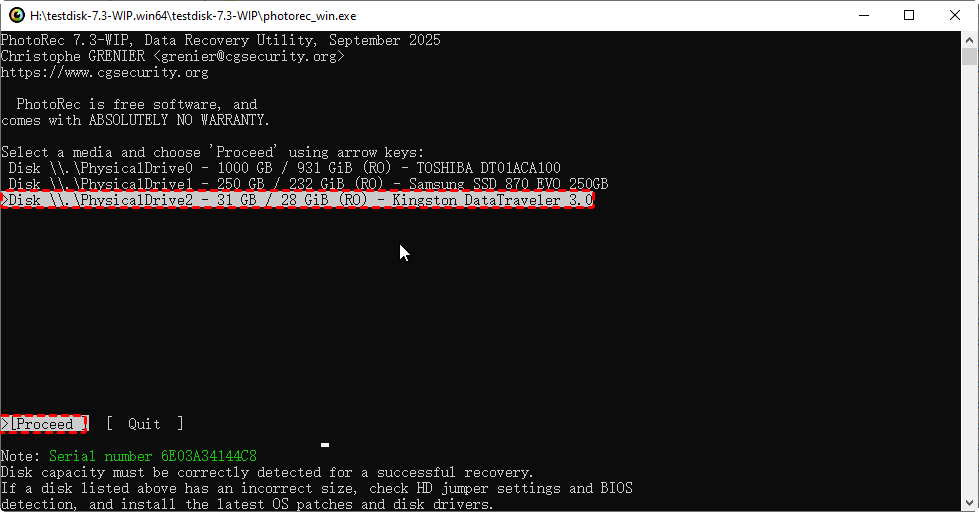
Step 2: Launch and Select Drive
Open photorec.exe. You’ll see a text-based menu showing all available drives. Select the one where data was lost.
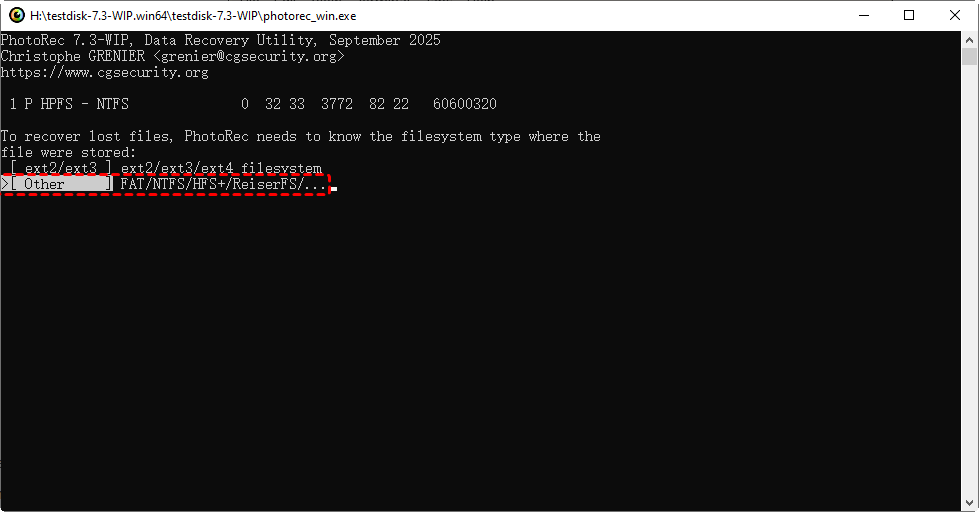
Step 3: Choose File System Type
Choose between:
- ext2/ext3/ext4 (Linux-based)
- Other (Windows, macOS, cameras, etc.)
Usually, "Other" is the right choice.
Step 4: Select Recovery Destination
Choose where recovered files should be saved. Never recover to the same drive, or you risk overwriting data.

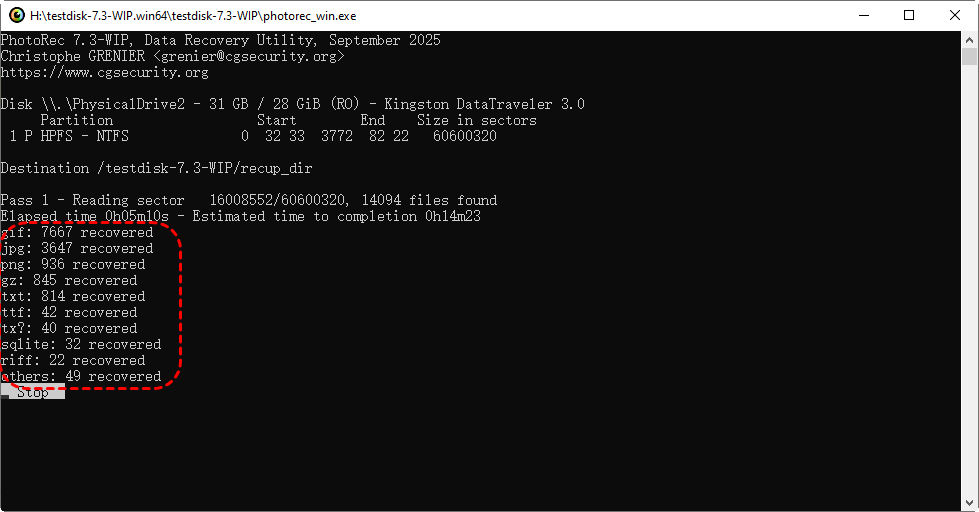
Step 5: Begin Scanning and Recover Files
PhotoRec starts its deep scan and recovers files based on signatures. Depending on the drive size, this can take minutes or hours.
⭐Tips to Improve PhotoRec Recovery Success
1. Avoid Overwriting Data
Stop using the affected device immediately. Every new file you add overwrites old data you may still recover.
2. Use the Right Mode
PhotoRec offers options like:
- Whole disk scan
- Free space scan
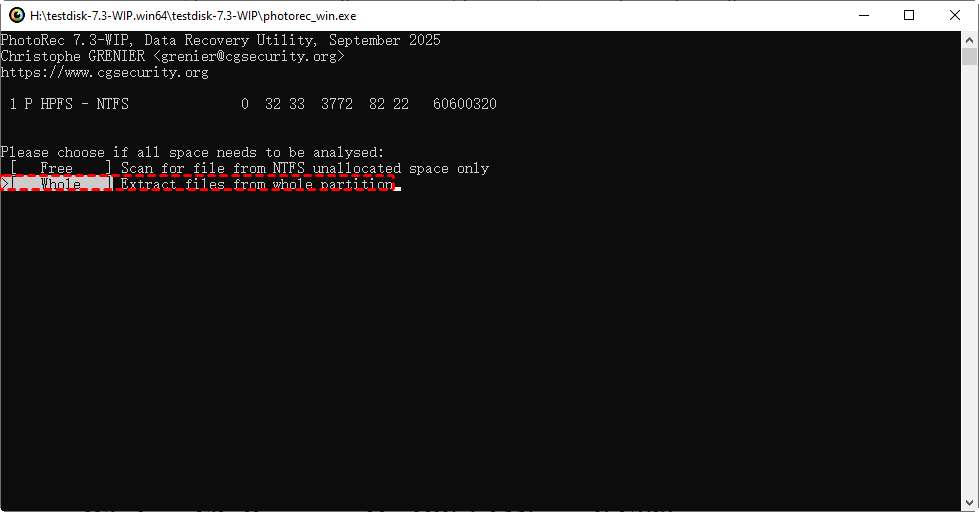
Scanning free space only is faster and usually enough for simple deletions.
3. Keep Storage Devices Healthy
If your storage device is failing, clone it first using tools like dd or Win32DiskImager.
Common Issues and How to Fix Them
1. PhotoRec Not Detecting Drive
Try:
- Running as administrator
- Checking disk connections
- Using a different USB port
- Ensuring the drive appears in Disk Management
2. Recovery Producing Corrupted Files
This happens when:
- Overwriting has occurred
- File headers were damaged
- Drive sectors are failing
Try a full drive image first.
3. Extremely Slow Scan Times
Possible causes:
- Large drive size
- Fragmentation
- Failing hardware
A healthy SSD will scan faster than an old spinning HDD.
Best PhotoRec Alternative – MyRecover
While PhotoRec is powerful, it’s not the easiest tool to use. Many users want something with:
- A clean interface
- Full file name recovery
- Folder structure restoration
- Faster scanning
- Higher recovery success rates
That’s where MyRecover comes in.
Why Choose MyRecover?
MyRecover is designed for everyday users who want simple, reliable, and quick data recovery. Unlike PhotoRec, it does not require command-line knowledge.
Key Features of MyRecover
- User-friendly GUI
- Supports 1000+ file types
- Restores file names and folders
- Faster scanning technology
- Supports HDD, SSD, USB, SD cards
- High recovery success rate
- Works on Windows 11/10/8/7
 100% Secure
PhotoRec vs MyRecover Comparison
| Feature | PhotoRec | MyRecover |
|---|---|---|
| Free | Yes | Free & Paid |
| Interface | Text-based | Modern GUI |
| File Name Recovery | No | Yes |
| Folder Structure | No | Yes |
| Ease of Use | Moderate | Very Easy |
| Speed | Slower | Faster |
| Ideal For | Technicians | Everyday users |
If you want a smooth, beginner-friendly experience, MyRecover is hands-down the better option.
Final Thoughts
PhotoRec is a powerful tool with deep recovery capabilities, especially for damaged or corrupted storage. It’s free, open-source, and incredibly effective for raw data scanning. But it’s not perfect—especially if you need file names, a clean interface, or fast recovery.
If you’re comfortable with a command-line tool and want maximum power at zero cost, PhotoRec is a solid choice.
If you prefer a simple, modern, and efficient experience, MyRecover is the best PhotoRec alternative.

Stay Updated With Our
Latest Tips
Add us as a preferred source on Google to never miss helpful guides.
 Add as preferred source >>