 MyRecover



Quick Format vs Full Format: What’s the Real Difference?
Understanding full format vs quick format is essential for choosing the safest and most effective method to prepare a drive. This abstract explains how each option affects speed, data removal, and disk health so users can make an informed decision when managing storage devices.

By Vera / Updated on December 5, 2025


Introduce
What is the difference between "quick format" and "full format" when formatting a hard disk or other storage devices like memory cards, etc.?
- Question from Quora
When it comes to preparing a hard drive, SSD, USB, or memory card for new data, you’ll usually be presented with two options: quick format or full format. And while they may sound similar, these two formatting types work very differently behind the scenes. Today, we’re breaking down quick format vs full format in the clearest, most practical way possible—so you’ll always pick the right option.
What is Disk Formatting?
Before we jump into the battle between formatting types, let’s set the stage.
Formatting a disk means preparing a storage device for use by wiping the file system and creating a new one. Think of it like redecorating a house—you’re clearing out the old structure to make space for new furniture (your data).
Why Formatting Matters
Formatting helps you:
- Fix corrupted or incompatible file systems
- Remove unwanted files
- Refresh a drive before selling or giving it away
- Improve overall storage stability
Not all formatting methods are created equal, though—and that’s where our comparison begins.
What is Quick Format?
Quick format is exactly what it sounds like—a fast way to format your storage device.
How Quick Format Works
A quick format simply deletes the file system’s index. It removes the pointers telling your device where files are located, but the actual data blocks remain untouched until overwritten.
Imagine tearing out a book’s table of contents but leaving all the pages intact. The story is still there—you just can’t find the chapters easily.
Pros of Quick Format
- 🚀 Extremely fast (seconds to a few minutes)
- 💡 Great for regular refreshing
- 🧰 Convenient and lightweight
- 📁 Ideal when you just need a clean workspace
Cons of Quick Format
- ❌ Doesn’t fully erase data (recoverable with software)
- ❌ Doesn’t check for bad sectors
- ❌ Not ideal for damaged or compromised drives
What is Full Format?
Full format goes deeper—much deeper.
How Full Format Works
A full format does everything a quick format does plus:
- Performs a sector-by-sector scan
- Identifies and marks bad sectors
- Writes zeros or empties data blocks (on most modern systems)
In other words, it tears out the table of contents and rips out the pages, shredding them afterward.
Pros of Full Format
- 🔐 Better data removal
- 🛠️ Detects and repairs bad sectors
- 📉 Reduces potential disk errors
- ✔️ Safer when preparing a drive for resale
Cons of Full Format
- 🕒 Much slower (can take hours for large drives)
- 💧 More wear on older HDDs
- ⚠️ Not ideal for frequent use on SSDs
Quick Format vs Full Format: Key Differences

Let’s break it down side by side.
1. Speed Comparison
- Quick Format: 5 seconds to 2 minutes
- Full Format: Several minutes to several hours
🏆Winner: Quick Format (by a landslide)
2. Data Removal Depth
- Quick Format: Removes file references only
- Full Format: Removes data + checks drive surface
Winner: Full Format
3. Security Level
- Quick Format: Recoverable with data recovery tools
- Full Format: Much harder to recover
🏆Winner: Full Format
4. Drive Health Impact
- Quick Format: Minimal impact
- Full Format: More read/write operations
🏆Winner: Quick Format
👉When to Use Each Format
| Task | Best Format |
|---|---|
| Fresh setup for personal use | Quick Format |
| Selling or giving away a drive | Full Format |
| Fixing corrupted drives | Full Format |
| Formatting repeatedly | Quick Format |
| Checking disk health | Full Format |
Which Option is Better for SSDs vs HDDs?
SSDs and HDDs behave differently—so your formatting strategy should too.
SSDs
- SSDs don’t benefit from full format’s bad sector check the same way HDDs do.
- Full format increases unnecessary write cycles.
🔎 Recommendation: Quick format is usually enough.
HDDs
- HDDs are mechanical and prone to bad sectors over time.
- Full format helps identify and isolate these issues.
🔎 Recommendation: Use full format occasionally for deep cleaning or repair.
How to Perform Quick and Full Format
Whether you use Windows or Mac, formatting is simple.
Situation 1. Formatting on Windows
Step 1. Right-click the drive → Format.
Step 2. Select File System.
Step 3. Choose Quick Format or uncheck the box for Full Format.
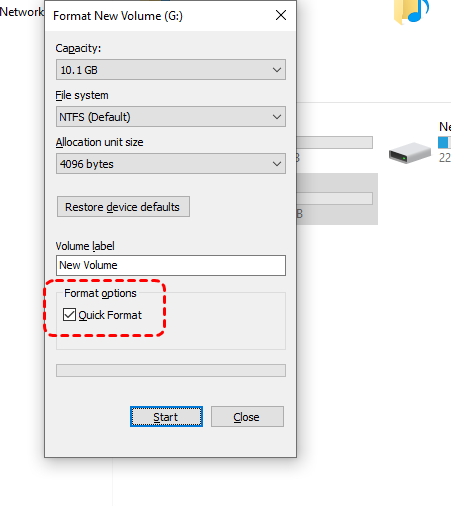
Step 4. Click Start.
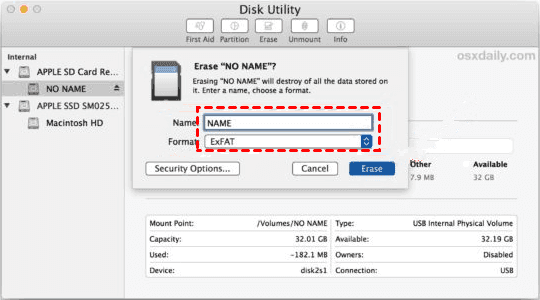
Situation 2. Formatting on Mac
Step 1. Open Disk Utility.
Step 2. Select your drive. Click Erase.
Step 3. Pick a format (e.g., APFS, exFAT)
Step 4. Options → Choose "fastest" or "secure erase". Then Confirm.
Common Myths About Disk Formatting
Let’s debunk some popular misconceptions.
Myth 1: Formatting permanently erases data
Not necessarily.
- Quick Format: Data is easily recoverable
- Full Format: Harder to recover, but still not military-grade deletion
If you want true permanent erasure, you need multiple overwrite passes or data-wiping software.
Myth 2: Full format improves performance
This is partially true.
A full format helps fix bad sectors, but it won’t magically boost a healthy drive’s performance. A quick format is usually enough for everyday speed.
Bonus Tip: Recover Lost Data Easily After Formatting with MyRecover
If you accidentally formatted your drive—whether through quick format or full format—don’t panic just yet. Even though formatting wipes the file system, your data may still be recoverable, especially after a quick format. That’s where MyRecover comes in handy.
MyRecover is a powerful Windows data recovery tool designed to restore files lost due to formatting, deletion, corruption, or partition issues. It scans your drive deeply and brings back files like photos, documents, videos, and even entire folders with impressive accuracy.
Why MyRecover is a Great Choice
- ⭐ Recovers data after quick or full format.
- 🔍 Deep Scan technology for locating hard-to-find files.
- 🚀 Fast recovery speed.
- 🎯 User-friendly interface—perfect even if you're not tech-savvy
- 💾 Supports HDDs, SSDs, USB drives, SD cards, and external drives
 100% Secure
How to Recover Formatted Data Using MyRecover
Step 1. Install and launch MyRecover on your PC.
Step 2. Select the formatted drive.
Step 3. Choose Scan or Deep Scan to find more lost data.

Step 4. Preview recoverable files.
Step 5. Click Recover and restore your data safely.

Whether you formatted your drive by accident or simply changed your mind afterward, MyRecover gives you a second chance at retrieving important files—especially when quick actions matter most.
Final Thoughts
When deciding between quick format vs full format, your choice depends entirely on what you need:
- If you want speed and convenience → Quick Format
- If you want data security or disk diagnosis → Full Format
Both have their place, but now you know exactly when to use each—and how they affect your storage device in the long run.

Stay Updated With Our
Latest Tips
Add us as a preferred source on Google to never miss helpful guides.
 Add as preferred source >>