 MyRecover



How to Recover Data from a Dead SD Card Without Losing Any Files
When an SD card stops responding, appears unreadable, or is no longer detected, improper handling can permanently damage the remaining data. By understanding what causes SD cards to fail and how to recover data from a dead sd card, you can take informed steps to retrieve your files while minimizing the risk of permanent data loss.

By Aria / Updated on March 16, 2026


What Does a "Dead SD Card" Mean?
When people refer to a "dead" SD card, they usually mean that the card is no longer accessible or recognizable by devices such as Windows PCs, cameras, or smartphones. A dead SD card may not show up in File Explorer, appear as RAW, or trigger error messages asking you to format the card before use.
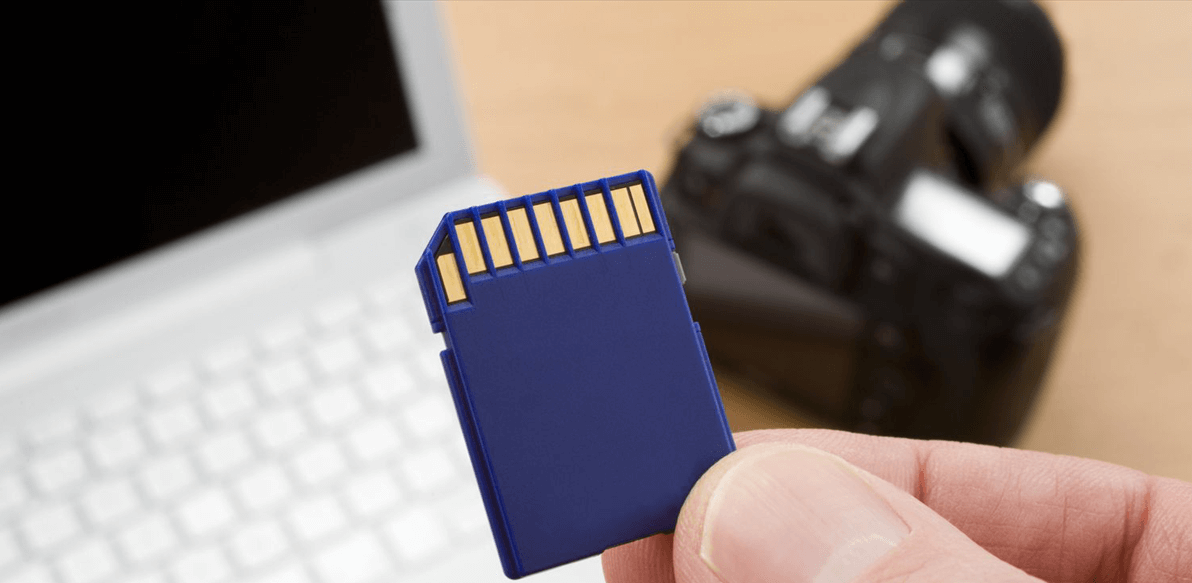
There are many reasons why an SD card can go dead, which can be roughly divided into two categories: logical damage and physical damage. Figuring out which type your SD card has suffered will determine whether recover data from a dead SD card is still possible.
👉Logical Damage: High Recovery Potential
Logical damage occurs when the SD card’s file system, directory structure, or metadata becomes corrupted, while the physical storage medium remains intact. This is the most common scenario and also the most recoverable.
Typical causes include:
- Improper ejection or sudden power loss,
- File system corruption (RAW format, "card needs to be formatted" errors),
- Accidental deletion or formatting,
- Camera, phone, or computer crashes during data writing.
In these cases, the actual data blocks are usually still present on the card. The problem lies in the system’s inability to interpret the file structure correctly. As long as the data sectors haven’t been overwritten, the chance of fully or nearly fully recovering data from the SD card is extremely high.
👉Physical Damage: Limited Recovery Potential
Physical damage involves hardware-level failures of the SD card itself. This may include:
- A damaged controller chip,
- Broken or worn-out NAND flash memory,
- Electrical damage caused by heat, water, or voltage surges,
- Cards that are not detected at all by the operating system or show incorrect capacity (e.g., 0 MB).
When physical damage occurs, the system may be unable to communicate with the card at all. In such cases, software-based recovery tools are often ineffective, because they rely on the card being at least partially readable. Recovery may require specialized equipment, chip-off techniques, or clean-room services, and even then, success is not 100% guaranteed.
How to Recover Data from a Dead SD Card
Before you start any actual recovery steps, the most important thing you need to do is stop using the SD card, whether it’s logically or physically damaged. Because continuing to use it could cause deleted files to be overwritten by new data, making recovery much harder.
Recover Data from a Dead SD Card (For Logical Damage)
To recover data from a dead SD card, especially when the card is not readable through normal access, professional data recovery software like MyRecover is often the most effective option. It can deeply scan SD and microSD cards to locate photos, videos, documents, and other files without modifying the original data. Moreover, MyRecover is designed specifically for 500+ complex data loss situations, including corrupted or dead storage devices, deleted partitions, emptied Recycle Bins, quick formatted hard drive, etc.

 MyRecover
- 500+ Devices Supported | SSD, HDD, USB Flash Drive, SD Sard, etc.
- 1000+ File Formats Supported | PNG, MP4, MP3, TXT, ZIP, MSG, etc.
- 500+ Data Loss Scenarios | Deletion, Format, System Crash, Virus Attack, etc.
- Wide brand supported | Including SmartBuy, Sony, Kingston, Toshiba, etc.
 100% Secure
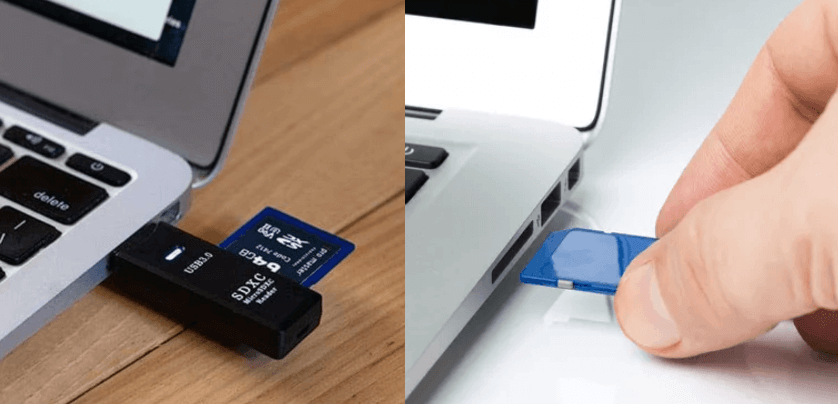
Step 1. Remove your SD card from camera, smartphone, or drones and connect it to your Windows with a correct card reader or slot.
Step 2. Download and install MyRecover on your computer from Microsoft Store or its official site.
Step 3. Launch the program and select the SD card to scan for lost files, then click "Scan" to search for recoverable lists.

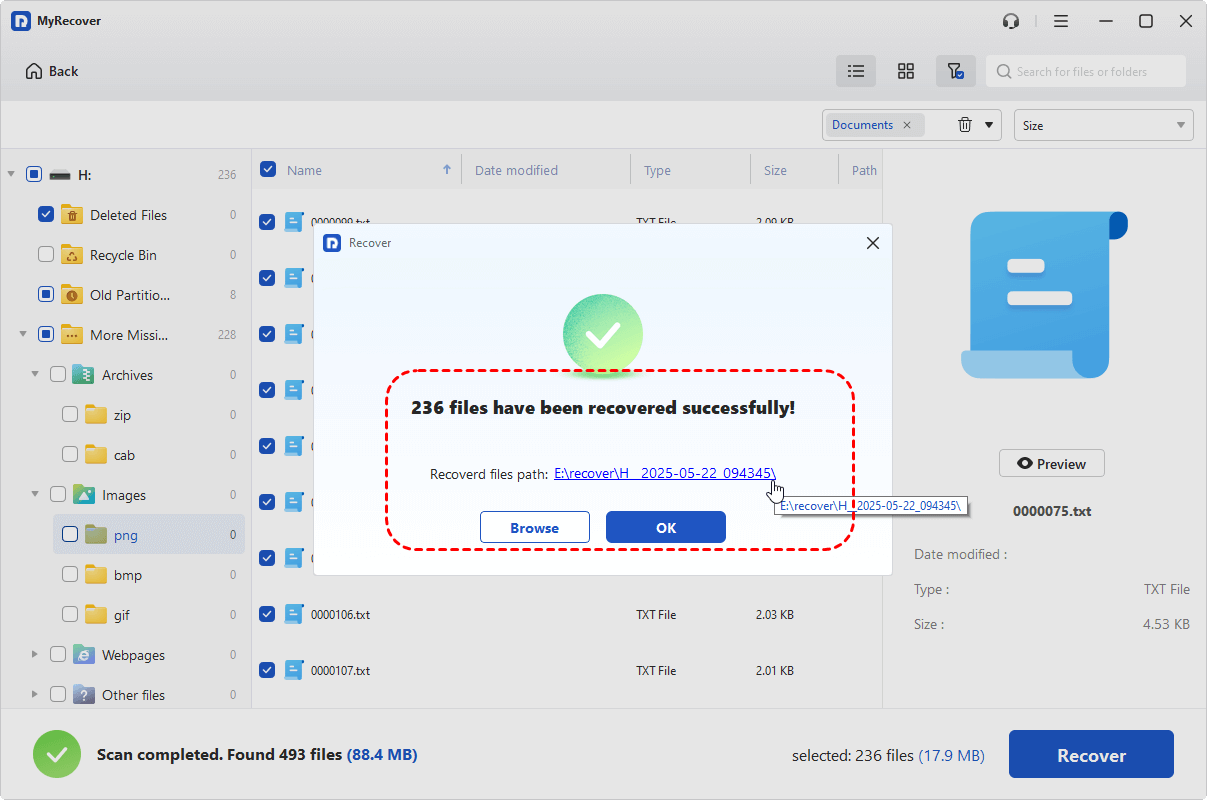
Step 4. After the scan is completed, you can choose the files you wish to recover from the recoverable lists and click "Recover".

Start with MyRecover Free to recover up to 500MB of data at no cost. For users who need more like unlimited recovery, the ability to preview files before restoring, and powerful recovery from unbootable systems, MyRecover Professional edition is the ideal choice, offering a complete recovery solution.
Step 5. Select a safe location different from the SD card to save your files.

Once the recovery process is completed, you can verify the recovered files in the destination folder by clicking on the "Browse" button.
Professional Data Recovery Service (For Physical Damage)
If your SD card has sustained more severe physical damage, such as bending, warping, or visible hardware breakage, data recovery software may not work on it at all. In such cases, turning to a professional data recovery service like Seagate Data Rescue Services is your best bet. While it costs more, these services have professional equipment, clean labs, and advanced technologies that can boost the chances of recovering data from a physically damaged SD card.
How to Fix Dead SD Card After Data Recovery
Once your important files are safely recovered, you can move on to fixing the SD card itself. For SD cards that are logically damaged or not showing up due to non-hardware issues, the methods below can address common logical problems and restore your SD card to a normal, usable state. You can try them one by one.
Check the Connection
Faulty readers or loose connections can easily make a healthy card appear unreadable. Before assuming the SD card is truly dead, start with the basics. Try a different card reader, USB port, or computer to check if the SD card can be recognized. This simple step often resolves cases where users believe they need to replace the dead SD card, but the issue is actually external.
Run the CHKDSK Command
After recovering files, you can try repairing logical errors or bad sectors using the CHKDSK command. CHKDSK can fix file system errors and bad sectors, potentially restoring access to the SD card.
Step 1. Locate Command Prompt in the Start menu and run it as administrator.

Step 2. Enter the following command "chkdsk G: /f /r" and press "Enter". Replace the drive letter "G" with your SD card drive letter.

Step 3. After the scan is completed, check if your SD card is working properly.
Assign a New Drive Letter
Sometimes the SD card is detected but not visible in File Explorer because it lacks a drive letter. Assign a new drive letter for the SD card can fix the "dead card" issue.
Step 1. Press "Win" + "X" and choose "Disk Management" to open it.

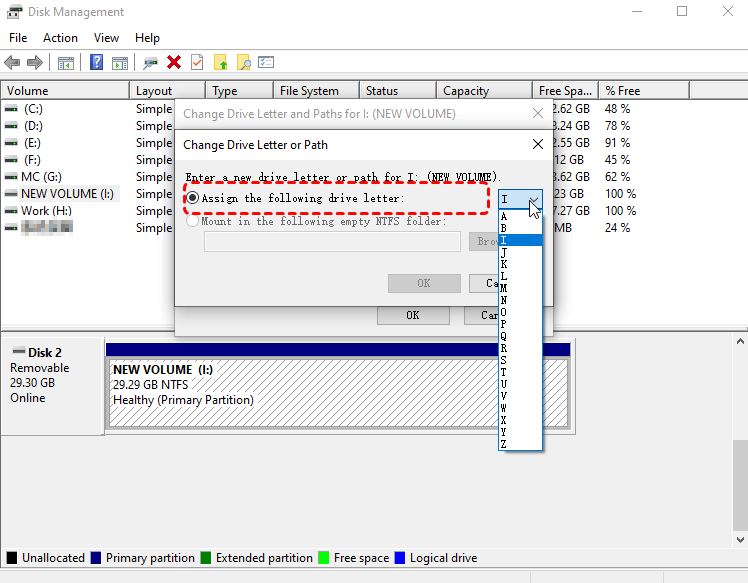
Step 2. Right click the SD card and choose "Change Drive Letter and Paths".
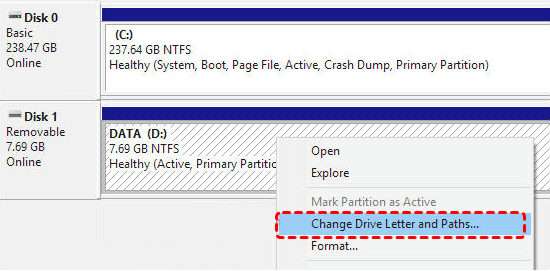
Step 3. Assign a new drive letter for the card.
Update or Reinstall the Driver
Outdated or corrupted drivers can prevent Windows from recognizing an SD card correctly. Updating or reinstalling the driver will ensure your device is properly recognized and accessible.
Step 1. Press "Win" + "X" and choose "Device Manager" to open it.

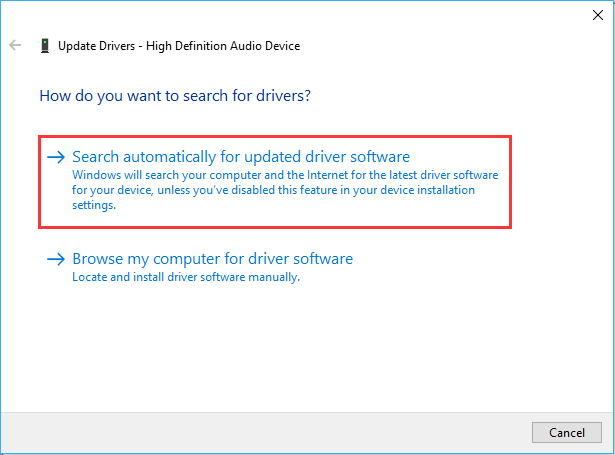
Step 2. Expand the "Disk drives" and right click the SD card, then choose "Update driver".

Step 3. Click "Search automatically for updated driver software" to continue the process.
If there's no update, you can choose "Uninstall device" to remove the SD card. When you insert the SD card into the computer next time, it will automatically reinstall your drive.

Fix a Raw SD Card
If the SD card shows as "RAW" in Disk Management, it indicates the file system is damaged. A RAW status is one of the most common reasons that leads many users to think of their SD card is dead, as the card appears unusable even though the data may still exist. While formatting is a common suggestion, you should only do this after data recovery.
Step 1. Press "Win" + "X" and choose "Disk Management" to open it.
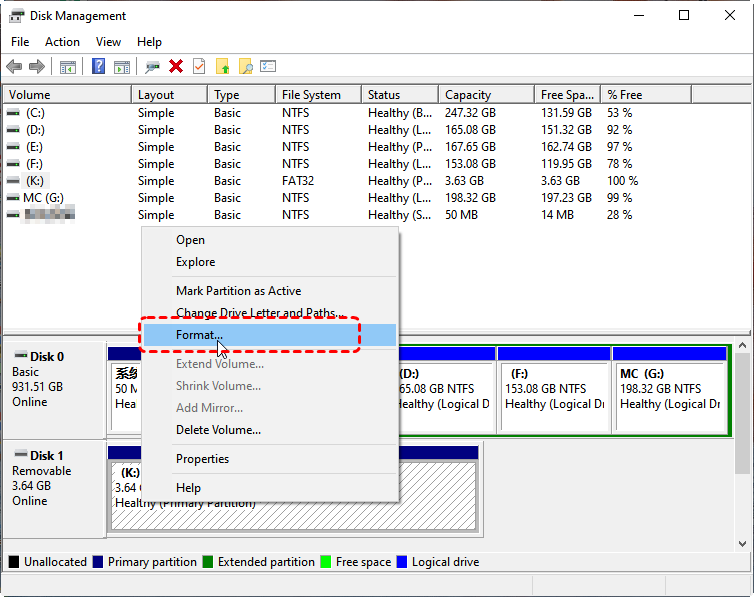
Step 2. Right click on the SD card and choose "Format".
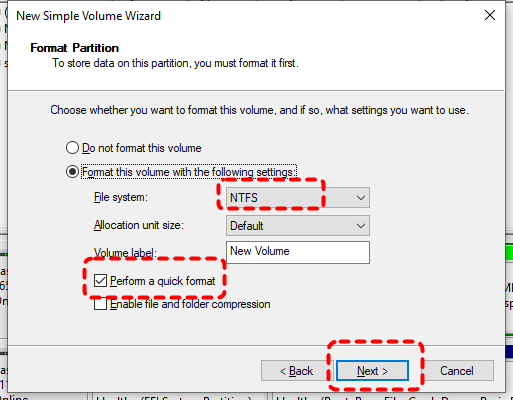
Step 3. Choose a file system and check the "Perform a quick format" option, then click "Start" to format the card.
Summary
A dead SD card does not always mean permanent data loss. In many cases, logical issues such as file system corruption, RAW status, or driver problems are the real culprits. By prioritizing data recovery first and then applying targeted fixes, you greatly improve the chances of both saving your files and restoring the card.
Tools like MyRecover provide a dependable way to recover data from a dead SD card before repairs, giving you peace of mind and flexibility. Once your data is safe, you can confidently attempt fixes without the fear of irreversible loss.

Stay Updated With Our
Latest Tips
Add us as a preferred source on Google to never miss helpful guides.
 Add as preferred source >>