 MyRecover



Fix A USB Drive Needs to Be Formatted Error & Recover Data
Facing the alarming "USB drive needs to be formatted" prompt? This article explains the causes and delivers a step-by-step data recovery process. You will learn how to recover data from the drive without accepting the format, especially when a flash drive suddenly needs to be formatted, ensuring your photos, documents, and files are secured.

By Delores / Updated on May 11, 2026


Your Flash Drive Suddenly Needs to Be Formatted!
You plug in your USB drive, only to find an error: You need to format the disk in drive X: before you can use it. Stop. Don't click "Format Disk". It's a sign that your computer can't read the drive's file system—but your precious files might still be sitting there, intact and recoverable. This guide will show you why this happens and, most importantly, how to safely recover data from a flash drive that needs to be formatted without losing a single byte.
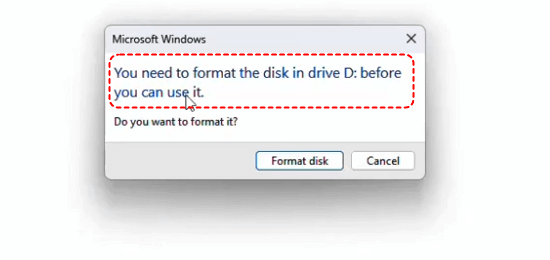
Why USB Drive Need to Be Formatted?
That alarming pop-up is a direct result of your computer's inability to process the drive's data structure. It detects the physical presence of the USB drive but cannot interpret the organization of the information stored on it. This sudden error is almost always a logical failure rather than a physical breakdown.
Some reasons should be responsible for the issue:
- An improper disconnection. Removing the drive without utilizing the "Safely Remove Hardware" feature can disrupt an active data write process, which corrupts the critical metadata of the file system.
- Bad sectors on the drive.
- A damaged USB port.
- A virus corrupts data.
- An interruption during file transfer.
- File system corruption.
Today, we will show you how to fix logical errors due to these reasons. Let's get started.
Immediately Actions Before Any Operations
Don’t Format the USB Drive. The moment you see that prompt, don’t click Format. Formatting creates a new, clean file system. It's a fantastic solution for a fresh start, but it's a disaster for data recovery. Formatting marks the space containing your data as available for new information. The next time you save something—a document, a system file, a download—it could permanently erase your old photos, work files, or videos. Only format the drive after you have successfully recovered all your data or have confirmed the files are no longer needed. It is the last step, never the first.
Safely eject the drive, restart your computer, and plug the drive into a different USB port. If the error persists, don't keep plugging it in and out. Go to Windows Disk Management (Right-click Start > Disk Management). Check your USB drive in Disk Management. Does it show the correct capacity? Does it say "RAW" or "Unallocated" instead of "NTFS" or "FAT32"? If it shows RAW or unallocated space, you can recover files using the right way.
Recover Data from a Flash Drive That Needs to be Formatted in 4 Steps
The first thing you should do is to recover files from the USB drive now. Fortunately, here comes the powerful Windows data recovery software, MyRecover, to help.
- User-Friendly Interface. Unlike command-line tools that require technical expertise, MyRecover presents a clean, intuitive interface.
- Deep Scan Capabilities. The software can perform both a quick scan and a deep scan. This two-pass approach locates files that other tools miss, even when the file system is completely raw or unreadable.
- Preserves Original Folder Structures. MyRecover restores files with the original folder structure and file name. They can be organized well instead of chaos.
- Easy File Preview. Before committing to recovery, you can preview photos, PDFs, Word documents, Excel files, etc. This confirms file integrity.
- Selective Recovery. You choose exactly which files and folders to restore.
Here is a detailed, step-by-step guide on using MyRecover to recover files from a USB drive that needs formatting:
1. Download and install MyRecover on your computer. Connect your USB drive to your computer and make sure it can be detected.
 100% Secure
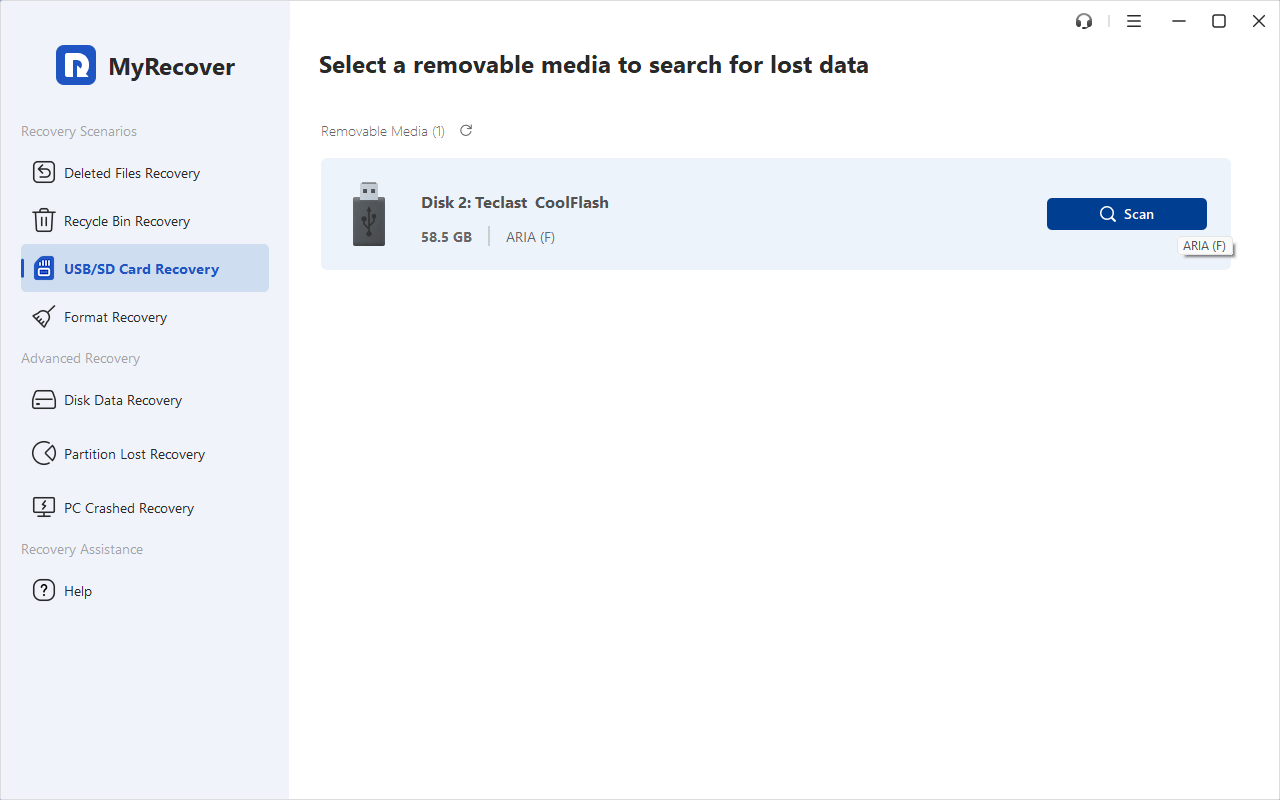
2. Tap USB/SD Card Recovery, choose the USB drive, and hit Scan. Hit OK when completed.
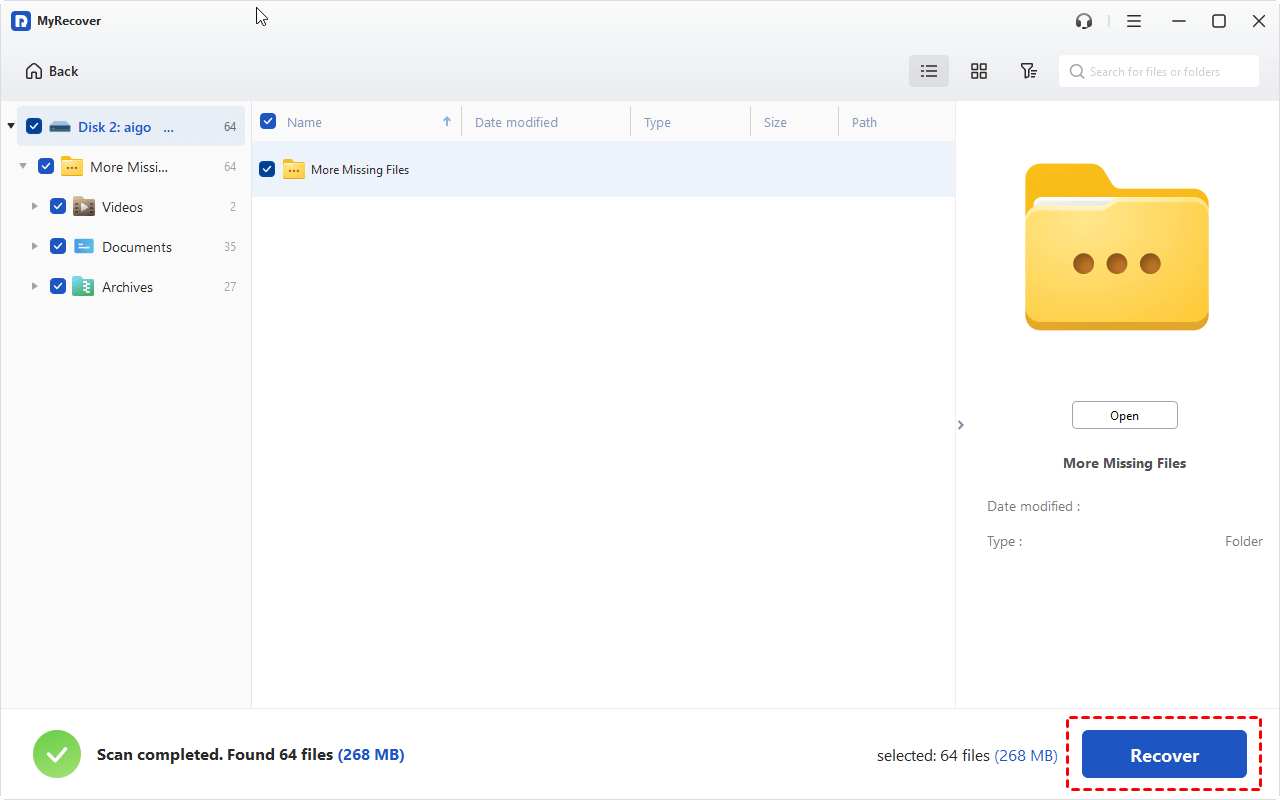
3. Preview and tick the files you need, and hit Recover.
4. Choose a destination on your computer or an external hard drive, and hit Select Folder to keep them safe.
- Notes:✎...
- MyRecover will begin by running a quick scan to find the recently deleted files. This process searches for file signatures and directory structures, looking for anything recognizable. The time this takes depends on the size of your USB drive, so be patient. You can monitor the progress on-screen.
- Once the scan completes, MyRecover shows files by file type (Photos, Documents, Videos, etc.) by default. You can also tap Path to find files using the original folder tree, making it easy to navigate. Besides, you can filter files by file name, size, or date modified.
- Double-click the file to preview the files. You can preview JPGs, PDFs, or Word documents, etc, to verify they are intact before recovery.

 MyRecover
- Recover Deleted Files Easily with Simple Clicks
- 1000+ File Formats Supported
- Support HDD, SSD, External Hard Drive, USB Drive, SD Card, etc.
- Quickly Find Files Using File Types, Name, Size, etc.
- Preview Files Before Recovering
- Recover Unlimited Data
 100% Secure
How to Fix a USB Drive That Needs to Be Formatted?
After recovering files from the USB drive that need to be formatted, you have to fix it now:
Way 1. Run CHKDSK Command
Now, you can attempt a command-line fix that might repair the file system without a format. This method uses the CHKDSK (Check Disk) utility. Here is how:
1. Right-click the Start button, select "Windows Terminal (Admin)" or "Command Prompt (Admin)".
2. Then, type chkdsk G: /f /r and press Enter, replacing "G" with your USB drive's actual letter.

The /f parameter tells it to fix errors. Besides this, you can also use a professional drive repair tool to fix remaining file system errors and increase the chances of restoring the drive to normal working order.
While chkdsk can sometimes work miracles, it is also a destructive utility in its repair process. If it finds severe corruption, it may delete file system entries it deems unsalvageable to restore access to the drive, and store these deleted files in the FOUND.000 folder, you can try to recover files from that folder. It's a gamble.
Way 2. Format USB Drive
If, after successful data recovery with MyRecover, you wish to attempt repairing the USB drive itself for future use, you can return to the Command Prompt and then format it now.
1. Open Command Prompt as an administrator.
2. Tap the command: format X: /fs:FAT32 /q
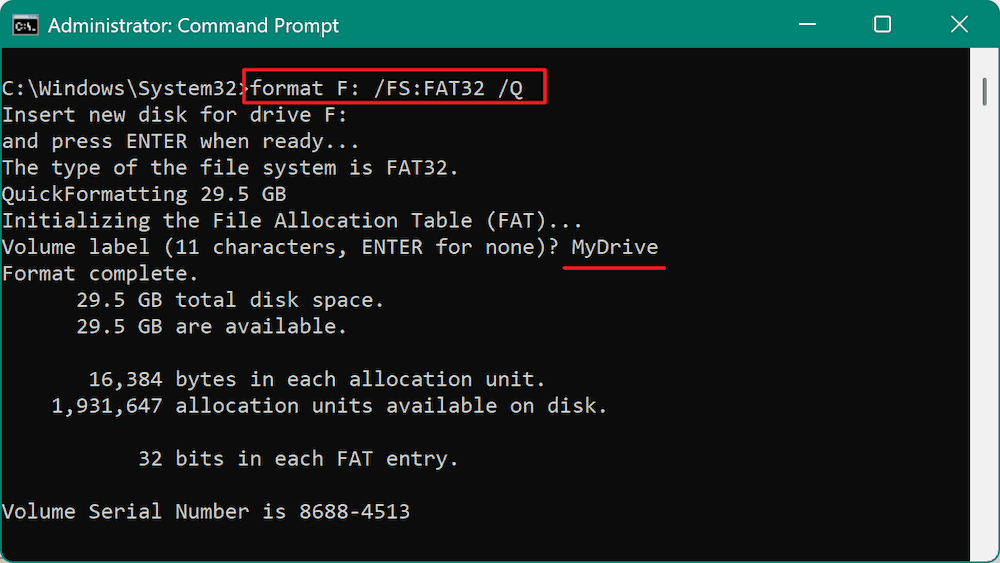
Replace X with your drive letter. The /q does a quick format, and /fs:FAT32 specifies the file system (FAT32 has wide compatibility).
Remember, this will erase all data, so it is only a step to take after confirming your recovery was successful.
Way 3. Format USB Drive in Disk Management
Besides, you can also format the USB drive in Disk Management now. Here are the steps:
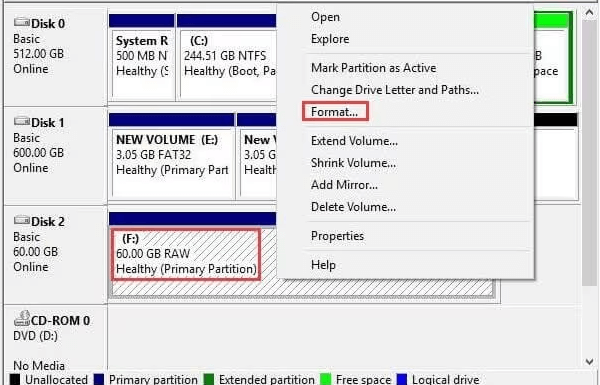
1. Right-click the Start menu, and choose Disk Management.
2. Right-click your USB drive that needs to be formatted, and hit Format.
3. Choose the file system (explained below), choose Default in the Allocation unit, tick Perform a quick format, and hit OK to format it now.
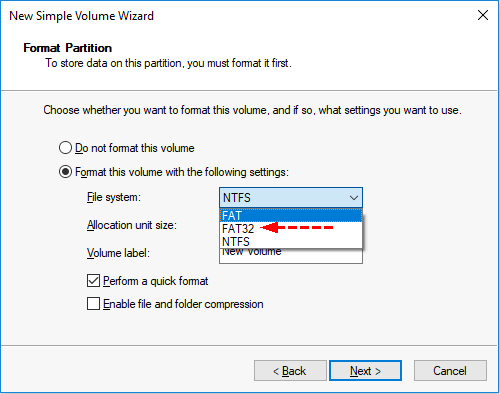
- FAT32: Maximum compatibility with TVs, game consoles, and older systems. Limitation: Cannot hold single files larger than 4GB.
- exFAT: The modern best choice for flash drives. Compatible with most modern Windows and macOS systems and supports very large files. For most users, exFAT is the recommended choice.
- NTFS: Best for internal Windows drives or USB drives you will only use with Windows. It has advanced features but can be read-only on some other systems without additional software.
By the way, you might want to know if Quick Format deletes everything. Click to find answers.
Way 4. Replace Your USB Drive
If your USB drive is damaged physically, you can’t repair it now. The only thing to do is to replace it with another one to finish your job easily.
FAQs about USB Drive Needs to Be Formatted
Q: I clicked "Format" by mistake. Is my data gone?
A: Not immediately, but act fast. A quick format only erases the file system table, not your actual files. However, that data is now marked as overwritable. Stop using the drive and run recovery software like MyRecover immediately. Every minute you use the drive risks permanent overwrite.
Q: Can CHKDSKfix the drive without losing data?
A: It's risky. CHKDSK can repair minor corruption and restore access. But in severe cases, it deletes corrupted entries to fix the drive, which can cause data loss. Safer approach: recover your files first with read-only software, then run CHKDSK or format the drive afterward.
Q: Why does my drive work on one PC but say format on another?
A: File system mismatch or driver issue. The drive may be formatted with exFAT on an older Windows version lacking proper support. Or the second PC has faulty USB ports or drivers. Update USB drivers on the problematic computer and verify file system compatibility.
Q: Could a virus cause this format error?
A: Yes. Malware can corrupt the file system or boot sector deliberately. Some viruses hide your files and trigger system errors, leading to format prompts. Before recovery, ensure your antivirus is active and scan recovered files thoroughly before opening them.
Q: What does "RAW" in Disk Management mean?
A: Windows cannot read the file system. It detects the physical drive but sees no recognizable structure (NTFS, FAT32, exFAT). The partition table or boot sector is damaged. Data is usually still present but inaccessible. Recovery software like MyRecover bypasses the corrupted system to extract files directly.
Q: My drive is physically damaged. Can I recover data?
A: DIY software won't work. For bent drives, broken ports, or water damage, stop plugging it in immediately. Professional recovery services are the only option. They use cleanrooms to repair components and read memory chips directly. Do not open the drive yourself—you will destroy the data.

Stay Updated With Our
Latest Tips
Add us as a preferred source on Google to never miss helpful guides.
 Add as preferred source >>