 MyRecover



How to Recover Deleted Files with Original Folder Structure Intact
Losing files is frustrating enough, but losing the original folder structure can make recovery even more complicated, especially when dealing with large volumes of data. This step-by-step guide shows you how to recover deleted files with folder structure intact, works for Windows 10/11, external hard drives, and SSDs.

By Aria / Updated on May 11, 2026


Why Folder Structure Matters
When we talk about data recovery, most users focus on recovering individual files. However, the folder structure, the way files are organized in folders and subfolders, is just as important. Maintaining the original folder structure ensures that you can quickly find your files, understand their context, and restore your system or project efficiently. Losing this structure can lead to confusion, wasted time, and even accidental overwrites.

When Folder Structure Gets Lost
Sometimes during data loss incidents, it’s not just the files that disappear—the entire folder structure can be lost. Instead of neatly organized directories, you may find hundreds or thousands of files dumped into a single location, renamed with random codes, or stored in system-generated folders like FOUND.000. This usually happens because of:
- File system corruption: Windows loses track of the logical paths that organize your folders. In such a case, using a corrupted drive repair tool can help fix file system errors and MBR issues that cause the directory structure to get lost.
- Formatting of the hard drive: When a drive is formatted, the system rebuilds a fresh file system, erasing the old directory structure even though the underlying files may still be recoverable.
- Improper drive removal or power failures: Interruptions while writing data can break directory tables.
- Virus or malware attacks: Some malicious software intentionally damages file structures.
- Data recovery attempts gone wrong: Using unsafe recovery tools can restore files without their original paths.
What Impacts the Success of Restoring Files with Original Folders?
File recovery is straightforward, but keeping the original folder structure intact is much more challenging. Folder paths rely on file system metadata (like directory tables and indexes). Once that metadata is altered or lost, recovery tools may still find the files, but the original hierarchy can be partially or completely missing. The following factors largely determine whether your folders can be reconstructed accurately:
👉 Factor A: Type of Data Loss
Different loss scenarios affect metadata differently. Simply deleted files usually retain the directory structure. However, formatting a hard drive (especially Full Format) or deleting partitions may corrupt directory information, making structure reconstruction harder.
👉 Factor B: Time and Subsequent Disk Activity
The longer you wait, the higher the risk of metadata being overwritten. Saving new files, installing software, or even system updates can reuse the same disk space. Once directory entries are overwritten, original folder paths are usually unrecoverable, even if files are found.
👉 Factor C: File System Type
After files are deleted, the NTFS file system keeps file and directory information stored in the MFT for a certain period, increasing the chances of restoring the original folder structure. However, when files are deleted on FAT file systems, path information is lost immediately.
👉 Factor D: Recovery Method and Tool Capability
Not all recovery tools handle folder reconstruction equally. Some tools may only recover files by type (e.g., all images together), and some attempt to rebuild original paths using remaining metadata. Deep scan modes may find more files but sometimes lose folder structure in the process.
How to Recover Deleted Files with Folder Structure Using MyRecover
When that happens, it becomes more difficult to manage your recovered files. Fortunately, with the right data recovery software like MyRecover, you can not only recover files but also rebuild or restore the folder structure, making it easier to reorganize your data. MyRecover is designed to help you recover deleted files together with their folder structure. It supports recovering files by path, file names, and maintaining folder relationships whenever the file system metadata remains available.
This makes it much easier to locate and organize recovered data after recovery. Whether you accidentally deleted folders, emptied the Recycle Bin, or lost data from a formatted drive, MyRecover provides a reliable way to restore deleted files with their original folder structure. Follow the steps below to recover your files quickly and safely.

 MyRecover
- Support NTFS, FAT32, exFAT, ReFS in Windows 11/10/8/7 & Windows Server.
- Dual scan modes: Quick Scan for speed, Deep Scan for thorough recovery.
- Higher success rate (99%) for permanently deleted files
- Filter files by name, type, size, and modified Date.
- Work on HDD, SSD, USB flash drive, memory card, etc.
 100% Secure
Step 1. Download and install MyRecover on your computer from a secure channel, avoid installing it on the drive with lost files.
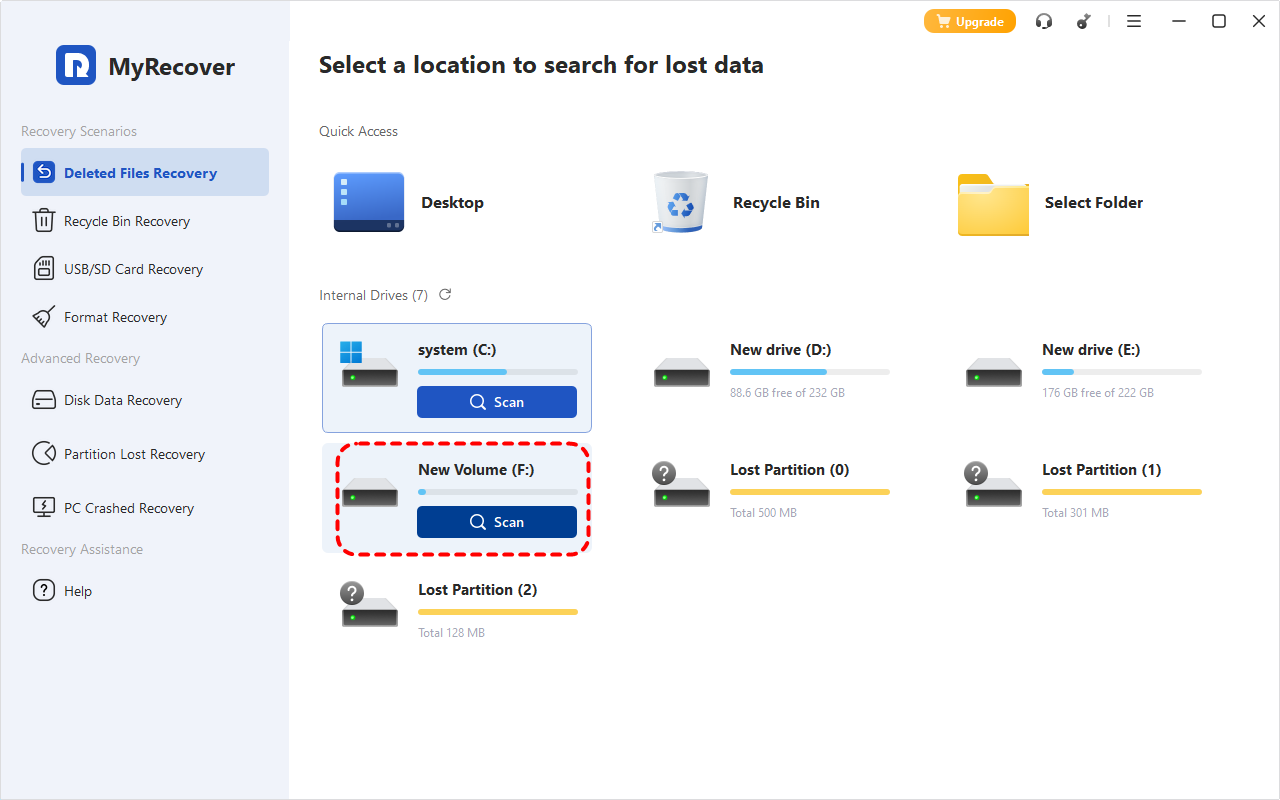
Step 2. Launch it and select the drive with lost files to scan, then click "Scan".
Step 3. After the scanning process, under the "Path" tab, you can see all deleted files of the drive in the "Deleted Files" folder. Click on the arrow to expand the folder, view the deleted files and folder structure, select the files you would like to recover, then click "Recover".
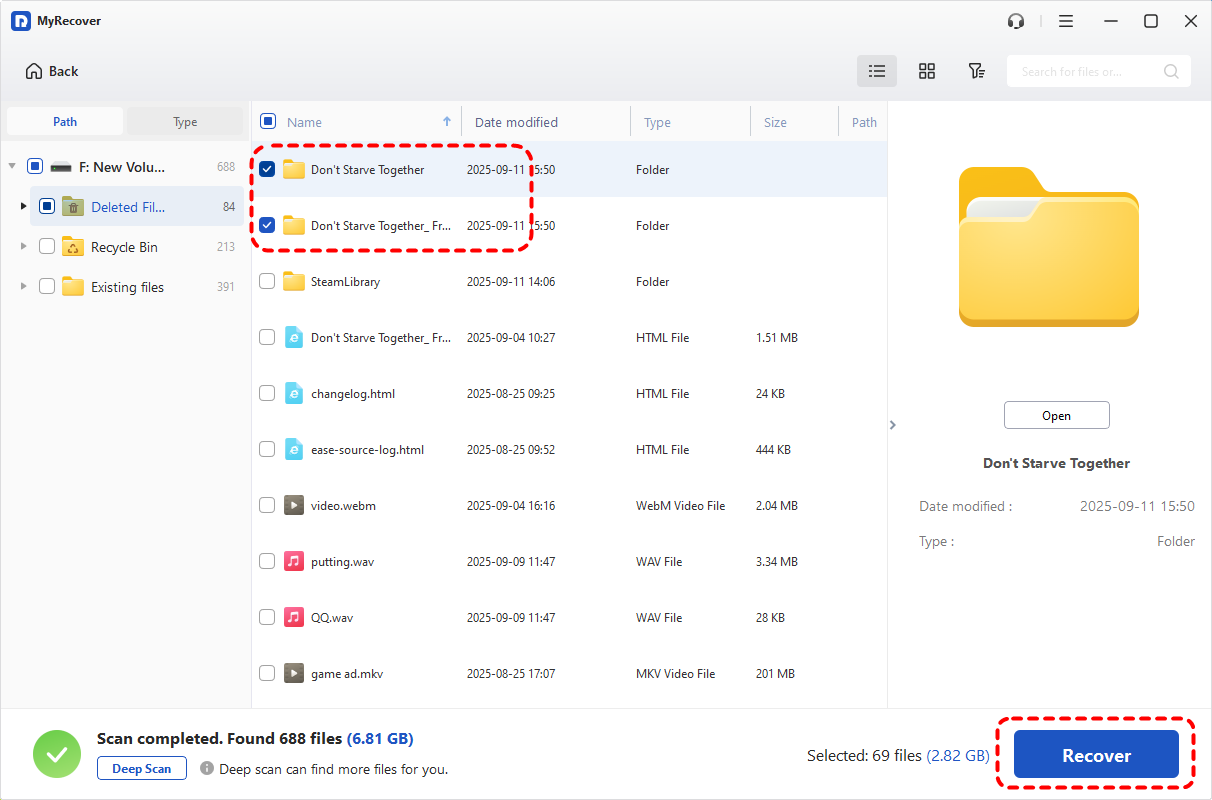
Next to the "Path" tab, the "Type" tab enables you to find your files by filtering them based on various file types.
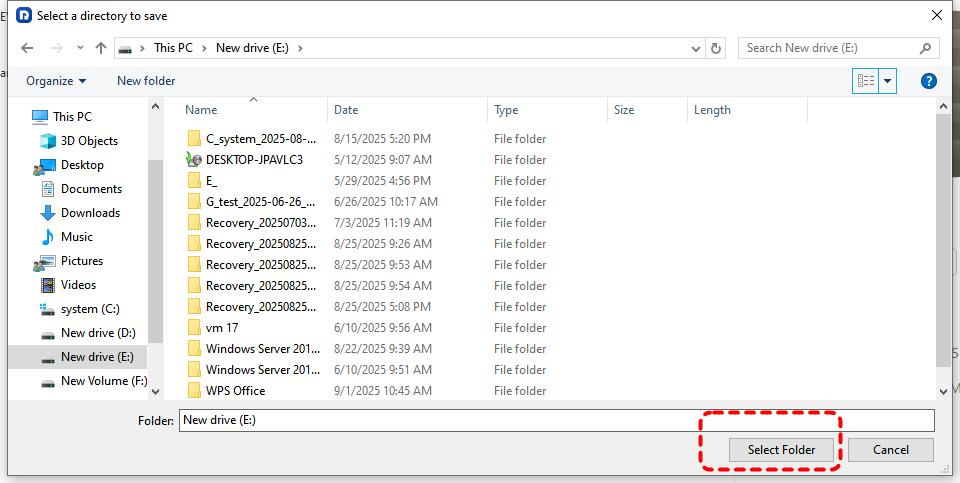
Step 4. Select a safe location (not the original one) to save the recovered files.
Upon completion of the recovery process, the message "Files have been recovered successfully" will pop out. You can access and check the recovered files by clicking on the destination folder path or "Browse" button.

Other Ways to Recover Files with Directory Structure & File Names on Windows 10/11
Besides dedicated data recovery tools like MyRecover, Windows also offers several built-in recovery options to restore lost files along with their original folder structure. Let's explore them one by one.
Recover from Recycle Bin
For files accidentally deleted on Windows, the Recycle Bin is often the first place to check. It usually preserves folder structure for accidentally deleted items. Even if the path no longer exists, Windows will automatically reconstruct it and restore the file to this path.
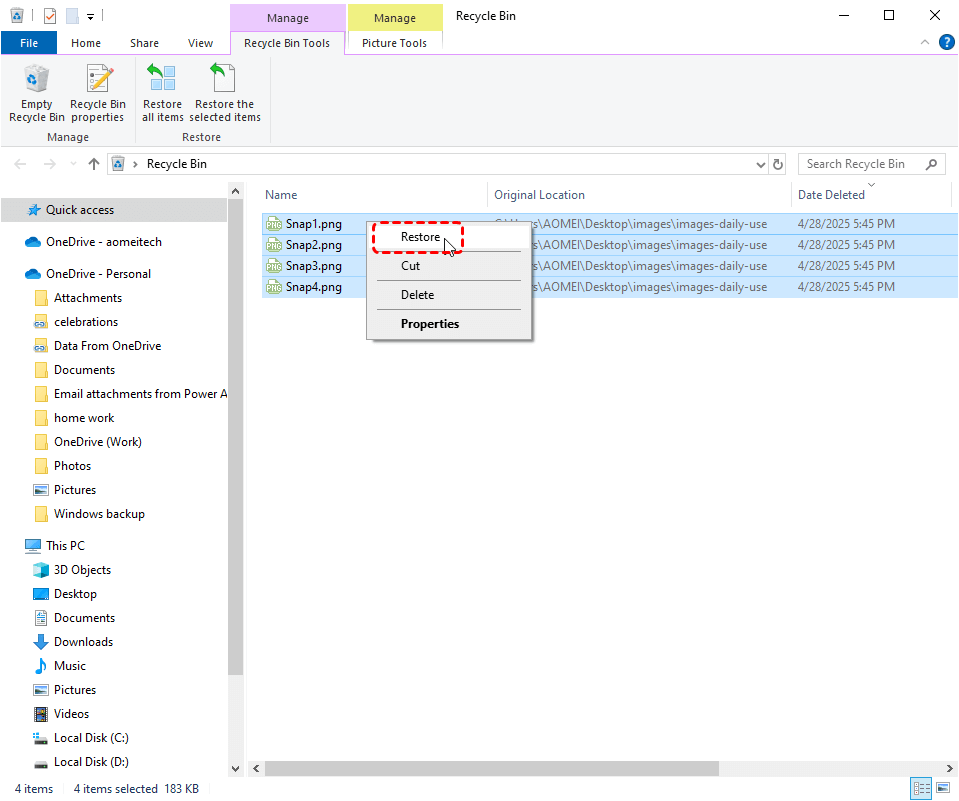
Step 1. Double click the Recycle Bin icon to open it.
Step 2. Browse and select the files you want to recover.
Step 3. Right click on the files and select "Restore". The files will return to their original folder paths.
Restore Your Files with File History
If you have enabled File History on Windows, it will automatically create shadow copies of files and folders. This feature can help you recover data with folder structure from a specific date.
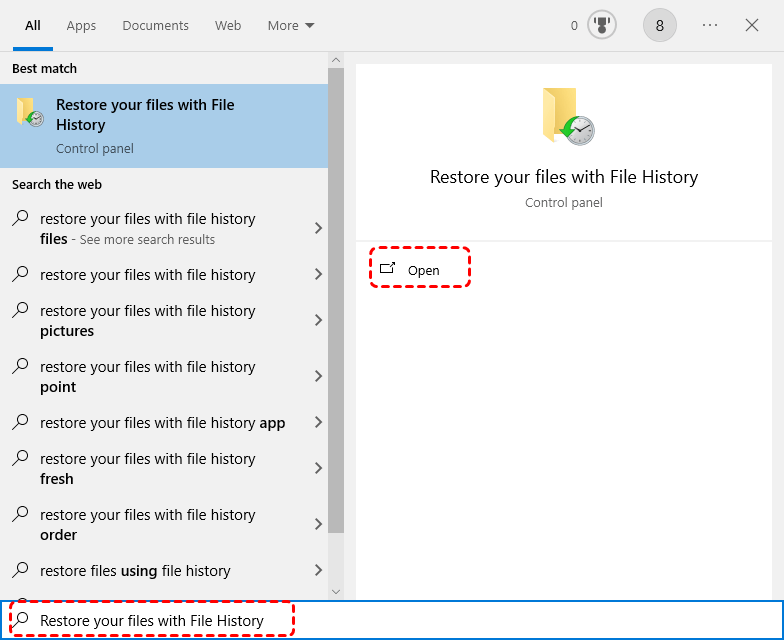
Step 1. Type "Restore your files with File History" in the Start menu and open it.
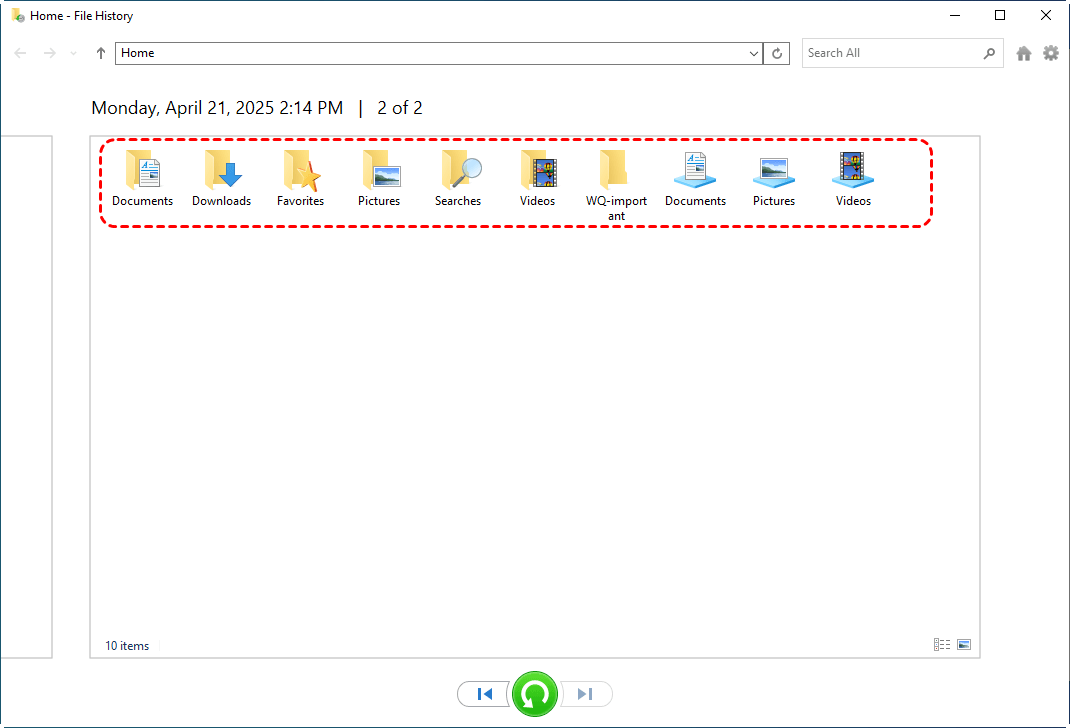
Step 2. Navigate to the folder where the deleted files were originally stored.
Step 3. Choose a desired version based on the backup time.
Step 4. Click the green "Restore" button to recover them to original location.
Recover from Backup and Restore (Windows 7)
Backup and Restore (Windows 7) is legacy backup feature built-in Windows, which is still available for Windows 10 and 11. It allows you to recover not only individual personal files but also the folder structure.
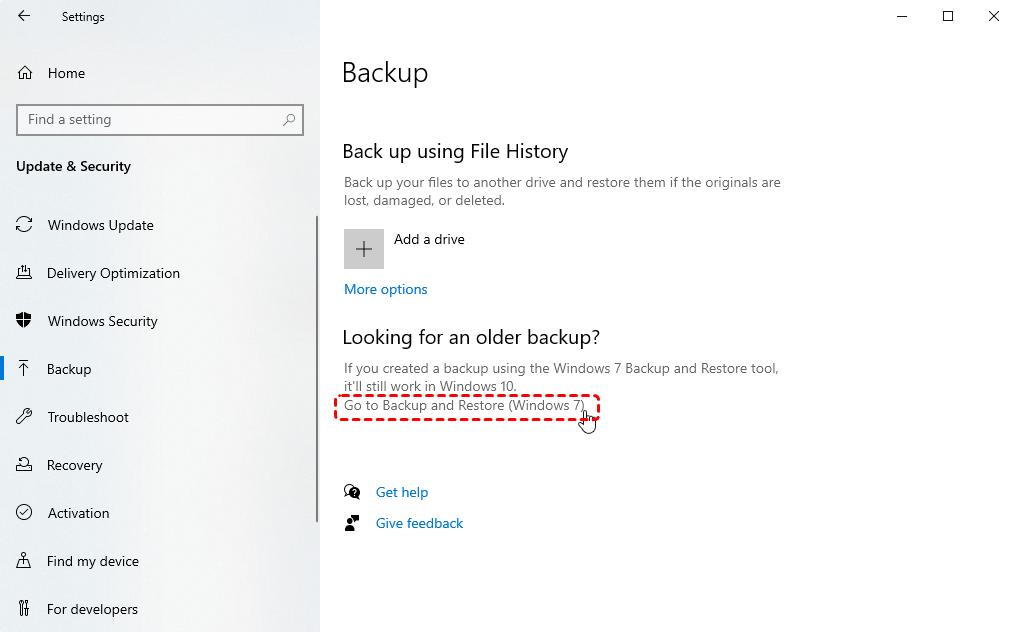
Step 1. Open "Backup Settings" and select "Go to Backup and Restore".
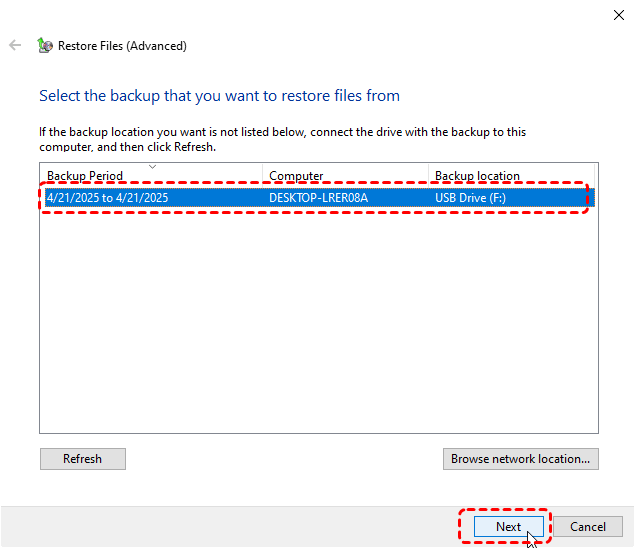
Step 2. Choose "Select another backup to restore files from" and select a created backup.
Step 3. Choose the files or folders you want to recover from the backup by clicking "Browse for files/folders".
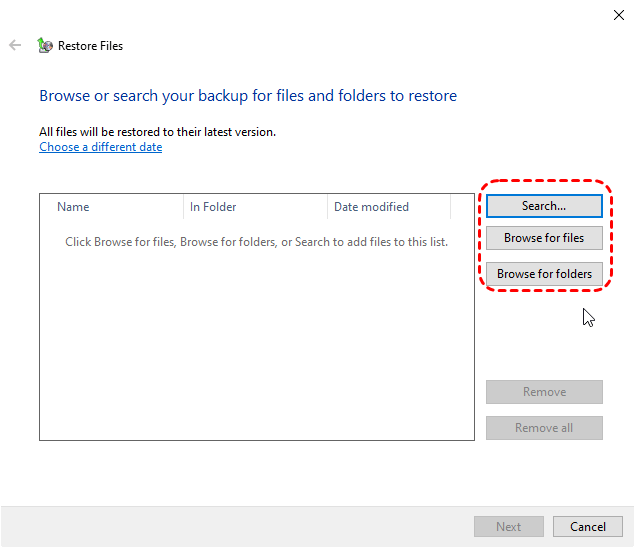
If you only select a few individual files for recovery, this may only restore the files themselves, not the complete directory.
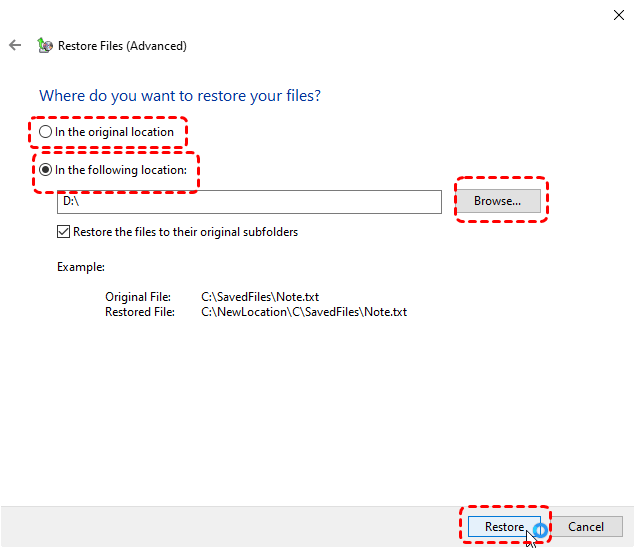
Step 4. Choose a location to save the recovered files and click "Restore" to start the process. Whether you choose to restore to the original location or a new location, Backup and Restore will preserve the original hierarchical structure. If you select a new location, Backup and Restore will copy the entire directory tree to the folder you specify.
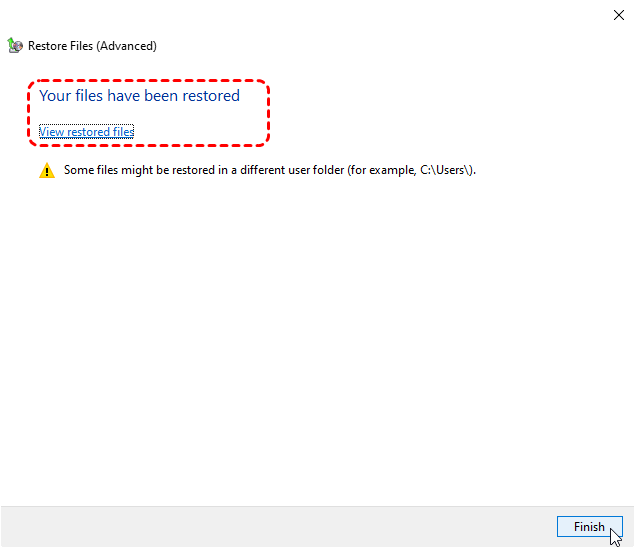
When the process is completed, the message "Your files have been restored" will pop up. you can check the recovered files by clicking on "View restored files".
Restore from Cloud Backup
If you synced your files to a cloud service like OneDrive, Google Drive, or Dropbox, these services often maintain the original folder hierarchy. Cloud solutions offer similar advantages with Windows local backup and are convenient for remote access.
Step 1. Sign in with your OneDrive account (take OneDrive as an example here).
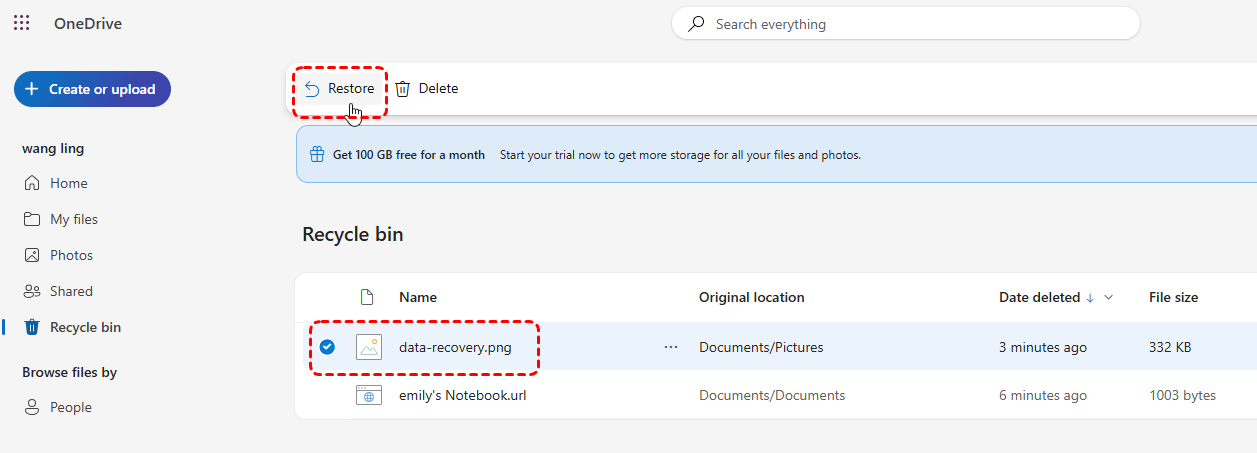
Step 2. Locate "Recycle bin" section, select the files you wish to recover.
Step 3. Click the "Restore" button in the upper left corner to recover them to their original location. Even the original folder has been deleted, OneDrive will automatically create a new folder in the root directory to place the recovered files.
Run Windows File Recovery Command [Command-Line Tool]
Windows File Recovery is a command-line data recovery tool developed by Microsoft. It can keep the original folder structure of recovered files under specific conditions. Only when you use the /n parameter and specify the exact folder path will the recovered files retain their original directory hierarchy as much as possible.
Step 1. Download and install Windows File Recovery on your computer.

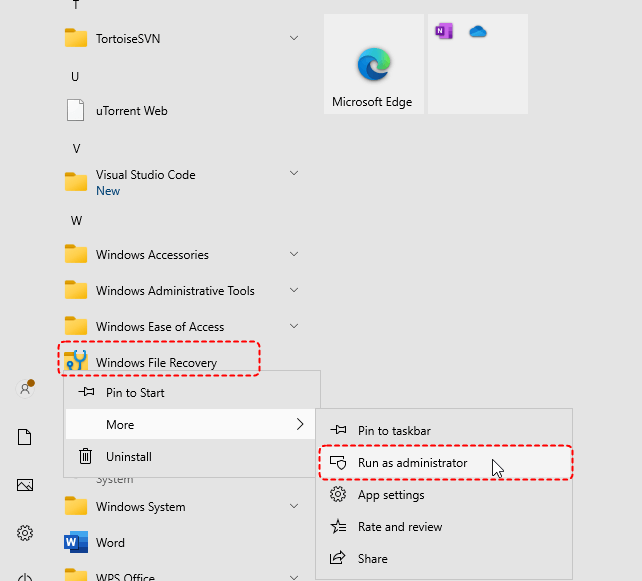
Step 2. Locate Windows File Recovery in the Start menu and right click on it, then choose "Run as administrator".
Step 3. Enter the following command "winfr F: E: /Regular /n documents\video\" and hit "Enter" key. Replace the drive letter and file path with your specific one.
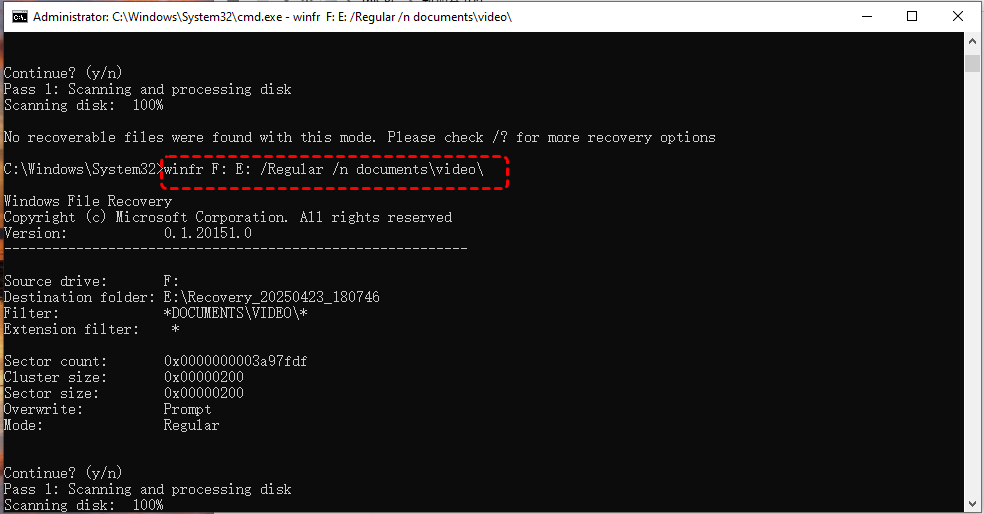
This command will recover all files in the video folder on drive F and save them to drive E, while preserving the original directory structure.
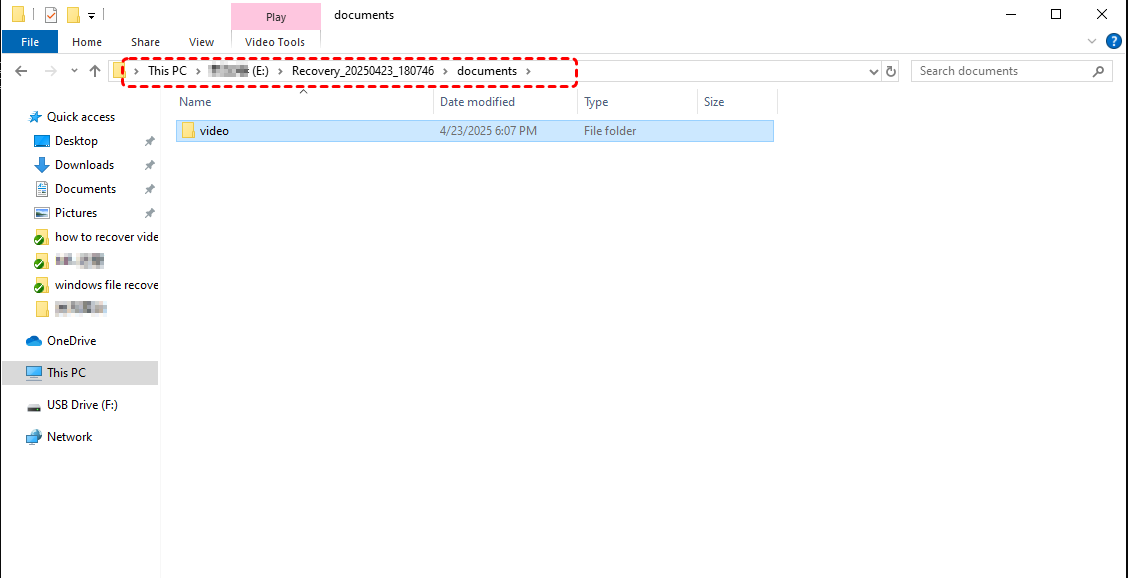
After the process is completed, press "Y" to check the recovered files in the destination folder.
Summary
Recovering deleted files with folder structure is crucial for efficiency and organization. MyRecover can help you recover files with their complete directory structure and original filenames. If you have created backups beforehand, Windows built-in tools such as File History and Backup and Restore can directly restore files to their original locations.
With MyRecover, you get a reliable, professional solution to recover formatted hard drive with folder structure and safeguard your data against future loss. Moreover, MyRecover provides the Professional edition which allows unlimited data recovery capacity, file content preview before restoration and even data recovery from crashed Windows.
FAQs:
Q1: Can I recover files with correct names and folder structure?
Q2: Does data recovery software keep folder structure?
Q3: How to recover formatted folders?
Q4: How can I recover deleted files with full folder structure?
Q5: How do I recover deleted folders without losing structure?
Q6: How to recover permanently deleted files in a folder?
Q7: How to restore permanently deleted folders from hard drive?
Q8: Can I recover deleted project folders after emptying Recycle Bin?

Stay Updated With Our
Latest Tips
Add us as a preferred source on Google to never miss helpful guides.
 Add as preferred source >>