 MyRecover



How to Recover Formatted CompactFlash (CF) Card on Windows
Accidentally formatted your CF card and lost precious photos, videos, or data? Don’t panic—formatted CF cards are often recoverable! This article will guide you how to recover a formatted CF card safely, helping rescue files from your cameras. Perfect for beginners, no tech skills required!

By Aria / Updated on April 27, 2026


Can I Recover a Formatted CF Card?
HELP! Need to recover data from formatted CF card
I need help recovering footage from a freshly formatted CF card - the short version is I had three cards to dump, and dumped one of them TWICE before formatting all three. Absolutely a user error - but one I'm hoping to correct.
I have the DiskDrill Recovery Software, but from what I was able to recover (from generations-old formats, strangely), all the files are corrupt. Is there a better way to go about this? Alternative software you'd recommend? Or must I count my loss and try to move forward?
- Question from reddit
A CompactFlash card (CF card) is a memory card standard introduced in the 1990s, primarily used in DSLR cameras, professional camcorders, and industrial systems. Nowadays, when working with professional cameras, video recorders, or industrial devices, CompactFlash (CF) cards are still widely used thanks to their durability and high-speed data transfer.
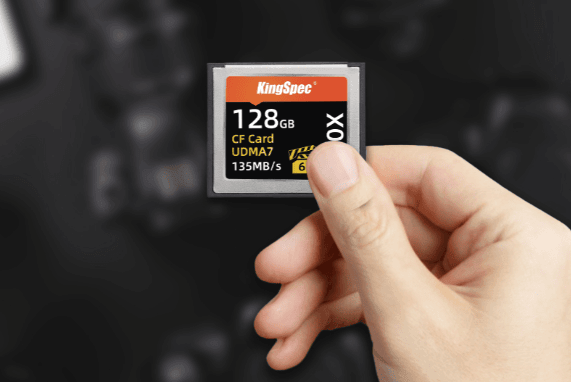
However, during use, a CF card may become formatted due to errors such as "You need to format the drive before you can use it" prompts or accidental human mistakes. Many photographers and videographers panic, thinking everything is gone for good. The reassuring fact is you can often recover formatted CF card data on Windows if you act quickly.
Quick Format vs. Full Format
When you choose to format a CF card, there are usually two modes available: Quick format and Full format.
👉Quick Format: This is the most common option. It only removes the file system references (the "table of contents"), making the space look empty. The actual files are still physically on the drive until they’re overwritten.
👉Full Format: This overwrites every sector with zeros, which makes recovery much harder, though in some cases professional tools can still attempt recovery.
Most accidental formats are Quick Formats, which means your data may still be recoverable with the right tools. Before new files start overwriting the lost data, professional data recovery tools can scan the disk and recover the lost files.
How to Recover Formatted CF Card on Windows
Before moving on to the specific recovery steps, there’s one important thing to note: once you realize your CF card has been formatted, stop using it immediately to avoid data overwriting. There are 5 methods can help you recover formatted CF card free before new data overwrites it. Let's explore them one by one.
Check Backup First
Before trying other recovery tools, check whether you’ve previously backed up the files. Many photographers copy CF card data to a computer or external drive after shoots. More and more people are using cloud backup tools to back up their important files.
👉 Check Your PC Hard Drive
To facilitate the management and editing of data on a CF card, many photographers transfer the data from the CF card to a computer. You can check if the photos or videos you need are transfered to your computer's hard drive. This is also a common way to get data off the camera.
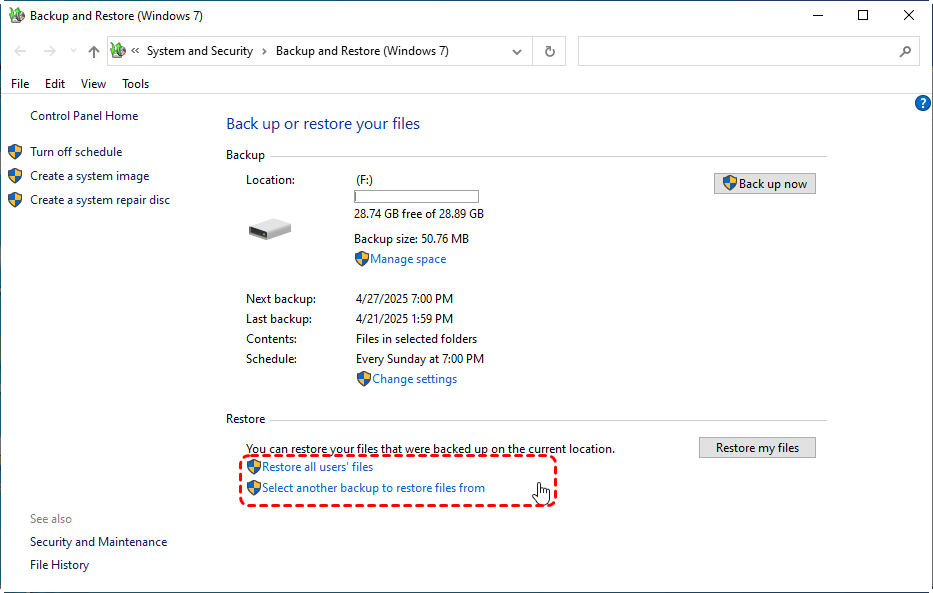
👉 Restore from Backup and Restore (Windows 7)
Backup and Restore (Windows 7) is a legacy backup tool on Windows, but it's still available for Windows 10 and 11 and allows users to create a full system backup. If you have backed up your files, you can restore the ones you need from the backup.
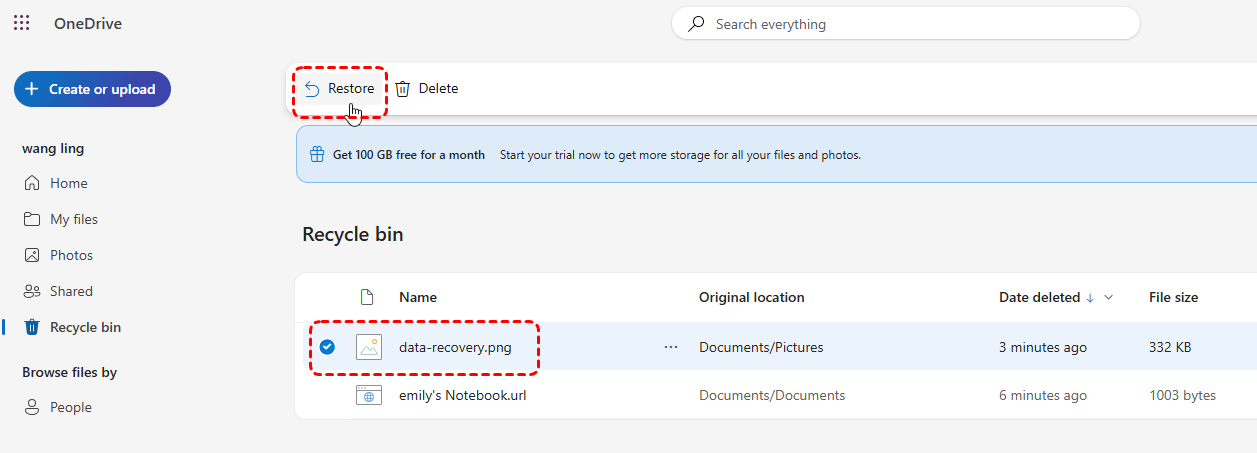
👉 Check the Cloud Storage
Check cloud storage like Google Drive, Dropbox, OneDrive, if auto-sync was enabled. This is especially true for OneDrive, which comes preinstalled on Windows to make it easy for users to create backups.
If no backup is available, move to other recovery methods.
Recover Using Windows File Recovery (Command-Line Tool)
Windows File Recovery (WinFR) is Microsoft’s free command-line recovery tool for Windows 10/11. It can attempt to recover lost files after hard drive formatted. But it requires familiarity with basic Windows File Recovery command.
Step 1. Download and install Windows File Recovery on your computer from the Microsoft official channel.
Step 2. Insert the CF card into a card reader and connect it to your computer.
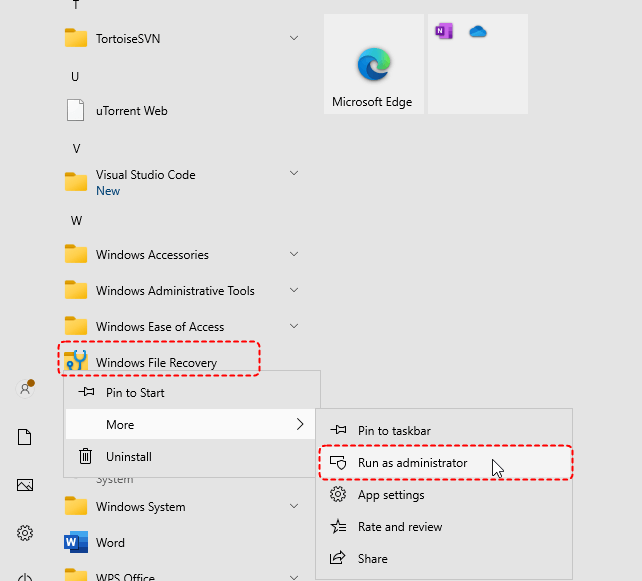
Step 3. Open Windows File Recovery and run it as administrator.
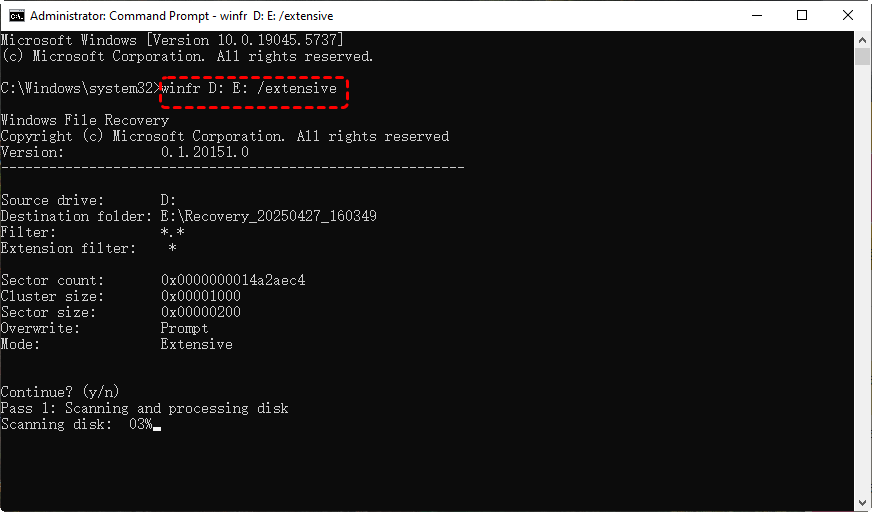
Step 4. Type the following command "winfr D: E: /extensive" and press "Enter". Replace the drive letters "D" and "E" with your actual drive letters.
- ★Tips:
- D: the source drive letter (your CF card drive letter).
- E: the destination drive letter.
- /Extensive: the scan mode. It's especially helpful to corrupted or formatted drive.
Windows File Recovery also allows you to recover specific files, file types, and folders. You just need to add a filter command after the basic command. For example, to recover lost video files from a drive, you can enter the following command: winfr E: F: /extensive /n *.mp4.
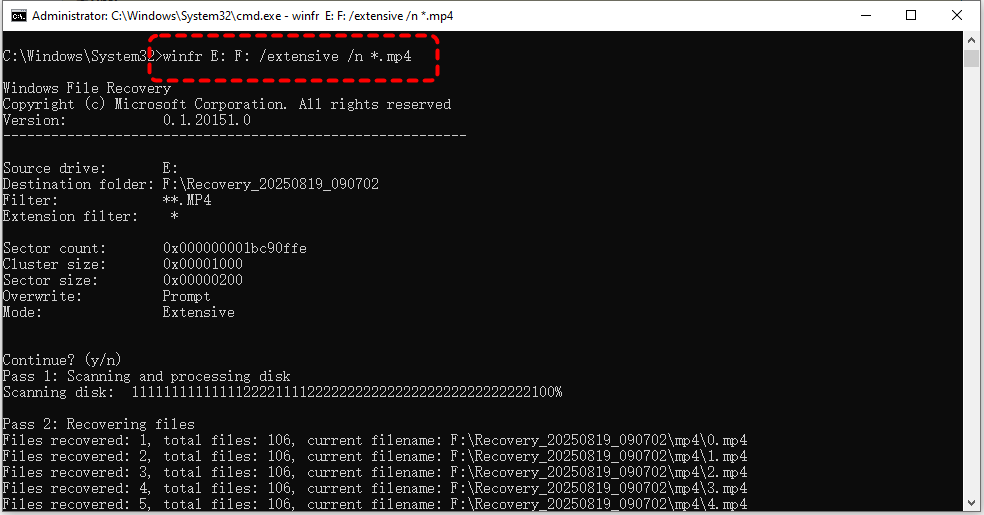
Wait for the process to complete, then press "y" to check the recovery folder for restored files.
CF Card Recovery Software Free Download: MyRecover
Although Windows File Recovery is a powerful tool, it is difficult for most novice users to master. If you also need a more intuitive and user-friendly recovery solution, MyRecover serves as an excellent alternative. It features a user-friendly interface that lets you view the entire data recovery process.
During the process, you can easily select only the files you need without restoring unnecessary items. You can also preview file contents before recovery to confirm they are the files you want. Despite its simple interface, MyRecover never compromises recovery performance. It supports over 1,000 file types across more than 500 different storage devices.

 MyRecover
- Support 1,000+ file types, including documents, images, videos, emails, and more.
- Dual scan modes: Quick Scan for speed, Deep Scan for thorough recovery.
- Support NTFS, FAT32, exFAT, ReFS in Windows 11/10/8/7 & Windows Server.
- Handle with more complex data loss cases like OS crash, formatted, RAW, corrupted or deleted drive.
 100% Secure
4 Steps to Recover Data from Formatted CF Card
Step 1. Download and install MyRecover on your computer from a secure channel. Then, connect the CF card to your computer with a card reader.
Step 2. Launch it and select the formatted CF card drive to scan, then click "Scan". After the quick scan finishes, if needed, you can click "Deep Scan" to find more files fragments.

Step 3. Choose the files you want to recover from the recoverable lists and preview the file content in the right panel, then click "Recover".
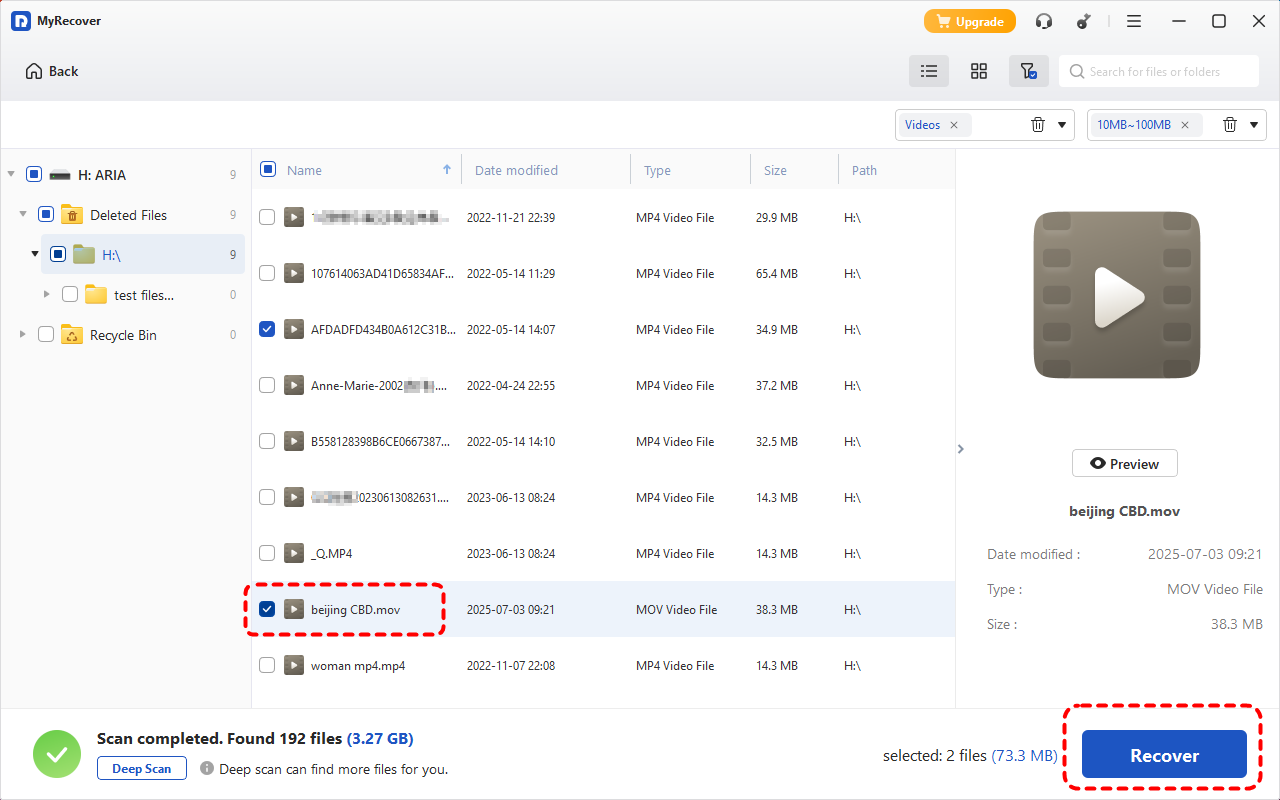
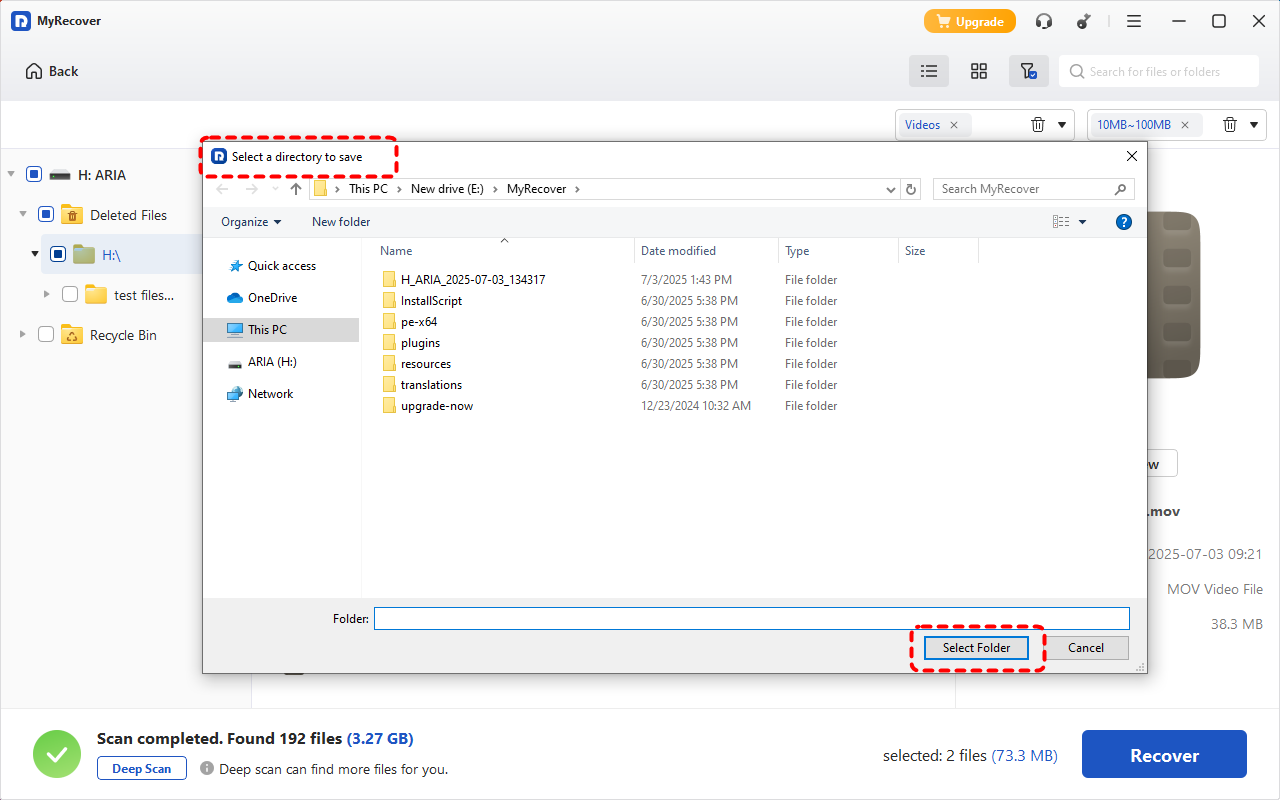
Step 4. Select a safe location (not the formatted CF card) to save the recovered files.
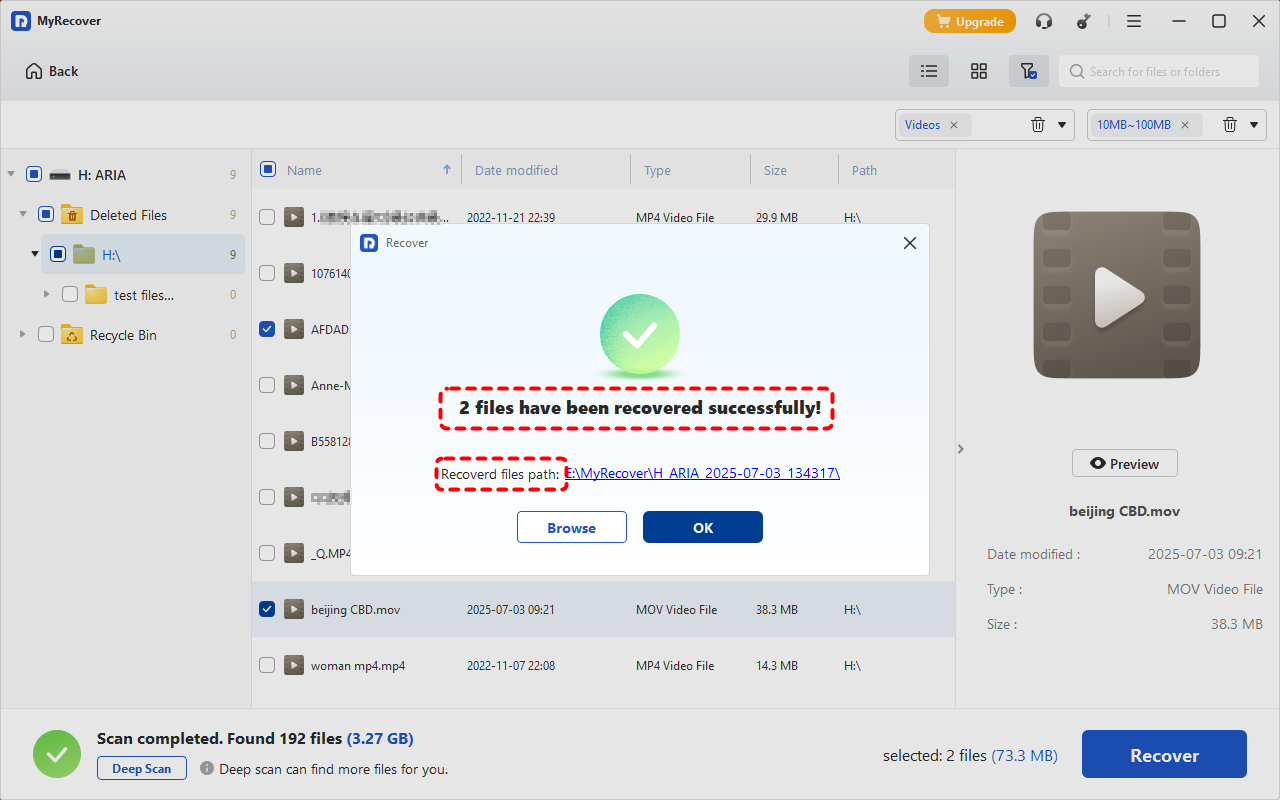
When the process is completed, the message indicating successful recovery will pop up. You can check the recovered files by clicking on the destination folder path or the "Browse" button.
Seek for Professional Data Recovery Services
If none of the above methods work, or if the CF card has been fully formatted multiple times, seeking professional data recovery services is the most reliable option. Equipped with specialized tools and advanced technologies, professionals can help you restore data from a formatted CF card, even if the device has sustained physical damage. However, this method costs more and takes much longer.
How to Recover or Repair a Corrupted CF Card
Sometimes Windows prompts you to format your CF card due to logical errors or corruption on the card. This section provides several effective methods to fully repair a corrupted CF card and stop repeated format prompts on your computer or camera.
Method 1. Check the Card Connection
Before assuming the CF card is corrupted, verify that the issue isn’t caused by a faulty connection. Poor contact between the card and reader, a damaged USB port, or unstable power supply can prevent the system from recognizing the device properly. These basic checks may seem simple, yet they are often the root cause of the problem.
Step 1. Remove the CF card and reconnect it using a different card reader or USB port.
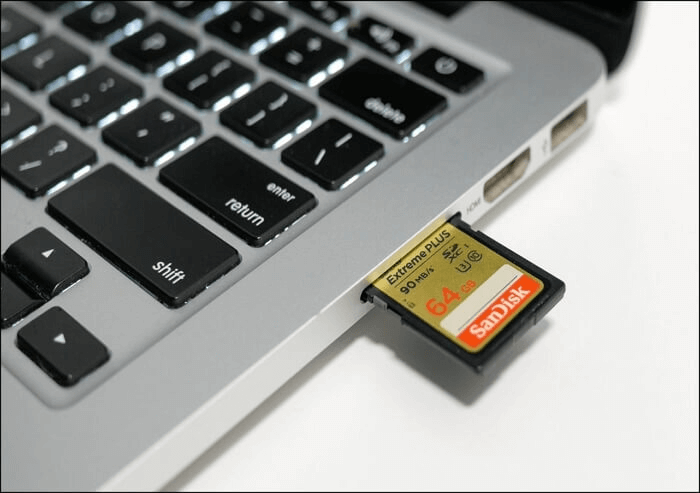
Step 2. Try connecting the card to another computer to rule out system-specific issues.
Method 2. Check Disk Error on CF Card
If the CF card is detected but behaves abnormally (e.g., slow access, missing files, or error prompts), it may contain logical file system errors. Running a disk check can identify and fix minor corruption, restore file system integrity, and potentially make the data accessible again without formatting the CF card.
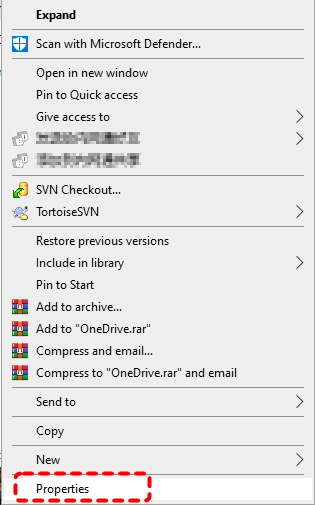
Step 1. Open Windows File Explorer and right-click the CF card, then select "Properties".
Step 2. Go to the "Tools" tab and click "Check" under Error checking.
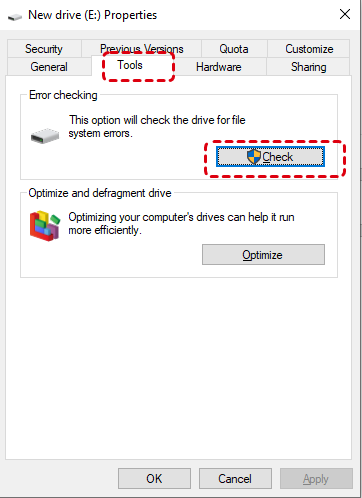
Step 3. Follow the prompts to scan and repair detected errors.
Additionally, if you are interested in command-line operations, you can also use Command Prompt to check for disk errors on your CF card. Follow these steps:
Step 1. Locate Command Prompt in the Start menu and right click on it, then choose "Run as administrator".

Step 2. Enter the following command "chkdsk G: /f /r" and hit "Enter" key. Replace "G" with your actual CF card drive letter.

Step 3. Wait for the process to completed.
Method 3. Assign a Drive Letter
Sometimes, the CF card is properly connected but doesn’t appear in File Explorer because it lacks a drive letter. This may create the false impression that the CF card is corrupted. This is a common issue after system changes or conflicts. Assigning a new drive letter allows Windows to recognize and display the card normally.
Step 1. Press "Win" + "X" and select "Disk Management".

Step 2. Locate your CF card, right-click it, and choose "Change Drive Letter and Paths".
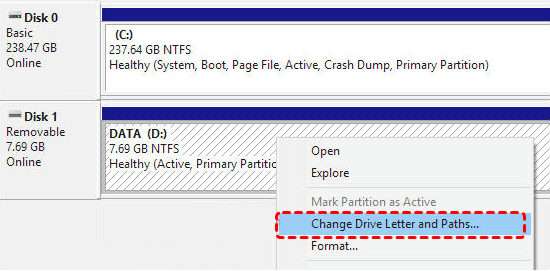
Step 3. Click "Add" or "Change", assign a new letter, and click "OK" to confirm.
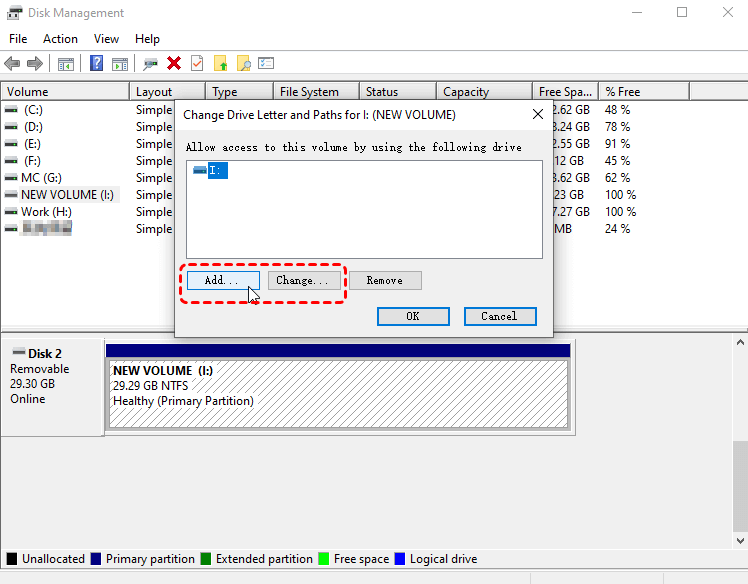
Method 4. Update or Reinstall Driver
Driver issues can prevent Windows from properly communicating with the CF card. Outdated, corrupted, or incompatible drivers may cause the device to malfunction or not appear at all. Updating or reinstalling the driver can restore normal communication between the system and the card.
Step 1. Press "Win" + "X" and open "Device Manager".

Step 2. Expand "Disk drives", right-click the CF card, and select "Update driver".

Step 3. Click "Search automatically for updated driver software" to continue the process.
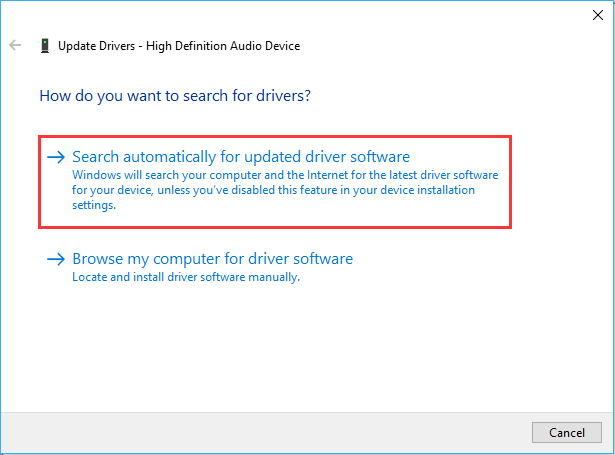
Step 4. If the issue persists, choose "Uninstall device", then restart your computer to reinstall it automatically.

Method 5. Format the CF card
If all previous methods fail and the CF card remains inaccessible or corrupted, formatting may be necessary to restore usability. This process removes file system corruption but also erases existing data. Therefore, it should only be done after attempting data recovery or confirming that the data is no longer needed.
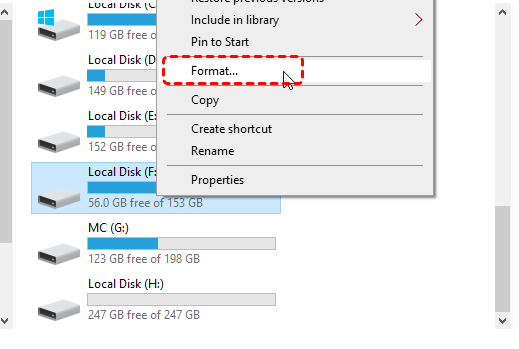
Step 1. Open "This PC", right-click the CF card, and select "Format".
Step 2. Choose a compatible file system (e.g., FAT32 or exFAT) and keep "Quick Format" checked.
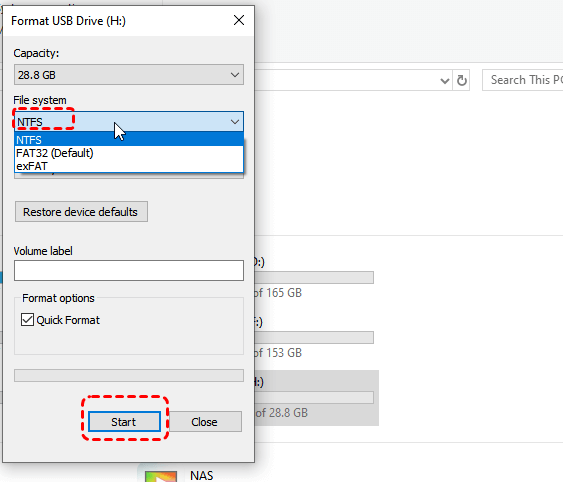
Step 3. Click "Start" and wait for the process to complete.
Bonus Tips: How to Format Your CF Card Safely
Formatting your CF card correctly is essential for keeping your photos, videos, and data safe. A proper format not only clears unnecessary files but also refreshes the file system, reducing the risk of errors and corruption. Below are safe ways to format your CF card.
☀️Backup First
Before formatting a CF card, if there are files stored on it, always back up the data first to prevent permanent data loss.
☀️Format in Camera or on Computer
The safest and most reliable way to format a CF card is directly inside the camera you plan to use it with. This ensures compatibility between the card and your device. If your camera cannot recognize the card or you need a different file system, you can format it on a computer.
☀️Choose a Correct Format Option
Run a full format only if the card is giving errors. For normal use, a quick format is safer.
Summary
Accidentally formatting a CF card doesn’t necessarily mean your data is gone forever. With the right approach, you can recover formatted CF card, whether through backups, Windows File Recovery, or a professional tool like MyRecover. If you want advanced features, MyRecover’s Professional edition even allows you to recover files from unbootable systems, making it an excellent safety net for professional photographers.
FAQs:
Q1: Can I restore photos from formatted CF card?
Yes, you can often restore photos from a formatted CF card, especially after a quick format. Formatting usually removes file references rather than the actual data. As long as the data hasn’t been overwritten, recovery software like MyRecover can scan the card and retrieve lost photos. Stop using the card immediately to improve recovery success.
Q2: How to recover CF card after camera quick format?
After a camera quick format, connect the CF card to a Windows PC and use data recovery software like MyRecover to perform a scan. Quick formatting typically leaves the data intact, making recovery possible. Select the recoverable files and save them to another storage device. Avoid taking new photos before recovery to prevent overwriting.
Q3: How to recover deleted pictures from formatted CF card?
To recover deleted pictures from a formatted CF card, use a recovery tool like MyRecover that supports image formats like JPG, RAW, or PNG. Run a deep scan to locate deleted files, preview them if possible, and restore them to a different location. Recovery is more successful if no new data has been written to the card.
Q4: How to safely recover corrupted and formatted CF card?
To safely recover data from a corrupted or formatted CF card, avoid formatting it again or writing new data. Use reliable recovery software such as MyRecover to scan the card and recover files to another device. If the card is unreadable, try fixing errors first, then perform recovery. This reduces the risk of permanent data loss.
Q5: Is it possible to recover data after formatting?
Yes, data recovery after formatting is often possible, especially if it was a quick format. The original data usually remains on the storage device until it is overwritten. Using recovery software such as MyRecover promptly increases the chances of retrieving files. However, full formats or overwritten data may reduce recovery success significantly.
Q6: Does formatting an SD card erase everything on it?
Formatting an SD card removes access to all stored files, but it doesn’t always erase the data immediately. In most cases, the system deletes file references, making the data invisible but still recoverable. However, once new data is written, the old data may be permanently overwritten and unrecoverable.

Stay Updated With Our
Latest Tips
Add us as a preferred source on Google to never miss helpful guides.
 Add as preferred source >>