 MyRecover



How to Recover Formatted SanDisk SD Card
Need to recover files from formatted SanDisk SD card quickly and safely? Discover effective recovery solutions that help you restore lost photos, videos, and important documents from any SanDisk SD card format with simple, user-friendly steps.

By Vera / Updated on October 22, 2025


Introduction
Accidentally formatted your SanDisk SD card and lost all your photos or important files? Don’t worry — it happens more often than you think. One wrong click, and suddenly years of memories or valuable data vanish. But here’s the good news — they’re not necessarily gone forever.
In this guide, we’ll walk you through 3 proven ways to recover a formatted SanDisk SD card, including using MyRecover, Windows File Recovery (Winfr), and backup restoration. Whether you’re tech-savvy or a beginner, these methods are simple, effective, and 100% doable.
Can You Recover a Formatted SanDisk SD Card?
It is possible to recover photos after you have formatted an SD card?
Accidentally formatted by card while it had photos that I wanted.
I've found softtwares that claim that they can, but i don't know if its actually possible, does anyone have a way?
- Question from Reddit
Yes! Even after formatting, your files usually remain on the SD card until new data overwrites them. Let’s see how it works.
What Happens When You Format an SD Card
Formatting clears your file index (the "map" to your files) but doesn’t immediately erase the data itself. That’s why recovery software can still locate and restore them.
Quick vs Full Format – What’s the Difference?
- Quick Format: Erases only the file system structure — data is recoverable.
- Full Format: Overwrites all data — recovery becomes nearly impossible.
Chances of Data Recovery After Formatting
If you performed a quick format and stopped using the card afterward, there’s a high chance your data can be restored using tools like MyRecover or Winfr.
Method 1: Recover Formatted SanDisk SD Card Using MyRecover
The easiest and most reliable way to recover data from a formatted SanDisk SD card is with MyRecover — a professional recovery tool built by AOMEI. It’s fast, beginner-friendly, and effective in retrieving lost photos, videos, and documents.
Key Benefits of MyRecover:
- ✅ User-friendly interface for beginners.
- ⚡ Fast scanning speed with deep recovery.
- 🖼️ Preview files before recovery.
- 💾 Supports all file types and SD card formats.
 100% Secure
Step-by-Step Guide Using MyRecover
Step 1: Stop Using the SD Card Immediately
Remove the card right away to prevent new data from overwriting old files.
Step 2: Download and Install MyRecover
Get MyRecover from the official website and install it on your PC (not the SD card itself).
Step 3: Scan the SD Card
Insert the SanDisk SD card via a card reader. Launch MyRecover, select your SD card, and click Scan. The software can also perform a deep scan.
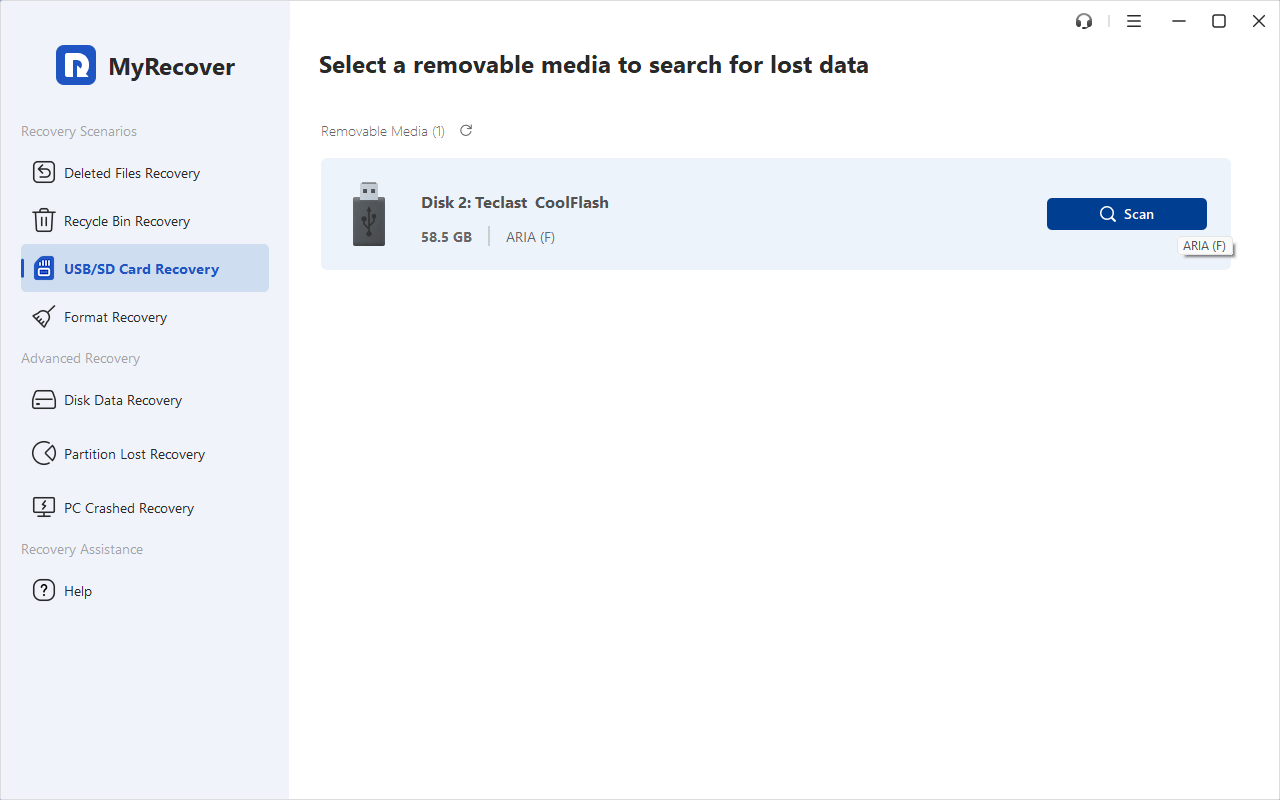
Step 4: Preview and Recover Files
After scanning, you can preview your photos, videos, or documents. Select the files you want and click Recover. Save them to a different location (not the SD card) to ensure safe recovery.
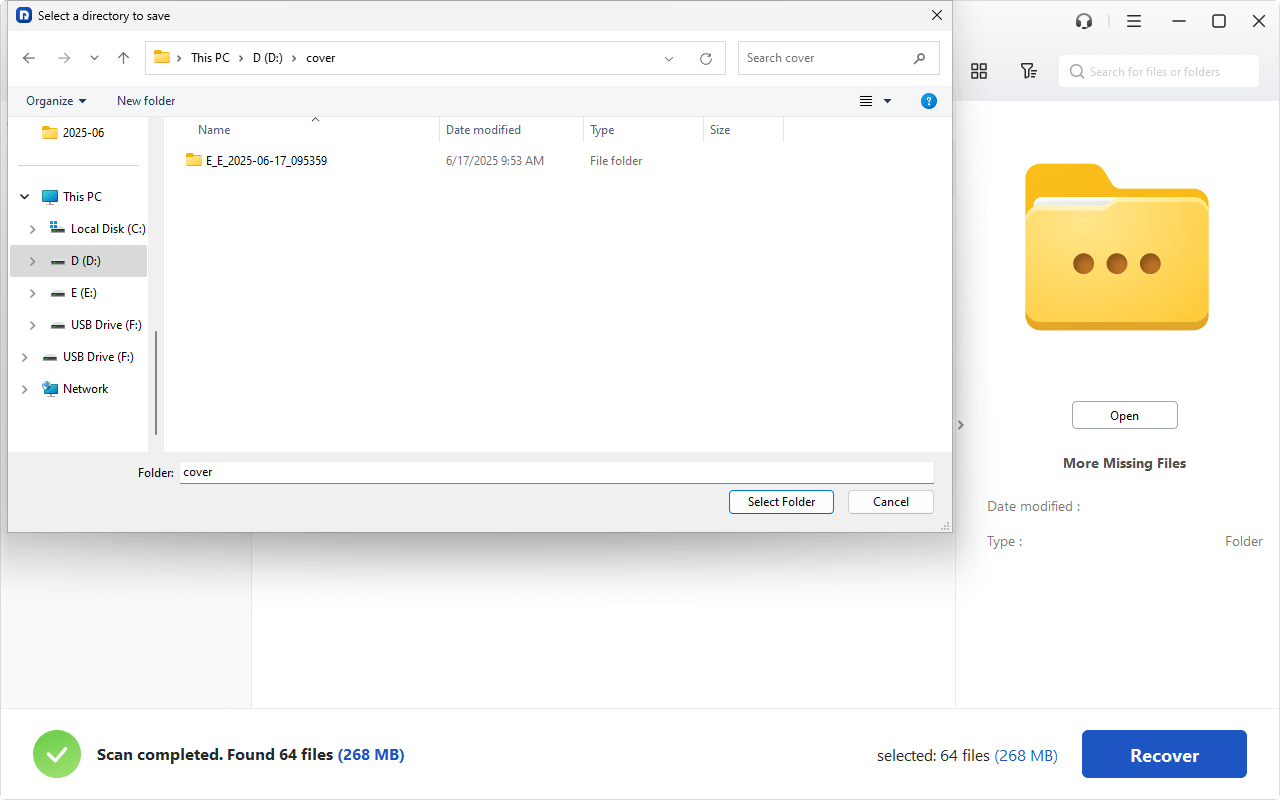
Method 2: Recover Formatted SanDisk SD Card Using Windows File Recovery (Winfr)
Windows File Recovery (Winfr) is a free data recovery utility from Microsoft designed to help Windows 10 and 11 users retrieve deleted or lost files from hard drives, USBs, and SD cards. It’s a command-line tool that runs directly from Command Prompt (CMD), making it perfect for advanced users or anyone comfortable with basic commands.
When to Use Winfr for Recovery
Use Winfr if:
- You prefer a free Microsoft tool.
- You’ve formatted the SD card recently (quick format).
- You’re using Windows 10 version 2004 or later.
While not as intuitive as MyRecover, Winfr can still do an impressive job if you know how to use it.
Step-by-Step Guide to Use Windows File Recovery
Step 1: Install Windows File Recovery from Microsoft Store
Search for Windows File Recovery in the Microsoft Store and install it. It’s free and lightweight.
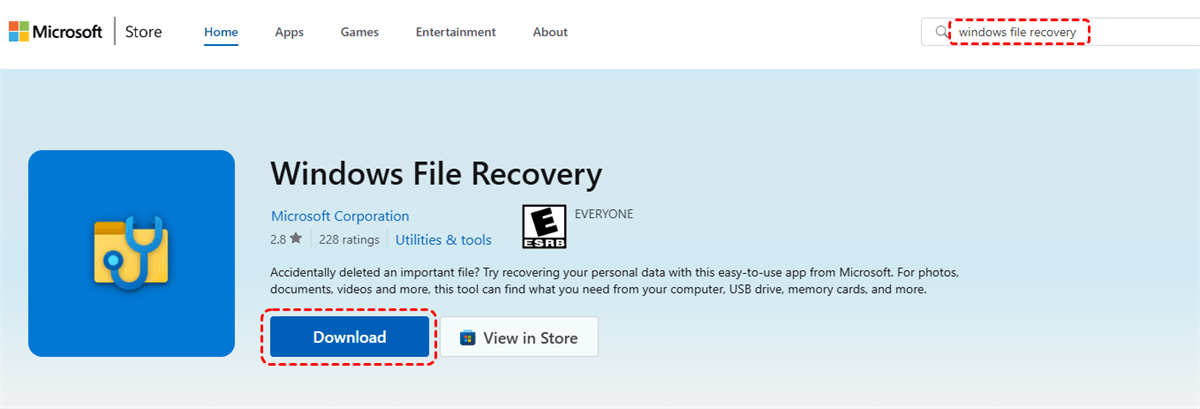
Step 2: Open Command Prompt and Launch Winfr
Press Win + S, type cmd, right-click Command Prompt, and select Run as administrator. Now, type the basic syntax for the Winfr command:
winfr source-drive: destination-folder [/mode] [/switches]
Example:
Winfr H: D: /regular /n *.jpg /n *.png
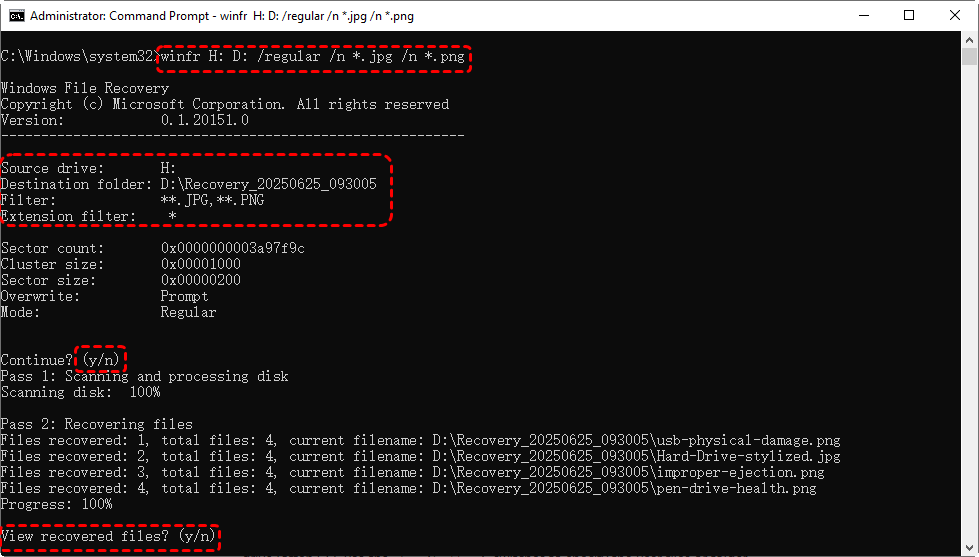
Here:
- D: is your SD card drive.
- E: is where recovered files will be saved.
- /regular is the mode used for quick format recovery.
- /n *.jpg /n *.png tells Winfr to find JPG and PNG image files.
Step 3: Choose the Appropriate Recovery Mode
Winfr offers different modes:
- /regular – for recently deleted or quickly formatted files.
- /extensive – for deeply formatted or corrupted SD cards.
If the regular mode fails, try /extensive for a deeper scan.
Step 4: Recover and Save Files
Once you run the command, the recovery process begins. When it’s done, go to the destination folder (e.g., E:\Recovery) to view your restored files.
Method 3: Restore Backup Files from Cloud or Local Backup
If you regularly back up your SD card, restoring your data is quick and hassle-free. Many users overlook automatic backups stored in the cloud or external drives.
Steps to Restore from Backup
Step 1: Check Cloud Backup Services
Open Google Photos, Dropbox, OneDrive, or iCloud — your files might already be there! Simply download them to your PC or SD card.
Step 2: Restore from a Local Backup Drive
If you’ve backed up your SD card manually to an external hard drive or USB, just copy the needed files back to the SD card.
Bonus Tips to Avoid Future Data Loss
Regularly Backup Your SD Card
Make it a habit to back up your SD card data weekly or monthly. Use both cloud and local storage for extra safety.
Avoid Interrupting File Transfers
Never remove your SD card or turn off your device while transferring files. This can corrupt data or trigger formatting errors.
Use Reliable Devices and Card Readers
Poor-quality readers or adapters can damage your SD card. Stick to reputable brands and handle your card carefully.
Conclusion
Formatting your SanDisk SD card can feel like the end of the world — but it doesn’t have to be. With tools like MyRecover and Windows File Recovery (Winfr), you can restore lost data in just a few steps.
Remember: act quickly, don’t overwrite your card, and back up your files regularly. A little preparation today can save you a lot of panic tomorrow.

Stay Updated With Our
Latest Tips
Add us as a preferred source on Google to never miss helpful guides.
 Add as preferred source >>