 MyRecover



Steps to Perform ReFS Partition Recovery (With Internal Data)
ReFS partitions can sometimes become inaccessible or turn RAW, risking data loss. This article explains how to recover ReFS partitions and their internal data using command-line tools and recovery techniques tailored for Windows Server. Whether you face partition corruption or accidental deletion, these step-by-step instructions will guide you through the recovery process, helping restore your ReFS partition and files.

By Emma / Updated on September 30, 2026


About ReFS Partition
ReFS, or Resilient File System, is a modern file system developed by Microsoft designed to improve data integrity, reliability, and scalability. It is commonly used on Windows Server systems, especially in environments requiring large storage volumes and high fault tolerance. Unlike older file systems like NTFS, ReFS can automatically detect and repair data corruption, making it ideal for critical data storage and backup solutions.

While ReFS partition offers enhanced protection against data loss, it can still encounter issues such as corruption or becoming inaccessible. In such cases, you will need specialized recovery methods to perform ReFS partition recovery and retrieve lost data.
Why ReFS Partition Get Lost?
ReFS partitions can become lost or inaccessible for several reasons much like NTFS or other file system partitions encountering similar issues.:
- File System Corruption: For example, a sudden power outage while writing data to the disk can corrupt the ReFS file system, making the partition unreadable.
- Hardware Issues: Faulty hard drives or bad sectors may cause the partition to disappear. For instance, a failing HDD might prevent Windows from recognizing the ReFS partition.
- Virus or Malware Attacks: Malware like ransomware can encrypt or damage partition data, rendering it inaccessible.
- Accidental Deletion or Formatting: Sometimes users accidentally delete the partition or format the drive while managing disk partitions.
- Partition Table Damage: Corruption in the Master Boot Record (MBR) or GUID Partition Table (GPT) due to system errors or improper partitioning tools can cause the partition to be lost.
- Unsupported Operations: Using non-compatible third-party disk tools or upgrading the OS incorrectly can lead to ReFS partition issues.
What Happens When a ReFS Partition Is Lost or Corrupted?
A lost or corrupted ReFS partition does not always mean that all data is gone. The symptoms you see in Windows can vary depending on whether the partition information, ReFS file system, or individual files have been affected. Identifying the actual state of the partition first can help you choose the right recovery method and avoid making the situation worse.
|
Partition Statue |
What it may Mean |
|
The ReFS partition is missing from File Explorer and Disk Management shows Unallocated space |
The partition information is no longer available to Windows |
|
The partition is visible, but Windows cannot open it |
The partition exists, but the ReFS file system or its metadata may be corrupted |
|
The partition appears as RAW |
Windows cannot currently recognize the file system as a usable ReFS volume |
|
The partition is visible and accessible, but some files or folders are missing |
The partition itself may still be intact, while specific file records or data are missing |
|
The partition was accidentally deleted |
The original partition may no longer be listed even though its data remains on the storage device |
Lost Partition vs. Corrupted Partition
A lost ReFS partition generally refers to a partition that is no longer properly listed or recognized as a separate volume. For example, a previously existing partition may suddenly appear as Unallocated space after accidental deletion or partition-related changes.
A corrupted ReFS partition, on the other hand, may still appear in Windows, but the operating system cannot properly access its file system or data. It may appear inaccessible, become RAW, or produce errors when you try to open it.
How to Recover Data from a Lost or Deleted ReFS Partition
When any of the issues mentioned above occur, your ReFS partition may appear as RAW, be missing in Disk Management, or become inaccessible in File Explorer. In such cases, recovery steps are necessary to restore both the partition and its internal data safely.The recovery process can be divided into three main stages:
Method 1. Recover Lost or Deleted Partition with MyRecover
If your ReFS partition has disappeared from Windows, especially if it now appears as Unallocated space, the first step is to determine whether the original partition can be restored. In this situation, recovering individual files is not always the only goal—you may want to bring the entire partition back with its original structure and contained data.
MyRecover's Partition Recovery feature is designed for this situation. Instead of treating the lost partition only as a source of individual files, it searches for residual partition information and helps restore the lost or deleted partition so that it can become accessible again.
- Notes:✎...
- Before you start: Do not format the unallocated space, create a new partition, or save new data to the affected drive. These operations may overwrite information that could be useful for recovery.
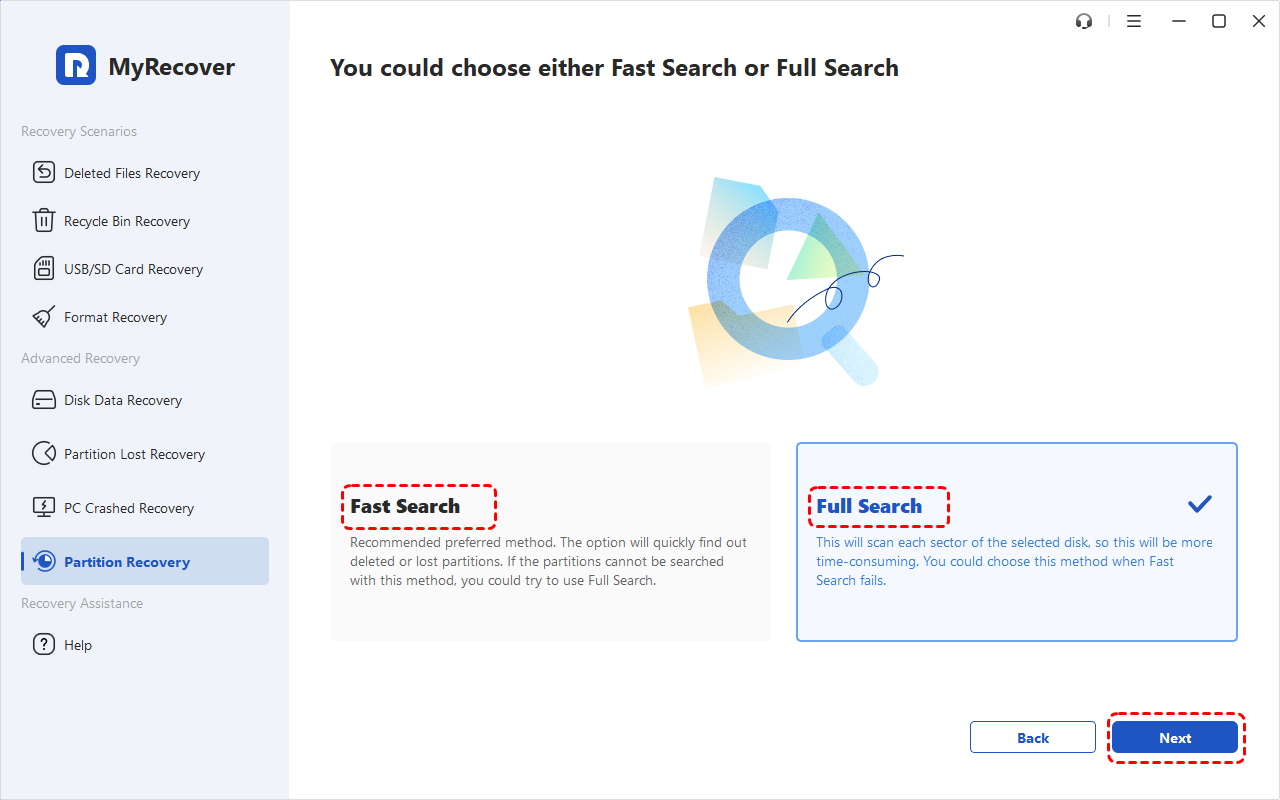
Step 1. Launch MyRecover and select "Partition Recovery", locate the physical disk where the ReFS partition was lost or deleted. Select the disk and click "Next".

Step 2. Choose "Fast Search" or "Full Search" to scan the lost ReFS partition. MyRecover will scan the disk for information associated with lost or deleted partitions.
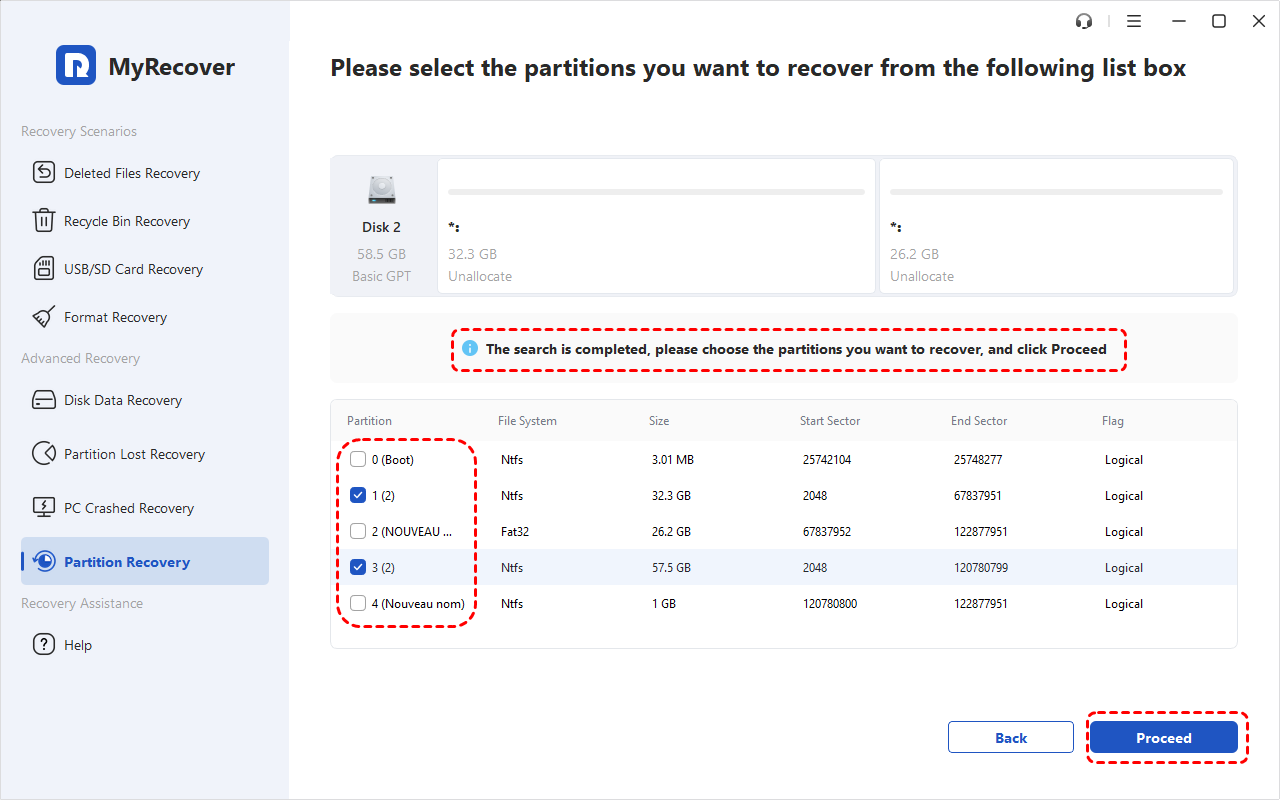
Step 3. After the scan, review the detected partition information and select the partition that matches the lost ReFS volume. Choose the detected lost partition and click "Proceed". The process is intended to recover the partition information together with the data contained within it, rather than simply extracting individual files.
Step 4. After recovery, check whether the partition appears correctly in Windows and whether its folders and files are accessible. If the partition cannot be restored but important files are still detectable, you can switch to MyRecover's data recovery function to recover those files to another healthy storage device.
Method 2. Rstore the Partition with TestDisk
TestDisk is a powerful open-source solution that can help rebuild your ReFS partition table and recover missing data. It works by scanning your disk for lost partitions and rewriting the partition table to restore access. It supports a wide range of partition types and is widely trusted for recovery tasks.
1. Download and run TestDisk as administrator.Select your affected disk.
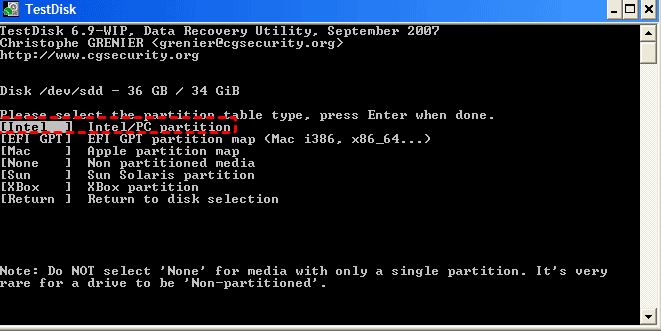
2. Choose the partition table type (usually Intel/PC).
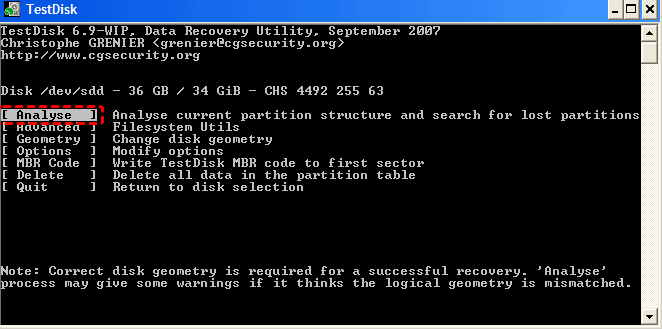
3. Start with Analyse and then Quick Search to find lost partitions. If your ReFS partition isn’t found, use Deeper Search.
4. Preview found partitions by pressing P to verify files.
5. Write the recovered partition table by selecting Write.
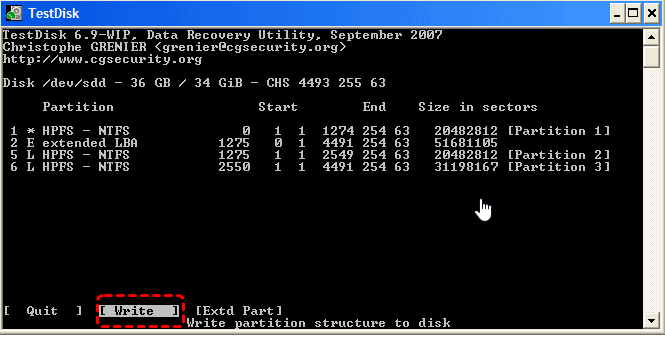
Restart your computer. Once done, your ReFS partition should reappear and be accessible again.
How to Recover a Corrupted ReFS Partition
If the partition still exists but has become corrupted (e.g., ReFS partition turned RAW or inaccessible), try the following ReFS partition recovery command line methods:
Method 1: Run CHKDSK (Not always effective for ReFS)
CHKDSK has limited support for ReFS and may not fix serious corruption.
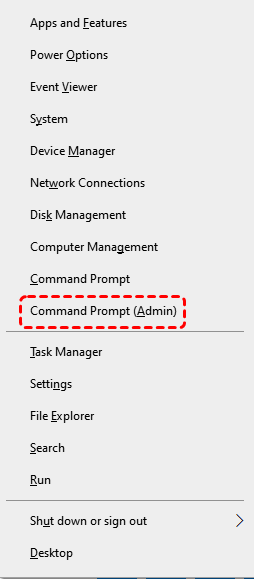
1. Press "Win + X" and select "Command Prompt (Admin)" or "Windows Terminal (Admin)".
2. Type the command below (replace "X:" with your ReFS partition drive letter): chkdsk X: /f /r
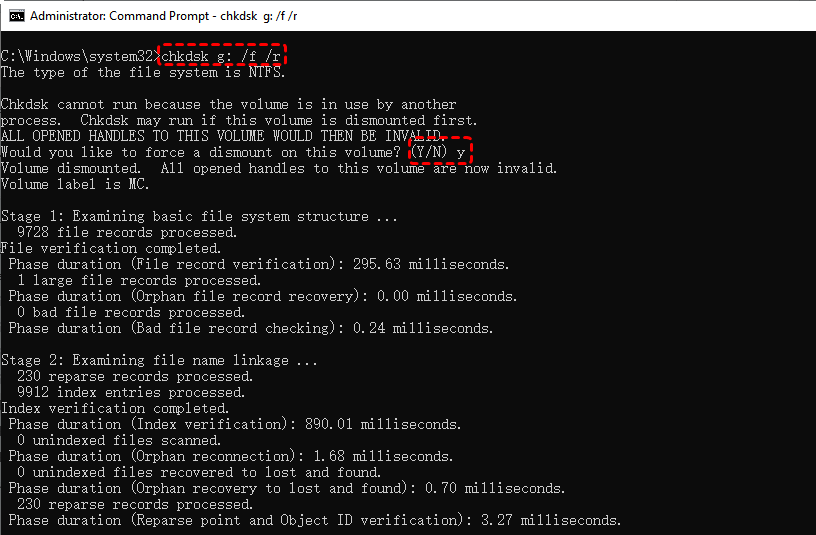
3. Press "Enter" and wait for the process to complete.
Method 2: UseReFSUtil
If your ReFS partition becomes corrupted and you want to attempt a repair, you can use the ReFSUtil command-line tool provided in supported versions of Windows Server.
1. Press Win+X, select Windows PowerShell (Admin).
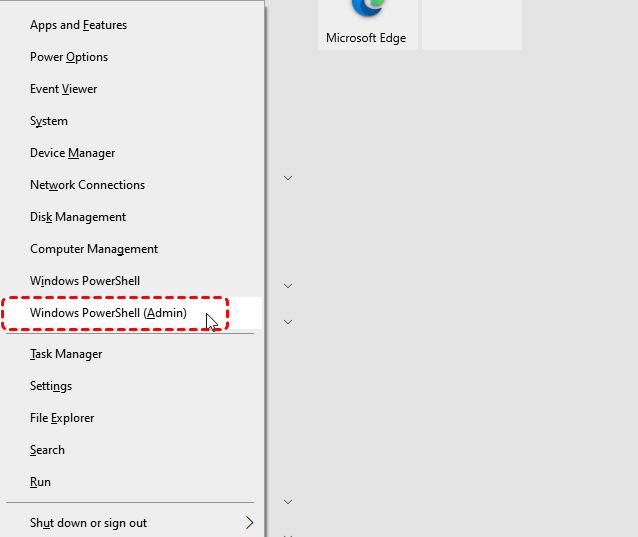
2. Run the ReFSUtil Salvage Command: ReFSUtil salvage -QA [VolumePath][WorkingDirectory][OutputDirectory]
[VolumePath]: The drive letter of the corrupted ReFS partition (e.g., R:\)
[WorkingDirectory]: Temporary location for ReFSUtil to store intermediate files (e.g., D:\temp-work)
[OutputDirectory]: The folder where the successfully recovered files will be saved.
Example:
ReFSUtil salvage -QA E:\ C: \temp-work C: \recover

- Notes:✎...
- E:\ is the damaged ReFS volume.
- C:\temp-work is the working directory for temporary recovery data.
- C:\recover is the folder where the successfully recovered files will be saved.
Optional: Use -QS for Deeper Checks
- -QA: Performs a quick analysis and fix.
- -QS: Performs a full scan, useful for detecting more extensive corruption.
How to Recreate a ReFS Partition After Data Recovery
If the original ReFS partition cannot be restored, you can recover the files you needed from ReFS partition, then you can recreate the partition to make the unallocated space usable again. Keep in mind that creating a new ReFS partition does not restore the original partition or its previous structure. Instead, it creates a new file system on the selected space.
Recover Data From ReFS Partition Using MyRecover
The first priority is to recover your valuable files from ReFS before attempting to repair the partition itself. MyRecover is a powerful and user-friendly data recovery tool that supports ReFS partitions and can retrieve lost data from corrupted, inaccessible or lostdrives.
 MyRecover
- ✅ Supports 1,000+ file types: Recovers documents (DOCX, PDF), images (JPG, PNG), videos (MP4, MOV), emails (PST), and more.
- ✅ Compatible with 500+ devices: Works seamlessly on HDDs, SSDs, USB drives, SD cards, cameras, PS4/PS5, drones, CCTVs, music/video players, and others.
- ✅ Handles 500+ data loss scenarios: Includes accidental deletion, formatting, partition loss, power failure, system crashes, virus attacks, and file transfer interruptions.
- ✅ Preview before recovery: Views file details and thumbnails before restoring to ensure accuracy.
- ✅ Quick & Deep Scan modes: Choose Quick Scan for speed or Deep Scan for a thorough search of every recoverable file.
 100% Secure
1. Download and install MyRecover on your computer.
2. Launch MyRecover, then select the ReFS partition and click "Scan" to start scanning. If the ReFS partition is not visible in the main interface because it has been deleted or is missing, choose the "Lost Partition Recovery" option instead.
3. The "Lost Partition Recovery" will thoroughly scan your system to locate any missing partitions. Once the scan completes, the missing ReFS partition should appear. Then, click the "Scan" button to let the software find all recoverable files within that partition.
4. After the scanning process finishes, preview the recoverable files and select those you want to restore.
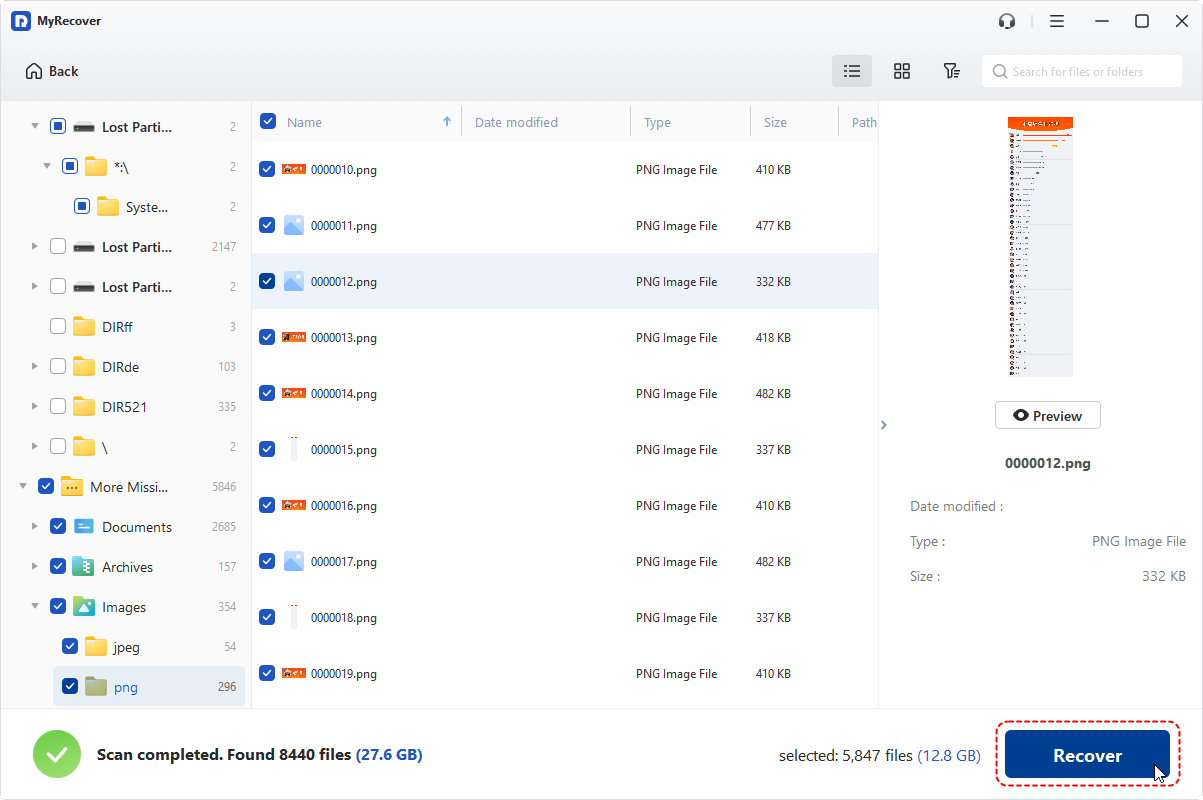
5. Save the recovered files to a different, healthy drive or external storage device. Please never save recovered data back to the damaged ReFS partition to avoid overwriting.
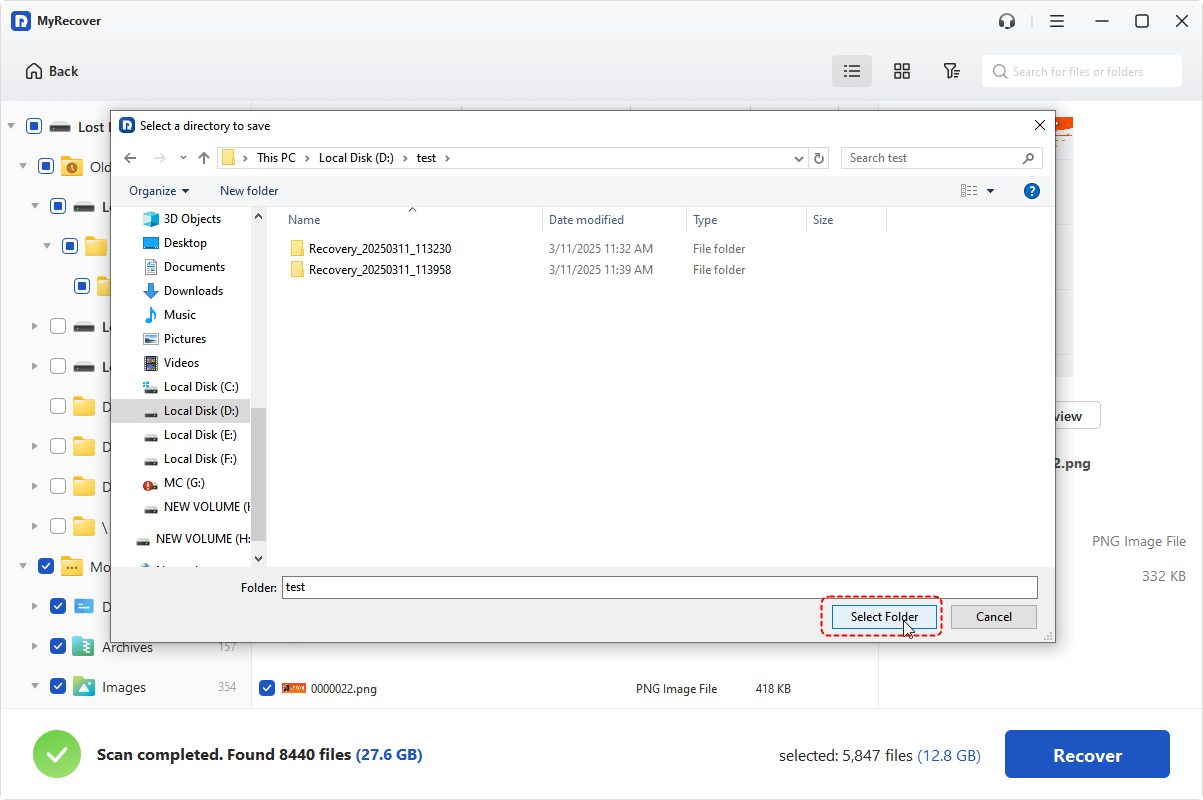
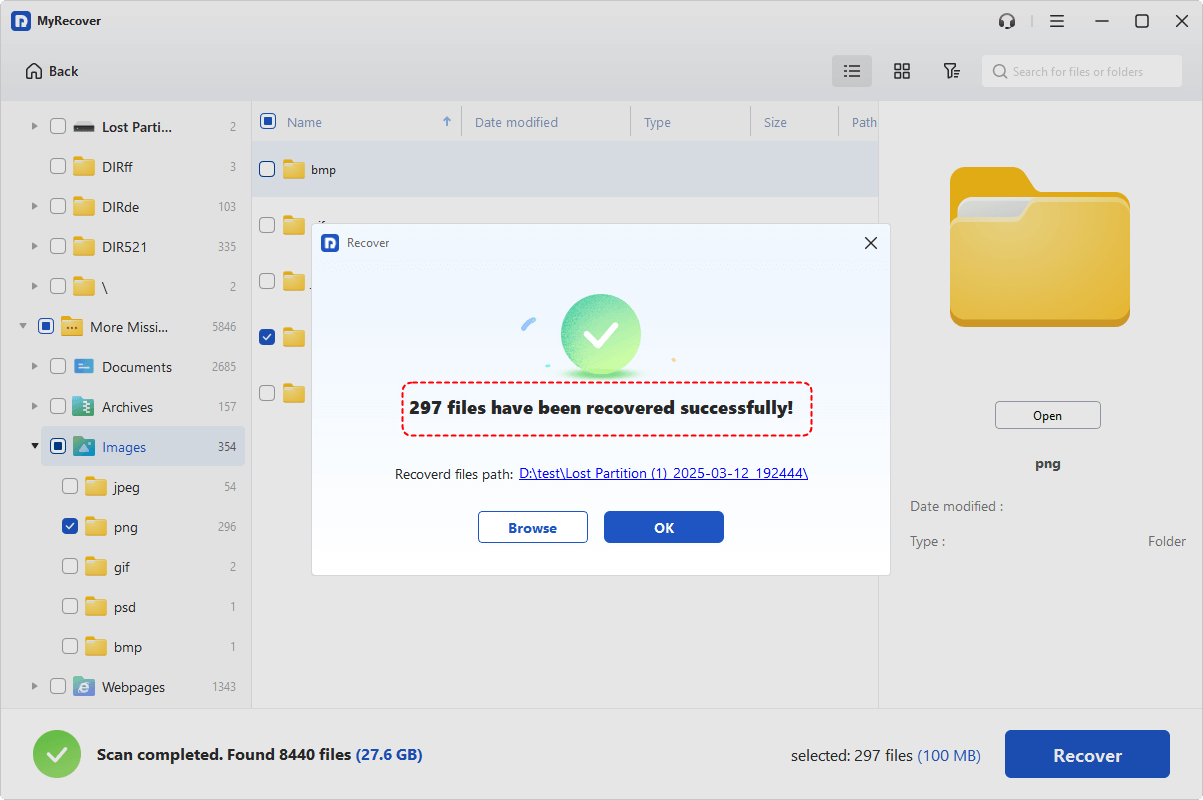
Then, simply wait patiently while MyRecover completes the recovery process. Once finished, your files will be successfully restored from the ReFS partition.
- Note:✎...
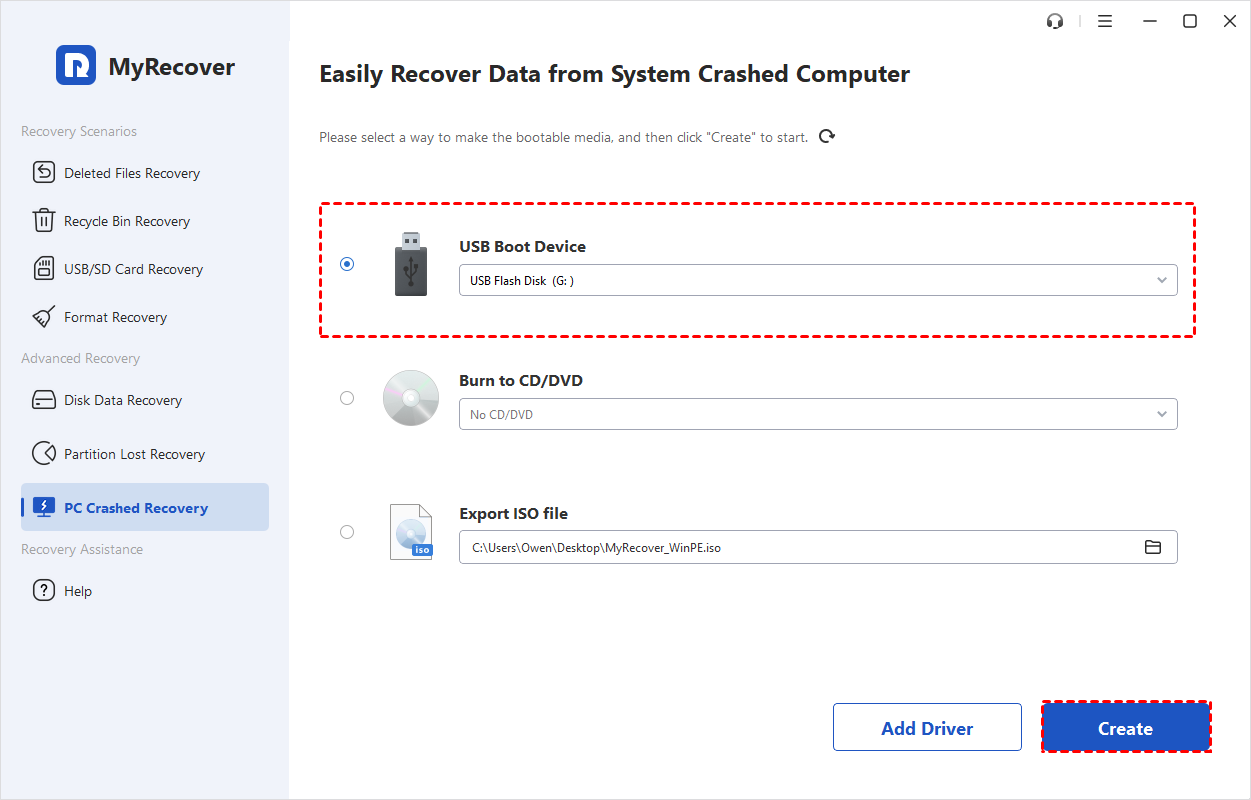
- If your computer fails to boot due to ReFS partition loss or corruption, you can still use MyRecover. Simply install and launch the software on another working computer, then create a bootable media. Insert the bootable disk into the affected computer, restart it, and boot from the disk. Once the system loads, you’ll see the MyRecover interface—then follow the same recovery steps to locate and restore your files.
Restore the ReFS Partition to a Healthy State
Once you've successfully recovered the files from the lost or damaged ReFS partition, the next step is to bring the partition itself back to a healthy and usable state. The repair approach depends on the specific scenario:
If you mistakenly deleted the ReFS partition (but the disk is otherwise healthy), you can simply recreate the partition using Disk Management:
1. Press Win+X at the same timeand select "Disk Management".
2. In the lower pane, "find the unallocated space" that corresponds to the deleted ReFS partition.
3. Right-click the unallocated space"and choose "New Simple Volume".
4. Follow the wizard to:
- Assign a drive letter
- Format the partition using "ReFS" (if supported by your Windows edition)

If the ReFS option is not available during formatting, it means your version of Windows does not support formatting in ReFS. You can use some third-party disk managers or format it on other operating systems to finish the formatting instead.
Move Recovered File Back to New ReFS Partition
After the ReFS partition has been repaired and is accessible, now you can copy or move your recovered files from the backup location back to the restored ReFS partition. Verify that all files open correctly and are intact.
Summary
While ReFS partitions offer robust data protection, issues like corruption or accidental deletion can still occur. By first recovering your important files with trusted software, then repairing the partition using appropriate tools, you can easily finish ReFS partition recovery and its data.
Apart from helping with ReFS data recovery in Windows 2019, MyRecover also supports NTFS or FAT partition data recovery, exFAT, Ext partition file recovery on all Windows PC and Servers.
FAQ
How to recover lost ReFS partition without data loss?
Stop using the affected drive and avoid formatting or creating a new partition. If the ReFS partition has disappeared and the disk shows unallocated space, use a partition recovery tool such as MyRecover to search for and restore the lost partition. If the partition cannot be restored, recover important files to a different healthy drive before making further changes to the original disk.
Can I restore formatted ReFS partition on Windows?
Yes. Avoid writing new data to the formatted partition, as overwriting can make recovery more difficult. You can first try partition or data recovery software like MyRecover to recover the original partition or retrieve important files. Do not format the partition again before completing the recovery process.
How to fix corrupted ReFS partition and recover files?
If an ReFS partition is corrupted, prioritize recovering important files before attempting repairs or reformatting. For severely damaged ReFS volumes, Microsoft's ReFSUtil can help salvage recoverable files to another storage location. If the partition itself is lost, partition recovery software like MyRecover may be more appropriate.
Does ReFSUtil restore the original partition?
No. ReFSUtil's salvage function is designed to diagnose severely damaged ReFS volumes and identify and copy recoverable files to another location. It does not restore the original partition structure or make a deleted partition reappear. If the partition itself has been lost, use a partition recovery tool instead of treating ReFSUtil as a partition restoration tool.
Can I create a new ReFS partition after recovering my data?
Yes. Once important files have been successfully recovered and saved to a different healthy storage device, you can create a new ReFS partition from the available space. However, creating a new partition does not restore the original partition or its previous structure. It creates a new ReFS file system that can be used to store data again.

Stay Updated With Our
Latest Tips
Add us as a preferred source on Google to never miss helpful guides.
 Add as preferred source >>