 MyRecover



Samsung Partition Recovery: Recover Lost Partitions on Windows
Lost a partition on your Samsung HDD or SSD? This guide explains common causes of Samsung partition loss and how to recover lost Samsung partitions on Windows. You will learn what to do when a partition disappears, how to scan for recoverable data, and what precautions to take before making changes to the drive.

By Aria / Updated on October 30, 2026


Can You Recover a Lost Partition on a Samsung Drive?
Yes, a lost partition on a Samsung drive may be recoverable if the disk remains readable and enough original partition information and data survive. This applies when a partition disappears after disk management, an interrupted installation, or accidental deletion, leaving its former space unallocated.
Deleting a partition can remove the information Windows uses to locate it without immediately erasing every file inside. Recovery software searches for remaining partition records and file-system information. On SSDs, subsequent writes and TRIM-related data reclamation can reduce recovery prospects; partition deletion does not universally mean every block was immediately trimmed.
Why the Samsung Partition Is Missing
A Samsung HDD or SSD partition may missing for several reasons. You may have accidentally deleted the partition, formatted the wrong volume, resized an existing partition, or encountered a partition table error. Other possible causes include file system corruption, interrupted disk operations, Windows updates, or connection issues with an external Samsung drive.
Before attempting Samsung partition recovery, first check whether the partition is actually gone in Disk Management. A missing drive letter, a locked portable SSD, and a deleted partition need different responses.
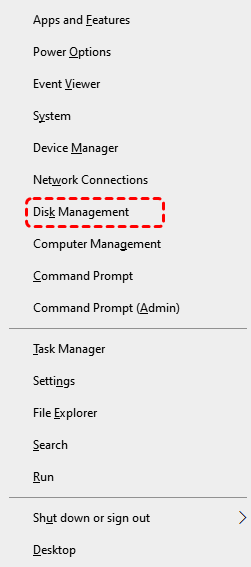
Step 1: Open Disk Management. Press Win + X and choose Disk Management. If prompted to initialize a disk that previously contained your files, cancel the prompt.
Step 2: Identify the Samsung disk. Compare its capacity and device information with your drive, then inspect the partition layout. For portable SSDs, first check the cable and direct USB connection, and unlock password-protected storage through its supported software if needed.
|
What you see |
What to do |
|---|---|
|
Healthy data partition without a drive letter |
Add a letter only after verifying the partition. |
|
Unallocated space where your partition used to be |
Search for the lost partition. |
|
RAW or a formatting prompt |
Recover needed data before formatting. |
|
Disk absent entirely |
Investigate connection, power, drivers, or hardware detection. |
|
Repeated disconnections or abnormal capacity |
Assess the device before repeated scanning. |
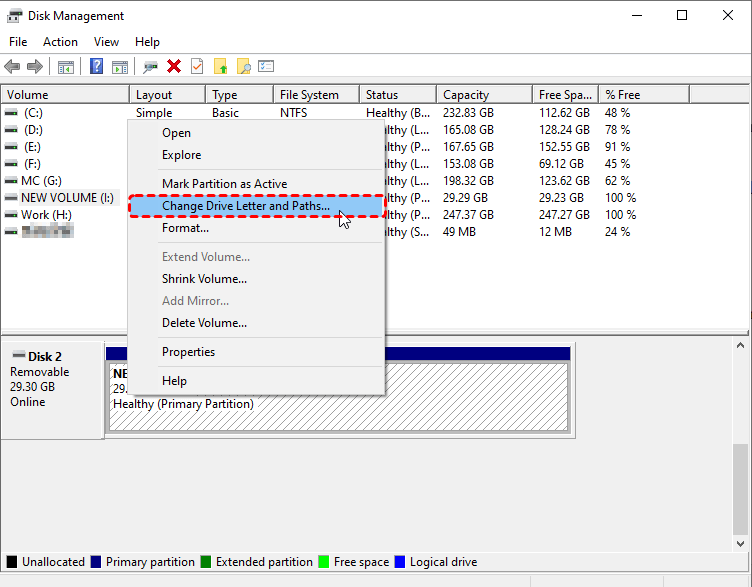
Step 3: Add a letter only when it is missing. For a verified healthy data partition without a letter, right-click it and choose Change Drive Letter and Paths > Add. Choose an unused letter, check whether the files open, and back them up; leave EFI, recovery, and other system partitions unchanged.
How to Perform Samsung Partition Recovery Without Data Loss
If the original partition area is unallocated, you can use two methods below to recover the unallocated space with containing files by the following these steps. This section offers a GUI and command – line tool, so you can choose the one that best suits your workflow.
Recover the Lost Samsung Partition with MyRecover
MyRecover provides Partition Recovery for locating a lost partition and restoring it together with its recoverable files and folders. This route suits a Samsung drive that Windows still detects but no longer displays with its original partition. You select the physical disk and examine the partitions found before applying recovery.

 MyRecover
- Find and restore partitions accidentally deleted from Samsung HDDs or SSDs.
- Recover available partition details, including partition structure, file system information, drive letters, and folder organization.
- Recover data from Samsung partitions formatted with NTFS, FAT32, exFAT, and other supported file systems.
- Recover documents, photos, videos, audio files, archives, and more while retaining original filenames and folder structures where available.
 100% Secure
Step 1: Download and install MyRecover. Download MyRecover from Microsoft Store and install it on a different healthy physical disk. If Windows runs from the affected disk, minimize further Windows use.
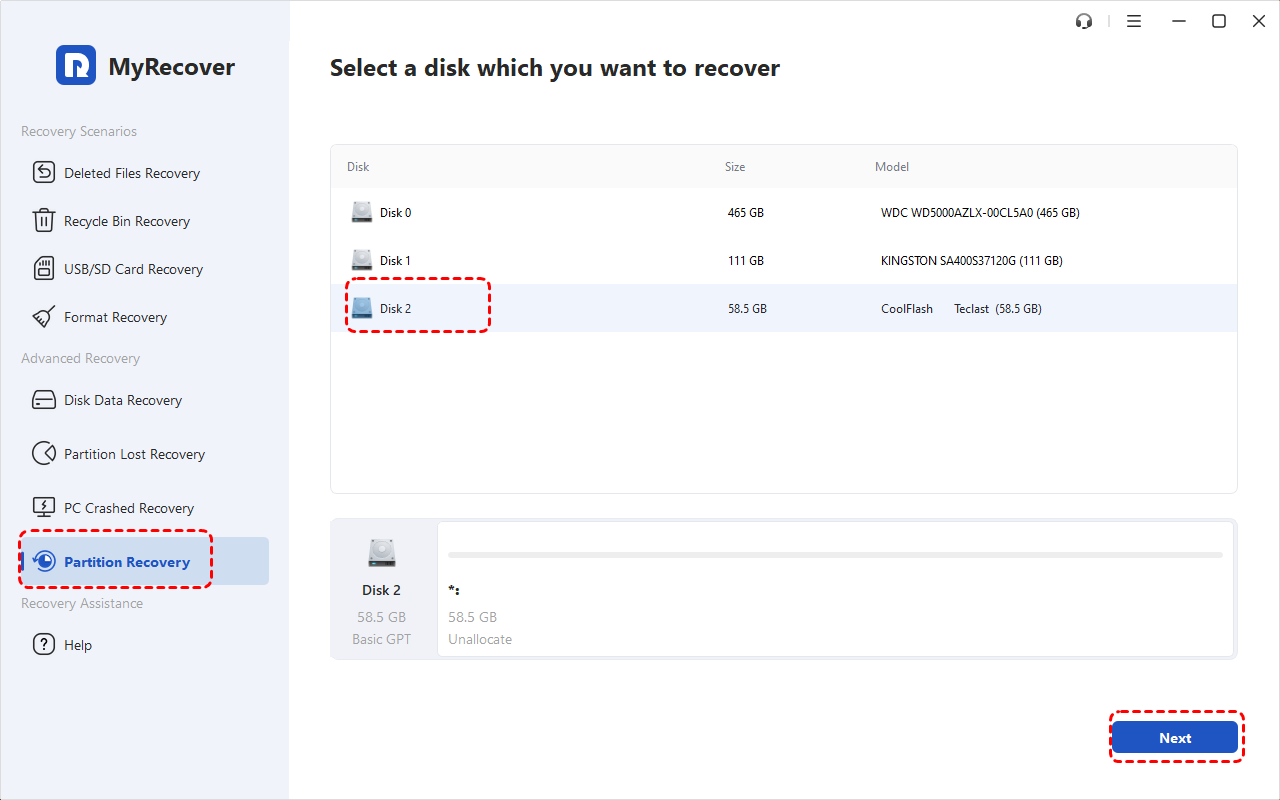
Step 2: Select the original disk. Select Partition Recovery, choose the Samsung disk by model and capacity, and click Next.
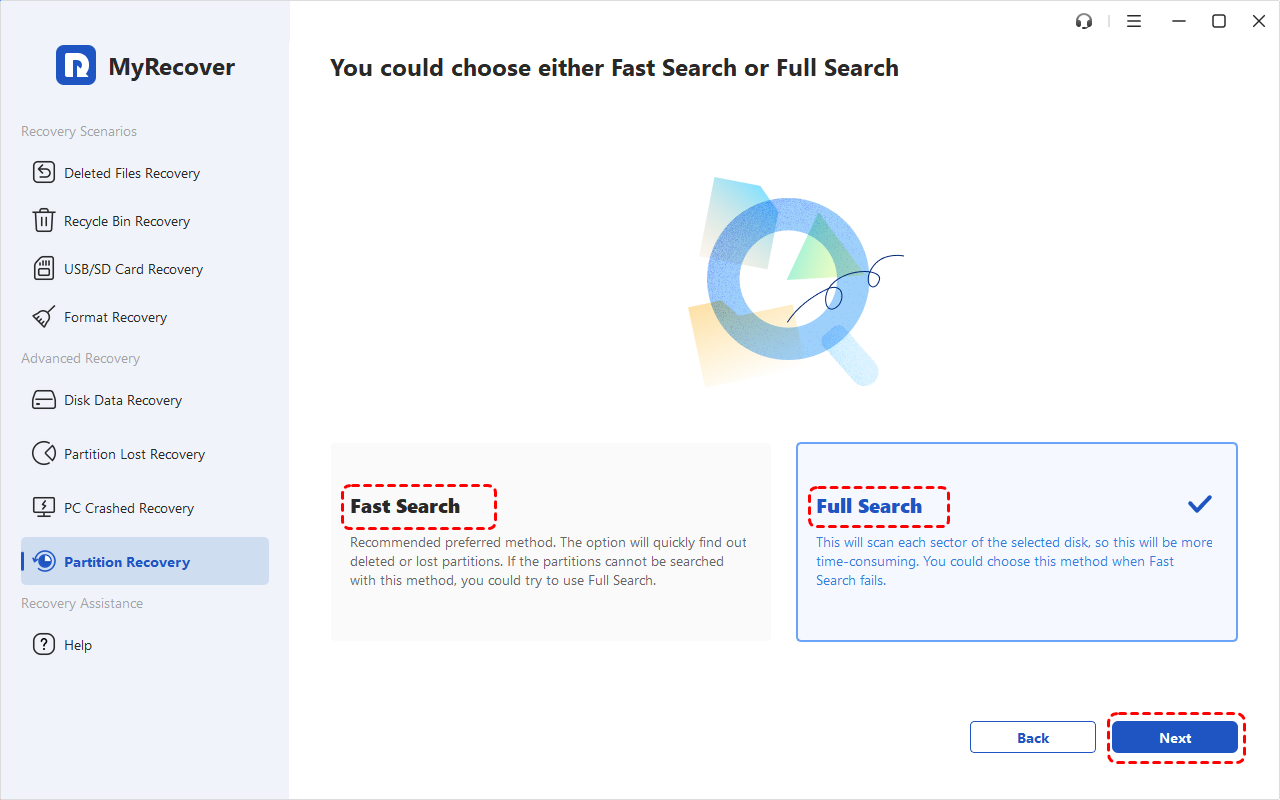
Step 3: Search for the lost partition. Choose Fast Search and click Next; if it does not locate the required partition, use Full Search.
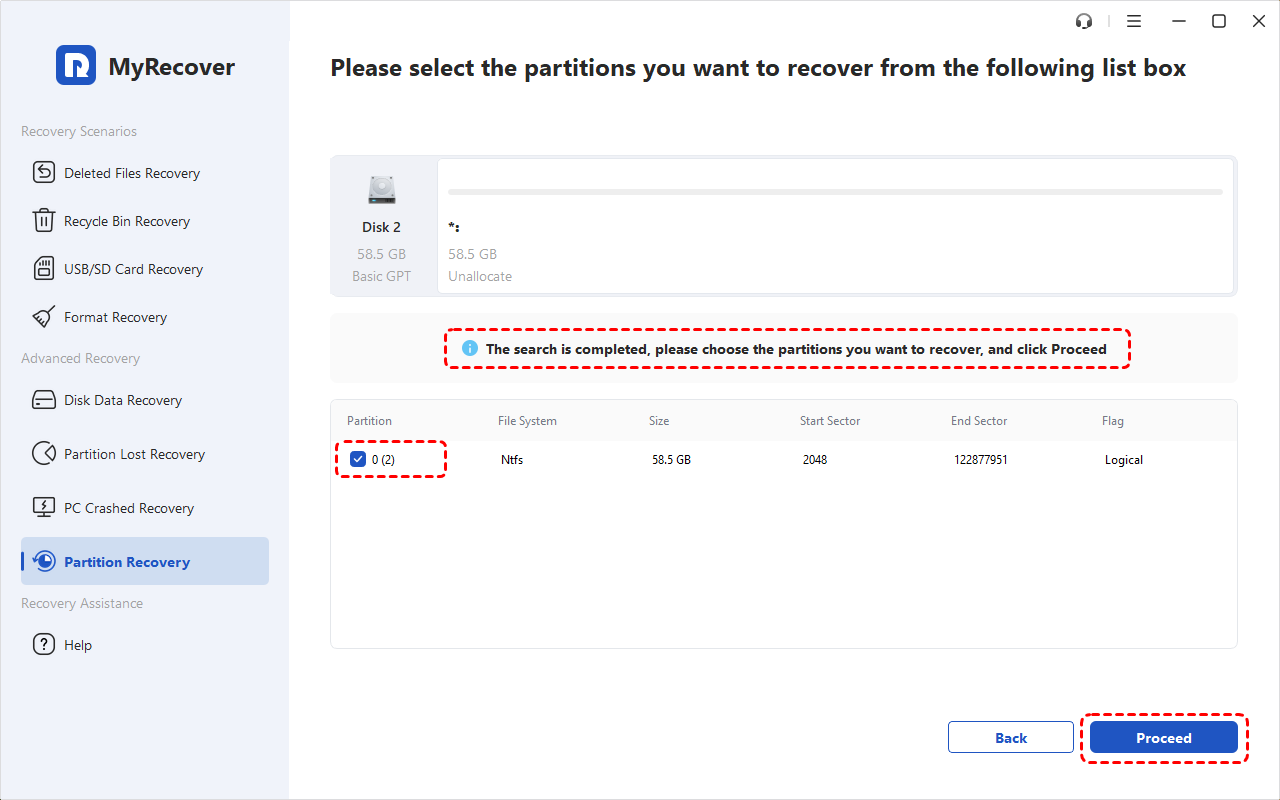
Step 4: Confirm the result. Compare its size, file system, and disk position with the lost partition.
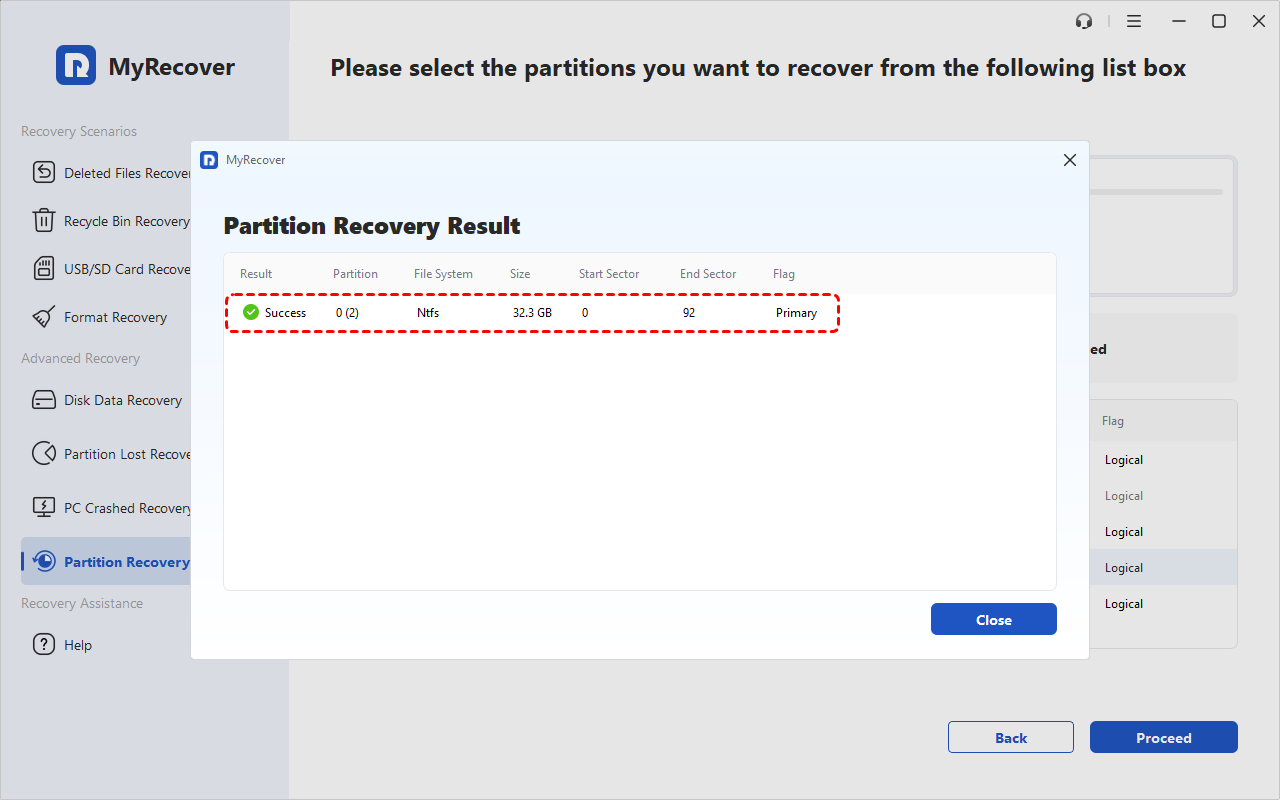
Step 5: Complete recovery. Select the verified result, click Proceed, and wait until the partition recovery successful. Check important files once accessible and copy them to your separate backup disk.
👉 If Windows will not start: Install MyRecover on a working computer, connect a spare USB, and open PC Crashed Recovery > USB Boot Device. Select the prepared USB, click Create, and confirm erasure only after saving its files elsewhere.
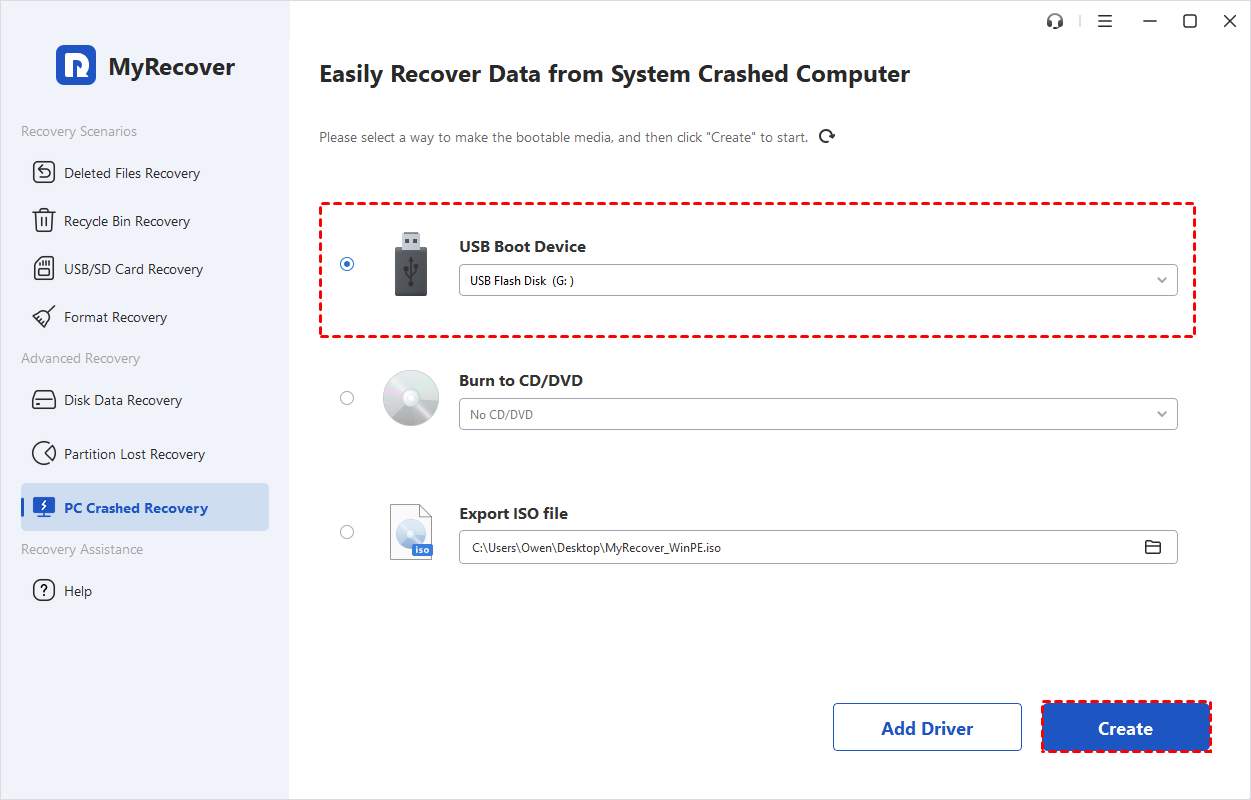
Move the finished USB to the affected computer and select it from that computer's boot menu. Once MyRecover loads, follow steps above to recover partition on the connected Samsung disk; creating media on another PC does not remotely scan the original disk. The USB only supports recovery, not Windows startup repair.
Restore the Samsung Partition with TestDisk
TestDisk is another option for searching for a missing partition and writing a verified partition layout back to disk. Its text interface requires you to examine the found partitions and understand which entries belong in the current layout. Writing incorrect or overlapping entries can make data harder to access, so finding a familiar partition name alone is not enough reason to save the proposed changes.
Step 1: Open TestDisk. Download it from the official CGSecurity website onto a healthy drive, extract it, and run testdisk_win.exe as administrator. Create a log if prompted.
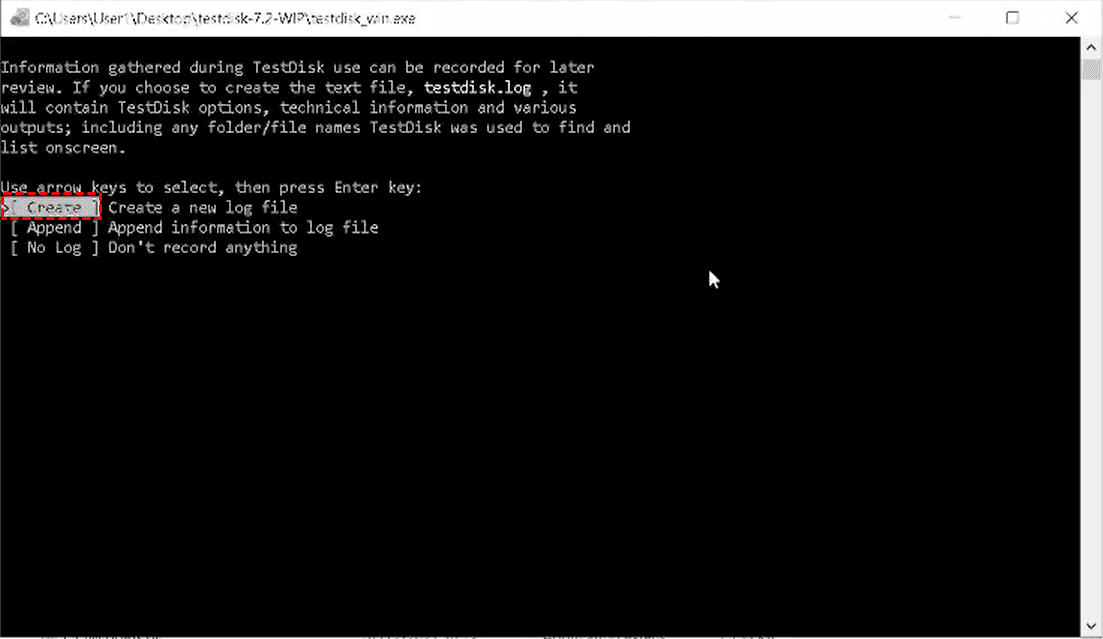
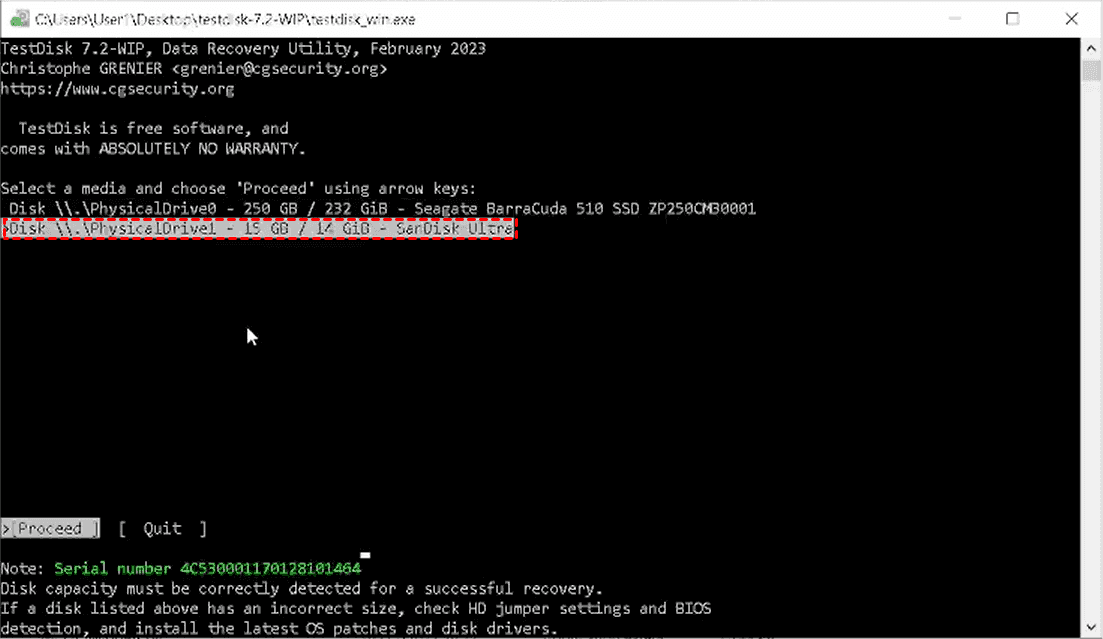
Step 2: Choose the Samsung disk. Confirm its model and capacity, select Proceed, and verify the detected partition-table type. Do not choose a different type merely because the disk is an SSD.
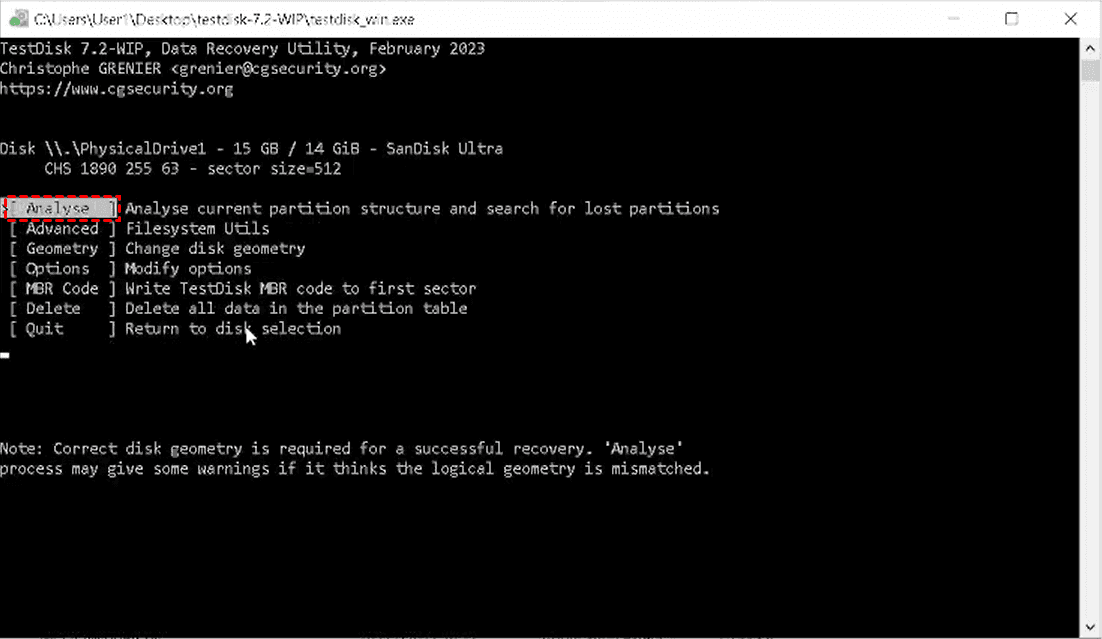
Step 3: Search the layout. Select Analyse > Quick Search. If the original partition is missing from the results, use Deeper Search.
Step 4: Inspect the candidate. Highlight it and press P to list files where supported, then Q to return. Check its boundaries and the complete layout, including partitions that must remain.
Step 5: Save only a verified layout. When all required entries are correct and nonoverlapping, select Write and confirm. Otherwise exit without writing and obtain assistance.
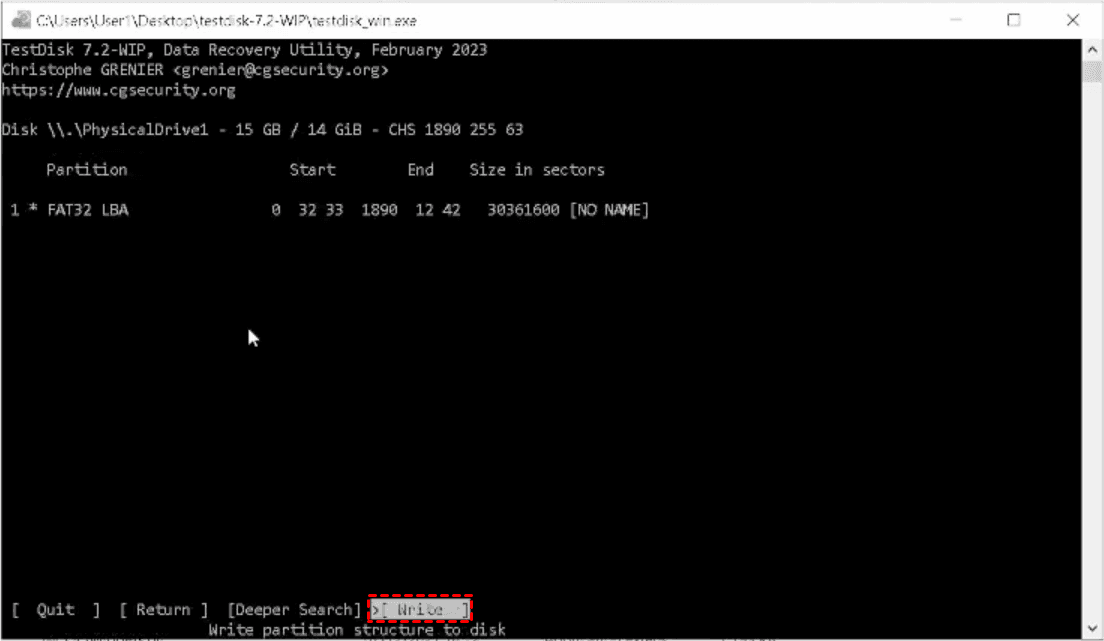
Step 6: Check the result. Restart or reconnect as instructed, verify access to the partition, and back up important files. Restoring its entry does not guarantee every file is intact.
Recover Files from a Samsung Partition That Shows as RAW
A RAW partition still occupies space on the disk, but Windows cannot interpret its file system normally. If you need the files, a recovery scan lets you look for readable contents before rebuilding that file system through formatting. MyRecover can search the affected disk and provide file filtering and previews for supported formats. Choose this route when retrieving the contents is your priority; it is an alternative to restoring an identifiable original partition, not a compulsory extra scan after successful partition recovery.
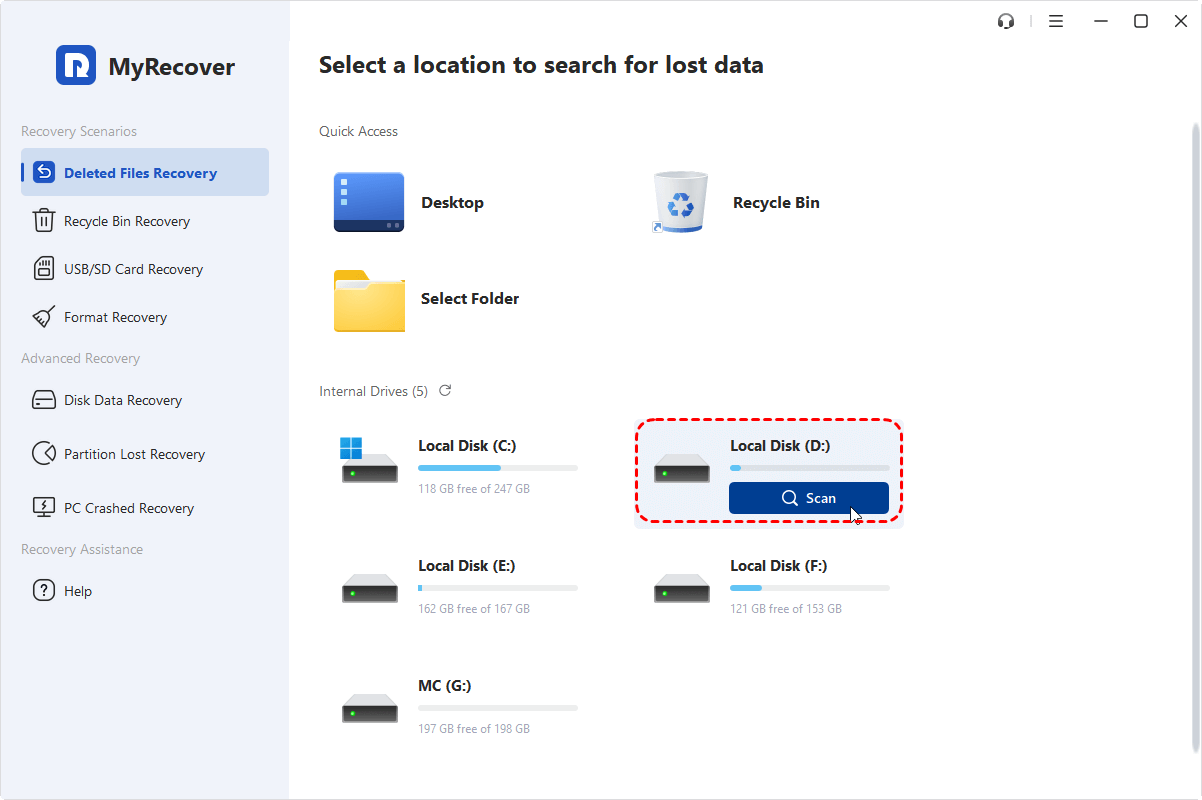
Step 1: Select the source. Open MyRecover from a healthy physical disk, choose Deleted Files Recovery, and identify the affected Samsung disk by model and capacity. Use the bootable route above if Windows cannot start like mentioned above.
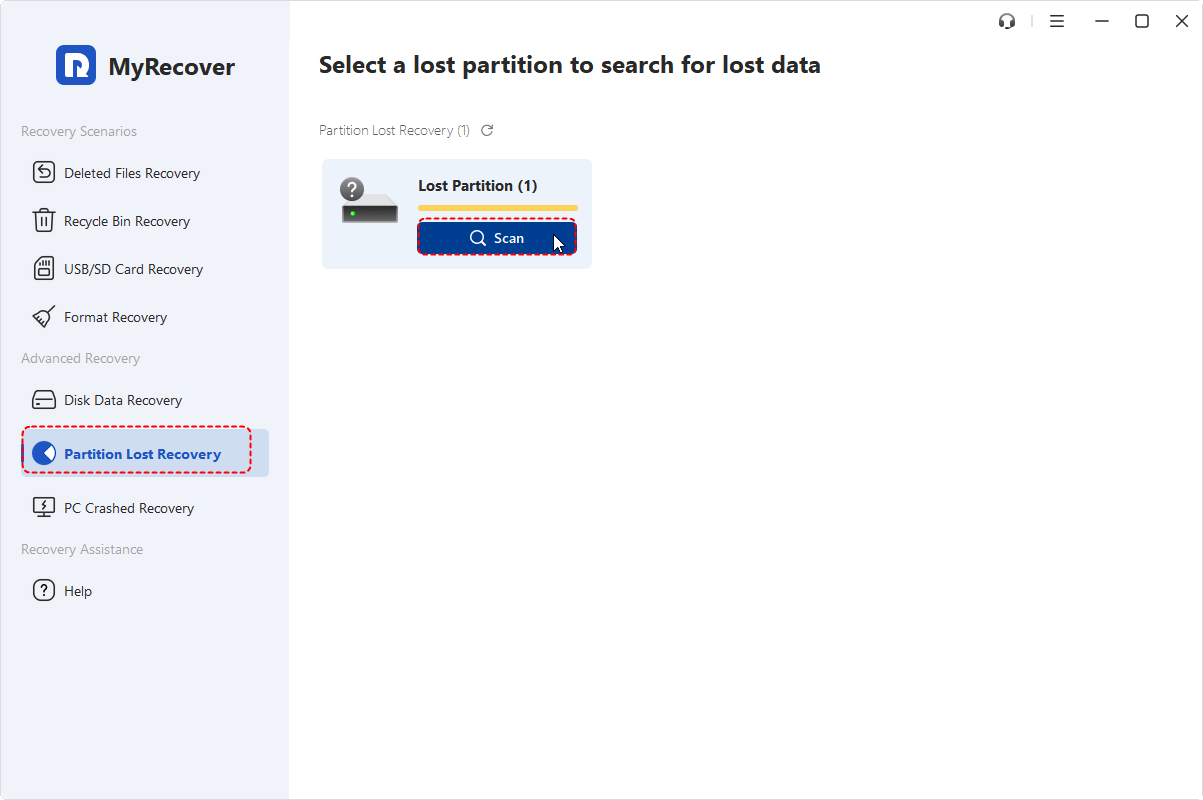
If you can't find the RAW Samsung partition in MyRecover, it may be listed as a Lost Partition. You can identify it by checking its capacity in the Partition Lost Recovery section.
Step 2: Scan the disk. Start the scan and allow results to populate without disconnecting the source. Do not format the RAW volume to make it easier to scan.
Step 3: Find the files. Search known names or use available type, size, and date filters. Preview supported files and select what you need.
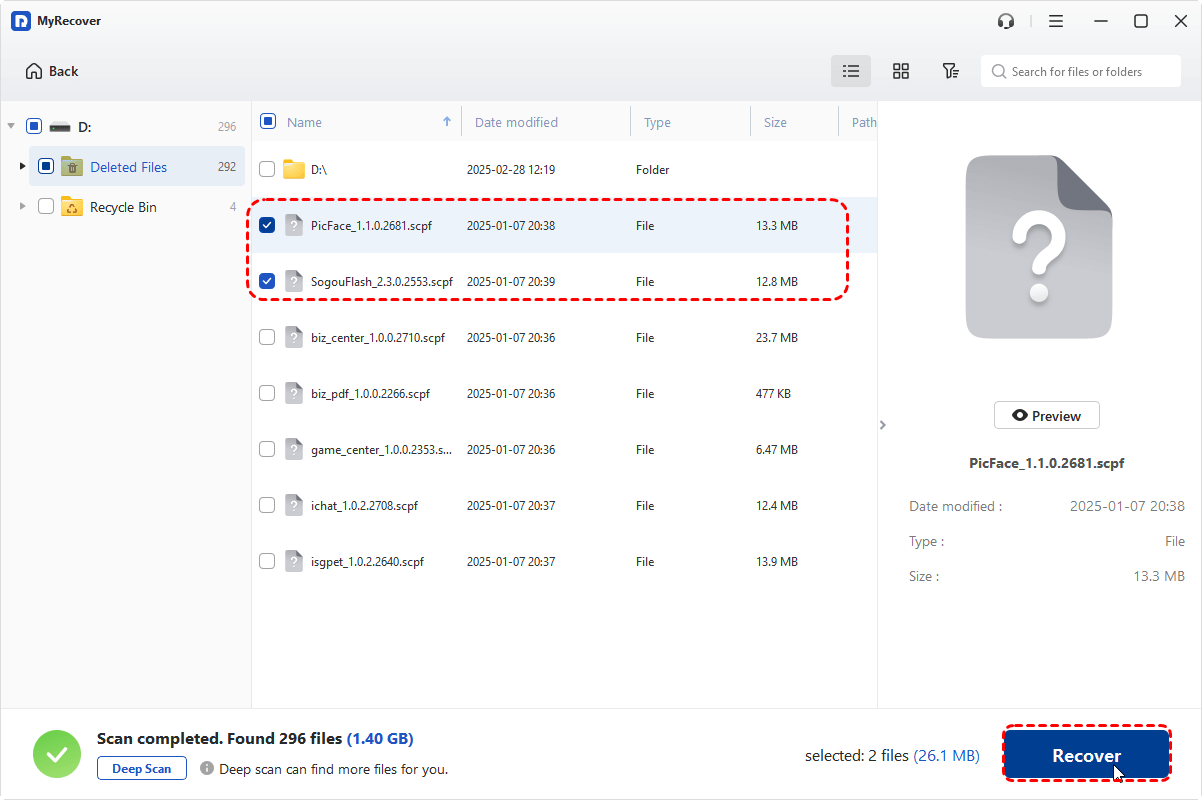
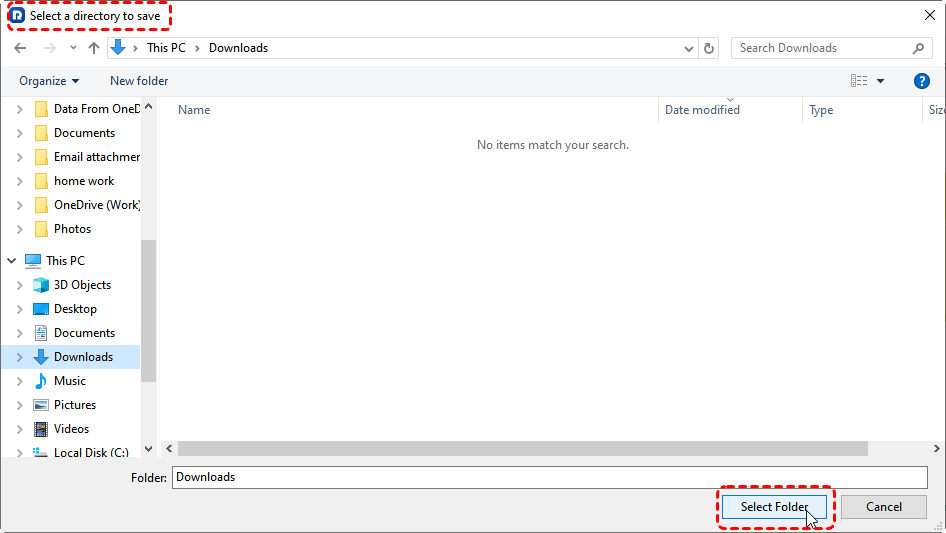
Step 4: Save elsewhere. Click Recover and choose a folder on another physical disk. Open the saved files to verify their contents before changing the source.
After you have verified the recovered copies, you can consider formatting the original volume for reuse if the device is otherwise healthy. Formatting is not a hardware repair, and recurring RAW status or disconnections warrant further investigation.
What If You Deleted the Samsung Recovery Partition?
A Samsung PC's factory recovery partition serves a different purpose from a data partition: it contains resources used by that model's recovery environment. Deleting it may affect factory restoration or the F4 recovery route without deleting every personal-data partition.
Recovering the partition does not guarantee that its factory image, boot entry, and recovery tools will all work again. If you have a complete disk image from before deletion, follow that backup tool's restoration procedure after protecting current files. Without one, consult Samsung support for your exact model and available recovery-media options.
Samsung Recovery restores or resets a supported computer; it is not a general deleted-partition search tool. Do not perform a factory reset to retrieve missing personal files, because the reset can remove data you still need.
Conclusion
Start Samsung partition recovery by checking what Windows actually sees. Restore a missing drive letter only when appropriate, search for a deleted partition when its space is unallocated using MyRecover or TestDisk, and recover files before formatting a RAW volume. Verify the recovered contents and keep a separate backup.
Samsung Magician's management and diagnostic tools do not replace lost-partition recovery; avoid Secure Erase or PSID Revert when preserving data. For IT teams working across company devices, MyRecover Technician supports unlimited deployment and use within one organization.
Frequently Asked Questions
Can Samsung Magician recover a deleted partition?
No, Samsung Magician does not provide a general deleted-partition recovery workflow. Its drive-management, diagnostic, and migration functions serve different purposes. Avoid Secure Erase and PSID Revert when trying to preserve lost data, and choose recovery software appropriate to the partition's actual condition instead.
Can I recover a partition from a Samsung T7 or T9 SSD?
Yes, recovery may be possible if the portable SSD is readable and the relevant partition information and contents remain. Unlock password-protected storage through its supported software first. Recovery depends on subsequent writes, file-system damage, and data reclamation, not simply on the drive's product name.
Does TRIM make Samsung SSD partition recovery impossible?
Not always; enabled TRIM alone does not establish that every missing file has been erased. Recovery depends on whether relevant blocks were deallocated and reclaimed, as well as later writes. Conventional recovery software cannot restore data from blocks that no longer expose the original contents.
Should I initialize a Samsung SSD that previously contained files?
No, do not initialize a previously used SSD merely because Windows now requests it while you still need its files. Initialization writes disk information and does not recover the original contents. Verify the device and connection, then assess recovery before making changes to its layout.
Will recovering a Samsung system partition make Windows boot again?
Not necessarily; restoring a partition does not automatically repair missing startup files, boot configuration, or unrelated Windows faults. Protect the recovered data first. If startup still fails, use appropriate Windows recovery tools or model-specific assistance rather than repeatedly rewriting the partition layout in recovery software.
Can I recover a Samsung partition after formatting it?
Possibly, recovery may remain feasible if enough original information and data survive formatting. New files, installation activity, and SSD data reclamation can reduce or eliminate that opportunity. Stop further writes and assess the disk; do not assume that a quick format guarantees recoverable files.

Stay Updated With Our
Latest Tips
Add us as a preferred source on Google to never miss helpful guides.
 Add as preferred source >>