 MyRecover



USB Not Showing Full Capacity? 6 Quick Fixes to Restore It
If your USB drive isn't showing its full capacity, it can be frustrating, especially when you’re trying to store important files. This article explores 6 proven fixes to help restore the full capacity of your USB drive, covering all possible solutions. Additionally, if you’ve lost files due to this issue, we’ll show you a powerful recovery tool to recover lost or inaccessible data.

By Aria / Updated on March 13, 2026


Overview
How can I restore USB drive back to full capacity in Windows 11/10?
My SanDisk USB flash drive is 256 GB bought from Best Buy but it only shows 32GB in Windows 11 or Windows 10 File Explorer. However, the USB was showing full capacity when I first connected it to my Windows 11 laptop. Why does my 256GB flash drive only showing 32GB? Please suggest a working way to let me restore USB drive back to full capacity in Windows 11. I can confirm the USB drive is not physically damaged or broken. Just something goes wrong it currently!"
- Question from Woper
When you insert your USB drive into your computer, it should show the full storage space, but sometimes it doesn’t. Instead, it might show only a fraction of the available space. It’s especially alarming if you’re trying to store important data or back up files and notice that your USB drive is not showing full capacity or is displaying a smaller size than expected.
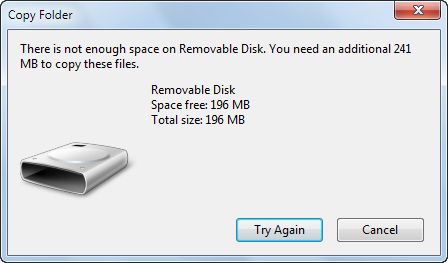
This can happen for a variety of reasons, such as partition issues, formatting problems, or even malware attacks. However, all is not lost. With the right steps, you can recover the lost space and get your USB drive back to full capacity.
Why is USB Not Showing Full Capacity?
When the drive seems to have "lost" its full capacity, making it unusable for your storage needs. Understanding the underlying causes can help you better restore the USB’s full capacity. There are several reasons why a USB drive is not showing full capacity:
💽Partition Issues
If your USB drive has been partitioned incorrectly, you may see less capacity than what the drive actually has. The unused space may not be accessible until you re-partition or extend the existing volume.
📂Corrupted File System
If the file system is corrupted, your computer may fail to recognize the full storage space. This often happens after improper ejection of the USB or power loss during file transfer.
☣️Virus or Malware
Sometimes, a virus or malware infection on the drive may cause the system to misreport the available capacity. This can be fixed by scanning the USB for malware.
⭕Bad Sectors
Physical damage to the USB drive or bad sectors on the disk could cause parts of the capacity to become unreadable or unusable.
💥Formatting Errors
Improper formatting of the drive, or partial formatting, can lead to the drive showing less capacity than it actually has.
How to Recover Data from the USB Not Showing Full Capacity
Before fixing the issue of USB not showing full capacity, it's important to ensure your data is safe. Because some fixes may increase the risk of data loss during the repair process. When this happens, most files stored on the USB will often become inaccessible. Fortunately, this doesn’t mean they’re lost forever. You can easily recover them with professional data recovery software like MyRecover.
It covers 500+ complex data loss scenarios, including recovering data from formatted USB drives, inaccessible disks, deleted partitions, emptied Recycle Bins, and more. Its AI-embedded file recognition and recovery technology ensures no files are missed. Follow these steps to recover your data:
Step 1. Download and install MyRecover on your computer from Microsoft Store. Insert the USB into your computer.

 MyRecover
- 500+ Devices Supported | SSD, HDD, USB Flash Drive, SD Sard, etc.
- 1000+ File Formats Supported | PNG, MP4, MP3, TXT, ZIP, MSG, etc.
- 500+ Data Loss Scenarios | Deletion, Format, Power Outage, Virus Attack, etc.
 100% Secure
Step 2. Launch the program and select the USB drive to scan for lost files, then click "Scan". If MyRecover fails to locate the files you’re looking for, simply click "Deep Scan" to perform a more thorough scan.

Step 3. After the scan is complete, choose the files you would like to recover from the recoverable lists and click "Recover".

If there's no lost data to recover, you can check the "Existing files" folder under the "Path" tab to extract files from the malfunctioning USB.
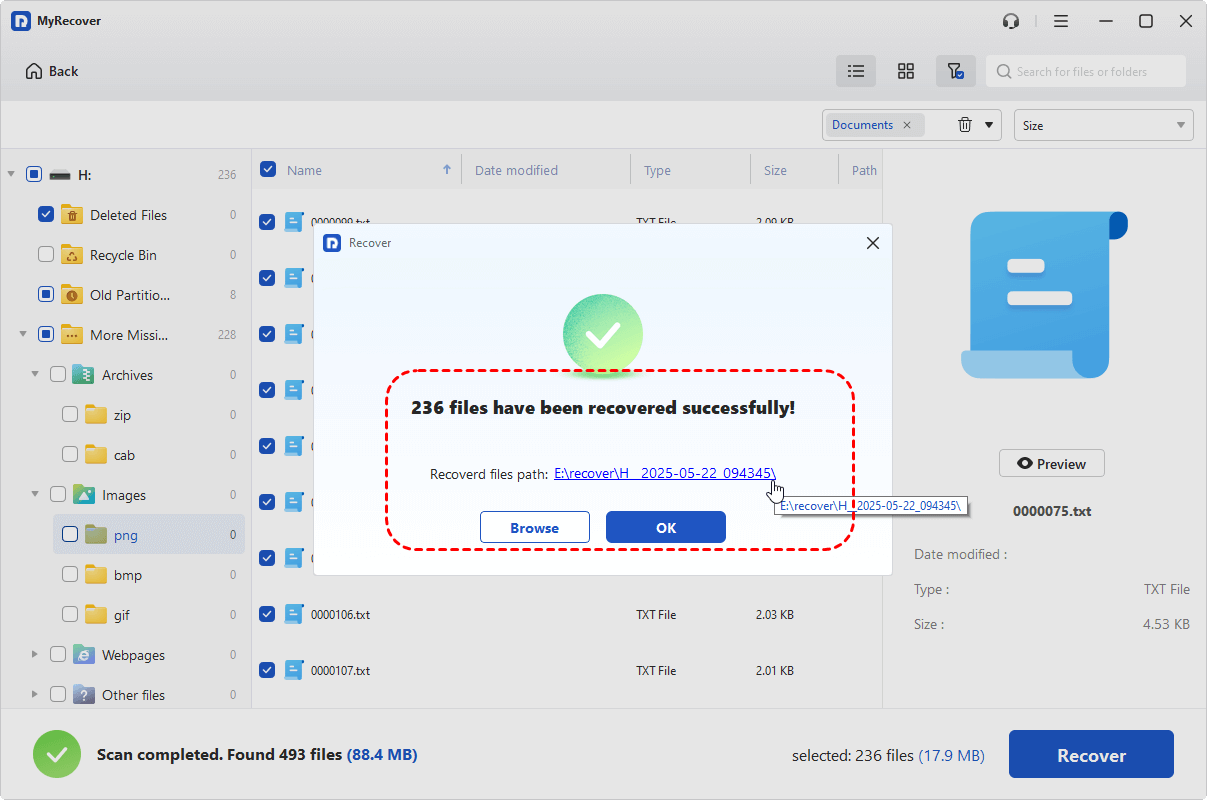
Step 4. Save the recovered files to a safe location (not the original USB).

When the process is finished, you'll see the message "Files have been recovered successfully". Then you can access the recovered files by clicking on the destination folder path or "Browse" button.
How to Restore USB Drive Back to Full Capacity on Windows
Once you've recovered your data, it's time to fix the issue of USB drive not showing full capacity. There are some practical solutions to resolve this problem. Let's explore them one by one.
Extend Drive Volume in Disk Management
If there is unallocated space on the USB drive that the operating system fails to display, it will cause the USB drive to show wrong capacity. You can fix this issue using Disk Management.
Step 1. Press "Win" + "X" and choose "Disk Management" to open it.

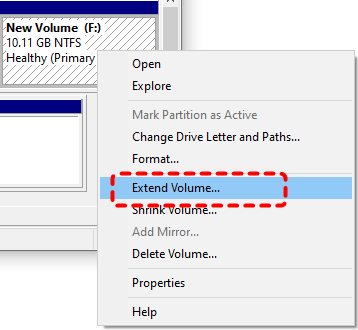
Step 2. Locate the USB drive with unallocated space and right click on it, then select "Extend Volume".
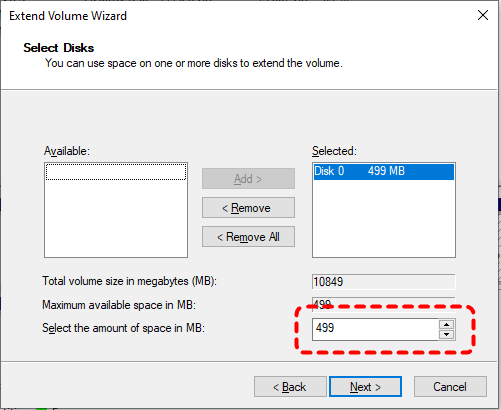
Step 3. Type the mount of allocated space and click "Next" > "Finish" to increase the partition size.
Update USB Driver
Outdated or corrupted drivers can cause recognition problems. Update the drivers so that Windows can recognize the correct storage capacity of the USB.
Step 1. Press "Win" + "X" and choose "Device Manager" to open it.

Step 2. Expand "Disk drives" and right click on your USB drive, then select "Update driver".

Step 3. Click "Search automatically for updated driver software" to continue the process.
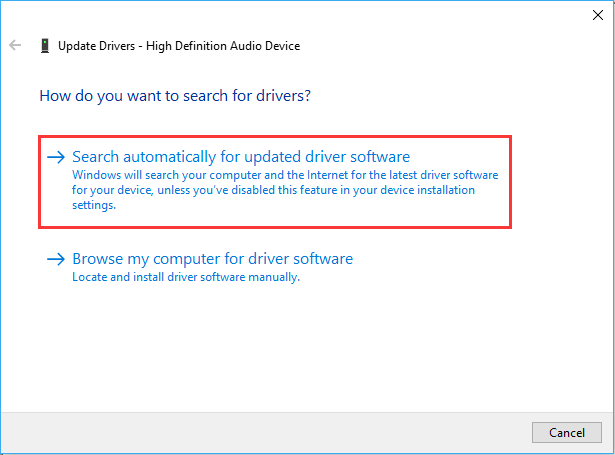
Restart your computer and check in File Explorer if the USB drive is showing its full capacity.
Check Bad Sectors
Bad sectors or file system errors can cause your USB drive fail to show full capacity. Windows offers a feature to check and fix any errors on your drive. Here's how:
Step 1. Locate the USB drive which is not showing full capacity in File Explorer.
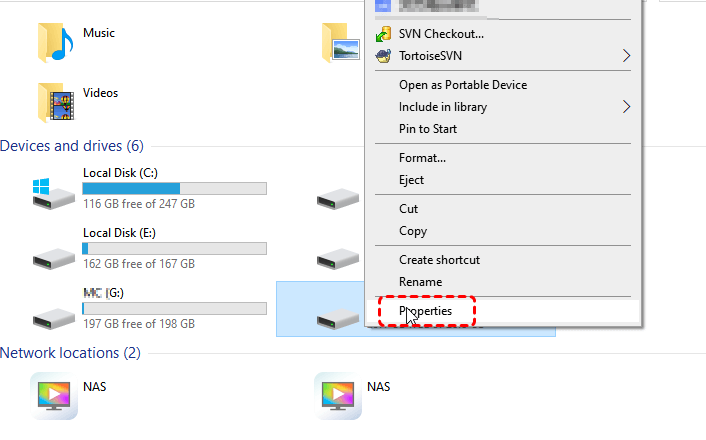
Step 2. Right click on the USB and choose "Properties" from the context menu.
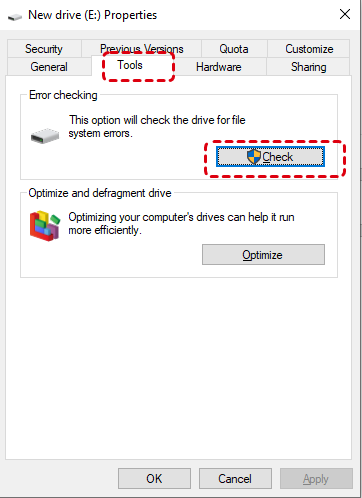
Step 3. Select the "Tools" tab, click "Check" under the "Error checking" section. Then click "Scan the drive" to start the process. It will automatically scan and fix the detected errors.
Scan Virus and Malware
A virus or malware might can cause corrupted file system, resulting in USB flash drive showing full capacity. Windows Microsoft Defender can scan for and remove malware.
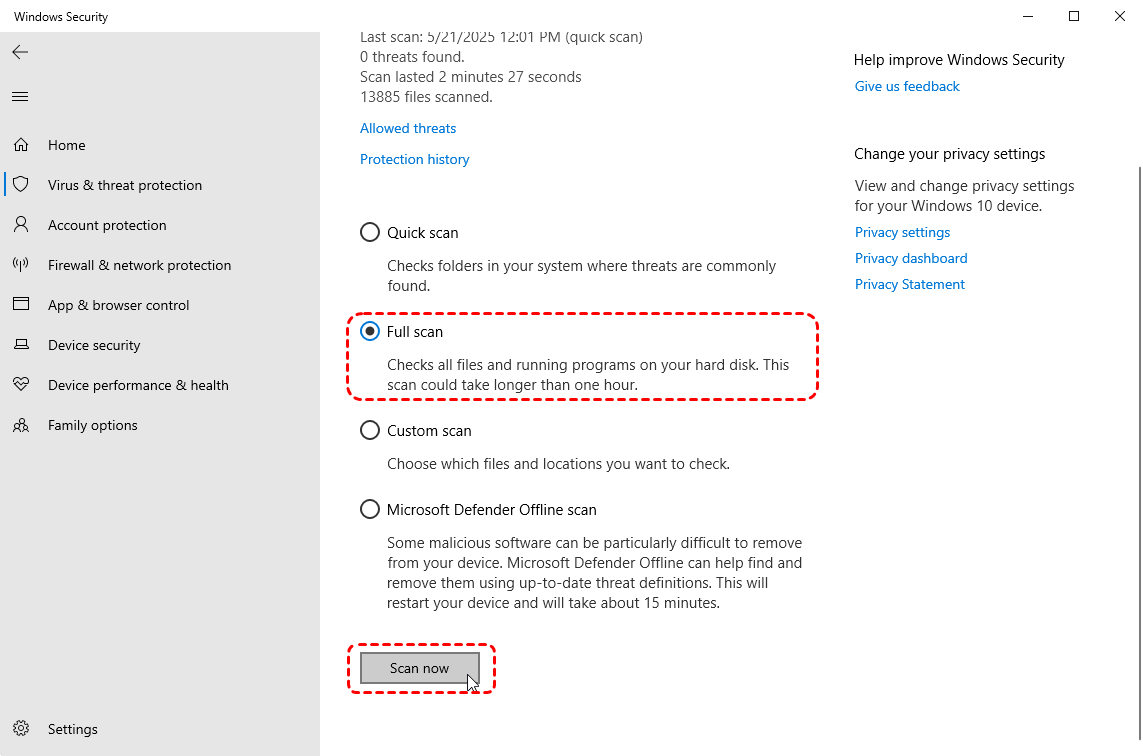
Step 1. Locate the USB drive in File Explorer and right click on it, then choose "Scan with Windows Defender" from the context menu. It will automatically perform a quick scan for the USB drive.
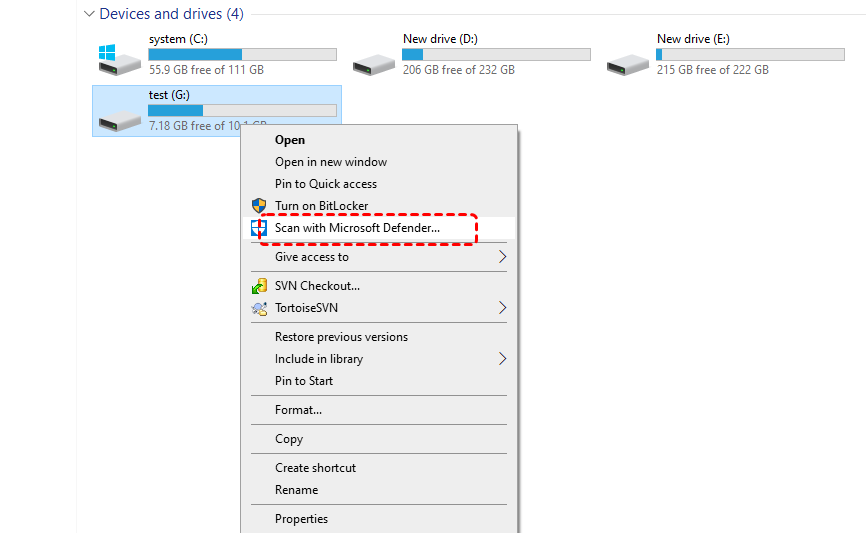
Step 2. If any virus or malware is detected, remove or quarantined them.
If you want to perform a more comprehensive scan, you can choose the "Full scan" option after quick scan finishes, though this will take more time.
Format the USB Drive
As a last resort, if no other solutions work, you may need to format the USB drive. Formatting will erase all data, but it will restore the drive to its full capacity. Before performing this operation, you’d better first extract all files from the USB using a data recovery software like MyRecover.
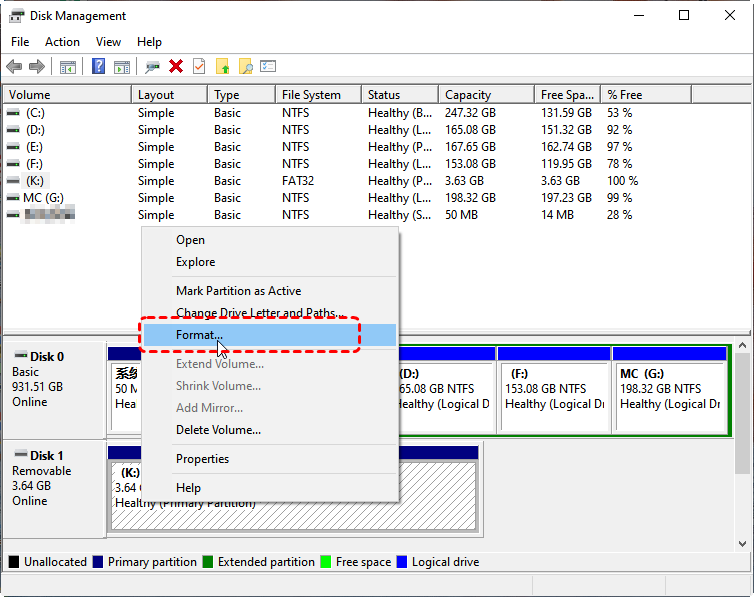
Step 1. Press "Win" + "X" and choose "Disk Management" to open it.
Step 2. Right click on the USB drive and choose "Format".
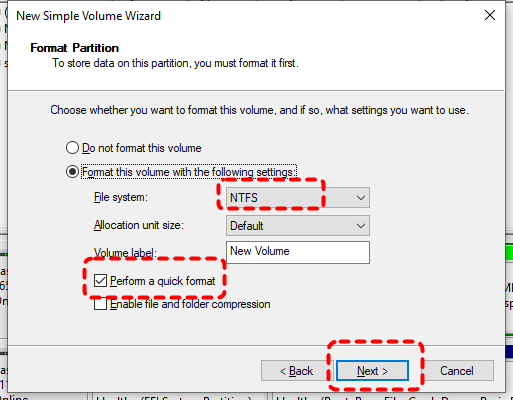
Step 3. Set a file system based on your needs and check the "Perform a quick format" option, then click "Start" to begin the process.
- Notes:✎...
- Even if all data is lost due to formatting, there’s no need to despair. MyRecover is capable of recovering data from a formatted USB drive.
Final Words
The issue of USB not showing full capacity can be frustrating, but with the right steps, you can recover your lost space and restore your drive’s functionality. Whether it’s fixing partition issues, updating drivers, or scanning for malware, the solutions provided above can help you troubleshoot the problem. Additionally, MyRecover can assist in recovering lost data from USB drives before you perform any fixes.
If you’re dealing with amount of lost data, consider upgrading to MyRecover's Professional Version. It allows for unlimited data recovery and provides a preview feature to ensure that you can retrieve the files you need before full recovery.
FAQs:
Q1: How to fix USB not showing full storage?
If a USB drive is not showing its full storage capacity, it may be due to incorrect partition settings or hidden space. Open Disk Management in Windows, check the USB drive layout, and look for unallocated space. You can extend the existing partition or create a new one to use the full storage capacity.
Q2: How do I bypass 4GB limitation on FAT32?
The FAT32 file system has a maximum file size limit of 4GB. To bypass this limitation, you can reformat the USB drive from FAT32 to exFAT or NTFS, which support much larger files. Right-click the USB drive in File Explorer, choose "Format", select the new file system, and start the formatting process.
Q3: Why is my 128GB USB stick not recognized?
A 128GB USB drive may not be recognized due to driver issues, corrupted file systems, or hardware connection problems. Try reconnecting the USB device to another port, updating the USB driver in Device Manager, or checking Disk Management to see whether the drive appears as unallocated or needs initialization.
Q4: How to format USB back to 128GB?
If a USB drive shows less capacity than expected, you can restore it to full size using Disk Management. Delete existing partitions on the USB drive, then create a new simple volume that uses the entire available space. After that, format the drive using a suitable file system such as exFAT or NTFS.

Stay Updated With Our
Latest Tips
Add us as a preferred source on Google to never miss helpful guides.
 Add as preferred source >>