 MyRecover



SD Card Not Showing Up in Device Manager? Here’s How to Fix It
When your SD card doesn't show up in Device Manager, it can be a frustrating experience, especially if it contains important data. In this article, we provide comprehensive solutions to help you troubleshoot and resolve the issue. Follow these steps to restore your SD card functionality and recover your files with ease.

By Aria / Updated on May 11, 2026


Preface
SD cards are commonly used for storing photos, videos, and other data in devices such as smartphones, digital cameras, and laptops. With more and more frequent data writes, your SD card might not show in Device Manager, or even File Explorer. If this problem has happened to you, rest assured—you’re far from alone. This can be frustrating, especially if you need to access important files or transfer data from the SD card.
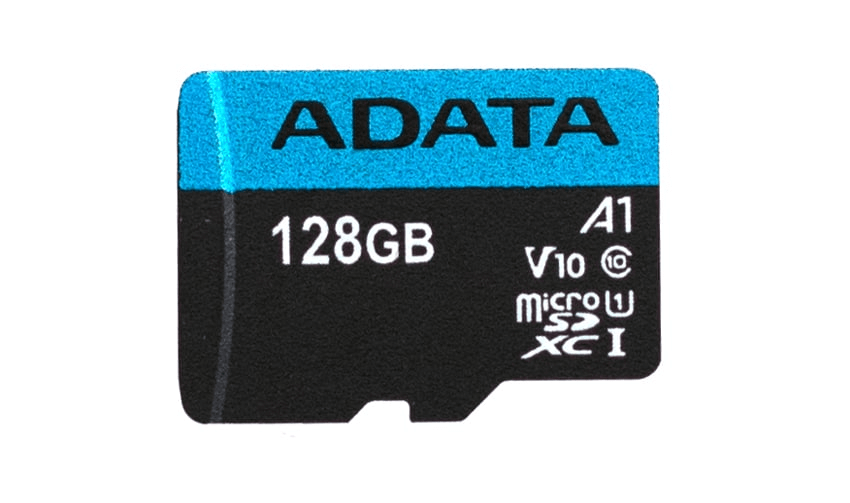
If your SD card is not showing up in Device Manager or has become inaccessible, there are several reasons why this might happen, and fortunately, there are also several ways to fix it. In this article, we will explore some of the common reasons behind this issue and provide step-by-step instructions on how to resolve it, including methods to recover lost data from an SD card that is not showing up.
Possible Reasons Why SD Card is Not Showing Up in Device Manager
Before diving into the solutions, it's important to understand why your SD card might not be appearing in Device Manager or Windows File Explorer. Here are some common reasons for this issue:
🔔Connection Problems: A loose or faulty connection between your SD card and card reader can prevent the device from being recognized.
🔌Corrupted SD Card: Files on the SD card may become corrupted, making it unreadable to the operating system.
💽Outdated or Faulty Drivers: Missing, outdated, or corrupted drivers for the SD card reader can cause the device to not show up.
✒️Write Protection: Some SD cards have a physical write protection switch that may prevent the card from being accessed.
📁File System Errors: A corrupted file system on the SD card can prevent Windows from recognizing it.
💾Hardware Failure: In some cases, physical damage to the SD card can cause it to stop working correctly.
How to Recover Data from the Not Showing Up SD Card
Before you attempt to fix the issue, it's important to ensure you don't lose any important data stored on your SD card. If the SD card is not showing up but you need to recover the files, the best solution is to use a professional data recovery tool like MyRecover. It is capable of recovering data from SD cards, USB drives, and other storage devices, even if they are not being recognized by your computer.

 MyRecover
- User-Friendly Interface: Three-step recovery process (Scan → Preview → Recover) with no command-line skills required.
- 1000+ File Formats: all types of images, videos, audios, documents, archives and more.
- Broad Device Compatibility: fully optimized for SmartBuy SD card, Gopro SD card, and other external storage devices.
- OS and File System Compatibility: work seamlessly with Windows 11/10/8/7 and Server and major file systems (NTFS, FAT32, exFAT).
 100% Secure
Step 1. Start by downloading and installing MyRecover on your Windows PC.
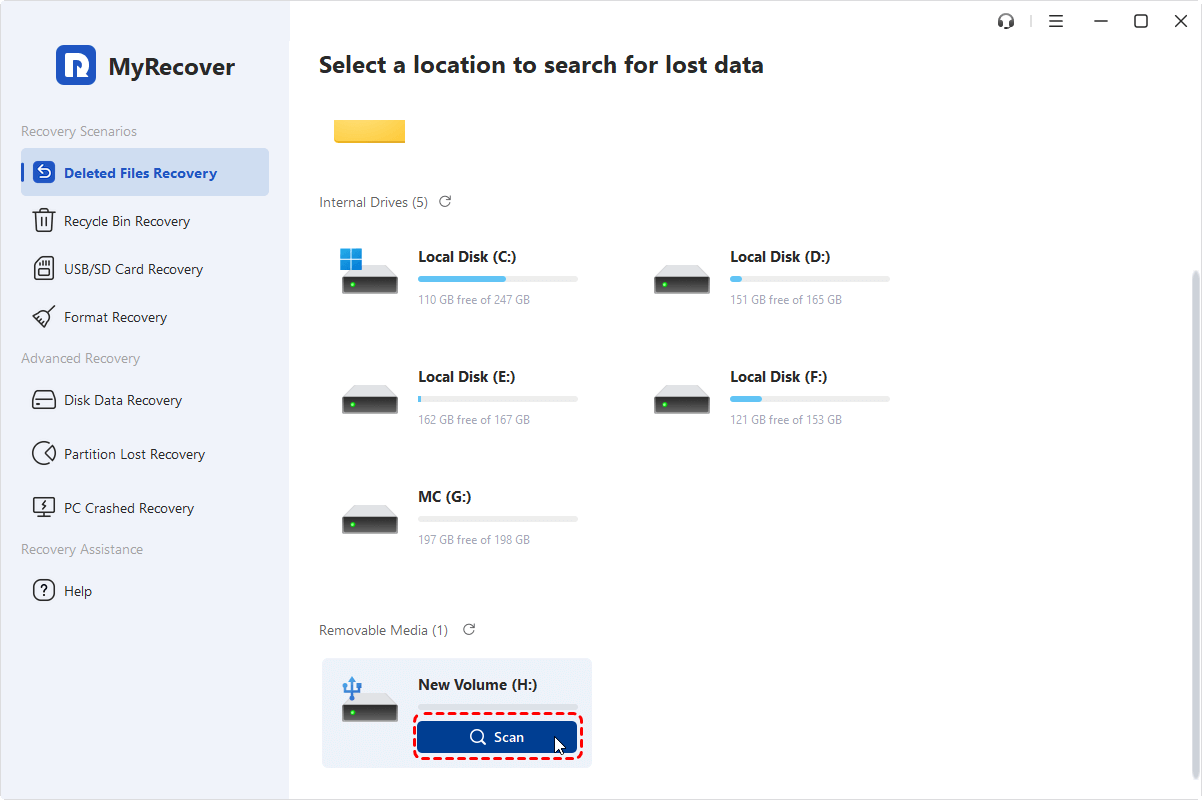
Step 2. After launching MyRecover, select your SD card (even if it’s not showing up) from the list of available devices to scan for lost files.
- ★Tips:
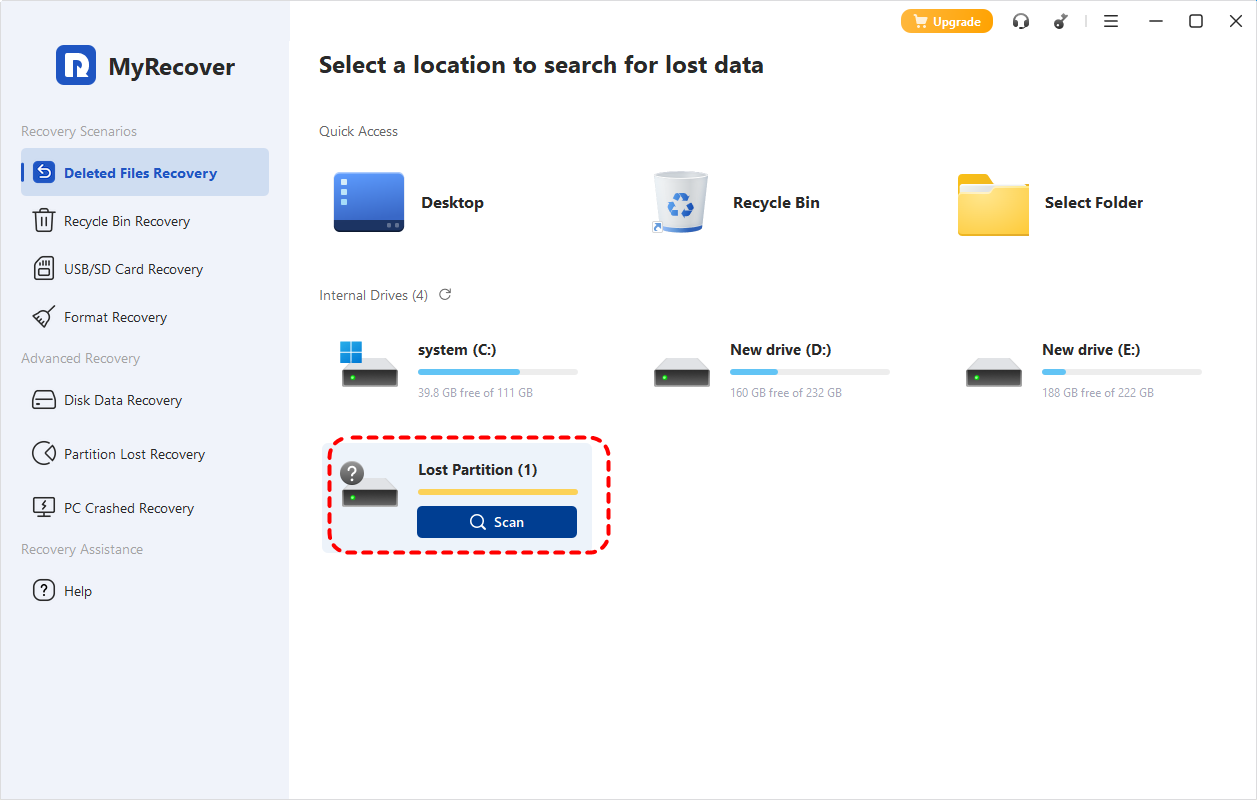
- If you can’t find your SD card among the available drives, it might be marked as a "Lost partition". You can verify if it’s your SD card by matching its capacity.
-

Step 3. Once the scan is complete, it will show you a list of recoverable files. You can select the files you want to recover from the recoverable lists and click "Recover".
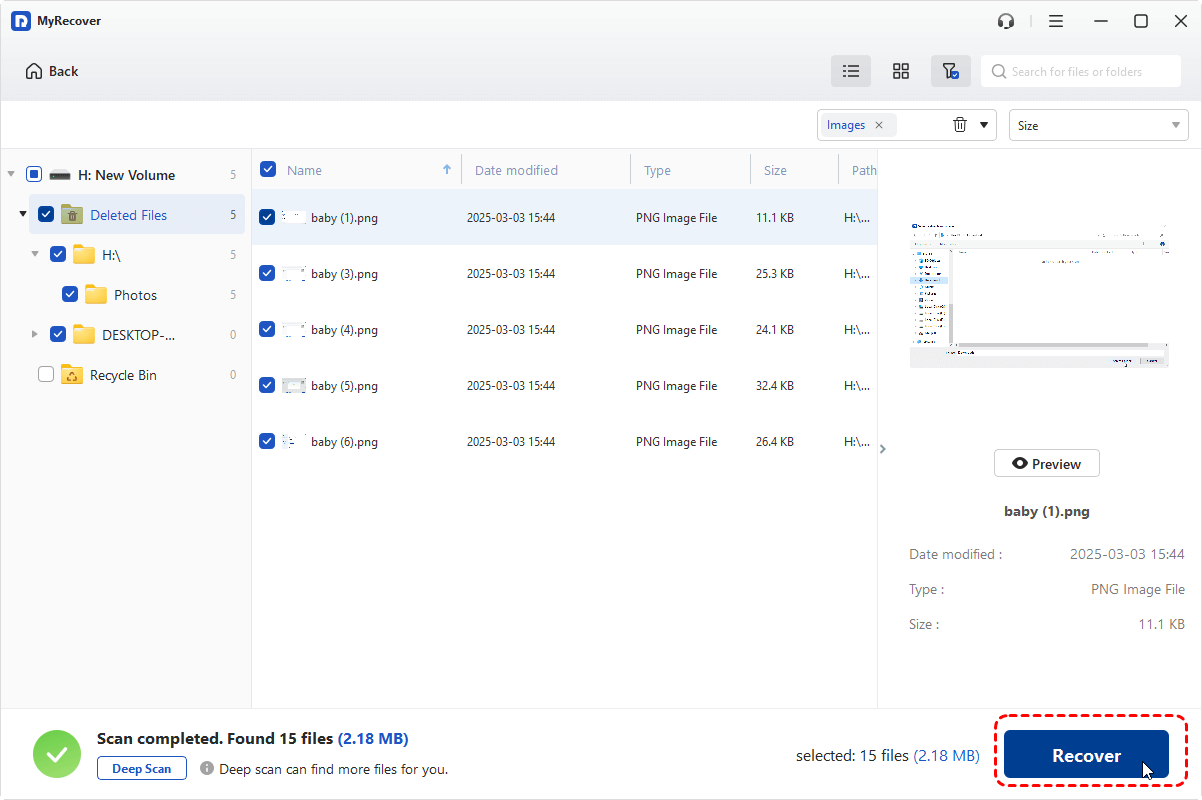
With MyRecover Free, you can recover up to 500MB of data at no cost. But if you need unlimited recovery capacity and the ability to preview files before restoring them, MyRecover Professional edition is the perfect upgrade.
Step 4. Select a safe location (preferably not the same SD card) to store the recovered files.
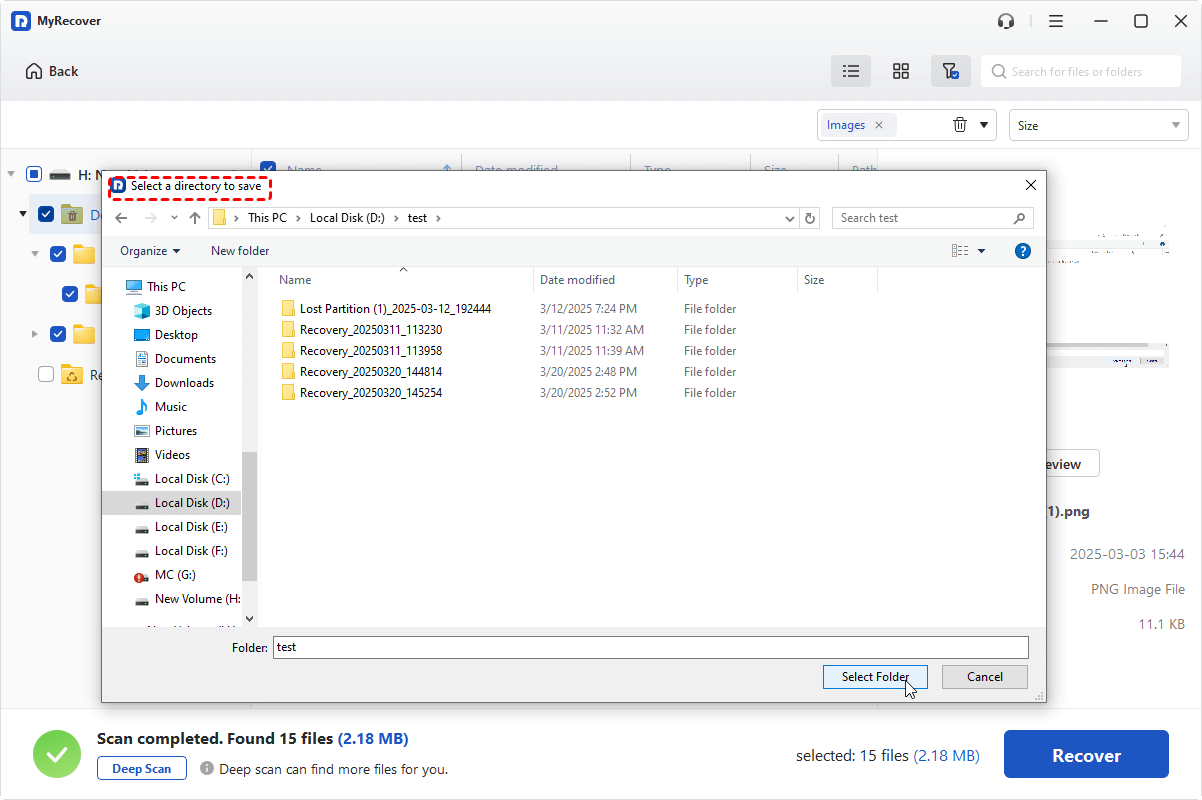
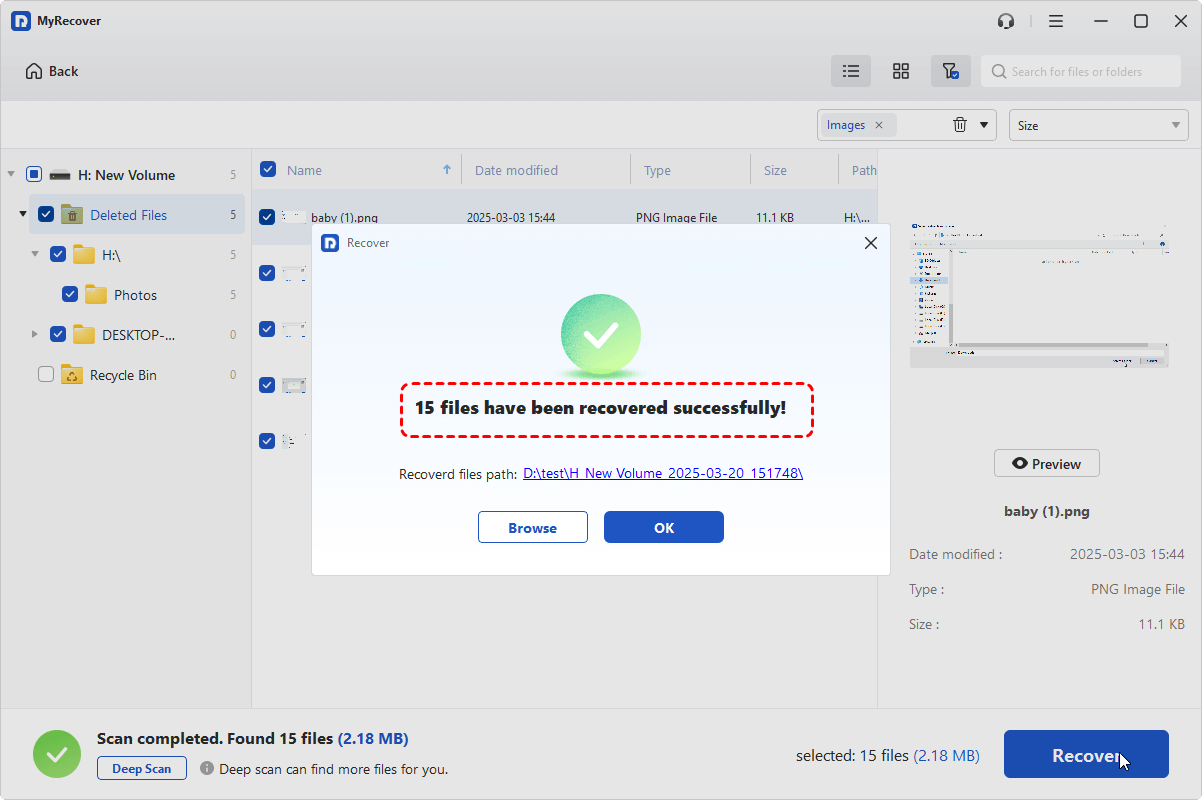
When the process is done, the message "Files have been recovered successfully" will pop up. Then, you can verify the recovered files in the destination folder by clicking on "Browse" button.
How to Repair the SD Card Not Showing Up in Device Manager
Now it’s time to resolve the issue of the SD card not showing up in Device Manager. This section will provide several methods to help you get your SD card to appear in Device Manager again. Let's explore them one by one.
1. Reconnect the SD Card
Sometimes, a simple disconnection and reconnection can resolve the issue. Remove the SD card from your computer or card reader, wait for a few seconds, and then reconnect it. If you're using an external SD card reader, try plugging it into a different USB port. If the SD card is detectable on other devices, then the issue is likely caused by your own computer.
2. Unlock the SD Card
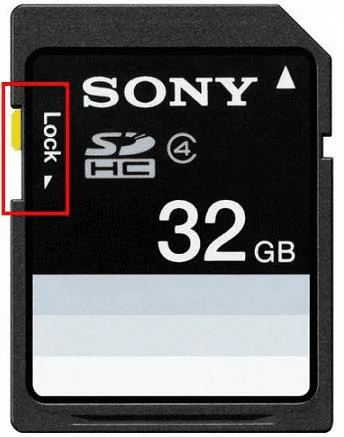
Some SD cards have a physical write protection switch that can prevent the card from being recognized or written to. Check your SD card for this switch and ensure it’s in the "unlocked" position. If the switch is locked, the computer may fail to detect the card.
3. Show Hidden Devices
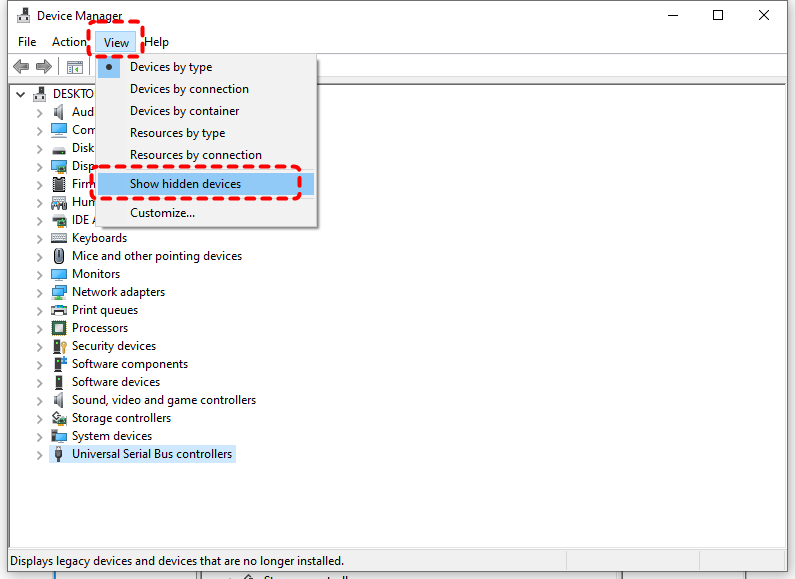
At times, a disabled or corrupted driver may prevent the SD card from appearing in Device Manager. In this case, you can solve "SD card not showing up in Device Manager" issue by reveal all devices.
Step 1. Press "Win" + "X" and choose "Device Manager" to open it.

Step 2. Click "View" tab at the top and check "Show hidden devices".
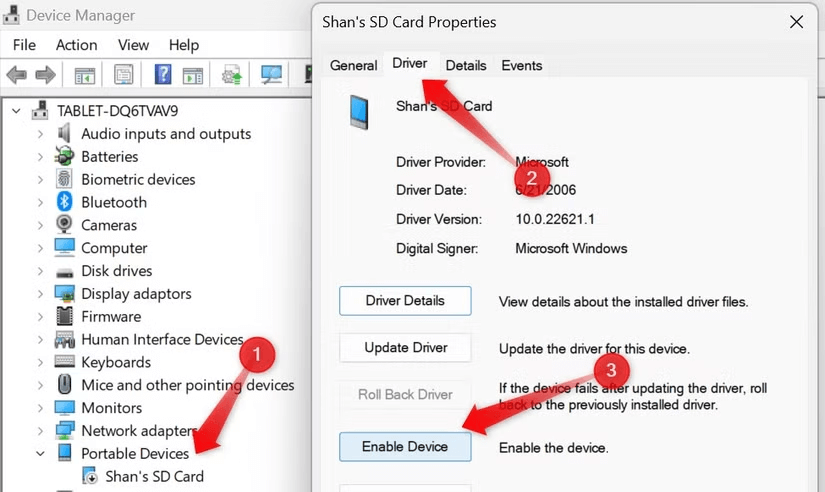
Step 3. Then, check if the SD card is showing up in Device Manager. If it does, right click on it and choose "Properties".
Step 4. Under the "Driver" tab, click "Enable Device". It will show properly on your computer.
4. Update or Uninstall Card Reader
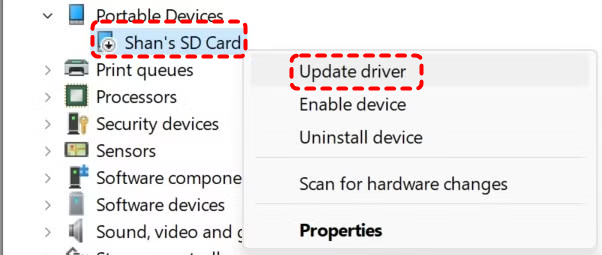
If you’re connecting your SD card to the computer via a card reader, in addition to problems with the SD card itself, you also need to rule out issues related to the card reader. Tring to update or uninstall the card reader in Device Manager can help fix this issue.
Step 1. Open Device Manager and expand "Disk drives" to locate the card reader.
Step 2. Right click on it and choose "Update driver". If there are no available updates, you may click "Uninstall device". Simply restart your PC, and Windows will reinstall the driver automatically.
5. Update USB Controllers
Outdated or corrupted USB controllers can prevent the SD card showing in Device Manager. To update the controllers and make your SD card appear again:
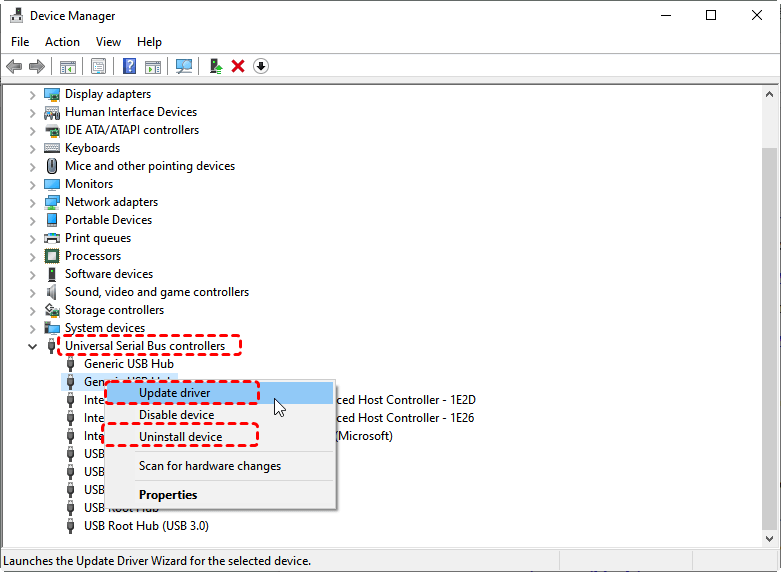
Step 1. Open Device Manager and expand the "Universal Serial Bus Controllers".
Step 2. Right click on each device and choose "Update driver" or Unistall device".
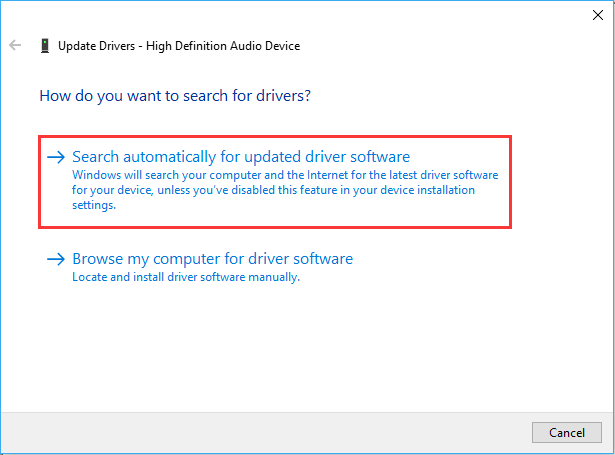
Step 3. Select "Search automatically for updated driver software" to continue the process.
Although updating drivers can resolve corrupted driver issues, for a corrupted file system, using a dedicated SD card repair tool allows the system to rebuild the partition table more reliably and recognize the SD card.
6. Run SFC and DISM Command
System file corruption can also lead to issues with devices not being recognized. Running the SFC (System File Checker) and DISM (Deployment Imaging Service and Management Tool) commands can help fix system corruption:
Step 1. Locate Command Prompt in the Start menu and run it as administrator.

Step 2. Enter the following command "DISM /Online /Cleanup-Image /RestoreHealth" and press "Enter" key.
Step 3. Then, run SFC command to scan and fix corrupte system files "sfc /scannow".

These commands will repair corrupt system files that may be causing the "SD card not showing up" issue.
7. Perform Clean Boot
A clean boot starts Windows with minimal drivers and startup programs, helping identify if background services or programs are causing the issue. If the SD card shows in clean boot state, the problem may be caused by background programs or third-party services.
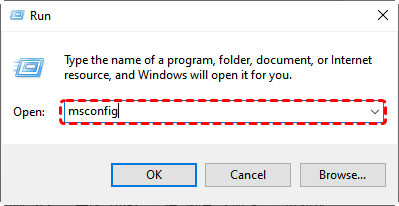
Step 1. Press "Win" + "R" and enter "msconfig" in the Run dialog to open System Configuration.
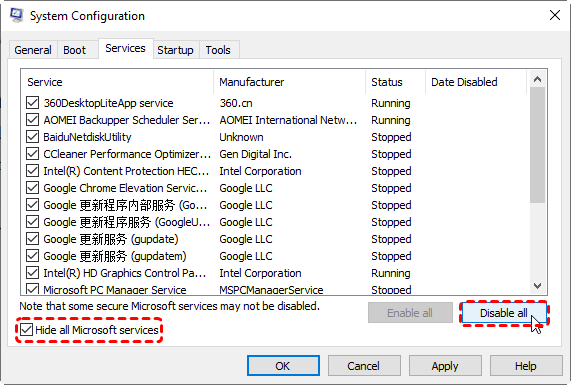
Step 2. In the opened window, click the "Service" tab and check the "Hide all Microsoft services", then click "Disable all" and "Apply" to save the changes.
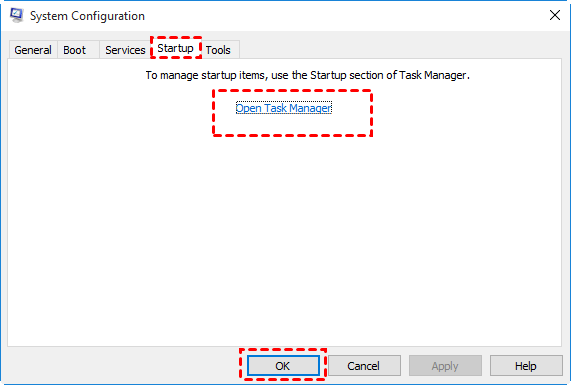
Step 3. Then, click "Open Task Manager" under the "Startup" tab to disable all apps.
Restart your computer and check if the SD card is recognized.
8. Format the SD Card on Camera or Phone
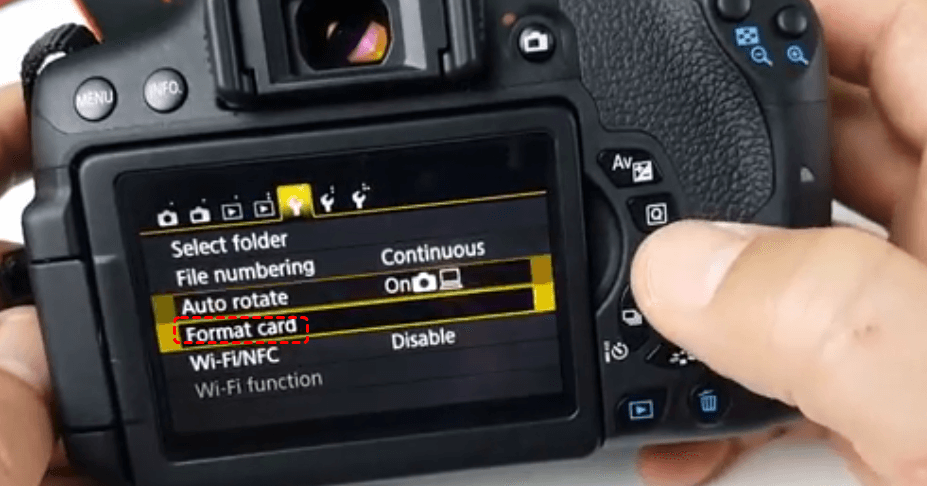
If none of the above methods work, and you still cannot access the SD card, you can try formatting the SD card in a different device, such as a digital camera or smartphone. This can sometimes resolve issues with the SD card not being recognized on your computer. If the SD card still fails to appear, it’s likely that the card has sustained physical damage. In this case, try swapping it out for a new one.
Final Words
When an SD card is not showing up in Device Manager or Windows File Explorer, there are various possible causes, from physical damage to corrupted drivers or file systems. Using the steps mentioned above can help fix the issue. If data recovery is needed, MyRecover provides a reliable way to recover lost files even if the SD card is not showing up.
In case the problem persists, consider reaching out to a professional recovery service or seeking further technical assistance. Remember to always back up important data regularly to prevent data loss in the future.

Stay Updated With Our
Latest Tips
Add us as a preferred source on Google to never miss helpful guides.
 Add as preferred source >>