 MyRecover



Seagate External Hard Drive Detected But Not Accessible: Complete Fix Guide
Facing a Seagate external hard drive recognized but not accessible problem? Learn the most effective troubleshooting methods to fix the drive, restore data, and ensure smooth operation without risking file loss.

By Vera / Updated on May 7, 2026


Introduction
Seagate external hard drive recognized but not accessible
my hard drive stopped working after a shutdown. at this point, the pc recognizes it but can't access it, and I'm in desperate need of retrieving the data. I was preparing to format so all of my work and my master's is in there. I don't care to save the hard drive; I just want to access it for a short amount of time, just to get the data back. the hard drive is a Seagate FreeAgent Desk 1 TB USB 2.0 Desktop External Hard Drive. it appears connected, it has a letter assigned to it, but the name changed back to local disk, it appears at device manager, but not at disk management, and from time to time I get a request for format. pls help
- Question from https://forums.tomshardware.com/
It’s a nightmare scenario: You plug in your Seagate drive, the indicator light blinks, and your computer makes the "connection" chime. However, when you open File Explorer, the external hard drive is recognized but not accessible. Or worse, a pop-up demands: "You need to format the disk before you can use it."
This issue is particularly common with models like the Seagate FreeAgent or Expansion series. As one frustrated user shared: "The PC recognizes it, but can't access it... the name changed to Local Disk." Whether your external hard drive shows but not accessible in the usual folders or appears as "RAW" in Disk Management, the data is usually still there—it’s just locked behind a software or logical barrier. This guide provides a prioritized roadmap to get your files back safely.
Why Your Seagate External Hard Drive Is Detected But Not Accessible
To fix the issue effectively, you must understand the logic of the error. Usually, the operating system (OS) can see the physical hardware (the USB bridge), but it cannot read the File System—the "index" that tells the OS where data is stored.
⭕1. File System Corruption (The "RAW" State): If your drive wasn’t ejected properly, suffered a sudden power loss, or experienced a system crash, the file system can get corrupted. This prevents your computer from reading the drive even though it recognizes it.
⭕2. Driver Issues: Outdated or missing drivers are a frequent culprit. Even if Windows or Mac detects the drive, you might get a "not accessible" error if the drivers aren’t functioning properly.
⭕3. Virus or Malware Attack: Some malware can hide your files, lock access to your external drive, or even corrupt the file system. Running a malware scan is an essential first step before attempting repairs.
⭕4. Insufficient Power Supply: Seagate desktop drives often require external power. If the cable is failing, the drive may spin enough to be "detected" but not enough to "read/write" data.
⭕5. Physical Damage: If the drive suffered a drop, water exposure, or excessive wear, it may only be partially recognized. Physical damage can sometimes require professional recovery services.
Phase 1: Check If Your Drive Is Recognized
Before attempting software repairs, you must verify how the computer "sees" the drive. This determines if the problem is a minor pathing glitch or a critical file system failure.
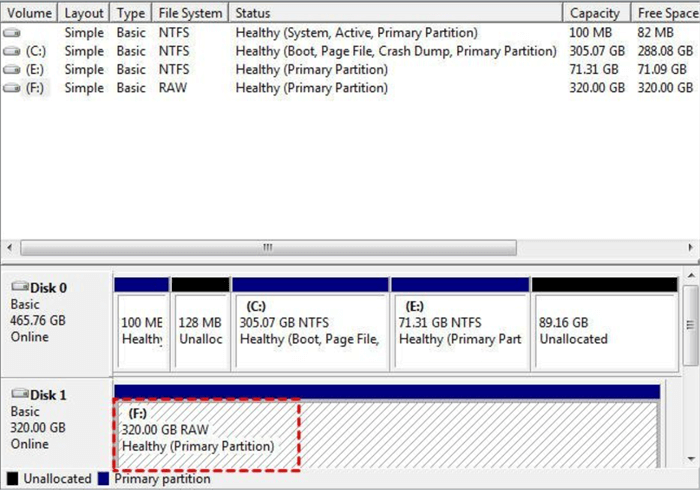
👉On Windows: Check Disk Management
1. Plug in the drive.
2. Right-click This PC and select Manage.
3. Click Disk Management.
4. Locate your Seagate drive.
- If it says "RAW" or "Unallocated": The file system is damaged.
- If it has no letter: It’s a pathing issue.
- If it’s not here but is in Device Manager: The bridge chip is working, but the disk volume is not mounting.
👉On Mac: Check Disk Utility
1. Open Disk Utility (Applications → Utilities → Disk Utility).
2. Check the sidebar for your Seagate drive.
3. If it is grayed out, the drive is "Unmounted," meaning macOS recognizes the hardware but cannot "handshake" with the data.
Phase 2: Quick Fixes for Seagate External Hard Drive Detected But Not Accessible
Sometimes, the simplest solutions work best. Here are practical methods with step-by-step guidance.
Fix 1. Reconnect and Try Different USB Ports
USB ports and cables are common points of failure. This method isolates whether the fault lies in the Seagate drive or the computer's interface.
- Disconnect the drive safely.
- Try connecting it to another USB port. USB ports can fail or provide insufficient power.
- If possible, connect the drive to another computer to see if the issue persists.
- Consider using a powered USB hub if your drive needs more power than your port provides.
If the drive remains inaccessible across different devices, we can confirm the issue is internal to the drive's software or partition table.
Fix 2. Update or Reinstall Drivers (Windows Only)
If your OS recently updated, the old Seagate drivers might be incompatible, leading to an "inaccessible" status.
1. Press Win + X and select Device Manager.
2. Expand Disk Drives and locate your Seagate drive.
3. Right-click → Update Driver → Search automatically for updated driver software.

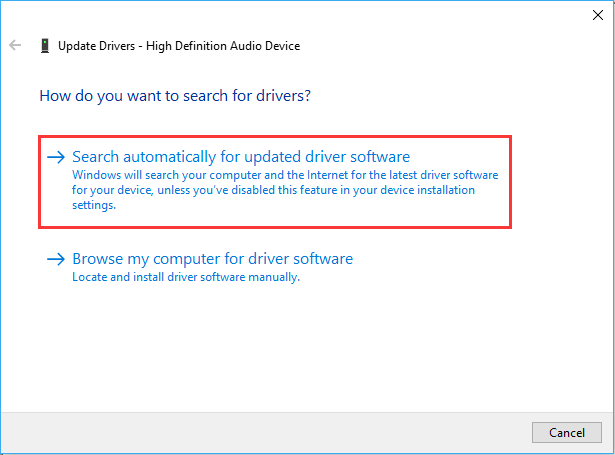
4. If that doesn’t work, right-click → Uninstall device, then disconnect and reconnect the drive. Windows will reinstall the driver automatically.

Fix 3. Assign a Drive Letter (Windows Only)
Sometimes Windows detects the drive but fails to give it a "doorway" (letter). Assigning one manually forces File Explorer to refresh its pathing.
1. Open Disk Management.
2. Right-click the Seagate drive → Change Drive Letter and Paths.
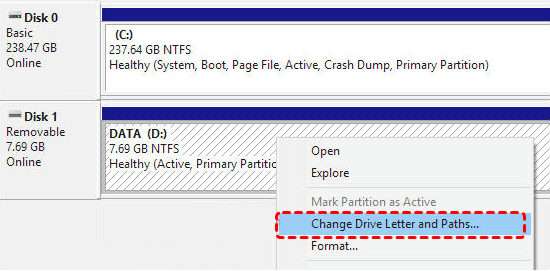
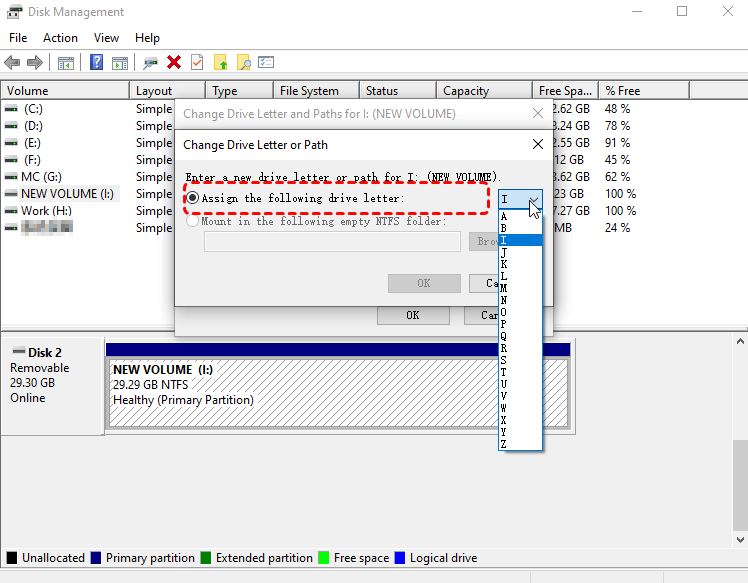
3. Click Add or Change, then assign a new drive letter (e.g., "Z" to avoid conflicts).
4. Click OK and try accessing the drive again.
Phase 3: Advanced Logical Repairs for Seagate External Hard Drive Detected But Not Accessible
If the quick fixes fail and your external hard drive is recognized but not accessible, the internal structure of your drive likely has "logical errors" or bad sectors that require system tools to repair.
Solution 1. Use CHKDSK on Windows
CHKDSK (Check Disk) is a system tool that repairs the volume's metadata and directory errors. It is the most effective way to fix an "Access Denied" error caused by file system corruption.
Steps:
1. Press Win + S, type cmd, and run Command Prompt as administrator.
2. Type: chkdsk X: /f /r (replace X with your drive letter).

3. Press Enter. CHKDSK will scan for bad sectors and repair them.
4. Wait for the process to complete, then try opening your drive.
Solution 2. Repair Using Disk Utility on Mac
This is the Apple equivalent of CHKDSK. It verifies the catalog file and prevents the drive from being stuck in an "Unmounted" state.
Steps:
1. Open Disk Utility → select your Seagate drive.
2. Click First Aid → Run.
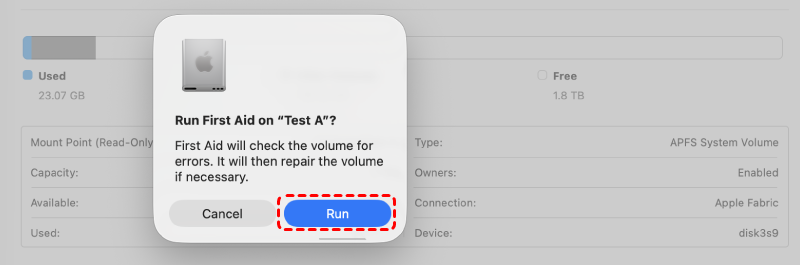
3. Wait until macOS finishes repairing errors.
4. If successful, your drive should become accessible.
If system tools cannot repair the drive, the file system is likely too damaged to be fixed without a format. Wait! Do not format yet if you need your data.
Phase 4: Recovering Data from an Inaccessible Seagate Drive
When Windows suggests you "Format the disk" because the external hard drive is recognized but not accessible, your data isn't gone—it's just "un-indexed." Formatting would create a new index but erase your old files. To get your documents back, you need a tool that can read the drive at a sector level, bypassing the corrupted OS layer.
Why Use MyRecover for Inaccessible Seagate Drives?
MyRecover is specifically designed for the "Detected but Inaccessible" scenario. While Windows sees a "RAW" drive, MyRecover sees the original data bits.

 MyRecover
- 🎈Bypasses File System Errors: It can scan Seagate drives that Windows labels as "Format Required."
- 🎈Signature Recognition: It recognizes 1000+ file types (DOCX, PDF, JPG), ensuring your work is found even if the folder names are lost.
- 🎈Deep Scan Tech: It handles the high-density platters of Seagate Expansion and FreeAgent drives, finding data hidden by bad sectors.
 100% Secure
Step-by-Step Recovery Guide:
1. Download and install MyRecover.
2. Launch the software and select your Seagate external drive.
3. Click Scan. The tool will perform a quick scan for recoverable files.

4. Preview files and select the ones you need.
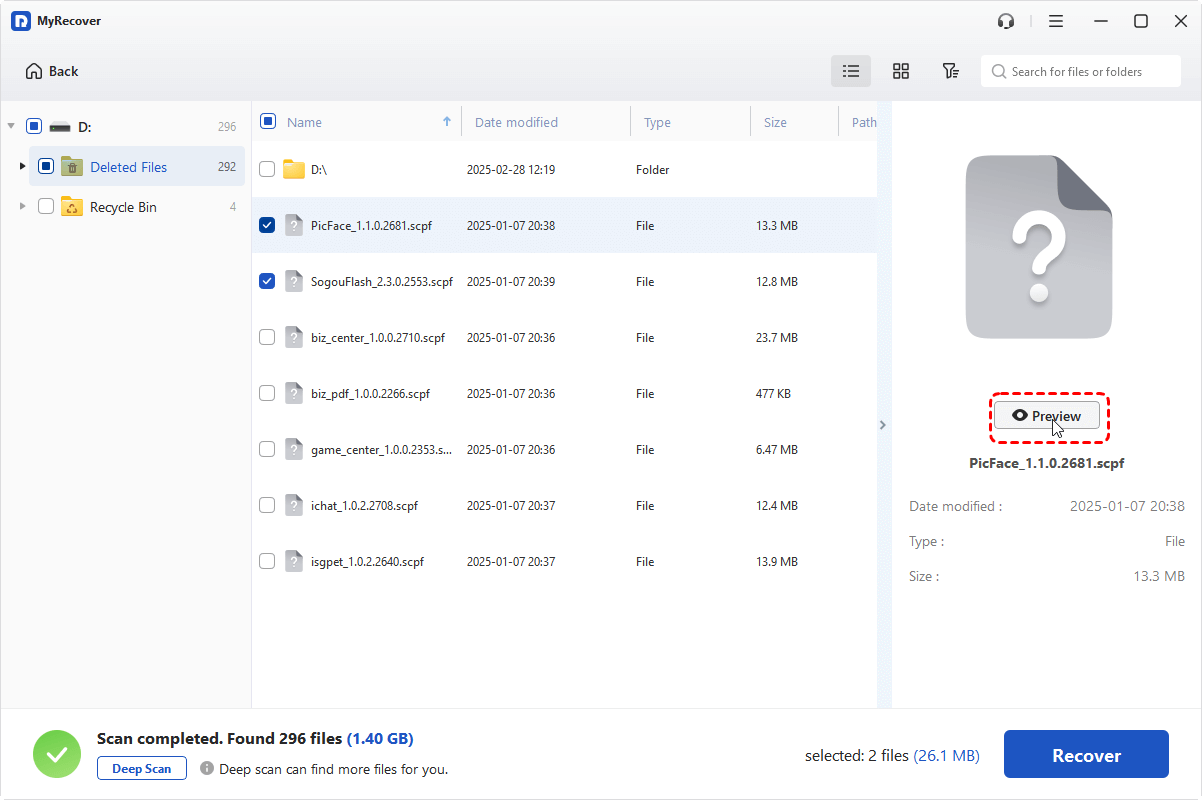
5. Click Recover and save files to a different location—not the same drive—to prevent overwriting.

Phase 5: Format the Drive (Last Resort)
If your data is safely recovered with MyRecover, or if you don't need the data, formatting is the "factory reset" for your drive. It wipes the corrupted partition table and writes a new one (NTFS for Windows or APFS for Mac).
- >> Want to recover files from an external hard drive without formatting? Use the professional data recovery tool --- MyRecover mentioned above!
👉Steps on Windows:
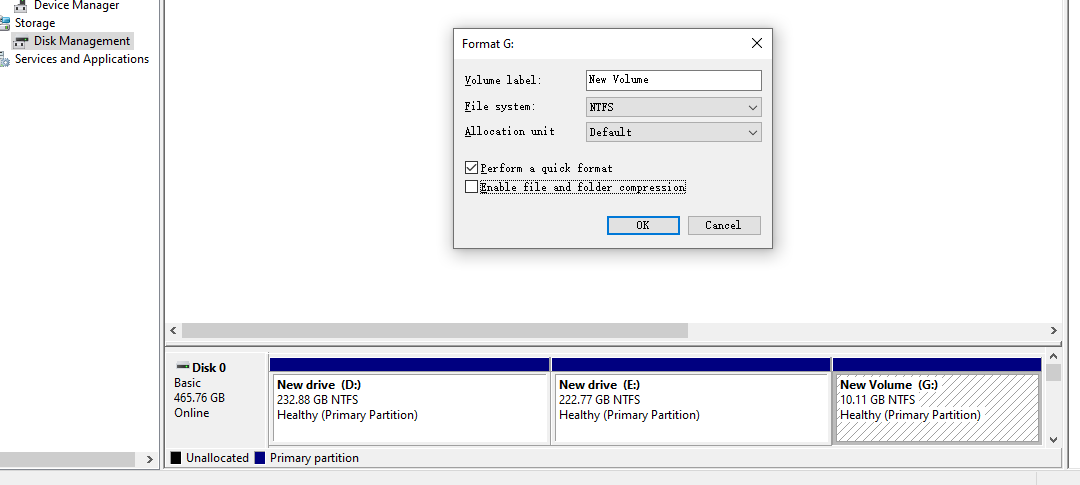
1. Open Disk Management → right-click the drive → Format.
2. Choose a file system (NTFS for Windows, exFAT for cross-platform use).
3. Ensure "Perform a quick format" is checked. Click OK.
👉Steps on Mac:
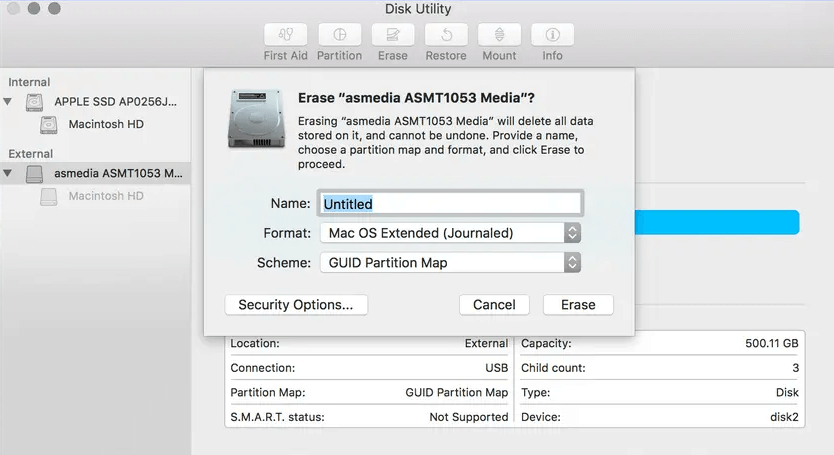
1. Open Disk Utility → select the drive → Erase.
2. Choose a format (Mac OS Extended or exFAT).
3. Click Erase.
If you have important files on the drive, recovery should be your first priority.
Conclusion
Finding that your Seagate external hard drive is recognized but not accessible is stressful, but it is rarely a death sentence for your data. By methodically moving from hardware checks to driver updates, and finally using professional recovery tools like MyRecover, you can bridge the gap between a "hidden" drive and your important files.
FAQ: Expert Solutions for Seagate Issues
Q1: My Seagate drive is clicking and not accessible. Can I still use software to fix it?
A: No. A clicking sound indicates a mechanical failure (the read/write head is struggling). Unplug the drive immediately. Software like CHKDSK or MyRecover will only stress the hardware further and potentially cause a "head crash." In this case, consult a physical data recovery lab.
Q2: Disk Management says "Not Initialized" and "Unallocated." What does that mean?
A: This happens when the Master Boot Record (MBR) is corrupted. You can right-click the disk name and select Initialize Disk. However, if this returns an "I/O Device Error," it usually means the physical connection inside the Seagate enclosure has failed.
Q3: Why does my drive keep saying "You need to format the disk" every time I plug it in?
A: This occurs because the OS no longer recognizes the file system (it has become RAW). This is often caused by unplugging the drive without clicking "Safely Remove Hardware." Do not format until you have used MyRecover to pull your files off first.
Q4: Are there feasible ways to avoid future issues?
A: Here’s how to protect your Seagate drive.
- 1. Regular Backups: Keep multiple copies of important files on other drives or in the cloud to avoid permanent loss.
- 2. Safe Removal Practices: Always eject your drive properly before disconnecting to prevent file system corruption.
- 3. Keep Software and Drivers Updated: Regularly update your OS, antivirus, and drivers to prevent compatibility or malware issues.

Stay Updated With Our
Latest Tips
Add us as a preferred source on Google to never miss helpful guides.
 Add as preferred source >>