 MyRecover



Sony Handycam Video Recovery: 3 Proven Tools to Get Back Lost Footage
Losing video footage from a Sony Handycam can be stressful, especially when the files capture important moments or professional work. This article explores the typical causes of video loss on Sony Handycam devices and presents three reliable recovery methods to address different loss scenarios. With these tools, you can improve chances of restoring lost footage without causing further damage.

By Aria / Updated on January 26, 2026


Introduction
Hey everyone, I really need help recovering my files from my Sony Handycam HDR-SR11. How It All Started: I tried connecting my Handycam to my Samsung S20 Ultra using USB. My phone said the drive needed to be formatted to use it. Without thinking, I clicked "Format", and now the camcorder's HDD is exFAT instead of its original format. Now, my Handycam doesn’t recognize the HDD, and Windows sees it as exFAT? With almost all space free."
- Question from Ken
Sony Handycam has long been a trusted choice for recording family moments, events, and professional footage. However, like any other camera devices like Cybershot, data loss often happens in the blink of an eye due to a simple mistake. Many users encounter the same situations where recorded videos suddenly disappear or become inaccessible.
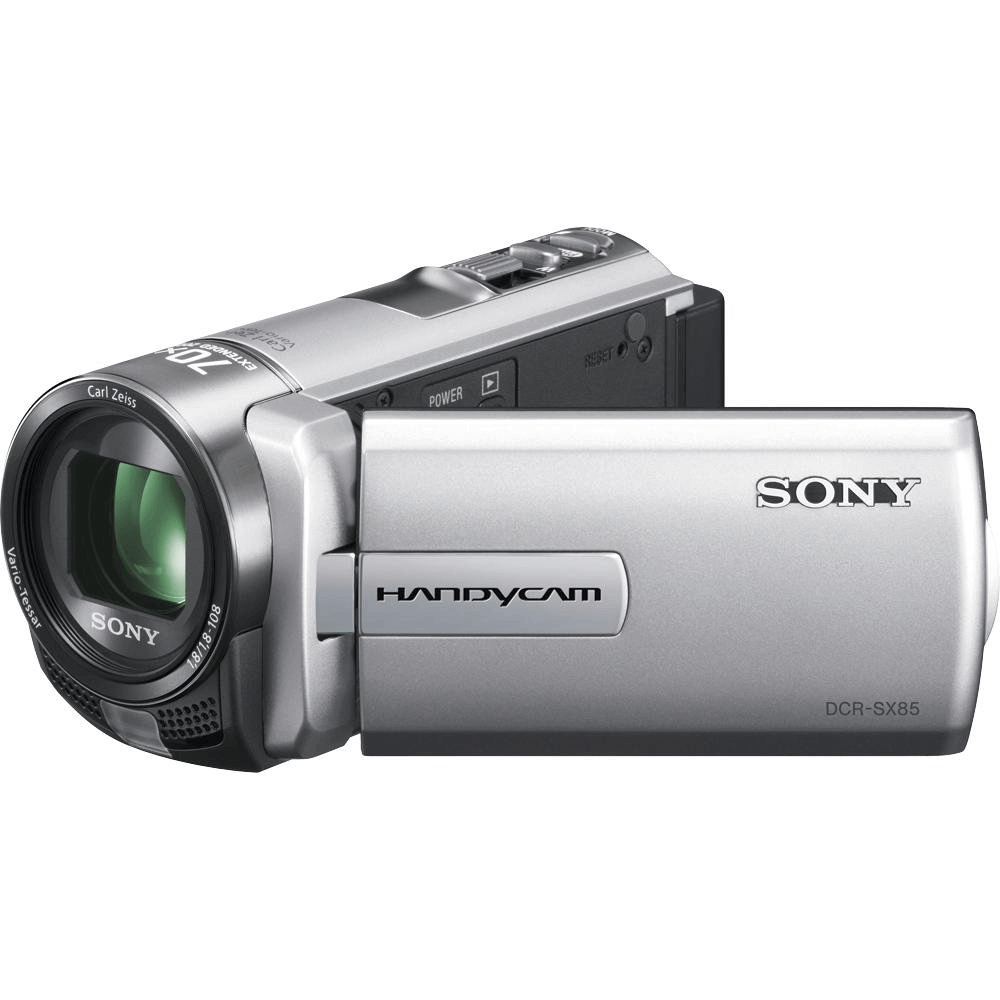
In some cases, users only realize the problem when connecting the Handycam to a computer and finding folders empty, videos missing, or files that refuse to play. These make Sony handycam video recovery a critical concern, especially when the footage is irreplaceable. The common causes of Sony Handycam video loss including:
- Accidentally delete the clips or folders directly from the camcorder/PC;
- When you attempt to access videos on your Handycam SD card, your PC or phone might ask you to format the SD card;
- File system corruption caused by improper ejection or sudden power loss;
- SD card error like "SDC error, please format".
How Sony Handycam Stores Video Files
To recover videos effectively, it helps to understand how Sony Handycam stores data. Most Sony Handycams record videos in formats such as AVCHD (.MTS/.M2TS), MP4, or MPEG, depending on the model. Videos are typically stored on SD or microSD cards, memory stick pro duo, internal flash memory.
When you delete videos from an SD card, the files aren’t erased immediately. Only the file directory entries are marked as deleted, and the space previously occupied by the videos is labeled as "available for reuse". As long as they haven’t been overwritten by new data, the lost videos from Sony Handycam can still be recovered.
3 Proven Sony Handycam Video Recovery Tools
Before diving into recovery tools, it’s important to emphasize that not every Sony Handycam video recovery tool works for all data loss scenarios. Some are limited in the brand of storage devices, while others require advanced command line knowledge. You can opt for the most suitable one based on your actual situation.
Critical Rules Before Attempting Recovery
Before using any Sony Handycam video recovery software, these precautions help prevent overwriting the original video data, which is crucial for successful recovery. Following these rules:
- Stop using the memory card immediately;
- Do not record new videos on the affected device;
- Avoid formatting the card before recovery;
- Remove the storage device from Sony Handycam carefully and connect it to your computer.
Use Memory Card File Rescue (Sony's Official Recovery Tool)
Sony provides Memory Card File Rescue, a utility designed specifically for data recovery from Sony storage media. It supports recovery of photos and videos from memory cards used in Sony devices. This tool can be a good starting point for free Sony Handycam video recovery, especially when files were recently deleted. If you’re using a Sony storage device, follow the steps below to recover your lost videos:
Step 1. Download and install Memory Card File Rescue on your computer from Sony official website.
Step 2. Select the Sony SD card to scan the lost videos and click "Next".
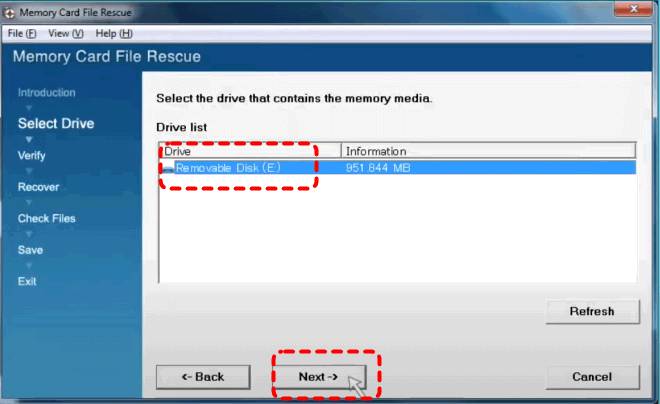
Step 3. Check the files you would like to recover from the lists and you can preview the files in the right panel, then click "Next".
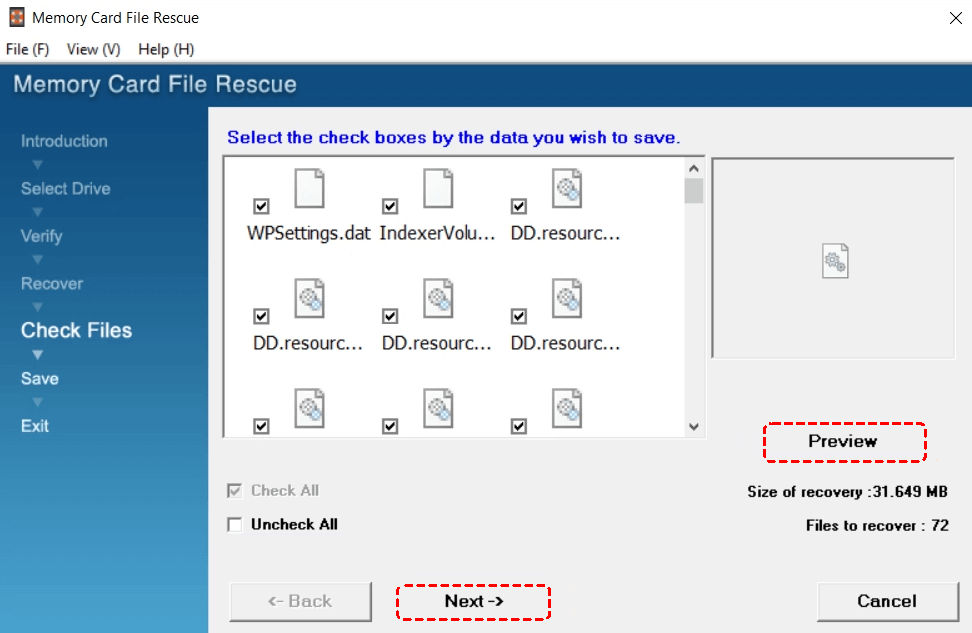
Step 4. Choose a different location to save the recovered files and click "Save".
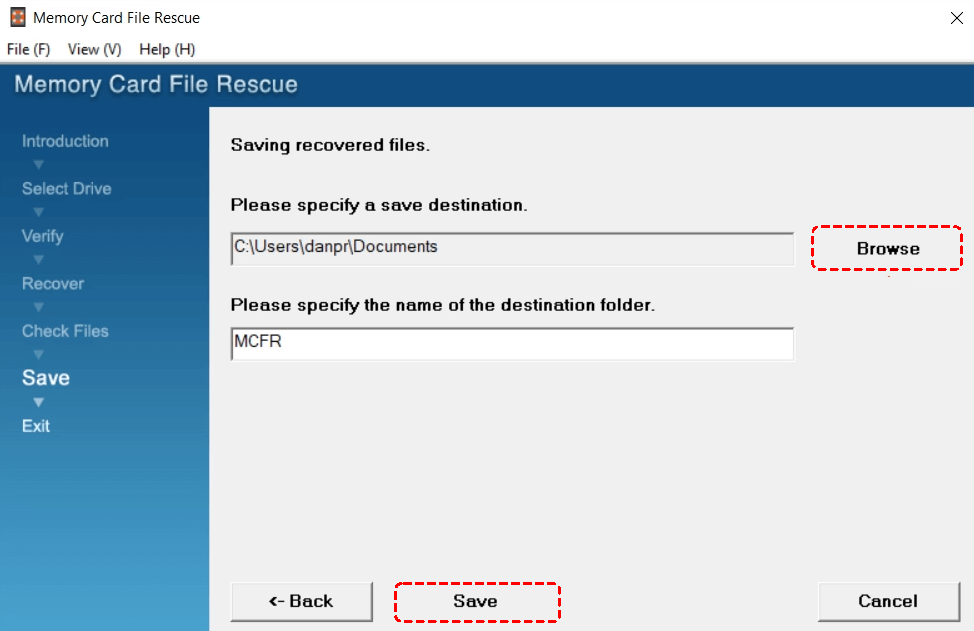
Run Windows File Recovery Command
Windows File Recovery is a command-line utility developed by Microsoft. It can recover deleted files from SD cards and USB drives when used correctly. While this option is free and effective for camera SD card recovery, especially recover permanently deleted files, it requires technical knowledge and does not preview files before recovery. Additionally, if your video files are fragmented or corrupted, you might find the videos you get back with Windows File Recovery won’t play at all.
Step 1. Download and install Windows File Recovery on your computer from Microsoft official site.

Step 2. Open File Explorer or Disk Management to check the SD card drive letter and note it.
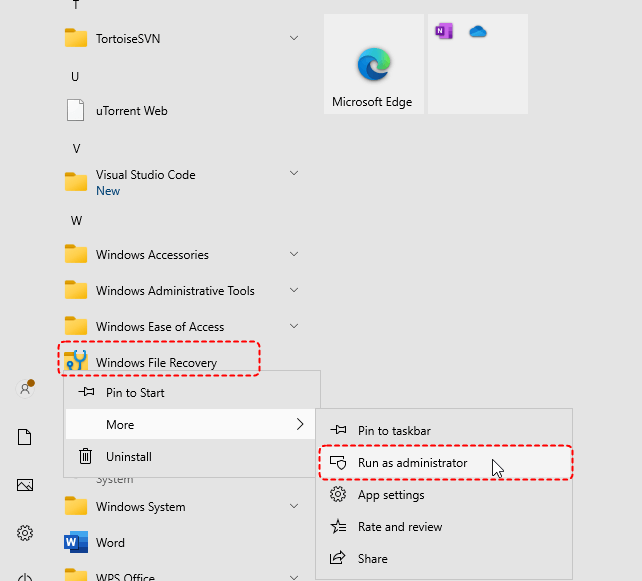
Step 3. Locate Windows File Recovery in the Start menu and right click on it, then select "Run as administrator".
Step 4. Enter the following command "winfr E: F: /extensive /n *.mp4" and hit the "Enter" key. Replace the drive letter "E" and "F" with your actual drive letter.
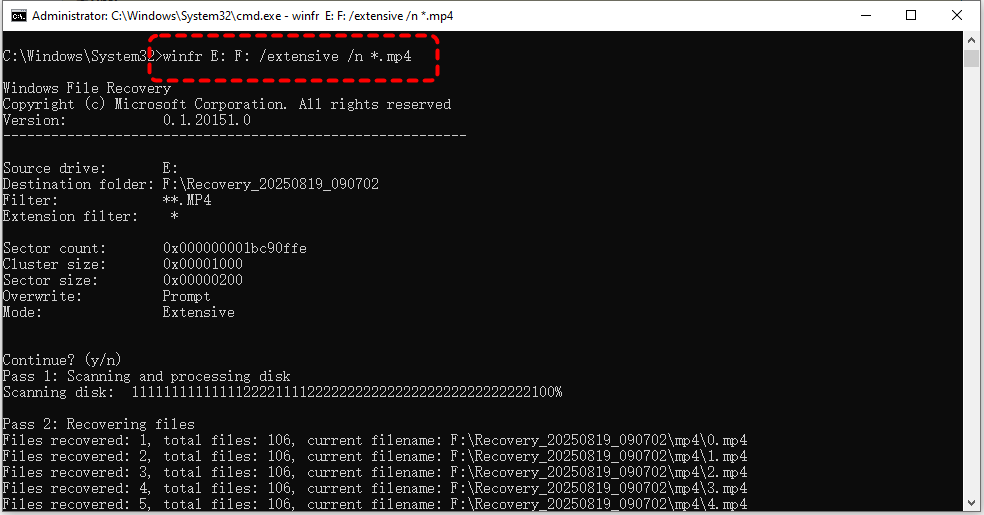
- Notes:✎...
- E: the source drive. Drive letter contains lost data (your Sony Handycam SD card).
- F: the destination drive. Drive letter saves the recovered files. It must be different from source drive with sufficient free space.
- /extensive: deep scan mode.
- /n *.mp4: file filter. Specifies which files with .mp4 extension to recover only.
- Windows File Recovery is only compatible with Windows 10 and 11.
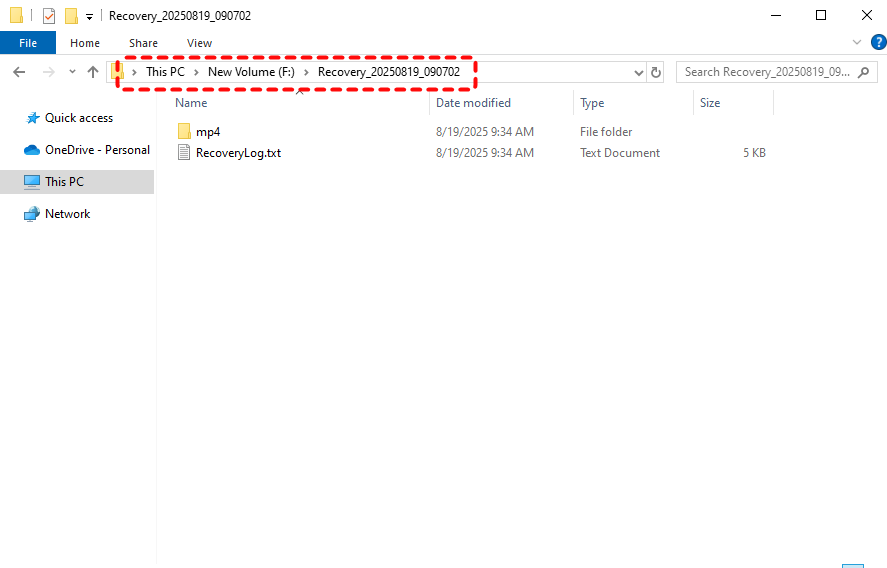
Wait for the process to completed, press "y" to access the recovered videos in the destination folder.
MyRecover: Advanced Sony Handycam Video Recovery Tool
If you’re using a non-Sony storage device and aren’t interested in command-line tools, MyRecover offers a more comprehensive solution. It is especially useful when videos are lost due to formatting, file system corruption, or failed transfers. It supports deep scanning of memory cards and internal storage, easily handles large video files, and allows file preview before recovery.
Why choose MyRecover?
✅500+ Devices Support: Recover files from all types of devices like SSD, HDD, USB flash drive, SD card, cameras, game console drives and more.
✅Handle 500+ Data Loss Scenarios: Recover from deleted partition, formatted hard drive, emptied Recycle Bin, system crash, virus attack, etc.
✅Supports over 1,000 file types: Including documents, photos, videos, audio, archives, and Outlook data files.
✅Smart Filtering: Recover files by type, date, or size with precision.
✅Smart scan modes: Choose from Quick Scan for recent deletions or Deep Scan for formatted/corrupted drives.
✅OS Compatibility: Work not only on Windows 11 /10, but also on Windows 8.1/ 8/ 7 and all Servers.
Step 1. Download and install MyRecover on your computer from Microsoft Store or its official site.
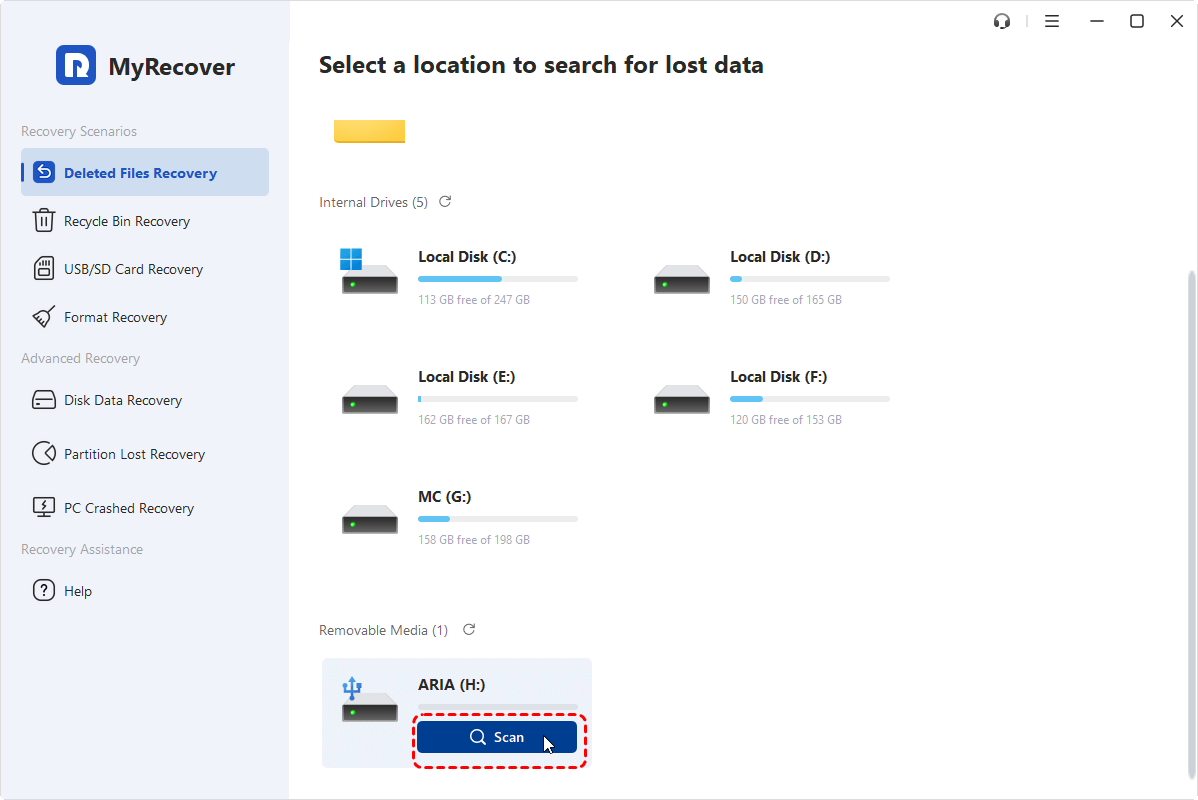
Step 2. Run the app and select the connected SD card to scan, then click "Scan" to search for recoverable files.
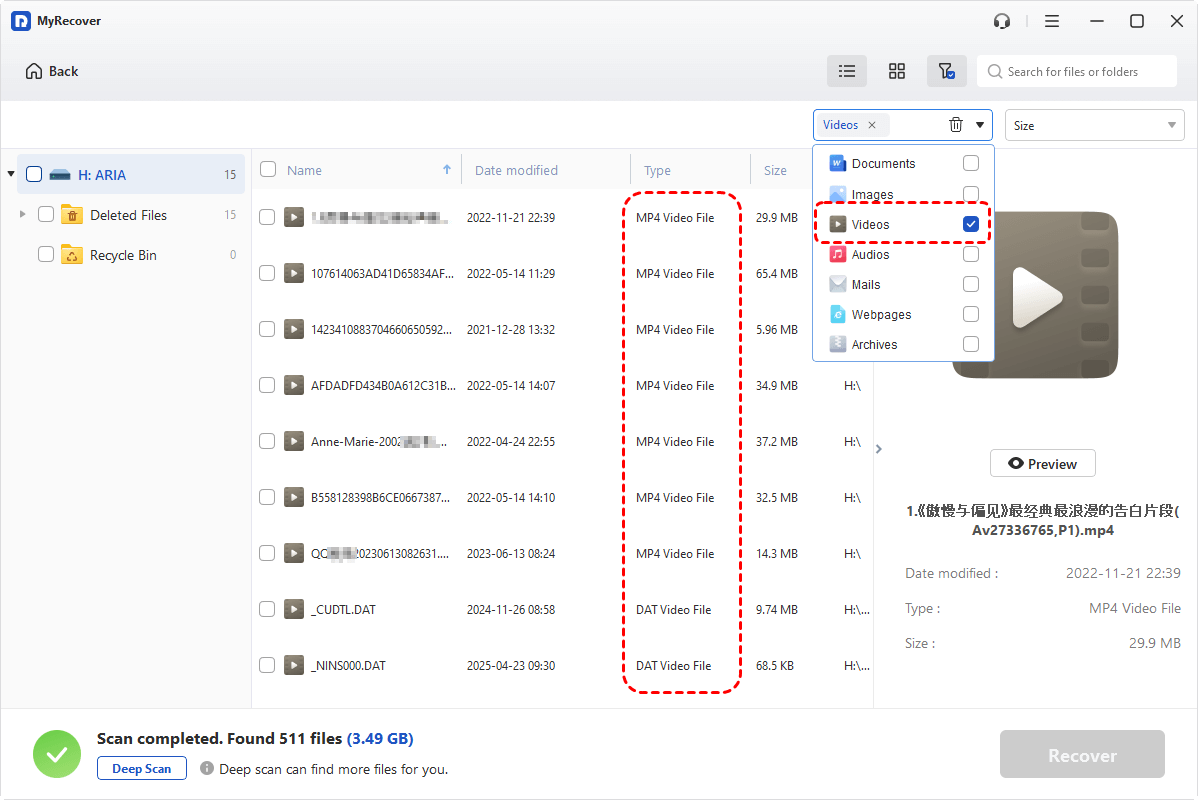
Step 3. After the scan is completed, use the "Filter" function in the right upper corner to quickly find all of the deleted video files. Alternatively, under the "Type" tab, you can also locate all the videos. Then, click "Recover" to retrieve the files you attempt to recover.
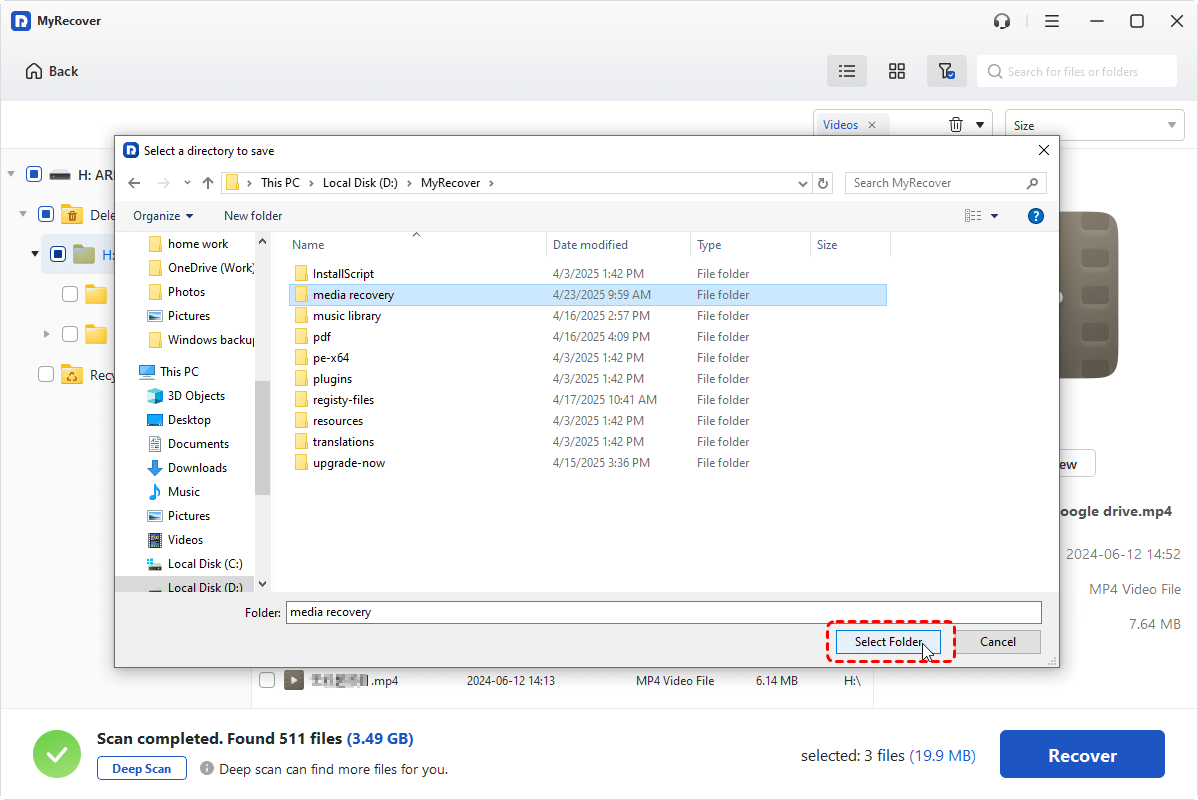
Step 4. Choose a different drive to save the recovered files.
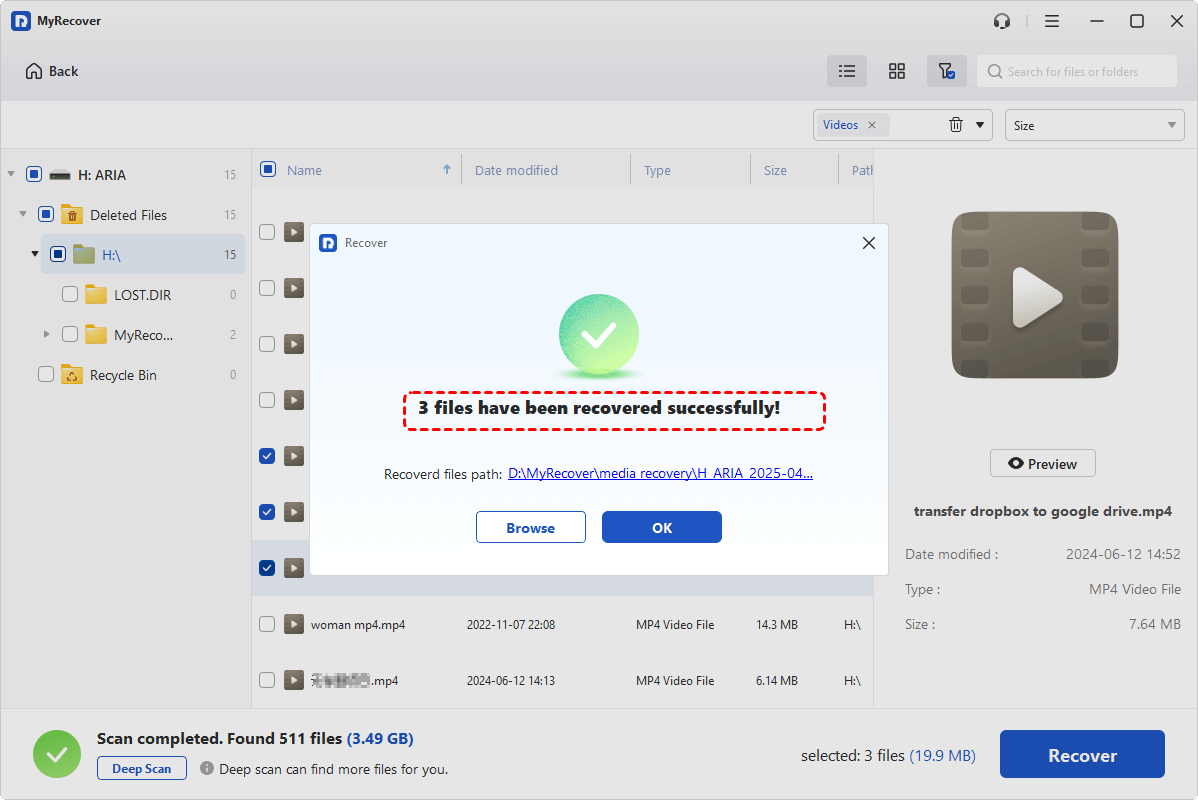
Once the process is done, you can view the recovered videos in the destination folder by clicking on the "Browse" button.
Conclusion
Losing Sony Handycam videos can be frustrating, but it rarely means the footage is gone forever. In most cases, the data remains recoverable if the right steps are taken early and the correct tools are used. For users dealing with serious Handycam video loss scenarios, MyRecover offers a balanced combination of depth, accuracy, and usability without unnecessary complexity.
For IT teams, managed service providers (MSPs), and enterprise environments, MyRecover Technician Edition allows you to activate and recovery data on multiple computers just with one license, making it ideal for service desks, on-site support, and large-scale IT operations.

Stay Updated With Our
Latest Tips
Add us as a preferred source on Google to never miss helpful guides.
 Add as preferred source >>