 MyRecover



Fixed: The Driver DLL Required to Access This Device is Missing
The error message ‘The driver DLL required to access the device is missing’ usually appears when Windows cannot load the necessary dynamic link library needed for a hardware device to function properly. This article explains what DLL files are, why this error occurs (including cases like FiiO driver DLL is missing), and how to safely install or restore missing DLL files on Windows 10 and Windows 11.

By Emma / Updated on December 23, 2025


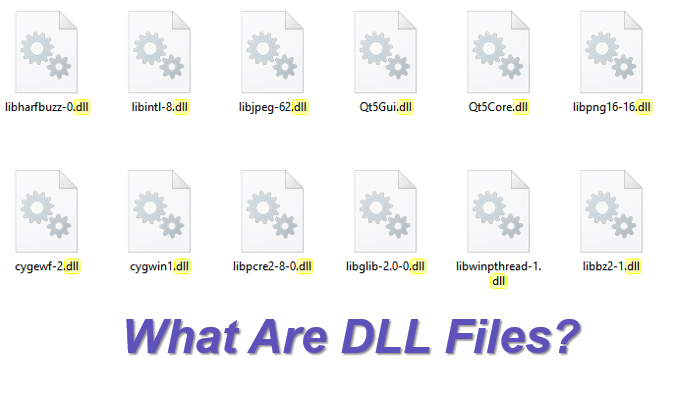
What Are DLL Files?
DLL (Dynamic Link Library) files are shared system files used by Windows and applications to store reusable code, functions, and resources. Instead of including the same code in every program, Windows loads the required DLL files only when needed. This design improves system efficiency, reduces memory usage, and makes software easier to maintain and update.
In Simple Terms:
Think of a DLL file as a shared toolbox on your computer. Programs don’t carry every tool with them—they borrow tools from this toolbox when they need to work. If the toolbox is missing or a tool inside is broken, the program can’t do its job and shows an error. That’s why when a DLL file is missing, Windows or a device may stop working properly.
👉Simply put: DLL files help programs and devices run correctly. If one is missing, things break.
Why "The Driver DLL Required to Access the Device is Missing" Appears?
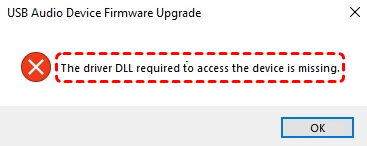
This error appears when Windows cannot find or load a required "driver DLL (Dynamic Link Library)" file needed for a hardware device to function properly. In simple terms, the device’s driver is incomplete or broken, so Windows doesn’t know how to communicate with the hardware.
Common causes include:
- The driver DLL file may have been deleted, damaged, or blocked by antivirus software.
- If the driver installation was interrupted or the wrong driver version was installed, required DLL files may not be registered correctly.
- Updating Windows (for example, to upgrade from Windows 10 or 11) can make older or incompatible drivers stop working.
- The driver may not match your system architecture (32-bit vs. 64-bit) or Windows version.
- Corrupted registry entries or system files can prevent Windows from locating the correct DLL file.
- Audio tools, virtual drivers, or system optimization software may interfere with device drivers.
How to Fix "The Driver DLL Required to Access the Device is Missing" Error?
When you encounter the error "The driver DLL required to access the device is missing", here are the most effective ways you can try to fix it:
Method 1: Reinstall the Device Driver
One of the most common causes of the "The driver DLL required to access the device is missing" error is a corrupted or missing driver. Reinstalling the device driver often resolves the problem because it replaces the missing DLL files associated with that hardware.
Step 1. Press "Win + X" and select "Device Manager".

Step 2. Locate the device that is showing the error. Right-click it and select "Uninstall device".

Step 3. Restart your computer. Windows will attempt to reinstall the driver automatically.
Method 2: Use System File Checker (SFC) to Repair Missing DLLs
If the missing DLL is part of the Windows system files, you can use the System File Checker (SFC) tool to scan and repair corrupted or missing system files automatically. This method is safe and doesn’t affect your personal data.
Step 1. Press "Win + S", type "cmd", right-click Command Prompt, and select "Run as administrator".

Step 2. In the Command Prompt window, type: sfc /scannow

Step 3. Press Enter. Windows will scan all protected system files and replace missing or corrupted DLL files. Once the scan is complete, restart your computer and check if the error is resolved.
Method 3: Run DISM Command
If the SFC (System File Checker) scan does not fully resolve the missing DLL issue, you can use the DISM (Deployment Image Servicing and Management) tool. DISM repairs the Windows system image, which can fix deeper corruption that SFC alone cannot handle.
In the Command Prompt window, type the command: DISM /Online /Cleanup-Image /RestoreHealth and press Enter.
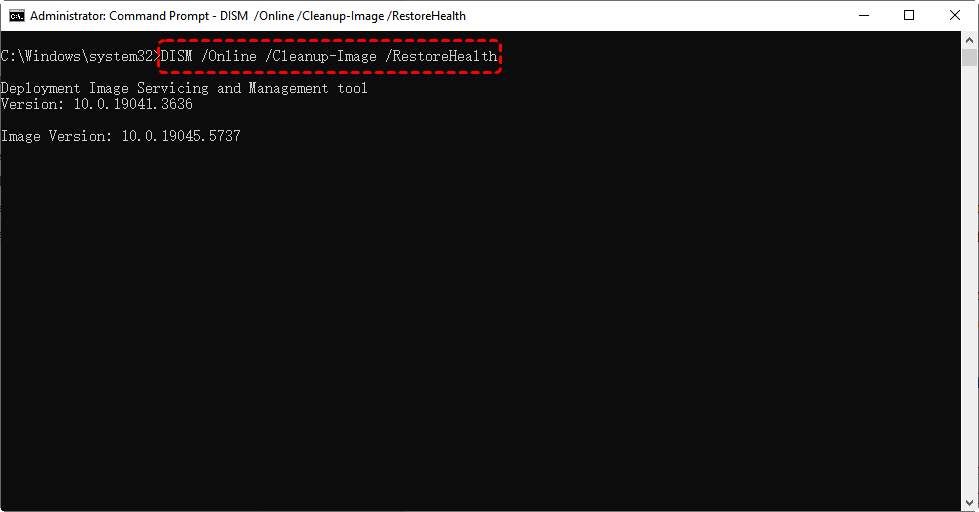
Wait for the process to complete. This may take several minutes depending on your system.After DISM finishes, restart your computer.
- Note:✎...
-
Make sure your computer is connected to the internet during the DISM scan, as it may download necessary files from Windows Update.
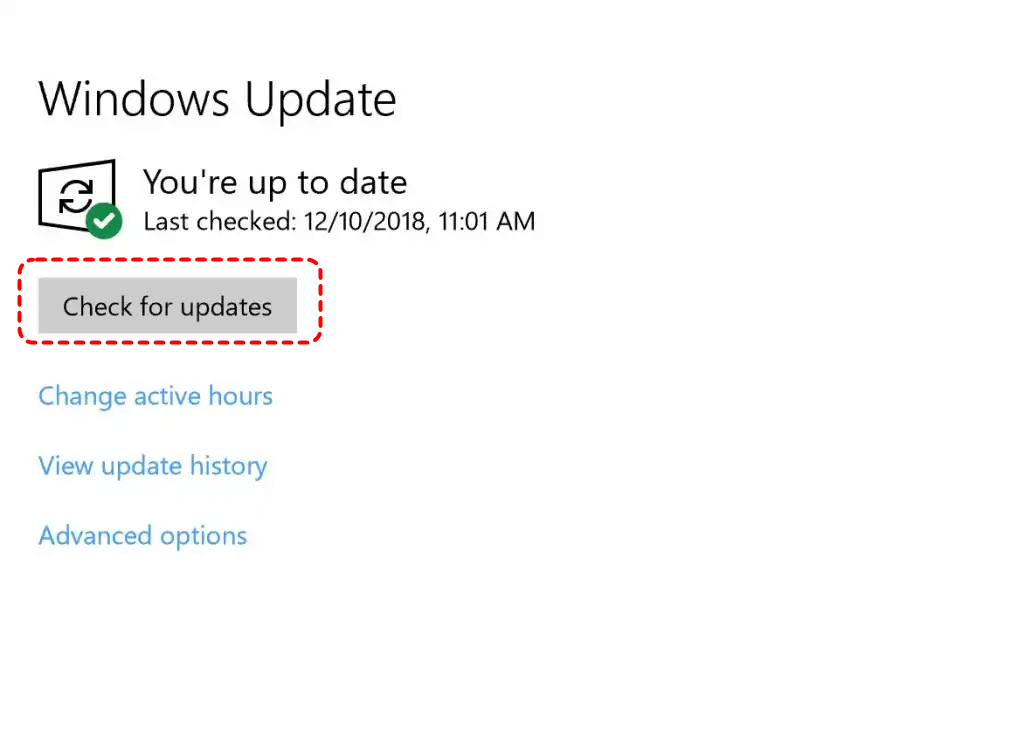
Method 4: Update Windows
Sometimes, missing DLL errors are caused by outdated system files. Make sure your Windows 10 or 11 is fully updated:
Step 1. Press "Win + I" to open "Settings".
Step 2. Go to "Update & Security > Windows Update".
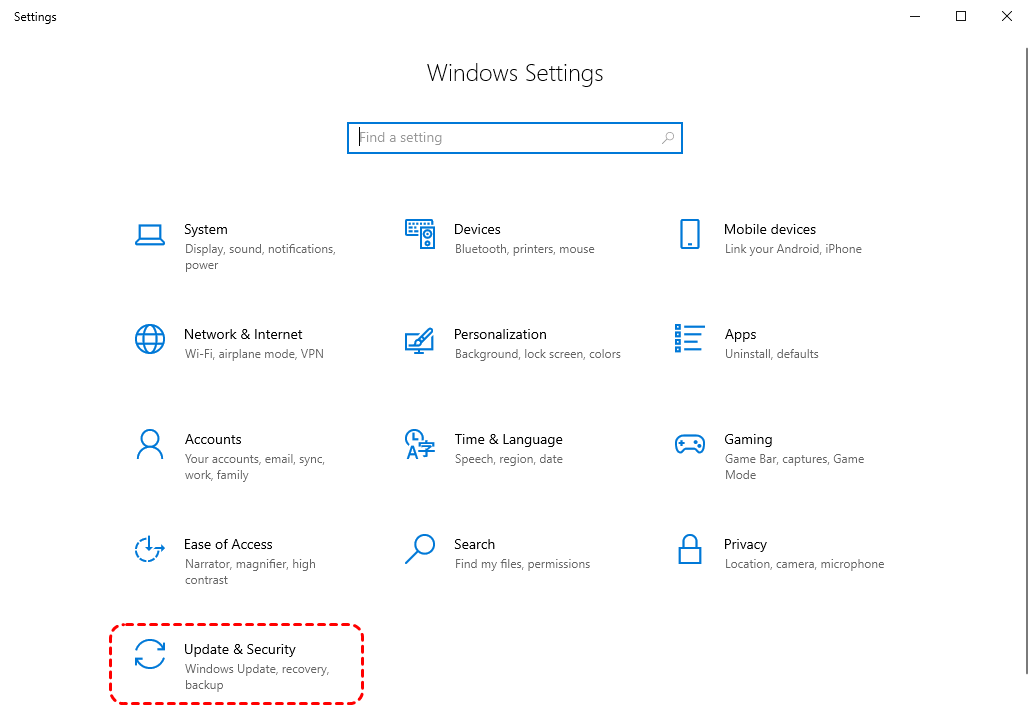
Step 3. Click "Check for updates" and install any pending updates.
Method 5: Manually Download the Driver from the Manufacturer
Sometimes, the missing DLL error occurs because the device driver is outdated or incompatible. Downloading the latest driver directly from the manufacturer ensures you get the correct files, including any required DLLs.
For example, if you are using a Fiio audio device and encounter the error "The driver DLL required to access the device is missing", manually downloading the driver from Fiio’s official website can resolve the issue.
Step 1. Go to https://www.fiio.com and navigate to the Support.
Step 2. In the self-service section, click on "Fireware Download".
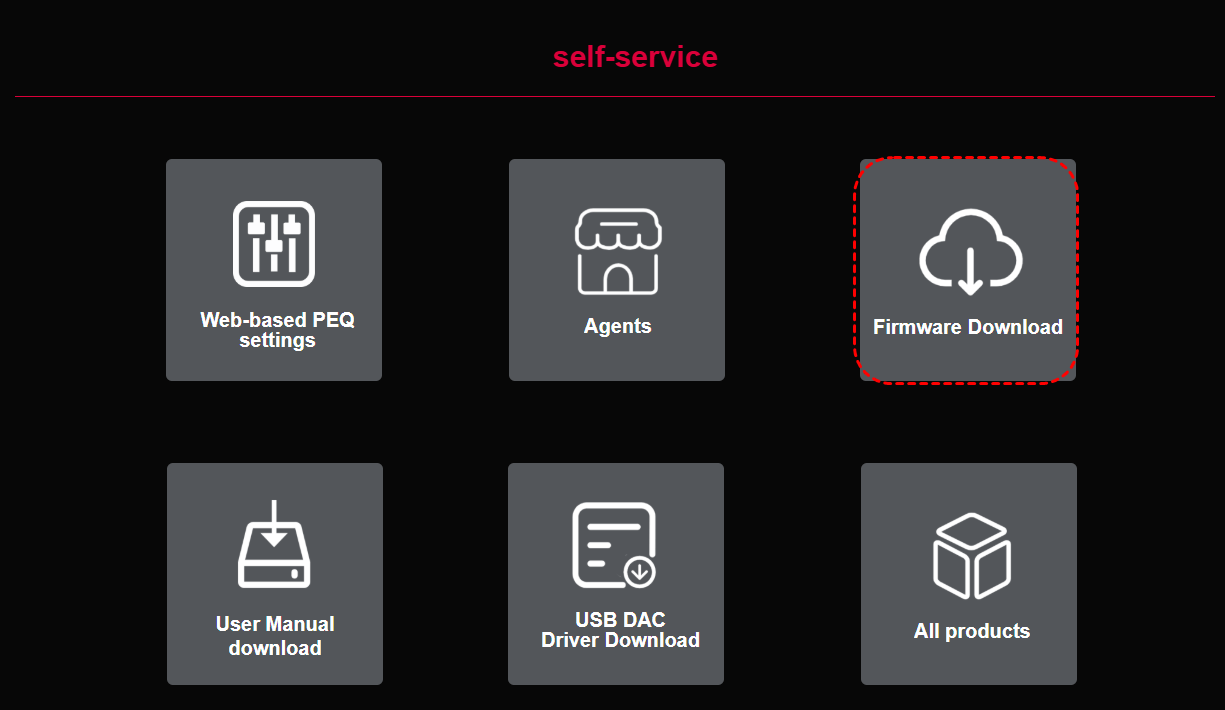
Step 3. Find your specific Fiio device (e.g., USB DAC, portable amplifier) from the product list.

Step 4. Choose the driver that matches your Windows version (Windows 10, 11, 64-bit or 32-bit).

Step 4. Run the downloaded setup file and follow the on-screen instructions to complete the installation.
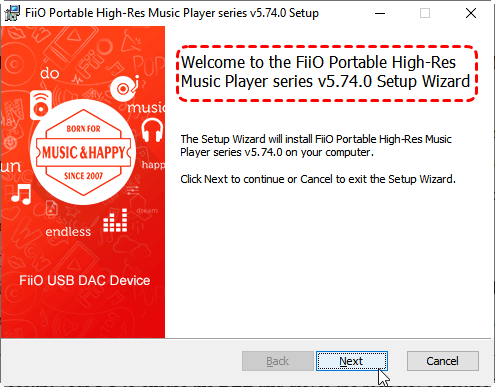
Step 5. After installation, restart your PC to ensure the DLL and driver are properly registered.
Tip: Always download drivers from official manufacturer websites to avoid malware or incorrect DLL versions. This method is especially useful when Windows cannot automatically detect or reinstall the missing driver.
Method 6: Update DLL in the Registry
Sometimes, even if the DLL file exists, Windows may not recognize it due to registry errors or missing registry entries. Correcting these issues can resolve the "The driver DLL required to access the device is missing" error.
Step 1. Press "Win + R", type "regedit", and press Enter to open the Registry Editor.
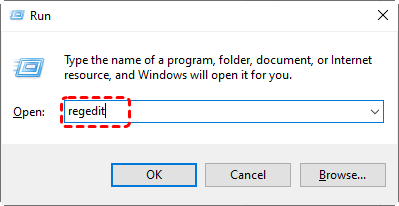
Step 2. Navigate to HKEY_LOCAL_MACHINE\SOFTWARE\Microsoft\Windows\CurrentVersion\SharedDLLs or search for the specific DLL name.
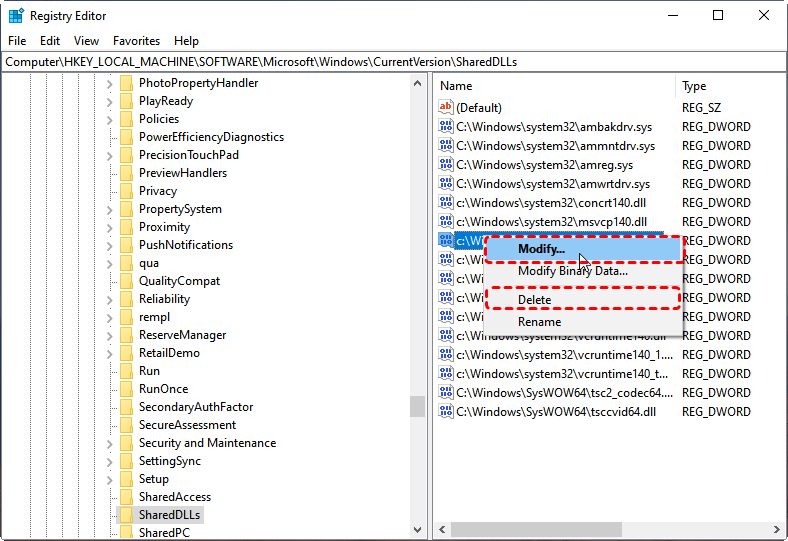
Step 3. Ensure the DLL path in the registry matches its actual location on your system. If the path is missing or incorrect, right-click the entry and update it to the correct DLL location.
Top Option: Restore the Missing DLL Files Via MyRecover
In addition to the above methods, the safest and most effective solution is often to restore the missing DLL file using professional recovery software like MyRecover, when the "The driver DLL required to access the device is missing"error occurs. This is especially useful if the DLL was accidentally deleted, lost during a system crash, or removed by antivirus software.

- ✨500+ Devices Supported | SSD, HDD, USB Flash Drive, SD Sard, etc.
- ✨1000+ File Formats Supported | PNG, MP4, MP3, TXT, ZIP, MSG, etc.
- ✨500+ Data Loss Scenarios | Deletion, Format, System Crash, Virus Attack, etc.
 100% Secure
Step 1. Install MyRecover on your computer. Open the software and select the drive or folder where the DLL file was originally located. Click "Scan".

Step 2. Once the scan is complete, you can quickly locate the missing DLL file via Search box.
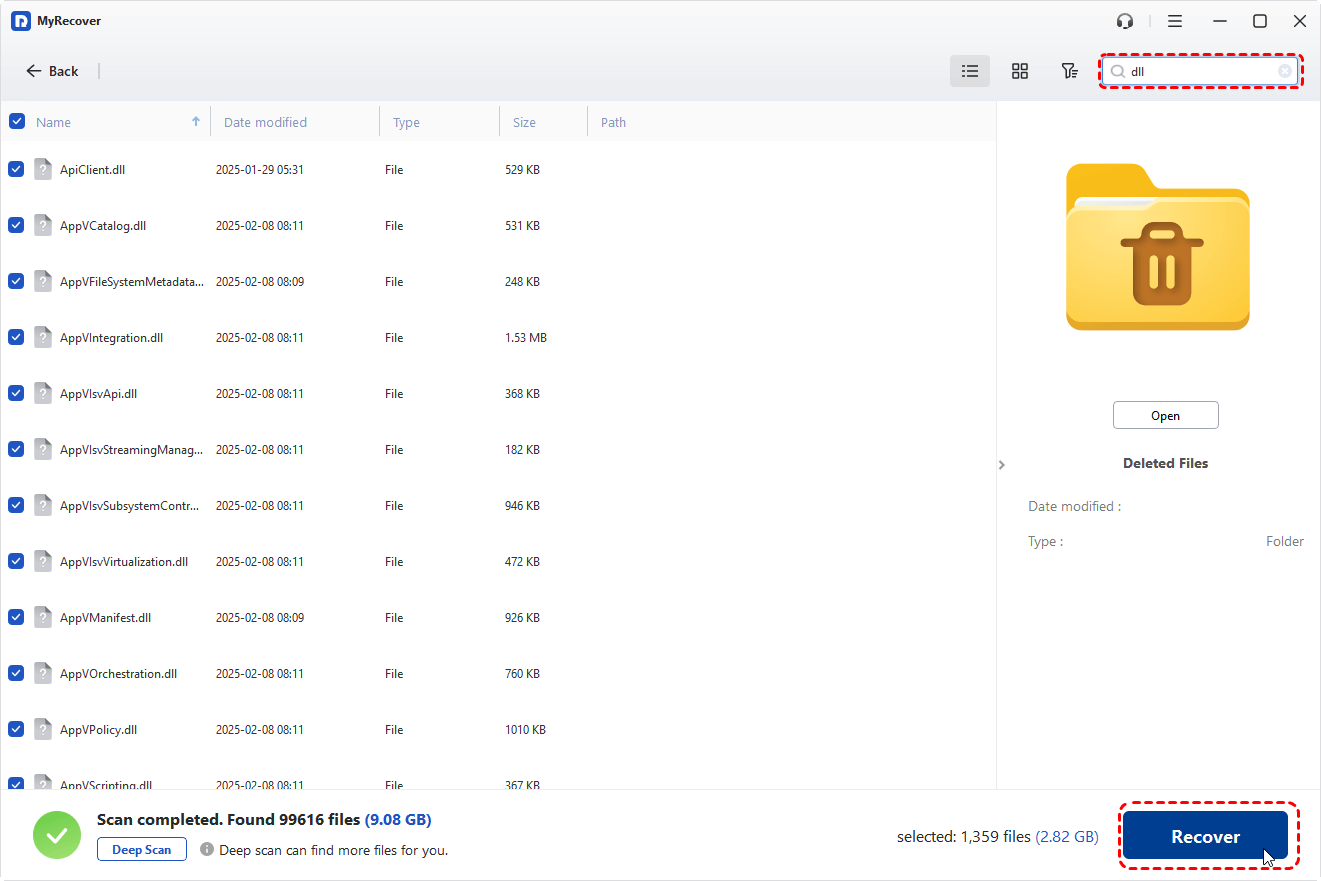
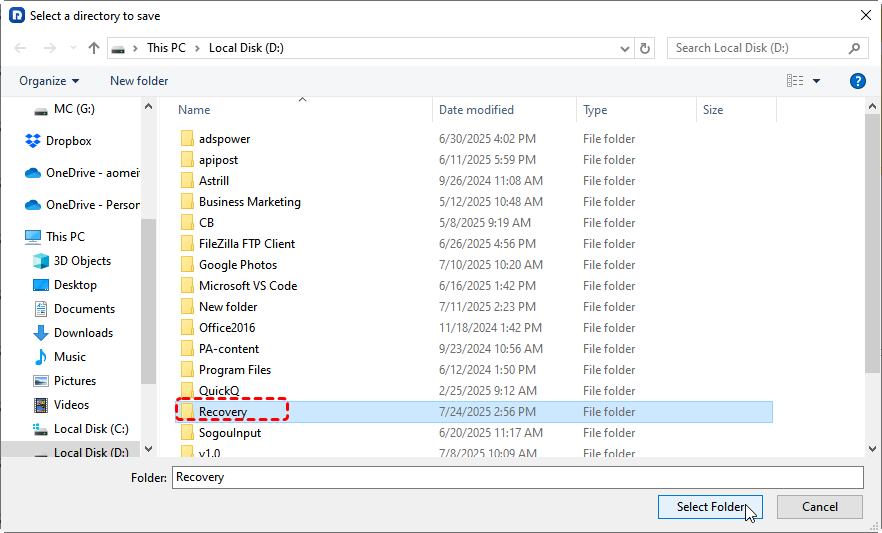
Step 3. Select the target DLL files and click "Recover". Then choose a different drive or folder (not the original location) to restore the DLL safely.
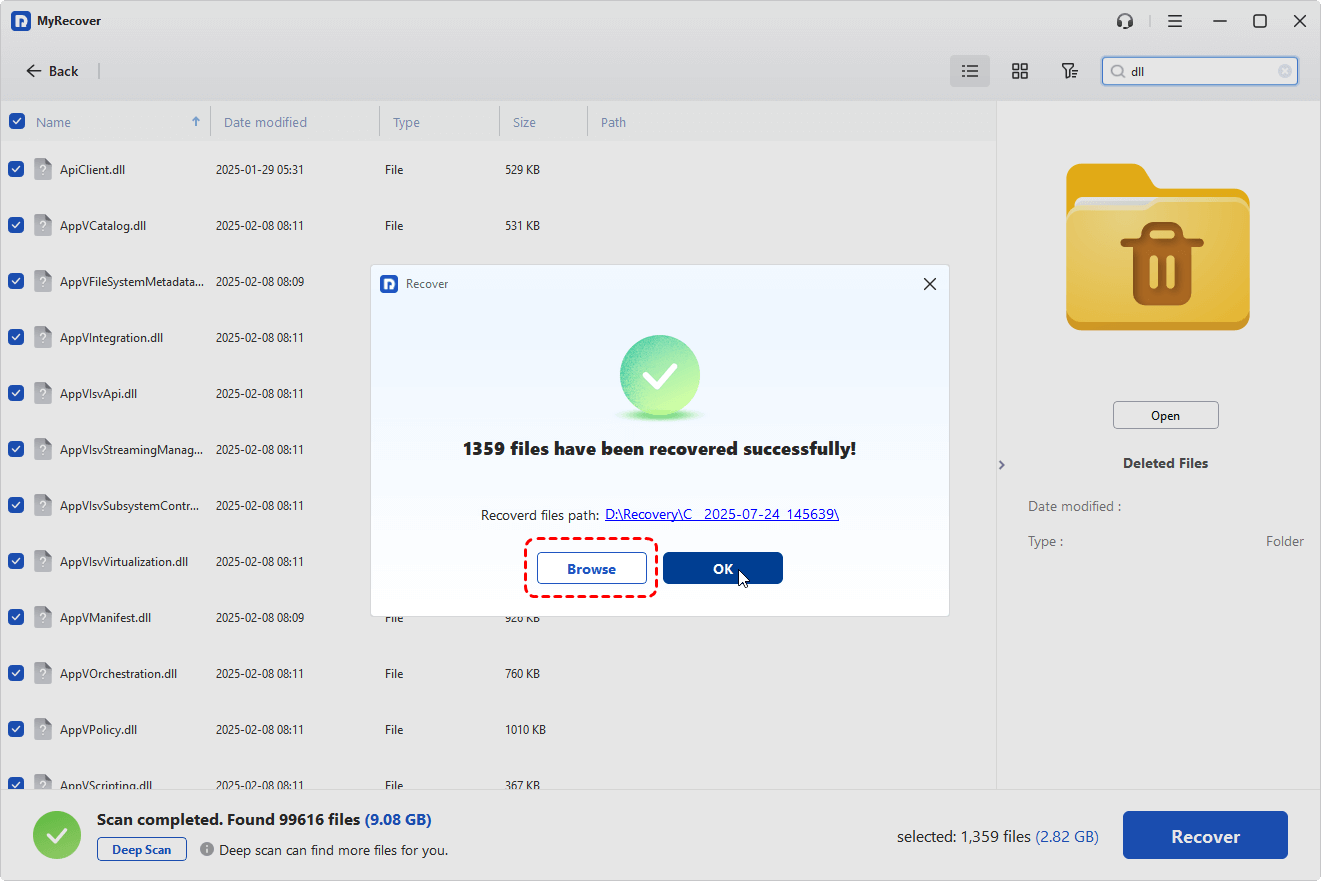
When the process is completed, you can see a mini summary window indicating how many files have been restored successfully and where you can access them.
After recovering the DLL, you may need to register it using the regsvr32 command in Command Prompt if it’s a system-critical driver DLL.
Open Command Prompt as admin. Make sure you know the full path of the recovered DLL file. For example:
In the Command Prompt, type the following command and press Enter:
regsvr32 "D:\recovery\vertdll.dll"
Make sure to include the quotes if the file path contains spaces.If successful, you will see a message saying: DllRegisterServer in example.dll succeeded.After registering the DLL, restart your PC to ensure Windows fully recognizes the driver or system component.
FAQ: Where Are DLL files Located in Windows 11?
In Windows 11, DLL files are stored in several standard system locations, depending on their purpose and whether they are used by the system, drivers, or individual applications.
Common DLL File Locations
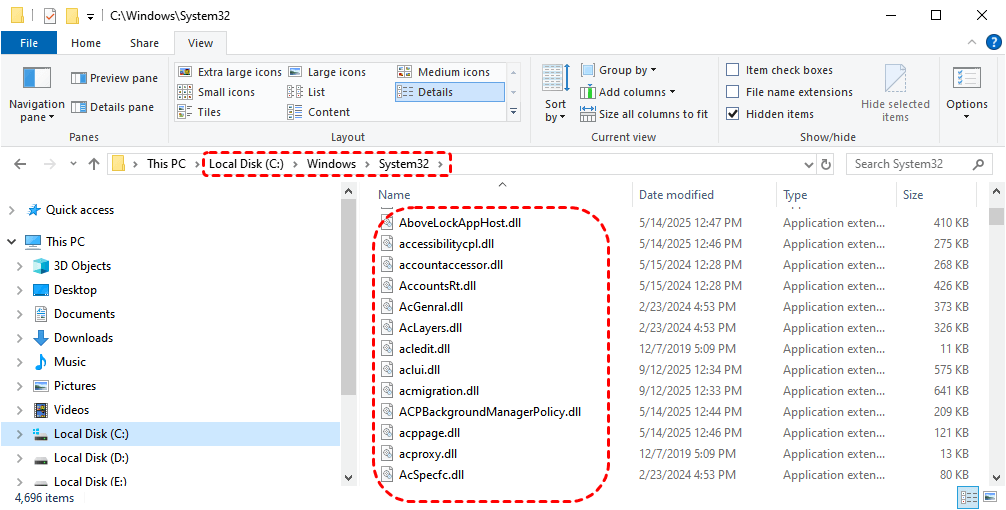
C:\Windows\System32: This is the main folder for core system DLL files used by Windows itself and by 64-bit applications. Despite the name, it primarily stores 64-bit DLLs on 64-bit systems.
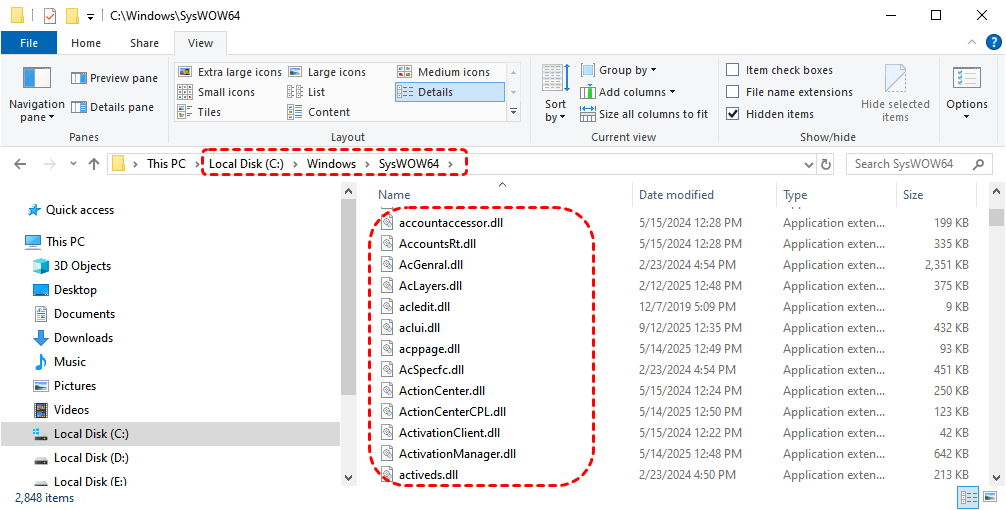
C:\Windows\SysWOW64: This folder contains 32-bit DLL files used by 32-bit applications running on 64-bit Windows.
C:\Windows: Some general-purpose or legacy DLL files may be stored directly in the Windows root directory.
Application Installation Folders
Many programs store their own DLL files inside their installation directory, for example:
C:\Program Files\AppName\
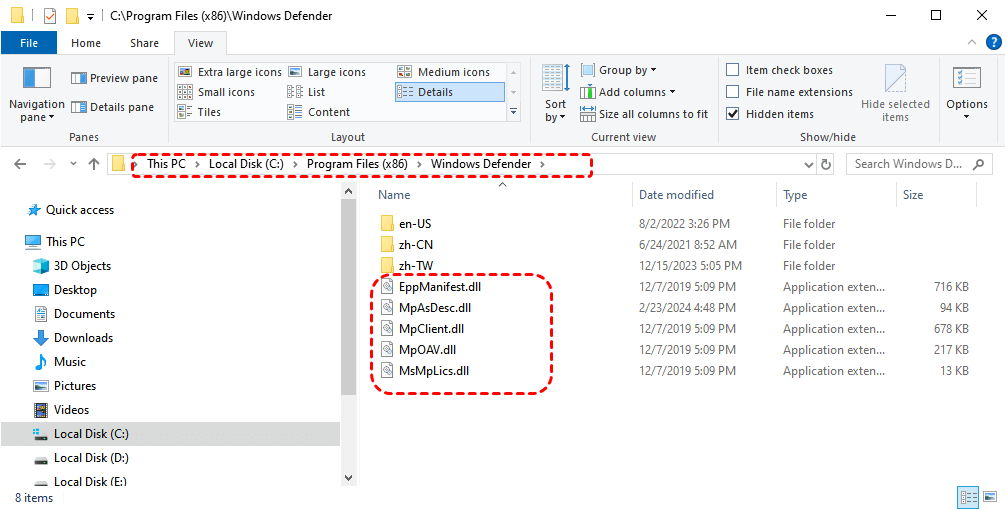
C:\Program Files (x86)\AppName\
These DLLs are used only by that specific application.
Driver-Related DLL Locations
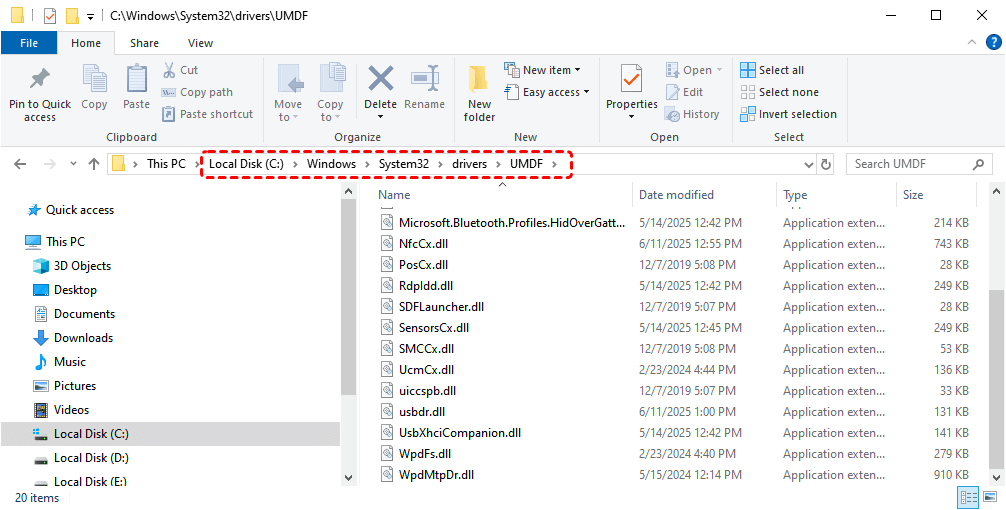
Device drivers may place DLL files in system folders such as:
C:\Windows\System32\drivers or other subfolders under System32.
Final Thoughts
When you meet the error "The driver DLL required to access the device is missing", Following these steps carefully will help you restore the missing DLL, get your device working again. To quickly recover missing driver DLL files without going through each method one by one, using MyRecover is the fastest and safest solution.
It can recover more than 500 different types of files. So, whether you need to retrieve deleted DLLs, documents, photos, or other file types, it provides a reliable and efficient way to restore data without relying on any backup.

Stay Updated With Our
Latest Tips
Add us as a preferred source on Google to never miss helpful guides.
 Add as preferred source >>