 MyRecover



Fixed: The Driver for This Device Might Be Corrupted (Code 3) Windows
Error Code 3 typically occurs when Windows cannot correctly load or interpret a device driver due to corruption, version conflicts, or incomplete updates. This article equips you to fix the Code 3 driver error and prevent similar driver-related failures in future Windows sessions.

By Aria / Updated on February 10, 2026


Introduction
I'm having Code 3 error on my High-Definition Audio Controllers. It was perfectly fine a day before but now It's showing a caution sign under the drivers. I also can't see Realtek Audio Drivers or any other Audio related drivers. I have tried reinstalling Realtek Drivers but they don't show up either. And I have tried rollbacks but they don't work either.
- Question from Dave
When you open Device Manager and see a warning icon next to your driver, clicking on it will reveal a Windows error message that reads: The driver for this device might be corrupted, or your system may be running low on memory or other resources. (Code 3). It’s signaling a serious communication problem between your hardware and the operating system. This error usually appears on storage controller, network adapter, external hard drive, graphics cards, etc. and indicates that Windows cannot properly load the driver required to run a specific device.
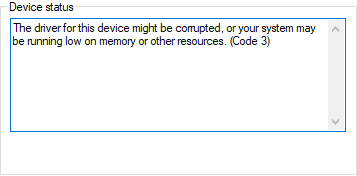
In practical terms, a Code 3 error means one of two things: either the driver itself is damaged, incompatible, or outdated, or your system is running dangerously low on memory or other essential resources. As a result, the affected device may stop working entirely, behave unpredictably, or disappear from Windows altogether. Left unresolved, this error can even lead to system instability and data access issues, especially if storage devices are involved.
Why the Code 3 Error Occurs
This often leads to concerns about hardware failure, but in many cases, the problem is software-related and fixable without replacing the device. Since Windows relies heavily on drivers to communicate with hardware, even a minor corruption can cause the system to block the device entirely. The Code 3 error is commonly triggered by one or more of the following conditions:
- Corrupted, outdated, or incompatible device drivers,
- Insufficient system memory (RAM) or exhausted system resources,
- Conflicts caused by recently installed software or drivers,
- Incomplete Windows updates or interrupted driver installations,
- Excessive background processes consuming memory.
How to Fix "The Driver for This Device Might be Corrupted" Error
With these root causes in mind, let’s move step by step into the most effective solutions. There are several effective methos to resolve "The driver for this device might be corrupted (code 3)" error and restore your device functionality safely.
Restart the Computer
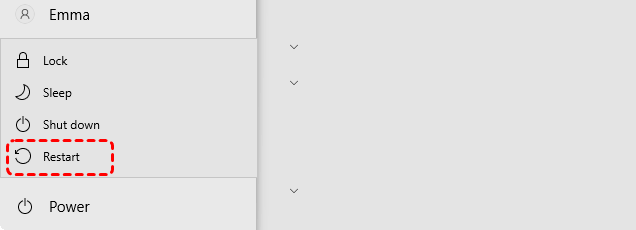
Although simple, restarting your PC clears temporary memory, resets driver states, and frees system resources. If the error was caused by a temporary resource overload, this solution may resolve the code 3 error. Save all open works and click "Start" > "Power" > "Restart". Open Device Manager to check if the error persists. If it is, move on to the following methods.
Close Some Open Applications to Free System Resources
If your computer lacks enough memory to run the device properly, error "The driver for this device might be corrupted" can also occur on Windows. Closing any unnecessary applications to free up memory resources and remove the error.
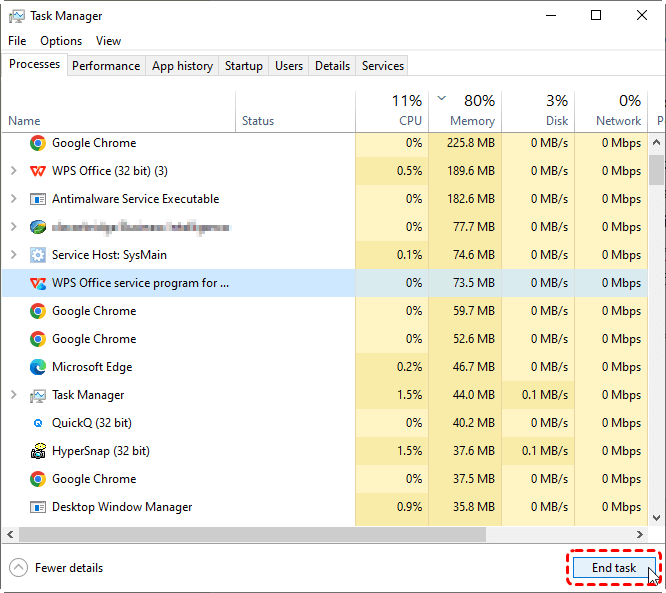
Step 1. Press "Ctrl" + "Shift" + "Esc" to open Task Manager.
Step 2. Browse through and select the resource-heavy background applications.
Step 3. Click "End task" to close the program.
Restart the affected device to check if the error is still here. If memory pressure was the issue, the device may start working normally now.
Update the Driver
Outdated or incompatible drivers are one of the most common reasons "the driver for this device might be corrupted (Code 3)" appears. Updating the driver for the device might fix the code 3 error.
Step 1. Press "Win" + "X" and choose "Device Manager" to open it.

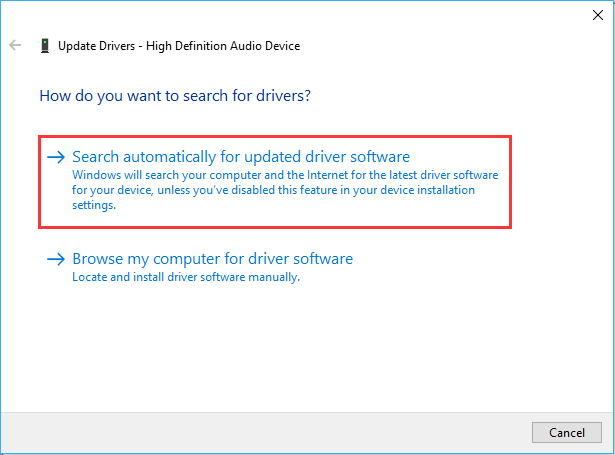
Step 2. Locate the affected driver from the lists and right click on it, then choose "Update driver".

Step 3. Click "Search automatically for updated driver software" to continue the process.
If no updates are available, you can also manually download the latest official drivers from the product manufacturer’s official website, based on your specific product model.
Uninstall and Reinstall the Driver
If "the driver for this device might be corrupted" error continues, it may mean the device driver have become corrupted. A clean reinstall often resolves hidden corruption and fix the code 3 error.
Step 1. Open Device Manager as described above.
Step 2. Select the failed driver and right click on it, then choose "Uninstall device".

Step 3. Reboot your computer. Windows will automatically reinstall the device after restarting your system.
Run the Hardware and Devices Troubleshooter
Windows includes a built-in tool designed specifically to detect hardware-related problems. You can use the hardware and devices troubleshooter tool to check if the code 3 error is caused by a hardware issue with the device. Follow these steps:
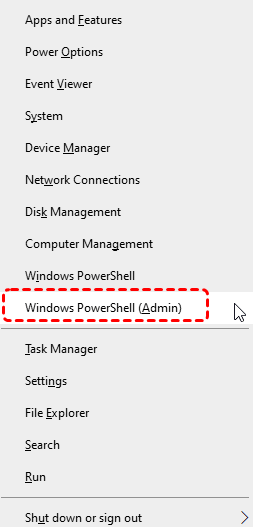
Step 1. Press "Win" + "X" and choose "Windows PowerShell (Admin)" to open it.
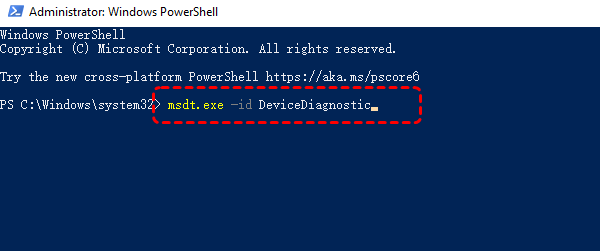
Step 2. Enter the following command "msdt.exe - id DeviceDiagnostic" and hit the "Enter" key. It will open the "Hardware and Devices" window.
Step 3. Click "Advanced" and check the "Apply repairs automatically" option, then click "Next" to allow Windows detect and resolve any issues.

Clean Up System Resources
Freeing disk space and removing junk files helps Windows allocate resources more efficiently. A cleaner system environment reduces driver loading failures. Running Disk Cleanup to free up more disk space for the device.
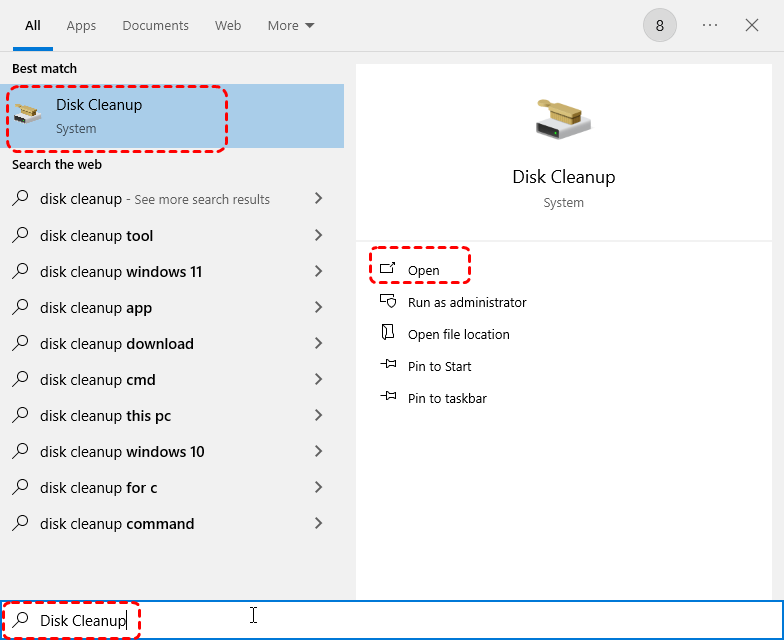
Step 1. Type "Disk Cleanup" in the Search box and open it.
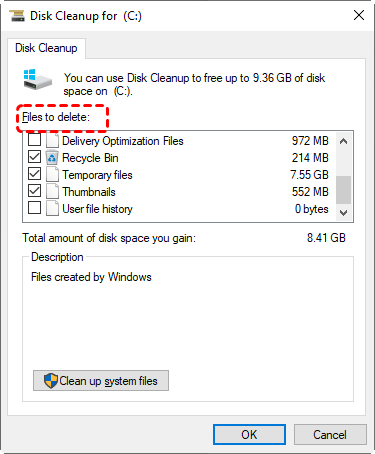
Step 2. Select the system drive to clean up.
Step 3. Choose the files you wish to delete like Recycle Bin, Temporary files, Thumbnails, etc. and click "OK" to remove them.
Install Additional RAM
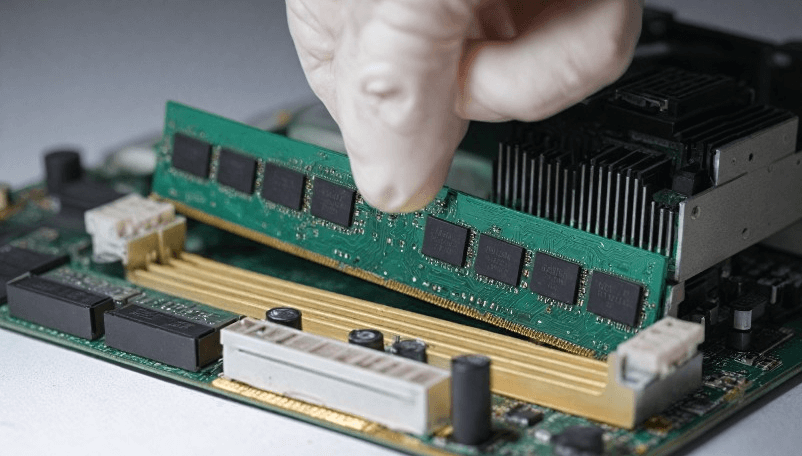
If your system frequently runs at high memory usage, upgrading RAM can permanently eliminate recurring Code 3 errors, especially the case if storage space is still insufficient after cleaning up the system.
Step 1. Press the power button to turn off your computer completely and remove the power supply.
Step 2. Open computer case and locate the slot.
Step 3. Install the new RAM in the correct slot, replace the computer case cover, and test if the computer displays the correct memory capacity.
How to Recover Files from Corrupted Hard Drive
A Code 3 error affects storage devices such as hard drives or external drives, making files temporarily inaccessible. If you notice missing or unreadable files in the corrupted hard drive after fixing the driver issue, immediate recovery is crucial to avoid permanent loss. In such a case, the professional data recovery tool like MyRecover become necessary.
It is designed to handle 500+ complex recovery scenarios caused by driver corruption, failed Windows update, formatted hard drive, virus infected USB, etc. It can scan affected drives at a deep level and retrieve files to a safe location, even when Windows previously couldn’t access the device.

 MyRecover
- No Tech Skills Needed: User-friendly interface designed for beginners and non-tech-savvy users.
- Supports Over 1000 File Types: Recover photos, videos, documents, emails, ZIP files, and more.
- Supports Multiple Storage Devices: Works seamlessly with internal and external HDD, SSD drives, USB flash drives, SD/memory cards, digital cameras, and more.
- Safe & Read-Only Process: Your original data remains untouched during the scan and recovery process.
 100% Secure
Step 1. Download and install MyRecover on your computer from Microsoft Store, avoid installing it on the drive with lost files.
Step 2. Run the app and select the drive to scan, then click "Scan" to search for recoverable files.

Step 3. After the scan is finished, choose the files you wish to recover from the recoverable lists and click "Recover".

The MyRecover Professional edition supports unlimited recovery quota, file preview, and data recovery from dead computer, making it a reliable choice when driver-related issues put important data at risk.
Step 4. Select a safe location to save the recovered files.

Once the process is done, you can access the recovered files in the destination folder by clicking on the "Browse" button.
Summary
The error "The driver for this device might be corrupted (Code 3)" is a warning that Windows can no longer reliably communicate with a hardware component. While the message sounds serious, it’s often caused by fixable issues such as driver corruption, low system memory, or resource conflicts. By following the methods outlined above, you can resolve the Code 3 errors without replacing hardware.
And if the issue affects your data, professional recovery tools like MyRecover provide a dependable safety net when standard access methods fail. With the right steps taken early, Code 3 doesn’t have to mean permanent damage or data loss.

Stay Updated With Our
Latest Tips
Add us as a preferred source on Google to never miss helpful guides.
 Add as preferred source >>