 MyRecover



USB Controller Resources Exceeded: What It Means & How to Fix It
Need to know how to fix USB controller resources exceeded? This guide walks you through the causes and step-by-step solutions to restore your USB ports, improve device stability, and prevent the error from returning. Ideal for both beginners and power users.

By Vera / Updated on December 11, 2025


What Does "USB Controller Resources Exceeded" Mean?
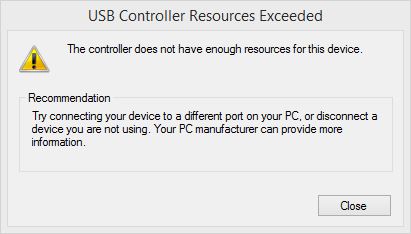
Think of a USB controller as the traffic cop for all your USB devices. It directs data and power between your devices—like keyboards, external drives, printers, and webcams—and your computer. Each controller has a limited pool of resources it can allocate to connected devices.
What "Resources Exceeded" Actually Indicates
When Windows warns you that resources are exceeded, it means the controller can’t handle all the devices connected to it at once. This could be due to:
- Too many high-powered devices drawing more current than the controller can provide.
- Device conflicts where multiple devices try to use the same resources.
- Memory or address allocation limits within the USB controller.
In short, it’s like trying to squeeze ten people into a car built for four—something has to give.
Common Causes of USB Controller Resource Errors
Understanding the root speeds up fixes. Here are common culprits:
Hardware Limitations
Older motherboards or laptops have fewer USB controllers, meaning fewer devices can be used simultaneously. If multiple high-power devices are connected, the system might hit its limit quickly.
Conflicts Between USB Devices
Devices don’t always play nicely together. Two devices may attempt to use the same IRQ, memory range, or bandwidth, causing conflicts. High-speed USB devices like cameras or gaming peripherals often trigger such issues.
Outdated or Corrupt Drivers
USB drivers act as translators between your hardware and Windows. Outdated, corrupted, or incompatible drivers can cause resource mismanagement, triggering errors.
BIOS/UEFI Settings Issues
The BIOS or UEFI firmware helps allocate resources to USB controllers. Misconfigured settings, legacy USB modes, or outdated firmware can lead to errors and device malfunctions.
Signs You’re Facing a USB Controller Resource Problem
- Devices Not Recognized: Windows doesn’t detect your device at all.
- Random Disconnects or Malfunctions: Devices may work intermittently or disconnect unexpectedly.
- Error Messages in Device Manager: You may see "This device cannot start (Code 10)" or explicit resource allocation warnings.
How to Fix the "USB Controller Resources Exceeded" Error (Beginner-Friendly)
Follow these steps in order — stop when the issue is fixed.
Step 1: Simple Reboots and Reconnects
I know — the classic "did you try turning it off and on?" — but it works. Unplug all USB devices, reboot Windows, then plug devices back in one-at-a-time. This isolates the problematic device.
Step 2: Use Device Manager
Open Device Manager (devmgmt.msc).
- Look for devices with a yellow exclamation mark.
- Right-click a problematic device → Properties → check Device status for clues.
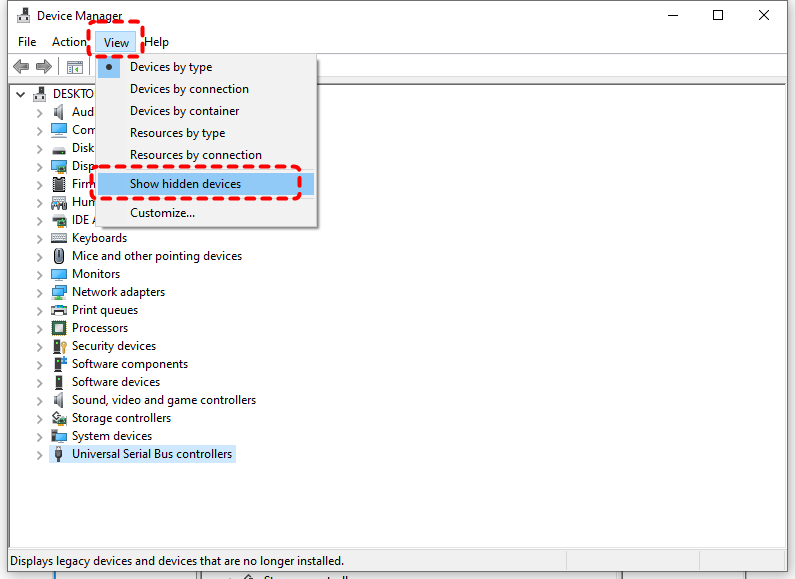
- Under View → Show hidden devices, you may see ghost devices hogging resources; uninstall old devices you don’t need.
Step 3: Update or Reinstall Drivers
- In Device Manager, right-click Universal Serial Bus controllers or the problematic device → Update driver.
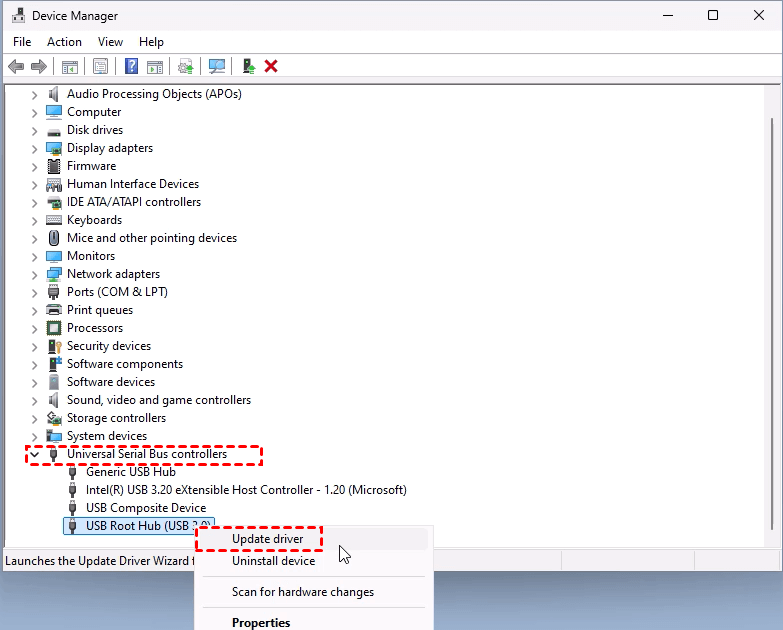
- For chipset drivers, go to your motherboard or laptop maker’s website and download the latest chipset and USB drivers (don’t rely only on automatic updates).
- If updating fails, Uninstall device (choose to remove driver if prompted) and reboot; Windows will reinstall drivers.

Step 4: Disconnect Non-Essential Devices
Temporarily unplug webcams, external drives, game controllers — anything non-critical. If the problem disappears, you’ve found a bandwidth/power issue.
Step 5: Try a Powered USB Hub
If multiple devices need power, a powered USB hub (with its own wall adapter) takes the load off the PC’s internal power budget. Great for external drives, multiple peripherals, and charging.
Step 6: Check BIOS/UEFI & Chipset Options
- Reboot into BIOS/UEFI and look for USB settings: XHCI, EHCI, legacy USB support, or resource remapping.
- Sometimes toggling legacy USB support or enabling USB controller handoff fixes enumeration issues. Be cautious and document changes.
Step 7: Windows Power Settings & USB Selective Suspend
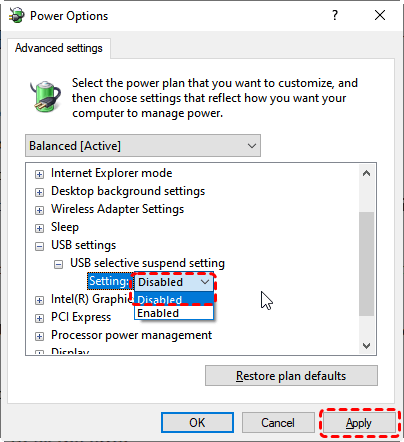
- Open Power Options → your plan → Change advanced power settings → USB settings → USB selective suspend setting → Disable.
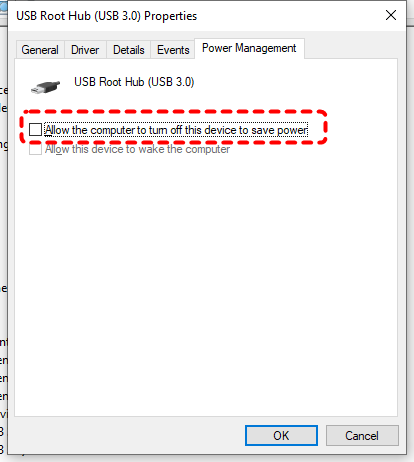
- Also check Power Management tab in Device Manager for USB Root Hubs: uncheck Allow the computer to turn off this device to save power.
Step 8: System Restore / Windows Update
If the issue began after a Windows update or driver install, try System Restore to a point before the problem. Conversely, ensure Windows updates are installed — sometimes Microsoft fixes resource allocation bugs.
Advanced Fixes for Power Users & IT Admins
If basics didn’t help, try these more advanced tactics — proceed with care and back up important data.
1. Checking Resource Assignments & IRQs
- Use System Information (msinfo32) → Hardware Resources → IRQs and Memory to inspect conflicts.
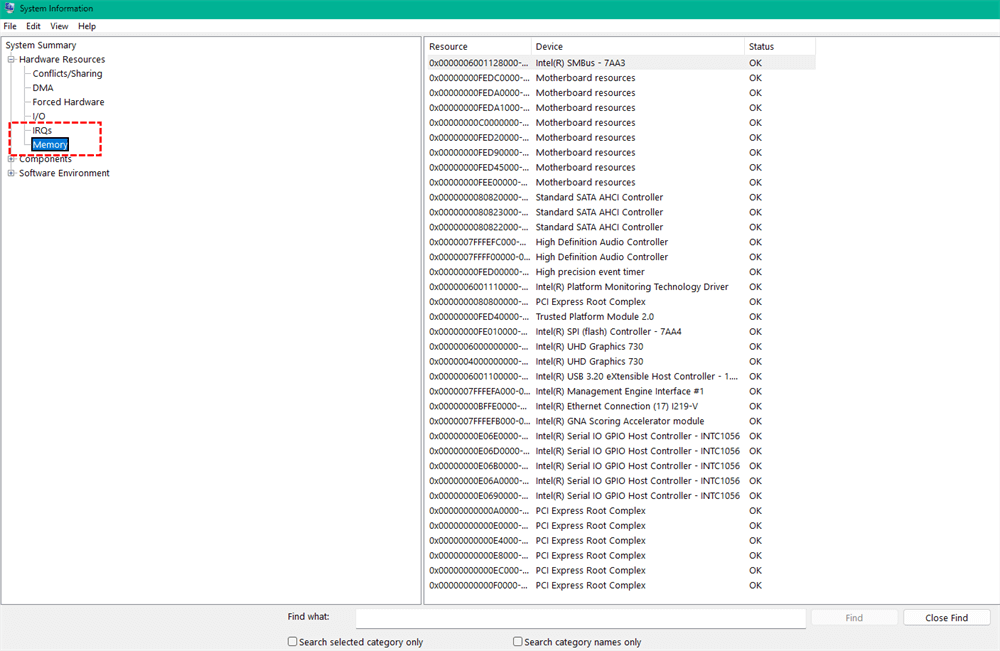
- PCI resource conflicts can be resolved by reseating expansion cards, changing PCI slots, or adjusting BIOS settings.
2. Registry & Group Policy Tweaks (with Caution)
There are registry keys related to USB and power management. Only edit the registry if you’re comfortable and after backing it up. Missteps can break the system.
3. Reinstall Chipset/Platform Drivers
Sometimes the integrated USB controller driver provided by the motherboard vendor is necessary (Intel/AMD chipset packages). Uninstall current drivers, then install the vendor-provided package.
How to Prevent the Error Long-Term
Small habits avoid many headaches.
Device Hygiene (Cables, Hubs, Ports)
- Use short, good-quality cables.
- Avoid daisy-chaining unpowered hubs.
- Label and unplug devices you don’t use frequently.
Firmware & Driver Maintenance
- Keep motherboard BIOS/UEFI and chipset drivers up to date.
- Update device firmware for external docks and hubs when manufacturers release fixes.
Know Your Limits
- Understand how many high-bandwidth devices your host controller can handle — e.g., multiple 4K webcams plus an audio interface may exceed bandwidth. Use separate controllers (different USB root hubs) or a dedicated PCIe USB card.
Bonus Tip: Best Way to Recover Data if Devices Fail
Even if you fix the resource error, there’s a chance your USB devices may have experienced malfunctions or data loss. Imagine losing precious files because a drive suddenly stopped working—frustrating, right? That’s where data recovery tools like MyRecover come into play.
Why MyRecover is Helpful:
- Recover Files from Malfunctioning Devices: Even if Windows doesn’t recognize the USB drive properly, MyRecover can scan and retrieve files.
- Supports Multiple File Types: Whether it’s documents, photos, videos, or system files, MyRecover can handle them all.
- Quick and Easy: Designed for non-technical users, it guides you step by step without complicated setups.
- Deep Scan Feature: If the standard scan misses files, the deep scan dives into sectors to retrieve more data.
- Works with All Storage Devices: USB drives, external HDDs, SSDs, and even memory cards are supported.
 100% Secure
Conclusion
Encountering a "USB controller resources exceeded" error can be annoying, but it’s rarely catastrophic. Understanding the root causes—hardware limits, device conflicts, driver issues, and BIOS settings—allows you to fix the problem effectively. Using powered hubs, limiting high-power devices, and keeping your drivers updated can prevent future issues. And if data loss occurs, tools like MyRecover provide a reliable safety net, ensuring your files aren’t lost permanently. With a little care and the right strategies, USB errors won’t slow you down.

Stay Updated With Our
Latest Tips
Add us as a preferred source on Google to never miss helpful guides.
 Add as preferred source >>