 MyRecover



How to Fix 'User Profile Cannot Be Loaded' Error in Windows 11 [2026]
The 'User Profile Cannot Be Loaded' error in Windows 11 is a serious login problem that can lock you out of your account. This article examines the most common reasons behind this error and outlines effective approaches to resolve it. By following the methods discussed, you can diagnose profile-related issues, apply appropriate fixes, and reduce the risk of encountering the same problem in the future.

By Aria / Updated on January 8, 2026


Windows11 Profile Cannot be Loaded Problem
Recently, when Windows boots or reboots on an in-house PC, there has been a problem with logging in, along with a message saying the profile cannot be loaded. This can be resolved by booting into safe mode and then rebooting or creating a new profile. If you go to the users (c:\users) folder on the PC in question, you will see that multiple temp accounts have been created. Does anyone know what the cause is?
- Question from Wesley
Seeing the error "User Profile Service service failed the sign-in. User profile cannot be loaded" on Windows 11 can be alarming. This error prevents you from accessing your desktop, personal files, and system settings, effectively locking you out of your own account. In most cases, the problem is related to profile corruption or service misconfiguration rather than a more serious system issue.
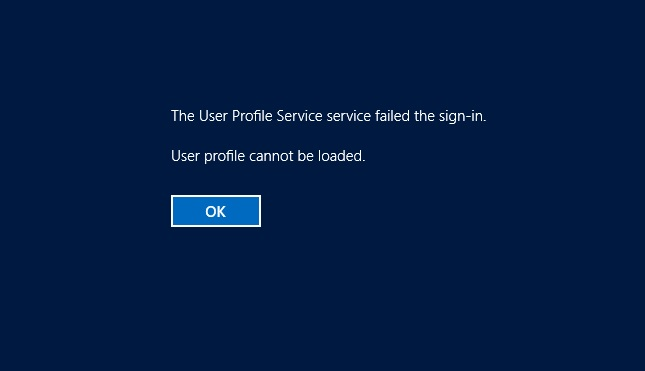
In this guide, we will explain why this error occurs, walk through proven solutions step by step, and show you how to recover your data if you cannot access your desktop.
Why Does the "User Profile Cannot be Loaded" Error Appear?
The "User profile service cannot be loaded" error on Windows 11 typically occurs when Windows cannot correctly read or initialize the user profile during sign-in. Understanding the causes helps explain why some fixes work better than others. Common causes include:
- Corrupted user profile files (especially NTUSER.dat),
- Incorrect permissions on the user profile folder,
- Interrupted Windows updates or sudden power loss,
- Disk errors or file system corruption,
- System services related to user profiles failing to start,
- Malware or third-party software interfering with login processes.
How to Fix "User Profile Cannot be Loaded" Windows 11
Although this issue prevents you from accessing the data on your desktop, this section still presents several effective solutions to fix the "User profile cannot be loaded" error. Let's dive into the detailed steps.
1. Restart Your Computer
Sometimes, Windows fails to access to the desktop normally simply due to a temporary glitch. Although basic, a restart can sometimes resolve temporary service or file lock issues that prevent the user profile from loading.
- press the power button to restart your computer normally,
- attempt to sign in your account again.
If the issue persists, it’s time to move on to more targeted solutions below.
2. Boot into Safe Mode
Safe Mode only loads the drivers and services necessary for the operating system to run, and it can resolve the user profile loading failure caused by faulty drivers or third-party software. Follow these steps to enter Safe Mode:
Step 1. Press "Shift" and click "Restart" to boot your computer into Windows Recovery Environment (WinRE).
Step 2. Choose "Troubleshoot" > "Advanced options" > "Startup settings" >"Restart".
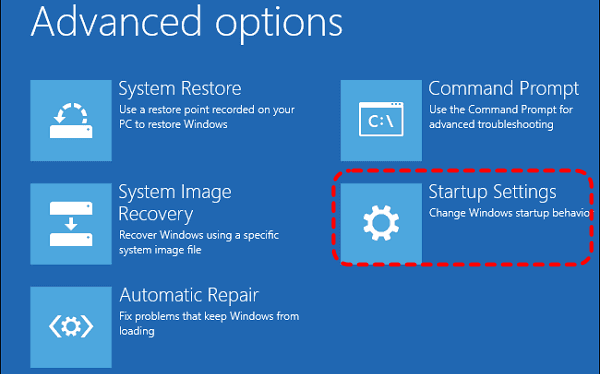
Step 3. Once your computer restarts, press F4 or F5 to enter Safe Mode.
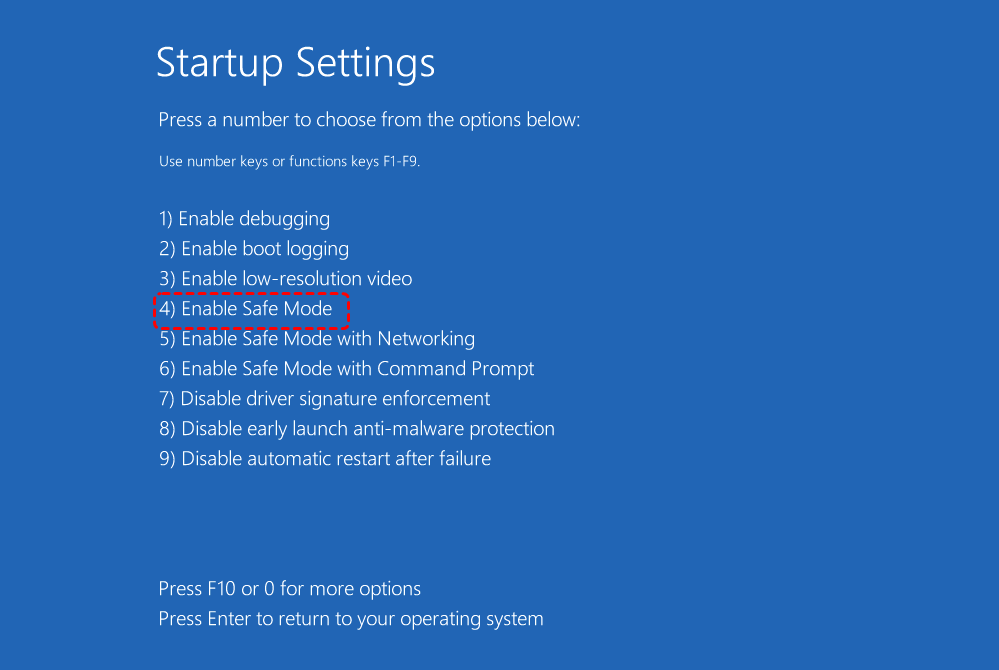
Now, you can try logging into your account again. If the login is successful, it indicates that the issue was caused by newly installed software or drivers, and you can uninstall the recently updates or installed software in Safe Mode.
3. Restart User Profile Related Services
If you still cannot log into the account, and you have another available administrator account, you can log into this account to fix the "user profile cannot be loaded" in Safe Mode. The User Profile Service is essential for loading accounts. If it fails, the profile cannot be loaded. So, you can restart the service to check if the problem has been resolved.
Step 1. Press "Win" + "R" and enter "services.msc", then hit the "Enter" key.
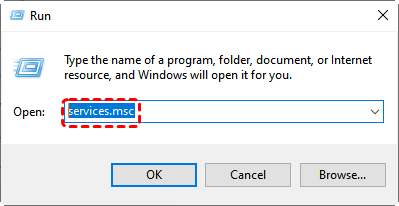
Step 2. Locate "User Profile Service" in the lists and right click on it, then choose "Restart".
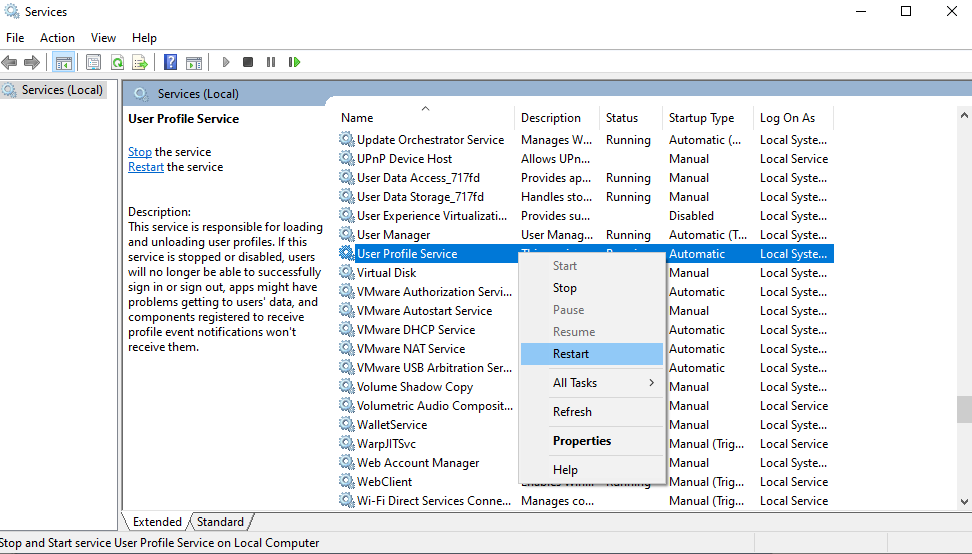
Step 3. Moreover, right click on it and choose "Properties", make sure the "Startup type" is set to "Automatic".
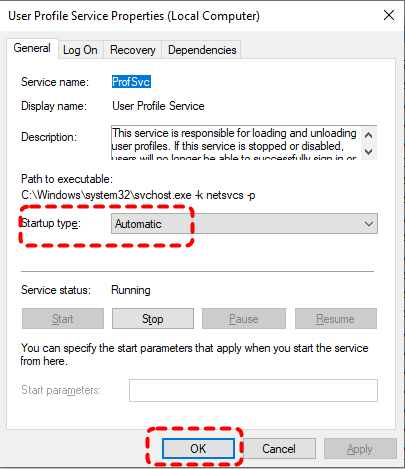
Wait for the process to complete, check if the error is resolved.
4. Repair Corrupted System Files
System file corruption can also disrupt profile loading. Running SFC (System File Checker) and DISM command in WinRE or Safe Mode to detect and repair Windows corrupted system files that the user profile depends on.
Step 1. Locate Command Prompt in the Start menu and run it as administrator.

- Notes:✎...
- If in WinRE:
- Select "Troubleshoot" > "Advanced options" > "Command Prompt".
-


Step 2. Enter the following command "DISM /Online /Cleanup-Image /RestoreHealth" and press "Enter".
Step 3. Then, input "sfc /scannow" to run SFC command.

5. Reset Profile Folder Permissions
Incorrect permissions can prevent Windows from accessing your profile folder and cause the "User profile cannot be loaded" error on Windows 10/11. Check the user profile permission may fix the issue.
Step 1. Navigate to C:\Users\[YourUsername] in Safe Mode.
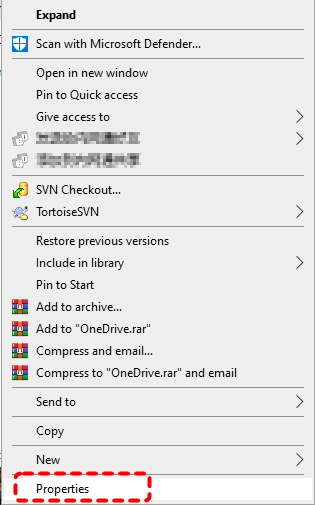
Step 2. Right click on the folder and choose "Properties" from the context menu.
Step 3. Under the "Security" tab, ensure that your account has sufficient permissions to access this folder. If not, click "Edit" to change the permissions.
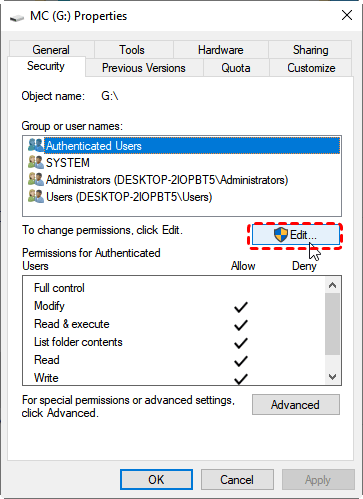
Step 4. Select your account and check "Allow" for Full control.

6. Rebuild NTUSER.DAT File
The NTUSER.DAT file is one of the most critical files in a Windows user account. It stores all personalization, software settings, and system configurations for the account. When you log into the account, Windows loads the NTUSER.DAT file to read your personal settings and system processes. If this file becomes corrupted or damaged, it will inevitably cause the "user profile cannot be loaded" error.
Step 1. Log in with another administrator account in Safe Mode.
Step 2. Go to C:\Users\[Original User Name] and rename it as [original user name].old.
Step 3. Create a new user account with the same name and log in with this account. Windows will automatically rebuild a NTUSER.DAT file.
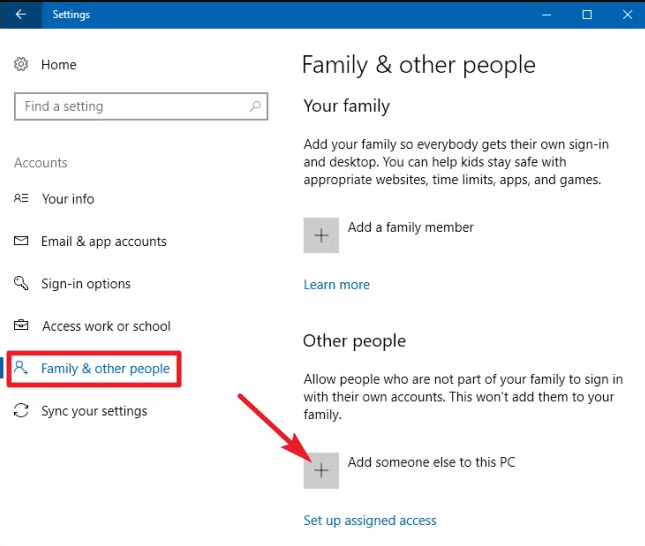
Step 4. Then, you can copy files from the [Original user name].old folder. However, be careful not to copy the data in the AppData\Local\Microsoft\Windows folder and the NTUSER.DAT file.
7. Perform a System Restore
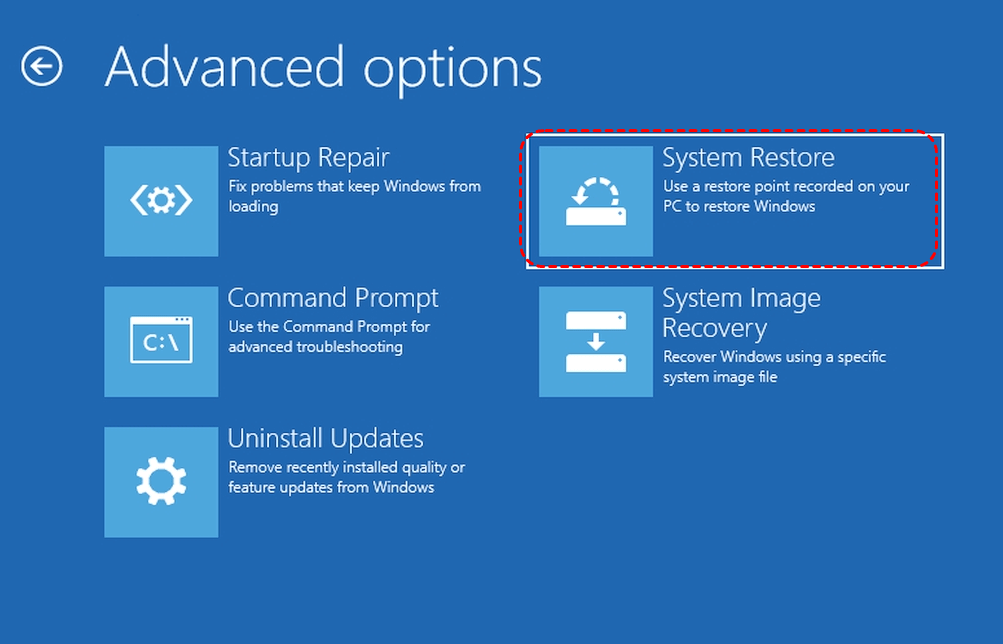
If the error persists and you do not want to create a new account, you can also perform a system restore to revert your computer to its previous normal state in WinRE, provided that you have created any available restore points before.
Step 1. Select "Troubleshoot" > "Advanced options" > "System Restore".
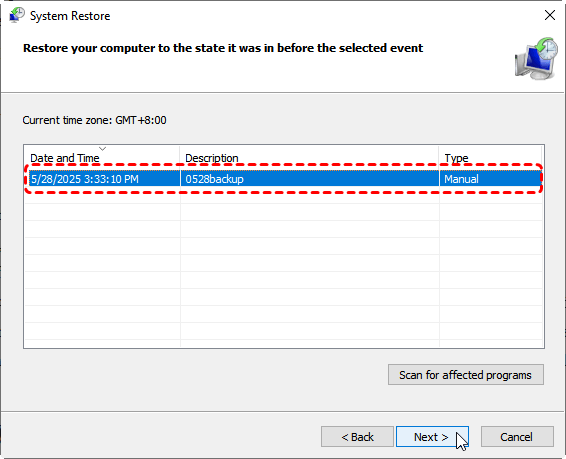
Step 2. Choose a created restore point to restore and click "Next".
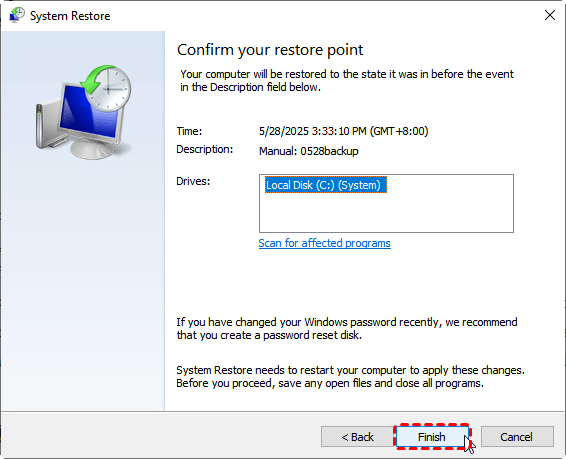
Step 3. Confirm your restore point and click "Finish" to start the process. You can check the affected programs by clicking on the "Scan for affected programs".
How to Recover Data When You Can't Access Your Desktop
If none of the above methods allow you to log in, the data on your computer will become inaccessible. However, this does not mean that the data cannot be recovered. Use a professional data recovery tool like MyRecover to access your system without logging into the affected user profile. It can directly recover data from your hard drive and safely export it to an external hard drive.

 MyRecover
- Recover Without Backup: Restore lost files even if no Windows backup exists.
- Wide File Support (1000+): Recover photos, documents, videos, audio, archives, and more.
- Supports Multiple Devices (500+): Works on HDDs, SSDs, USB drives, SD cards, cameras, and other storage devices.
- High Success Rate (99%): AI-powered file recognition and recovery algorithms ensure easy use and zero file omission.
 100% Secure
Step 1. Download and install MyRecover on a working computer from Microsoft Store or its official site. Connect a blank USB to the computer.
Step 2. Open MyRecover and select "PC Crashed Recovery", click "USB Boot Device" and "Create" to create a bootable device.

Step 3. Wait for the USB bootable device to create successfully. Remove it from the working computer and insert it into the inaccessible computer. You can use this recovery disk to recover your data when your computer fails to boot or crashes.
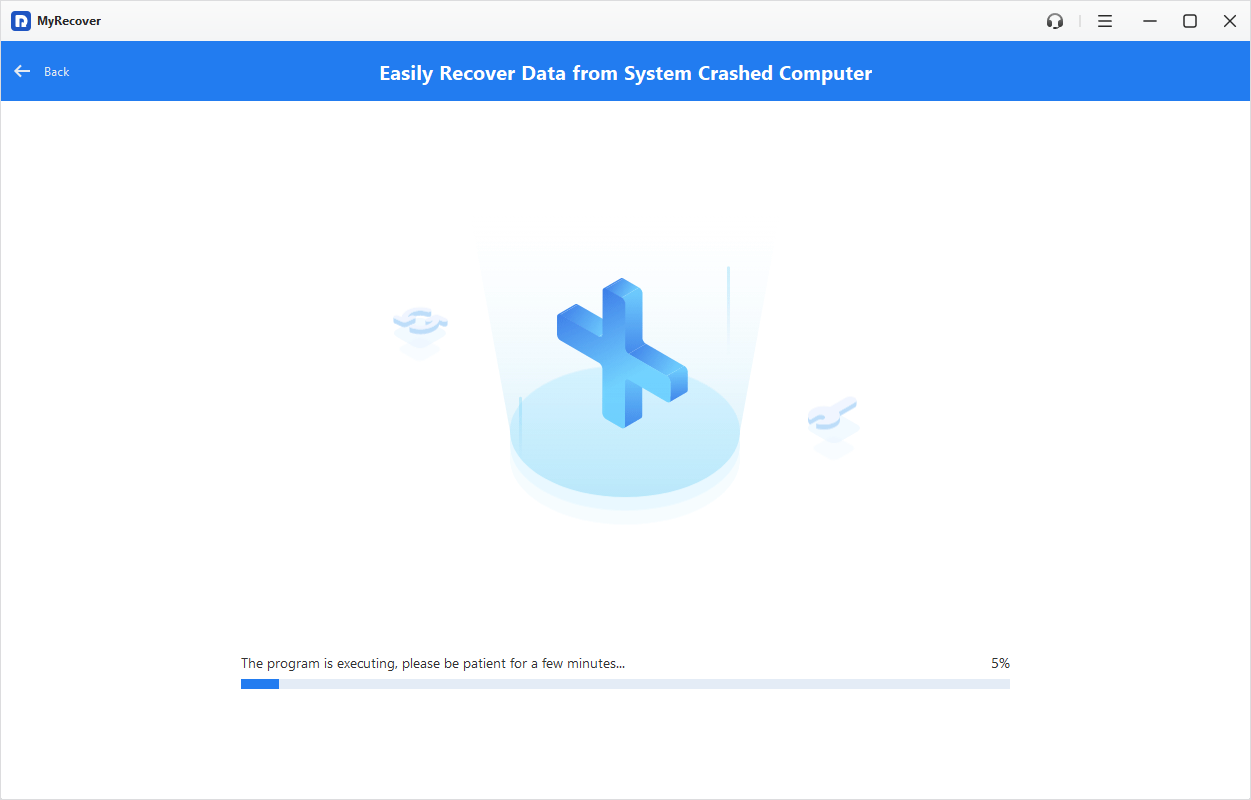
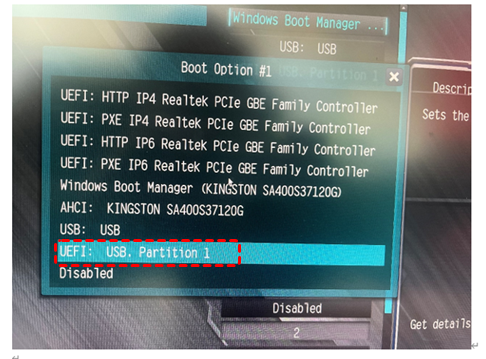
Step 4. Enter into BIOS and boot the computer with USB bootable media.
Step 5. Then, the PC will automatically enter the interface of MyRecover. Select the C drive to scan for lost files and click "Scan".

Step 5. Choose the files you wish to recover from the recoverable lists and click "Recover". If you want to extract all data from the hard drive, simply select the "Existing Files" folder and click "Recover".

Step 6. Choose a safe location (an external hard drive preferably) to save the recovered files.

When the process is done, you will see the message "Files have been recovered successfully". Then, you can access the recovered files by clicking on the destination folder path or "Browse" button.
Conclusion
The Windows 11 "user profile cannot be loaded" error is disruptive, but it is rarely irreversible. In most cases, by following a step-by-step approach mentioned above, you can often restore access without reinstalling Windows.
If desktop access remains impossible, securing your data should be the priority. Tools like MyRecover provide a convenient method to extract files from your system, making it a reliable option when standard Windows fixes fall short. Whether you are a home user or a business user, the Technician edition of MyRecover allows you to use it on multiple devices with just one license.

Stay Updated With Our
Latest Tips
Add us as a preferred source on Google to never miss helpful guides.
 Add as preferred source >>