 MyRecover



How to Fix WD My Passport Not Showing Up on Windows/Mac
When you run into the "My Passport WD not showing up" problem, it can be stressful to lose access to important data. This guide explains the common causes and offers reliable ways to reconnect your external drive, repair errors, and ensure your files stay accessible.

By Vera / Updated on December 10, 2025


Understanding the Issue
Case 1: WD My Passport Ultra Not showing up --- Reddit
Case 2: WD My Passport not showing up in MY PC --- SanDisk Forum
What Does "Not Showing Up" Mean?
When people say their WD My Passport is not showing up, they usually mean:
- It doesn’t appear in File Explorer (Windows) or Finder (Mac).
- It shows up in Device Manager or Disk Management, but not as a usable drive.
- It lights up but doesn't respond.
- It makes clicking or beeping noises.
Each of these symptoms points to a different kind of problem.
Common Situations Users Face
You may see:
- "USB device not recognized".
- No drive letter assigned.
- My Passport visible but marked as "Unallocated".
- Mac saying "The disk you inserted was not readable".
Sound familiar? Let’s break down what’s happening.
Possible Reasons WD My Passport Is Not Showing Up
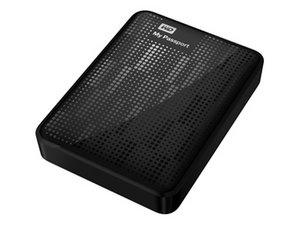
1. Connection & Cable Issues
- Damaged or Low-Quality USB Cable: A faulty cable is one of the most common causes. Even if it charges correctly, it may not support data transfer.
- USB Port Malfunction: Some ports don’t provide enough power or simply malfunction over time.
2. Drive Letter Conflict
If another device already uses the drive letter WD needs, it won’t appear.
3. Outdated or Missing Drivers
Windows may not recognize the drive if its USB or disk drivers are outdated.
4. File System Corruption
A corrupted file system prevents the OS from mounting the drive properly.
5. Partition Loss or Unallocated State
Sometimes partitions disappear or become RAW due to improper ejection or system crashes.
6. Hardware Failure
If your drive makes clicking or grinding noises, the internal components may be damaged.
How to Fix WD My Passport Not Showing Up on Windows
There are the top 7 ways to solve the problem. Let’s get started.
Method 1: Try Basic Hardware Checks
- Reconnect the drive.
- Try another USB port.
- Restart your PC.
- Try it on a different computer.
You’d be surprised how often this works.
Method 2: Change USB Port or Cable
Use a USB-A 3.0 port if possible. Swap the cable with another compatible one.
Method 3: Check Disk Management
Disk Management shows whether the drive is detected but not usable.
👉1. Assign or Change Drive Letter
Step 1. Right-click the WD drive.
Step 2. Choose "Change Drive Letter and Paths…".
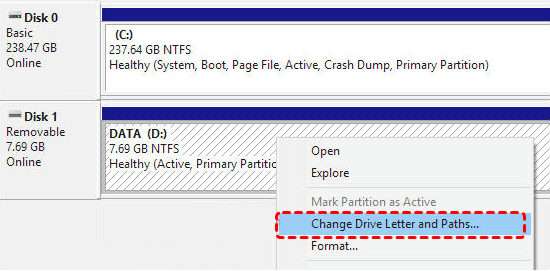
Step 3. Assign a new letter.
👉2. Create a New Partition
If the drive is unallocated:
Step 1. Right-click the unallocated area.
Step 2. Select "New Simple Volume".
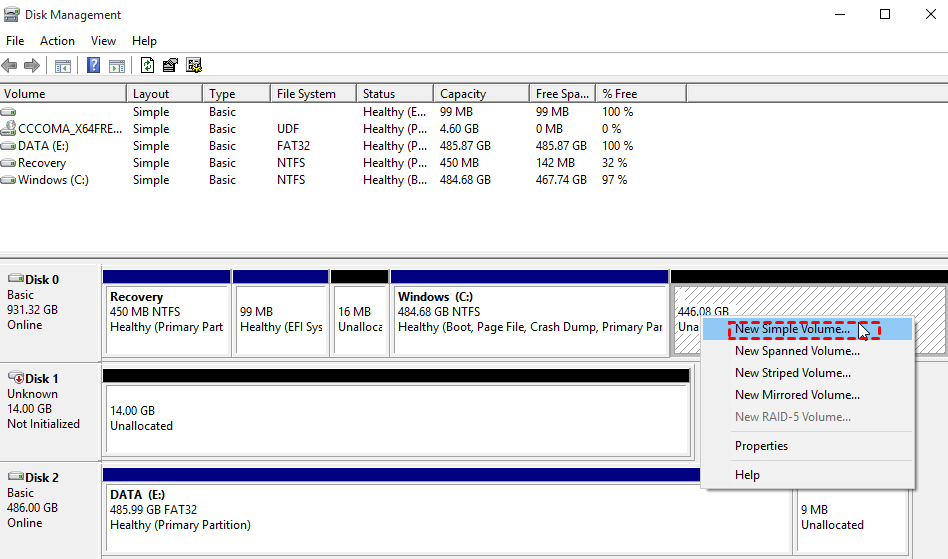
Step 3. Follow the wizard.
Method 4: Update or Reinstall Drivers
Step 1. Open Device Manager.
Step 2. Expand Disk drives.
Step 3. Right-click WD My Passport → Uninstall device.

Step 4. Reconnect the drive to reinstall drivers automatically.
Method 5: Run CHKDSK to Repair File System Errors
CHKDSK fixes logical file system issues.
Command:
chkdsk X: /f /r /x
Replace X with your drive letter.
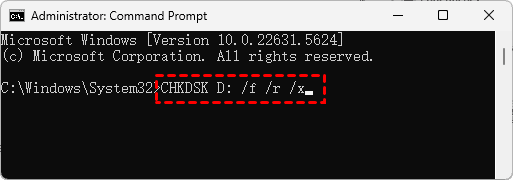
What the parameters do:
- /f repairs errors
- /r locates bad sectors
- /x forces dismount
What to expect: If the drive is heavily corrupted, the scan may take a long time.
- ★Signs CHKDSK is working:
- You see "Correcting errors in the master file table".
- Sectors are repaired.
- File records are rebuilt.
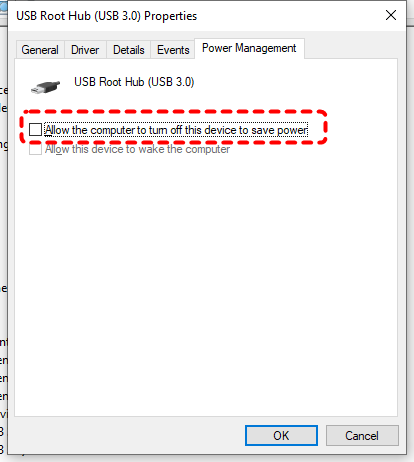
Method 6: Enable USB Root Hub
Step 1. Open Device Manager.
Step 2. Expand Universal Serial Bus controllers.
Step 3. Right-click USB Root Hub → Properties.
Step 4. Under Power Management, uncheck "Allow the computer to turn off this device".
Method 7: Use DiskPart to Clean and Rebuild Partitions
Diskpart can fix partition errors that GUI tools cannot.
Steps:
Step 1. Open CMD as admin.
Step 2. Run:
diskpart
list disk
select disk #
Confirm the disk you select is your WD drive. Running the wrong clean command wipes your wrong disk.
Step 3. To clean:
clean
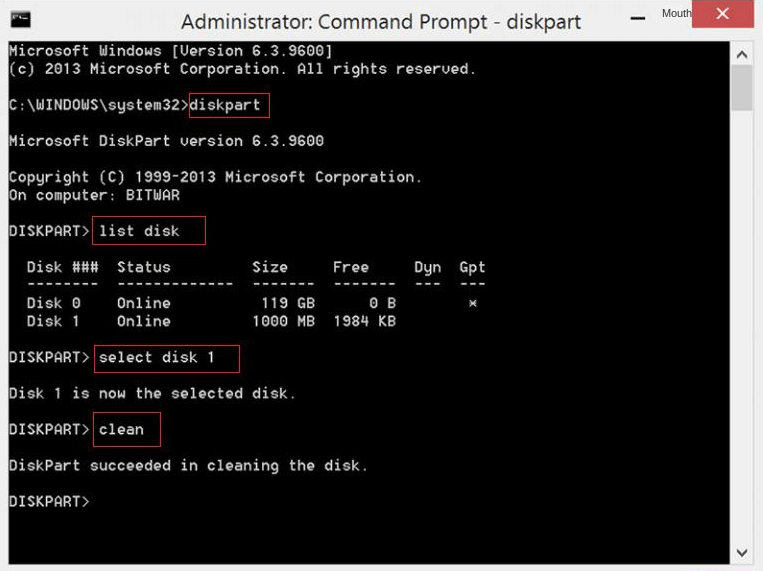
This erases partitions and corrupt structures.
- You have backed up files.
- You know the drive is empty.
- Recovery is no longer needed.
How to Fix WD My Passport Not Showing Up on Mac
There are 3 options for Mac users.
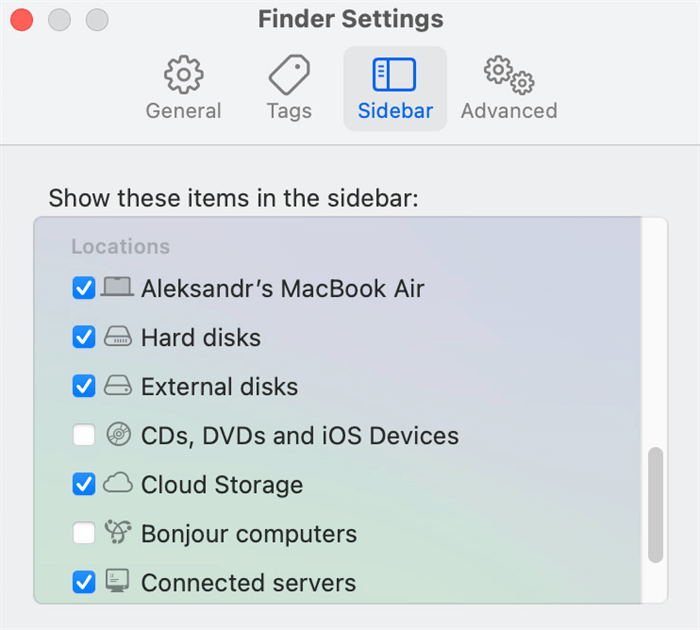
Method 1: Check Finder Preferences
Step 1. Open Finder.
Step 2. Go to Preferences.
Step 3. Under Sidebar, check External disks.
Method 2: Run First Aid in Disk Utility
First Aid is a built-in Mac tool that fixes small disk problems. If your WD My Passport shows up in Disk Utility but won’t open, try this:
Step 1. Open Disk Utility.
Step 2. Look for your WD My Passport under External.
Step 3. Click the parent drive (not just the volume).
Step 4. Click First Aid > Run.
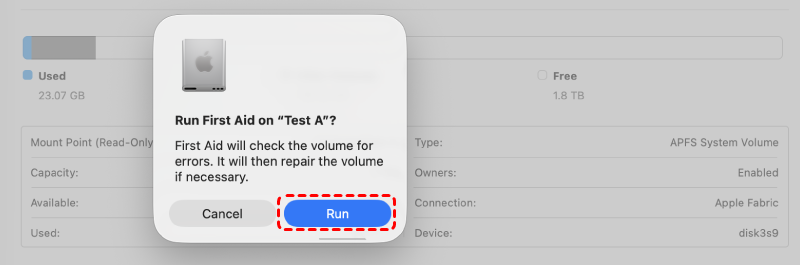
First Aid will check the drive and try to repair any errors.
If First Aid fails: That means the file system is too damaged. Don’t erase the drive yet—recover your data first with recovery software.
Method 3: Reformat the Drive
If the drive appears in Disk Utility but still won’t mount or gives errors, reformatting may fix it.
⚠️ This will erase all data, so recover important files first.
How to reformat:
Step 1. Open Disk Utility.
Step 2. Select WD My Passport.
Step 3. Click Erase.
Step 4. Choose a format:
- exFAT – works on both Mac and Windows
- APFS – for Mac only
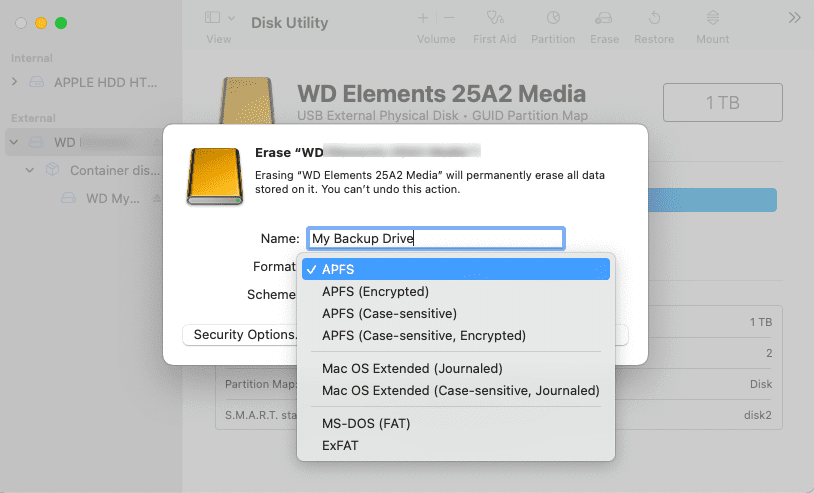
Step 5. Click Erase to confirm.
After formatting, the drive should show up normally.
If it still doesn’t show up: The drive may have hardware problems and may need professional repair or replacement.
How to Recover Data If It Is Lost?
Losing your files can be terrifying, but recovery is usually possible. MyRecover can restore photos, videos, documents, and many other file types—even from formatted or corrupted drives.
Important Notes Before Starting Recovery
- Stop using the drive immediately.
- Never format or write new data.
- Never run DiskPart or CHKDSK before recovery if you hear clicking noises.
Step-by-Step Data Recovery Using MyRecover
1. Download and install MyRecover on your computer.
2. Connect your WD My Passport.
3. Click on the drive in the main interface.
4. Allow the software to perform a Scan.

5. Preview recoverable files.
6. Select the files you want and click Recover.

Tips to Prevent WD My Passport Not Detecting in the Future
- Always eject the drive safely.
- Avoid unplugging during data transfer.
- Keep the drive away from magnetic fields.
- Use a surge protector to prevent power damage.
- Replace cables regularly.
- Back up your data in multiple places.
Conclusion
When your WD My Passport is not showing up, it can definitely be stressful—but the good news is that most issues are completely fixable. Whether it’s a simple cable problem, a driver issue, or a corrupted file system, the solutions above can help you get your drive working again. And even if your files seem lost, tools like MyRecover give you a strong chance of getting everything back. Just follow the steps carefully, keep calm, and you’ll likely resolve the issue faster than you think.

Stay Updated With Our
Latest Tips
Add us as a preferred source on Google to never miss helpful guides.
 Add as preferred source >>