 MyRecover



Why Does My Media Player Keep Crashing in Windows 11/10? 8 Fixes
This article answers why does my media player keep crashing and focuses specifically on why does windows media player keep crashing. It covers corrupted codecs, outdated drivers, hardware acceleration conflicts, and registry errors. You'll find practical ways for Windows 10, VLC, and Windows Media Player.

By Delores / Updated on June 5, 2026


Why Does My Media Player Keep Crashing?
Microsoft Media Player consistently crashes my whole computer
I have been using the native media player that comes with Windows 10 for the past ~3 months and have recently gotten 5 blue screens, all seemingly attributed to the media player, within the past 2 weeks.
The crashes occur after I load around 10-15 MP4 files into the play queue, play a random video, and attempt to skip videos. Each time, the blue screen gives an error message along the lines of "Video memory usage error".
But I'm having a hard time figuring out what this actually means. Altogether, the 10-15 videos take up around 4 GB, and I have 32 GB of RAM and an RTX 3080 with 26 GB of GPU memory, so I don't see why it would be a hardware issue.
I attempted to reinstall my GPU drivers and did a complete reinstall of Windows, and yet the crashes still happen. Also tried Microsoft support, and they didn't know what to do either.
- Question from reddit.com
Why does my media player keep crashing? You're far from alone. This problem pops up across Windows 10, affects VLC media player, Windows Media Player, and nearly every other app you'd use to watch videos or listen to music.

Most of these crashes have straightforward fixes. Let's walk through exactly what's going on behind the scenes and how to stop it for good.
Reasons My Media Player Keeps Crashing on Windows 10/11
When your media player keeps crashing, there are some causes:
- Corrupted or missing codecs. Codecs are small pieces of software that tell your player how to read a video or audio file. If a codec is outdated, missing, or damaged, the moment you hit play, the player gets confused and crashes, especially when dealing with file formats like MKV or FLAC.
- Old, buggy, or incorrectly installed drivers. Your graphics and sound drivers act as translators between the hardware and the software. Problematic drivers can cause the player to freeze right when it tries to render the video or pump out audio.
- File corruption. If the media file itself has bad sectors or incomplete data, like partially downloaded torrents or files, the player might try to read past a broken spot and simply give up.
- Overlays and hardware acceleration. Many players try to use your GPU to lighten the CPU's load. But if the GPU driver has a quirk, or if the overlay settings conflict with your display, the player will bail out mid-stream.
My VLC Keeps Crashing During Streaming! How to Fix
Why does my VLC media player keep crashing when you're streaming over the network or the internet? Streaming introduces new variables: bandwidth, network stability, and buffering logic.
Way 1. Disable Hardware Acceleration in VLC
VLC uses hardware acceleration by default to make video playback smoother. But on some GPUs—especially older Intel integrated graphics—this feature backfires. You'll be watching something, and out of nowhere, VLC freezes, the screen goes black, or the app shuts down.
Try this:
1. Open VLC, go to Tools > Preferences > Input / Codecs.
2. Under Hardware-accelerated decoding, change it from Automatic to Disable.
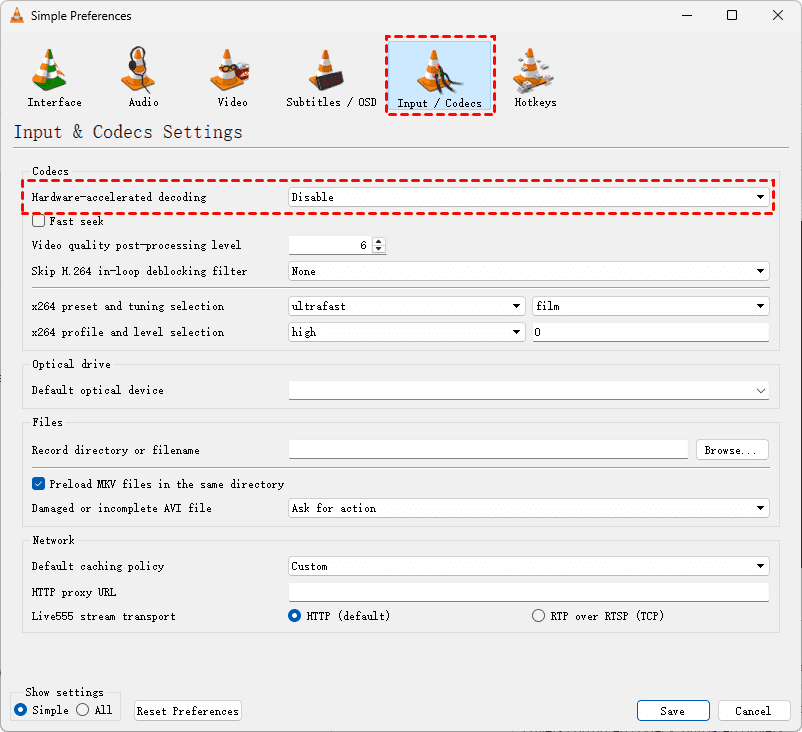
3. Save, restart VLC, and test again.
For most people, that single tweak ends the crashes immediately.
Way 2. Increase Cache Overload
If you've got a playlist with hundreds of songs or a dozen high-bitrate videos queued up, VLC can choke. The default cache settings just aren't built for heavy lifting. You'll notice stuttering first, then a full crash.
1. Go back to Preferences > Input / Codecs.
2. Tick All to show all settings at the bottom left corner, tap Input / Codecs and find File caching (ms).
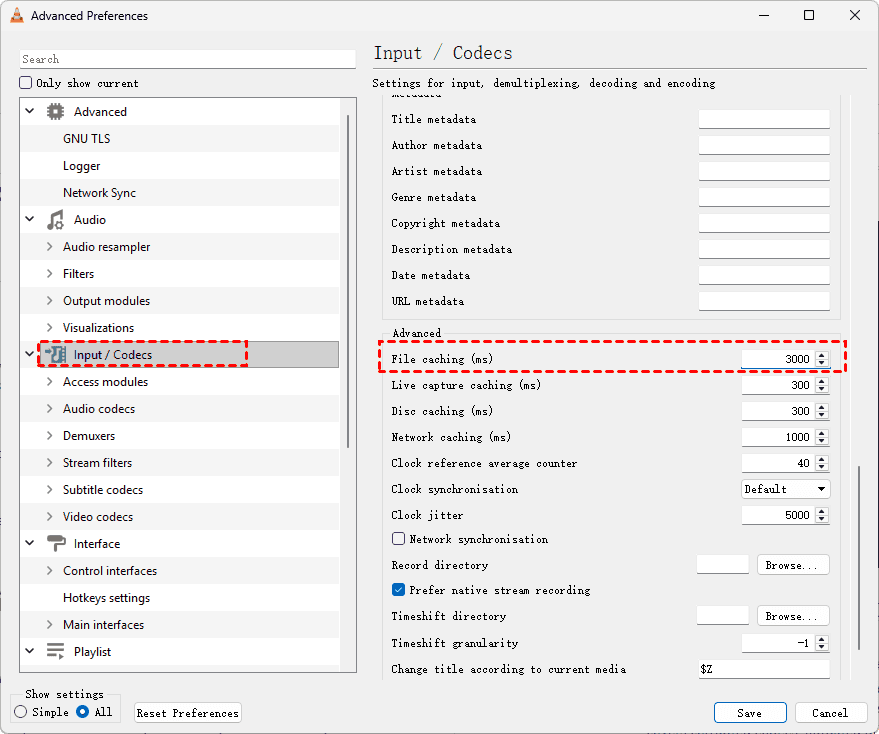
3. Bump it from 300 to 1500 or even 3000 milliseconds.
That gives the player more breathing room to load ahead. While you're there, increase Network caching to 2000 ms if you're streaming from a NAS or remote server.
Windows Media Player Keep Crashing After Update! 4 Fixes
Way 1. Uninstall The Problematic Windows Update
Windows updates are supposed to make things better, but sometimes they break what already worked. If you noticed that your Windows Media Player keeps crashing, only started after a Windows update (like the KB5077181 update), you have to uninstall the Windows Update to fix.
1. Right-click the Start menu, then choose Settings.
2. Choose Windows Update > Update History > Uninstall updates.
3. Find the Windows Update that causes problems, and hit Uninstall.
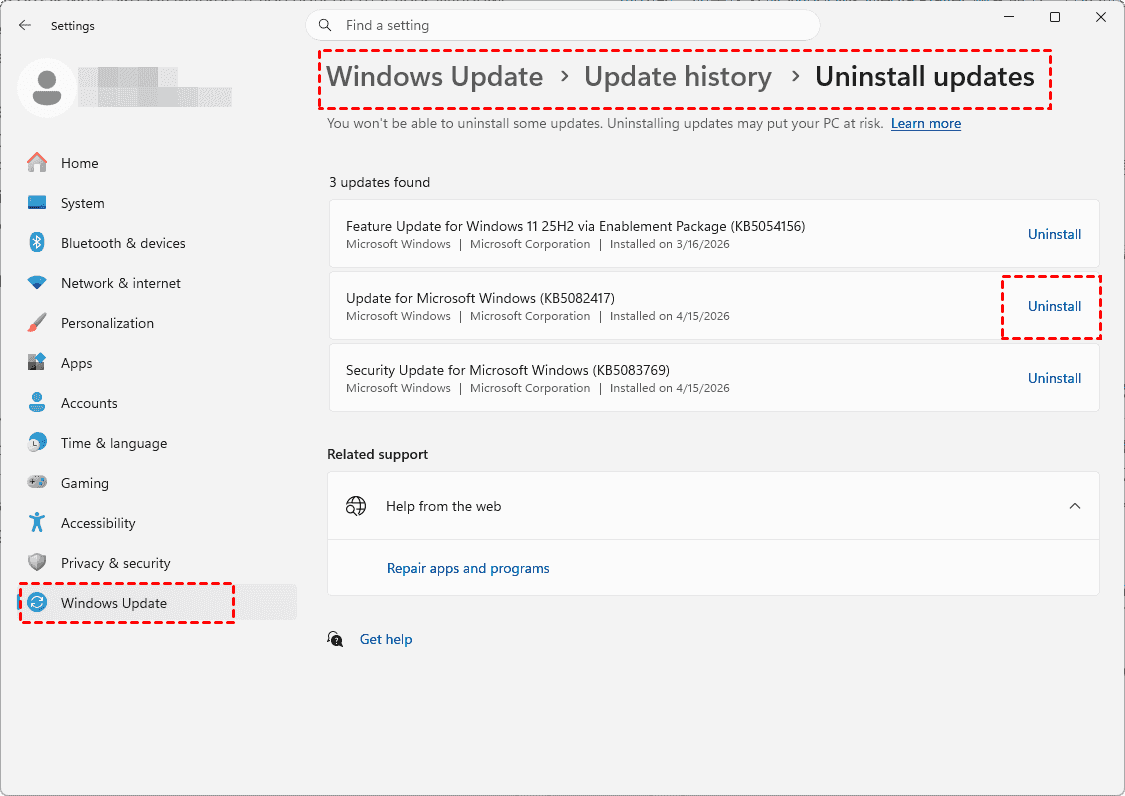
You can also uninstall the offending update via Control Panel > Programs > Uninstall a program > Find the Windows update > Uninstall.
After removal, hide that update using Microsoft's wushowhide tool, so Windows doesn't sneak it back in.
Way 2. Disable Plug-ins in Windows Media Player
Windows Media Player supports plugins for visualizations, DSP effects, and file formats. But a buggy plugin can bring the whole thing down.
To test, run wmplayer.exe /safemode from the Run dialog (Win + R). If the crashes stop in safe mode, you've got a rogue plugin.
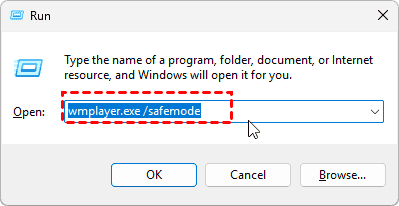
You have to disable the plug-ins that cause problems:
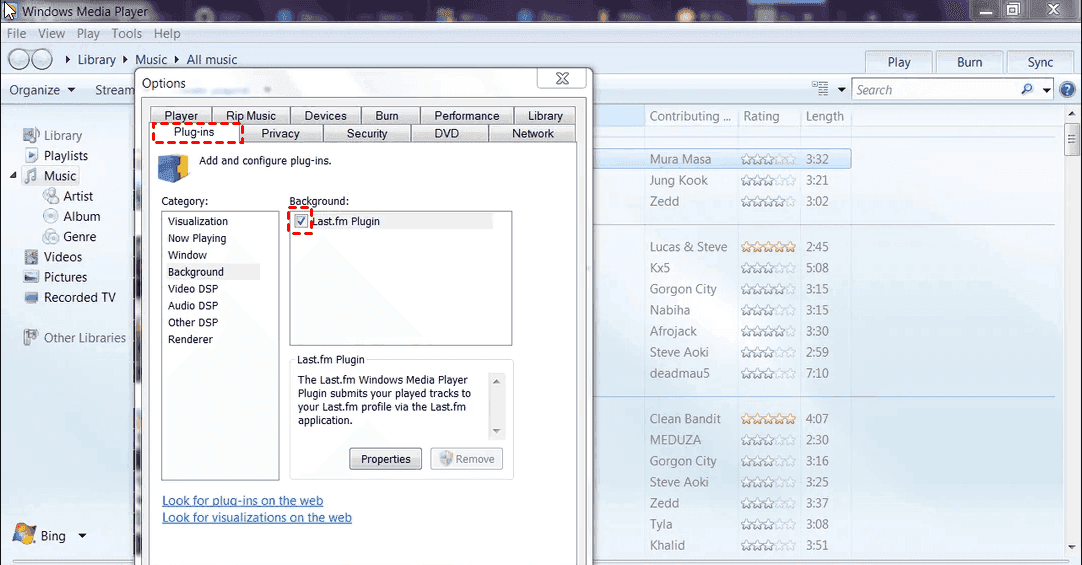
1. Hit Organize in Windows Media Player, then choose Options.
2. Hit Plug-ins, choose a category, and uncheck the plugin to disable.
Way 3. Repair Corrupted Windows Media Player Installation
Why does Windows Media Player keep crashing when opening files? It crashes the moment you try to open a file. The player can't even start the decoding process. You can remove any corrupted settings or registry entries associated with the player. Here is how to do:
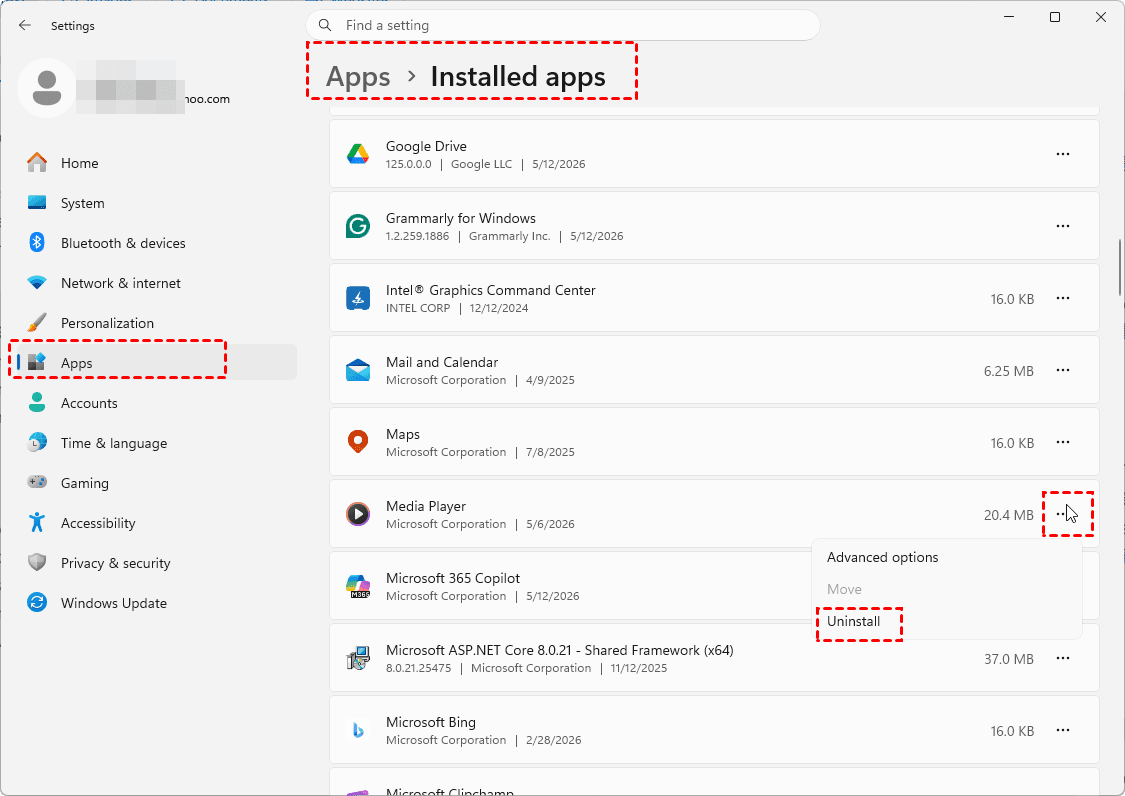
1. Right-click Start > Settings > Apps > Installed apps.
2. Find Windows Media Player, uninstall it, then reboot.
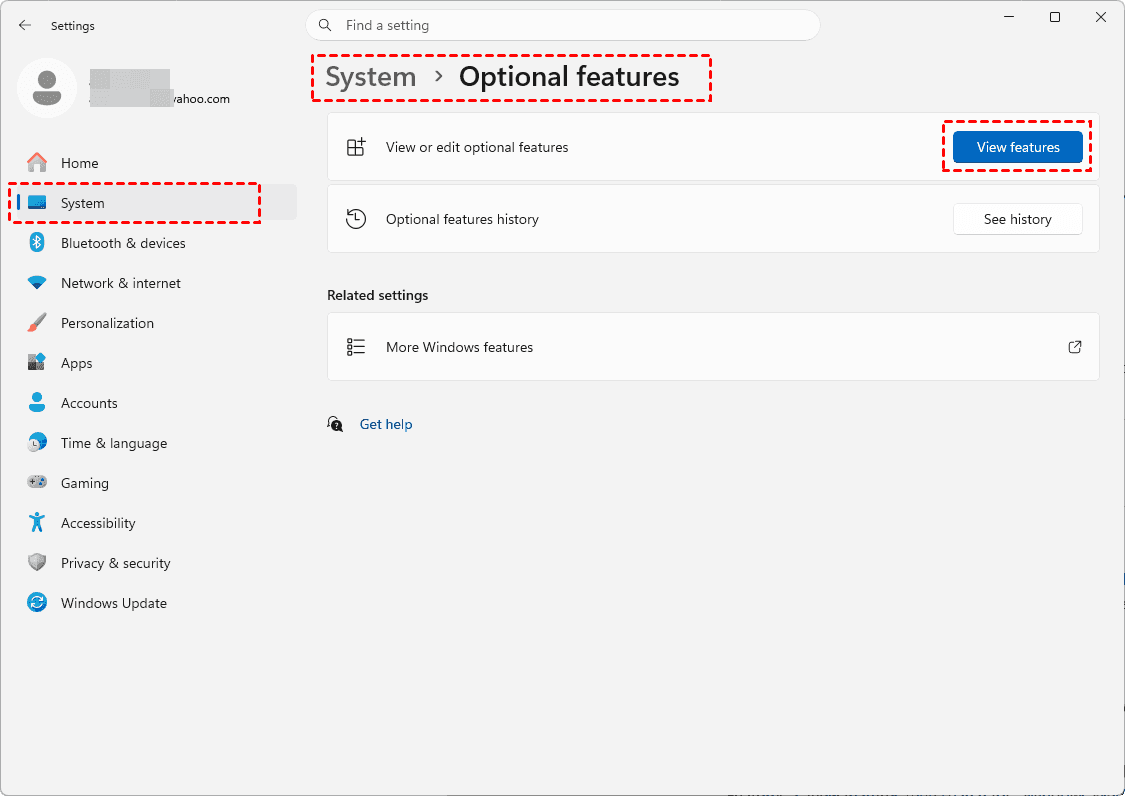
3. Select Start > Settings > System > Optional Features > View features.
4. Click See available features, search for Windows Media Player, and click Add.
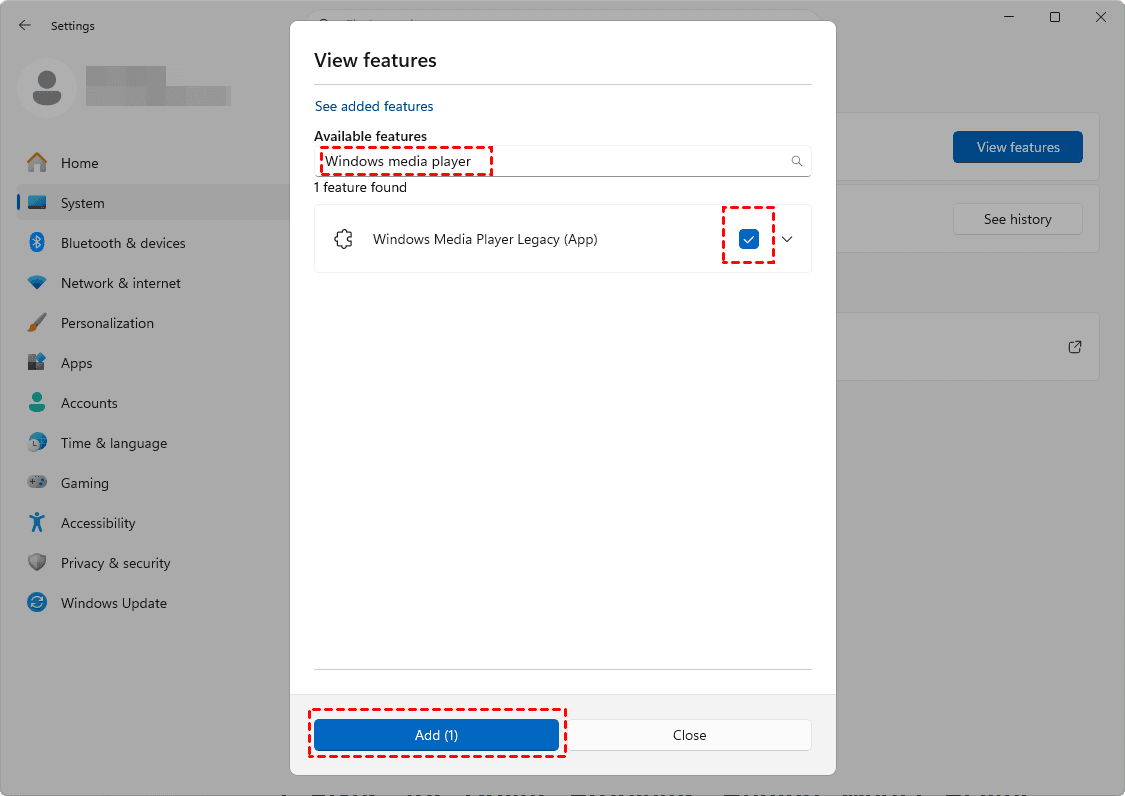
This removes any corrupted settings or registry entries associated with the player.
Way 4. Reset File Association Defaults
Wrong file associations can confuse Windows Media Player. You can reset file association defaults to fix.
1. Open Settings > Apps > Default apps.
2. Scroll to Music player and Video player, reset them to something else (like Movies & TV), then switch back to Windows Media Player. This refreshes the registry links without you having to dig through Regedit.
2 Fixes for Driver Problems Behind Media Player Crashes
If you recently updated a driver and crashes started, you can try the following solutions to fix.
Way 1. Roll Back Graphics or Sound Drivers
If you recently updated a driver and crashes started, roll it back.
1. Right-click the Start button > Device Manager > Display Adapters (or Sound controllers).
2. Right-click your device > Properties > Driver tab > Roll Back Driver.
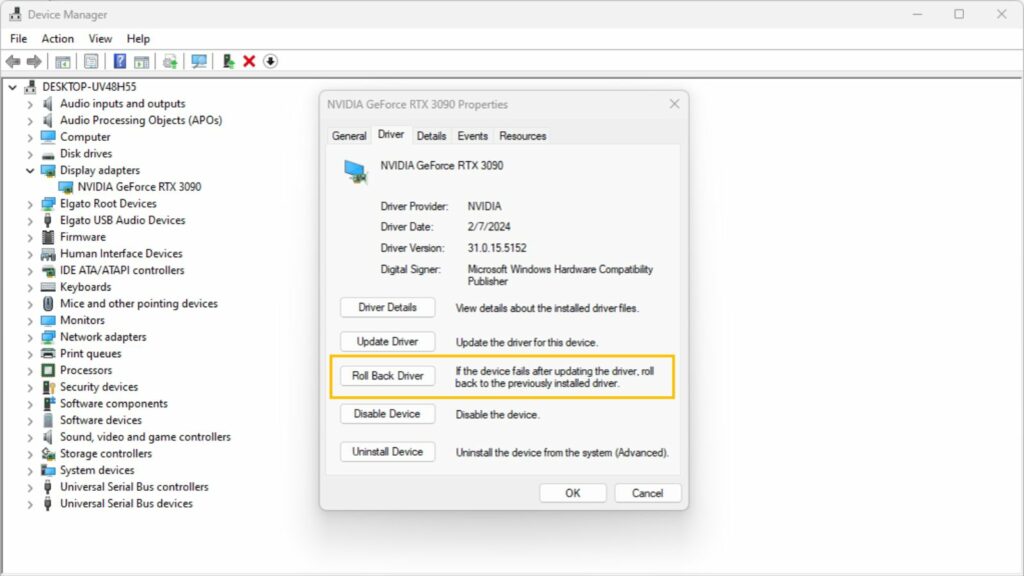
If that button is greyed out, you'll need to download an older version manually from the manufacturer's site.
Way 2. Run Windows Driver Verifier to Check
For advanced users, Windows includes a Driver Verifier tool that stresses drivers to uncover hidden bugs. However, be cautious—this can cause blue screens if a driver is truly faulty.
1. Run verifier from an admin Command Prompt.
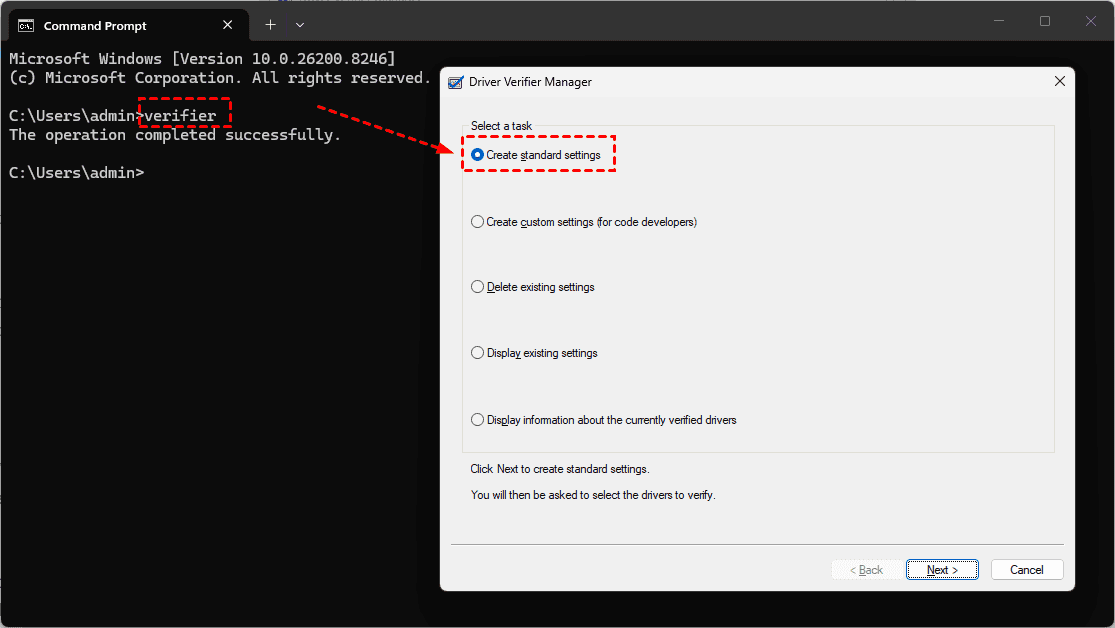
2. Choose Create standard settings, and hit Next.
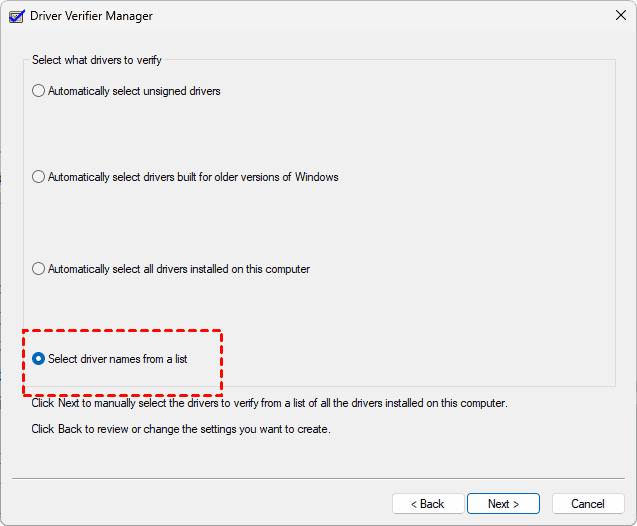
3. Tick Select driver names from the list, and hit Next.
4. Pick only your audio and video drivers and hit Finish to verify.
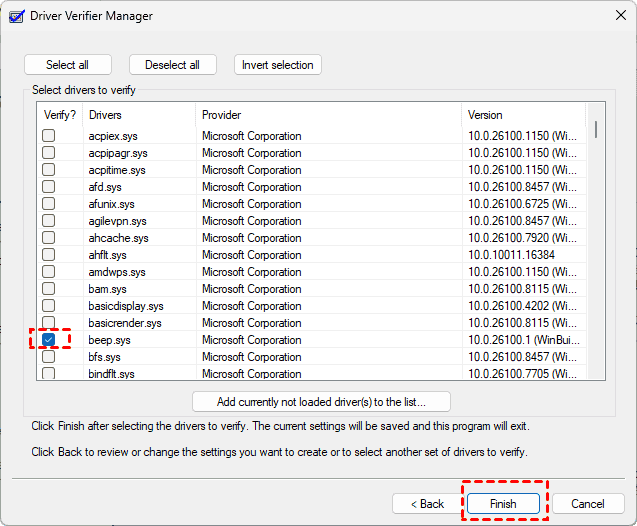
Reboot and test playback.
FAQs About My Media Player Keeps Crashing
Why do media players freeze when playing large video files?
A: Large 4K or HEVC files need lots of RAM and CPU power. Low memory or an overheating processor causes freezes. Close background apps, raise the player's cache, or switch to a lighter player like MPV.
Can antivirus software cause my media player to crash?
A: Yes. Some antivirus tools scan every opened file, and a huge video can overwhelm the player. Add your media folder or player .exe to the antivirus exclusion list. Bitdefender and McAfee are common culprits.
Does converting the video file to another format stop the crashing?
A: Sometimes. If codec issues trigger the crash, converting to MP4 or MKV with HandBrake helps. But physical file damage or driver problems? Conversion won't fix that. Test on a short clip first.
Why does my media player crash only when using Bluetooth headphones?
A: Bluetooth uses different drivers and bandwidth than wired audio. An outdated Bluetooth driver or an unsupported format like high-res FLAC can cause crashes. Update your Bluetooth driver and lower the audio quality to 16-bit 44100Hz in the player.
How do I recover video files from a drive that crashes my media player?
A: Use MyRecover. Install it, select the problem drive, and run a deep scan. Preview recoverable files in its built-in viewer, then save them to a different drive. Your recovered files should play without crashing.
Recover Missing Video Files After Media Player Crashes
Data loss after a media player crash can be stressful, but a Windows data recovery tool like MyRecover offers a practical way to get your video files back. It's designed to handle exactly this kind of situation by scanning your drive for files that weren't properly saved.
MyRecover Key Advantages:
- Specialized for Crashes. It's designed to recover data after system crashes, BSODs, unexpected shutdowns, an emptied Recycle Bin, a formatted SSD, and other complex situations.
- High Success Rate. Boasts a 99% recovery rate using advanced and AI-enhanced scanning algorithms.
- User-Friendly Design. Features an easy-to-use interface that guides users through a simple 3-step recovery process.
- Versatile File Support. Recovers a massive range of file types (1000+), including countless video formats (MP4, MOV, AVI, ASF, etc.).
- Preview Before Recovery. You can recover the rights files and ensure they are intact.
Here is how to recover missing video files after a media player crash with MyRecover:
1. Download and install MyRecover, then launch it.
 100% Secure
2. Tap Deleted Files Recovery, hit Scan while hovering over the drive.

3. Preview and select the video files you need after scanning, and hit Recover.

4. Select a different location to keep them safe.


- Notes:✎...
- By default, MyRecover sorts your missing files by file type and file path to quickly find your files. Besides, you can search for files by file name, size, modified date, and extension.
- For unlimited file recovery, upgrading to MyRecover Technician is your best choice.

 MyRecover
- Recover Deleted Files Easily with Simple Clicks
- 1000+ File Formats Supported
- Support HDD, SSD, External Hard Drive, USB Drive, SD Card, etc./li>
- Quickly Find Files Using File Types, Name, Size, etc.
- Preview Files Before Recovering
- Recover Unlimited Data
 100% Secure

Stay Updated With Our
Latest Tips
Add us as a preferred source on Google to never miss helpful guides.
 Add as preferred source >>