 MyRecover



Fix: Windows Update Wiped My Computer? Complete Recovery Guide
When a sudden Windows update wiped out my computer, it caused serious data loss and instability. This abstract covers practical recovery methods, Windows repair tools, and smart proactive steps to protect your PC from future update failures.

By Vera / Updated on May 29, 2026


Understanding How a Windows Update Can Cause Data Loss
Windows updates (e.g., Windows 10 to 11) are meant to fix bugs, improve performance, and make your system more secure. But sometimes they misfire—and that misfire can look like missing files, wiped settings, or a PC that feels completely reset. For many users, the realization that a new Windows update wiped out my computer is a stressful experience, but the data is rarely gone forever. While these updates are critical for system health, the process involves moving massive amounts of system data, which can occasionally lead to file path errors or profile corruption
Common Reasons Behind Update-Related Wipeouts
Several problems can trigger a situation where it feels like a Windows update wiped out everything:
- ⭕Temporary user profile loading: Windows sometimes fails to access your data during the first boot after an update and boots into a "Temp" account where everything is blank.
- ⭕Corrupted system files: A broken update can confuse Windows about the physical location of your data on the hard drive.
- ⭕Interrupted updates: If your PC shuts down mid-update, it may lose access to certain file directories or the Master File Table (MFT).
- ⭕Storage conflicts: Low disk space or faulty drives can cause loss of data visibility or force Windows to overwrite sectors incorrectly.
- ⭕Automatic cleanup: In major feature updates, Windows moves files to a "Windows.old" folder; if the update process thinks space is low, it may trigger a cleanup prematurely, making it seem like the Windows update wiped my computer entirely.
Signs Your PC Was Affected by a Faulty Update
If you recognize these symptoms, your update likely caused the wipe:
- ❗Your desktop is suddenly empty or shows only default icons.
- ❗Documents, pictures, or downloads appear missing from their specific folders.
- ❗Programs behave like they’ve been freshly installed, asking for initial setup.
- ❗You see a notification that you’re logged into a temporary profile.
- ❗Windows created unexpected folders like Windows.old in your C: drive.
Immediate Steps to Take After Windows Update Wipes Your Computer
When you realize your files are gone, timing matters. Taking the right steps early increases your success rate with recovery tools because it prevents "data overwriting."
💡Step 1: Don’t Panic — Stop Using the PC
The more you use your PC, the more likely new data can overwrite recoverable files. So take a breath and slow down.
💡Step 2: Disconnect From the Internet
Automatic updates or sync processes can overwrite missing files—especially with cloud drives.
💡Step 3: Check if Files Are Hidden or Moved
Before assuming the Windows update wiped out everything, check the most common "hiding places":
- Navigate to This PC → C:\Users → Your Username.
- Look for secondary profiles in the Users folder.
- Search for the Windows.old folder at the root of the C: drive.
- Enable "show hidden files" in File Explorer: View → Options → Change folder and search options → View tab → Select Show hidden files, folders, and drives.
- >> Look here if Show Hidden Files and Folders not working in Windows 10.
How to Recover Lost Data After a Windows Update
If you’ve confirmed that a new Windows update wiped out my computer, recovery is still possible. Try these methods in order, moving from built-in features to professional software.
1. Use Windows File History
File History is a proactive backup feature that takes "snapshots" of files. It is the best method to use if you had a backup drive connected prior to the update. Try this if you previously enabled File History and have an external drive where backups are stored.
1. Open Settings (Win + I).
2. Go to Update & Security → Files Backup.
3. Select More options.
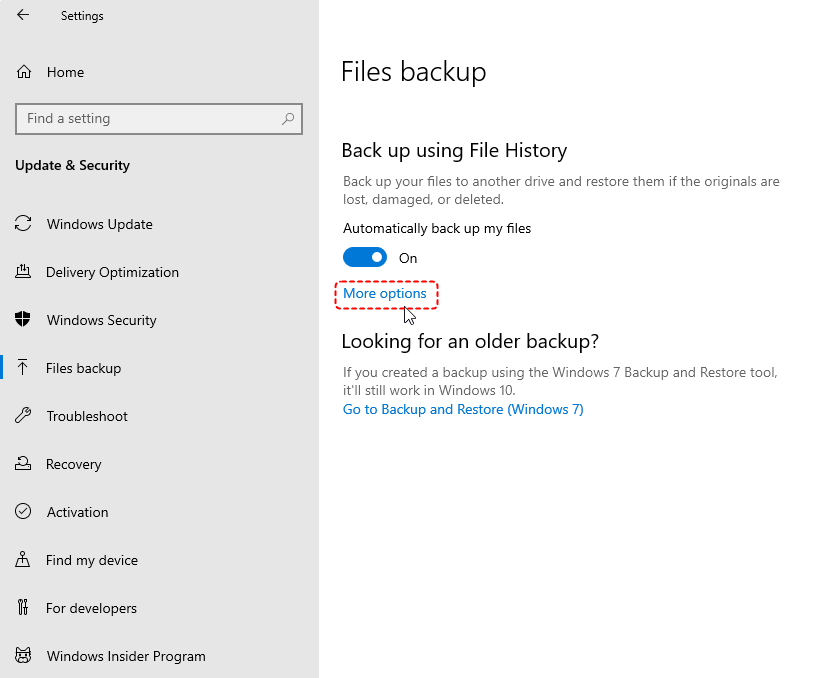
4. Click Restore files from a current backup.
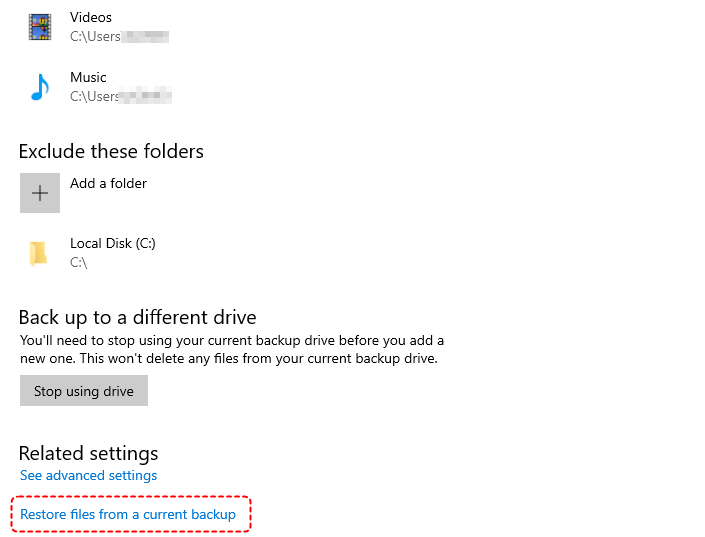
5. Browse the available backups, select the files, and click the green Restore button.

2. Recover Using System Restore
System Restore acts like a "time machine" for system files and registry settings. It can fix a corrupted user profile that is preventing your files from showing up. Try this if your files are missing because the update corrupted the link between your account and your data folders.
1. Search "Create a restore point" and click the result.
2. Click System Restore. And click Next.
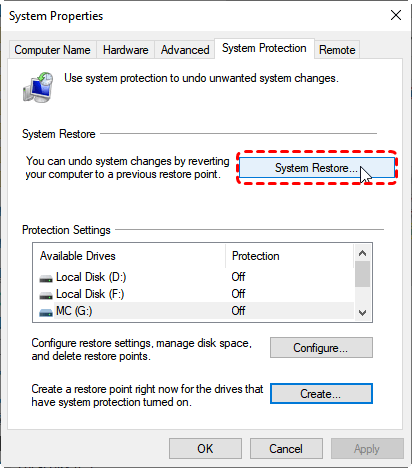
3. Select a restore point from before the update was installed.
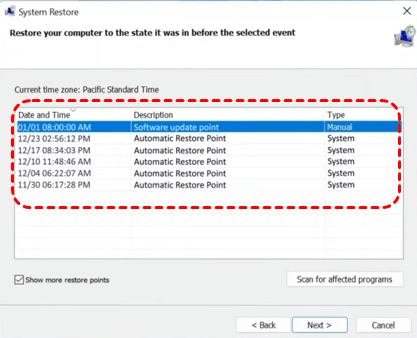
4. Restart the PC.
System Restore doesn’t delete personal files—only system changes.
3. Restore Previous Versions
This method relies on "Shadow Copies." It allows you to roll back the state of an individual folder (like Documents) without affecting the rest of the system.
If you have enabled either File History or System Restore, Windows may save earlier versions of folders automatically. Therefore, you can directly restore previous versions.
1. Right-click the folder (e.g., Documents).
2. Select Restore previous versions.
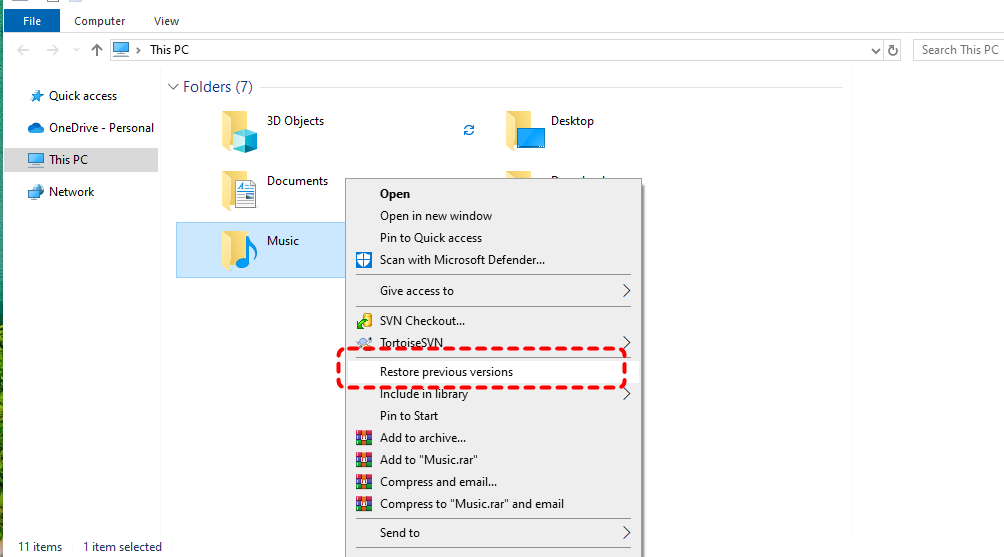
3. Choose a version that predates the Windows update and click Restore.
4. Use Professional Data Recovery Software
If built-in tools fail, it means the update may have damaged the file system structure. You need a tool that can perform a sector-by-sector scan. MyRecover is specifically engineered to handle the complexities of data loss when a Windows update wiped my computer.
When an update fails, it often leaves files in a "limbo" state. MyRecover uses an advanced Deep Scan algorithm that can reconstruct these files even after the update has modified system partitions.
Why Choose MyRecover?

 MyRecover
- Easy-to-use interface for all experience levels.
- Deep scan + quick scan to find every recoverable file.
- High recovery success rate.
- Supports deleted, lost, hidden, or corrupted files.
- Works even after system updates, crashes, or resets.
 100% Secure
How to Recover Lost Data Using MyRecover (Step-by-Step)
Follow these steps to recover your missing files safely:
Step 1: Install MyRecover
Download MyRecover from the official website and install it on a drive other than the one where you lost data.
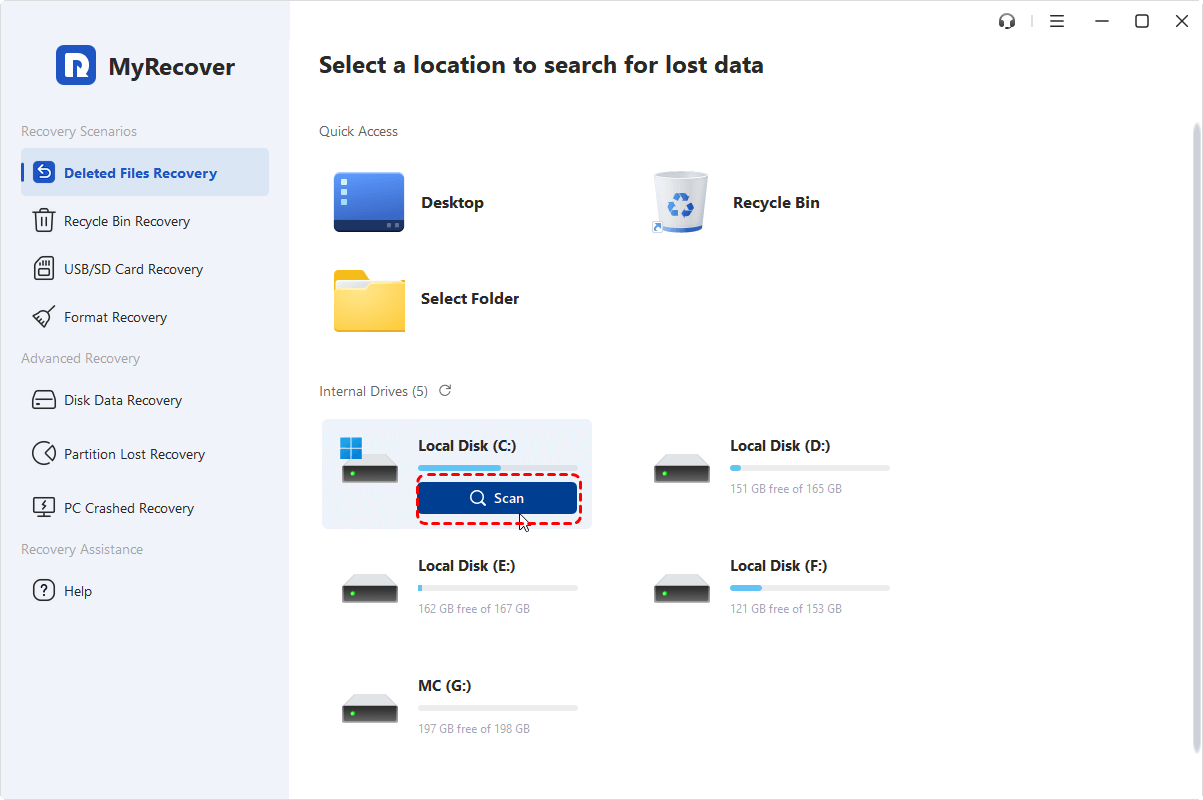
Step 2: Scan the Affected Drive
Open MyRecover → select the drive where your files were stored (usually C:). Click Scan and let the scan run automatically.
Step 3: Preview & Select Files
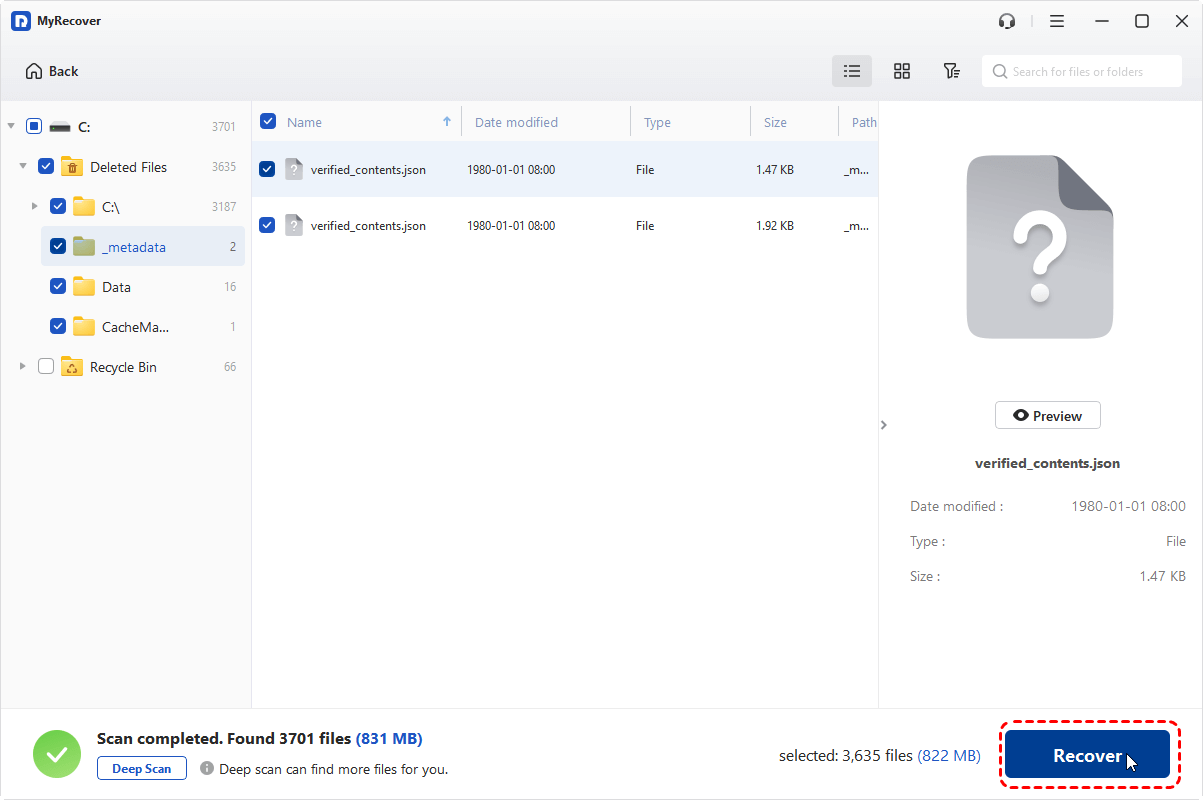
Browse the scan results, use the search bar if needed, and preview any file to confirm it’s recoverable.
Step 4: Recover Your Data
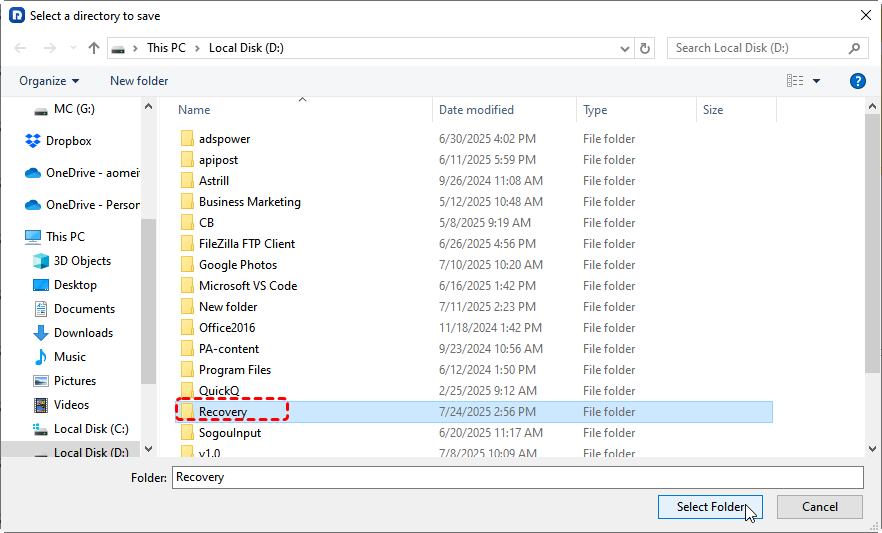
Choose the files you want → click Recover → save them to a different drive to avoid overwriting.
Fixing a Windows Update That Wiped Settings or Apps
Even if your files are safe, settings or apps may be wiped or the system may be unstable. Once your data is recovered via MyRecover or backups, you can focus on repairing the operating system.
Fix 1. Reset Windows Without Losing Files
This "refreshes" the Windows system files while leaving your personal data untouched. It is a "clean slate" approach for the OS itself.
1. Go to Settings → Update & Security → Recovery.
2. Choose Reset this PC, click Get started.
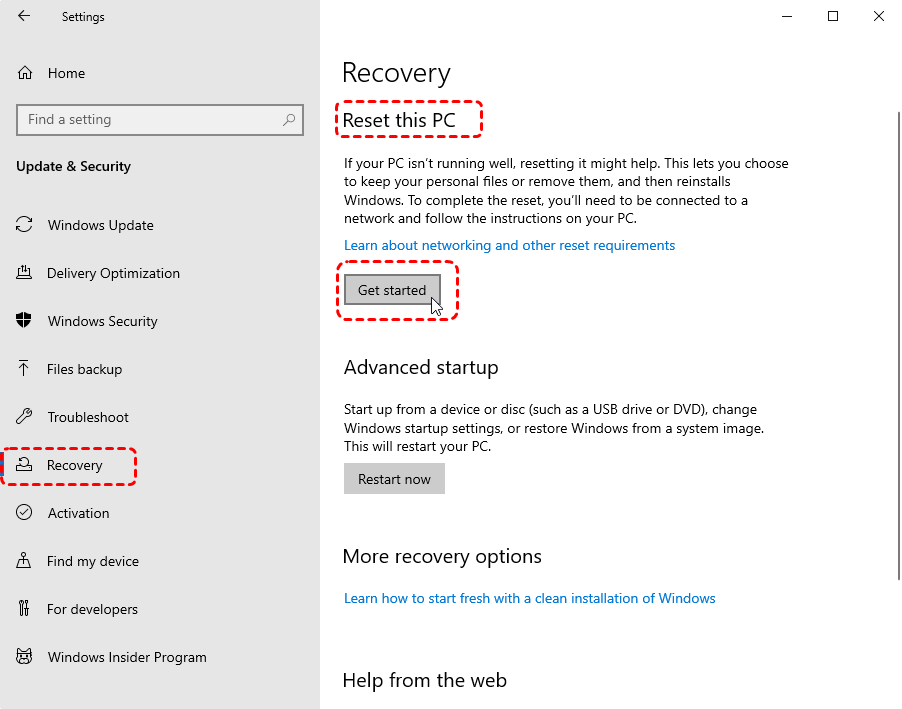
3. Select Keep my files. This restores your OS without deleting personal data.
Fix 2. Roll Back the Windows Update
If the update is fundamentally incompatible with your hardware, the best solution is to uninstall the update entirely and return to the previous version of Windows.
1. Go to Settings → Update & Security → Windows Update.
2. Select update history.
3. Scroll down to find and click Uninstall updates.
4. Find the update that caused the issue (sort by date) and click Uninstall.
Fix 3. Run Startup Repair
Sometimes an update fails to finish its "boot-up" tasks, leaving the system in a broken state. Startup Repair forces Windows to re-evaluate its boot configuration.
1. While at the login screen, hold the Shift key and click Restart.
2. Your PC will enter the Windows Recovery Environment.
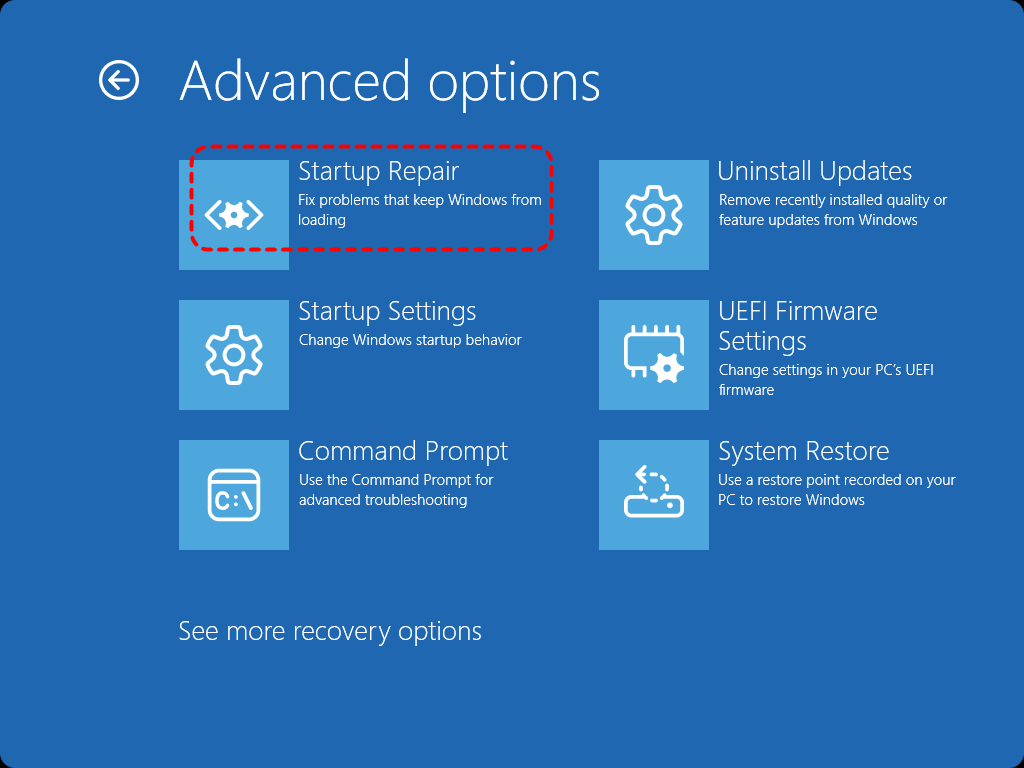
3. Choose Troubleshoot → Advanced options → Startup Repair. Windows will automatically diagnose and fix errors preventing a normal login.
How to Protect Your PC From Future Update Disasters
Once you survive one Windows wipe, you never want another. Use these strategies to stay safe:
-
Enable Automatic Backups: Don't rely on Windows to manage your data. Turn on File History or use a dedicated backup tool to keep a secondary copy on an external drive.
-
Use Cloud Sync Services: Tools like OneDrive, Google Drive, or Dropbox provide a "cloud safety net." Even if your local drive is wiped, your cloud folders remain accessible.
-
Delay or Pause Windows Updates: If you hear news about a "buggy" Windows update, you can pause updates in Settings > Windows Update for up to 35 days. This gives Microsoft time to release a patch for the update itself.
-
Monitor Disk Health: Use tools to check your S.M.A.R.T. status. Updates are most likely to fail on drives that are already physically failing.
Conclusion
If a Windows update wiped my computer, it can feel like a total nightmare—but it’s not the end of the world. In many cases, your data is still intact and recoverable with the right steps. Whether you’re checking hidden folders, restoring previous versions, or using recovery software, you have multiple ways to get your files—and your peace of mind—back. And by setting up solid backup habits, you can completely avoid this situation in the future.
Frequently Asked Questions (FAQ)
1. Why did the Windows update wipe my computer but leave the folders?
This usually happens because Windows encountered a conflict with your user profile. Instead of loading your personal "Desktop" and "Documents" folders, it loaded a "Temporary Profile." Your files are likely still on the hard drive in C:\Users\YourOldName, but Windows isn't pointing to them.
2. Is my data gone forever if I don't see a Windows.old folder?
Not necessarily. While Windows.old is a common backup, updates can also lose data due to file system corruption. In these cases, the files are still physically on the disk but marked as "deleted space." You should use MyRecover immediately to scan for these orphaned files before they are overwritten.
3. Can I use MyRecover if my computer won't boot into Windows after the update?
Yes. You can remove the hard drive from the affected PC and connect it to another working computer as a secondary drive. Then, run MyRecover on that working computer to scan the "wiped" drive and extract your data.
4. How long does a "Deep Scan" in MyRecover take?
The duration depends on the size and speed of your drive. For a standard 1TB HDD, it might take an hour or two; for an SSD, it is much faster. It is worth the wait because it searches the drive at a binary level to find files that have lost their directory path during the update.
5. Will rolling back a Windows update delete my new files?
Rolling back an update primarily affects system files and apps. However, it is always a "best practice" to back up any new files you created after the update before you perform a rollback, just in case the system stabilization process affects the drive.
6. How can I prevent Windows from ever wiping my files again?
The most effective way is to move your "User Folders" (Documents, Pictures, etc.) to a separate partition (like a D: drive). Windows Updates typically only target the C: drive (system partition), so keeping your data on a separate partition adds a massive layer of security.

Stay Updated With Our
Latest Tips
Add us as a preferred source on Google to never miss helpful guides.
 Add as preferred source >>