
Quick Scan and Deep Scan work together to efficiently locate missing documents, even when they are no longer in the Recycle Bin or lost from external storage.

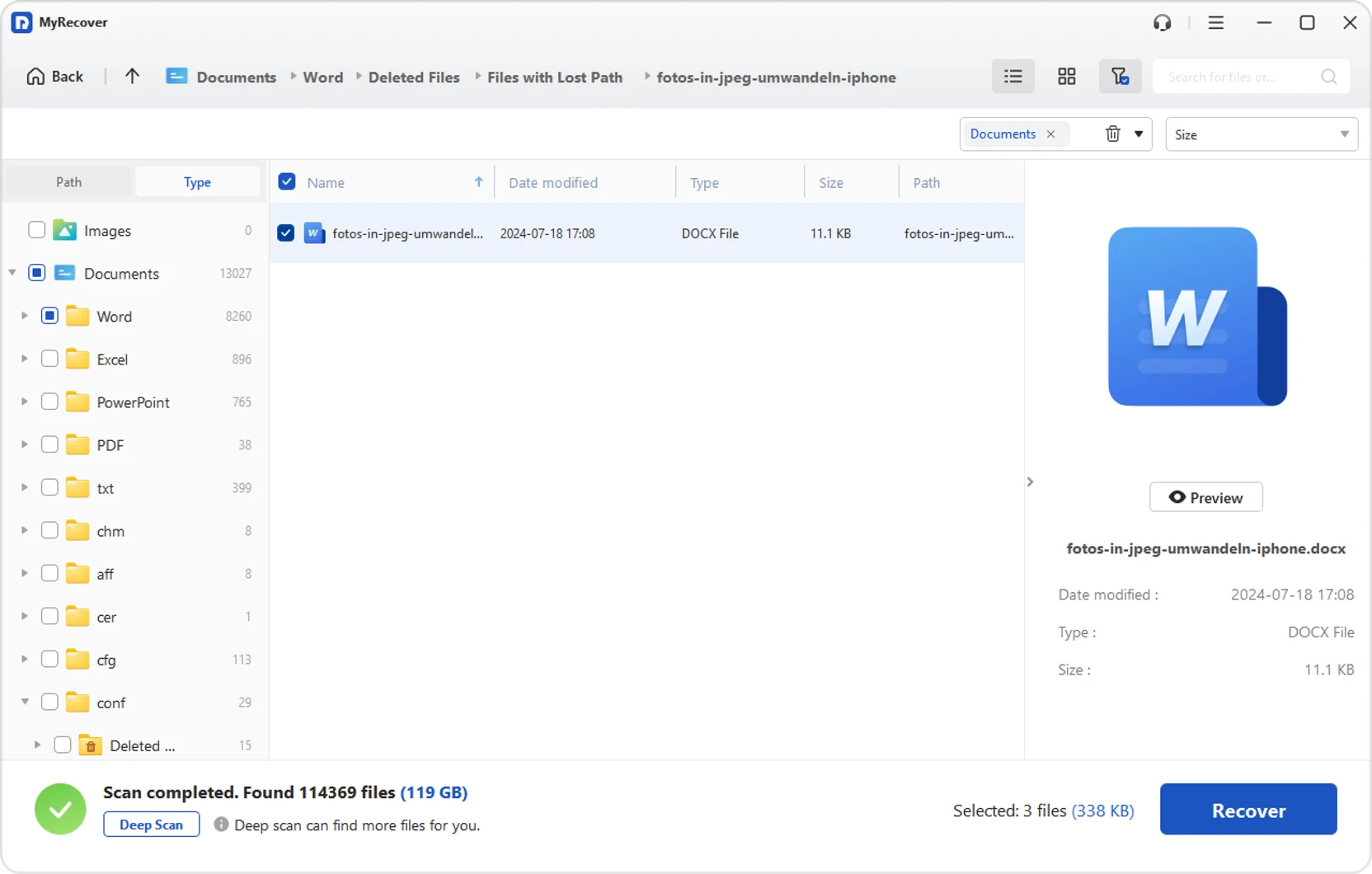
Filter results by file type, name, size, or path, and preview files in advance to quickly identify the exact documents you need.

Supports document recovery from HDDs, SSDs, USB drives, SD cards, and external hard drives with an easy-to-use, no-command-line workflow.

Easily scan, locate, and restore deleted documents with a clear, straightforward workflow that requires no technical expertise.
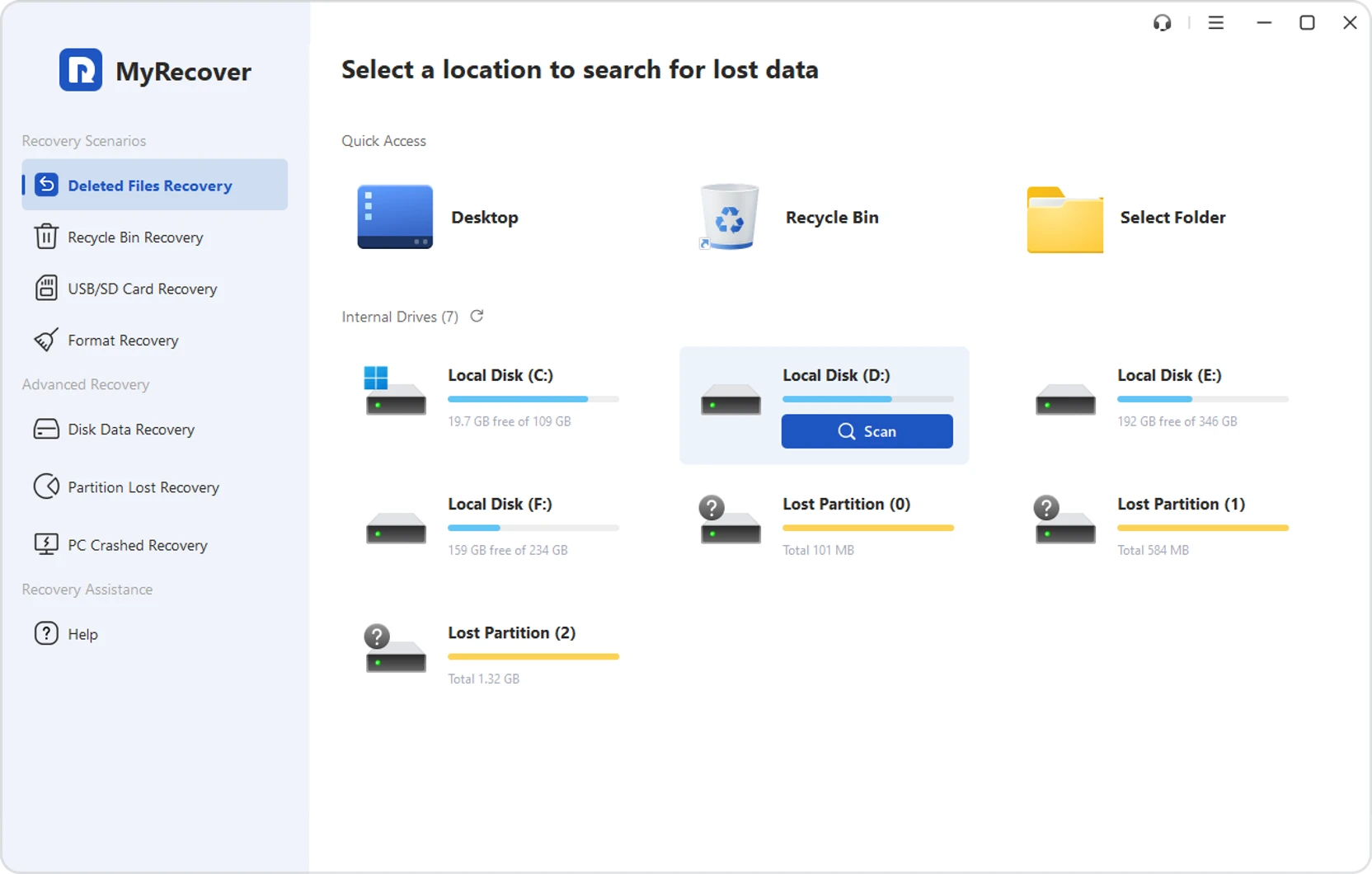
Launch MyRecover, click Deleted Files Recovery, select the drive or device where your documents were lost, and click Scan.
After Quick Scan, browse documents by type, search by file name, or apply filters to find what you need. If the file isn't found, switch to Deep Scan.
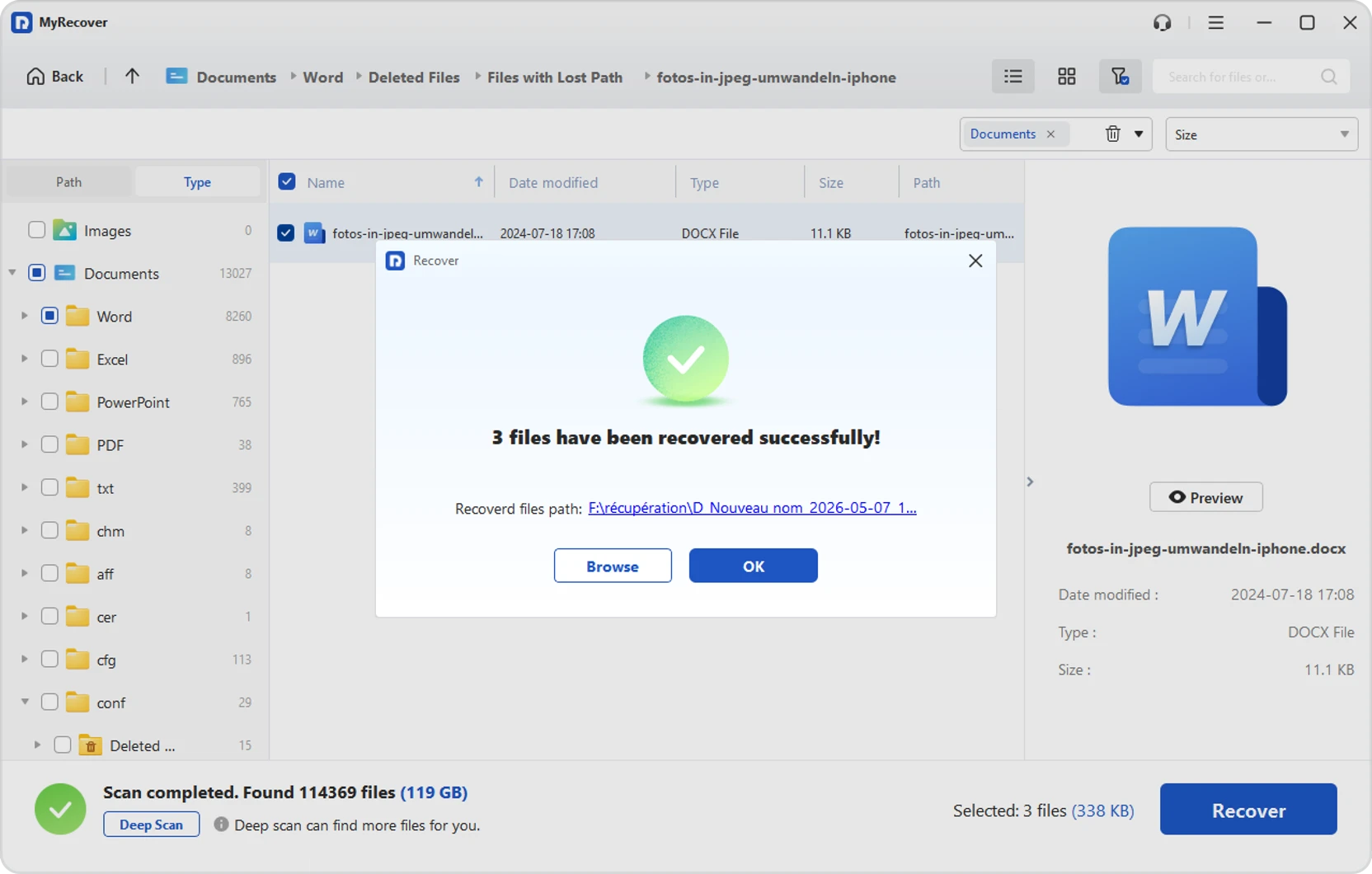
Select the document you want to recover, click Recover, and save it to another drive or folder to prevent overwriting recoverable data.

Quickly recover deleted Word documents and other important files with MyRecover.
Recover deleted documents that were permanently deleted and bypassed the Recycle Bin.


Recover deleted documents after formatting, corruption, or unexpected system errors.

Retrieve files from formatted partitions and drives.

Recover deleted or lost partitions on HDD, SSD, and external drives.

Recover documents, photos, videos, emails, archives, and more.

Work with HDDs, SSDs, USB drives, memory cards, and more.

Check recoverable files before restoring them.

Designed for easy use without technical skills.
To recover deleted documents in Windows, check the Recycle Bin first and restore the file if it is still there. If not, use File History or a previous version backup in Windows. You can also use data recovery software to scan your drive and restore deleted Word documents before they are overwritten.
Without backup, your best option is data recovery software. Tools like MyRecover can deeply scan HDDs, SSDs, or external drives to find permanently deleted files. Recover them quickly and save to another location to prevent overwriting existing recoverable data.
If files are not in the Recycle Bin, they may be permanently deleted. Try restoring from File History or previous versions. If unavailable, use a recovery tool like MyRecover to scan your drive and locate deleted files from hidden or overwritten areas.
First check the Recycle Bin and restore the Word file if it is still available. If not, use File History or Previous Versions in Windows 10/11 to recover earlier copies. You can also check OneDrive if syncing is enabled. If no backup exists, use data recovery software to scan your drive.