-
How to recover shift-deleted files without data loss?
First, check Windows built-in options like File History or Previous Versions to restore files
without third-party tools. If these aren’t available or don’t recover all files, stop using the
affected drive to avoid overwriting and use reliable recovery software—such as
MyRecover—to scan and restore files safely.
-
Which tool recovers shift-deleted files most reliably?
MyRecover is considered a reliable option for recovering shift-deleted files. It uses
deep scan technology to locate permanently deleted data and supports multiple file types and
storage devices. Its user-friendly interface also makes the recovery process simple and
efficient.
-
How to recover permanently deleted files from Windows computer?
First, stop using the affected drive to avoid overwriting data. Then try restoring from backups
such as File History or cloud storage. If no backup is available, use reliable data recovery
software to scan the drive, preview recoverable files, and restore them to a different location.
-
How to recover shift-deleted files in Windows 10/11 without technical knowledge?
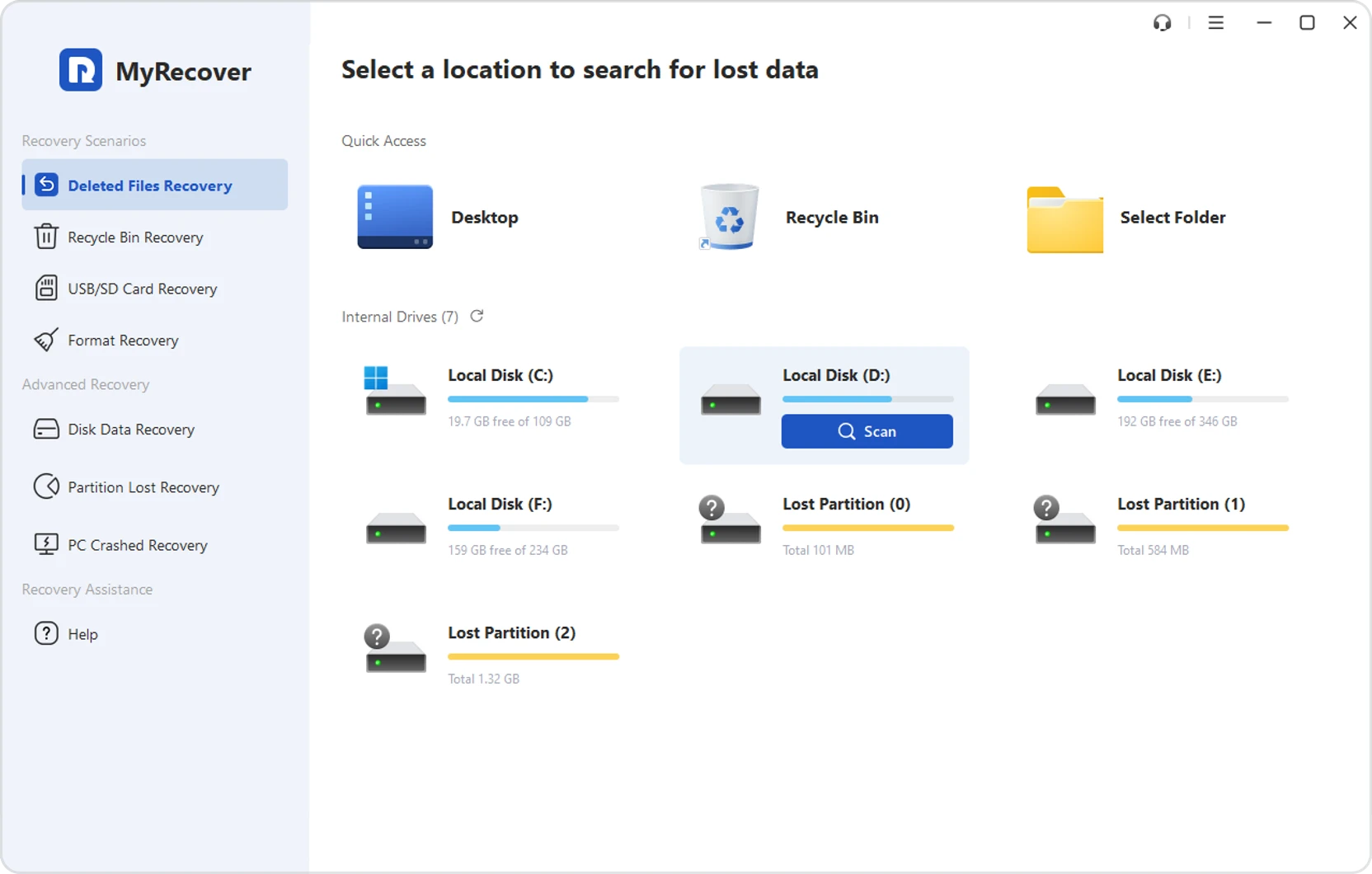
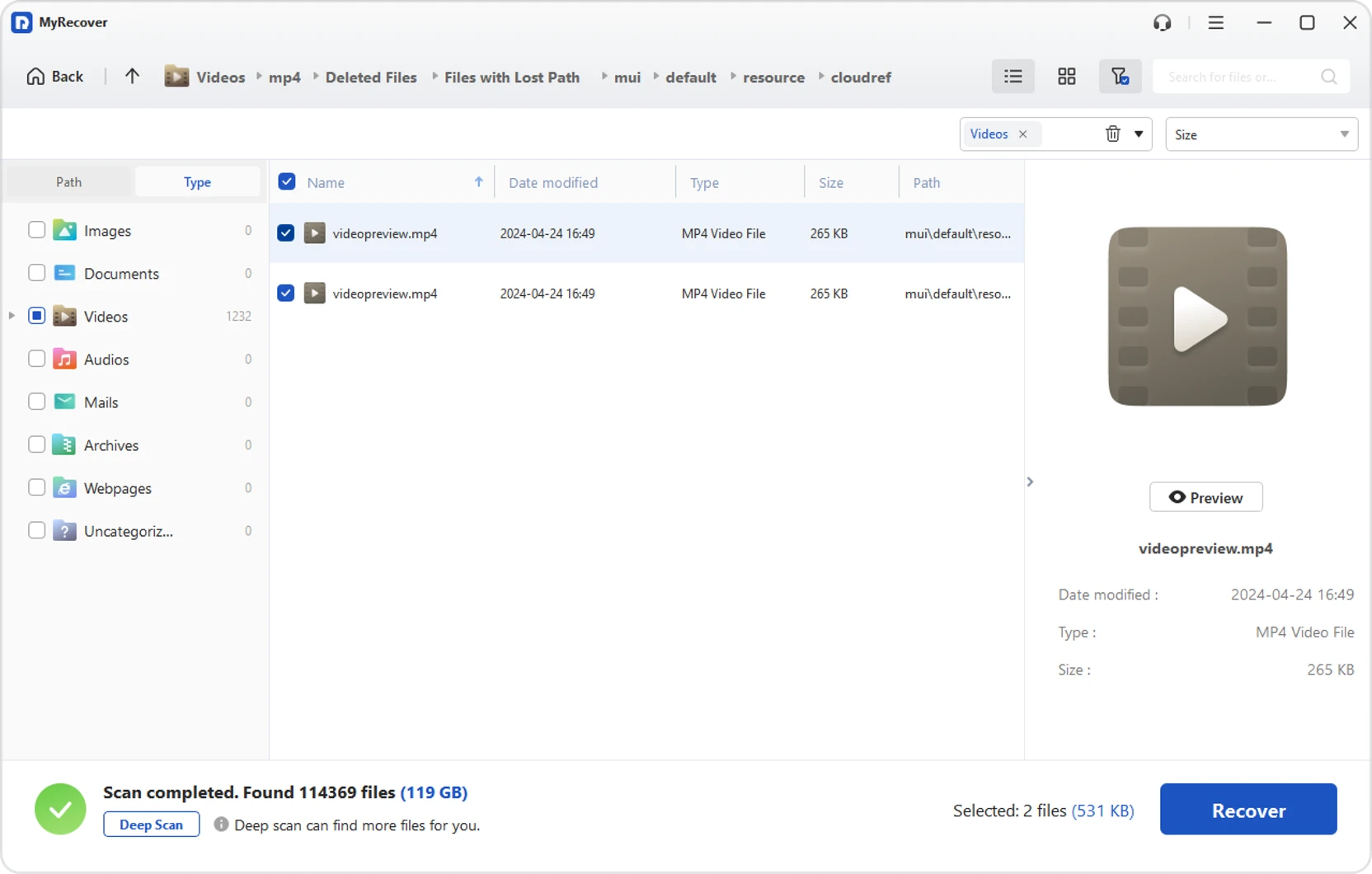
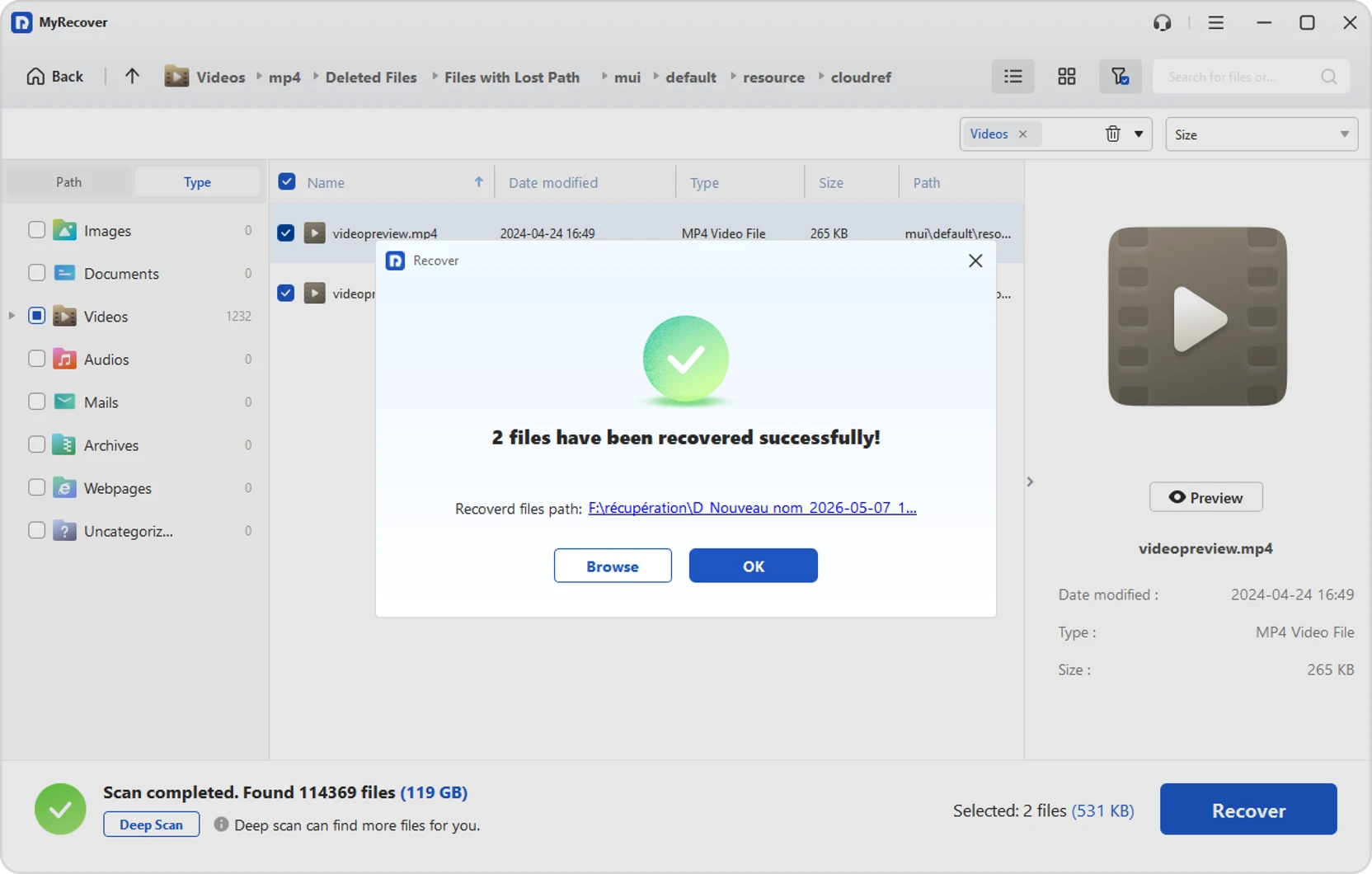
Choose an easy-to-use recovery tool like MyRecover. It offers a simple interface with
guided steps—scan, preview, and recover. No technical skills are required, making it suitable
for beginners who need to restore shift-deleted files quickly and safely.
-
How to retrieve shift-deleted files on Windows without risk?
To minimize risk, avoid writing new data to the affected drive and use trusted software like
MyRecover. It allows you to preview files before recovery and restore them to another
location,
reducing the chance of overwriting or further data loss.
-
Can I recover shift-deleted files after reinstalling Windows?
Yes, it is sometimes possible, but success depends on whether the original data has been
overwritten. Start by checking any available backups, such as File History or cloud storage. If
no backup exists, use reliable data recovery software to scan the drive—tools like
MyRecover can help locate and restore files if the disk sectors remain intact.
-
How to get back shift-deleted work documents quickly?
Use fast recovery software such as MyRecover to perform a quick scan of your drive. It
helps
locate recently deleted work documents in minutes. Filter results by file type to save time and
recover important files as soon as possible.
-
Can I recover shift-deleted files from SSD drive?
Yes, but recovery from SSDs can be affected by TRIM technology, which may erase data
permanently. If TRIM hasn’t cleared the data yet, tools like MyRecover can still help
recover shift-deleted files. Act quickly to improve success rates.
-
How to restore shift-deleted files from emptied recycle bin?
Files removed with Shift + Delete or emptied from the Recycle Bin can still be recovered using
data recovery tools. MyRecover scans the original storage sectors to find deleted files
and restore them, even when they are no longer visible in the system.