 MyRecover



Free Microsoft Office PST Repair Tool Download & PST Recovery Methods
Can’t access Outlook emails due to corrupted PST data files? Don’t worry. The Microsoft Office Outlook PST repair tool can help you recover and repair damaged or corrupted Outlook PST files. You can repair corrupted PST files, recover deleted items, and regain full access to your Outlook mailbox efficiently.

By Aria / Updated on June 5, 2026


Introduction
How do you fix a corrupt .pst Outlook Data File? My .pst Outlook Data File corrupted and I cannot access it any more. Is there any way to repair or restore it? Thanks!
- Question from Miguel
PST files are the backbone of Microsoft Outlook, storing all your emails, contacts, calendars, and important attachments. Without a healthy PST file, accessing your Outlook mailbox becomes impossible, and critical data may be lost. Many users encounter issues such as Outlook failing to open PST files, corrupted or missing PST files, or error messages like "Outlook cannot open this file". These problems can disrupt daily communication and work efficiency, making reliable Microsoft Office PST repair tools essential.

In this article, we focus on practical ways to recover and repair damaged PST files. You will learn how to use Microsoft Office PST repair tools to restore corrupted data safely, as well as step-by-step methods to recover PST files in different scenarios. With this guide, you can regain full access to your Outlook mailbox, ensuring that your emails, contacts, and schedules remain intact.
Common Causes of Microsoft Office Outlook PST File Corruption or Damage
Understanding why PST files become corrupted is crucial to prevent data loss and apply the right repair method. And you can select the most effective repair approach and reduce the risk of future damage. Several factors can lead to PST corruption or damage, often affecting Outlook’s stability and usability:
🗂️ File Size Limit Exceeded: Older versions of Outlook, such as Outlook 2007, have a maximum PST file size limit. Exceeding this limit can cause the file to become unstable or unreadable.
🖥️ Sudden System Shutdowns: Power failures, forced shutdowns, or system crashes while Outlook is running can interrupt PST file operations and corrupt data.
✂️ Improper Outlook Termination: Closing Outlook abruptly without properly saving or exiting can damage PST files over time.
🛠️ Malware or Virus Infection: Malicious software can target PST files, altering or deleting important content, leading to file corruption.
💾 Faulty Storage Media: Issues with hard drives, SSDs, or removable drives storing PST files can result in file errors or unreadable data.
🔎 Software Conflicts or Add-ins: Conflicting Outlook add-ins, third-party applications, or failed updates can corrupt PST files.
4 Microsoft Office Outlook PST Repair Tools for Windows
When a PST file becomes corrupted, choosing the right repair tool is essential to restore your Outlook data safely. There are both built-in and third-party tools designed to recover emails, contacts, calendars, and attachments. Below, we provide detailed guidance on four widely used PST repair tools. Let's explore them one by one.
1. SCANPST.EXE (Inbox Repair Tool)
SCANPST.EXE is Microsoft’s official inbox repair tool, bundled with Outlook. It is designed to detect errors in PST files and repair minor corruption issues. This tool is most suitable for small to moderately corrupted PST files and does not require additional software installation.
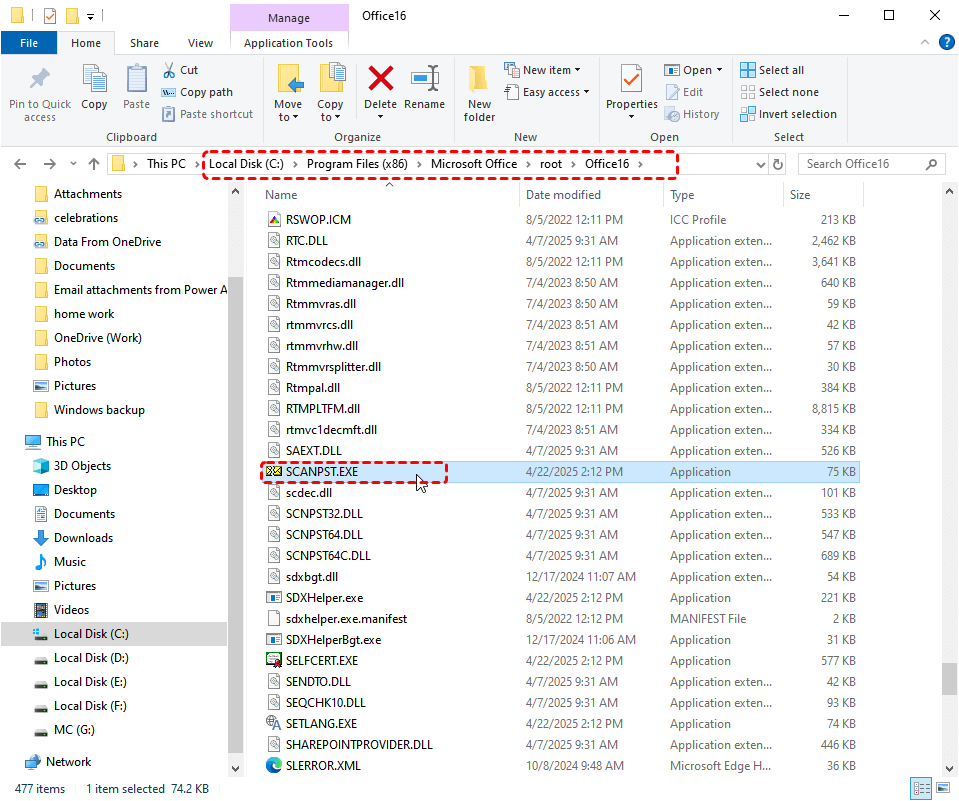
Step 1. Locate SCANPST.EXE on your PC. Common paths include C:\Program Files\Microsoft Office\root\OfficeXX\ or C:\Program Files (x86)\Microsoft Office\OfficeXX\.
- ★Tips:
- By default, the location of SCANPST.EXE varies depending on your Office version. Here are the common paths:
- For Outlook 2016 and 2019: C:\Program Files (x86)\Microsoft Office\root\Office16
- For Outlook 2013: C:\Program Files (x86)\Microsoft Office\Office15
- For Outlook 2010: C:\Program Files (x86)\Microsoft Office\Office14
- For Outlook 2007: C:\Program Files (x86)\Microsoft Office\Office12
Step 2. Make sure to fully close Outlook before launching the tool, and confirm no related background processes are active.
Step 3. Double click the SCANPST.EXE to run it and click "Browse" to select the corrupted PST file. Outlook PST files are stored in this default path:
C:\Users[YourUsername]\Documents\Outlook Files\
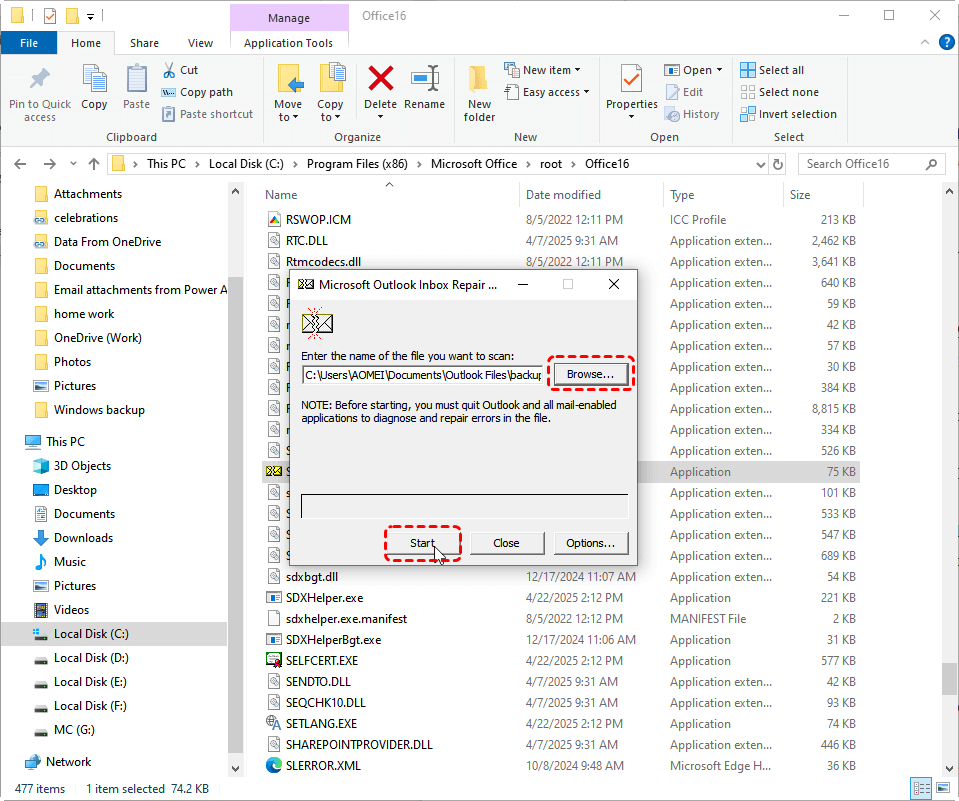
Step 3. Click "Start" to begin scanning the PST file for errors.
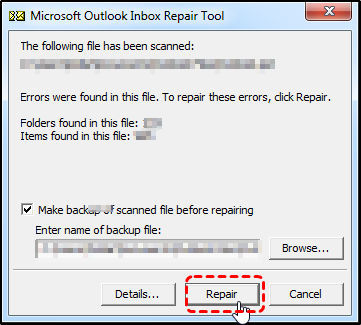
Step 4. After the scan completes, click "Repair" to fix the identified issues.
- Notes:✎...
- Before proceeding with the repair process, SCANPST gives you the option to back up the original .pst file. To prevent data loss, it’s recommended to make a backup. Select the backup option and choose a location to store the backup file.
Step 5. Once the repair process is completed, you can open Outlook and check if the PST file is accessible.
👍 Advantages:
- 100% free repair tool and no additional downloads needed, officially supported by Microsoft.
- Simple interface suitable for basic repairs.
👎 Limitations:
- Limited effectiveness on severely corrupted PST files.
- No advanced recovery features for lost emails or attachments.
- When PST files exceed several gigabytes, the tool may freeze, show "Not Responding" errors or crash directly during scanning.
2. Kernel for Outlook PST Repair
Kernel for Outlook PST Repair is a professional third-party tool that can repair severely corrupted PST files and recover lost Outlook items. It supports batch repair, multiple PST formats, and allows preview before saving recovered data.

👍 Advantages:
- Can repair heavily corrupted PST files.
- Offers recovery of emails, attachments, contacts, and calendar items.
- It supports multiple export formats. Besides PST, you can also convert files to PDF, EML, MSG and more.
- Supports batch processing and preview before saving.
👎 Limitations:
- Advanced features require payment.
- It may run unstably when handling certain large files.
3. Stellar Repair for Outlook
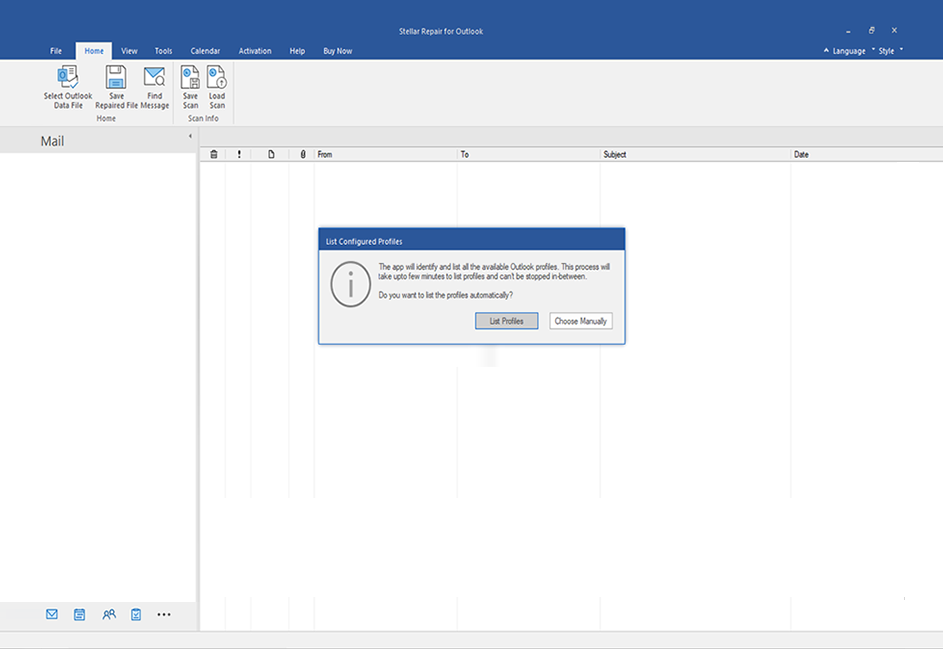
Stellar Repair for Outlook is a user-friendly PST repair tool that specializes in recovering inaccessible emails, attachments, and metadata. It is compatible with all recent Outlook versions and allows export to multiple formats.
👍 Advantages:
- Intuitive interface, easy for beginners.
- Powerful recovery and preview function, including restoring deleted mails, attachments, calendar, etc.
- It easily handles oversized PST files over 50GB.
- You can also directly import repaired data into Office 365 and other platforms.
👎 Limitations:
- The free version only supports scanning and previewing. You need to upgrade to the paid version to export repaired files.
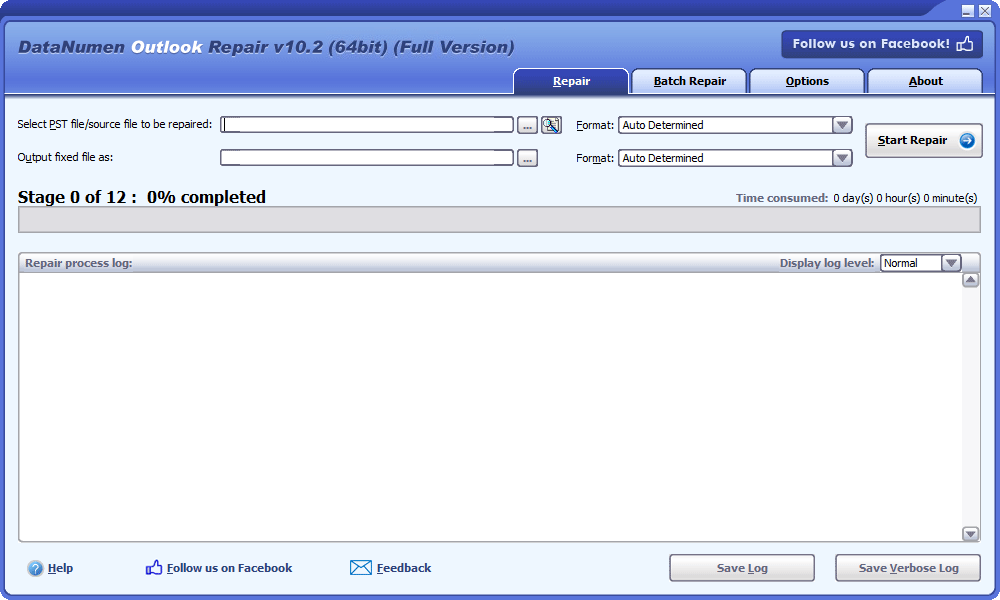
4. DataNumen Outlook Repair
DataNumen Outlook Repair is a high-performance tool designed to repair extremely large PST files and recover maximum data integrity. It uses advanced scanning algorithms to restore corrupted data that other tools might fail to recover.
👍 Advantages:
- Can handle very large and severely corrupted PST files.
- Advanced recovery algorithm maximizes data restoration and command line.
- It can directly extract data even if the PST file is heavily encrypted or its password is lost.
- Supports batch processing.
👎 Limitations:
- The interface is unintuitive and lacks preview features.
- It runs extremely slowly when repairing severely corrupted files.
- It has limited functions and does not support email format conversion.
How to Recover Lost or Deleted PST File on Windows
While the above tools work well for fixing corrupted PST files, they may fall short when PST files get accidentally deleted, go missing after system crashes, or turn inaccessible due to severe damage beyond repair. This is where a professional data recovery solution like MyRecover becomes invaluable.
MyRecover is designed to scan your Windows drives deeply, detect deleted or lost PST files, and recover them safely without modifying the original storage media. Its step-by-step wizard interface guides you through the recovery process, while also providing a preview of recoverable items before restoration. This ensures you can selectively recover the data you attempt to restore, reducing unnecessary recovery of unrelated files.

 MyRecover
- Recover deleted & lost files from HDD, SSD, USB, SD card, camera as you need.
- Support 1000+ formats of photos, videos, docs, archives, emails, compressed files, etc.
- Reliable rescue for deletion, formatted disk, emptied Recycle Bin, system crashes and more.
 100% Secure
Step 1. Download and install MyRecover on your Windows supported computer from Microsoft Store.
Step 2. Run the application and select the drive with lost PST files to scan, then click "Scan" to start the process.

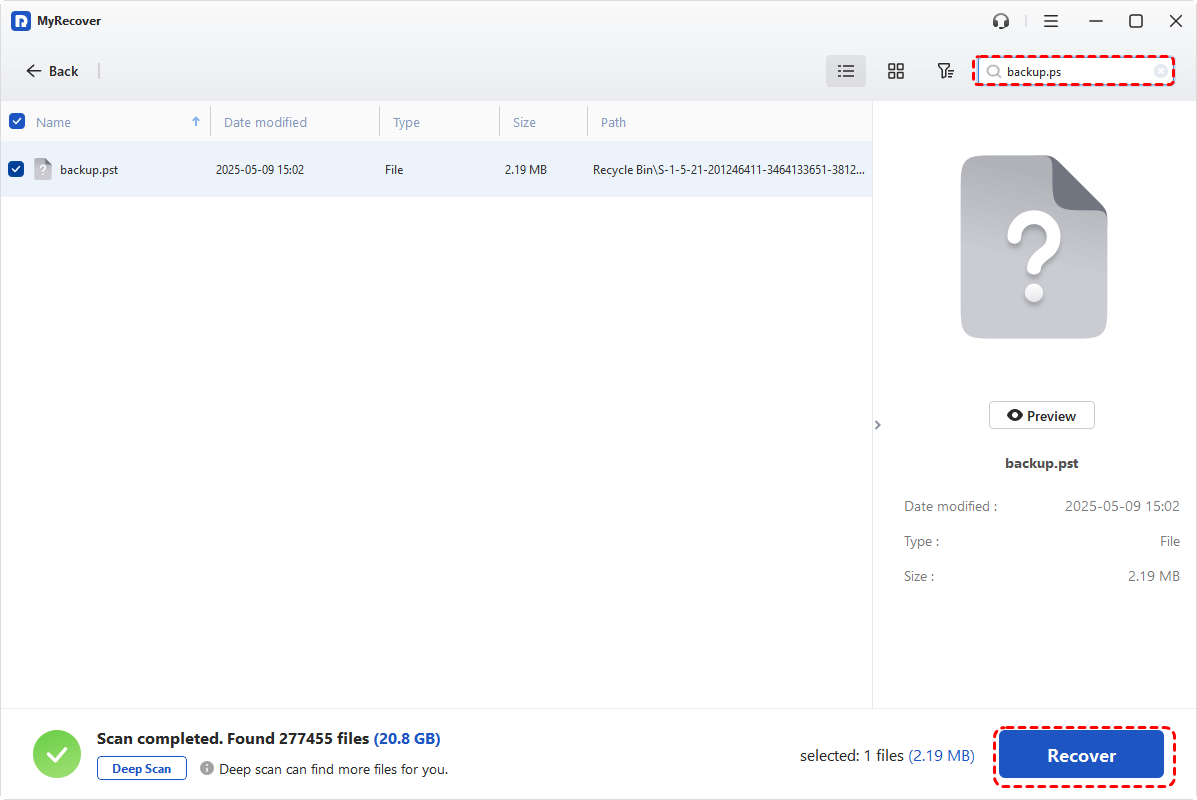
Step 3. After the scanning process is finished, browse the results and choose the files you wish to recover, then click "Recover".
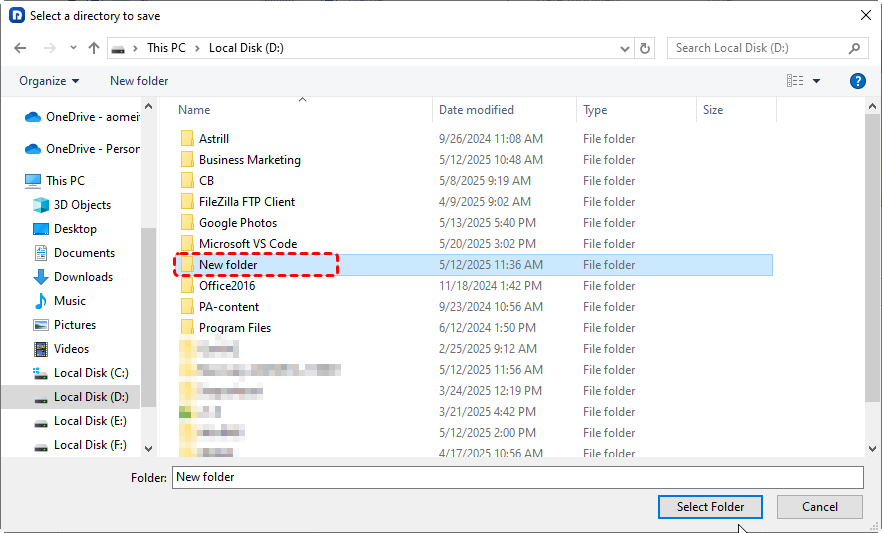
Step 4. Select a different drive to save the recovered files to avoid overwriting original data.
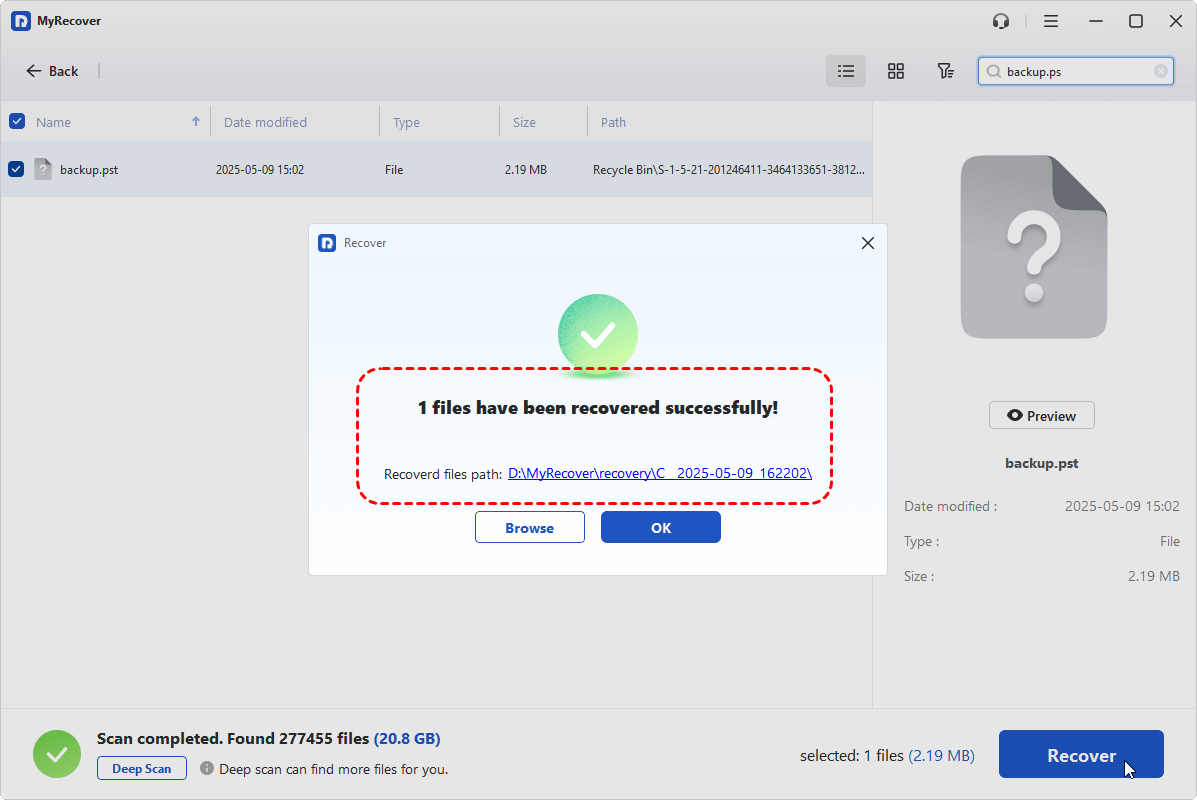
Once the process is done, you'll get the message saying "Files have been recovered successfully". Then, you can access and check the recovered files in the destination folder.
Summary
PST files are the lifeblood of Microsoft Outlook, and their corruption, loss, or inaccessibility can disrupt communication and productivity. If you are also troubled by corrupted Outlook PST files, you can try the four above-mentioned Microsoft Office PST repair tools to regain access to them.
However, when PST files are deleted or missing, MyRecover offers a reliable solution for safe and comprehensive recovery. You can safeguard your Outlook mailbox, maintain productivity, and minimize the risk of permanent data loss.
FAQs
Q1: Where is the PST repair tool?
The official PST repair tool, SCANPST.EXE, is included with Microsoft Outlook. Its location depends on your Office version, typically under C:\Program Files\Microsoft Office\OfficeXX\ or C:\Program Files (x86)\Microsoft Office\root\OfficeXX\. Replace XX with your Office version number.
Q2: What is the free tool to repair PST files?
SCANPST.EXE (Inbox Repair Tool) is the free tool provided by Microsoft. It can scan and repair minor PST file corruption without additional downloads or installations.
Q3: How to repair a corrupted Outlook pst file?
Close Outlook, open SCANPST.EXE, browse to the corrupted PST file, click "Start" to scan, and then tap "Repair" to fix errors. You can back up the PST before repairing to prevent data loss.
Q4: What causes a PST file to be corrupted?
Common causes include oversized PST files, sudden system shutdowns, improper Outlook closure, malware or virus attacks, faulty storage devices, and software or add-in conflicts.
Q5: Where is the Microsoft Office repair tool?
The Microsoft Office Repair Tool is installed alongside the Microsoft Office or Microsoft 365 suite on your computer. You can launch it via Windows Control Panel whenever needed.
Q6: How to repair a corrupted MS Office?
To repair Office programs, you can follow these steps:
Step 1. Go to "Control Panel" > "Programs" > "Programs and Features".
Step 2. Select "Microsoft Office" from the list, right click on it and choose "Change".
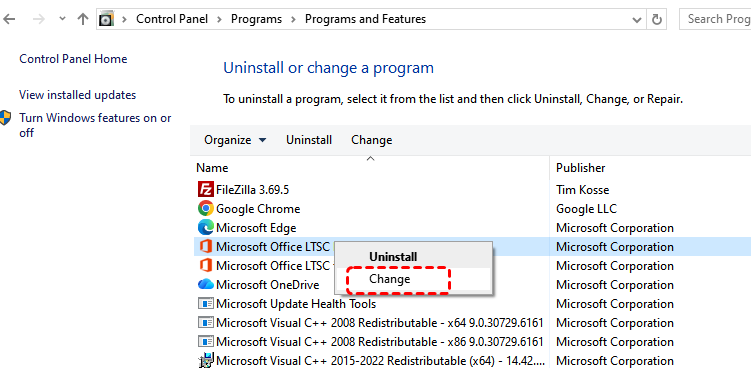
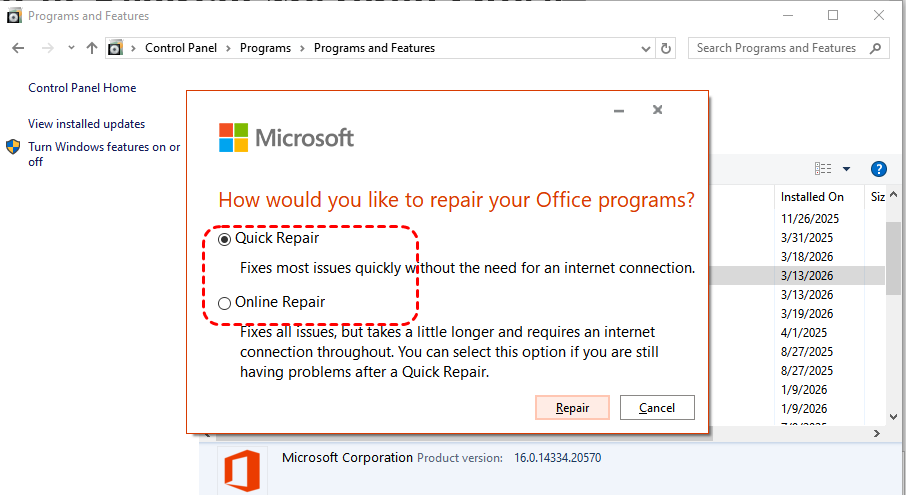
Step 3. Choose "Quick Repair" or "Online Repair" to fix the MS Office issues.

Stay Updated With Our
Latest Tips
Add us as a preferred source on Google to never miss helpful guides.
 Add as preferred source >>