 MyRecover



Bad System Config Info Windows 11: No Data Loss Fixes
The 'Bad System Config Info' error on Windows 11 often arises from issues like corrupted boot configurations, incorrect system settings, or misconfigured files. In this article, we provide a series of proven, no data loss fixes to help you resolve the issue and restore your system to normal operation.

By Aria / Updated on January 4, 2026


Introduction
Windows 11, Stop code: BAD_SYSTEM_CONFIG_INFO
Since yesterday, my laptop has been working fine with no BSOD. However, I had trouble connecting to the internet because it wasn’t showing up in the network box in the corner. I tried to fix this by following some YouTube tutorials, but none of them worked. I gave up yesterday hoping to fix it today but instead when I opened my laptop, I got a BSOD with the stop code: 'BAD_SYSTEM_CONFIG_INFO.' On top of that, I couldn’t get into Safe Mode because it just keeps going back to the BSOD. Now I’m stuck. Can anyone help or offer advice on how to fix this?
- Question from Dave
One of the most frustrating errors that Windows 11 users can encounter is the "Bad System Config Info" error. This error can lead to a blue screen of death (BSOD), making your system unresponsive and preventing it from booting properly. If you’ve found yourself facing the bad system config info Windows 11 error, don't worry. You've landed the right page.
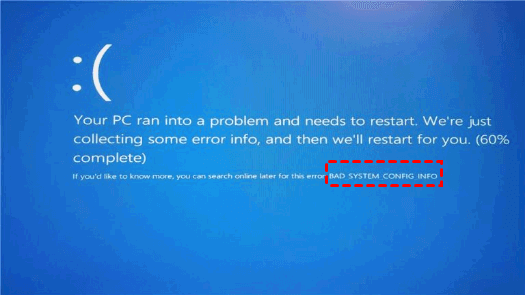
In this article, we will guide you through the common causes of this error and provide step-by-step methods to resolve the "Bad system config info" error on Windows 11 and 10.
What Causes the "Bad System Config Info" Error Code?
The "Bad System Config Info" error code typically appears because of issues related to system configuration files, boot records, or corrupted system files. Here are some of the most common causes of this error:
📂Corrupt System Files: Windows system files are critical for the operating system's smooth functioning. If any of these files become corrupted or damaged, they can cause the "Bad System Config Info" error.
🖥️Incorrect Boot Configuration Data (BCD): The BCD is responsible for booting Windows. If this data is damaged or misconfigured, it can trigger this error.
🛠️Driver or Software Conflicts: Recently installed drivers or software updates can interfere with the system's configuration, leading to errors during the boot process.
💽Damaged Registry: Corrupt or missing registry entries related to system configuration can also cause this error.
How to Fix "Bad System Config Info" Error Windows 11
This section will provide several methods you can try to fix the "Bad system config info" error and get your system back to normal. Let's explore them one by one.
Fix 1. Restart Your Computer
Sometimes, a simple restart can fix temporary issues that may have caused the error. If you haven’t done so already, reboot your PC to see if the error resolves itself. If the error persists, try the next method.
Fix 2. Use Startup Repair
If your system won’t boot properly, you can use the Windows built-in Startup Repair tool to try fixing problems related to the boot process. To run Startup Repair:
Step 1. Press and hold the power button to force a shutdown. When the Windows logo appears on the screen, shut it down again. Repeat this process 2-3 times.
Step 2. Windows will automatically load into the Windows Recovery Environment (WinRE). Then choose "Troubleshoot" > "Advanced options" > "Startup Repair".
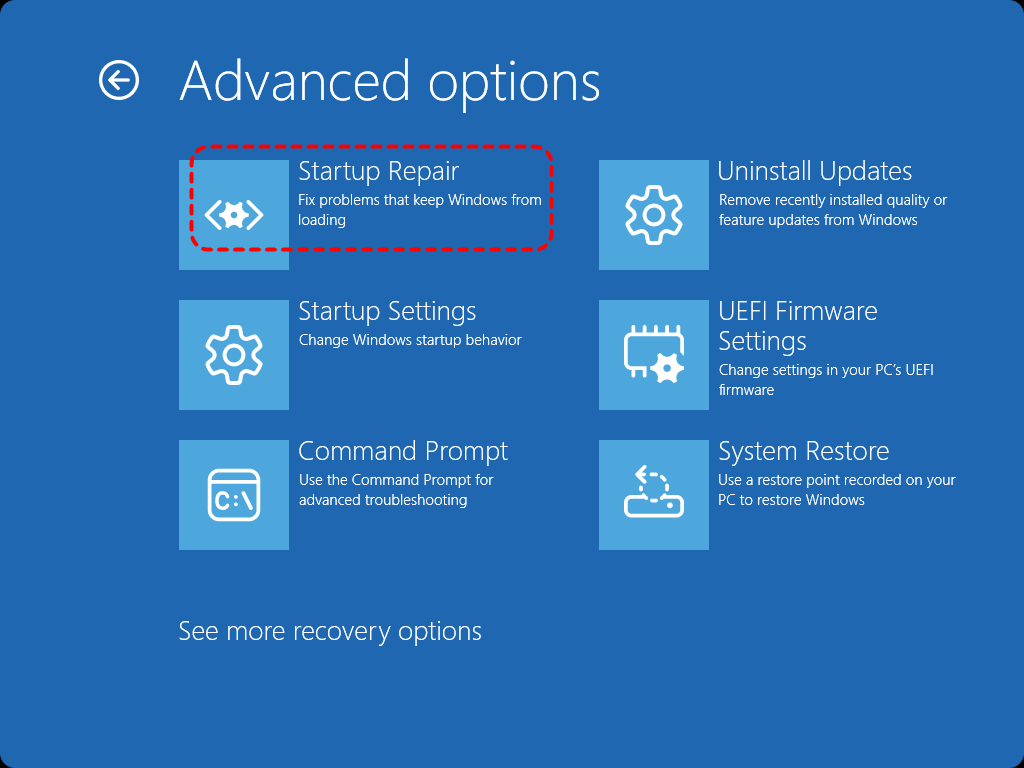
Step 3. Wait for Windows to attempt to repair startup issues.
If Startup Repair fails and displays the message "Startup Repair couldn’t repair your PC", you may need to try the other methods below.
Fix 3. Run the SFC and DISM Command
Corrupted or missing system files can also be one of the causes of "stop code bad system config info" error. Windows comes with two built-in system repair tools: the SFC and DISM commands. They can quickly fix damaged or lost system files.
Step 1. Get into WinRE and click "Troubleshoot" > "Advanced options" > "Command Prompt".

Step 2. Enter the following command "DISM /Online /Cleanup-Image /RestoreHealth" and press "Enter".
Step 3. Wait for the process to finish, which can take several minutes. Then type the following command "sfc / scannow" and hit the "Enter" key.

Step 4. After the scan is complete, restart your computer and check for the error again.
Fix 4. Run the CHKDSK Command
The "bad system config info" error is usually caused by corrupted registry hives, which are located at C:\Windows\System32\config. If there are logical errors on the C: drive, it may lead to failure in loading the system configuration. The CHKDSK command can scan your hard drive for errors and fix them.
Step 1. Run Command Prompt like mentioned above.
Step 2. Type the following command "chkdsk G: /f /r" and hit "Enter" key. Replace the drive letter "G" with your system drive letter. Let CHKDSK complete the process and fix any errors it finds.

Fix 5. Fix Boot Configuration Data
Incorrect boot configuration data (BCD) can trigger the "bad system config info" error. Bootrec.exe is a built-in Windows tool you can access via the WinRE Command Prompt, which fixes problems with the Master Boot Record (MBR), boot sector, and Boot Configuration Data (BCD) storage.
Step 1. Open Command Prompt as described earlier.
Step 2. Type the following commands, pressing Enter after each one:
- bootrec /fixmbr
- bootrec /fixboot
- bootrec /rebuildbcd
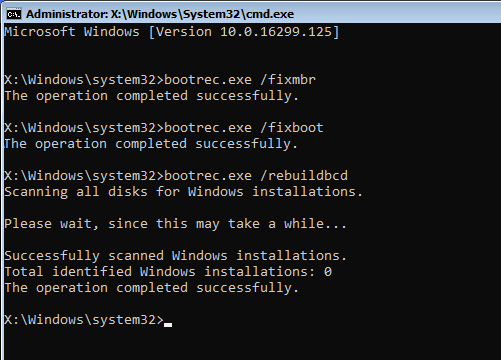
Then, restart your computer and see if the error is fixed.
Fix 6. Perform System Restore
If you have created a System Restore point before the error occurs, you can directly restore your system to a point where it was functioning correctly. Follow these steps:
Step 1. Boot into WinRE and choose "Troubleshoot" > "Advanced options" > "System Restore".
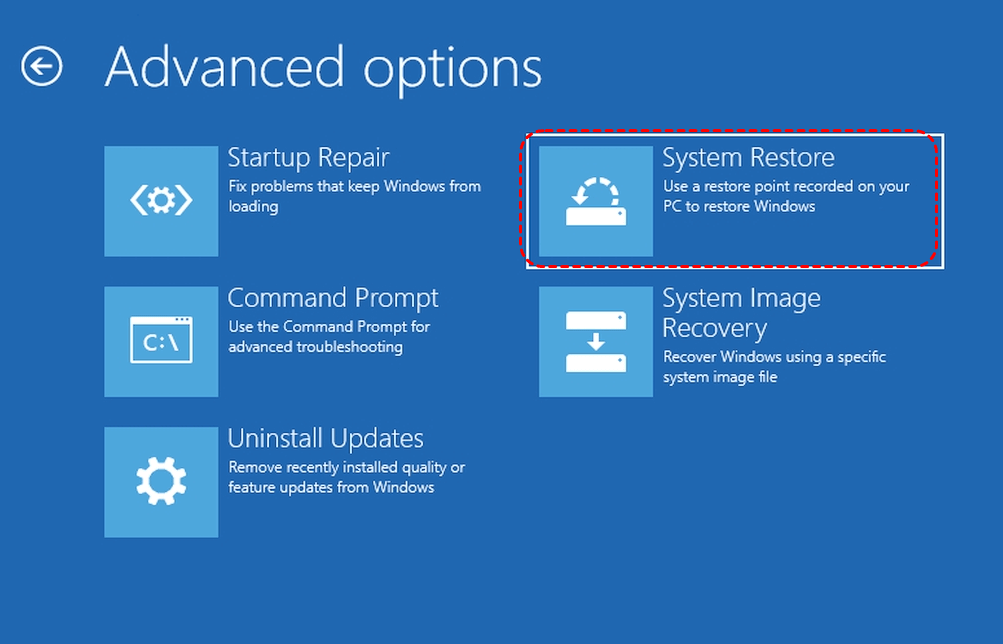
Step 2. Select a created restore point and click "Next".
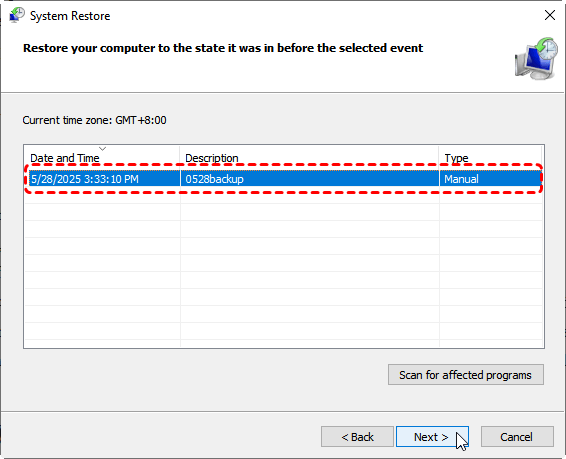
Step 3. Click "Finish" to start the process. You can check the affected programs by clicking on "Scan for affected programs".
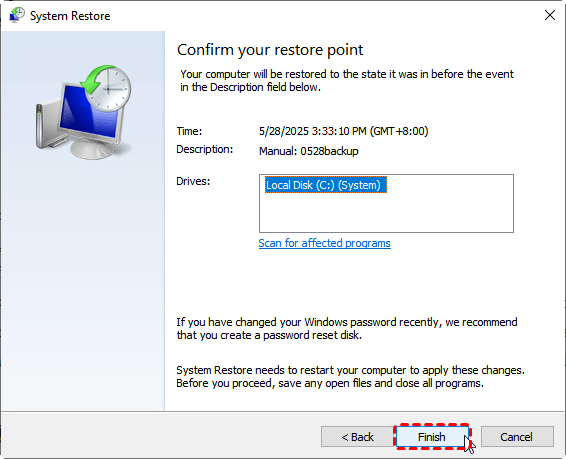
Step 4. Once the process finishes, your PC will reboot and the system files will be restored.
Fix 7. Reset This PC
If other methods fail and there is no restore point is available, it may be due to deeply corrupted system files or settings. Perform a reset of Windows to restore it to a working state, though this will result in losing apps and some settings.
Step 1. In WinRE, select "Troubleshoot" > "Reset this PC".

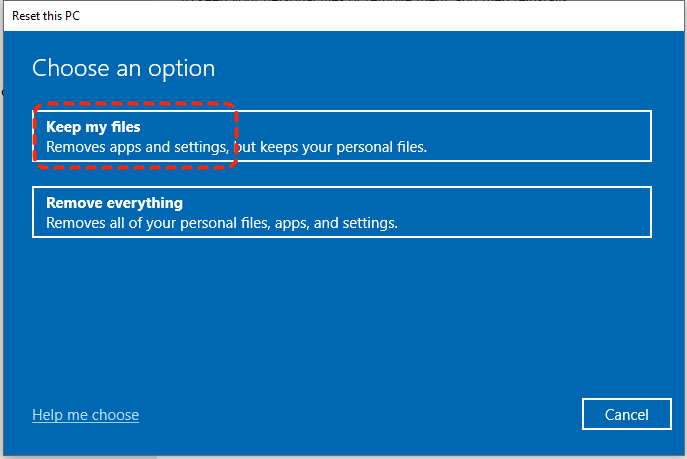
Step 2. Choose "Keep my files" to preserve your personal files. Otherwise, all of the files, apps, settings will be erased.
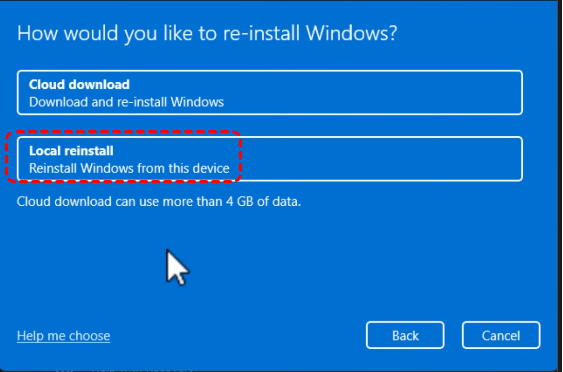
Step 3. Choose "Local reinstall" to reinstall Windows on this device.
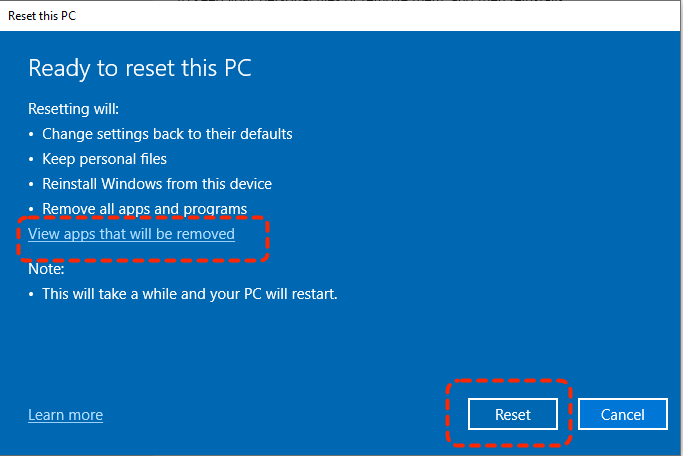
Step 4. Confirm the reset settings and click "Reset" to begin the process.
Bonus: Recover Data from the Troubleshooting Computer using MyRecover
If you're unable to boot into Windows and need to recover data before making any changes, MyRecover is an excellent solution. MyRecover is a powerful data recovery tool that can help you recover lost files from a system that’s unable to boot properly. By creating a recovery drive with it, you can retrieve the data you need from various complex data loss scenarios, such as recovering data after reinstalling the system, performing a system restore, or installing Windows updates.

 MyRecover
- Easy to Use – Intuitive design, no technical skills required.
- 1000+ File Types – Recover photos, videos, documents, and more.
- 500+ Data Loss Scenarios – Restore after formatting, partition loss, disk errors, or system crashes.
- Smart Scanning – Quick Scan for recent files, Deep Scan for full recovery.
 100% Secure
Step 1. Download and install MyRecover on a working computer from Microsoft Store. Then, prepare a USB drive for recovery disk.
Step 2. Launch it and select "PC Crashed Recovery" section. Insert the USB into the computer.
Step 3. Click "USB Boot Device" and "Create" to begin the process.

Step 4. Wait for the bootable disk create successfully and connect the USB to the unbootable PC.
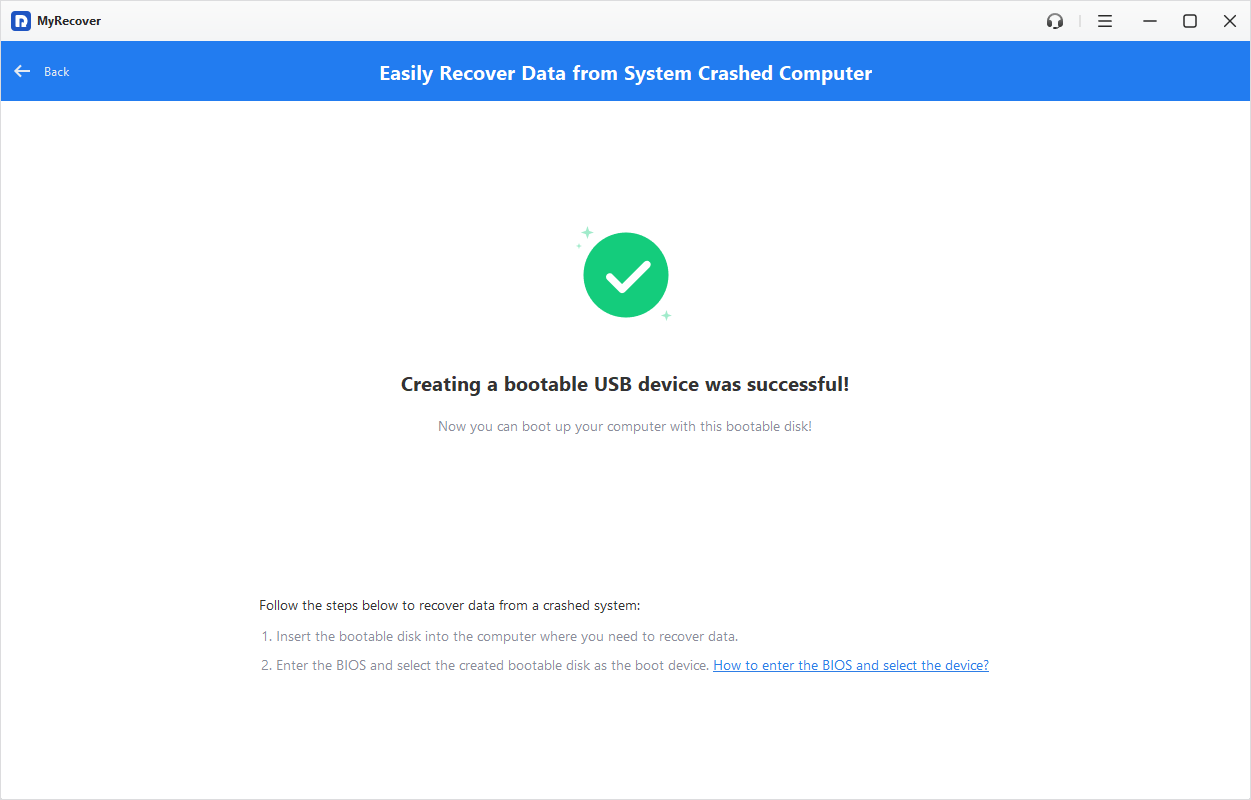
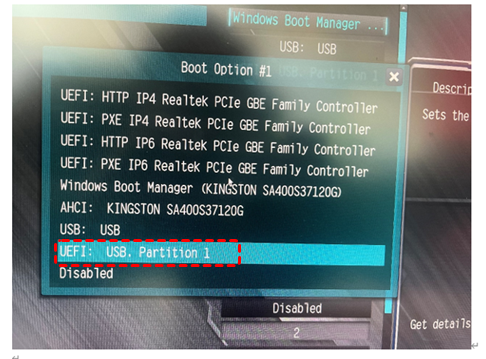
Step 5. Boot the computer using the USB recovery disk in BIOS. Then, it will automatically enter the interface of MyRecover.
Step 6. Select the drive where the deleted files were stored and click "Scan".

Step 7. Preview and choose the files you wish to recover from the recoverable lists, then click "Recover".
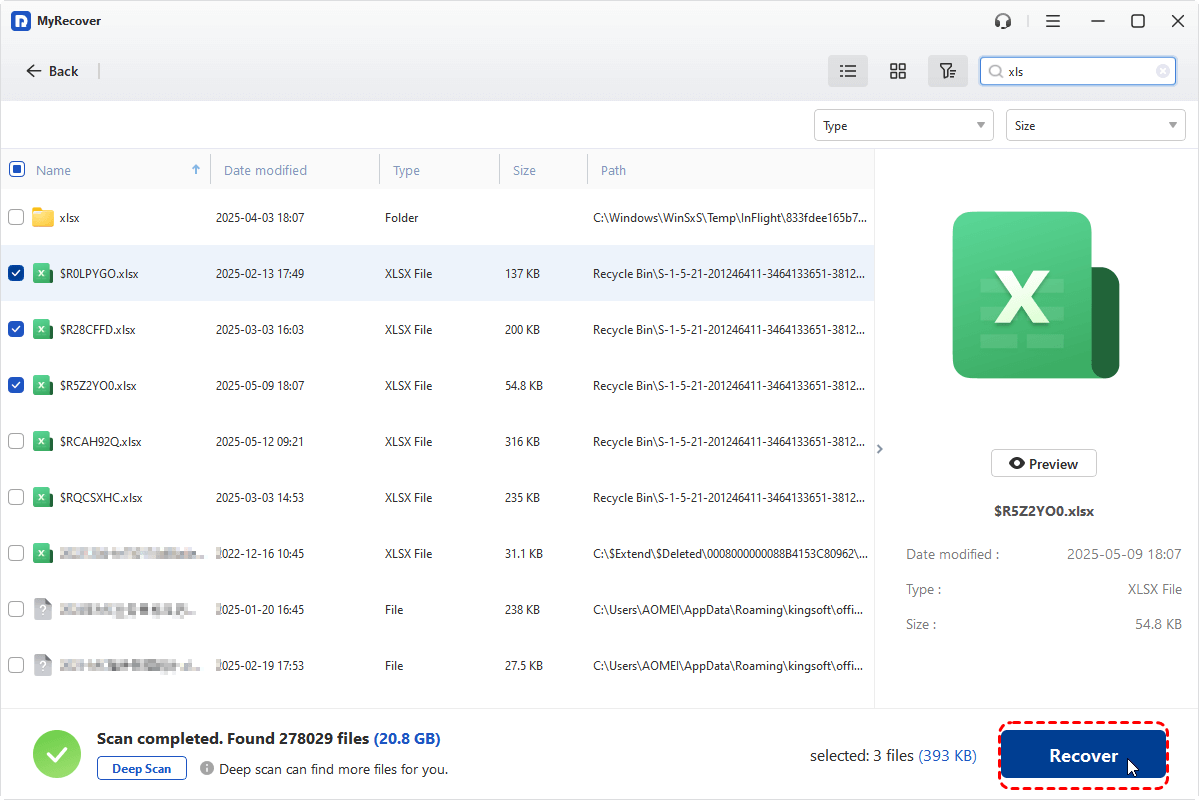
Step 8. Save the recovered files to a safe location (An external hard drive is preferable.).
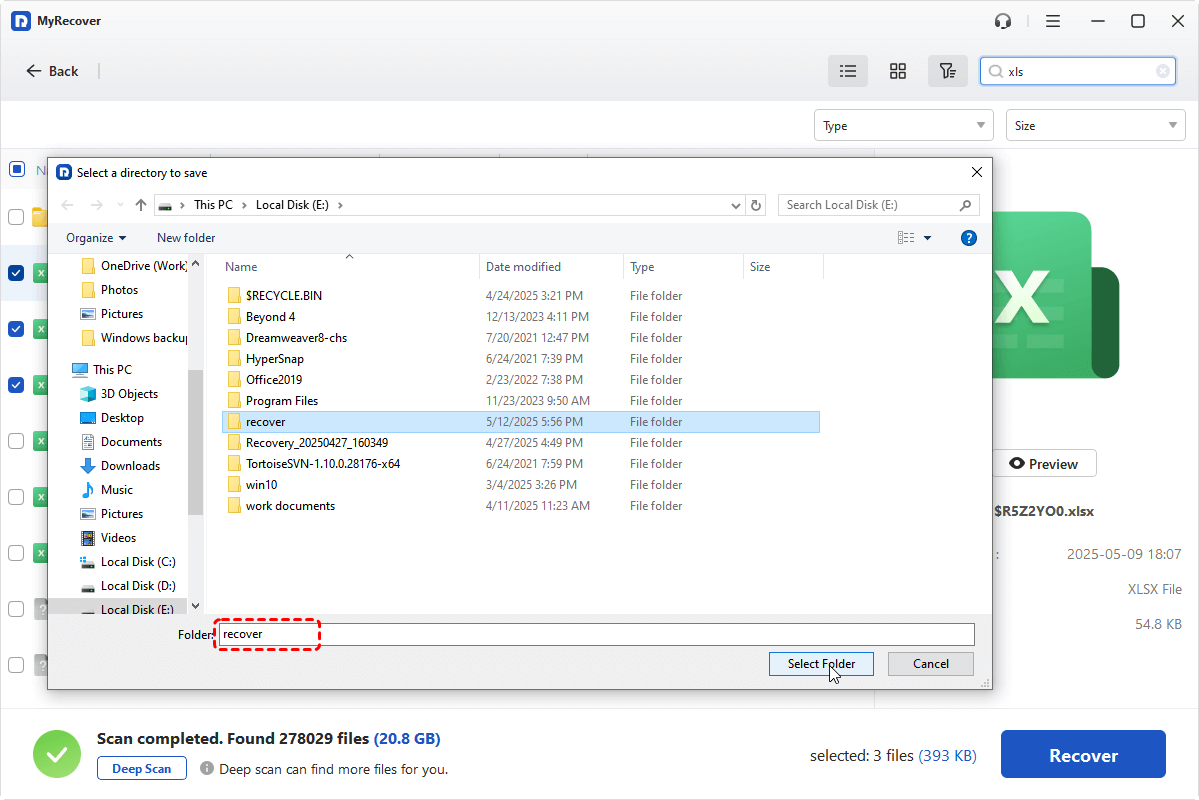
Once the process is done, the message "Files have been recovered successfully" will pop up. Then, you can check the recovered files by clicking on the destination folder path or "Browse" button.

Summary
In short, the "Bad System Config Info stop code" is one type of BSOD issue you might run into on a Windows PC. But with the solutions outlined above, you should be able to fix it and restore your system to normal functionality. If you ever face situations where your system is unbootable or data is lost, MyRecover is an excellent tool to recover your files before making further changes to the system.
For home or business users, upgrading to MyRecover Technician Edition lets you use one license on multiple devices, no need to purchase separate licenses for each device, making it easy to meet data recovery needs across multiple terminals.

Stay Updated With Our
Latest Tips
Add us as a preferred source on Google to never miss helpful guides.
 Add as preferred source >>