 MyRecover



By Default, How Often Are File History Backups Performed?
Understanding the frequency of file history backups helps you optimize your data protection plan. This abstract outlines how Windows handles backup timing by default, why regular intervals matter, and how users can adjust settings to maintain consistent and reliable file recovery.

By Vera / Updated on January 4, 2026


What is File History in Windows?
File History is Windows’ built-in tool designed to continuously protect your personal files. Think of it like a personal time machine for your PC. Accidentally deleted a photo? Overwritten a document? File History has your back by saving previous versions automatically.
How File History Works Behind the Scenes
File History scans your user folders regularly. When it detects changes — additions, updates, or modifications — it saves a copy to your backup drive so you can roll back whenever necessary.
It doesn’t back up your entire system (that’s what System Image is for), but it focuses on the files that matter most: documents, photos, videos, music, and more.
Where Does File History Store Your Backups?
Your backup destination matters as much as the frequency.
1. External Drive
Most users connect:
- USB flash drives
- External hard drives
- SSDs
This is the easiest and most common setup.
2. Network Location
File History can also save backups to:
- NAS (Network Attached Storage)
- Network drives
- Home servers
This is ideal if you want an "always-available" backup space.
Default File History Backup Frequency
Now to answer the big question…
How Often Backups Run Automatically
Windows checks your protected folders once every 60 minutes and saves any changes.
This default interval strikes a balance between protection and performance. You get frequent backups without your system slowing down.
Why Windows Chooses a Short Interval
Hourly backups make sense because:
- Most users modify files throughout the day.
- Frequent backups reduce the risk of losing important edits.
- It creates a smoother recovery experience with more version points.
- Running every hour has minimal impact on system performance.
But the best part? You’re not stuck with this setting—you can fully customize the frequency.
Can You Change the File History Backup Frequency?
Absolutely! Windows allows you to adjust how often backups occur, depending on your needs.
Available Time Intervals You Can Choose
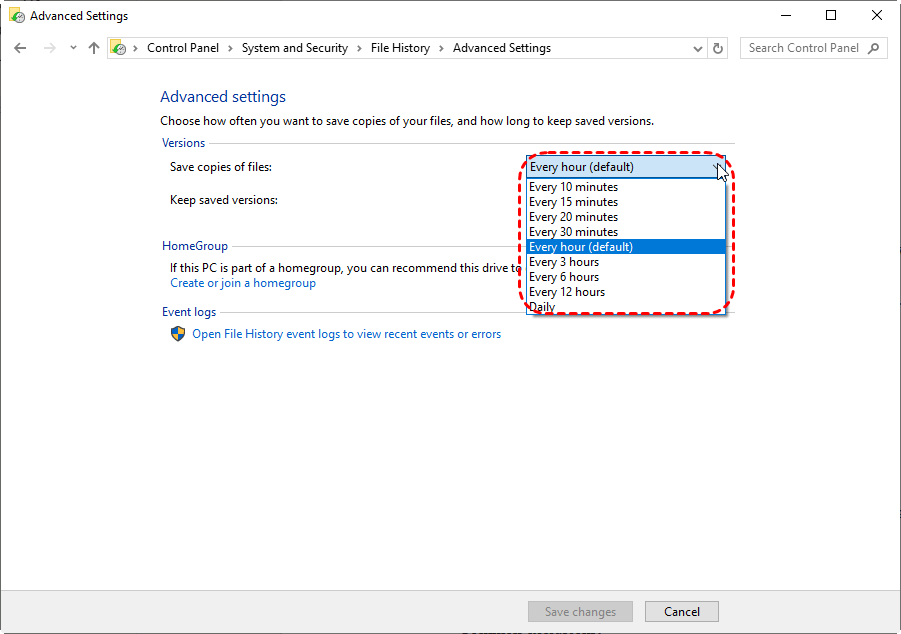
Windows gives you several options:
- Every 10 minutes
- Every 15 minutes
- Every 20 minutes
- Every 30 minutes
- Every hour (default)
- Every 3 hours
- Every 6 hours
- Every 12 hours
- Daily
In other words, File History is flexible. Whether you frequently edit files or rarely make changes, you can adjust the interval accordingly.
When You Should Increase the Frequency
Choose shorter intervals (10–30 minutes) if:
- You work on important documents all day
- You edit photos or videos regularly
- You cannot risk losing even 20–30 minutes of work
- You store project files locally
When You Should Reduce the Frequency
Choose longer intervals (3–12 hours or daily) if:
- You rarely update files
- You only use your PC for light tasks
- Your backup drive has limited space
- You want fewer version copies to keep things tidy
How to Adjust File History Backup Frequency (Step-by-Step)
Here’s how you can tweak the settings to match your workflow.
Method 1: Using Control Panel
1. Open Control Panel.
2. Click System and Security.
3. Select File History.
4. On the left panel, click Advanced settings.
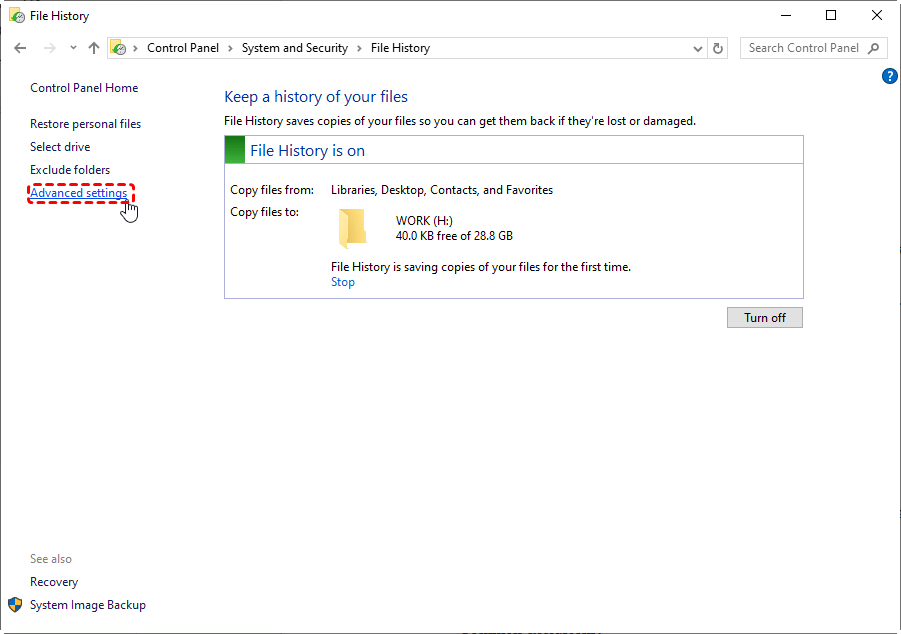
5. Under Save copies of files, choose your preferred time interval
6. Click Save changes.
Simple and quick!
Method 2: Using Windows Settings
Let's learn about how to change the backup frequency in the Settings app.
1. Connect your backup drive (if not already connected).
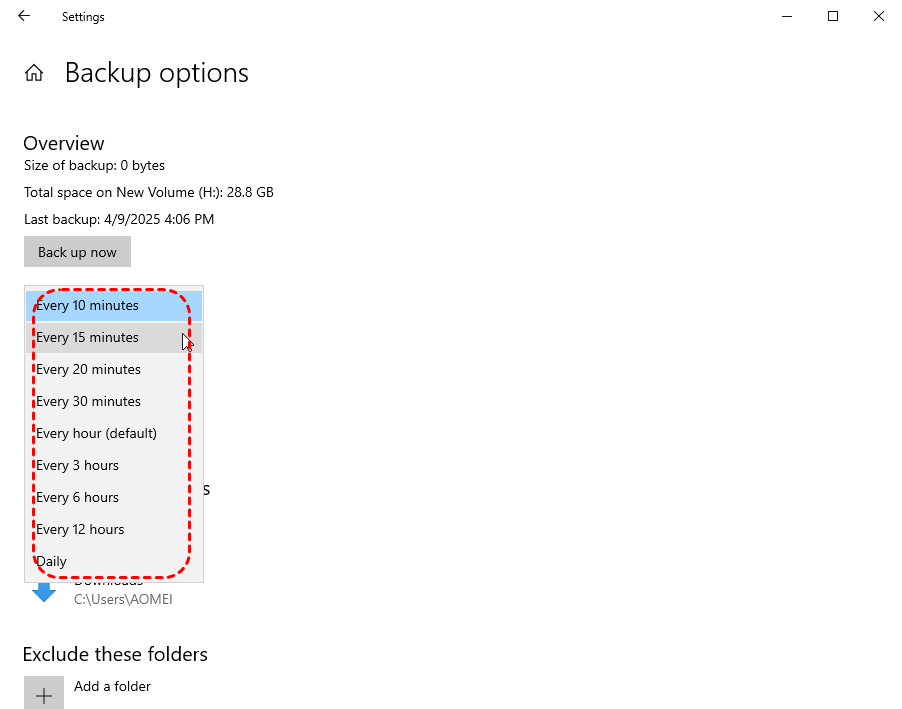
2. Open Settings (Windows key + I).
3. Click Update & Security, then Backup.
4. Click More options.
5. Under "Back up my files," use the dropdown menu to select your desired frequency (e.g., 10 mins, 30 mins, 1 hour, 12 hours, 1 day).
What Files Does File History Actually Back Up?
Knowing what gets backed up helps you understand how complete your protection is.
1. Libraries and Personal Folders
File History covers:
- Documents
- Pictures
- Videos
- Music
- Desktop
- Downloads
- OneDrive (if files are stored locally)
2. Additional Folders You Can Add
If you want to protect more folders:
1. Go to File History settings.
2. Select Add a folder.
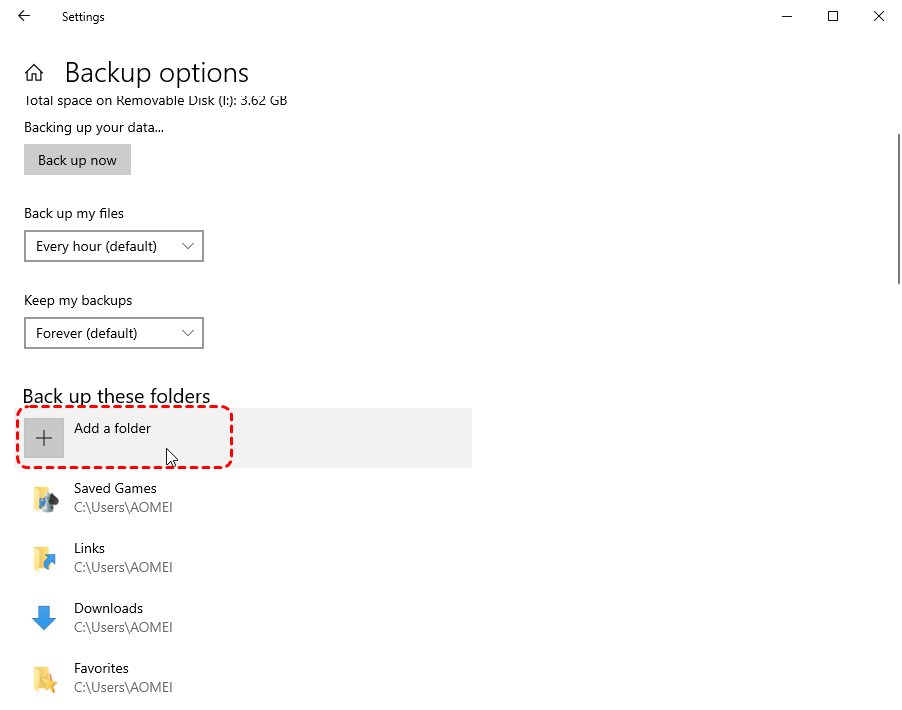
3. Choose any folder on your PC.
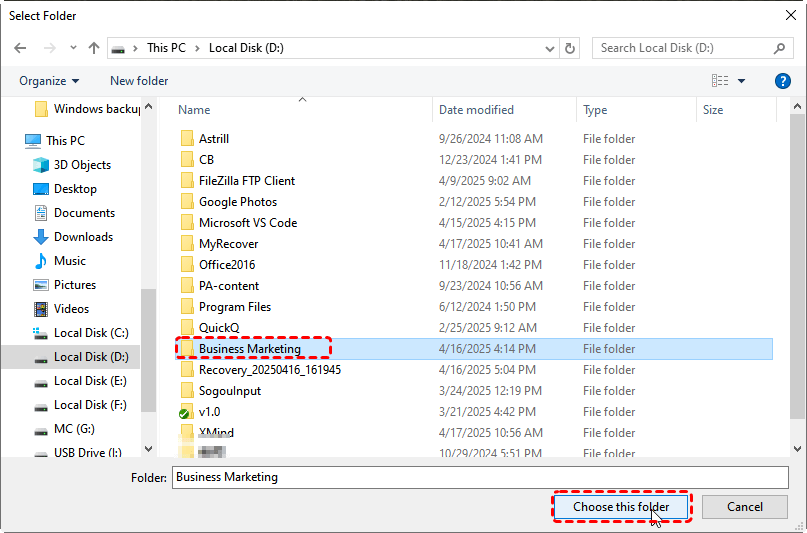
Great for projects stored outside the default locations.
3. What File History Does NOT Back Up
File History does not back up:
- Installed programs
- System files
- Windows settings
- Entire drives
- External storage
- Cloud-only OneDrive files
If you need a full system backup, you can make use of another Windows feature: System Image Backup.
How Long Are File History Versions Kept?
This determines how many restore points you have.
Default "Forever" Setting Explained
File History keeps versions forever by default — meaning old versions remain unless space is needed or you change the setting.
This is great for retrieving long-lost files, but it can fill your drive quickly.
How to Change Version Retention
👉In Windows settings, you can set retention time to:
- 1 month
- 3 months
- 6 months
- 1 year
- 2 years
- Forever
- Until space is needed
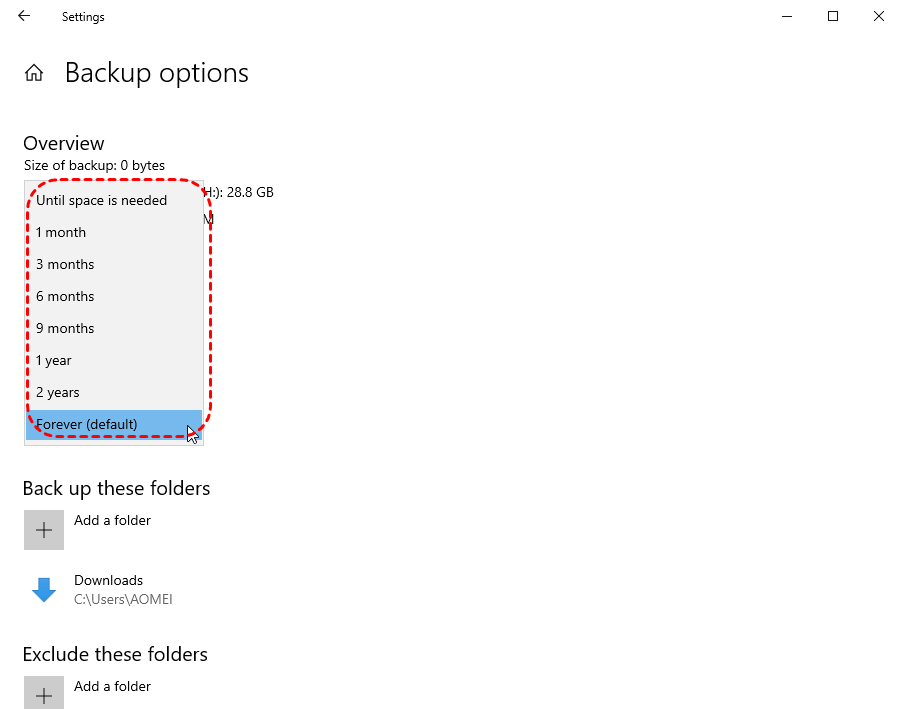
Choose what works best based on your storage size.
👉In Advanced settings, you can set retention time in Keep saved versions option:
- Until space is needed
- 1 month
- 3 months
- 6 months
- 1 year
- 2 years
- Forever (default)
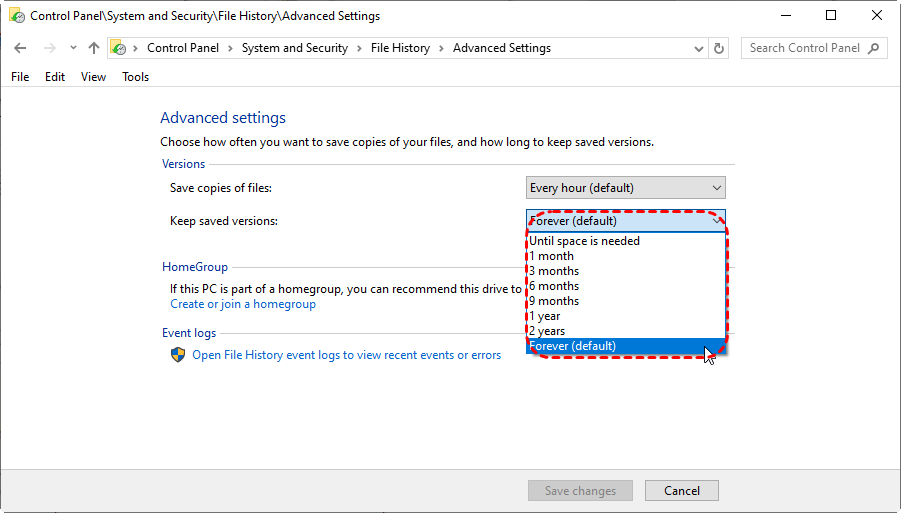
This gives you full control over backup history management.
Best Practices Using File History Effectively
Here’s how to get the most from it.
👉 Recommended Frequency
If you work on important files daily:
➡️ Every 10–20 minutes
For average users:
➡️ Every hour (default)
For light users:
➡️ Every 3–12 hours
👉 Recommended Retention Time
- Large backup drive → Forever
- Small or moderate drive → 3 months – 1 year
This prevents storage issues without sacrificing safety.
Best Tool for Fixing File History Not Working
Sometimes File History doesn’t work the way it should — maybe it stops running, fails to detect your drive, or displays strange error messages. When that happens, you need a reliable tool that can help repair issues or recover your files quickly.
That’s where a specialized repair and recovery tool becomes incredibly helpful. MyRecover is one of the most effective tools for dealing with File History failures. It doesn’t just recover lost files — it can also help when File History refuses to back up or restore correctly.
Key Features That Make MyRecover the Best Fix
- Recovers files File History missed or failed to save
- Repairs corrupted or damaged File History folders
- Works even if File History won’t open or crashes
- Supports all storage types: HDD, SSD, USB, NAS, external drives
- Restores permanently deleted files Windows can’t recover
 100% Secure
So even if File History isn’t functional, MyRecover gives you a safety net so your data stays protected.
Conclusion
So, by default, File History performs backups every hour, giving you a reliable level of file protection with minimal effort. Whether you’re working on important documents or just want peace of mind, this feature ensures you always have recoverable versions of your files.
And the best part? You can customize the backup frequency, storage location, and retention period — making File History flexible enough for nearly every user. And, if the File History is not working, MyRecover is a powerful tool worth considering to restore important data quickly.
Protecting your data isn’t just smart — it’s essential. With File History or MyRecover, you can restore your data with confidence.

Stay Updated With Our
Latest Tips
Add us as a preferred source on Google to never miss helpful guides.
 Add as preferred source >>