 MyRecover



Cannot Open JPG Files? 7 Fixes for Windows 10/11
This article explains why you cannot open JPG files and provides complete solutions. If you cannot open JPG files with Windows Photo Viewer, we cover registry tweaks and settings changes to get your photos back.

By Delores / Updated on March 20, 2026


Cannot Open JPG Files!
Unable to open JPG in Windows 10: "We can't open this file :( :(
Hello,
Please help resolve this issue
The problem is that I am unable to open 90% of the files (JPG) on my computer, and I do not know why.
To illustrate, the problem is not in the image engine, and the proof is that it reviews the pictures with me naturally, but does not open a large proportion of the images, and a picture showing the subject.
- Question from learn.microsoft.com
If you just like the above user while opening JPG files, and encounter one of the following error messages:
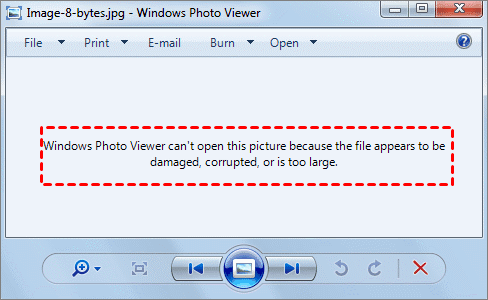
- Windows Photo Viewer can’t open this picture because the file appears to be damaged, corrupted, or is too large.
- The file does not have a program associated with it for performing this action. Please install a program or, if one is already installed, create an association in the Default Programs control panel.
- We can’t open this file.
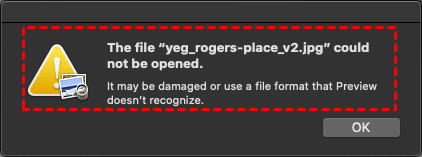
- The file “*.JPG” could not be opened. It may be damaged or use a file format that Preview doesn’t recognize.
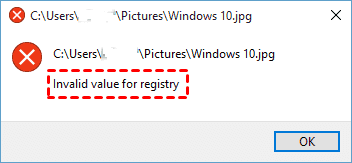
- Invalid value for registry.
Don’t worry, you’re in the right place. This comprehensive guide will walk you through every possible solution, from simple setting tweaks to advanced registry fixes. Besides, help you recover deleted JPG files even if they are lost.
Why Can't You Open JPG Files on Windows 10/11?
The JPG format, while among the most universal image types, depends on your operating system's capacity to correctly interpret its data. When you cannot open JPG files, the cause varies.
- The JPG files are corrupted or damaged due to improper saving or transfer, virus or malware infection, or incomplete download, etc.
- Problems with the Photo Viewer App. The Windows Photo Viewer or Microsoft Photos app may be outdated, corrupted, or not set as the default app to view these JPG files.
- The JPG file may be too large for a standard viewer to handle, or it might have an incorrect file extension (like image.jpg.jpg) that confuses the operating system.
- Damaged Windows system files can disrupt image handling after a Windows update.
- Insufficient system memory can sometimes prevent an image from loading.
7 Fixes for Cannot Open JPG Files
Now, it’s time to fix the Windows 10 cannot open JPG files problem.
Way 1. Check the File Extension Is Correct
You download an image, and it gets saved as "image.jpg.jpg" or, even worse, "image.png.jpg". Windows hides known file extensions by default, so you might not even realize you're dealing with a double extension. And Windows doesn't know what program to use for a file with a garbled name.
To check this:
1. Open File Explorer, click the "View" tab, and tap Show > check the box that says "File name extensions".
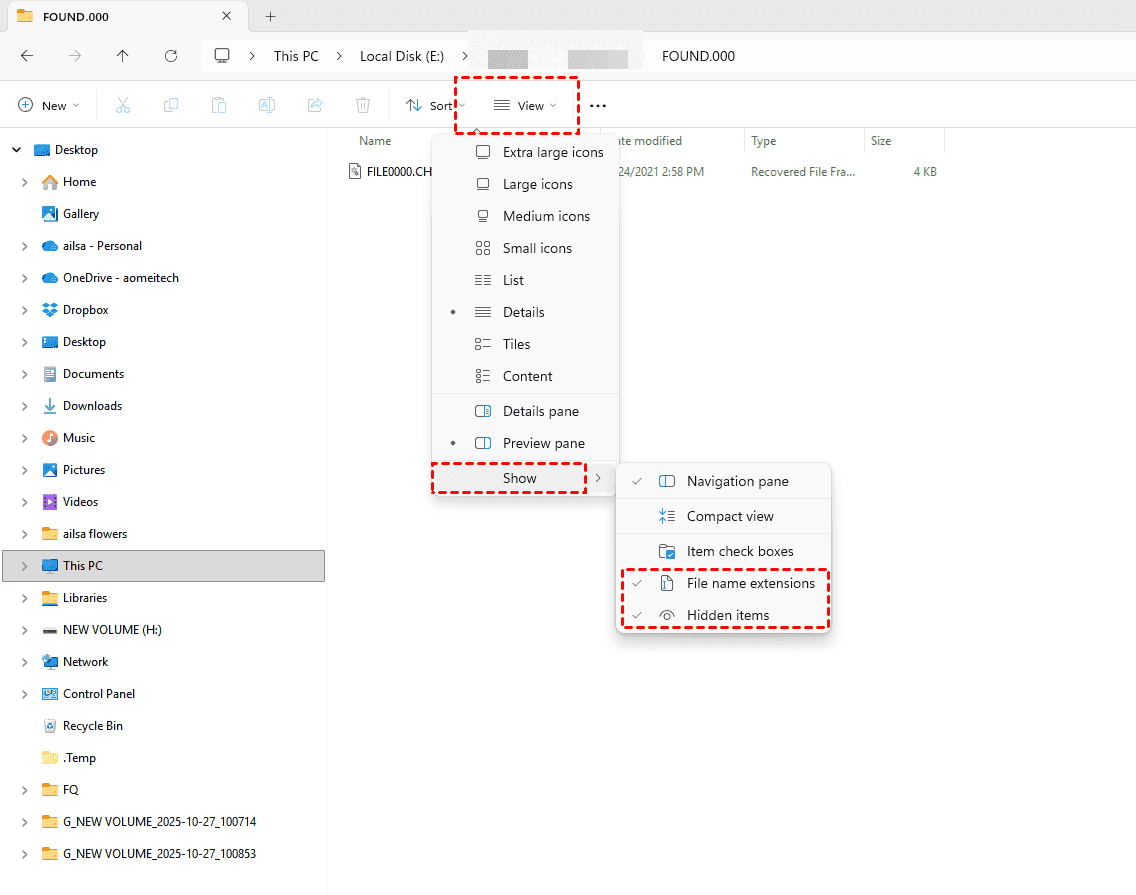
2. Now look at your troublesome image. If you see something like "vacation.jpg.jpg".
3. Simply rename it to remove the extra ".jpg" at the end.
Way 2. Test the JPG Image in a Different Application
1. Right-click the problematic image and select "Open with".
2. Try opening it in Paint, a web browser (like Edge or Chrome), or any other installed image software.
3. If the image opens perfectly in Paint or your browser, your image file isn't corrupted! The problem is your default photo viewer. If it won't open anywhere, your JPG files are corrupted.
Way 3. Install the Latest Windows Update
Sometimes, the reason you cannot open JPG files is that a recent update broke something, and the subsequent Windows update fixes it.
Go to Settings > Update & Security > Windows Update and click "Check for updates".
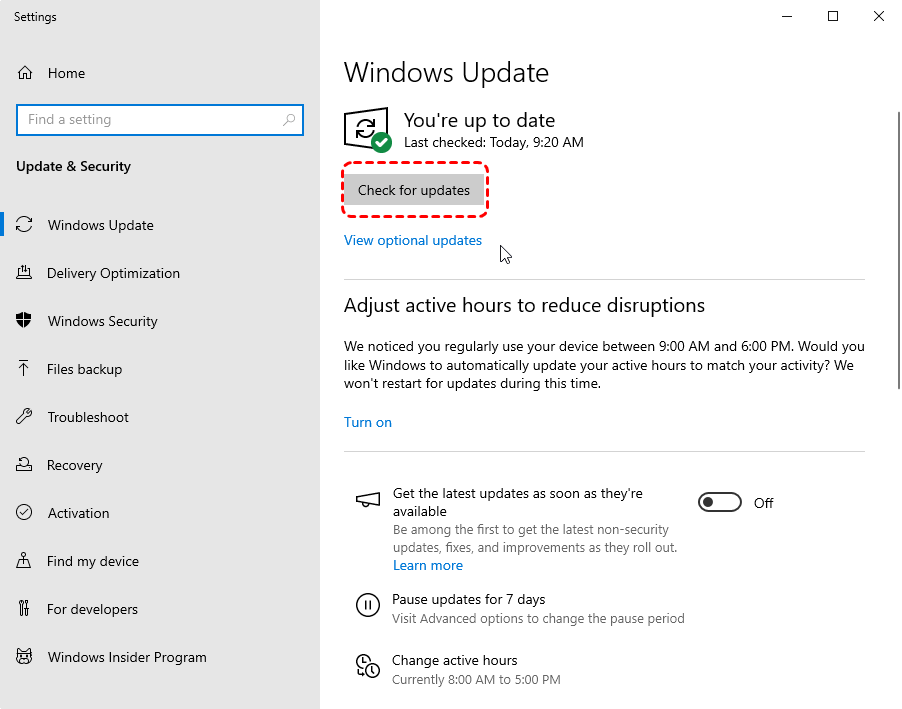
Then install the latest Windows update.
Way 4. Check File and System Integrity
Turn off encryption: Right-click the JPG file, select Properties > Advanced, and uncheck "Encrypt contents to secure data" if it's selected. This is a common issue for photos transferred from phones.
Run a system file scan: Corrupted system files can block JPG access. Open Command Prompt as administrator, type sfc /scannow, and press Enter. This will scan and repair system files.

Way 5. Repair Windows Photo Viewer
If you just cannot open JPG files with Windows Photo Viewer, but not with other tools, you can try to repair Windows Photo Viewer like this:
1. Press the Windows key + R to open the Run dialog box. Type the following command exactly as written:
rundll32.exe shell32.dll,Control_RunDLL sysdm.cpl,,3
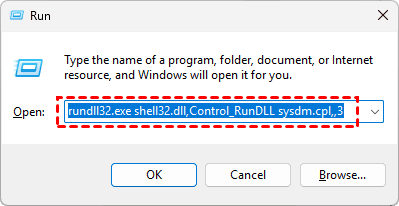
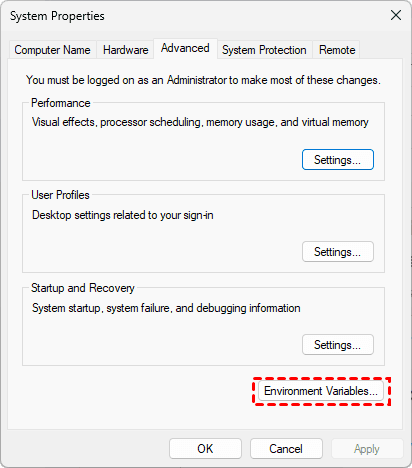
2. Then tap Environment Variables to open it.
3. Verify that both the "TMP" and "TEMP" variables are set to %USERPROFILE%\AppData\Local\Temp. If they are not, or if you are uncertain, set them both to C:\Windows\Temp.
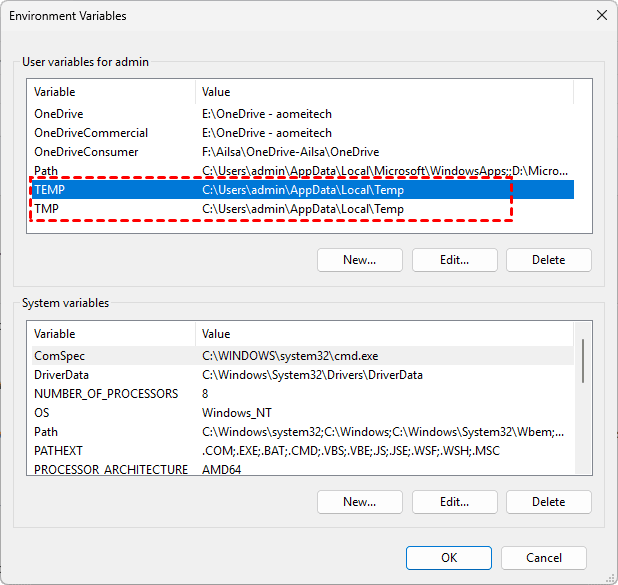
This configuration ensures Windows Photo Viewer can access the temporary files required to display images properly.
4. Press Windows key + R, type regedit, and press Enter.
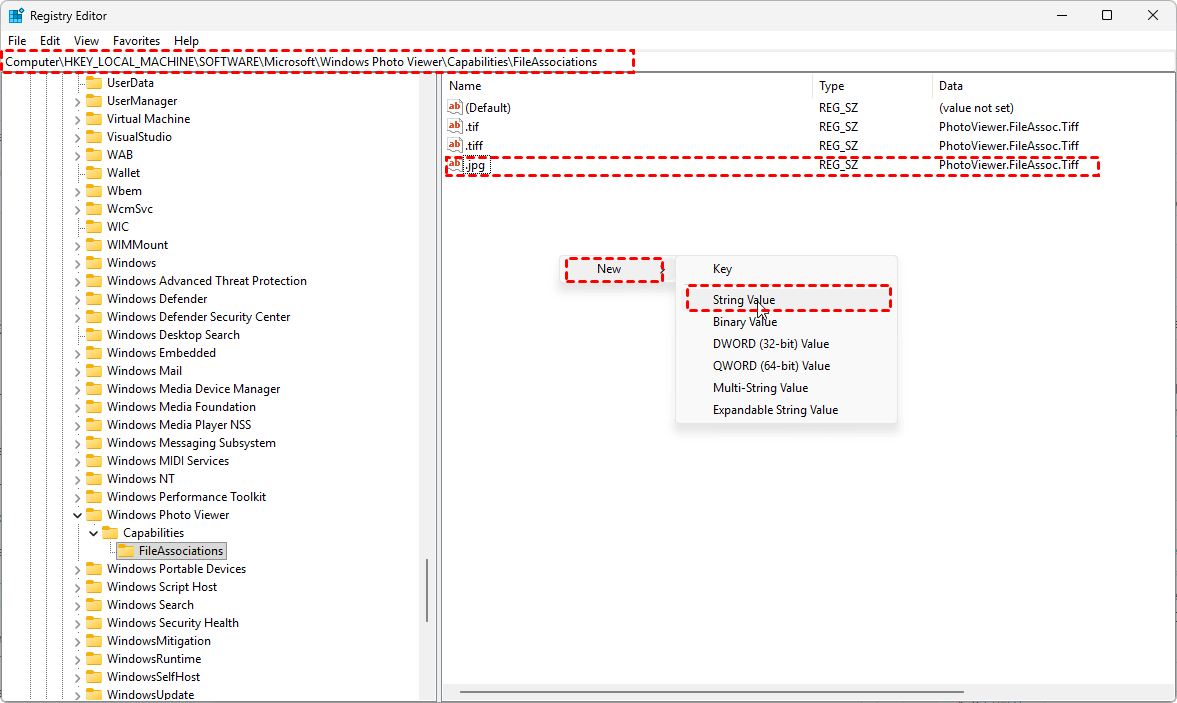
5. To reactivate Windows Photo Viewer, navigate to HKEY_LOCAL_MACHINE\SOFTWARE\Microsoft\Windows Photo Viewer\Capabilities\FileAssociations, in the right pane, right-click and select New > String Value.
6. Name the new value .jpg and set its Value data to PhotoViewer.FileAssoc.Tiff. Repeat this process for .jpeg, .png, .gif, and any other image formats you use.
7. After completing these steps, right-click any JPG file, select "Open with," and choose Windows Photo Viewer.
8. Check "Always use this app to open .jpg files," and click OK.
Way 6. Convert JPG to Other Formats
If a specific file is giving you trouble, try converting it.
1. Open the image in Paint (which almost always works, even when Photo Viewer doesn't).
2. Once it's open in Paint, go to File > Save As and choose PNG or BMP format. This creates a brand new file with a different extension.
3. You can then convert it back to JPG using an online converter if needed.
This bypasses any corruption that might be specific to the JPG header data.
Way 7. Open JPG Files in Web Browsers
Modern web browsers are surprisingly powerful image viewers. Simply drag your JPG file into an open Chrome, Firefox, or Edge window. Browsers have their own built-in image rendering engines that don't rely on Windows' system files.
FAQs About JPG File Issues
Why does my computer say "cannot open JPG files"?
A: This error usually means your default photo viewer isn't properly associated with JPG files, the image is corrupted, or there's a registry conflict. Try opening the file in Paint or a web browser. If it opens elsewhere, the issue is your default viewer settings. If it won't open anywhere, the file may be corrupted.
How do I fix the "invalid value for registry" error when opening JPG files?
A: First, reset the Microsoft Photos app via Settings > Apps > Apps & Features > Microsoft Photos > Advanced Options > Reset. If that fails, edit the registry: navigate to HKEY_CURRENT_USER\Software\Classes\Local Settings\Software\Microsoft\Windows\CurrentVersion\AppModel\Repository\Families\Microsoft.Windows.Photos_8wekyb3d8bbwe and delete all but the highest version folder. Always back up your registry first.
What should I do if Windows 10 cannot open JPG files after an update?
A: Updates often reset file associations. Go to Settings > Apps > Default Apps and ensure a photo viewer is selected for JPG files. If Windows Photo Viewer is missing, add it via registry edit. Also, run the Windows Store Apps troubleshooter under Settings > Update & Security > Troubleshoot.
Can I recover JPG files that were deleted while trying to fix viewer issues?
A: Yes. Immediately stop using the affected drive to prevent overwriting. Use recovery software like MyRecover—install it on a different drive, scan the original location, preview found images, and recover them to a safe location. Acting quickly improves success rates.
Why does Windows Photo Viewer say it doesn't support this format?
A: Despite the message, Photo Viewer supports JPG files. The real issue is a broken file association or a disabled viewer. Use the registry fix to re-enable Photo Viewer for JPG files, or switch to the modern Photos app. The error is misleading—it's about connection, not format support.
Recover Lost JPG Files in Windows 10/11
Sometimes, you might find that your JPG files are not just unopenable but completely missing. Maybe you accidentally deleted them while trying to fix the viewer, or perhaps the registry errors were symptoms of a larger file system problem. This is where professional recovery software MyRecover comes to help.
MyRecover is a powerful data recovery tool designed specifically for all Windows environments, including Windows 10 and 11.
- MyRecover offers a clean, intuitive interface that guides you through the process step by step.
- MyRecover supports many data loss scenarios—whether your files were deleted, your drive was formatted, or you're dealing with a corrupted partition.
- Second, it uses advanced scanning algorithms that can recover files even from formatted or damaged drives. because it supports quick scan and deep scan modes.
- It supports 1,000+ file formats, with particular strength in recovering JPG, JPEG, PNG, and other common image types.
- You can preview files before recovery, saving time and ensuring you're recovering exactly what you need.
- Plus, MyRecover works with all types of storage devices—internal hard drives, external SSDs, USB flash drives, Xbox One, PS4/5, Music players, audio players, and even SD cards from your camera.
Step-by-Step Guide to Recover JPG Files Using MyRecover:
1. Please download and install MyRecover on a different drive than the one where your lost photos were stored. Launch it.
 100% Secure
2. Tap Deleted Files Recovery, hit Scan while pointing at the drive where the lost JPG files were located. Hit OK when it’s done.

3. Preview and choose the deleted JPG files, and press Recover.

4. Select a target location to keep these recovered JPG files.


- Notes:✎
- Once the scan finishes, you can sort files by file type and file path. Besides, you can also filter JPG files by searching .jpg or .jpeg, or even the full file name to find them quickly.
- Double-click the JPG files before recovery to confirm they are the ones you're looking for.
- Upgrading to MyRecover Technician is a great option if you need to recover files from an unlimited number of computers.

 MyRecover
- Recover Deleted Files Easily with Simple Clicks
- 1000+ File Formats Supported
- Support HDD, SSD, External Hard Drive, USB Drive, SD Card, etc.
- Quickly Find Files Using File Types, Name, Size, etc.
- Preview Files Before Recovering
- Recover Unlimited Data
 100% Secure

Stay Updated With Our
Latest Tips
Add us as a preferred source on Google to never miss helpful guides.
 Add as preferred source >>