 MyRecover



Sabrent Data Recovery Made Simple: Recover Your Files Today
This article provides a comprehensive guide to Sabrent data recovery, offering solutions for common scenarios. We detail reliable software options and professional services for Sabrent hard drive recovery. We also address frequent issues, specifically troubleshooting when Sabrent data recovery is not working, to help you successfully restore your lost files.

By Delores / Updated on December 26, 2025


Preface
Losing files from a Sabrent external hard drive or SSD can feel like a punch in the gut. Whether it’s due to an accidental format, a sudden drive failure, or that dreaded "device not recognized" error, the need for reliable Sabrent data recovery becomes desperately real.
This guide will break down everything you need to know to get your data back from the brink and walk you through proven solutions. Let's get started to recover files from Sabrent hard drives.
About Sabrent Data Recovery
In fact, Sabrent data recovery is the process of salvaging inaccessible, lost, or formatted data from Sabrent-branded storage devices. When you delete a file or a drive fails, the data isn’t immediately wiped; the space it occupied is simply marked as available for new data. The key to successful recovery is acting quickly before that space is overwritten.
Common Causes of Sabrent Hard Drive Failure
Sabrent devices are popular for their performance and reliability, but like any piece of hardware, they’re not immune to human error, physical wear, or software gremlins.
Drives don’t just fail out of the blue; there’s always a reason. We list the main reasons for you to troubleshoot:
- Physically damaged Sabrent hard drives. If your Sabrent drive has taken a tumble, gotten wet, or you can hear a disturbing clicking or grinding sound coming from it, you’re likely facing hardware trouble.
- Simple connector damage or a faulty PCB (the drive’s circuit board) can cause the device to be unreadable.
- Accidental deletion.
- Formatting the incorrect drive.
- Partition loss.
- File system corruption—often indicated by a "RAW" drive warning.
- Virus or malware attacks.
Once the type of problem is identified, you can take actions to recover files from the Sabrent hard drive using the right methods. Now, let’s get started to find your Sabrent data recovery software.
Solutions for Sabrent Data Recovery
Important: Stop using the affected Sabrent drive immediately to prevent overwriting once you find there are some issues with your Sabrent drive
Way 1. Turn to Professionals Data Recovery Lab
First, physically inspect the drive. Any odd noises or visible damage? If you have clear signs of physical damage (water, impact, clicking), if the drive is not detected by any computer (even in BIOS/Disk Management), power it down and consider professionals for your Sabrent data recovery.
Professional services operate in ISO-certified cleanrooms where they can physically open the drive, repair or replace damaged components, and create a sector-by-sector image of the platters to work from.
However, professional Sabrent data recovery is costly, ranging from hundreds to thousands of dollars; its value is measured against the irreplaceable nature of the data it aims to save. Or you have to replace it with a new one, and you will lose everything.
Way 2. Try a Different USB Cable or Port
First, try a different USB cable and port on your computer. If it's a desktop, try connecting the drive directly to a SATA port inside the case, bypassing any external enclosures that might have failed.
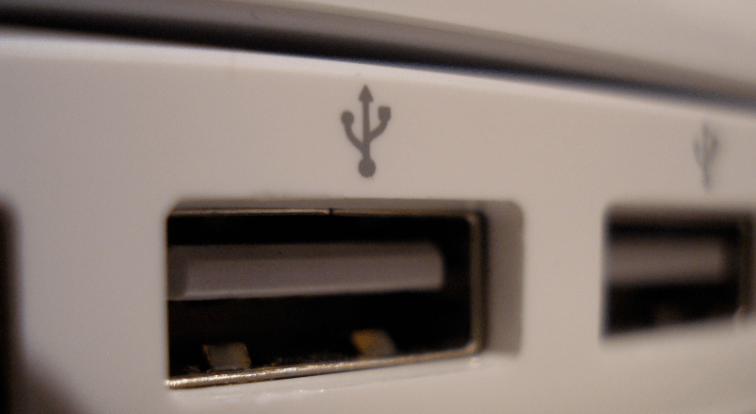
Please back up your files if you can access the Sabrent files after changing your USB cable or port. Or you can try other ways to recover files.
Way 3. Assign A Drive Letter for the Sabrent Drive
If the Sabrent hard drive seems physically okay, connect it to your computer. Does it show up in Disk Management?
If it shows in Disk Management but not File Explorer, you can assign a drive letter to the Sabrent hard drive, because it might lack a drive letter, then check if you can access these files on that drive. If you can, back up all files in case of data loss.
If not, the Sabrent drive probably shows unallocated or RAW in Disk Management, and you might need data recovery software to recover files from it. If the computer prompts you to format the Sabrent hard drive, don’t format it. Formatting the drive deletes everything.
Way 4. Best Sabrent Data Recovery Software- MyRecover
Now, you need a professional Sabrent data recovery software to recover files easily. Faced with a sea of recovery programs, how do you pick the right one? You need a tool that’s both powerful and user-friendly, one that can handle the specific woes of your Sabrent drive. You have to check if the Sabrent data recovery software provides the following key features.
- Widely compatible. The software must support your drive’s file system (NTFS, exFAT, FAT32, APFS, etc.) and your computer’s OS.
- Deep scan. Look for tools that offer both a quick scan for recently deleted files and a deep scan that combs through every sector for recoverable data fragments.
- Preview functionality. You can see thumbnails of recoverable photos or preview documents before recovery.
- A clean, intuitive interface. You can recover files easily, even for a newbie.
- A high recovery rate. To recover files fast and quickly, the recovery rate is another factor that should be considered.
Fortunately, the powerful Windows data recovery software MyRecover meets all the above requirements. Therefore, you can recover files easily from a Sabrent hard drive.
1. Please connect your Sabrent hard drive to the computer and ensure it can be detected by Windows. Then download and install MyRecover on your computer, then launch it.
 100% Secure
2. Tap Disk Data Recovery, hit Scan while pointing to your Sabrent hard drive. Then wait for the scanning to complete, and hit OK.

3. Preview and select the files you need, and hit Recover.

4. Choose a safe directory to keep Sabrent files.

- Tips:✎...
- Once the scan is started, MyRecover will immediately begin with a quick scan, which rapidly searches the existing file system for recently deleted entries. If you can’t find missing files, you can perform a deep scan manually.
- After the scan is complete, you’ll see a comprehensive and organized view of your recoverable data. Use the tree-view on the left to navigate by folder path, or file type, or use the filters at the top to sort by file name, size, or date modified/deleted.
- Click on any file—like a JPG, PDF, or Word document—and a preview will generate on the right, allowing you to verify its integrity before recovery. This feature is crucial for ensuring you’re getting usable files back.
Your Sabrent data recovery mission, aided by MyRecover, is now complete. Remember, once your data is safe, you can then look into diagnosing and potentially reformatting the original Sabrent drive for future use.
For more powerful features, you can also upgrade to MyRecover Technician to enjoy, like recovering files from unlimited computers within a company if you’re an administrator.

 MyRecover
- Recover Deleted Files Easily with Simple Clicks
- 1000+ File Formats Supported
- Support HDD, SSD, External Hard Drive, USB Drive, SD Card, etc.
- Quickly Find Files Using File Types, Name, Size, etc.
- Preview Files Before Recovering
- Recover Unlimited Data
 100% Secure
FAQs About Sabrent Data Recovery
Q: Can I recover data from a failed Sabrent SSD?
A: Recovery is possible, but more complex than with a hard drive. SSDs use TRIM technology, which can permanently erase deleted data, lowering recovery chances if activated. For logical failures like accidental formatting, Sabrent data recovery software may work if TRIM hasn't run. Physical SSD damage typically requires professional service.
Q: What is the best free Sabrent data recovery software?
A: Free tools are limited but useful for basic cases. Recuva (Windows) handles simple deletion recovery. Disk Drill's free version recovers up to 500MB for testing. For serious Sabrent hard drive recovery involving formatting or partition loss, paid software is more effective due to deeper scans and no file restrictions.
Q: My computer says "format the disk" for my Sabrent drive. Should I?
A: Do not format the drive. This error means the file system is corrupted, but your data is likely intact. Formatting would overwrite it, complicating Sabrent data recovery. Use recovery software immediately to scan and save your files to another drive first.
Q: How long does a Sabrent data recovery deep scan take?
A: Scan time varies by drive size and connection. A deep scan processes roughly 1-3GB per minute. A 1TB drive may take 6 to 17 hours. Ensure a stable USB 3.0+ connection and prevent computer sleep to avoid interruptions.
Q: Why is professional Sabrent recovery so expensive?
A: Costs cover specialized expertise and facilities. Professional recovery requires cleanroom labs, proprietary tools, donor parts, and trained technicians. You pay for a high success rate in complex, physical failure cases beyond DIY software.
Q: Can Mac software recover files from a Windows-formatted Sabrent drive?
A: Yes, compatible Mac software can perform this recovery. Tools like Data Rescue or Disk Drill for Mac can scan drives with Windows file systems (NTFS, FAT32). They recover files to your Mac or another Mac-formatted drive.

Stay Updated With Our
Latest Tips
Add us as a preferred source on Google to never miss helpful guides.
 Add as preferred source >>